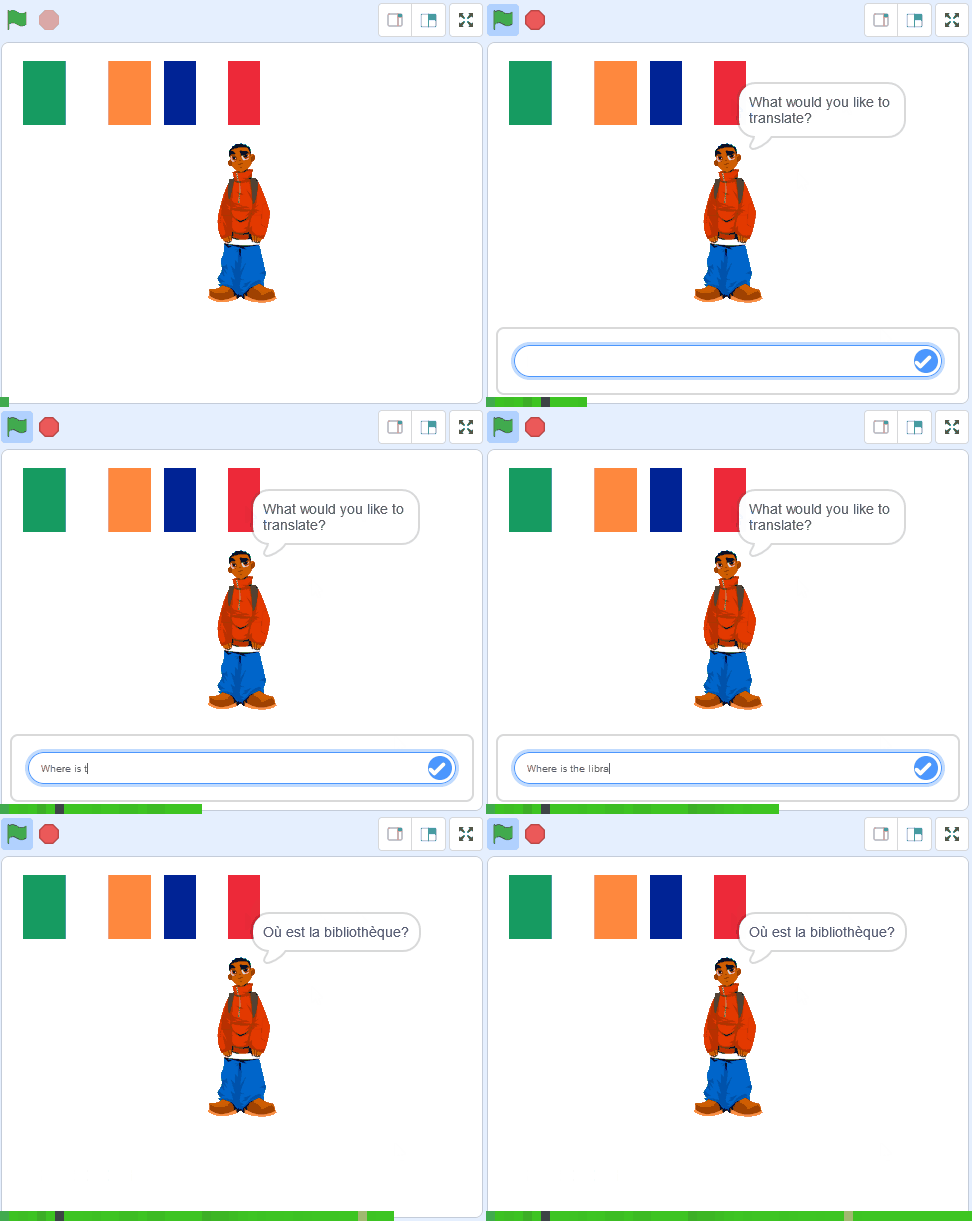
Welcome to our exciting lesson on translating languages! In this lesson, you will learn how to use Scratch to translate text into different languages and make a sprite speak the translation out loud. This is a fun way to learn about different languages and how to use coding to create a mini language translator. Let's get started!
Go to the Scratch website and create a new project, you can delete the cat sprite.
Go to the Scratch website using the link below and click on the 'Create' link in the blue bar at the top.
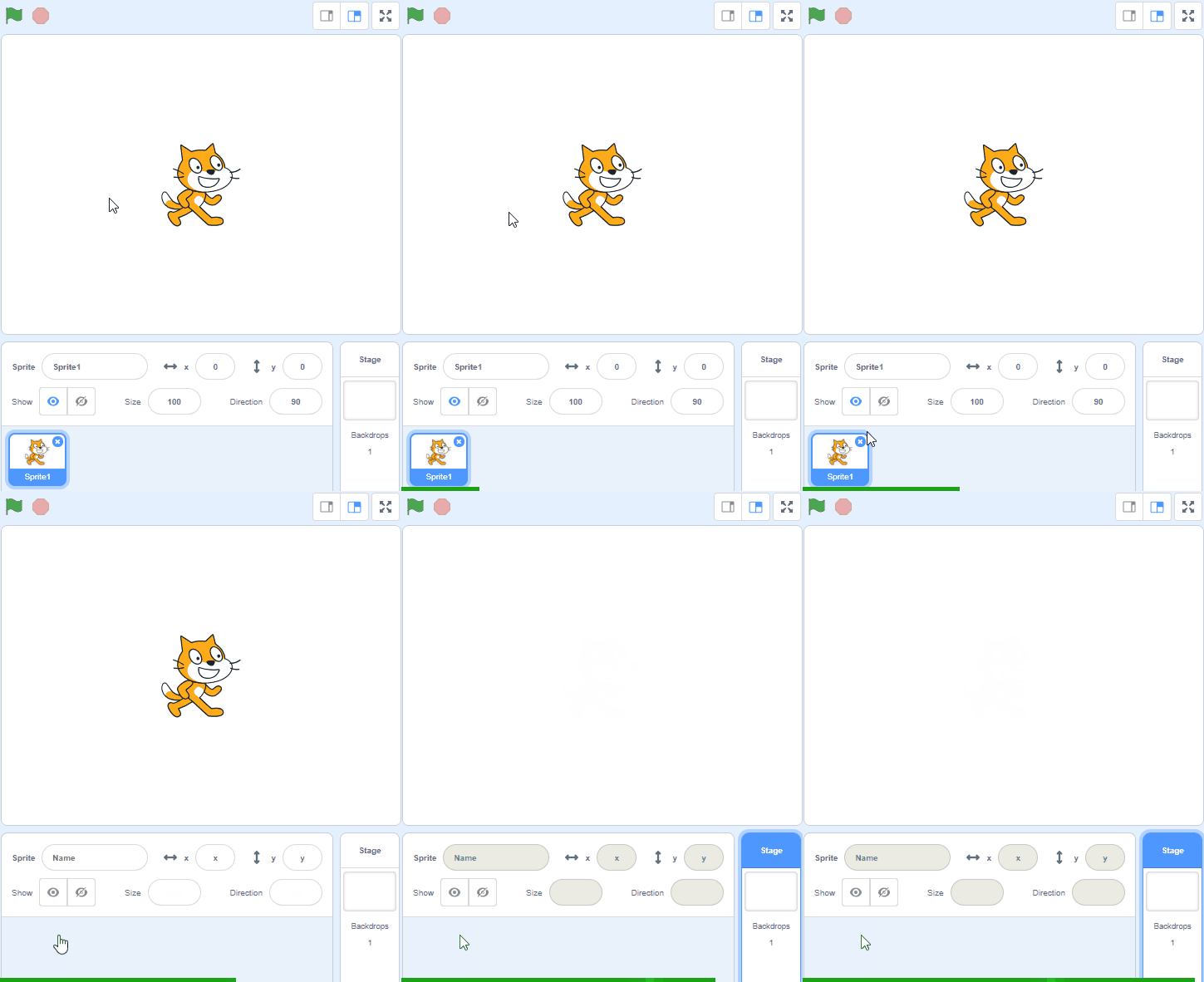
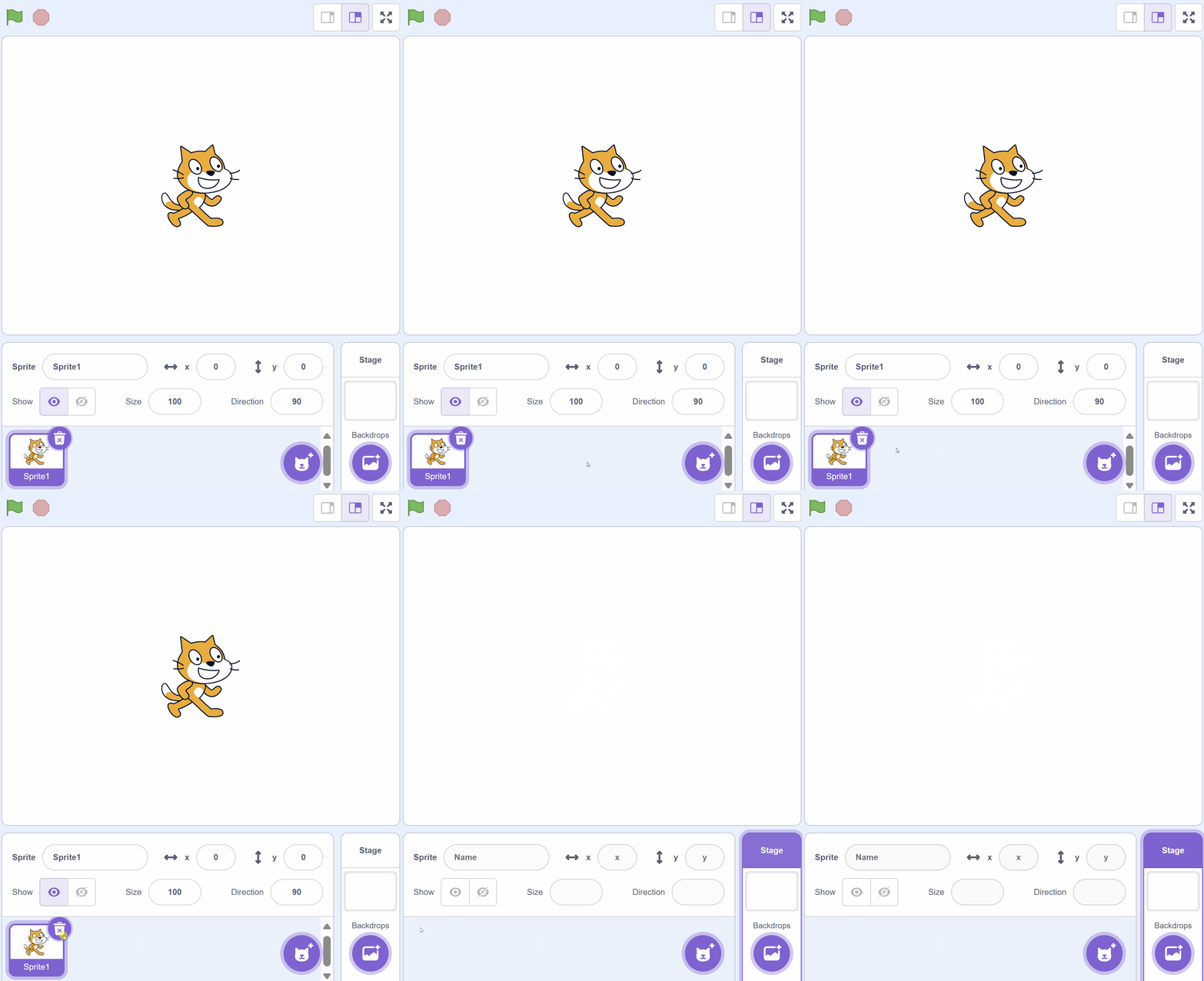
By default, each new project starts with the cat sprite already added. To delete the cat click on the x in the blue circle beside the cat in the sprite list.
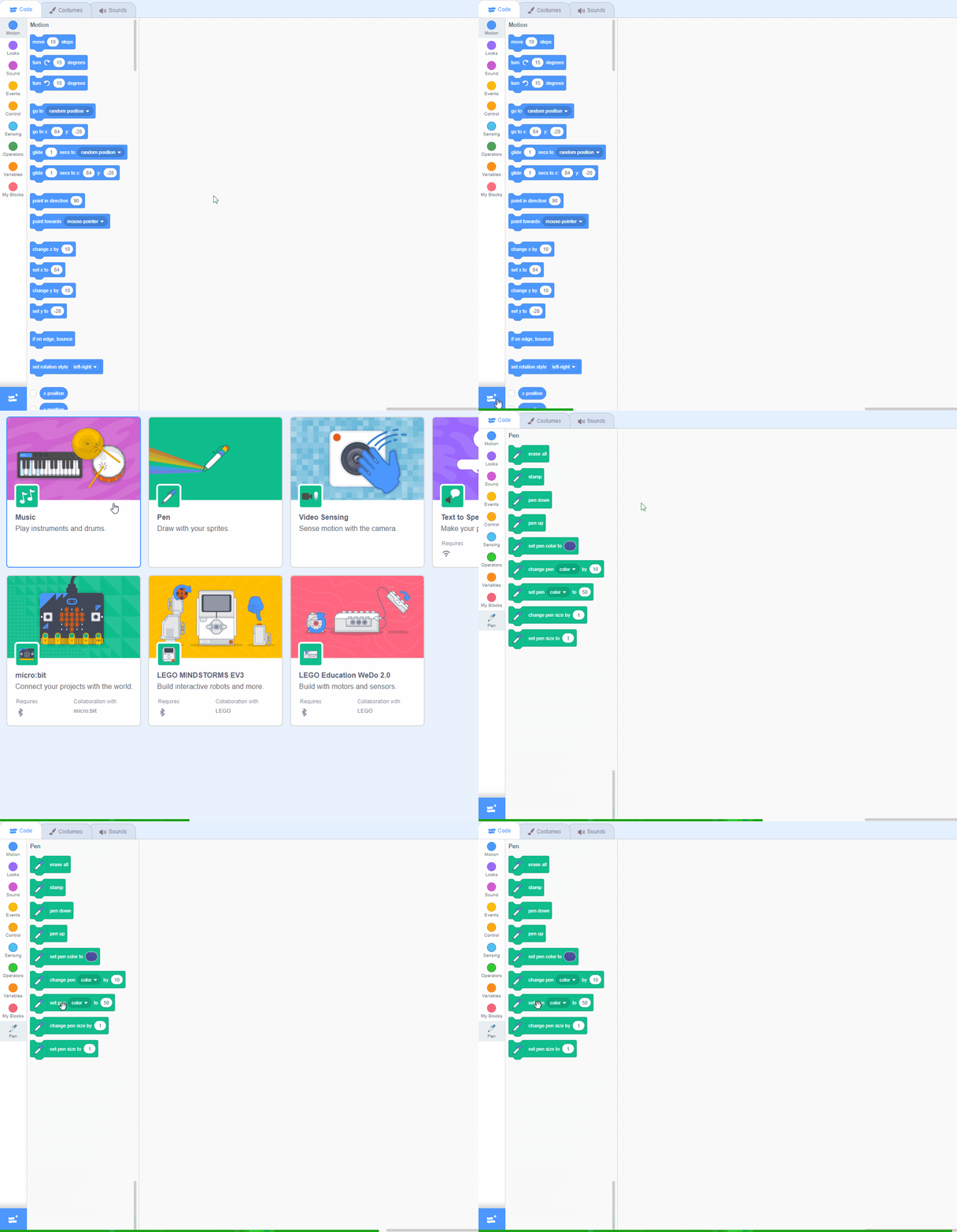
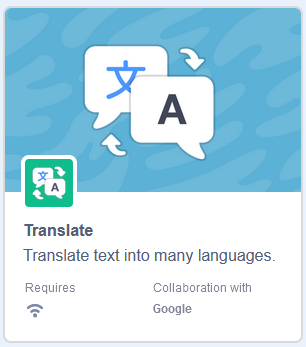
Now, we are going to add a special tool to our project called the Translate extension.
This extension will help us translate words or sentences from one language to another. It's like having a mini language translator in our project! To add this, look for the button that says 'Extensions' at the bottom left corner of your Scratch screen and click on it. Then, find the 'Translate' extension and click on it to add it to your project.
Scratch Extensions are additional sets of blocks that expand the capabilities of your Scratch projects. They allow you to:
When you add an extension to your project:
Now, let's add another cool tool to our project, the Text to Speech extension.
This extension will allow our sprite to speak out loud the translations we make! It's like giving a voice to our sprite. To add this, look for the button that says 'Extensions' at the bottom left corner of your Scratch screen and click on it. Then, find the 'Text to Speech' extension and click on it to add it to your project.
Scratch Extensions are additional sets of blocks that expand the capabilities of your Scratch projects. They allow you to:
When you add an extension to your project:
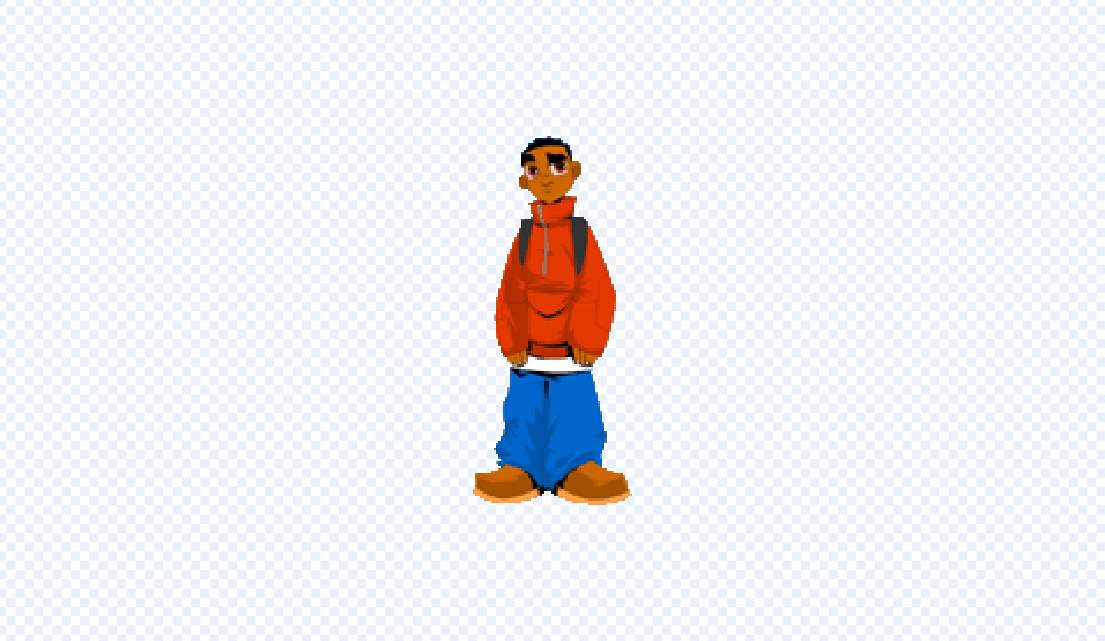
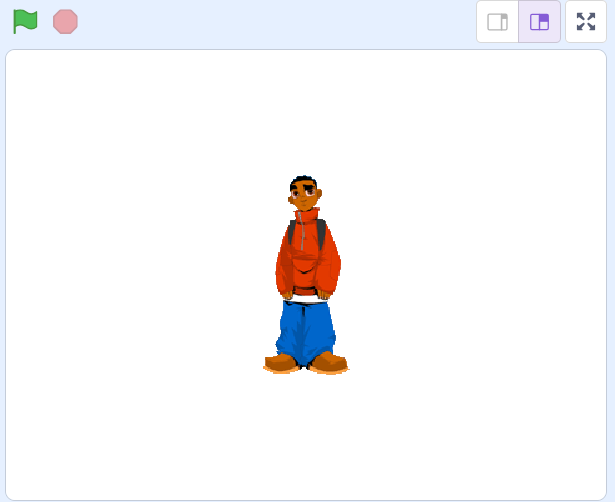
Add the Kai sprite from the library. We will use this sprite to ask what you want to translate and to say the answer.
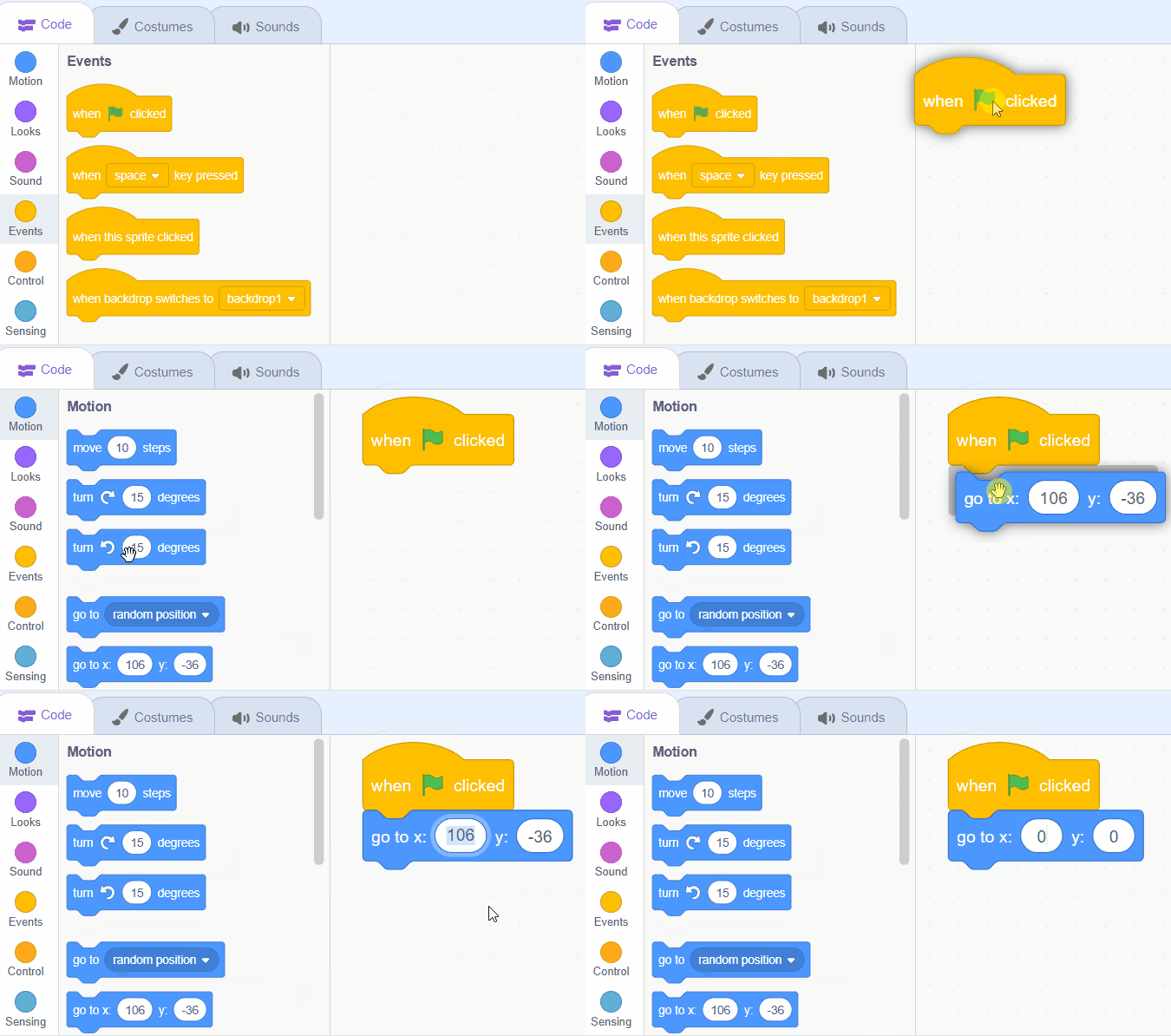
Add the following code to the Kai sprite to position him in the centre.
when green flag clicked
go to x: (0) y: (0)
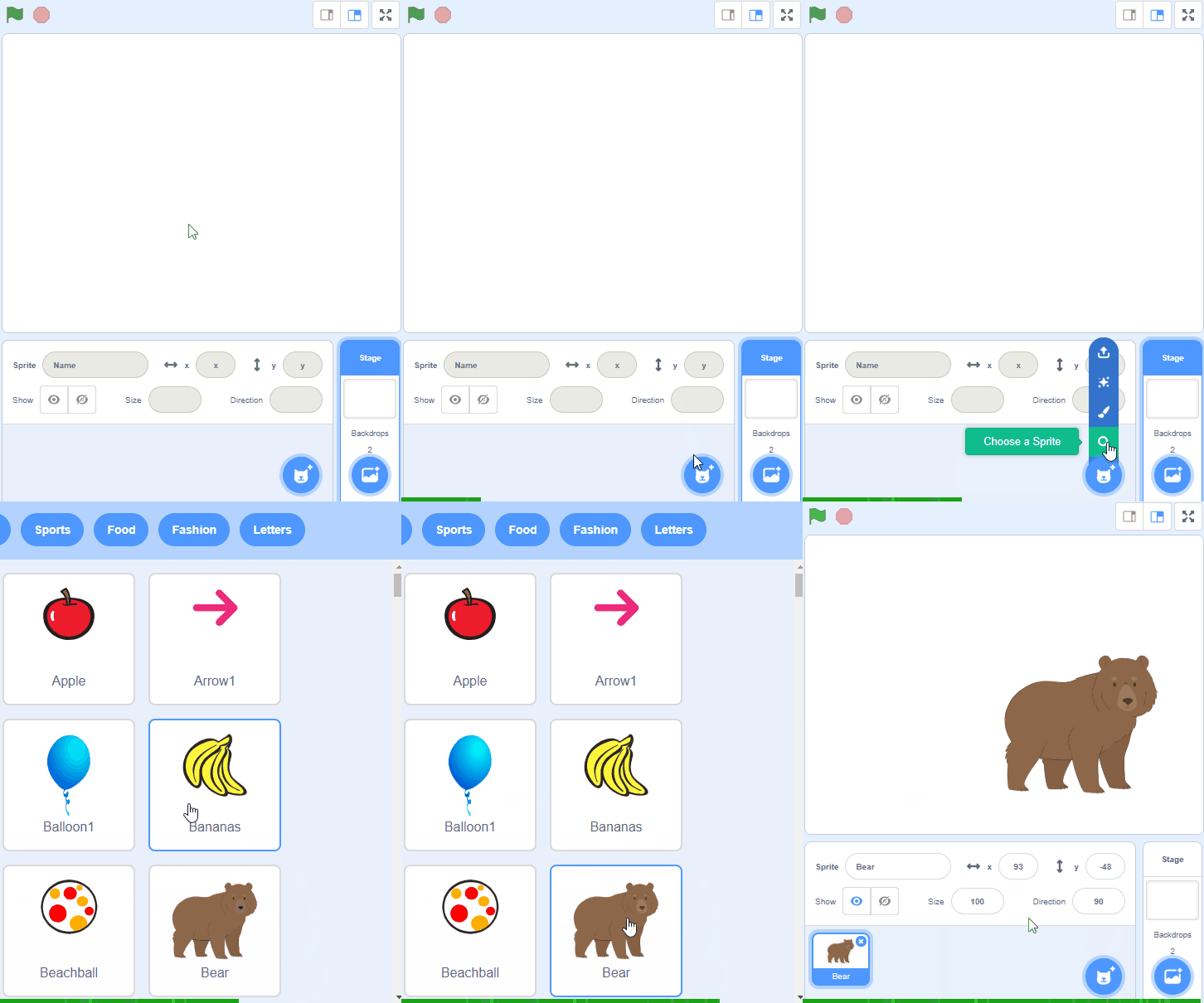
To add a sprite from the sprite library follow these steps:
You can use search box or the filter links (Animals, People, Fantasy etc) to locate your sprite.
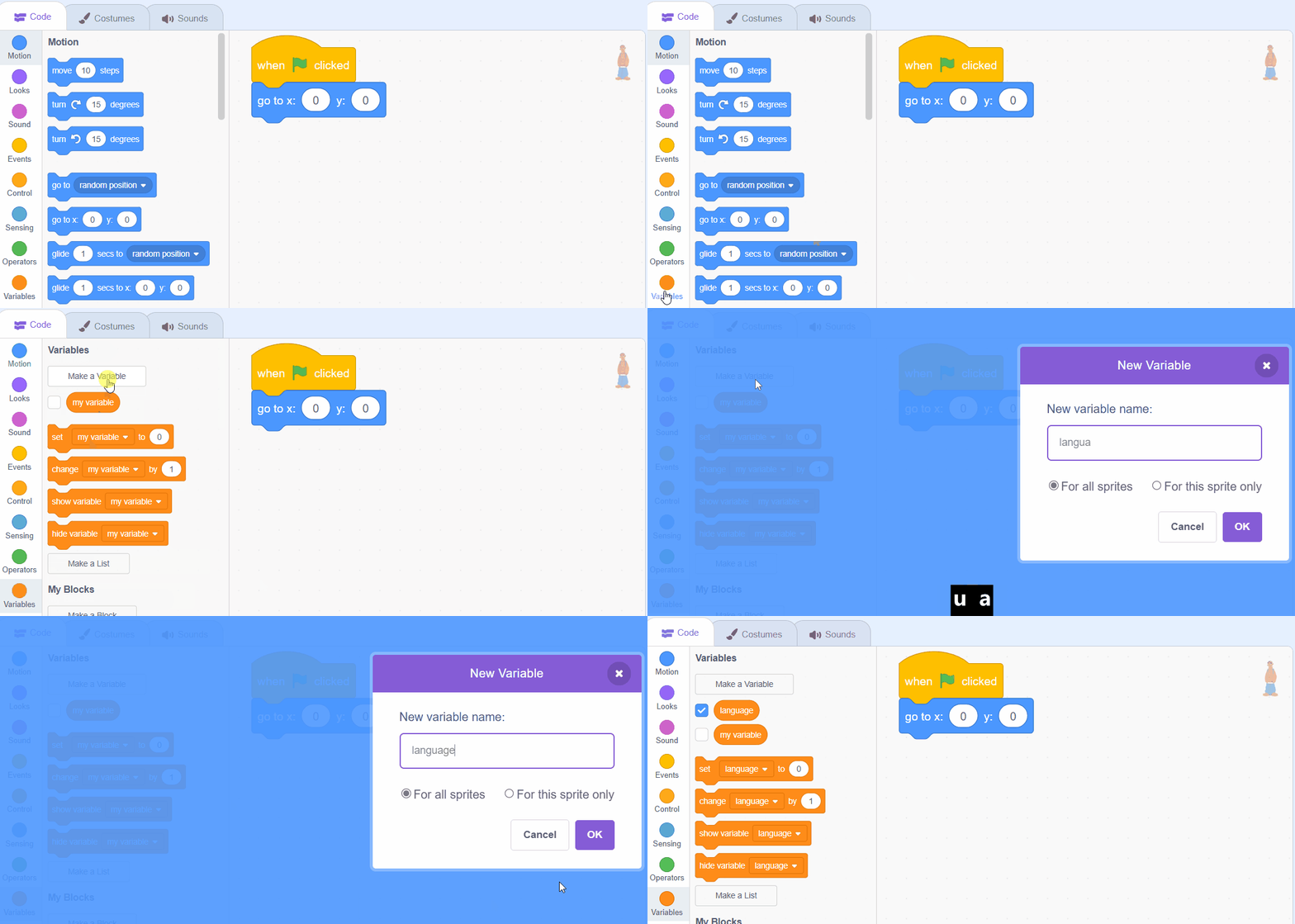
We need the following 2 variables in our project:
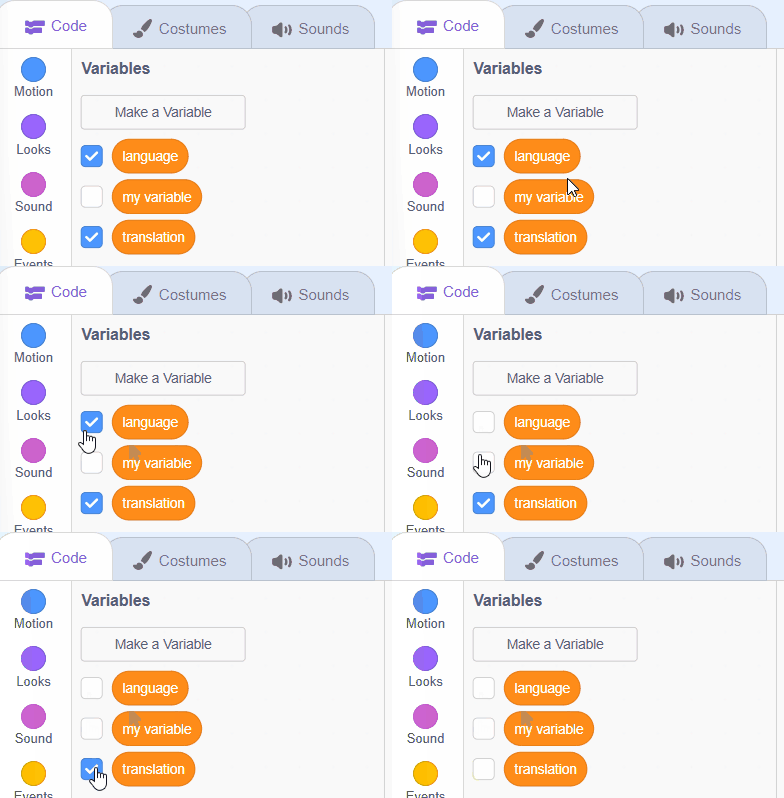
Create the 2 variables and then uncheck them in the toolbox so that they do not appear in the stage area.
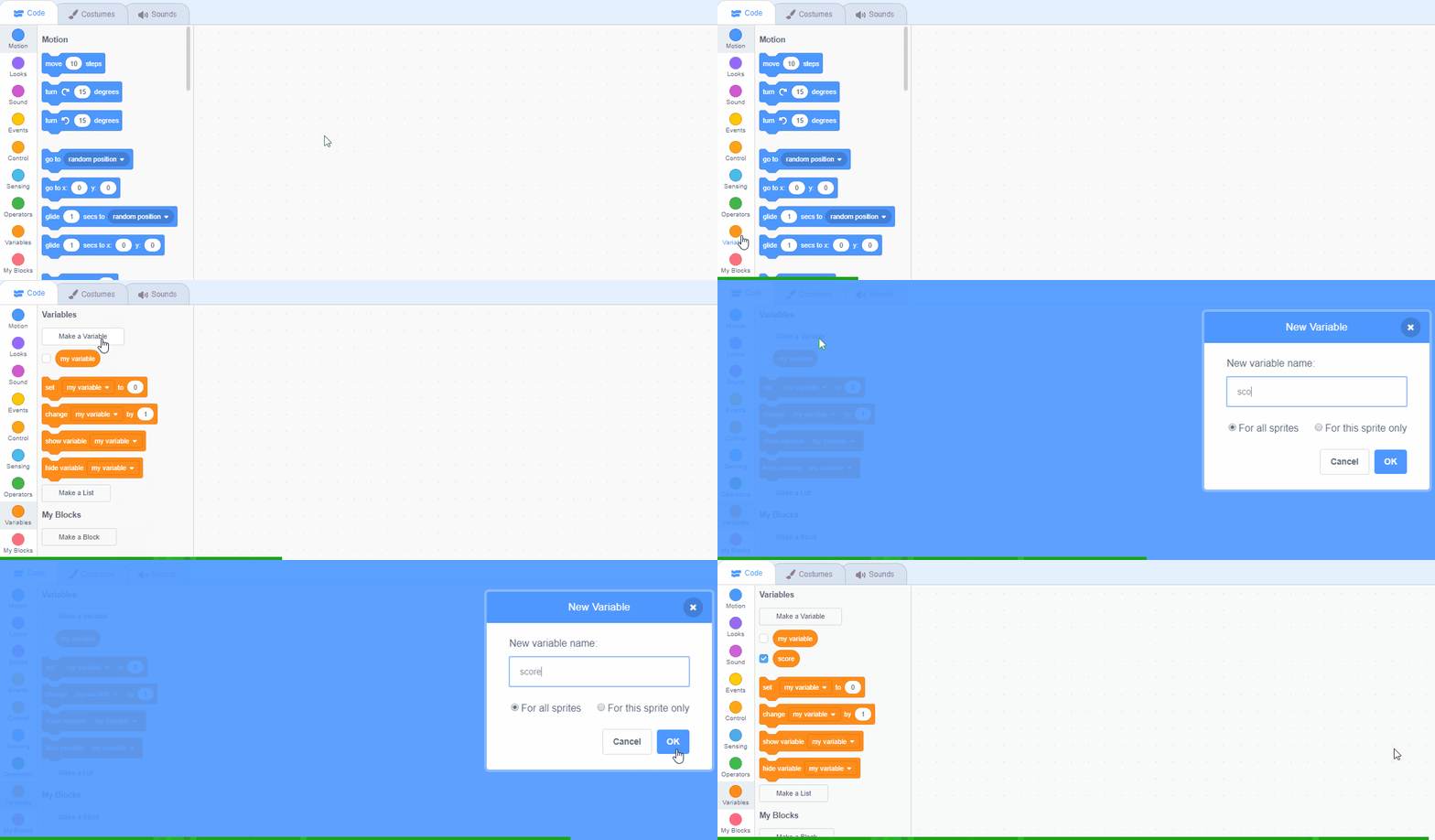
In the Variables palette, create a new variable by clicking the 'Make a Variable' button.
Once you click this button a box will appear asking what you want to call your variable. Give it a name that reminds you what you will be using it for. For example, if you wanted to keep track of your score in a game, you would create a variable called 'score'.
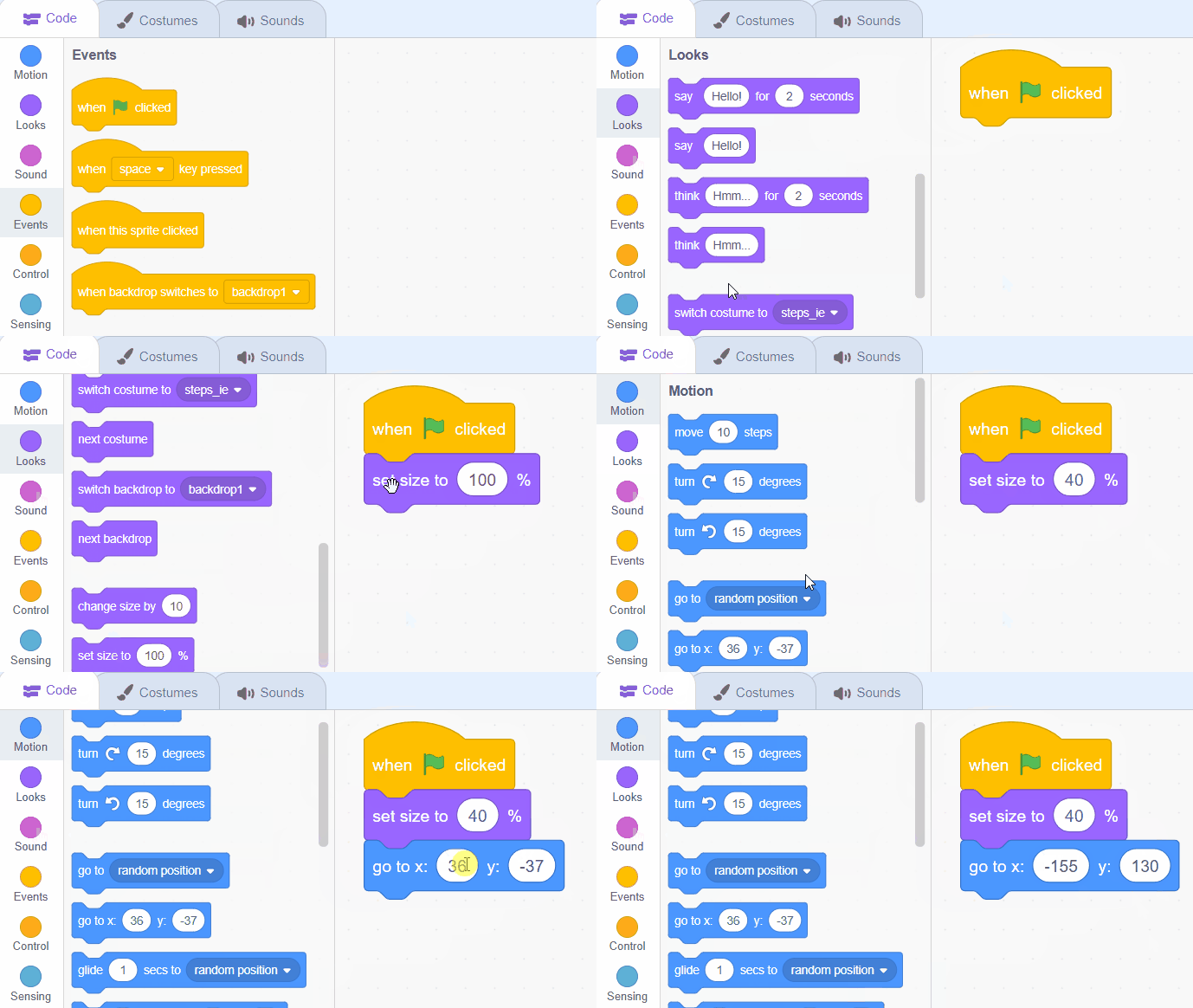
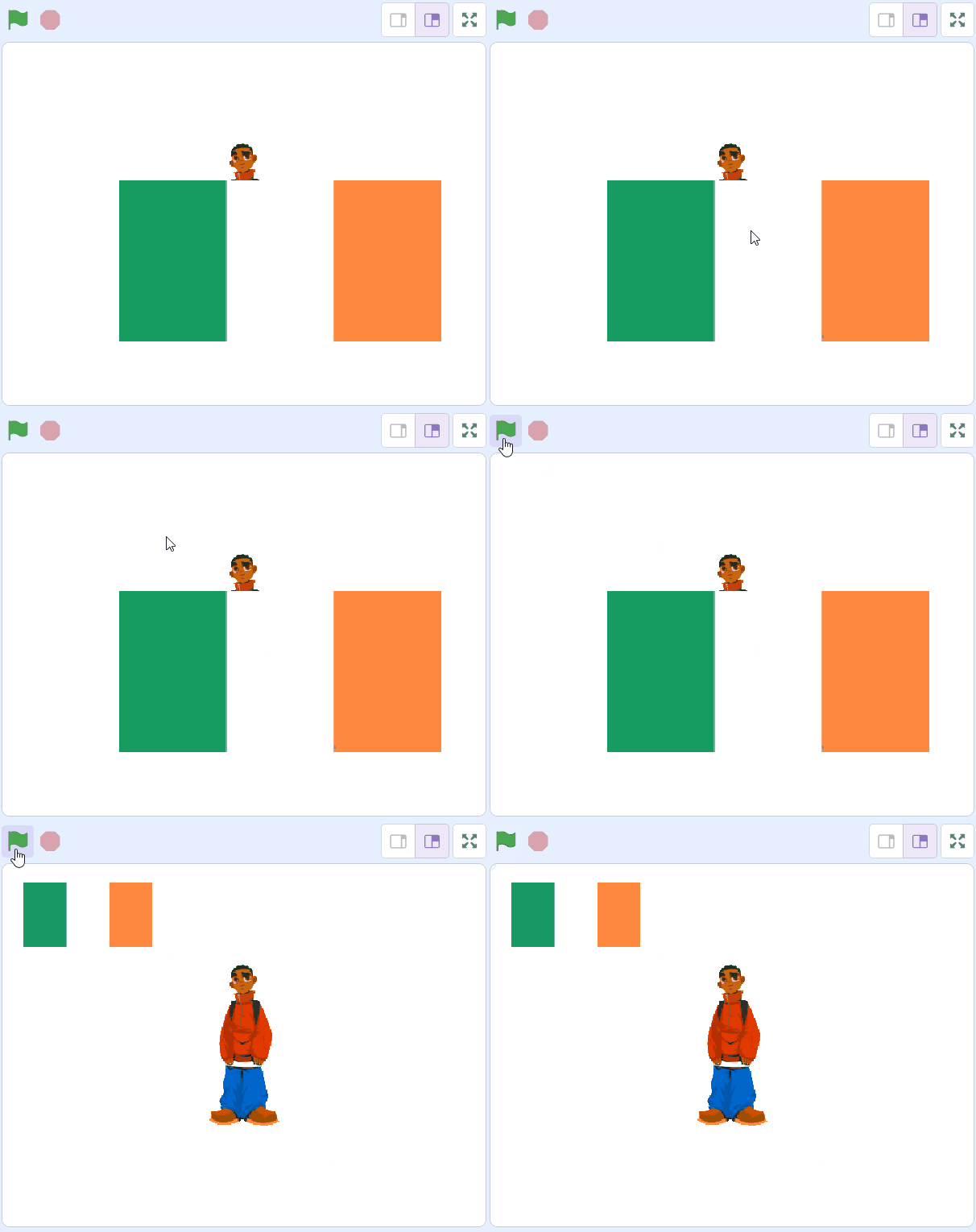
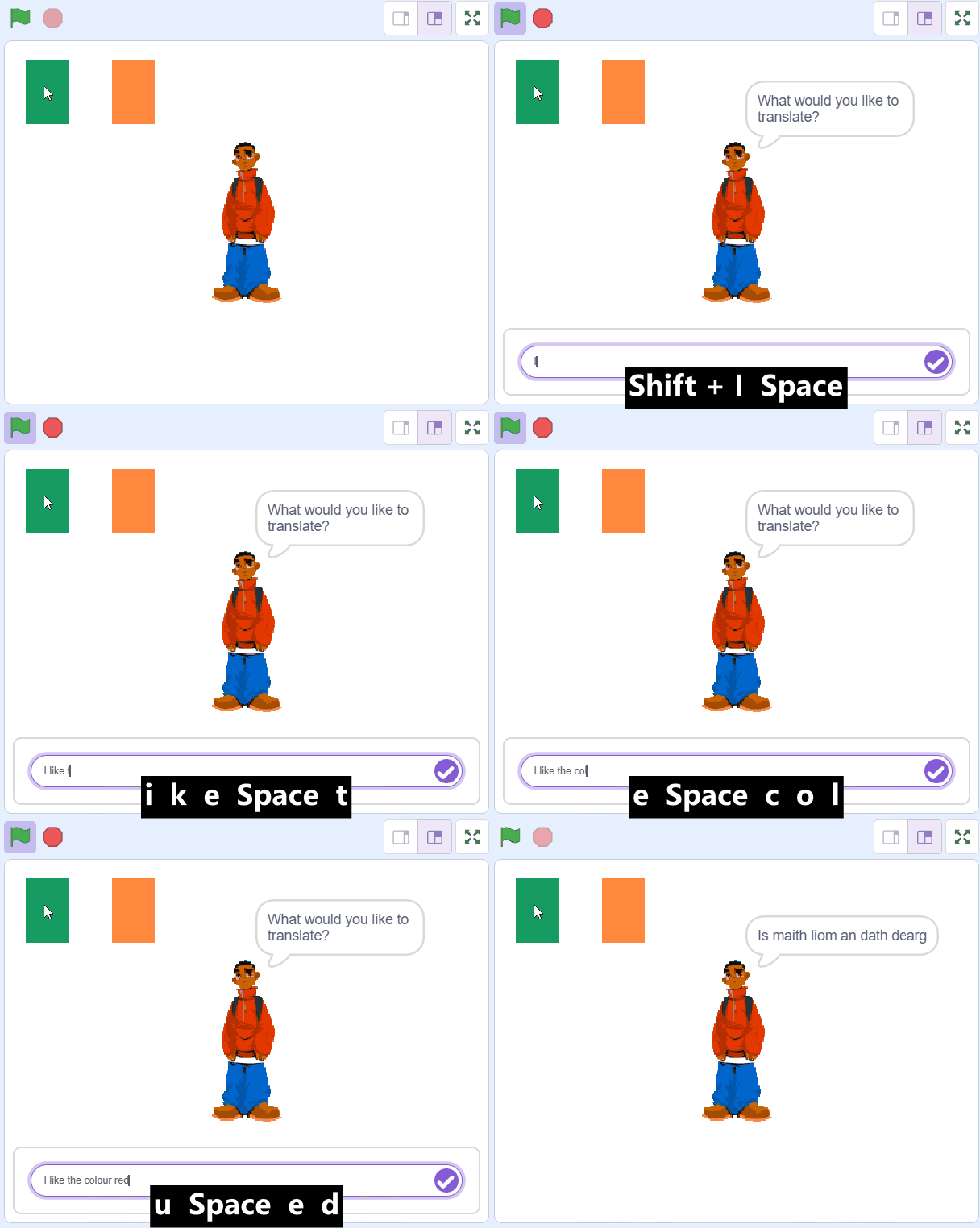
First let's translate to Irish. Download the Irish flag that is included with this step, upload it into your project as a sprite and then add the following code to it.
when green flag clicked
set size to (40) %
go to x: (-155) y: (130) // the top left
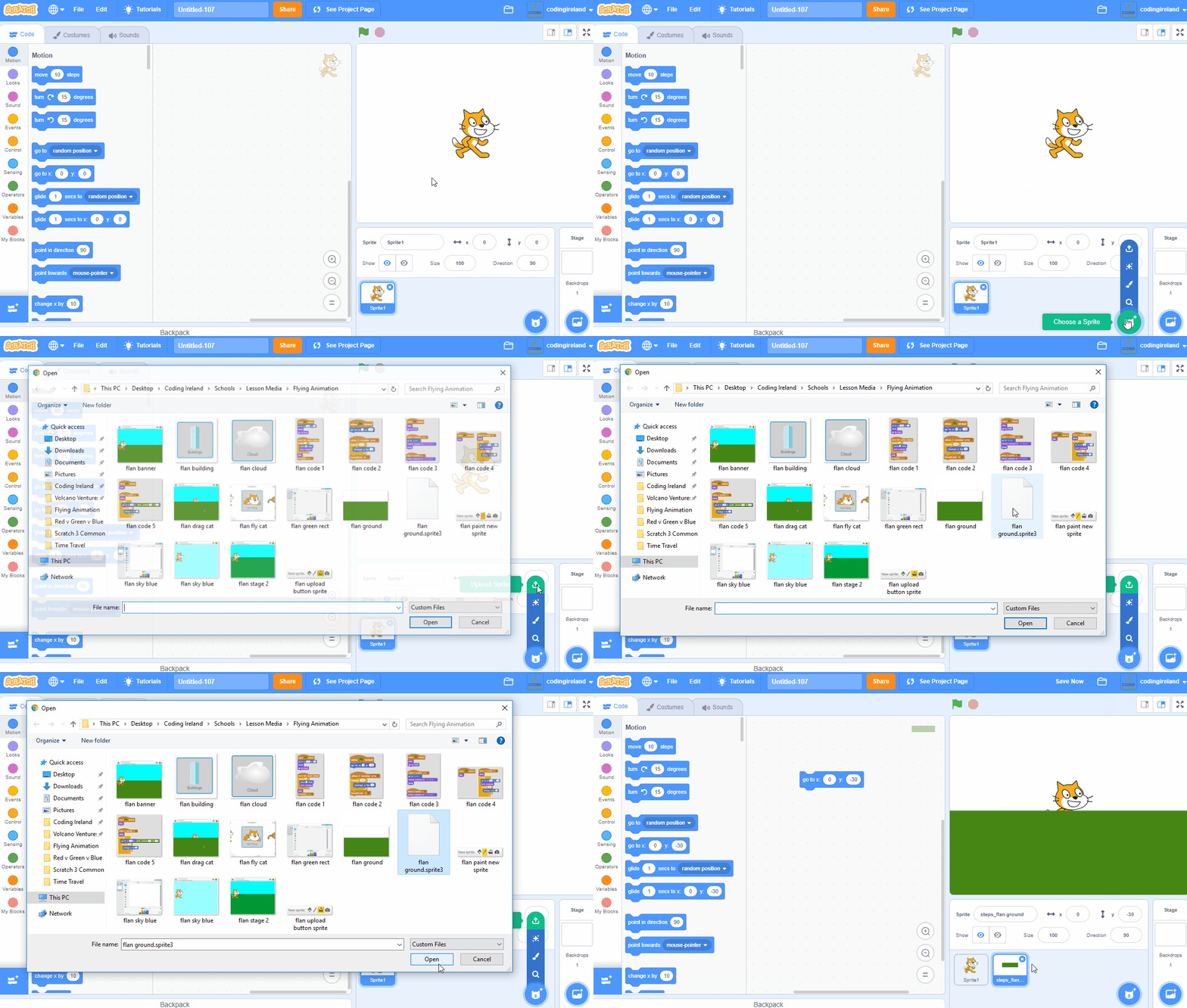
You can upload images and sprite files into your project. To upload a sprite follow these steps:
The new sprite will upload into your project and appear in the stage area.
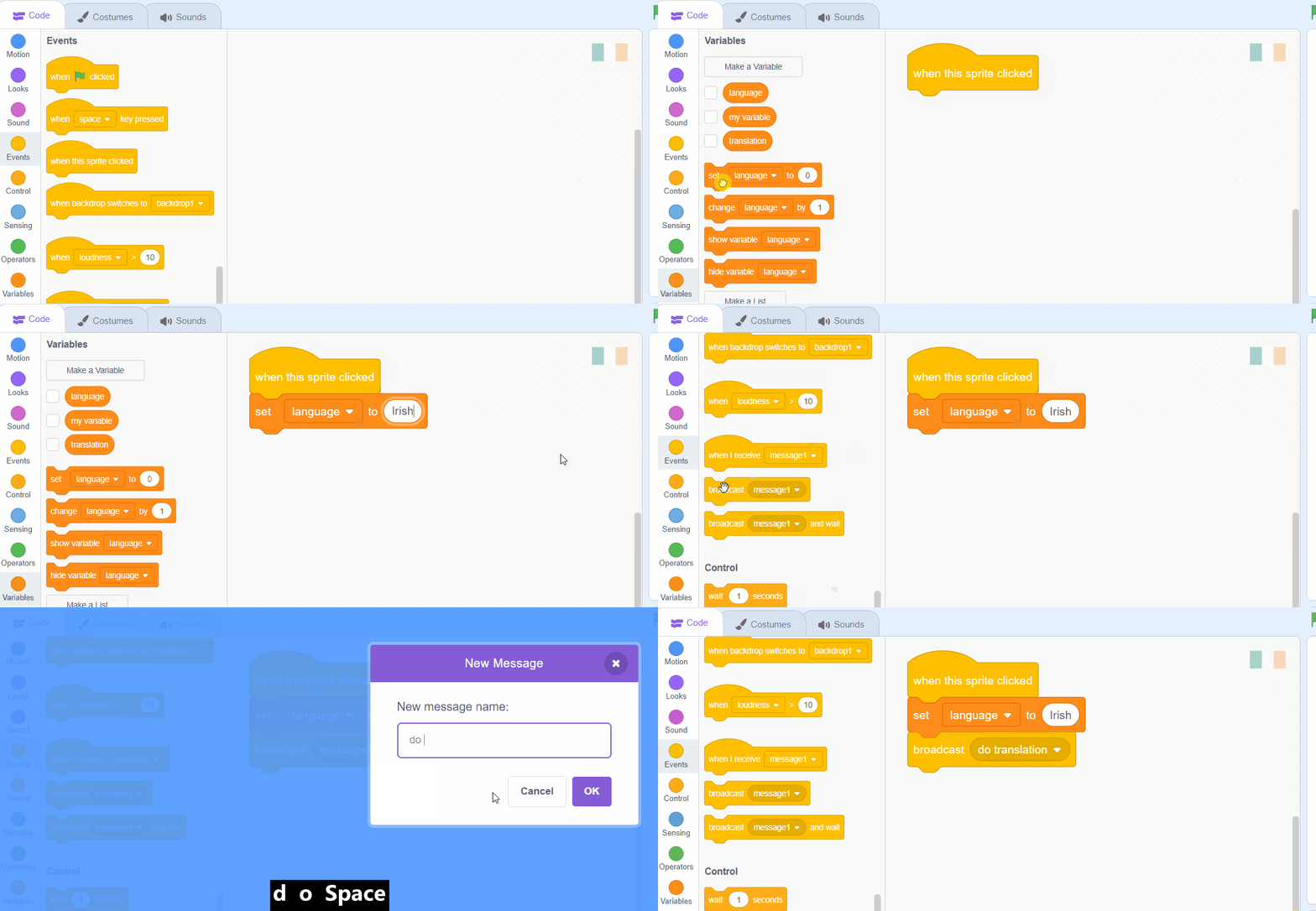
Next add the following code to set the language variable to be 'Irish' when you click the Irish flag and then broadcast a message called 'do translation'. We will program Kai in the next step to receive this message and do the translation.
Add the following code to the Irish Flag sprite:
when this sprite clicked
set [language v] to [Irish]
broadcast (do translation v)
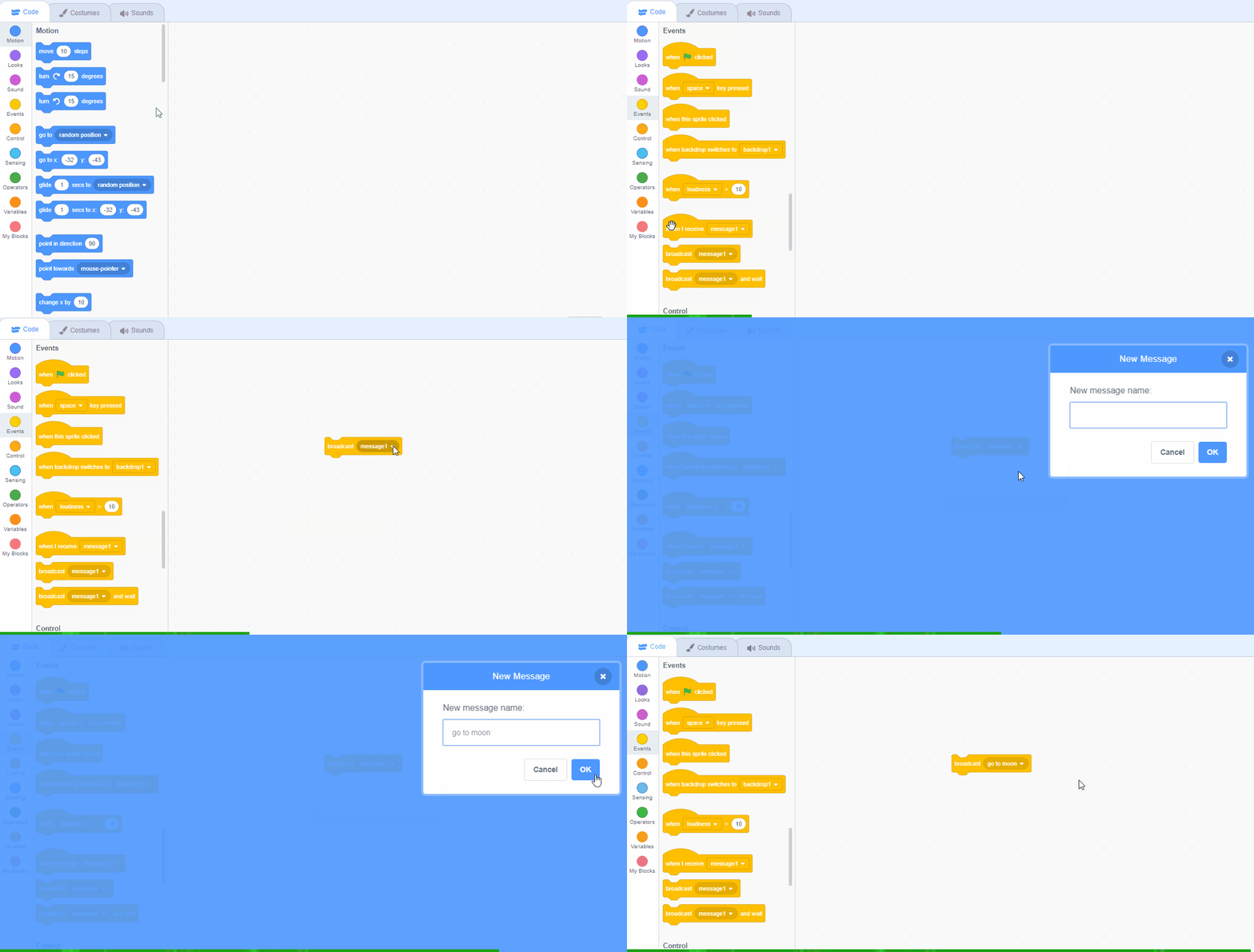
Messages are a great way to start a piece of code at a particular time. To create a new message follow these steps:
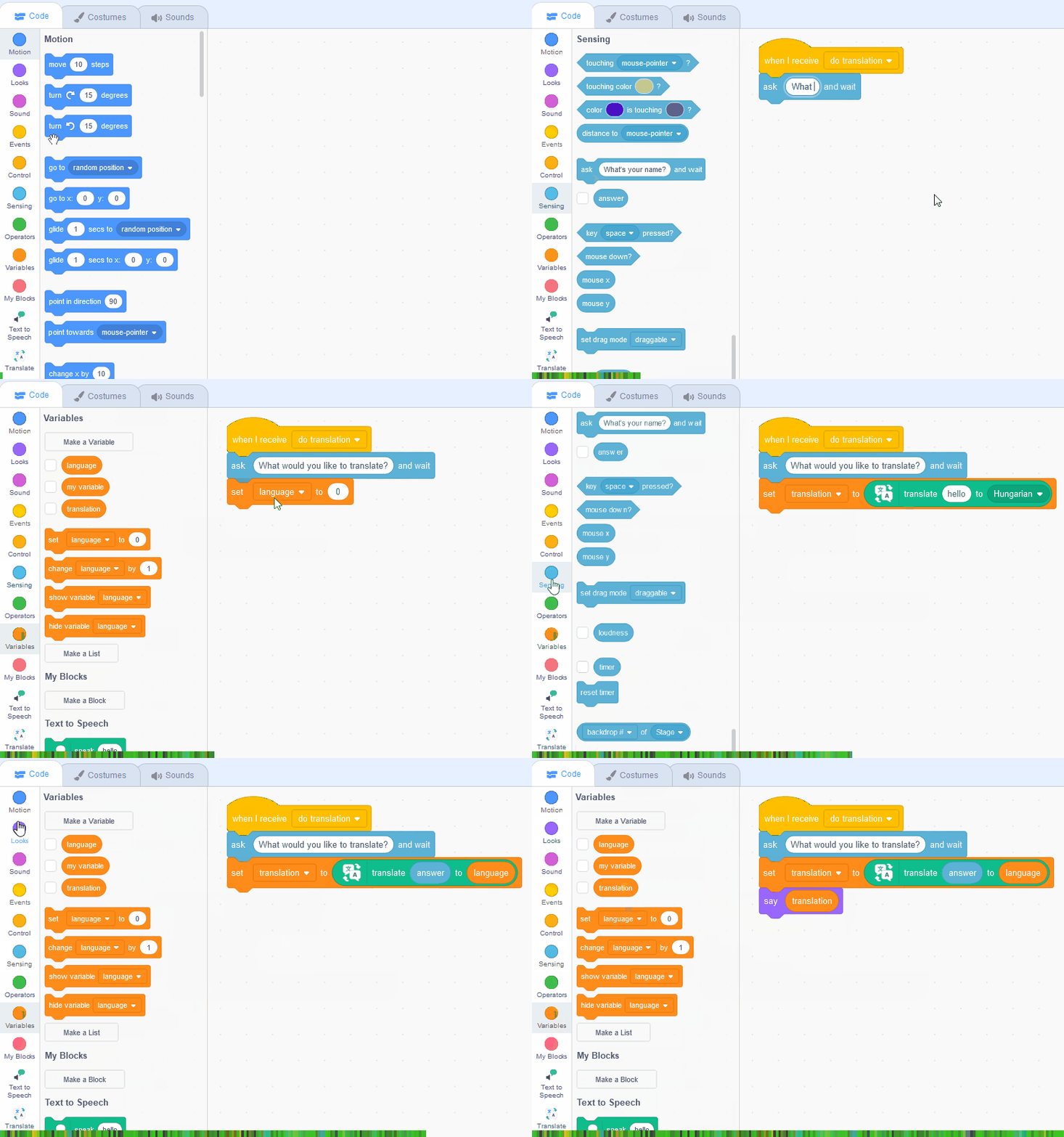
Now add the following code to the Kai sprite to do the translation when he receives the message 'do translation'.
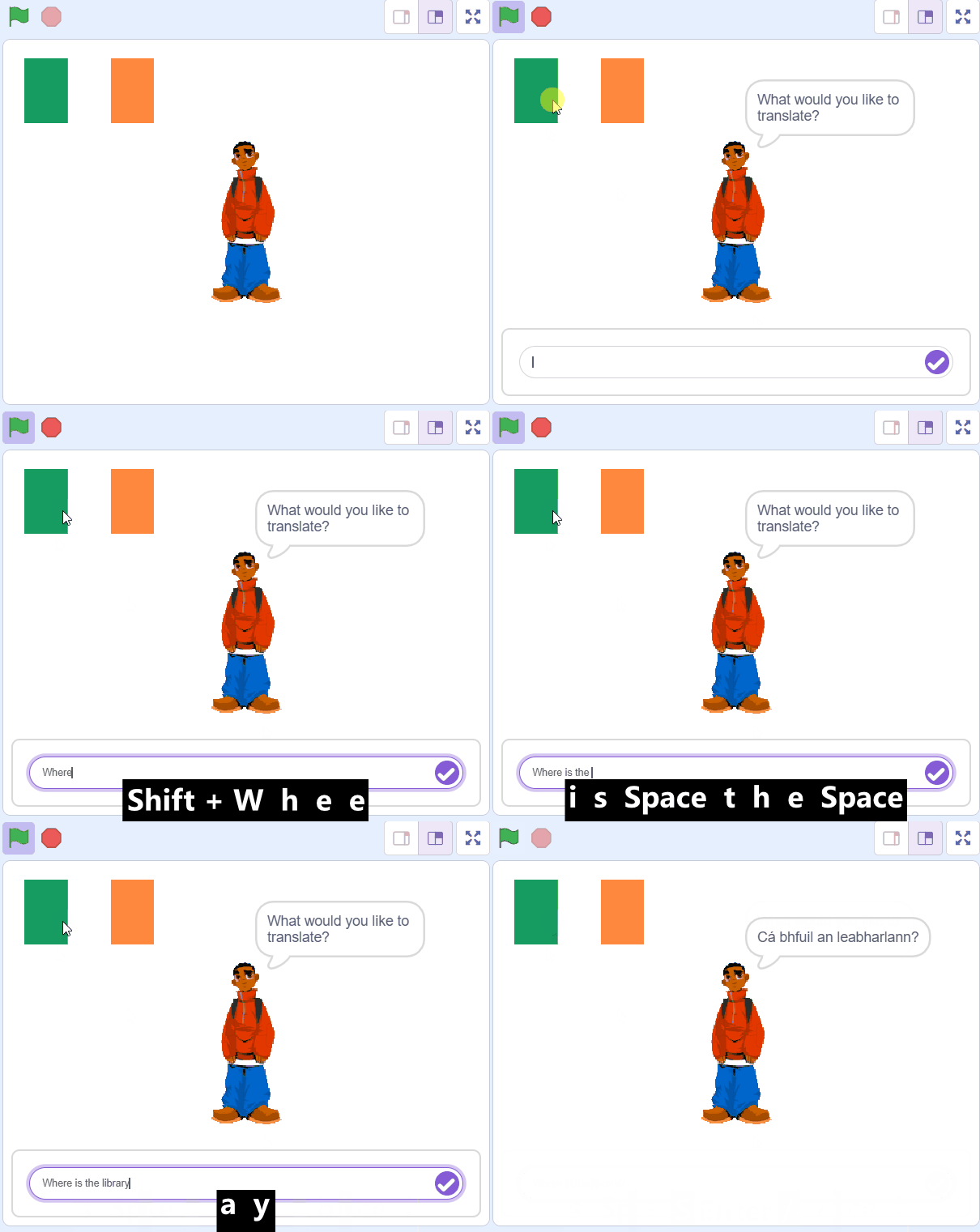
This code works like this: When Kai gets the message 'do translation', he will ask you 'What would you like to translate?'. After you type in your answer, Kai will use the Translate extension to translate your answer into the language you chose. Then, Kai will say the translated text out loud.
when I receive [do translation v]
ask [what would you like to translate?] and wait
set [translation v] to (translate (answer) to (language) :: translate)
say (translation)
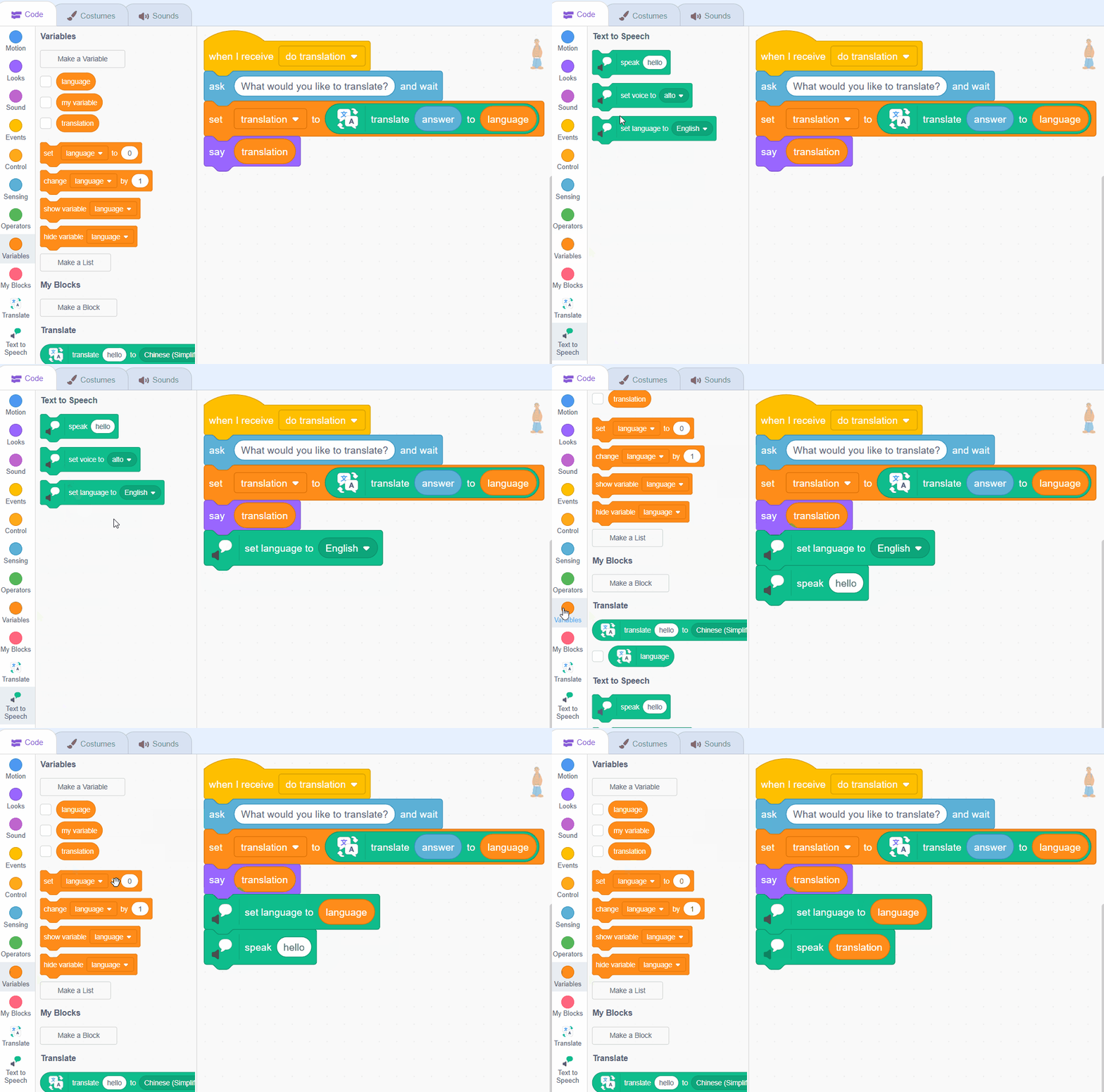
Now we are going to make Kai speak the translation out loud. So, we are adding two new blocks of code here:
set language to (language): This block sets the language that Kai will speak in. We are setting it to the language you chose.speak (translation): This block makes Kai speak the translation out loud. Now add the following new code to the Kai sprite to make him speak the translation out loud.
when I receive [do translation v]
set [translation v] to (translate (answer) to (language) :: translate)
say (translation)
set language to (language) :: tts stack // add this
speak (translation) :: tts stack // add this
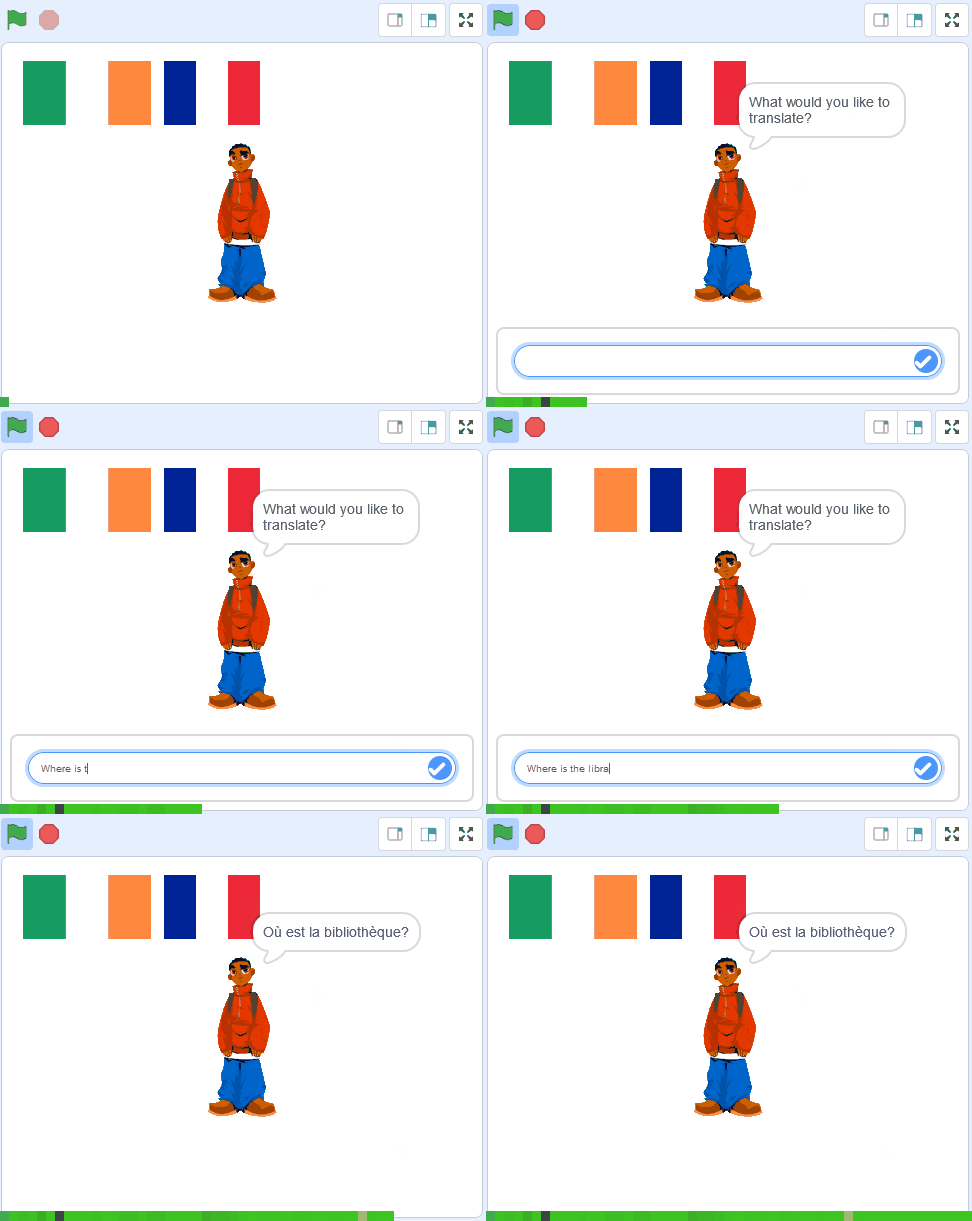
Now let's translate to French. Download the French flag that is included with this step, upload it into your project as a sprite and then add the following code to it.
when green flag clicked
set size to (30) %
go to x: (-30) y: (130) // the top middle
Next add the following code to set the language variable to be 'French' when you click the French flag and then broadcast a message called 'do translation'. We have already programmed Kai to receive this message and do the translation so it should now work for French also.
when this sprite clicked
set [language v] to [French]
broadcast (do translation v)
You can upload images and sprite files into your project. To upload a sprite follow these steps:
The new sprite will upload into your project and appear in the stage area.
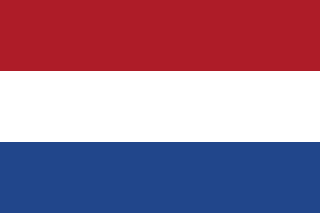
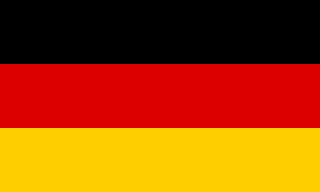
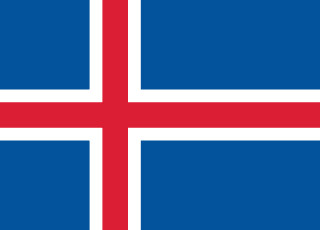
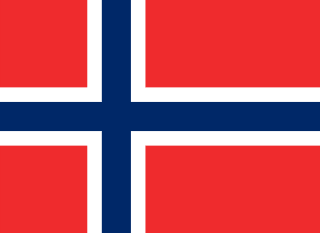
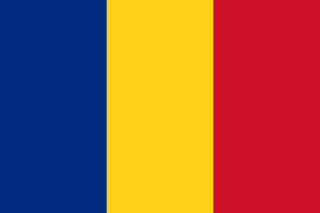
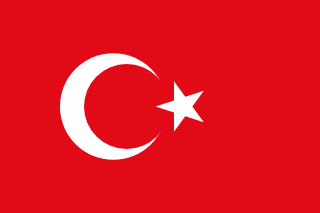
The following are the languages that you can currently translate to in Scratch. Trying adding some more languages to your project from this list (repeat the previous step but with the correct flag and language).
Great job! You've successfully created a language translator using Scratch. Now you can translate text into different languages and make your sprite speak the translation out loud. This is a fun and interactive way to learn about different languages and how to use coding to create useful tools. Keep practicing and exploring more possibilities with Scratch. Happy coding!
Every lesson in the course is ready to teach like this one. See what else comes with it, and how to order it.