Beginner
20 mins
Teacher/Student led
+75 XP

What you need:
Chromebook/Laptop/PC

Sharing Your Work

In this lesson, you will learn how to share your disco poster with others, including sending invitations, setting permissions, and managing collaborators.
Teacher Class Feed

Load previous activity

    1 - Access Share Options

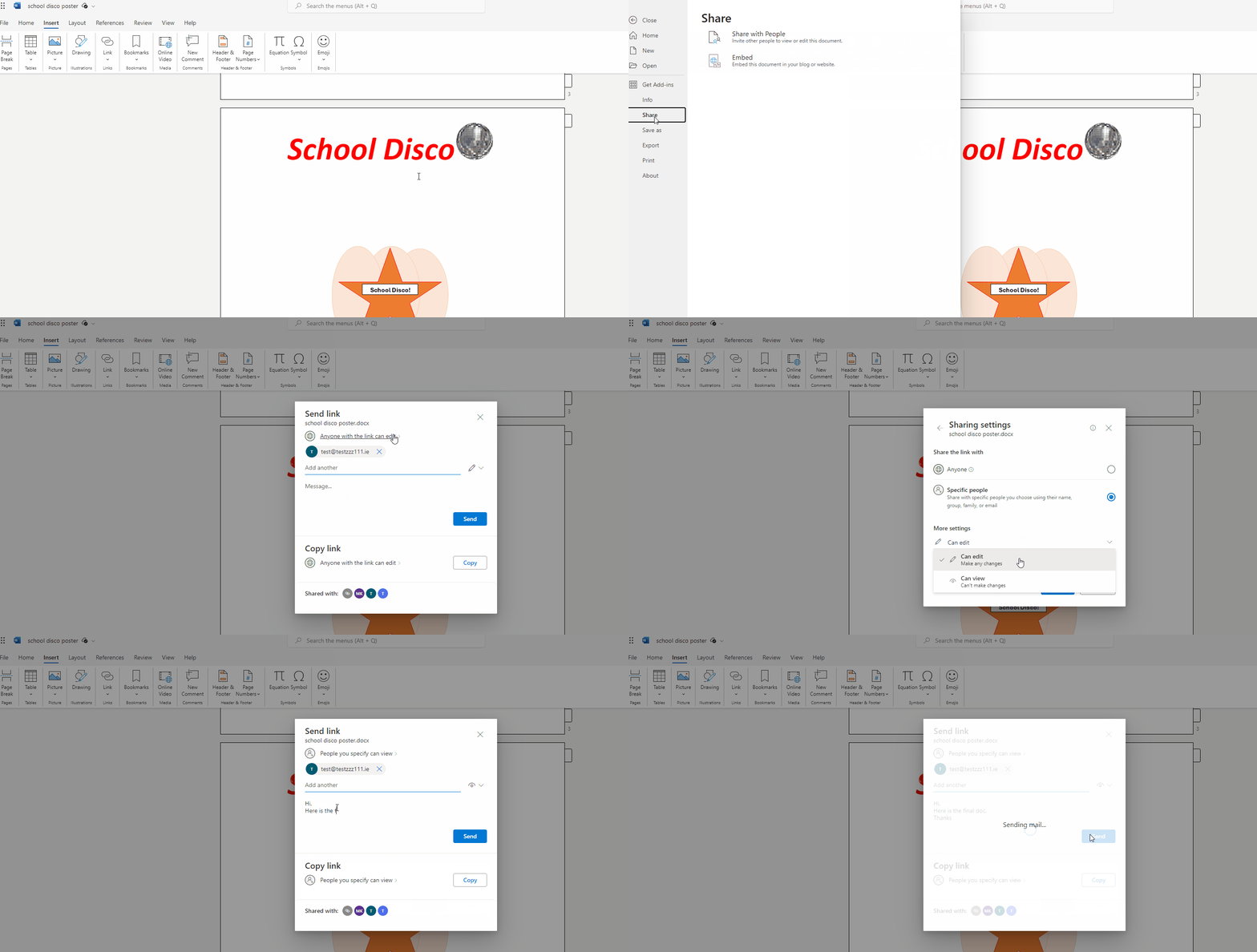
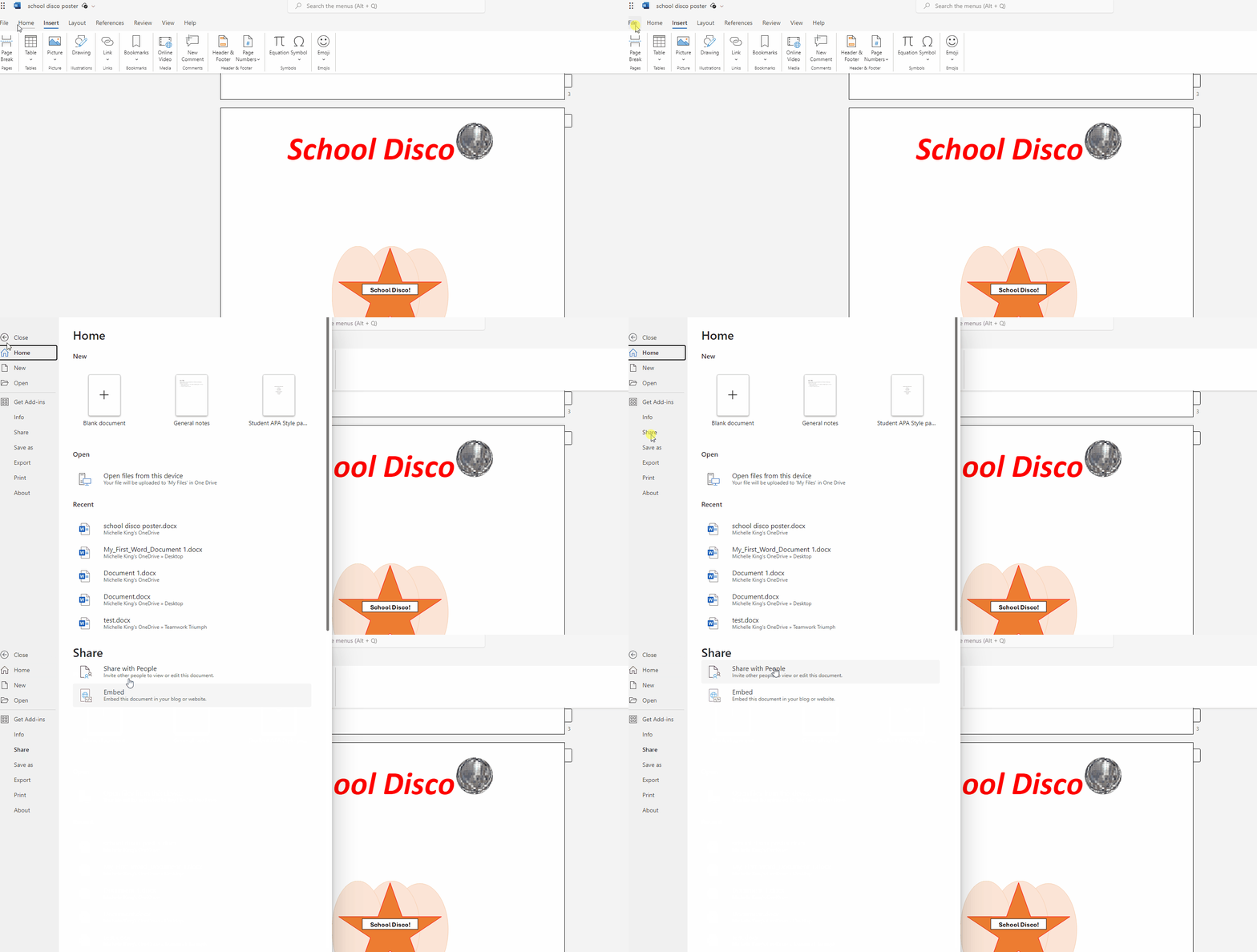
    1. Open your disco poster in Word. Click on the 'File' tab located in the top left corner of the screen. This will open a new menu.
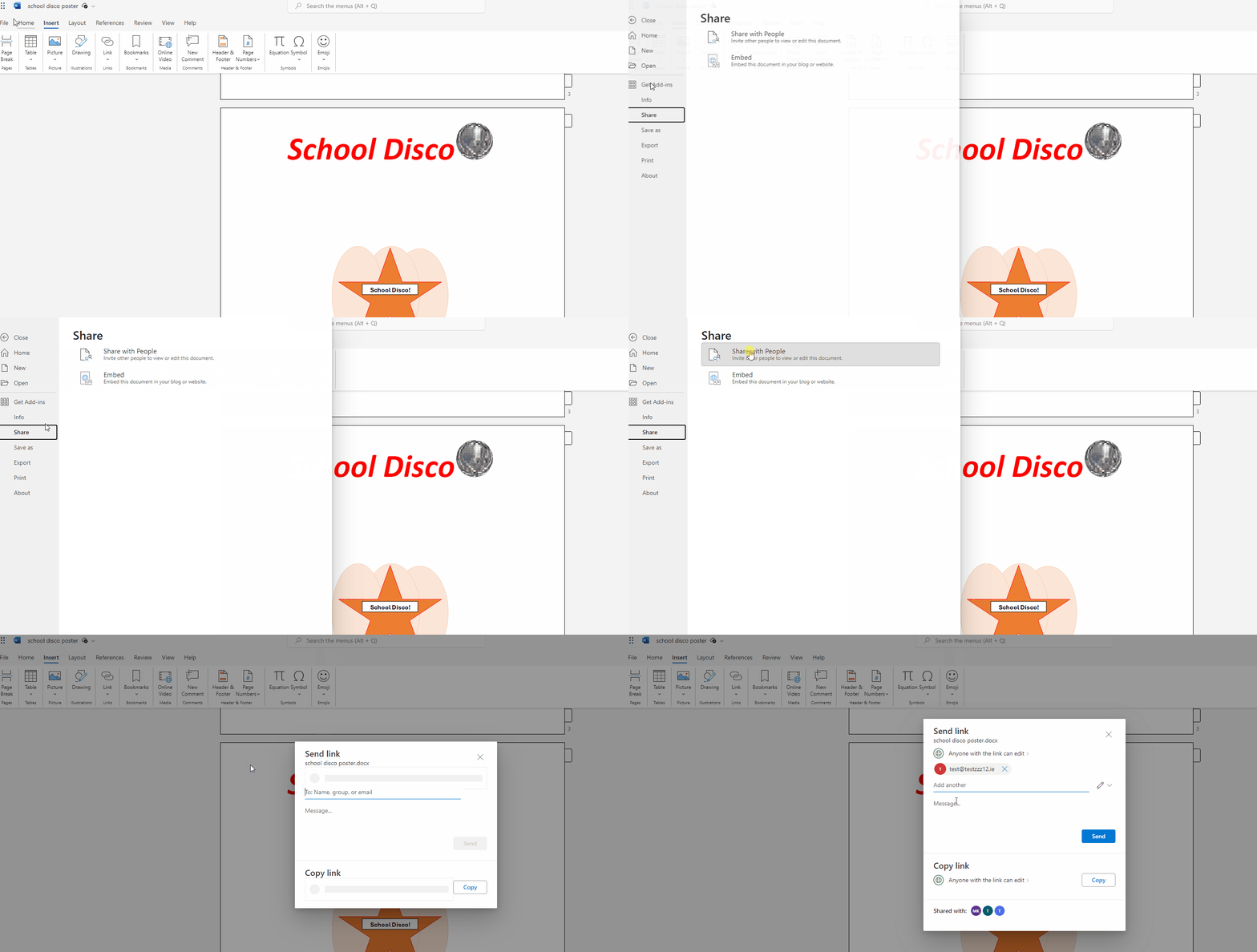
    2. In this menu, find and click on the 'Share' option, which is usually located in the left-hand column.
    3. This will open the 'Share' panel, where you can invite people and set permissions for your disco poster.

    2 - Invite People

    Under the 'Share' menu, click on 'Invite People'. This will open a panel on the right side of the screen. Enter the email addresses of the people you want to share your disco poster with, separated by commas.


    3 - Set Permissions

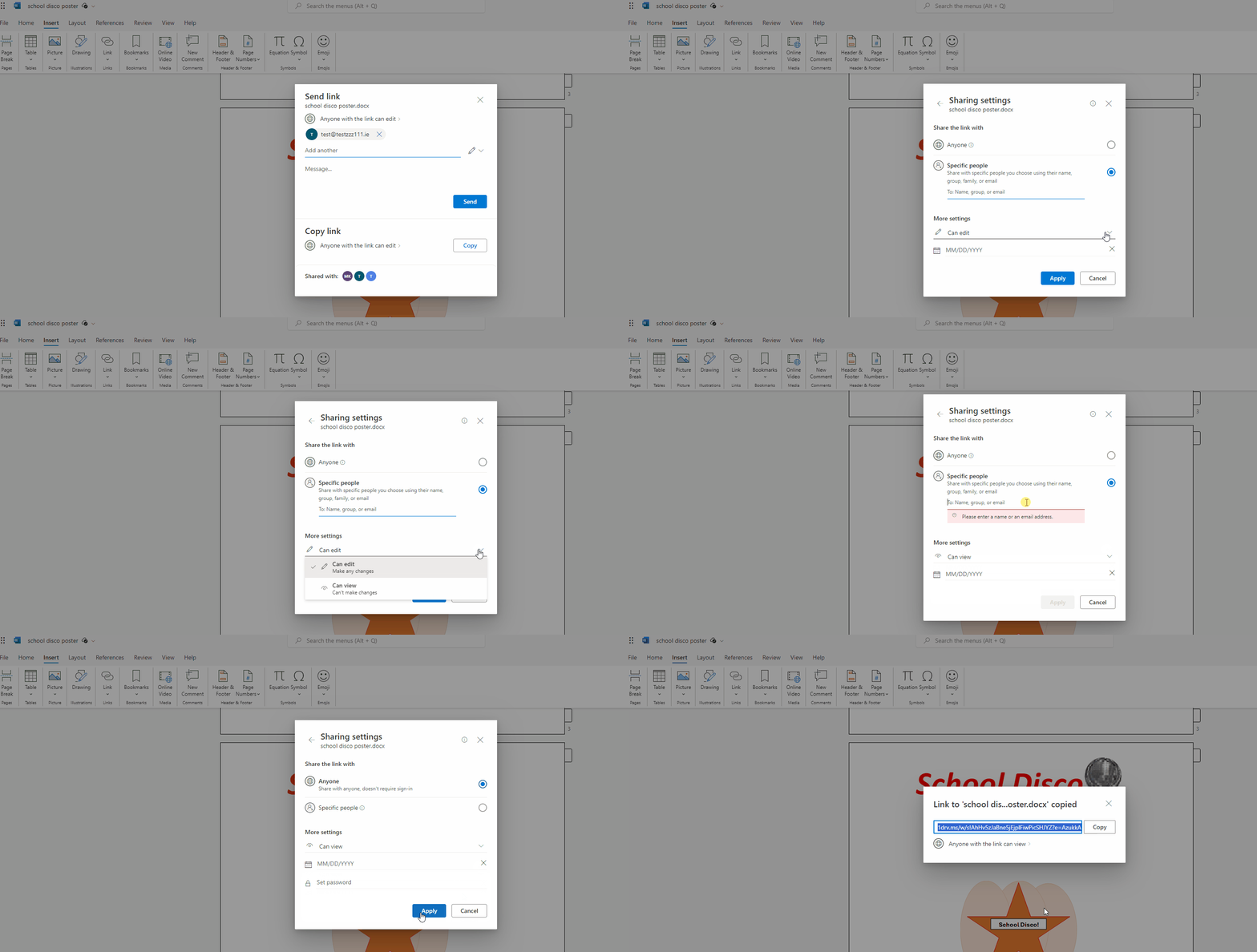
    After inviting collaborators to your disco poster, you need to set their permissions. Permissions determine what level of access the collaborators will have. There are two options: 'Can edit' and 'Can view'. Follow these steps to set permissions:

    1. Locate the email input field where you entered the email addresses of your collaborators.
    2. Next to the email input field, you will see a dropdown menu. Click on it to reveal the permission options.
    3. Select 'Can edit' if you want to allow your collaborators to make changes to the disco poster. Choose 'Can view' if you only want them to see the poster without making any changes.
    4. Once you have set the desired permissions, proceed to the next step to add a personal message to your invitation.

    4 - Compose a Personal Message

    Adding a personal message to your invitation helps your collaborators understand the purpose of sharing the disco poster and provides any necessary instructions. To add a personal message, follow these steps:

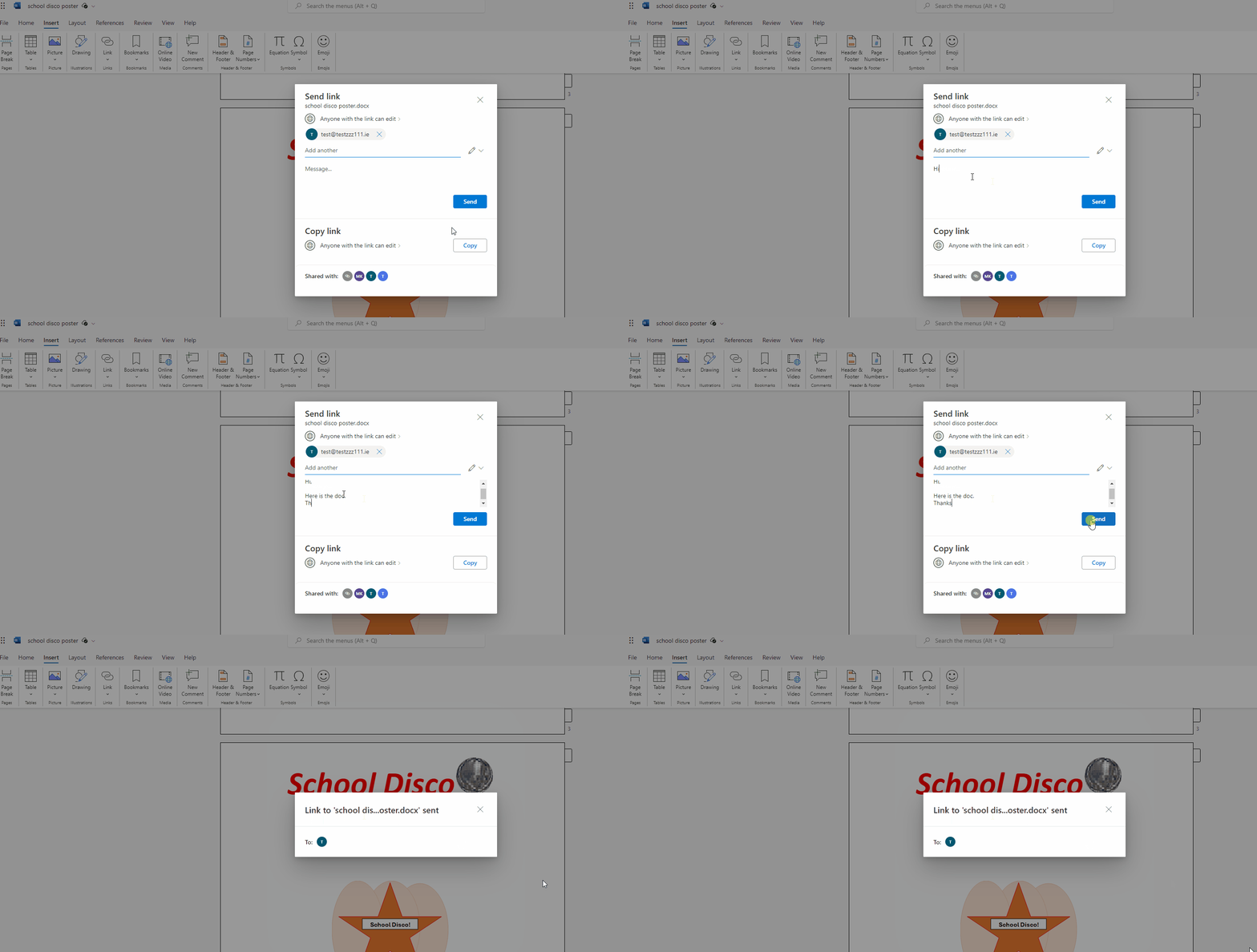
    1. Locate the text box below the email input field, which is labeled 'Add a personal message (optional)'.
    2. Click inside the text box to start typing your message.
    3. Write a brief message explaining why you are sharing the disco poster with your collaborators. For example, you can mention that you want their feedback or need their help in adding more details to the poster.
    4. Include any specific instructions for your collaborators, such as what parts of the poster they should focus on or any deadlines for their contributions.
    5. Once you have finished writing your message, double-check it for clarity and correct any spelling or grammar errors.


    5 - Send Invitations

    Click on the 'Share' button at the bottom of the panel to send the invitations. The invited collaborators will receive an email with a link to access and edit or view the disco poster, based on the permissions you set.


    Unlock the Full Learning Experience

    Get ready to embark on an incredible learning journey! Get access to this lesson and hundreds more on our learning platform.

    Copyright Notice
    This lesson is copyright of Coding Ireland 2017 - 2025. Unauthorised use, copying or distribution is not allowed.
    🍪 Our website uses cookies to make your browsing experience better. By using our website you agree to our use of cookies. Learn more