Beginner
20 mins
Teacher/Student led
+85 XP

What you need:
Chromebook/Laptop/PC

Shapes

In this lesson, you will learn how to insert and manipulate shapes in your disco poster. You will resize, rotate, and format shapes to create an eye-catching design for your school disco poster.

Teacher Class Feed

Load previous activity

    1 - Insert a Shape

    Open your disco poster document from the previous lesson.

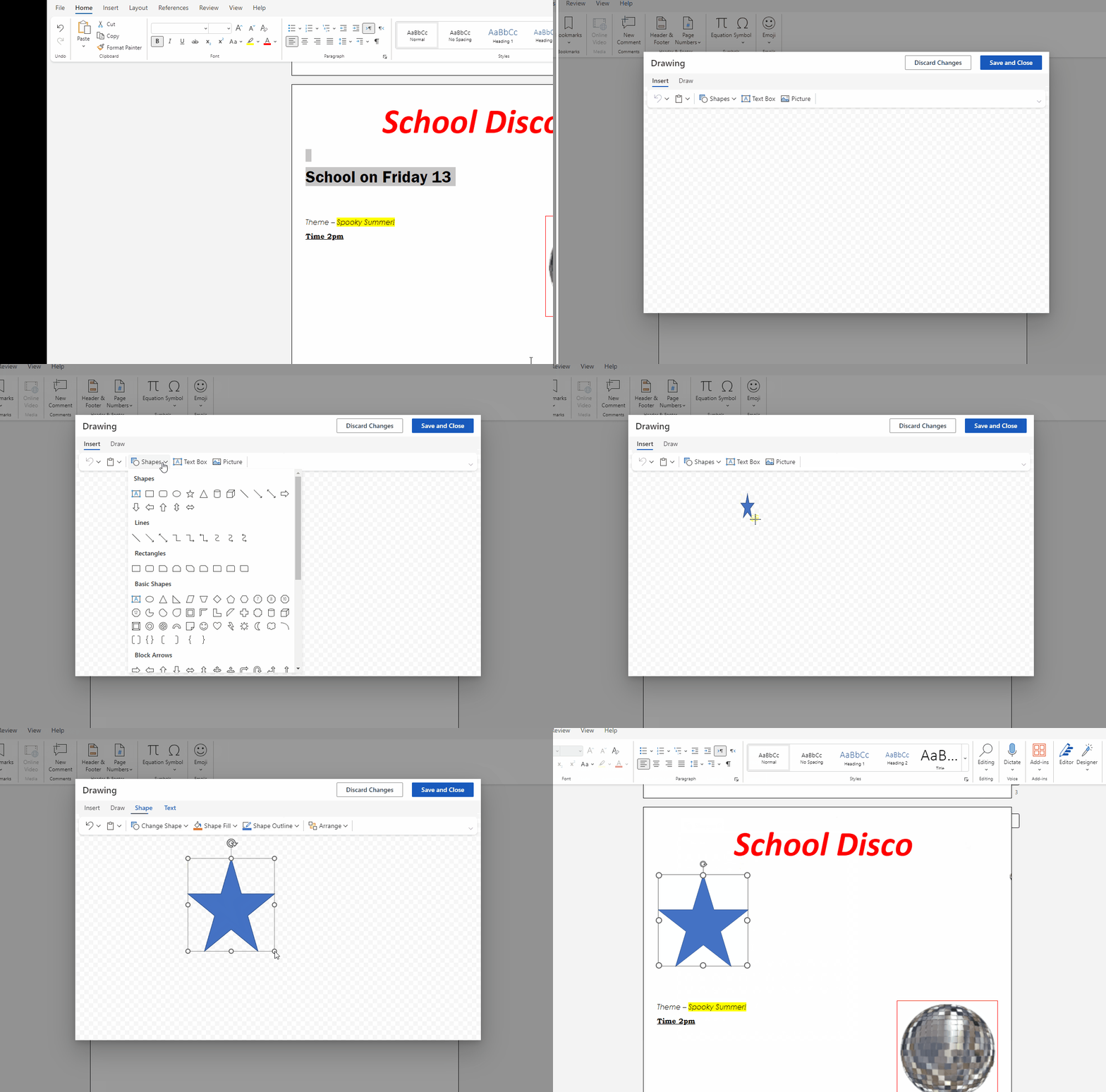
    Click on the 'Insert' tab in the ribbon, then click on the 'Drawings.'

    No click on 'Shapes' button.

    Choose a shape that you want to add to your poster, such as a star or a circle. Click and drag on your document to draw the shape.


    2 - Resize the Shape

    1. Click on the shape you just inserted to select it.
    2. You will see small circles, called 'resize handles,' around the shape.
    3. Click and drag one of the resize handles to make the shape bigger or smaller.
    4. Try to resize the shape so it fits well within your poster design.

    3 - Rotate the Shape

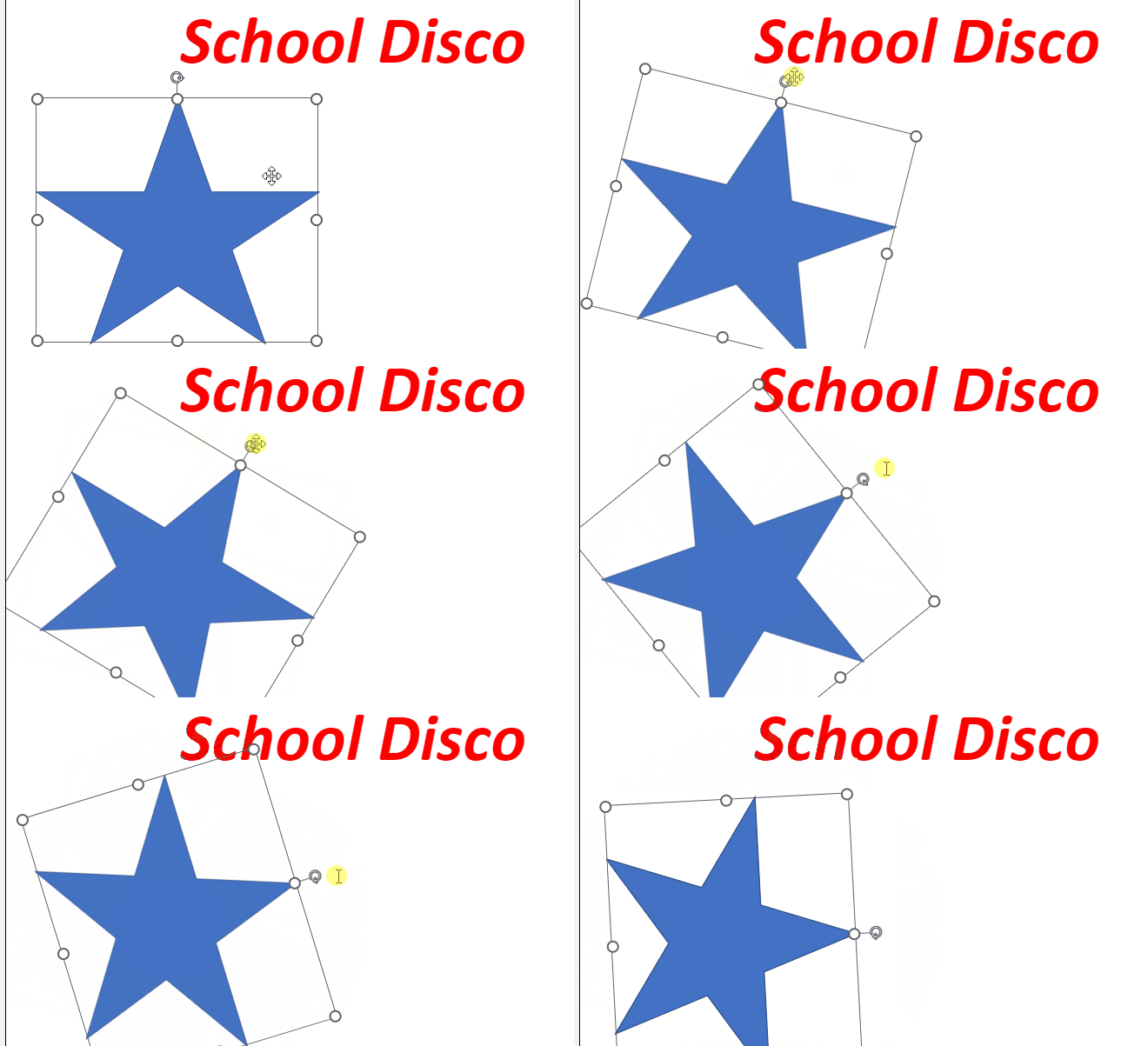
    1. With the shape still selected, find the circular arrow icon above the shape.
    2. This is the 'rotate handle.' Click and drag the rotate handle to rotate the shape.
    3. Experiment with different rotations to find the best angle for your poster design.

    4 - Format the Shape

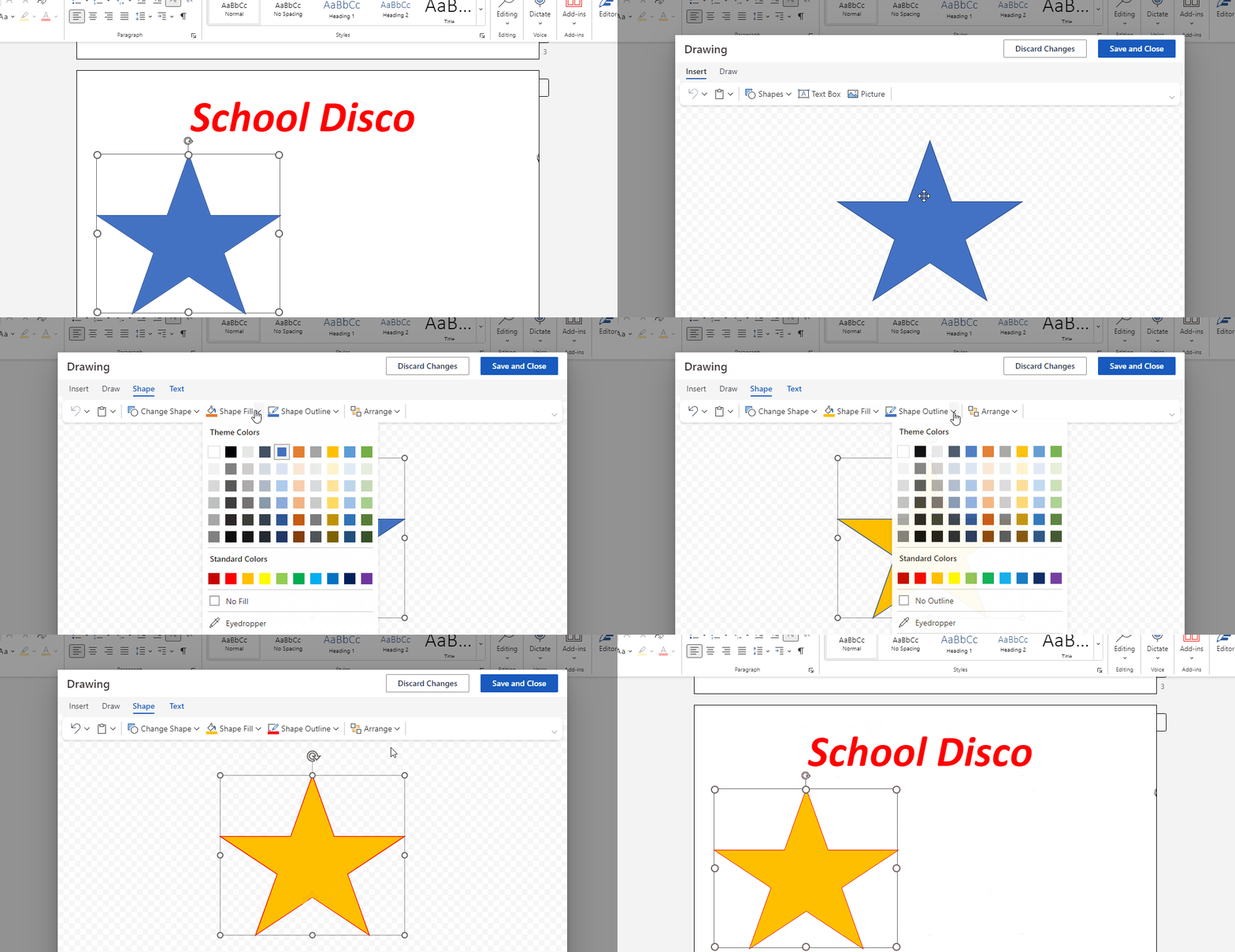
    Double click on the shape to open the 'Format Shape' panel on the right side of the screen. In this panel, you will find various options to format your shape. Follow the steps below to format your shape:

    1. Under the 'Fill & Line' tab, click on 'Fill' to expand the fill options. Choose a fill color by clicking on the color box and selecting a color from the palette. You can also choose a gradient or pattern fill if you prefer.
    2. Next, click on 'Line' to expand the outline options. Choose an outline color by clicking on the color box and selecting a color from the palette. You can also adjust the outline width and style (solid, dashed, or dotted) using the dropdown menus.
    3. Optionally, you can add effects to your shape by clicking on the 'Effects' tab. Here, you can add shadow, reflection, glow, or 3D effects to enhance the appearance of your shape.

    Experiment with different formatting options to make your shape stand out on your poster. Save your work when you are finished by clicking 'File' > 'Save' or pressing 'Ctrl + S' on your keyboard.


    5 - Add Text to the Shape

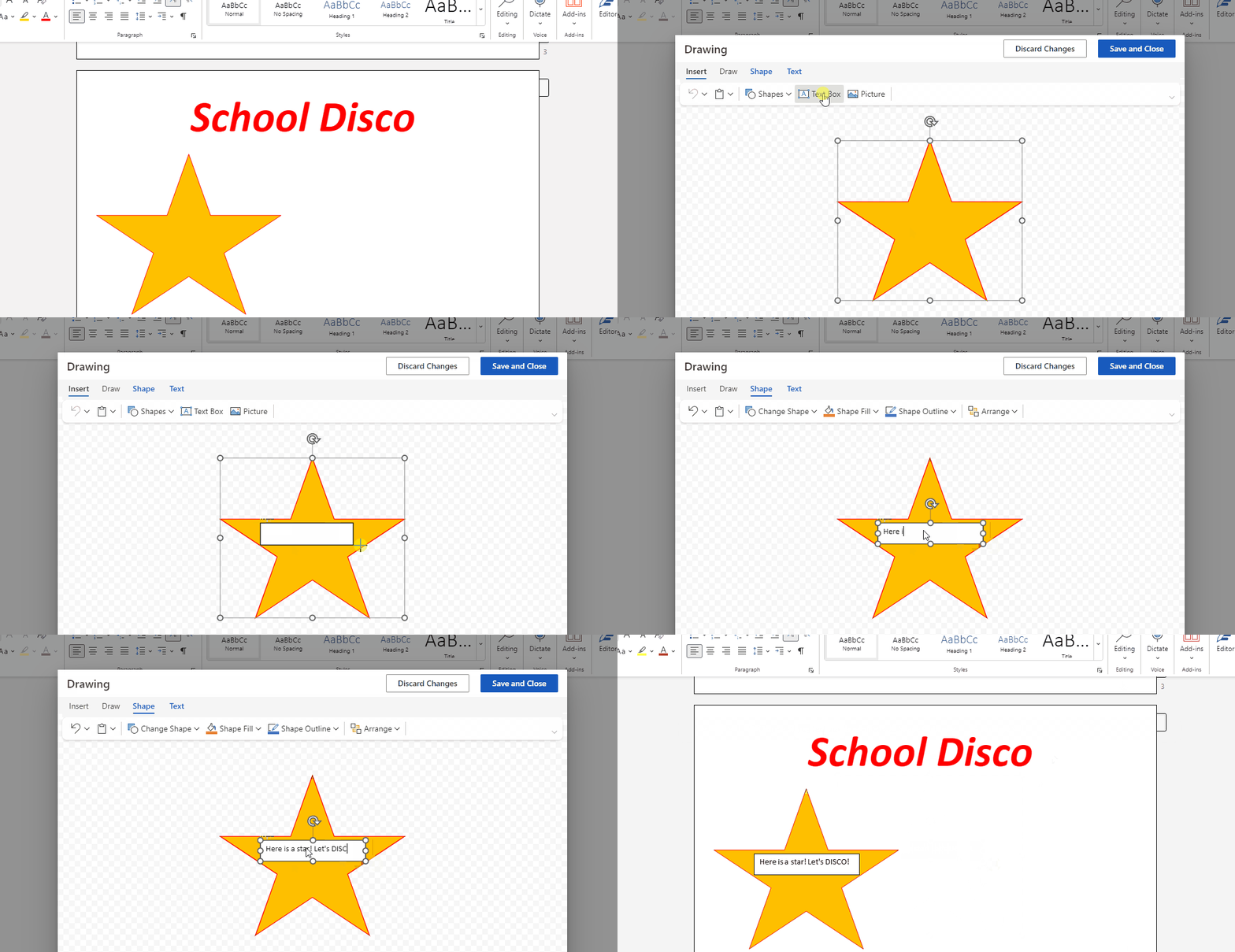
    1. Click on the shape you have inserted in your document to select it.

    2. In the 'Shape Format' tab at the top of the screen, click on the 'Add Text' button. This will create a text box inside the shape.

    3. Click inside the text box and type the text you want to appear inside the shape, such as 'Disco Night' or 'Dance Party.'

    4. Press 'Enter' when you're done typing to finalize the text.

    5. Save your work by clicking 'File' in the top left corner, then selecting 'Save' or 'Save As' and choosing a location to save your document.


    Unlock the Full Learning Experience

    Get ready to embark on an incredible learning journey! Get access to this lesson and hundreds more on our learning platform.

    Copyright Notice
    This lesson is copyright of Coding Ireland 2017 - 2025. Unauthorised use, copying or distribution is not allowed.
    🍪 Our website uses cookies to make your browsing experience better. By using our website you agree to our use of cookies. Learn more