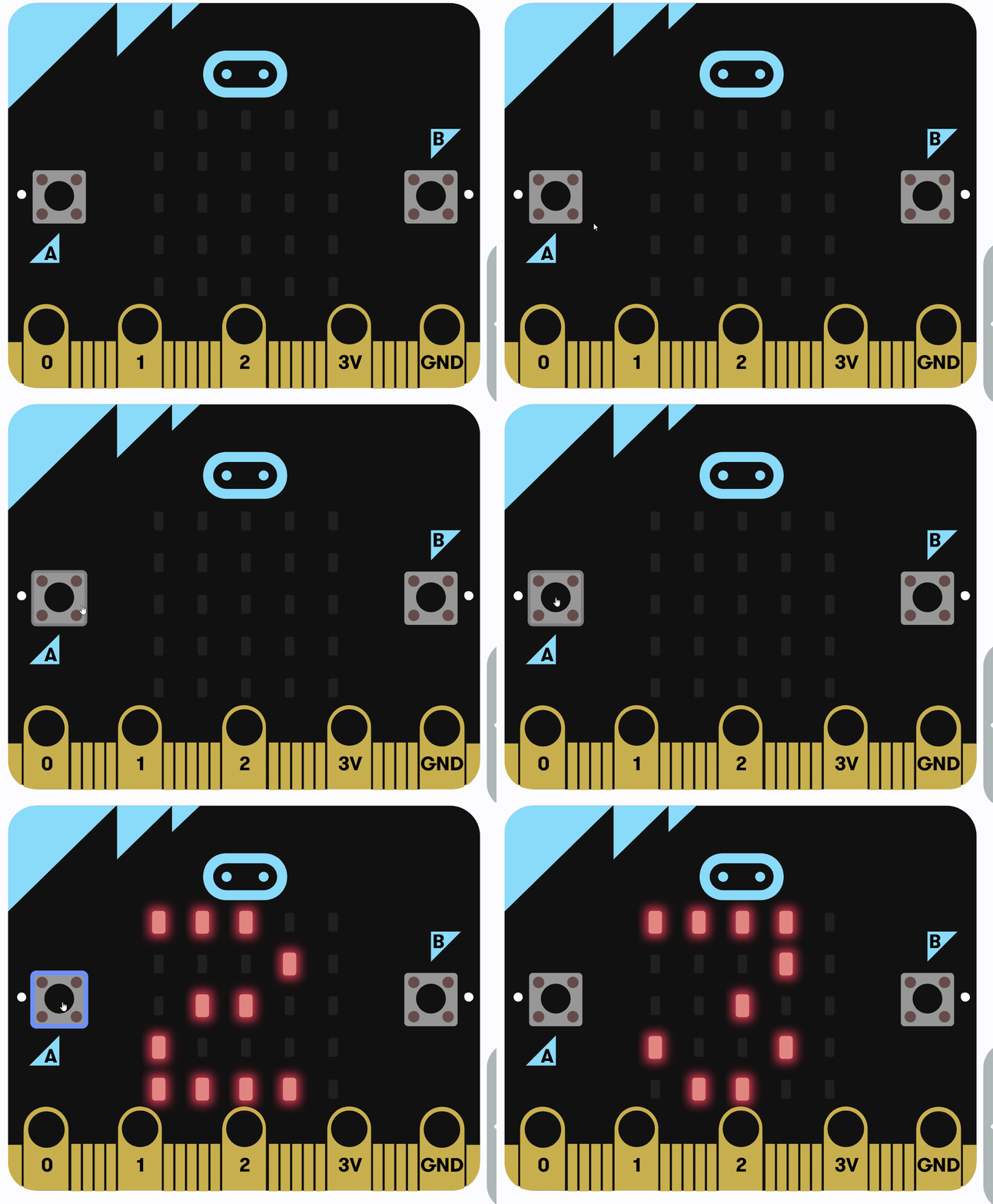
Computer Science is the study of computers and how they can be used to solve problems. It involves designing software, understanding algorithms, and exploring how data is processed and stored.
For example, in modern life, Computer Science is used in various applications such as:
In this course, you'll learn foundational concepts that apply to many fields, from programming to artificial intelligence, helping you develop critical thinking and problem-solving skills.
Careers in Computer Science are exciting and varied, with high demand in today's digital world. You could pursue roles such as:
Other options include web development, game design, or even roles in research and innovation. These careers allow you to contribute to solving real-world problems.
A computer system is a combination of hardware and software that work together to process data and perform tasks. In this step, we'll explore these components in more detail to help you understand how computers function in daily life.
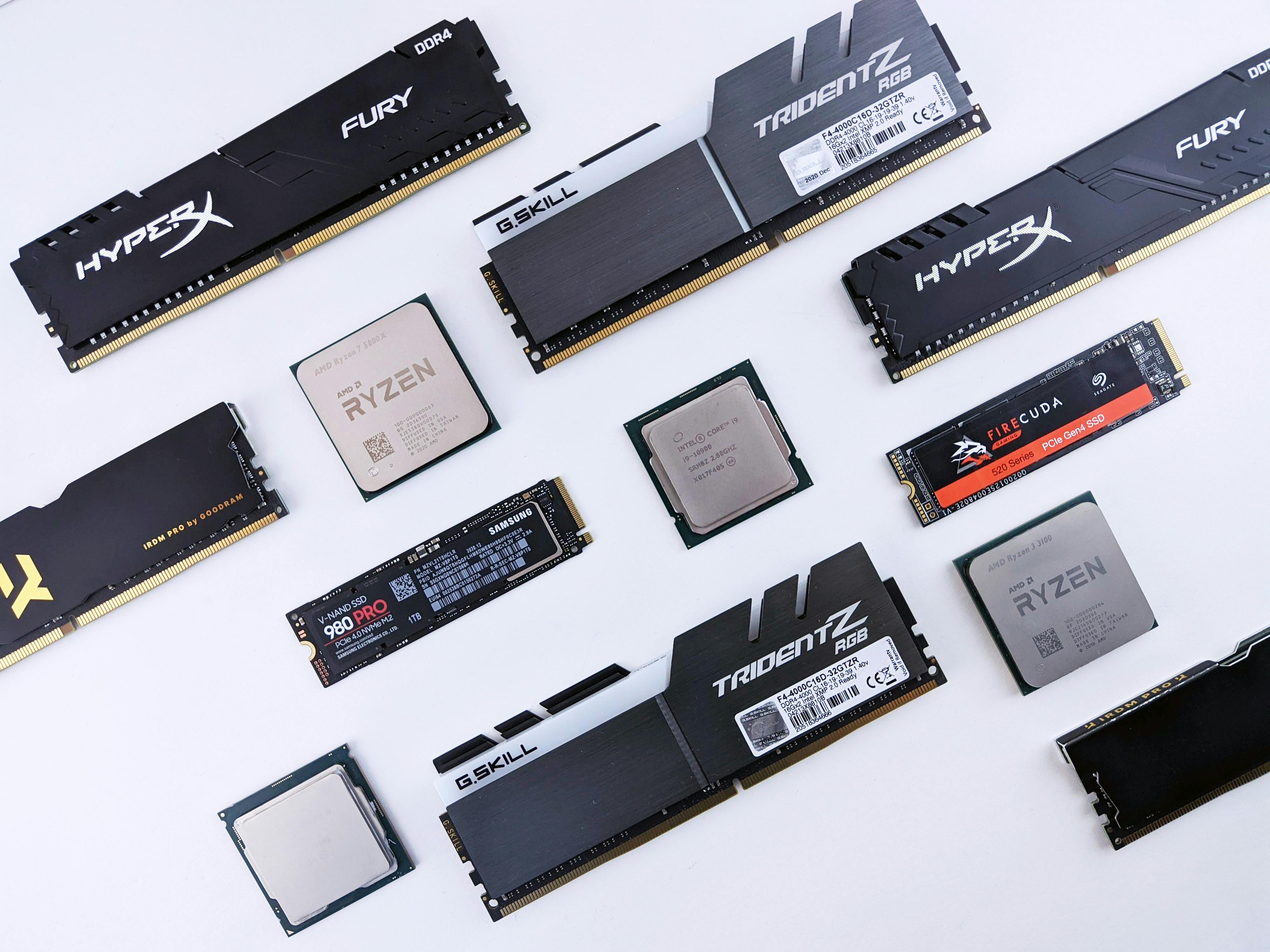
Hardware includes all the tangible components of a computer. These are the parts you can see and touch. The main hardware elements are:
Other hardware might include input devices (e.g., keyboards and mice) and output devices (e.g., screens and speakers), but we'll focus on the core parts here.
Software is the set of programs and instructions that tell the hardware what to do. It includes operating systems (like Windows or macOS), applications (such as web browsers), and the code we write in code editors. Software acts as a bridge, controlling the hardware and enabling us to interact with the computer effectively.
By understanding these building blocks, you'll gain insight into how computers handle everything from playing games to managing data in large systems. This knowledge is foundational for exploring more advanced topics in computer science.
Lets introduce you to the BBC micro:bit and the MakeCode editor, which we'll use throughout this module to learn about computer systems through practical coding.
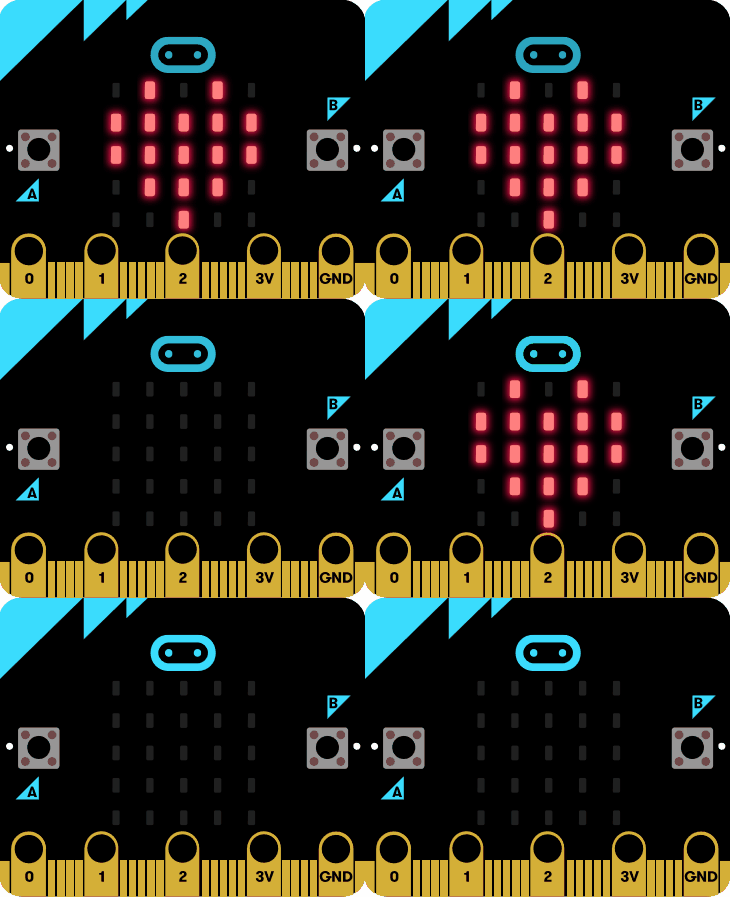
The BBC micro:bit is a small, programmable device that helps you learn about computing. It's like a tiny computer that you can code to do various things, such as displaying messages on its LED screen or reacting to buttons. Even if you don't have a physical micro:bit, you can use the virtual simulator in the editor.
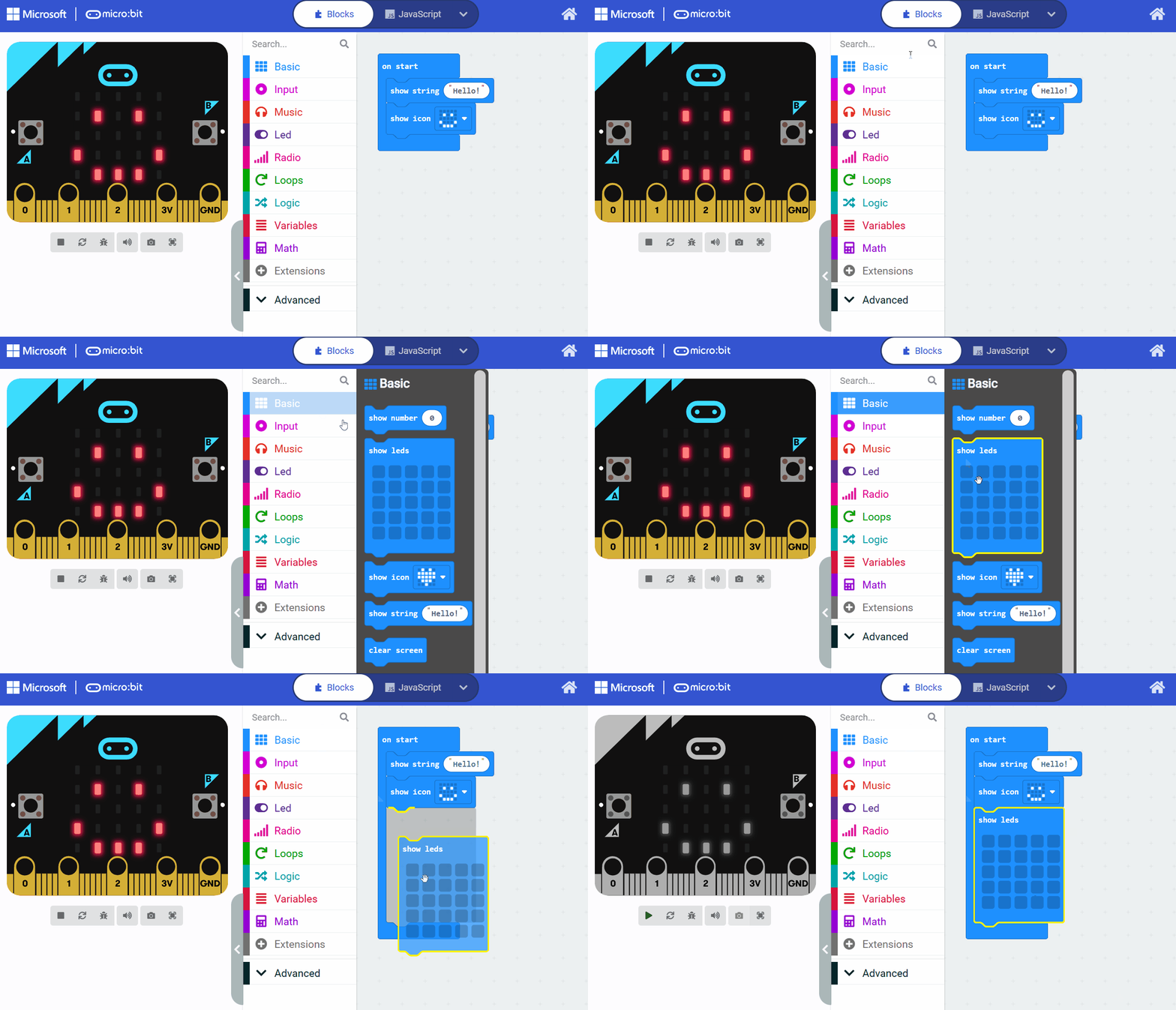
The MakeCode editor is an online tool where you can write code using blocks, Python or JavaScript to program the micro:bit. You can access it by going to makecode.microbit.org. We'll be using this editor to create block-based code in this first module.
Remember, you don't need a physical micro:bit to follow along; the simulator in the editor works perfectly. If you do have one, you can optionally download your code to it and run the code on the physical device.
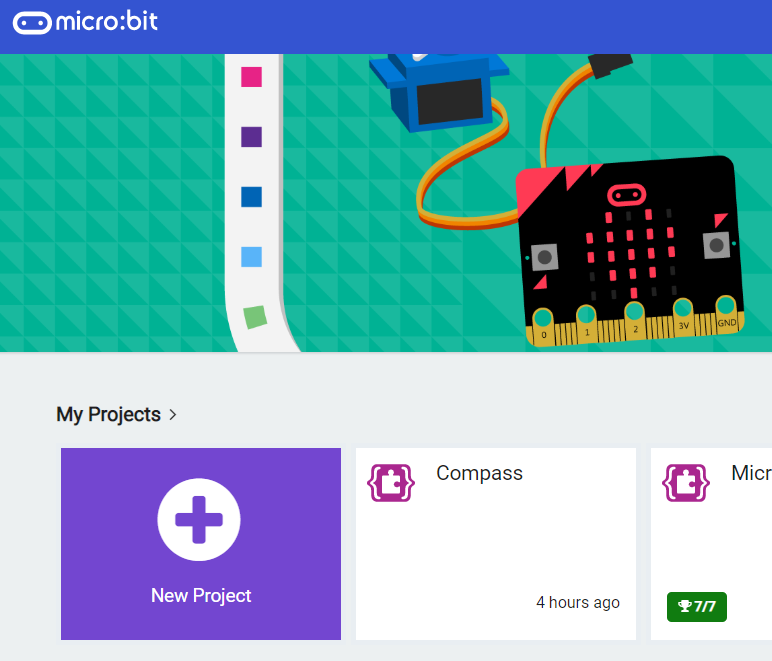
Go to the Makecode.com Microbit website using the link below and click on the 'New Project' button underneath the 'My Projects' heading.
https://makecode.microbit.org/
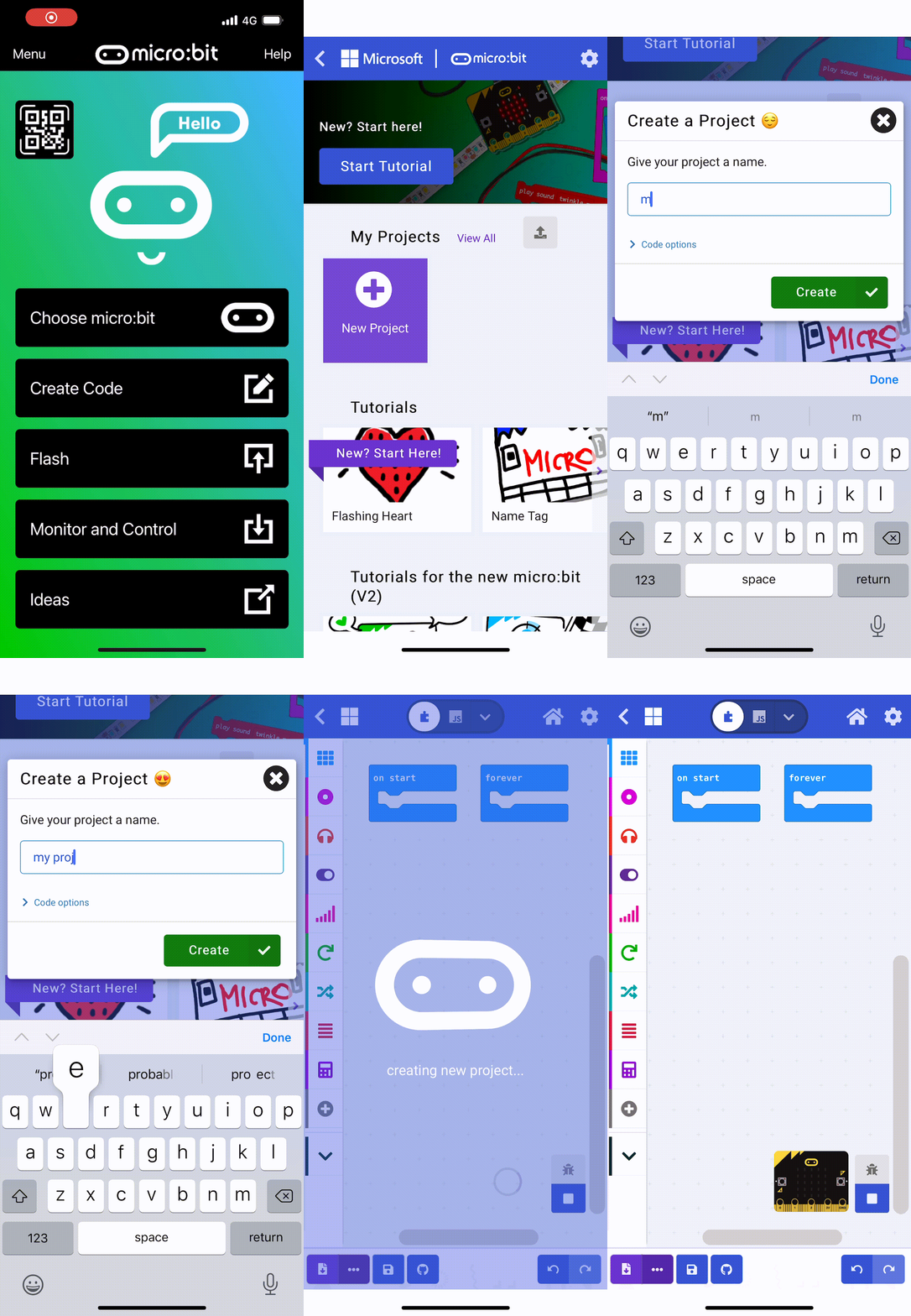
Install the micro:bit app on your iPad or tablet.
Open the app, tap 'Create code' and then create a new project.

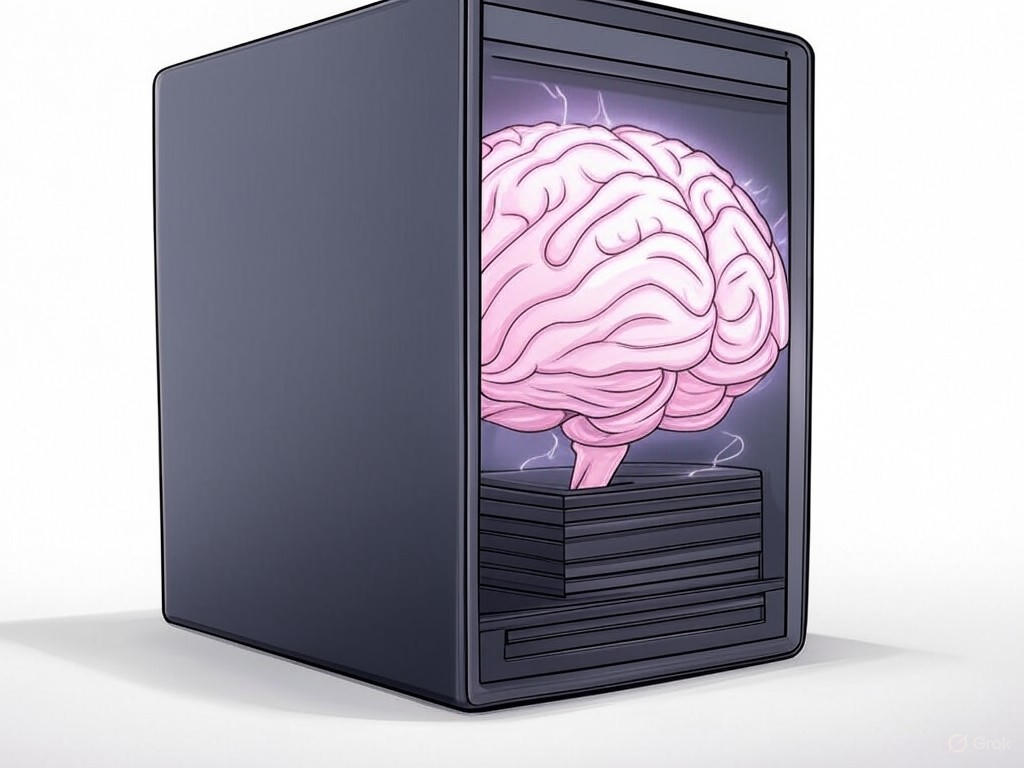
The Central Processing Unit (CPU) is oft
en called the 'brain' of a computer system. It is responsible for executing instructions from software programs, performing calculations, and controlling other hardware components to ensure everything works together smoothly. In simple terms, the CPU processes data and runs code, making it possible for computers to perform tasks like browsing the internet or running games.
To understand the CPU better, consider its core process known as the fetch-decode-execute cycle. This cycle involves three main steps:
This cycle repeats billions of times per second in modern CPUs, enabling rapid processing and responsiveness in devices.
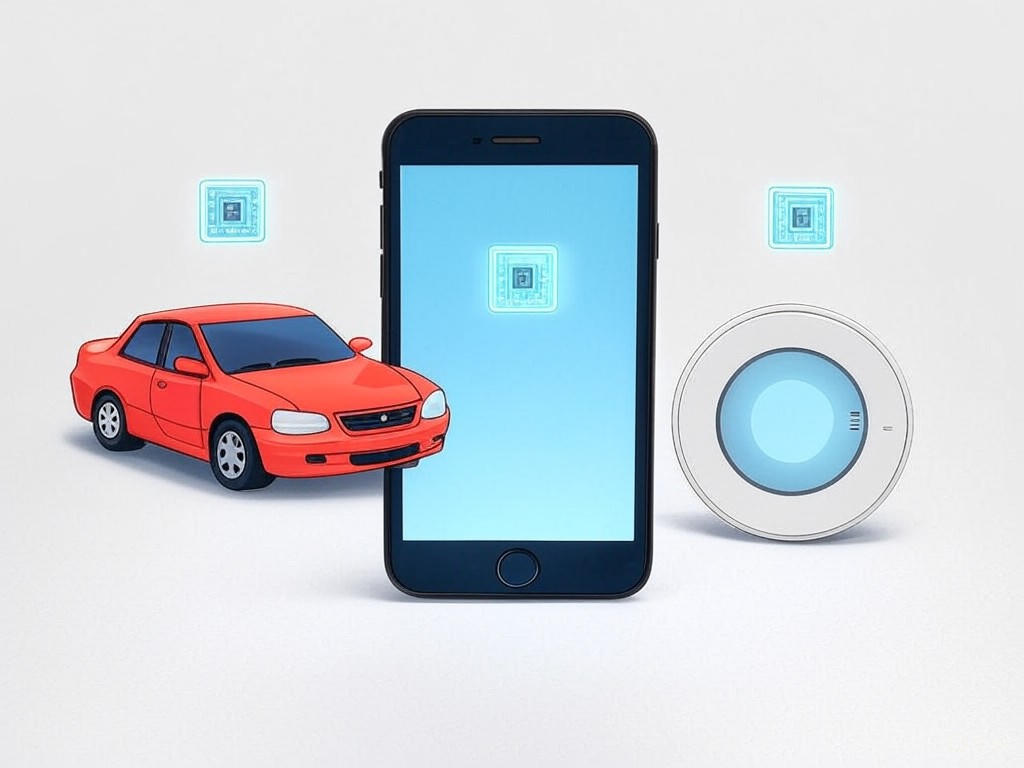
CPUs are not limited to computers; they are found in a wide array of everyday technology. For example, in smartphones, the CPU handles multitasking, such as switching between apps, processing images, and managing notifications. In vehicles, CPUs power systems for navigation, engine control, and safety features like adaptive cruise control. Even in household items like smart thermostats or fitness trackers, CPUs process data from sensors to provide real-time feedback and automation. This widespread use demonstrates how CPUs make devices efficient and interactive, responding quickly to user inputs and environmental changes.
By grasping these concepts, you'll build a solid foundation for understanding how computers and other systems operate.
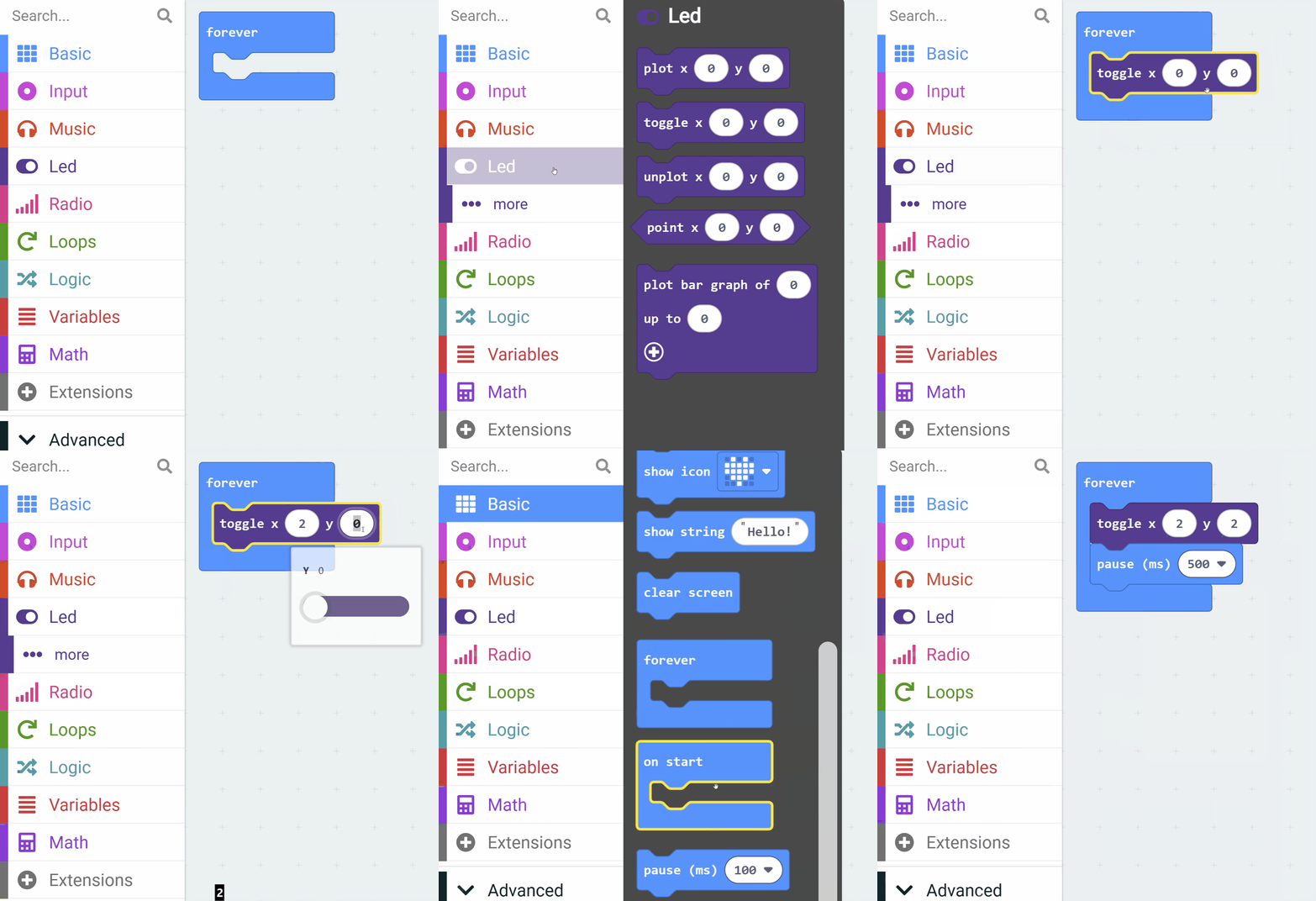
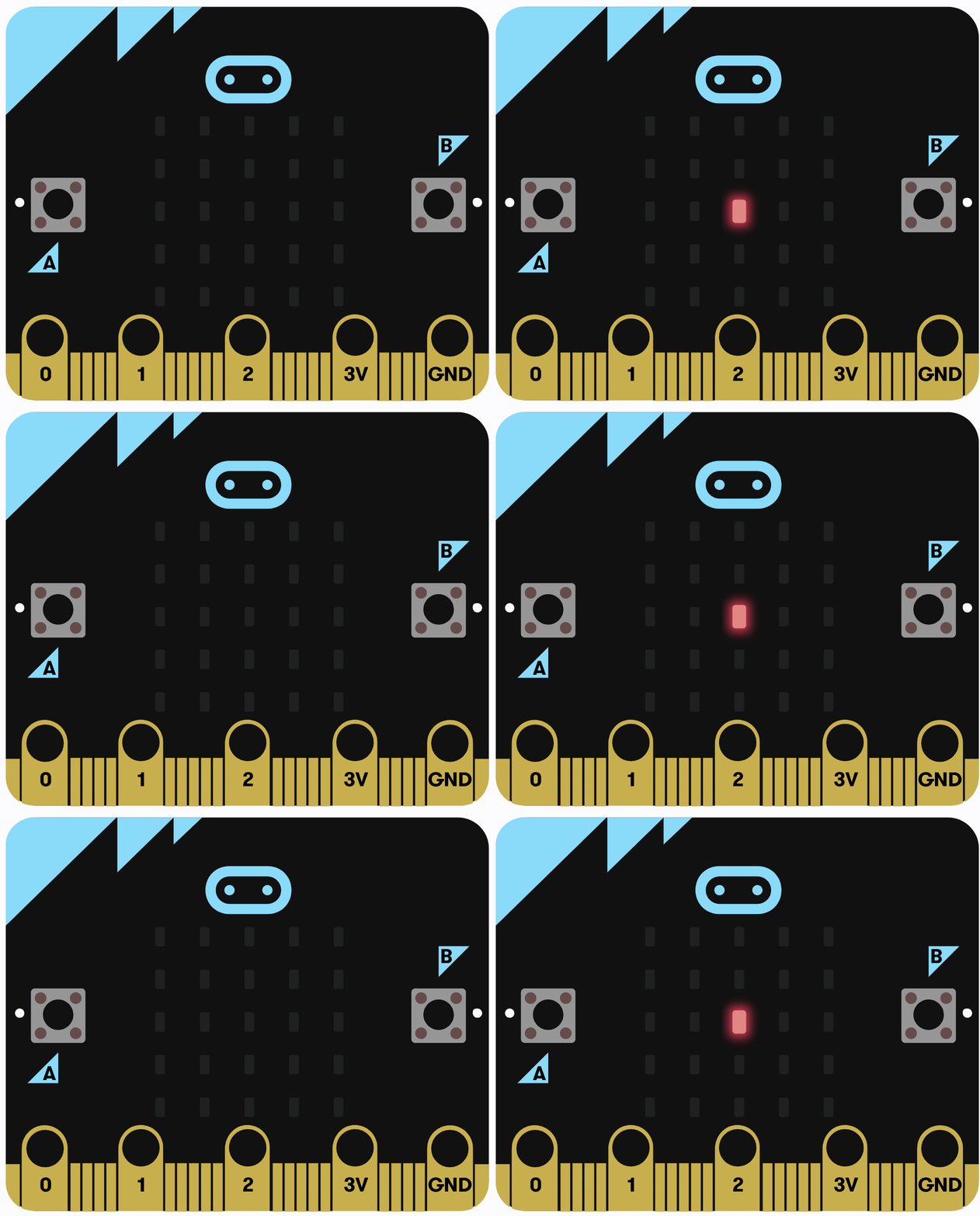
Let's create a simple program that makes an LED blink on and off continuously, demonstrating how the CPU handles repetitive tasks by fetching instructions from memory, decoding them, and executing actions like controlling the LEDs in a loop.
Open the MakeCode editor by going to makecode.microbit.org. We'll use this to write and test your code using the simulator. If you have a physical micro:bit, you can optionally download the code onto the device.
Add the following code to your project:
basic.forever(function () {
led.toggle(2, 2)
basic.pause(500)
})
Explanation of the code: The basic.forever function creates an infinite loop that runs repeatedly until the program is stopped. Inside the loop, led.toggle(2, 2) changes the state of the LED at row 2, column 2 (toggling it on or off), and basic.pause(500) waits for 500 milliseconds before the next iteration.
Once you've added the code, run it in the simulator to see the LED blink. Think about how this relates to the CPU concepts: each loop iteration represents the CPU fetching the instructions from memory, decoding what to do (toggle LED and pause), and executing those actions.
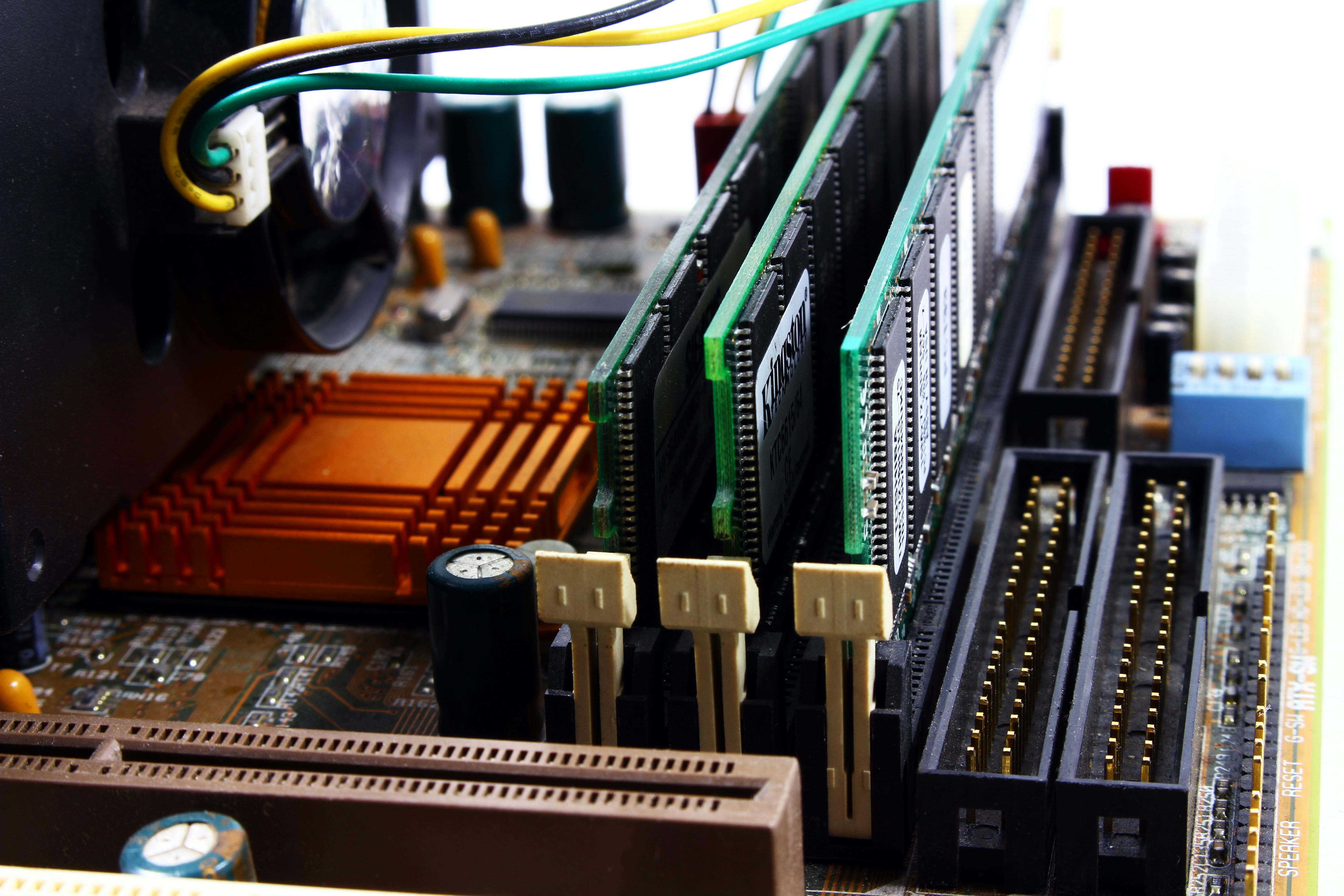
Memory is an essential part of computer systems that provides temporary storage for data and instructions, allowing the computer to operate efficiently. It works closely with the CPU to ensure quick access to information, which is vital for performing tasks smoothly.
In computer systems, memory typically refers to Random Access Memory (RAM). RAM is a type of volatile memory, meaning it only holds data while the device is powered on. It serves as a fast workspace where programs and data are stored temporarily, enabling the CPU to retrieve and process information rapidly. This is different from storage, which we will cover in the next step, as storage retains data even when the power is off.
Memory plays a key role in the CPU's fetch-decode-execute cycle, which you learned about in the previous step. When a program runs, it is loaded into RAM. The CPU then fetches instructions from this memory, decodes them to determine the required actions, and executes them. This cycle can happen billions of times per second, making memory crucial for the speed and responsiveness of computers.
There are several types of memory in a computer system. The most common is RAM, but there is also cache memory, which is smaller and faster, located closer to the CPU to store frequently accessed data. Another type is read-only memory (ROM), which holds permanent data that cannot be changed, such as the basic instructions needed to start up a computer. Understanding these types helps illustrate how memory supports different aspects of computing.
Memory is involved in many devices you use daily, such as smartphones, laptops, and gaming consoles. For instance, when you have multiple apps open on your phone, RAM stores the data for each app, allowing you to switch between them without delay. If a device runs low on memory, it can slow down or crash, showing how important memory is for smooth performance. By grasping these concepts, you'll better understand how computers manage and process information in real-world scenarios.

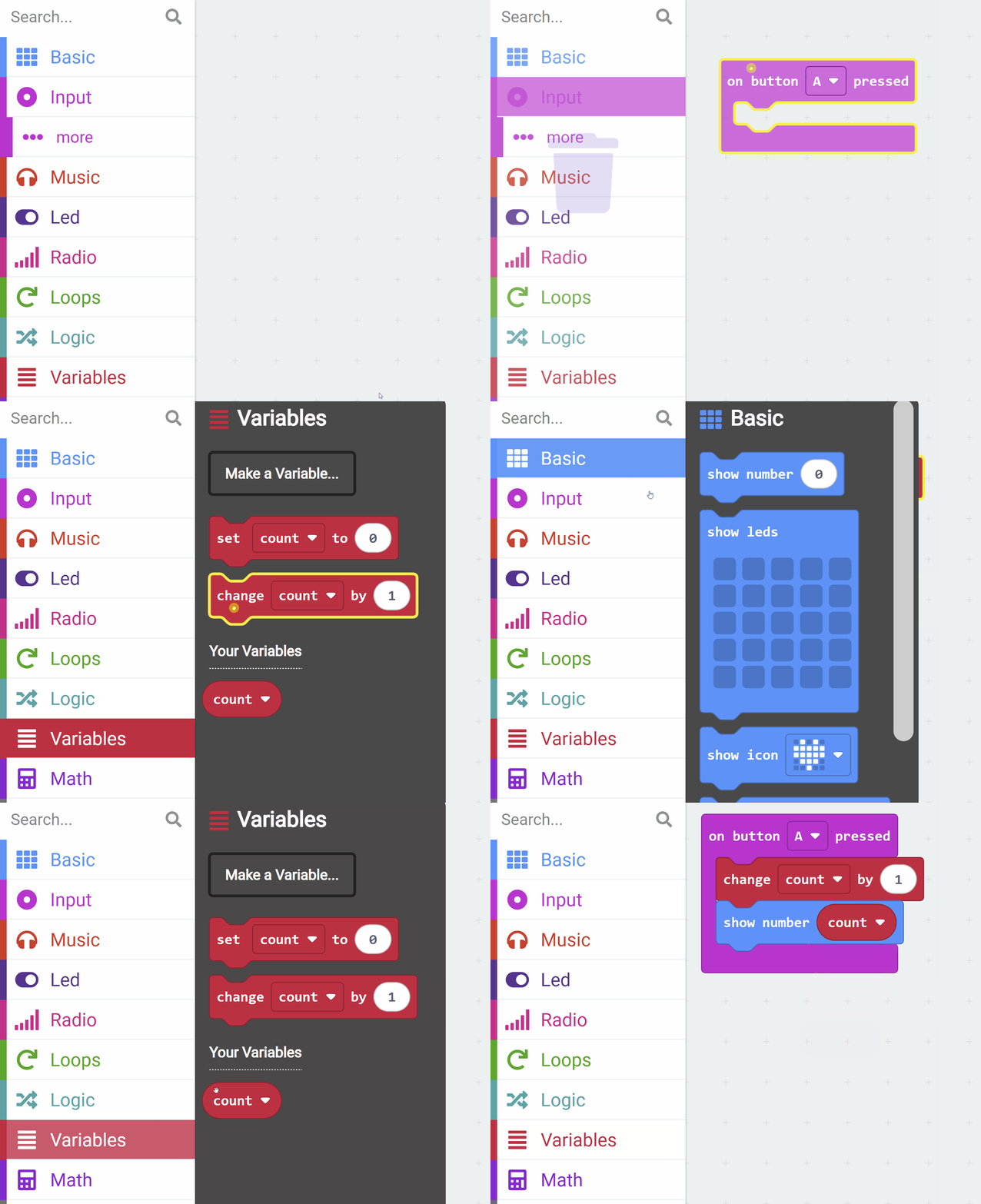
In this practical task, you'll write a simple micro:bit program to reinforce what you learned about memory, specifically how it stores and retrieves data temporarily using variables, allowing the CPU to fetch, decode, and execute instructions that update and display this data. We'll create a program that uses a variable to count the number of times button A is pressed and shows the count on the LEDs, demonstrating how memory holds information that can be updated and accessed, similar to how RAM works in the fetch-decode-execute cycle and illustrating how data is retained in memory between events.
Open the MakeCode editor by going to makecode.microbit.org. We'll use this to write and test your code using the simulator.
Create a variable called count. We'll use this to store the amount of times we click the button A.
Add the following code to your project:
let count = 0
input.onButtonPressed(Button.A, function () {
count += 1
basic.showNumber(count)
})
Explanation of the code: The code starts by declaring a variable count and initializing it to 0, which is stored in memory. The input.onButtonPressed function sets up an event handler that triggers when button A is pressed. Inside this handler, the code increments the count variable by 1 and uses basic.showNumber to display the current value on the micro:bit's LED screen.
Once you've added the code, run it in the simulator and press button A to see the count increase. Reflect on how this relates to memory concepts: the variable is stored in RAM, and each button press involves the CPU fetching the increment and display instructions from memory, decoding them, and executing the actions, showing the role of memory in maintaining and processing data.
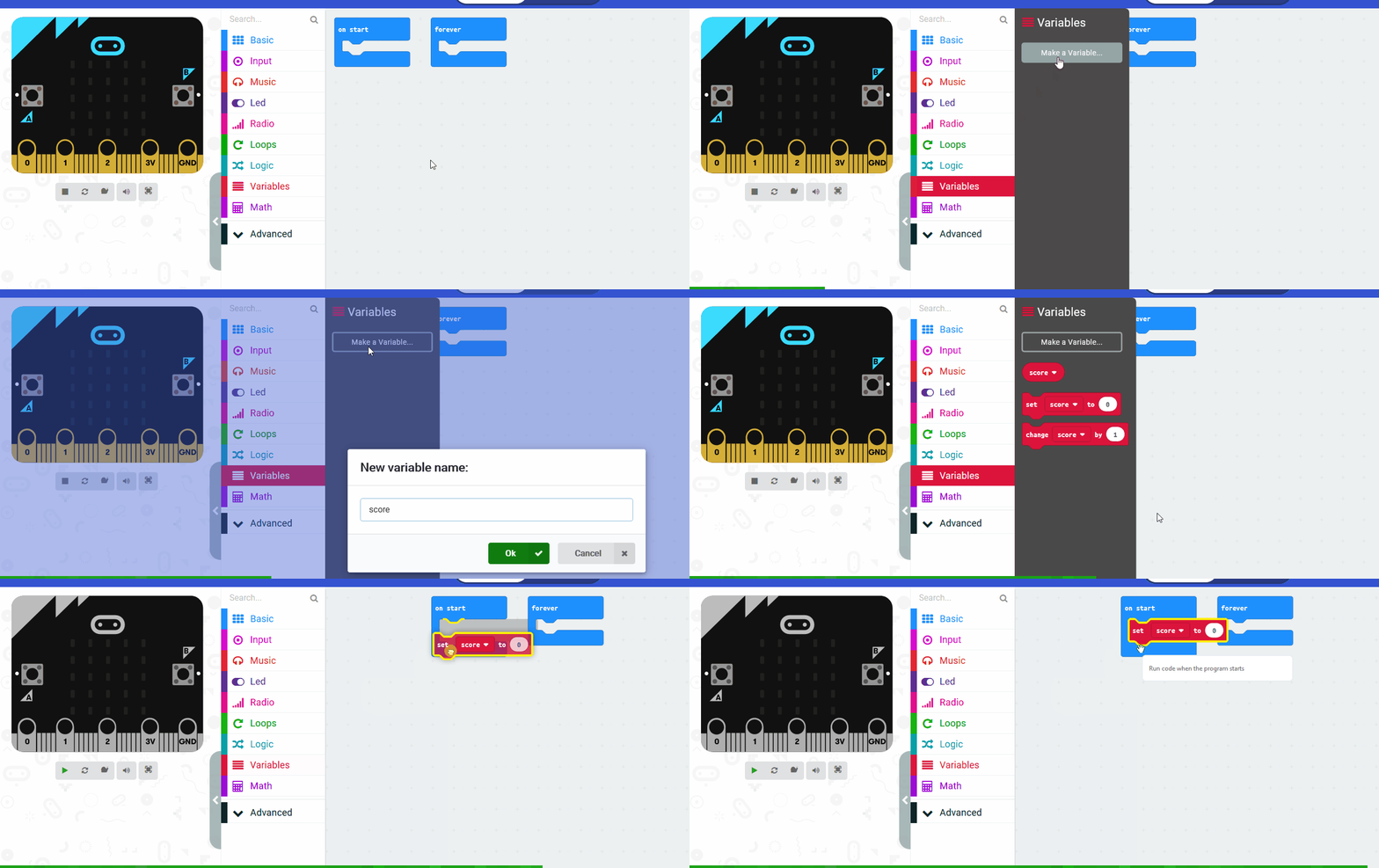
In the Variables toolbox, create a new variable by clicking the 'Make a Variable' button.
Once you click this button a box will appear asking what you want to call your variable. Give it a name that reminds you what you will be using it for. For example, if you wanted to keep track of your score in a game, you would create a variable called 'score'.
Storage is a vital component of computer systems that provides permanent data retention, allowing information to be saved and accessed even when the device is turned off. Unlike memory, which is temporary and volatile, storage ensures that files, programs, and data remain intact over time, supporting everything from simple document saving to complex data management in large systems.
Storage refers to the hardware devices and technologies used to store data persistently. It is non-volatile, meaning it does not lose data when power is removed. The main types of storage include:
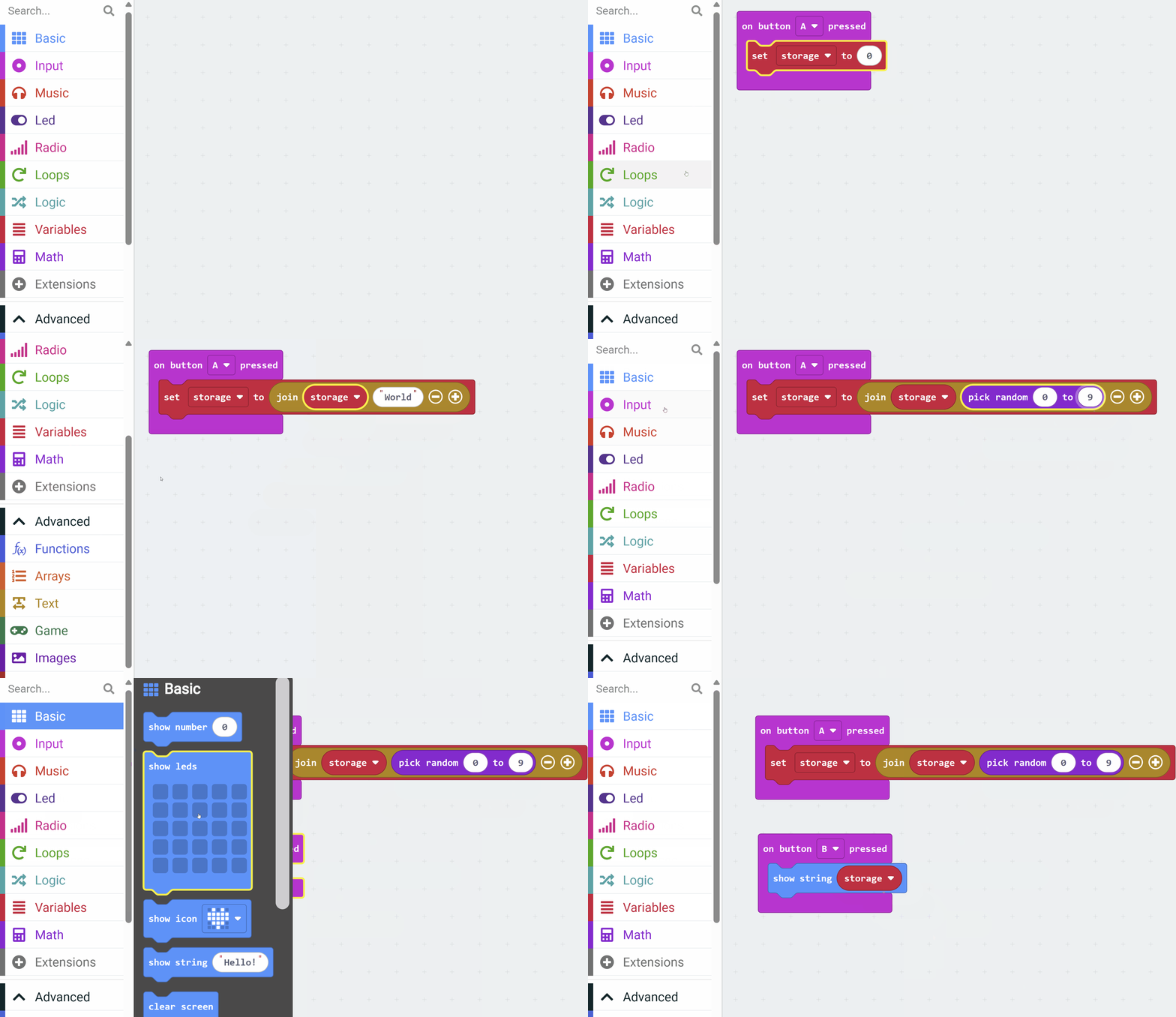
Storage devices are connected to the computer system and work with the CPU and memory to retrieve data when needed. For example, when you open a file, the CPU fetches it from storage into memory for faster processing.
Storage operates by organising data into files and folders, which are managed by the operating system. Data is written to and read from storage using specific protocols, and it can be accessed sequentially or randomly depending on the type of drive. In the context of the fetch-decode-execute cycle, the CPU may retrieve data from storage into RAM before processing it, highlighting how storage acts as a long-term repository while memory handles short-term tasks.
Storage is integral to many aspects of daily life. For instance, it enables you to save photos, videos, and documents on your smartphone or laptop, store music on streaming services, or use cloud storage like Google Drive or OneDrive to access files from multiple devices. In larger systems, storage supports databases for businesses, archives for research, and even the vast data centres that power the internet. Understanding storage helps you appreciate how computers manage information securely and efficiently, forming a key part of broader computer science concepts such as data management and system reliability.
In this practical task, you'll write a simple micro:bit program to reinforce what you learned about storage, specifically how it can accumulate and retrieve data over multiple interactions using a variable. Although the micro:bit's memory for variable values is volatile (meaning that it loses its stored data when power is removed), this will help illustrate the basic idea of data retention and accumulation. We'll create a program that lets you add a random digit to a sequence with each button A press and display the entire sequence with button B.
Open the MakeCode editor by going to makecode.microbit.org. We'll use this to write and test your code using the simulator. If you have a physical micro:bit, you can optionally download the code onto the device.
Create a variable called storage. We'll use this to store the random digits.
Add the following code to your project:
let storage = ""
input.onButtonPressed(Button.A, function () {
storage = "" + storage + randint(0, 9)
})
input.onButtonPressed(Button.B, function () {
basic.showString(storage)
})
Explanation of the code: The code declares a variable storage initialized to an empty string, which acts as a simple storage location in memory. When button A is pressed, a random number between 0 and 9 is generated using randint and concatenated to the storage string, building up a sequence of digits. When button B is pressed, the basic.showString function displays the current value of storage.
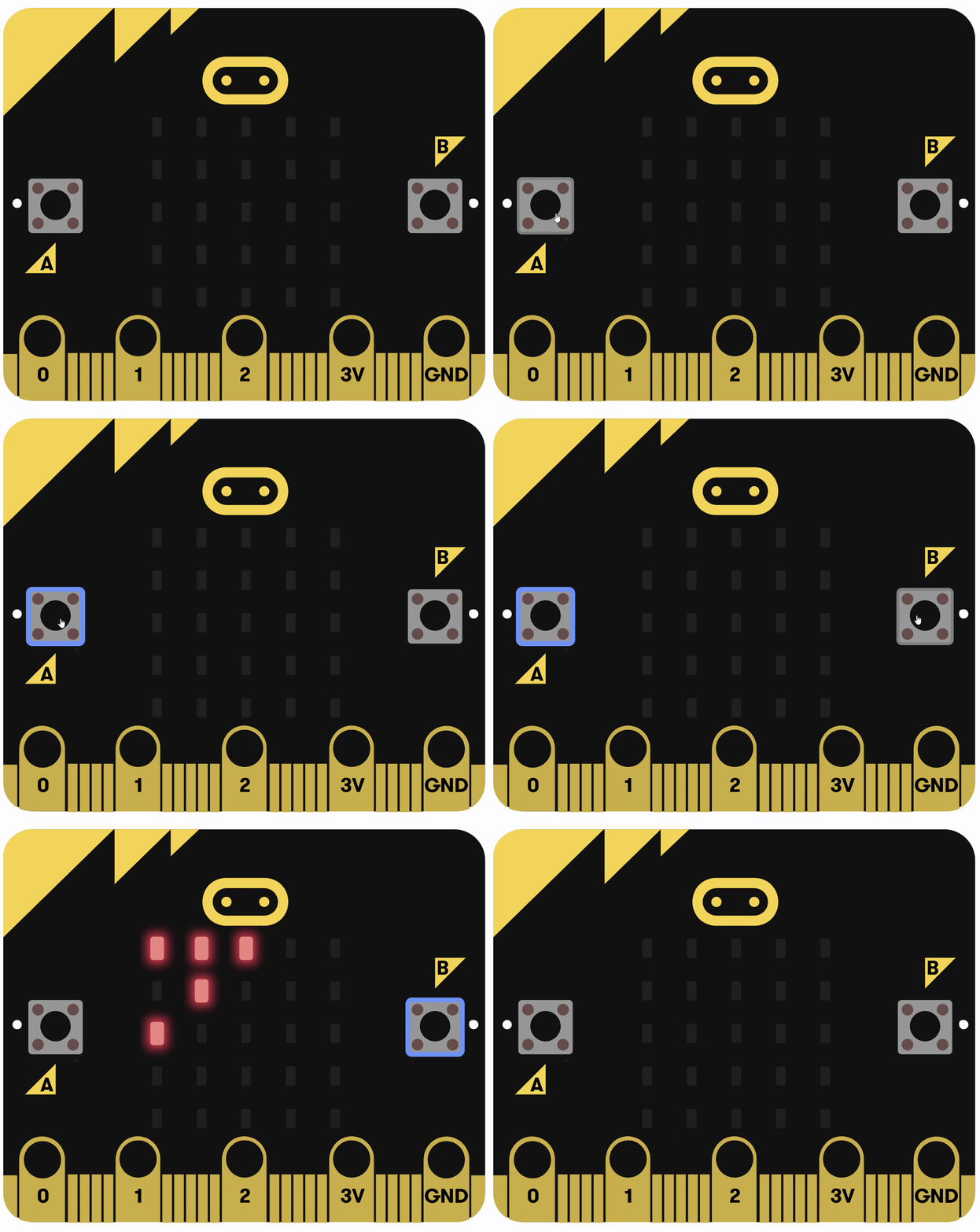
Once you've added the code, run it in the simulator, press button A multiple times to build the sequence, and then press button B to view it. Reflect on how this relates to storage concepts: in real storage systems, this data could be saved permanently demonstrating the fundamental idea of data being accumulated and accessed multiple times in applications such as logging events or building datasets.
In the Variables toolbox, create a new variable by clicking the 'Make a Variable' button.
Once you click this button a box will appear asking what you want to call your variable. Give it a name that reminds you what you will be using it for. For example, if you wanted to keep track of your score in a game, you would create a variable called 'score'.
Now that you've explored the key components of computer systems, including the CPU, memory, and storage, as well as applied these concepts through practical coding tasks with the micro:bit, take a moment to review and reflect on what we've covered.
Key concepts covered include:
Every lesson in the course is ready to teach like this one. See what else comes with it, and how to order it.