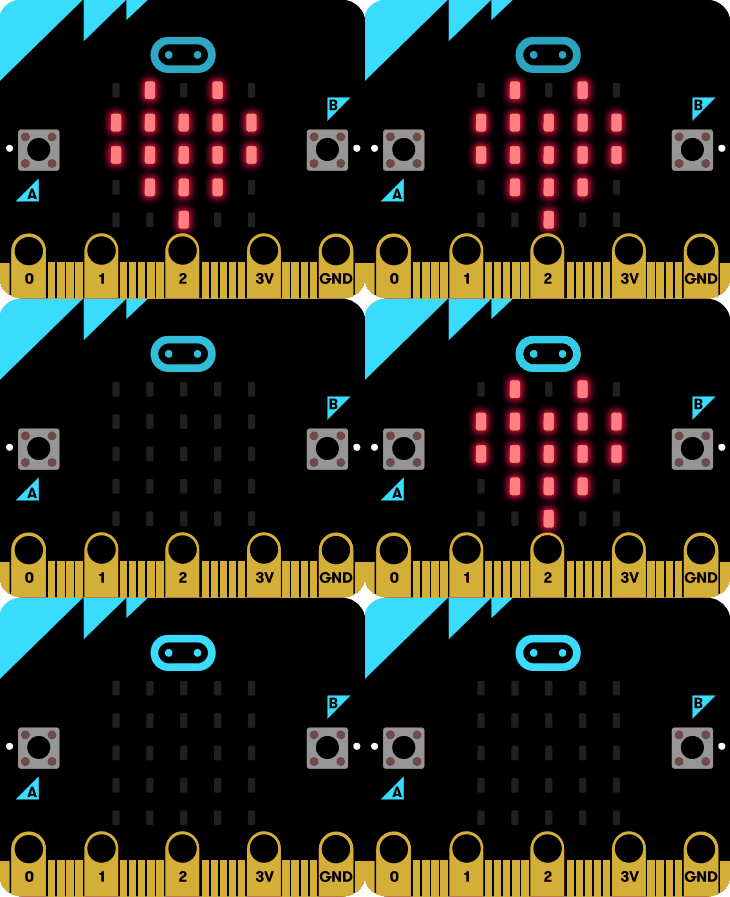
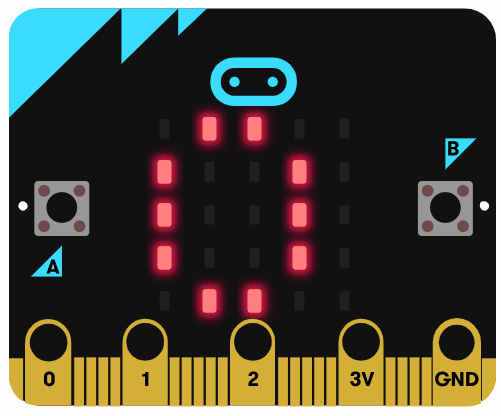
Meet the microbit! A microbit is a small, pocket-sized computer that we can program to do fun and interesting things.
It's like a tiny, interactive billboard that can display messages, play sounds, and react to your actions. You can program it to respond to buttons being pressed and even movement.
In this lesson, we're going to learn how to program the microbit to show messages and react to button presses. Let's get started!
Did you know we can program our microbit using a website? To start our coding adventure, we need to create a new project.
First, open the website MakeCode for microbit.
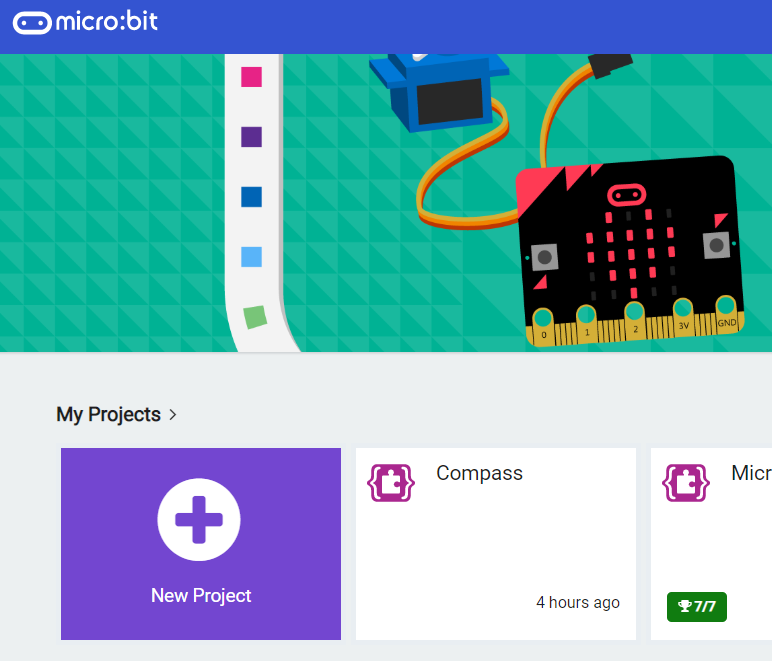
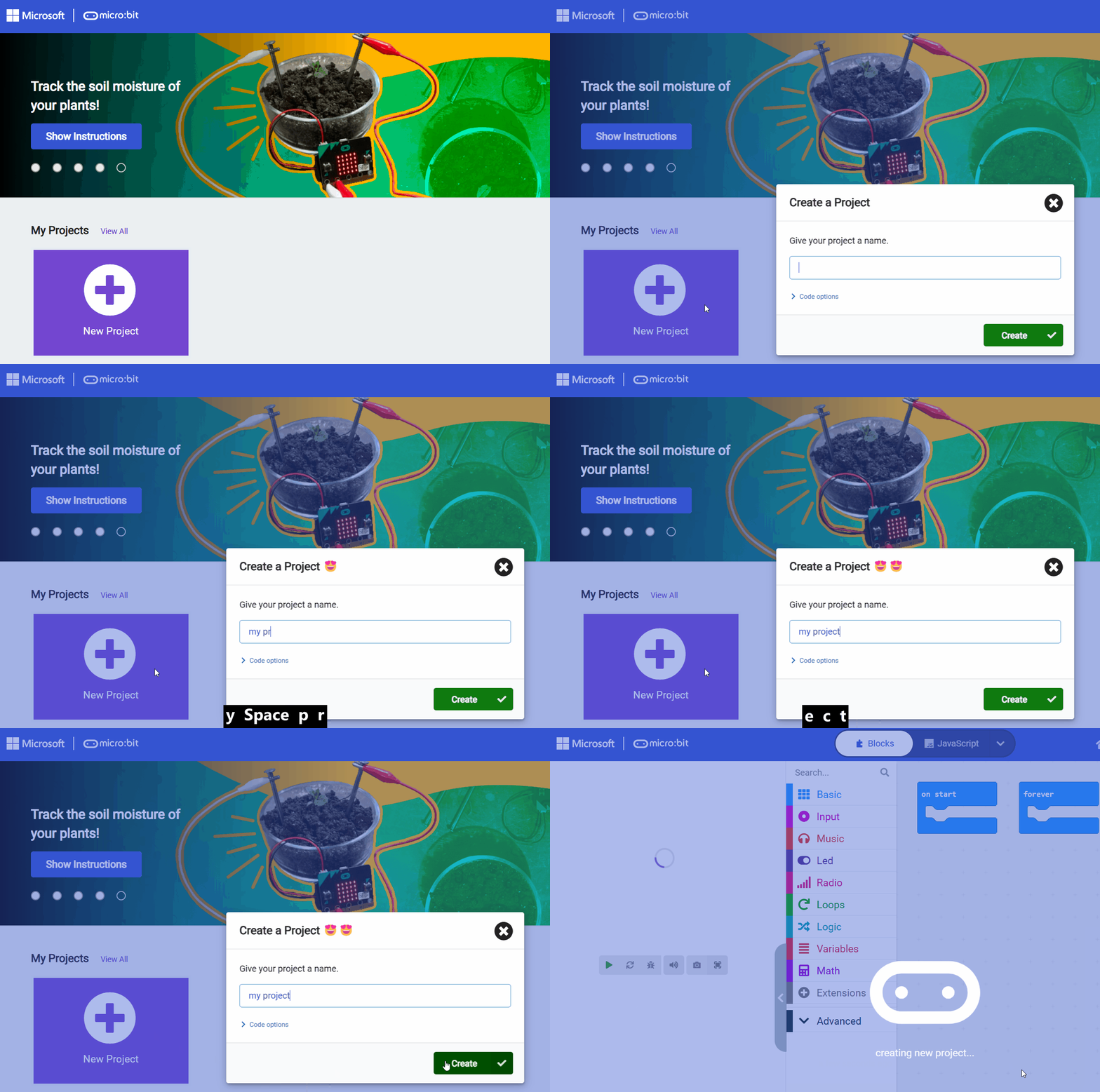
Once you're there, look for a button that says 'New Project' and click on it. It will ask you what you want to call your project. Give your project a name (for example 'my project') and then click on the 'Create' button.
This will open a new, blank project where we can start programming our microbit and give it instructions.
Go to the Makecode.com Microbit website using the link below and click on the 'New Project' button underneath the 'My Projects' heading.
https://makecode.microbit.org/
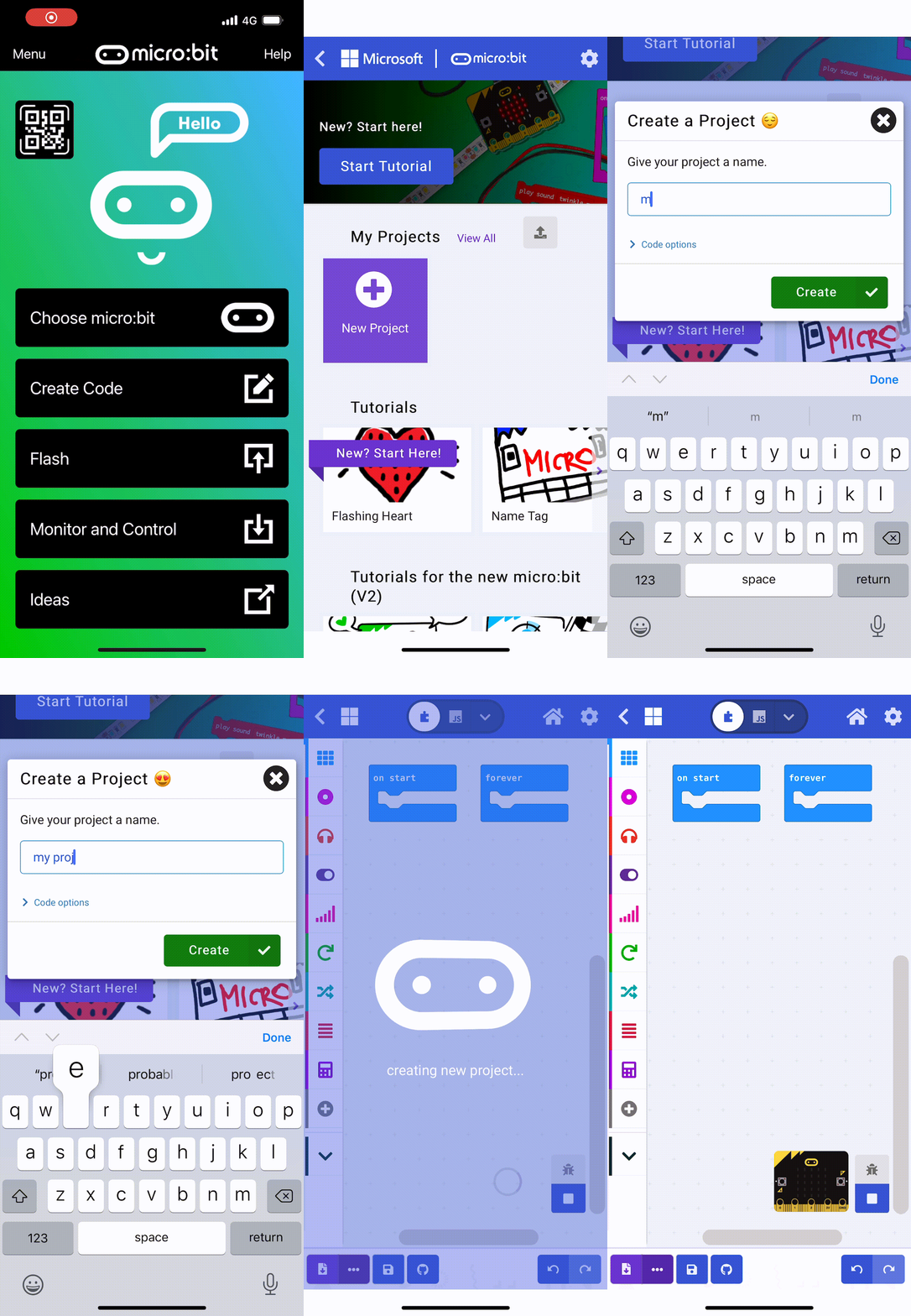
Install the micro:bit app on your iPad or tablet.
Open the app, tap 'Create code' and then create a new project.

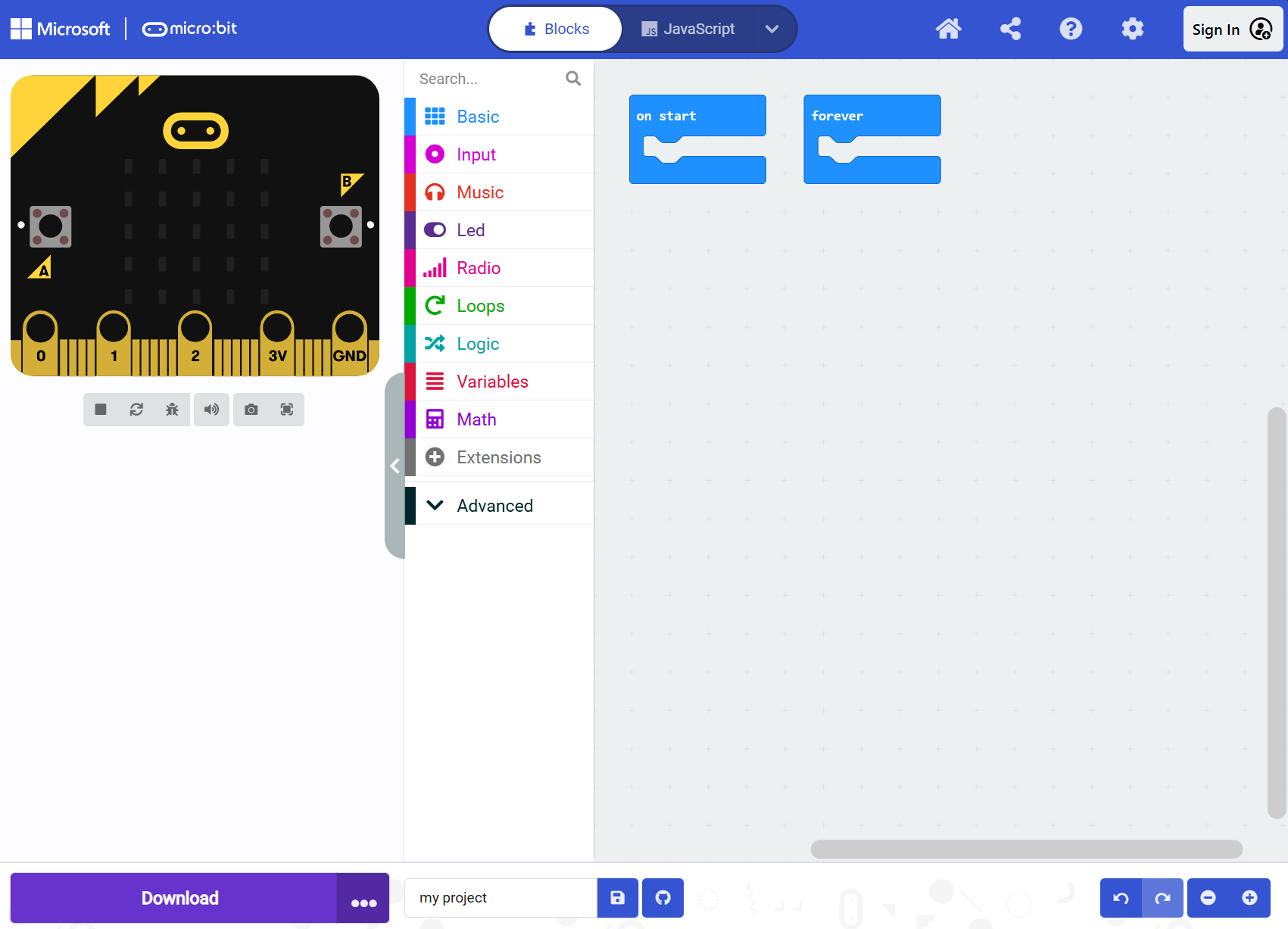
Let's take a look around the projector editor screen.
Microbit Simulator
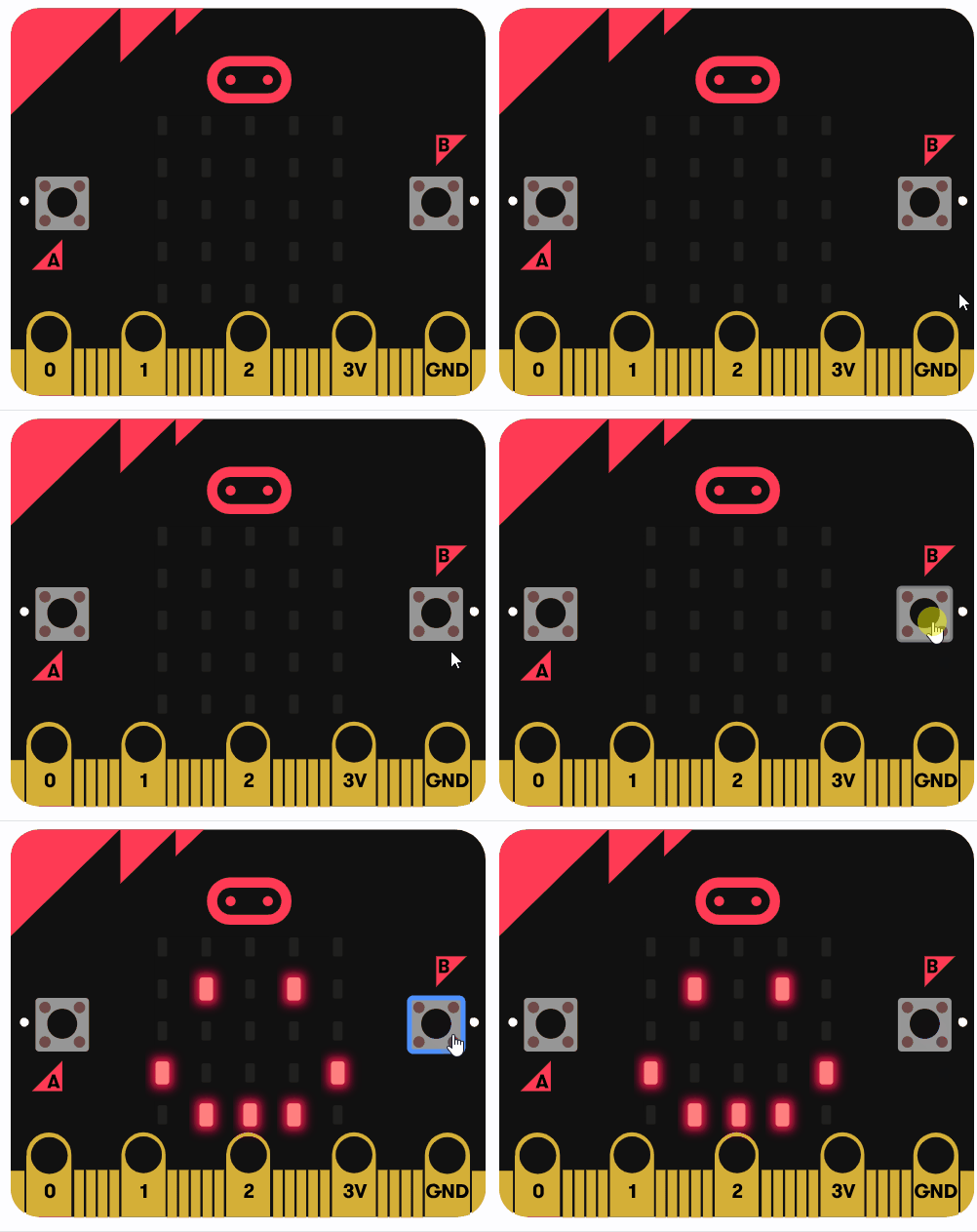
On the left side of the screen, you'll see a simulator of a microbit. When we create some code, we will see it play in the simulator.
Toolbox
On the right side of the simulator, you'll see a toolbox with different categories of blocks. Each of these blocks is a different type of instruction for the microbit.
Code Area
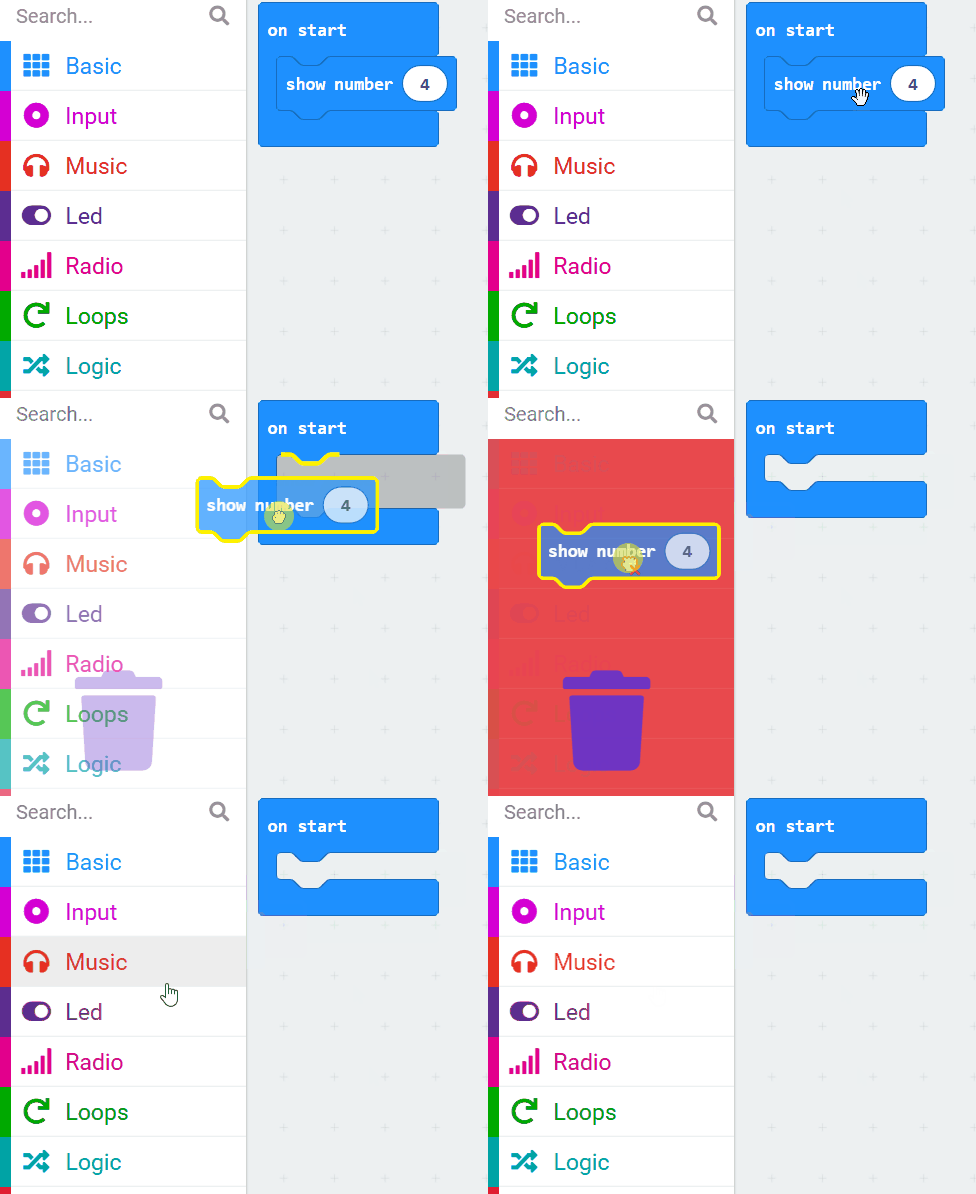
On the right is the code area where we will write our code. It starts with two code blocks already added: on start and forever. on start is used for code that should run once when the microbit starts up. forever is used for code that should keep running over and over again.
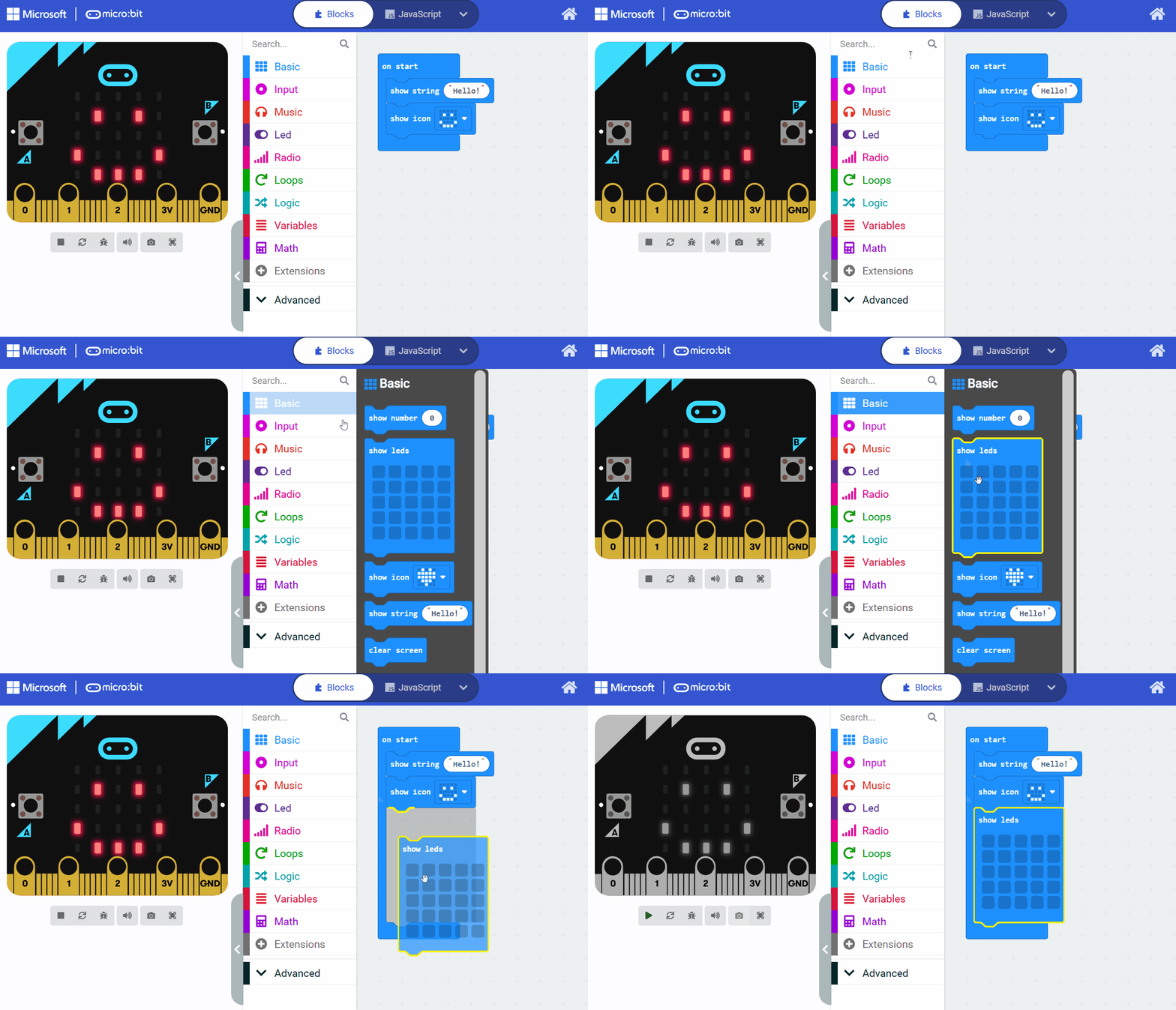
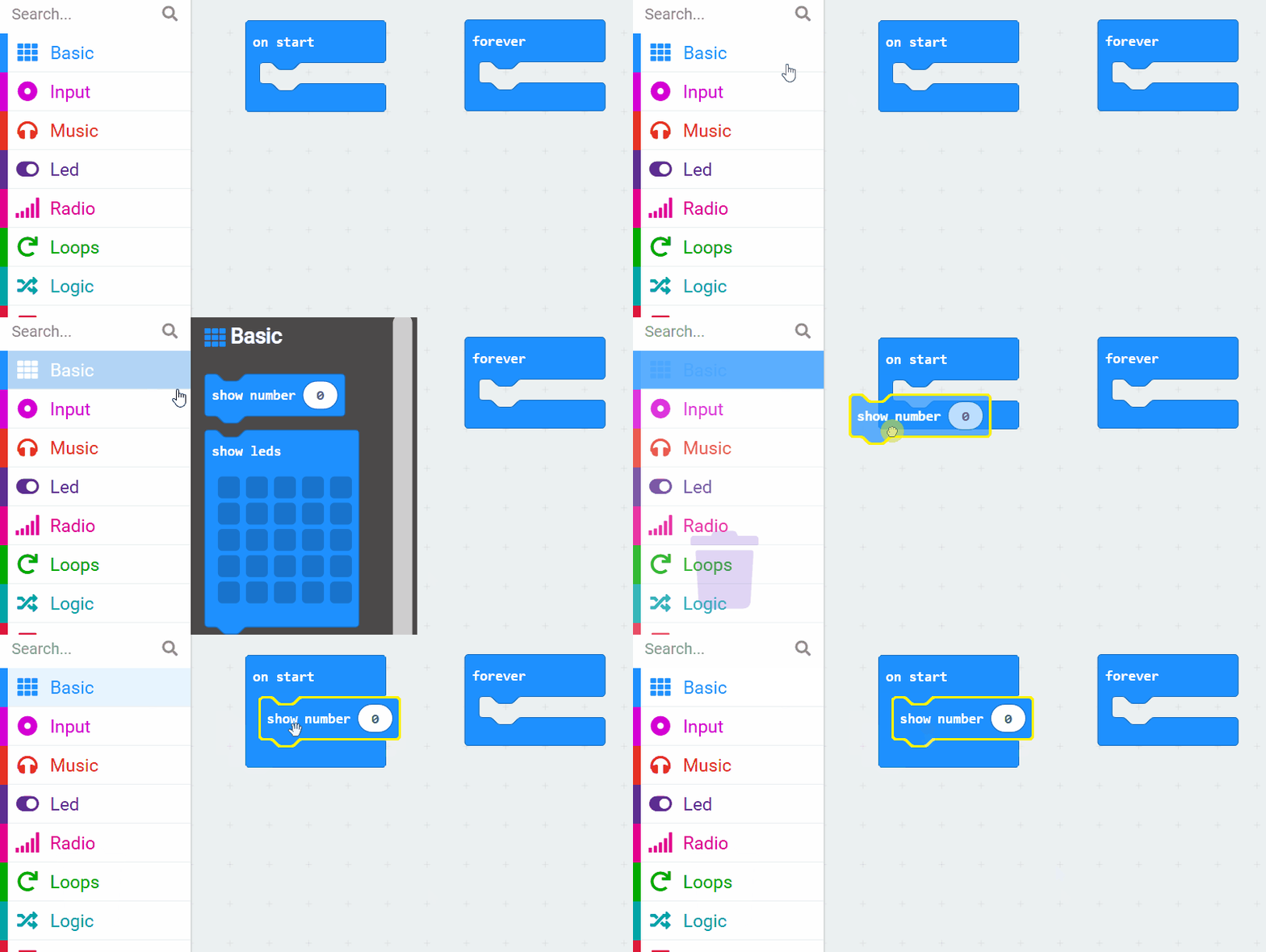
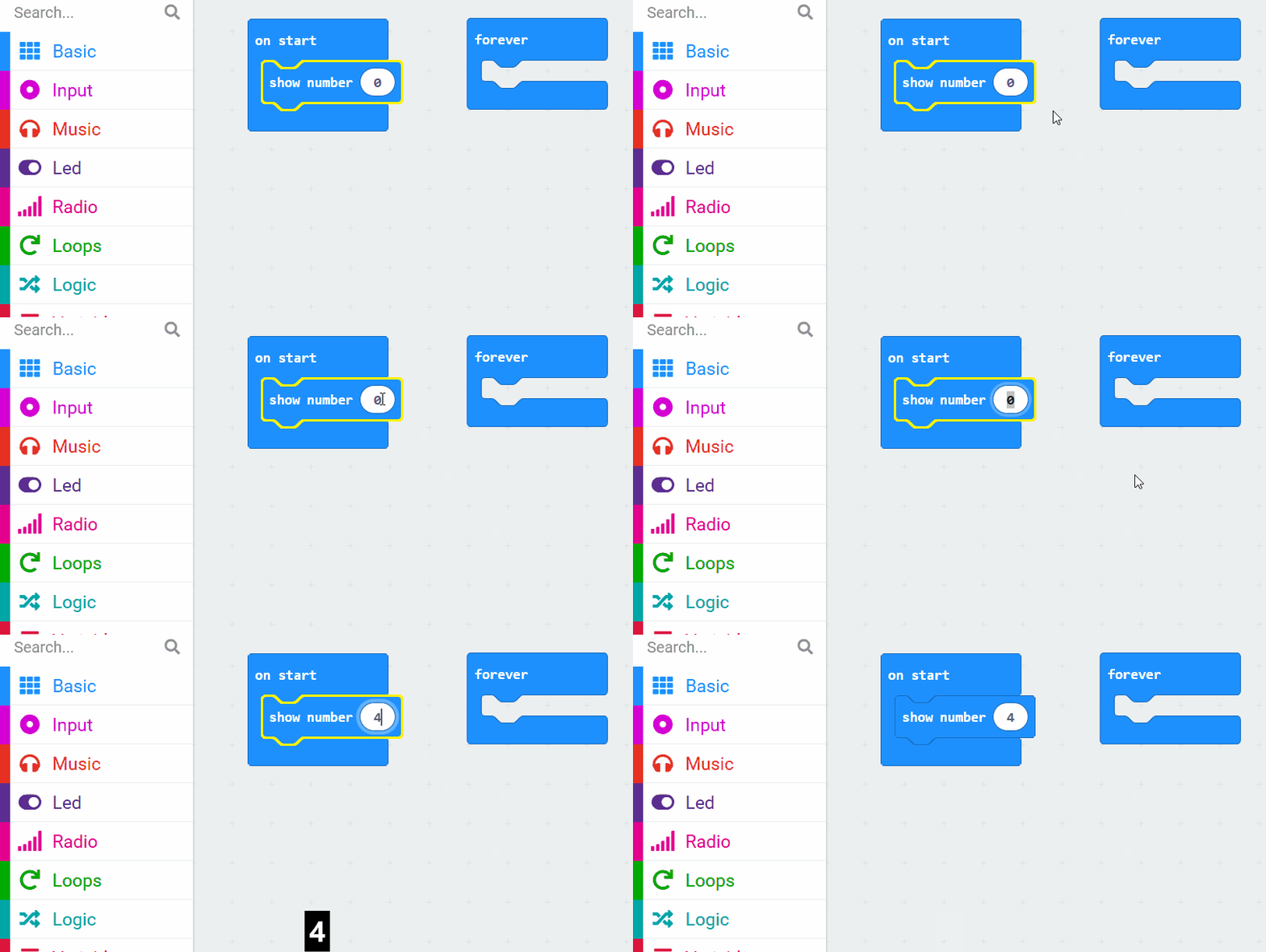
Now let's add our first piece of code. The microbit has a grid of little red LED lights and we're going to make the microbit show some numbers using those lights.
Add the following code:
basic.showNumber(0)
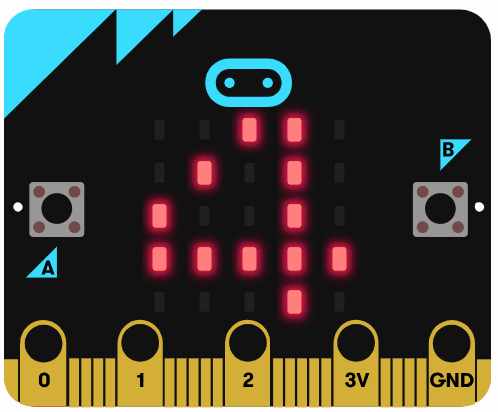
Next change the number 0 to a different number, in our example we changing it to the number 4:
basic.showNumber(4)
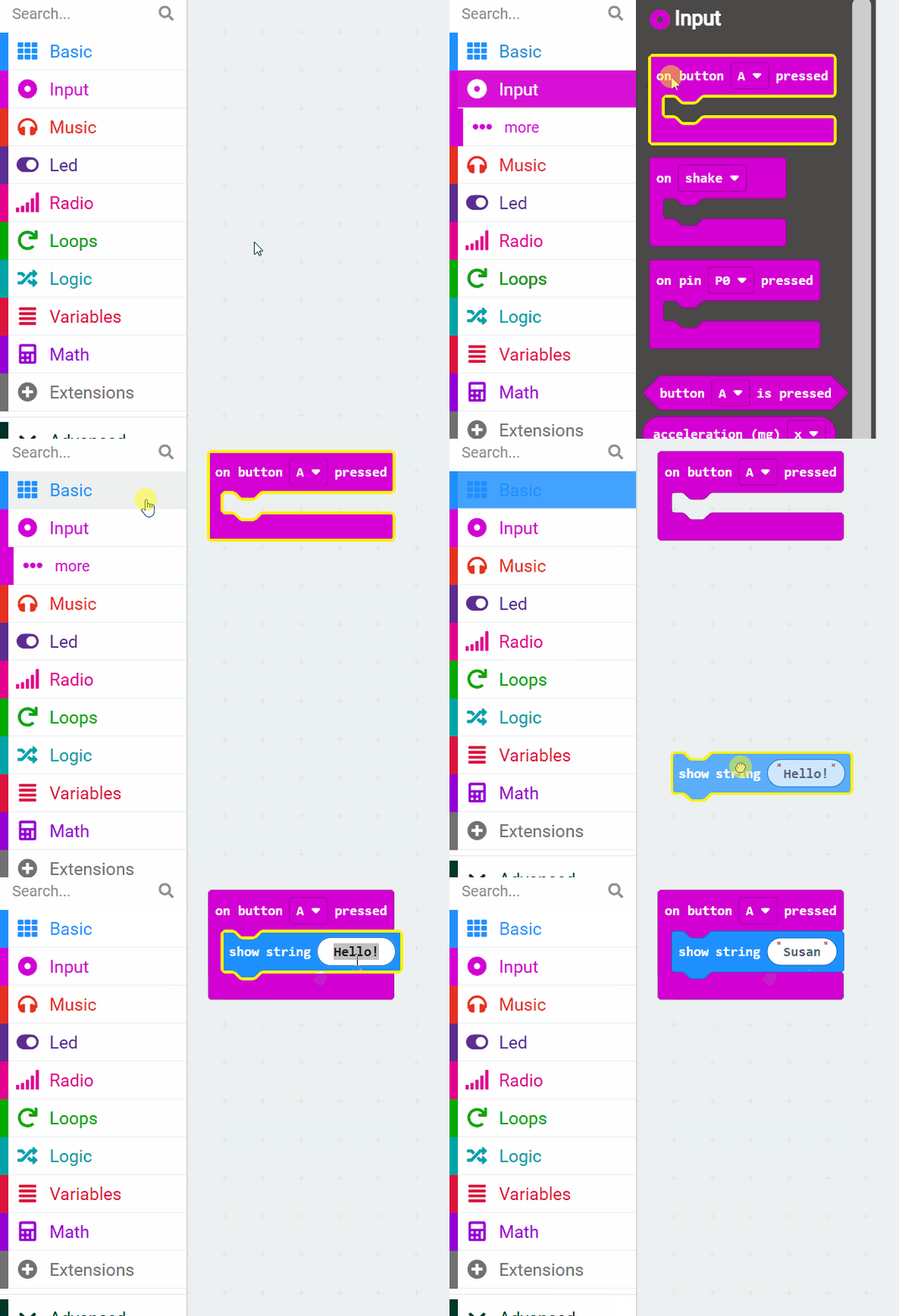
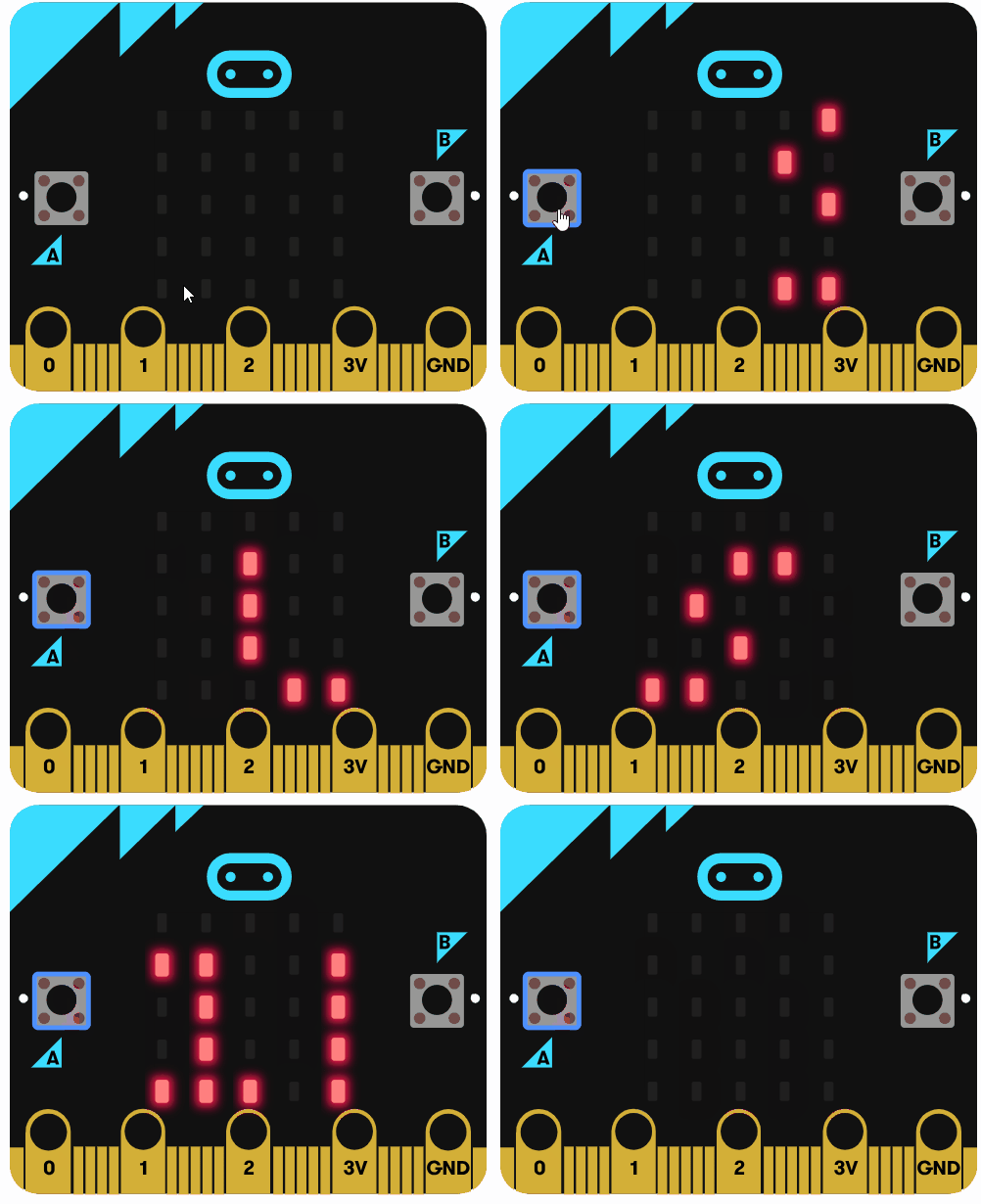
Now let's program one of the buttons on the microbit. The microbit has a grid of little red LED lights and when you press the A button, we're going to make the microbit display our name using those lights.
Add the following code (but put in your own name):
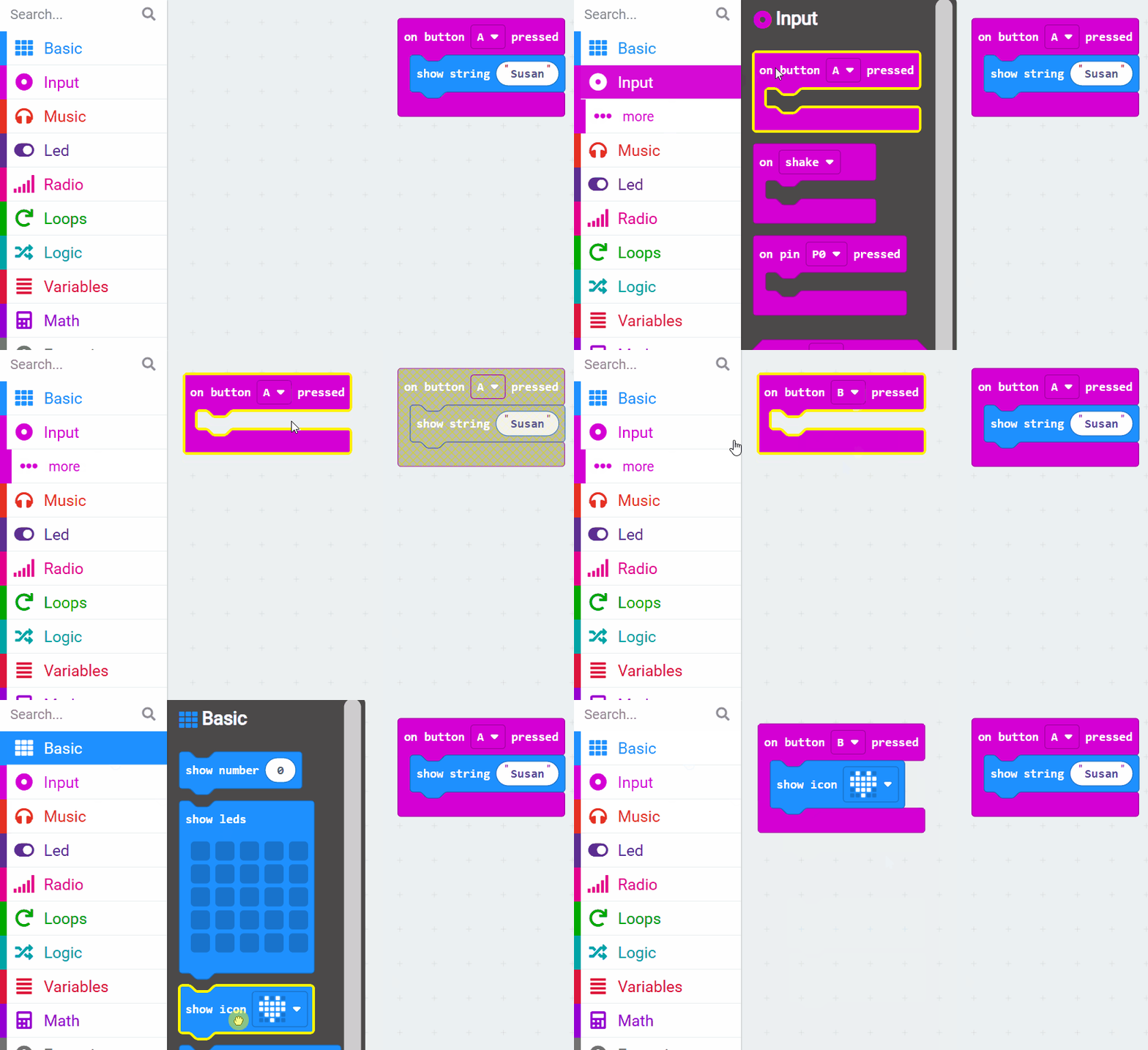
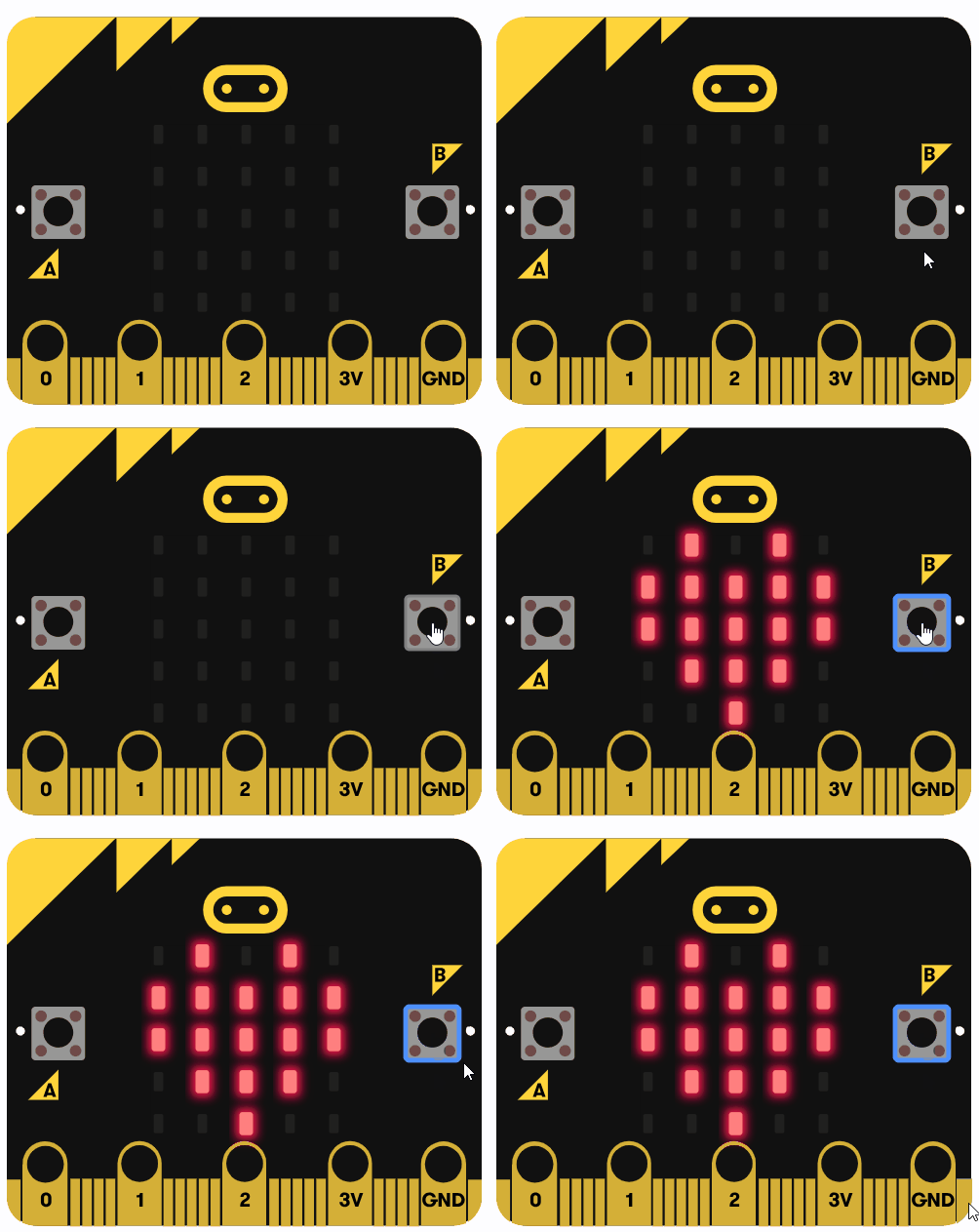
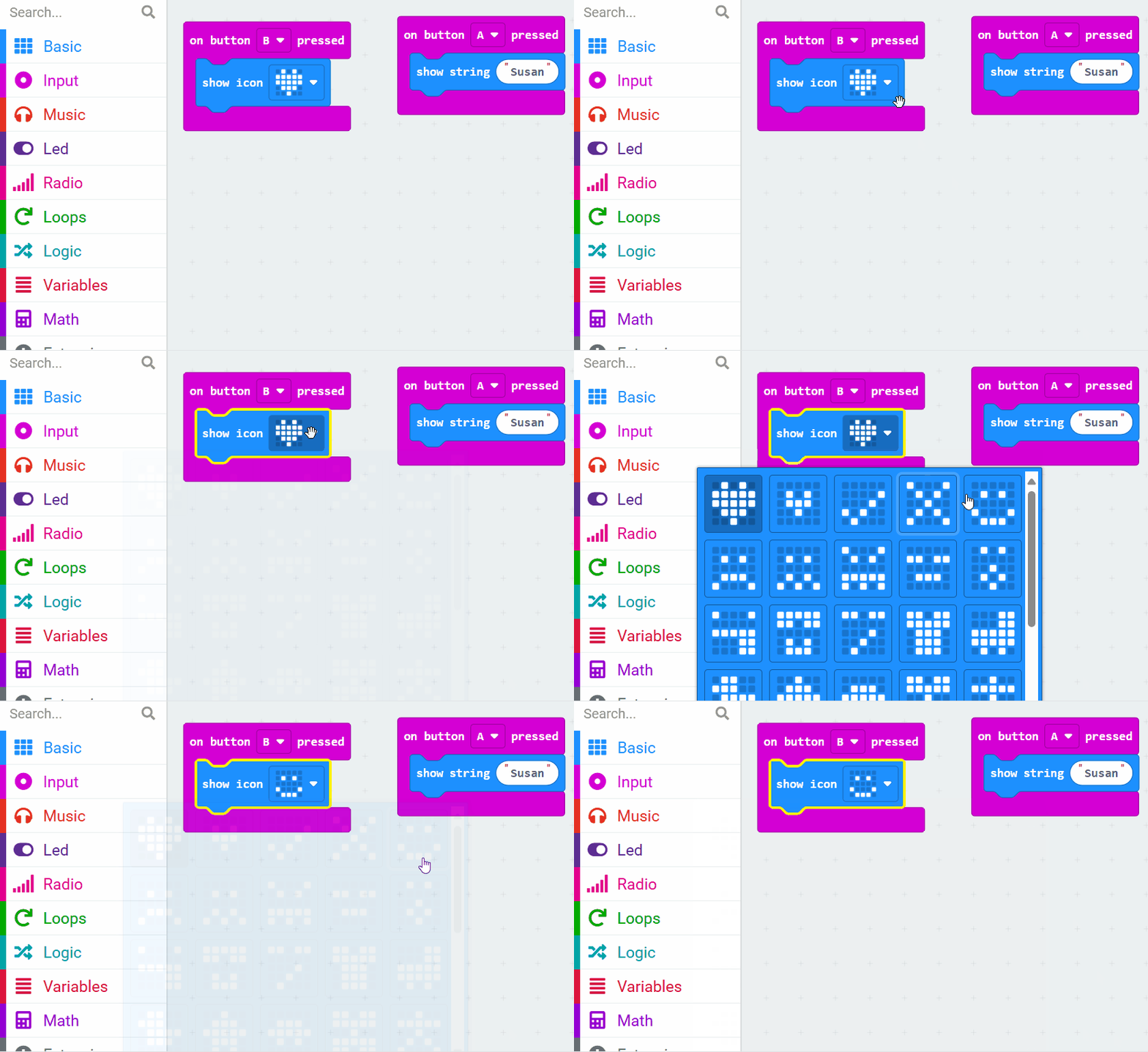
input.onButtonPressed(Button.A, function () { basic.showString("Susan") })Next, we are going to instruct our microbit to display a happy face when we press the B button. This is a fun way to express our emotions using our microbit.
Add the following code:
input.onButtonPressed(Button.B, function () { basic.showIcon(IconNames.Heart) })
Then choose a different icon by clicking on the little white down arrow in the show icon block. This will open the icon library and you can select a different icon.
input.onButtonPressed(Button.B, function () { basic.showIcon(IconNames.Happy) })
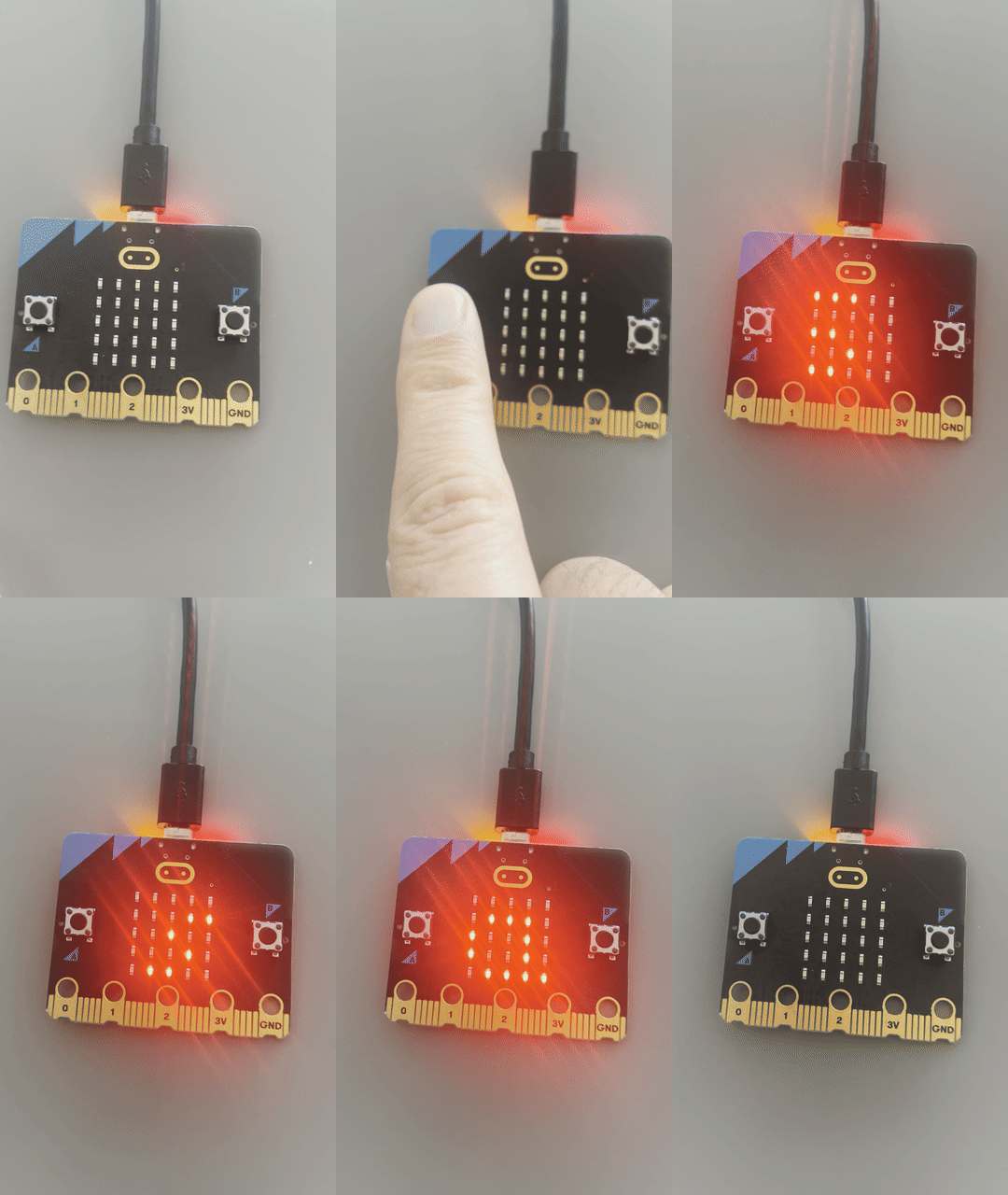
Now let's put our code on are actual microbit devices and see it work in the real world!
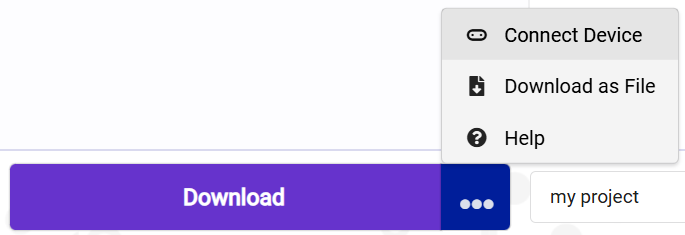
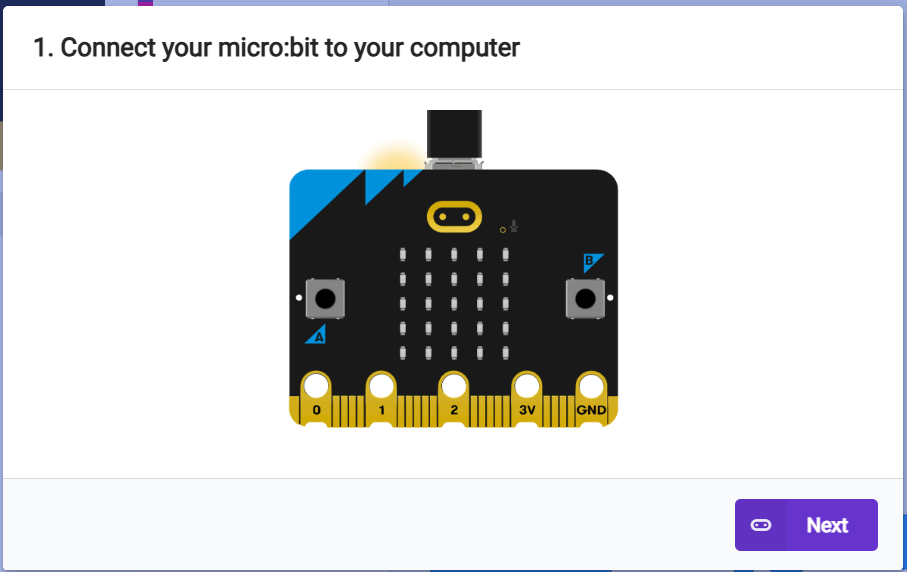
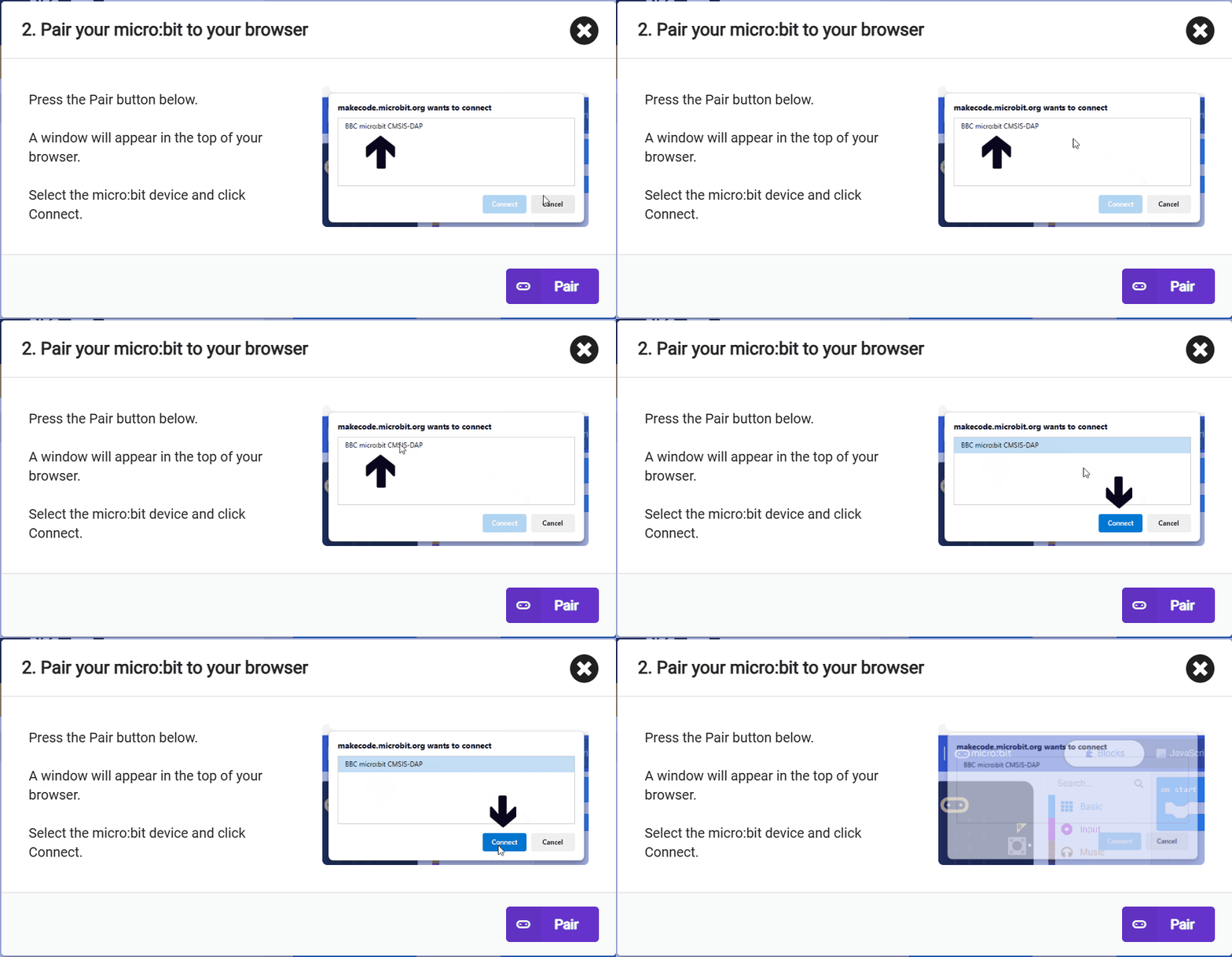
Here are the steps to connect your microbit to your computer so it's ready to download your code onto it:
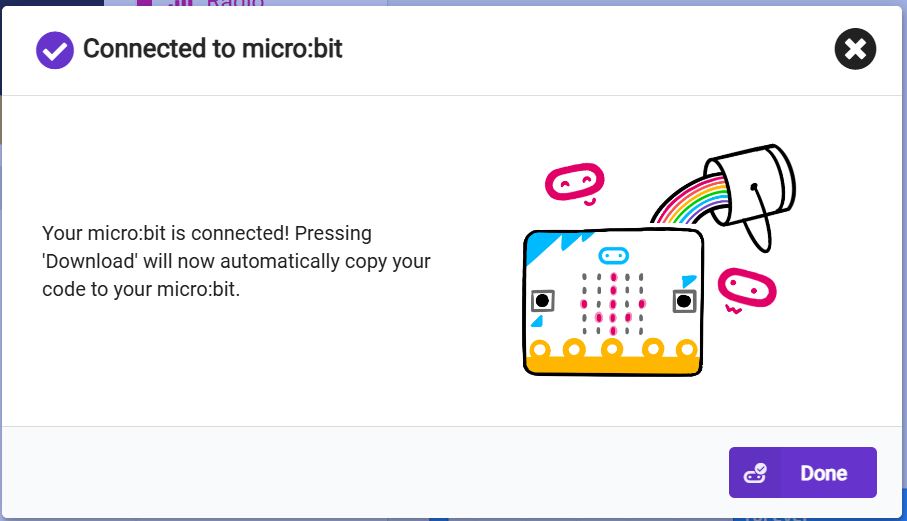
Your microbit should now be connected and ready for you to download your code!
If you get a failed to connect message, here are some things to try:
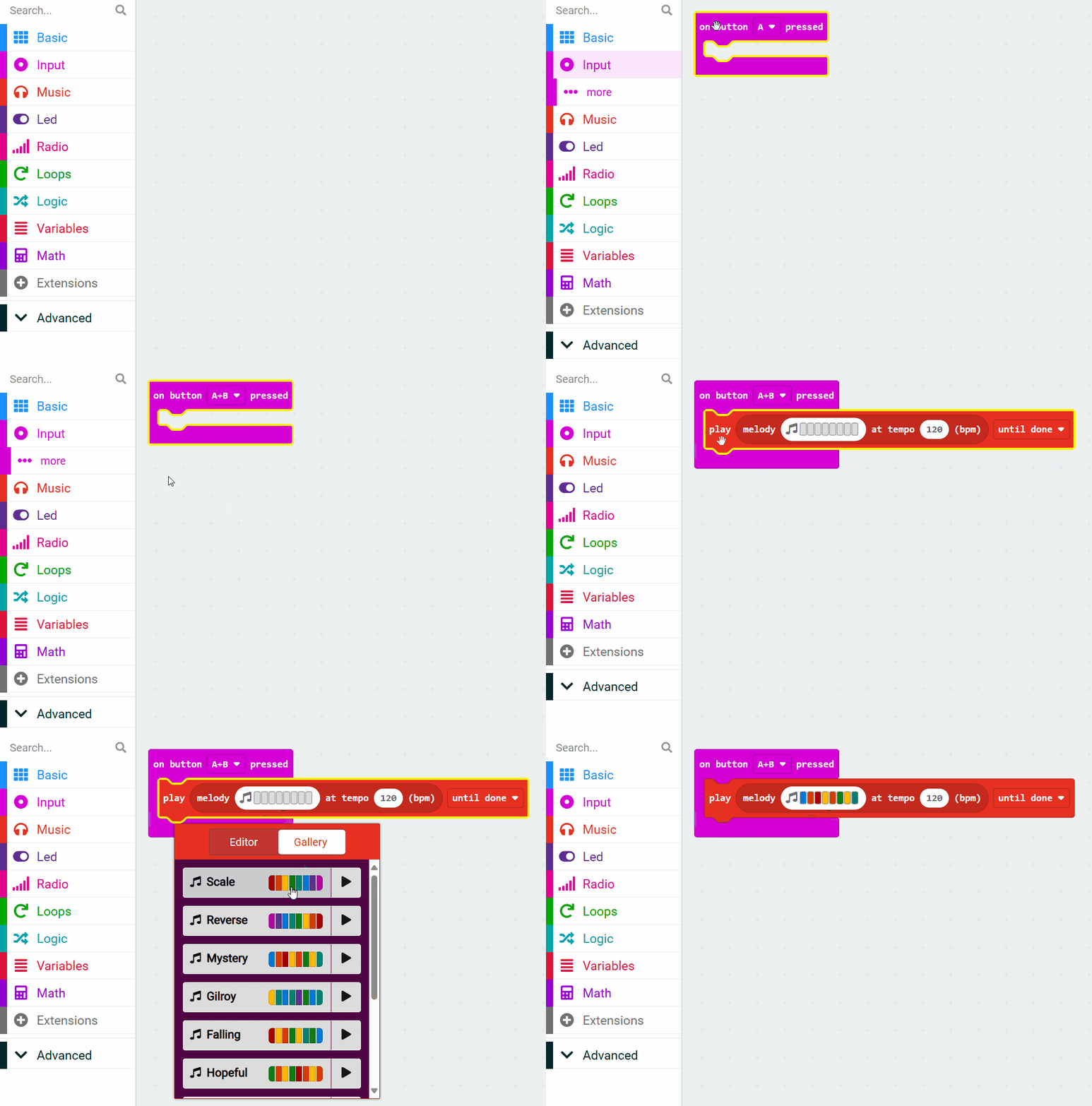
Now, let's make our microbit play some music! We're going to program the microbit to play a melody when we press both the A and B buttons together.
Add the following code and select a melody from the gallery or program your own!
input.onButtonPressed(Button.AB, function () {
music.play(music.stringPlayable("E B C5 A B G A F ", 120), music.PlaybackMode.UntilDone)
})
Now that you've learned the basics of programming your microbit, it's time to explore! Try out different blocks from the toolbox and see what they do. You can make your microbit display different messages, react to button presses, and even respond to movement.
Every lesson in the course is ready to teach like this one. See what else comes with it, and how to order it.