Arts Digital Art
Advanced
60 mins
Teacher/Student led
+98 XP

What you need:
Chromebook/Laptop/PC

Complex Illustrations

In this lesson, you will learn how to combine different shapes and colors to create complex illustrations. You will also experiment with different styles and techniques to create their own unique artwork.

Teacher Class Feed

Load previous activity

    1 - Create a new project

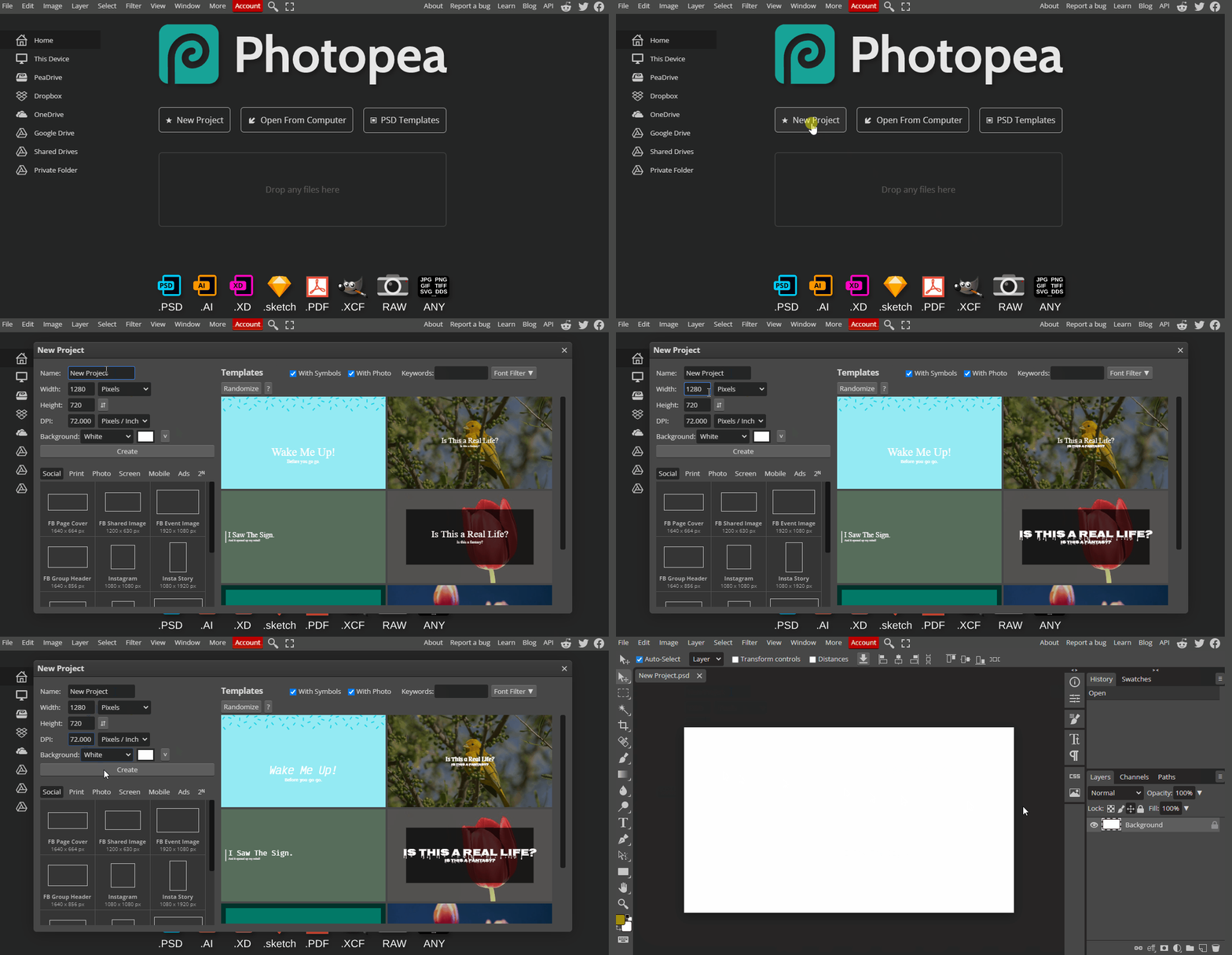
    Let's take a look and try out some digital software called Photopea. Open the website photopea.com and create a new project.

    To create a new project in Photopea, open the website photopea.com and:

    1. Click the New Project button
    2. You can give your project a name and choose what size the image will be.
    3. Click the "Create" button.

    2 - Choosing a Theme for Your Illustration

    When creating a complex illustration, it's important to have a clear theme in mind. This can help guide your decisions when it comes to choosing colors, shapes, and styles. When selecting a theme, consider what message you want to convey or what story you want to tell. Think about what kind of mood you want to create and what elements will help bring your illustration to life.


    3 - Choosing a Color Palette for Your Illustration

    Choosing the right color palette can make or break your illustration. A well-chosen color palette can help create a sense of unity and harmony in your work, while a poorly chosen palette can make your illustration look chaotic or disjointed. When selecting a color palette, consider the theme of your illustration, the mood you want to convey, and any other specific requirements you may have. You can also use color theory to help guide your choices.


    4 - Creating Basic Shapes with the Shape Tool

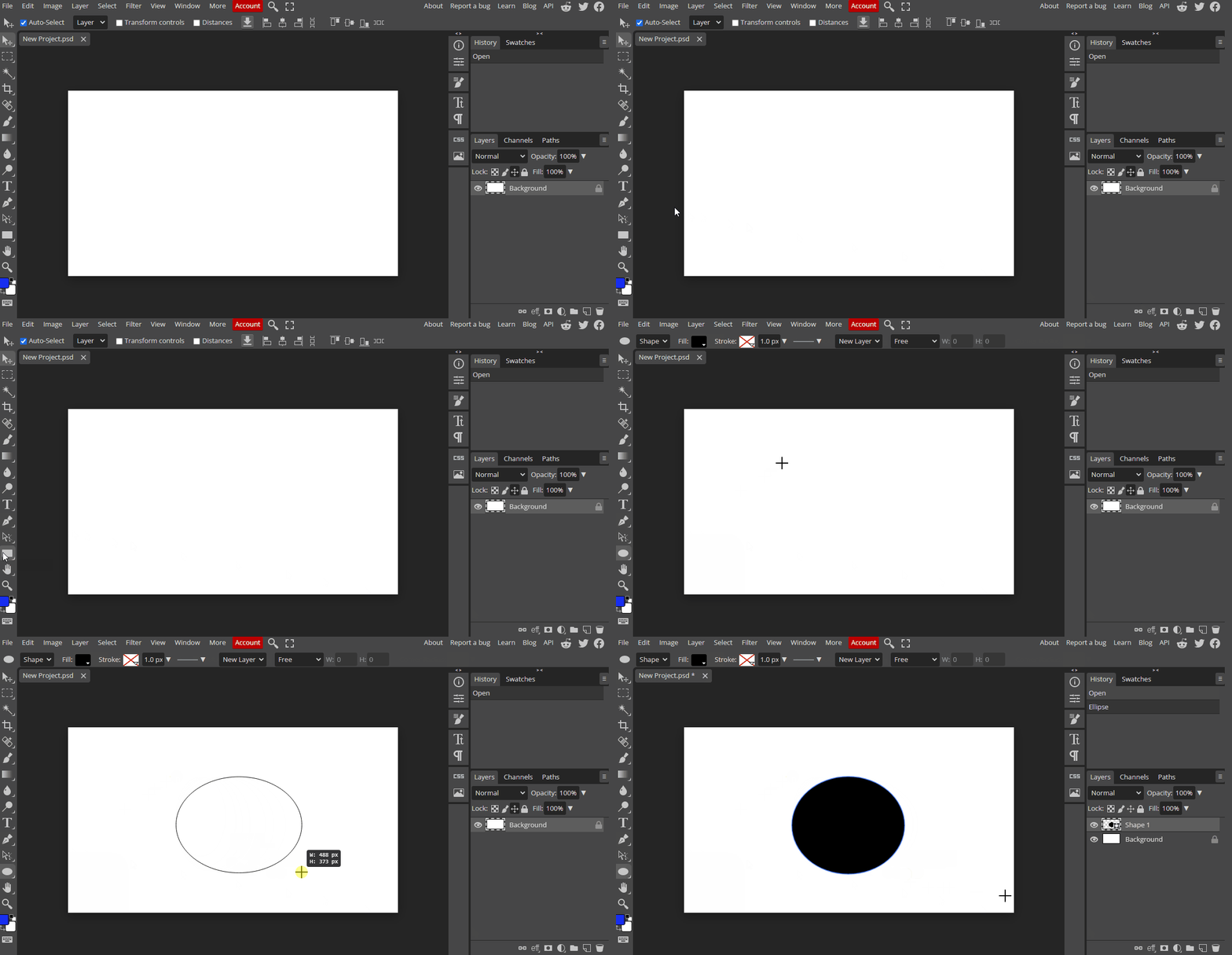
    Once you have your theme and color palette in mind, it's time to start creating your illustration. Using the shape tool is a great way to create basic shapes quickly and easily. Start by creating a new layer and selecting the shape tool from the toolbar. From there, you can choose from a variety of shapes, including rectangles, circles, and polygons. Use the shape tool to create the basic shapes you need to build your composition. Remember to adjust the size, position, and rotation of each shape to create a pleasing composition.


    123learn · Online learning platform

    Unlock the full learning experience

    You're previewing this lesson. Get full access to this lesson and hundreds more — each one ready to teach, with interactive activities, printable resources and pupil progress tracking built in.

    Hundreds of curriculum-aligned lessons
    Interactive activities in every lesson
    Printable resources & progress tracking
    Copyright Notice
    This lesson is copyright of Coding Ireland 2017 - 2026. Unauthorised use, copying or distribution is not allowed.
    🍪 Our website uses cookies to make your browsing experience better. By using our website you agree to our use of cookies. Learn more