This is Introduction to ICT. You will build digital skills on one project that matters to you, and keep the evidence in one folder your teacher can check.
Think of one thing you are genuinely into right now: a sport, a side hustle idea, a placement, a club, a skill you are building. Who is one real person outside this room who might care about work connected to that interest?
| Concept | Why it matters | Example |
|---|---|---|
| Something Real — one project from your own interest, shaped for a real audience | If the project is yours, every later document, budget, and promo has a reason to exist | You love baking → a first-month plan and promo pack for weekend cake orders for neighbours |
| Project Portfolio — one cloud folder for every artefact from this course | Your teacher verifies Key Assignment evidence from this folder; lost files mean lost credit | Folder {{code:Project_Portfolio}} holding {{code:01_project_brief}} today |
You only make one new file today. Over the year, five Key Assignments land in the same folder. Credit is built in checkpoints your teacher verifies, not in one final written exam.
| When | What you need to know | What lands in your portfolio |
|---|---|---|
| Today | Pick your Something Real and set up your folder | {{code:01_project_brief}} |
| This year | Five Key Assignments — portfolio evidence your teacher verifies | All KA files stay inside {{code:Project_Portfolio}} |
| End of course | A short pitch and a walk-through of your full portfolio | All 5 KAs ready for teacher verification |
You do not need to memorise every file today. This map shows where {{code:01_project_brief}} sits and what builds later in the same folder.
| Stage | What you work on | Portfolio file |
|---|---|---|
| L1 kickoff | Pick Something Real; create folder and brief | {{code:01_project_brief}} |
| Storage habits | Open, rename, and find files only inside your portfolio | {{code:Project_Portfolio}} |
| Word processing | Real-purpose documents for your project | {{code:03_proposal_draft}} |
| Research | Notes and sources for a real question | {{code:04_research_notes}} |
| Research report | Report emailed to a named recipient | {{code:04_research_report}} |
| Spreadsheet start | Project numbers and honest costs | {{code:05_project_budget}} |
| Formulas and charts | Working formulas plus a chart you can explain | {{code:05_project_budget}} |
| Promo piece | A promotional item for a real audience | {{code:08_promo_piece}} |
| Portfolio check | Confirm all five Key Assignments are complete | Full {{code:Project_Portfolio}} |
| L60 pitch day | Short pitch and walk-through of your portfolio | All 5 KAs ready |
Today you only make {{code:01_project_brief}}. By the end of the course, your portfolio is your pitch — and it holds all five Key Assignments ready for your teacher to verify.
Lock in a project direction before you touch cloud storage. Pick one frame from the starter menu. Your teacher will push for a real audience and a real output, not a vague hobby title.
Jamie chooses a small enterprise: custom phone-case designs sold at local markets and through Instagram. Audience: classmates and a weekend market stall holder. Purpose: prove the idea can cover materials in month one. Three ICT goals: clear written pitch, honest budget with formulas, and a promo graphic worth posting.
Tell your partner: who outside this room would use or care about this? Name a role (coach, stall holder, placement supervisor, neighbour), not only "my teacher". Then you will set up the folder.
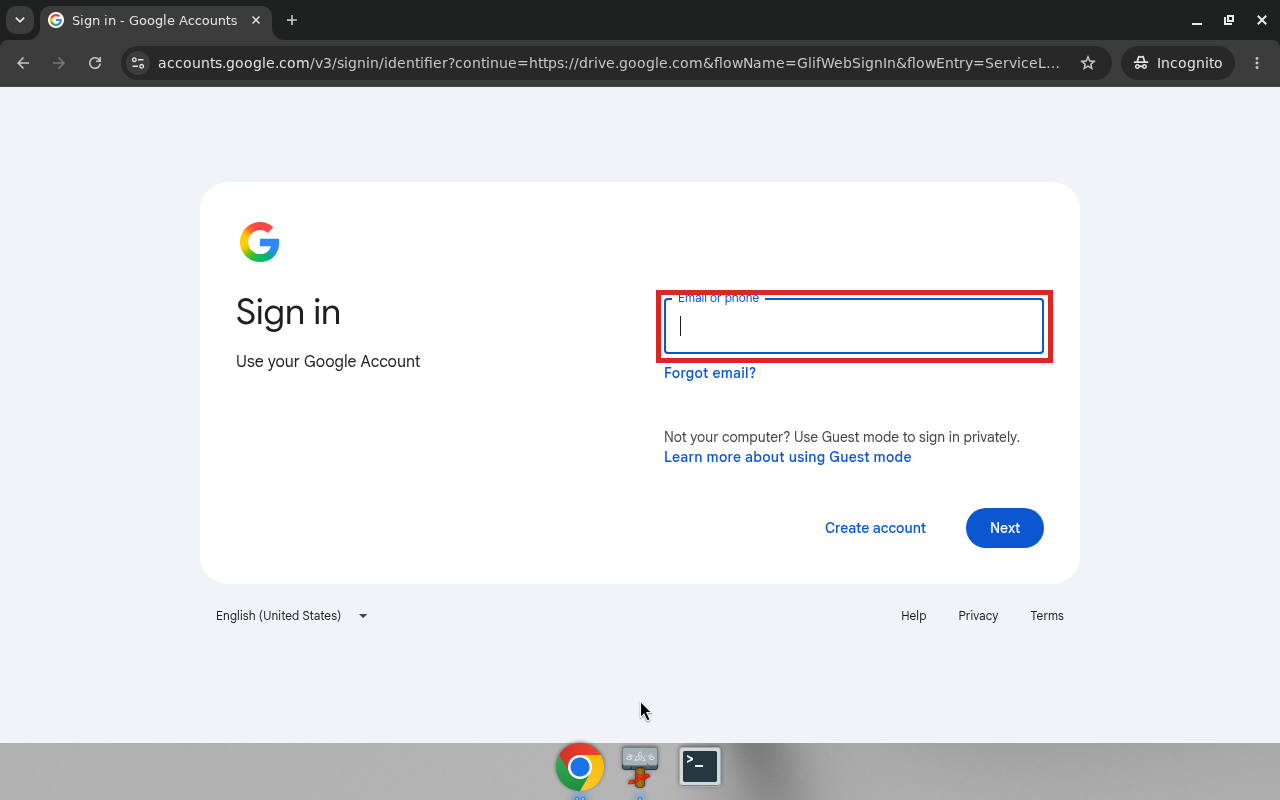
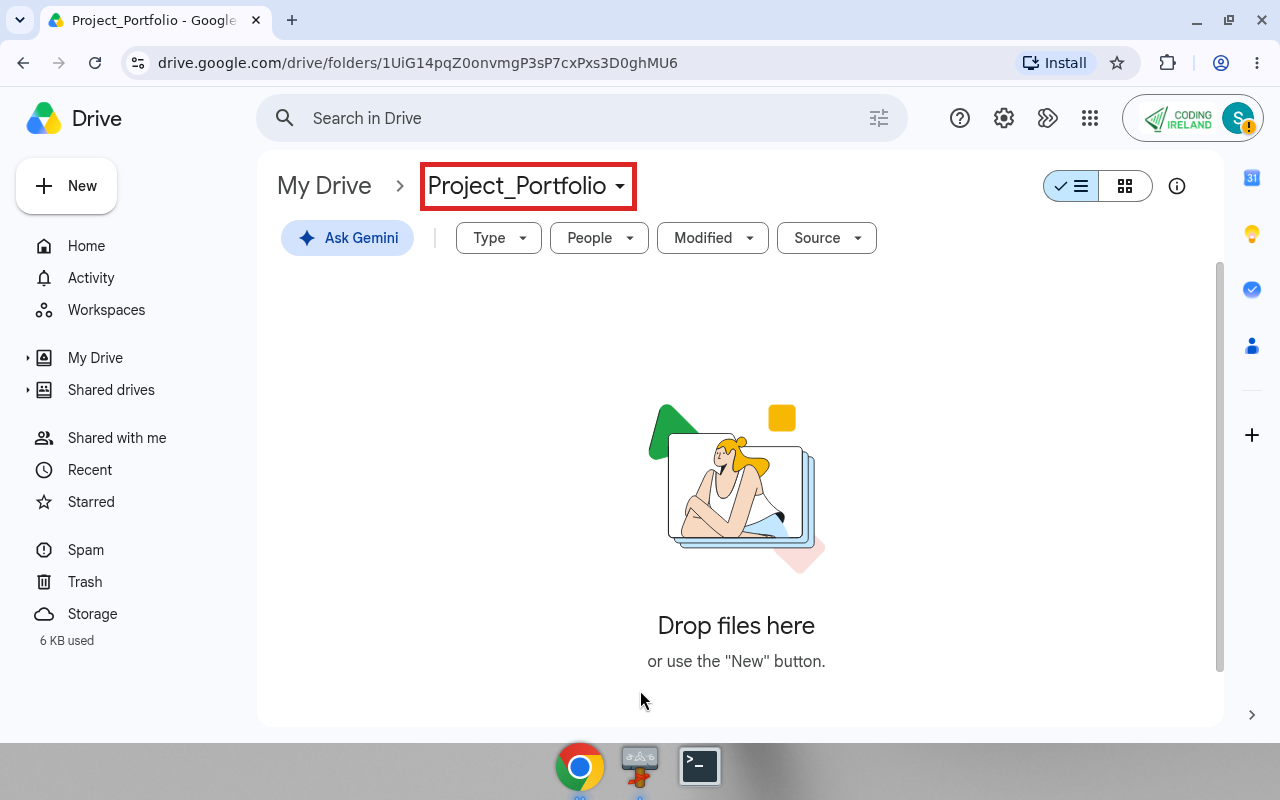
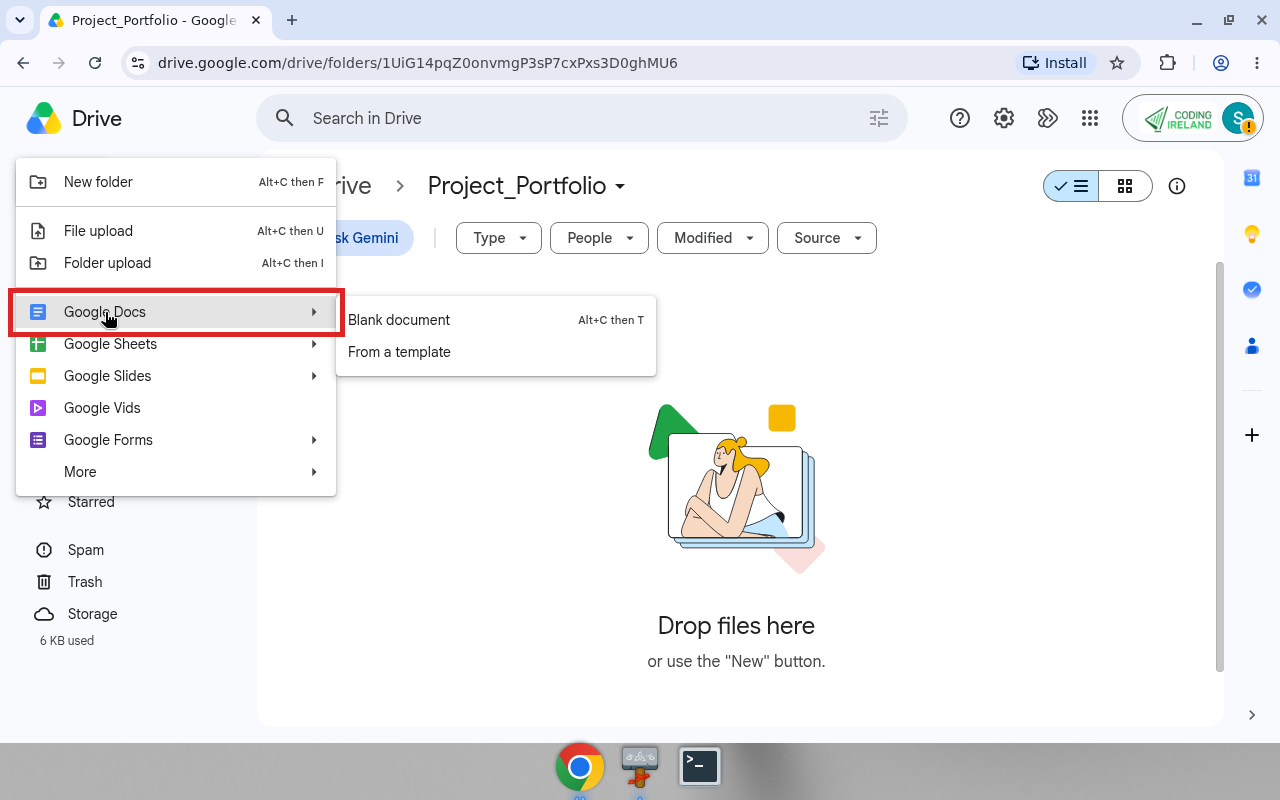
Before you click: use your full school email (not personal Gmail or Hotmail). Create the blank brief inside the portfolio folder so it saves in the right place. If the buttons look slightly different or sign-in takes two tries, that is normal on school machines — use the Common issues handout on your desk or ask before creating anything on the desktop.
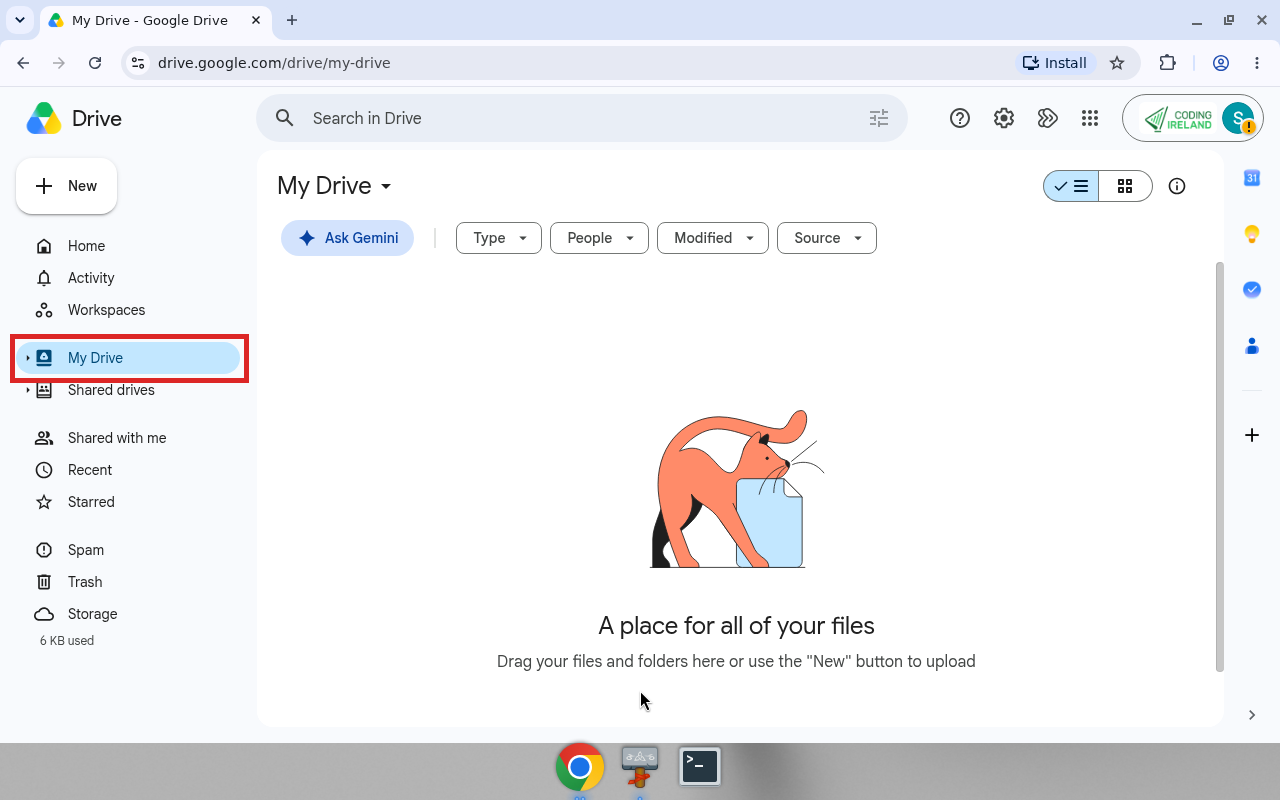
Which steps to follow: use the OneDrive steps or the Google Drive steps — your teacher will say which. Follow only that branch.
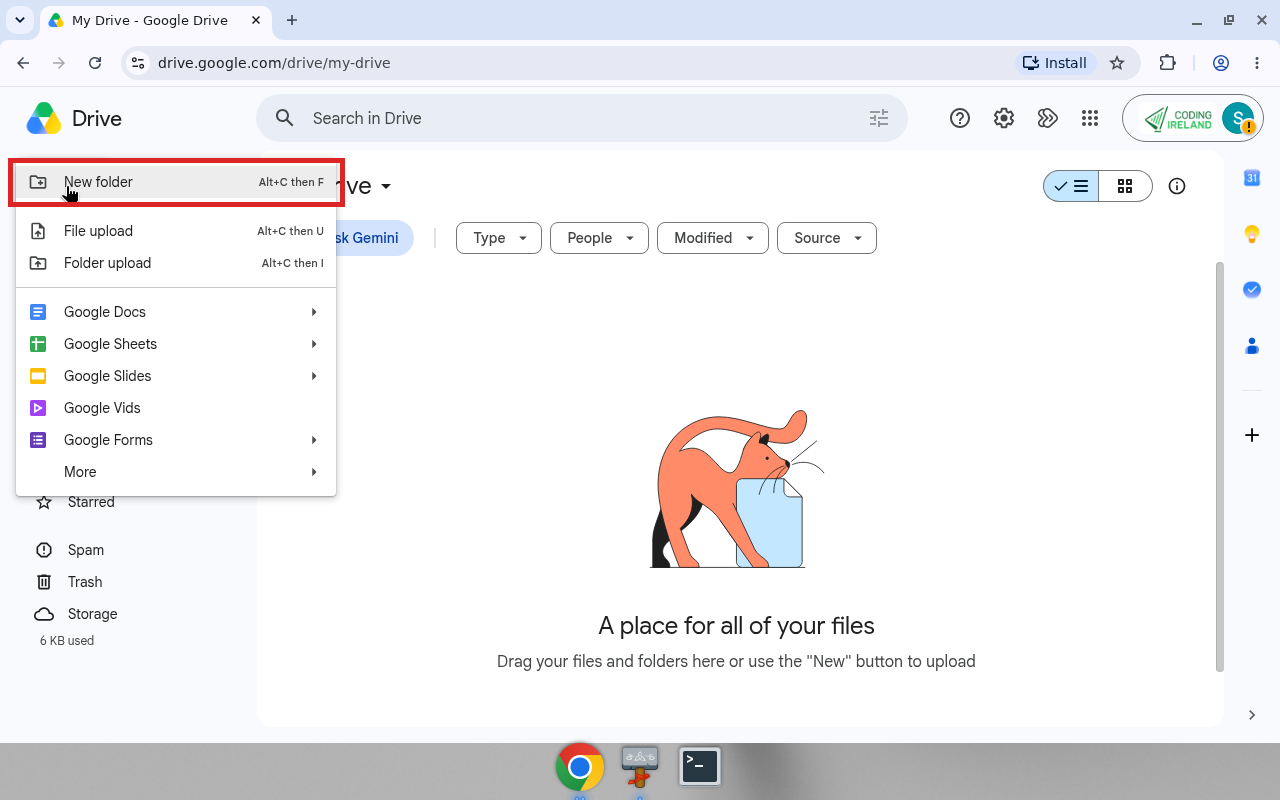
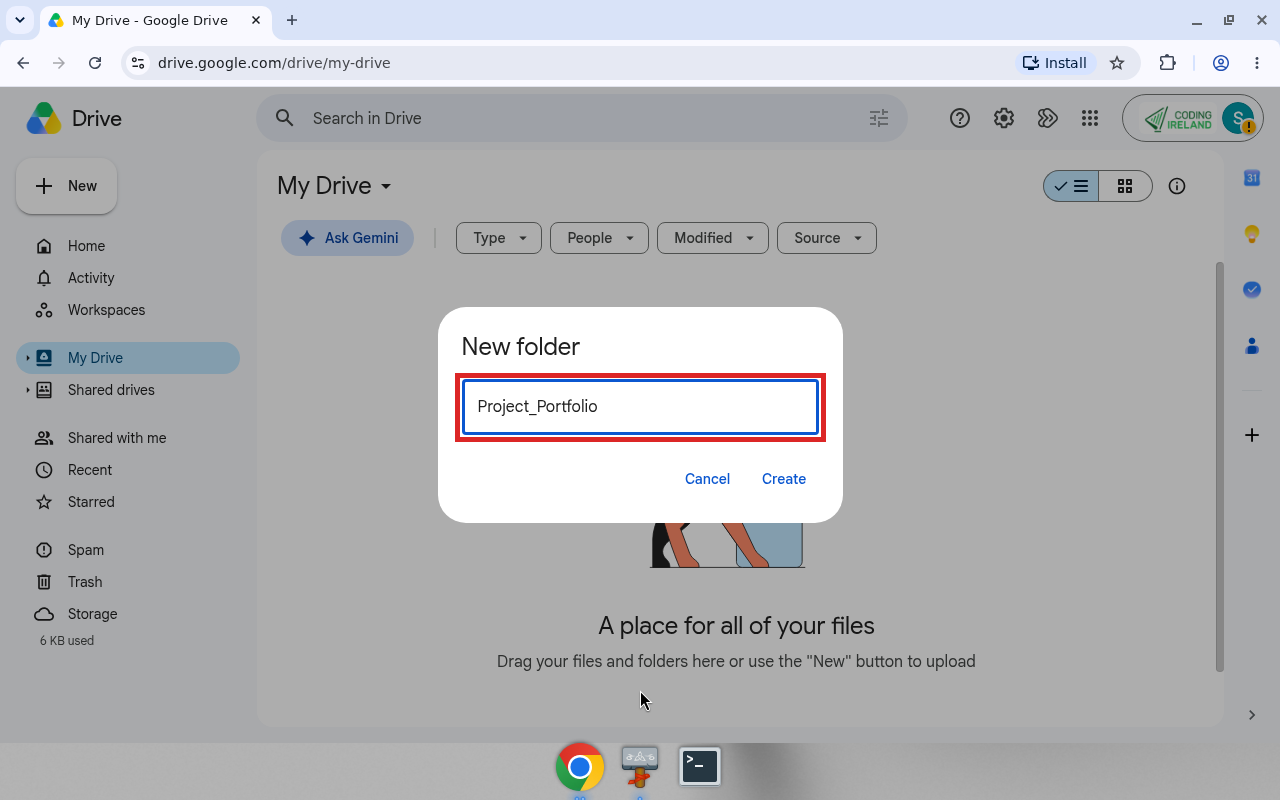
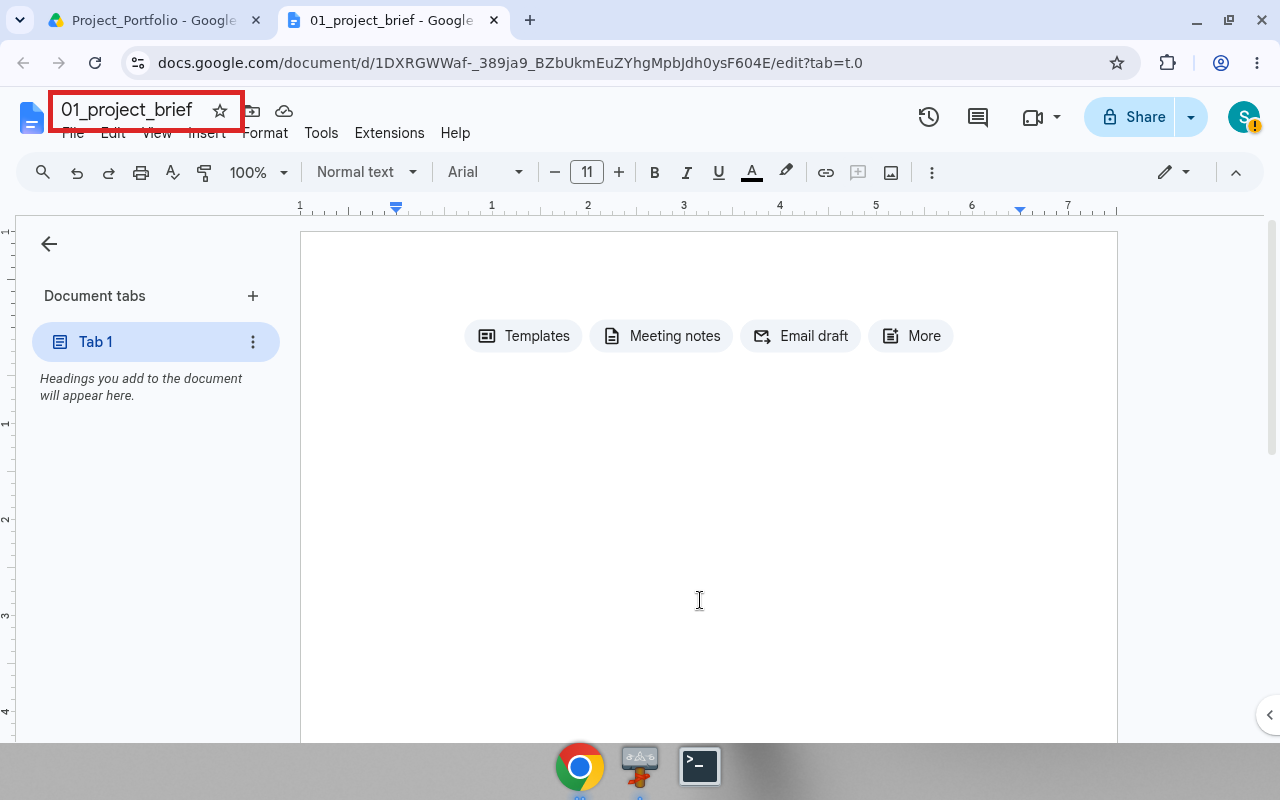
Create your {{code:Project_Portfolio}} folder in cloud storage, open it, then create a blank {{code:01_project_brief}} document inside it. Leave that document open for the next activity. You will fill the brief after the folder is right.
Checkpoint: hands up when you can see an empty {{code:Project_Portfolio}} folder open on screen. Wait for your teacher before you create the document if you are still signing in.
Your teacher already put this table on desks as a handout. Use it if sign-in or folder location goes wrong — you do not need to re-read every row now.
| Issue | Solution |
|---|---|
| I cannot sign in to OneDrive or Google Drive | Use your full school email address, not a personal Gmail or Hotmail. Ask your teacher to reset the password if the school login fails twice. |
| I created the document but it is not inside {{code:Project_Portfolio}} | Files save where you created them. Open the portfolio folder first, then use New inside that folder. Move the stray file in only if you already made it elsewhere. |
| The rename box will not accept my title | Click the title at the top of the document (not the browser tab). Type {{code:01_project_brief}} with underscores and no file extension, then press Enter. |
| Someone else's files are showing in the drive | You are still on the previous student's account. Sign out fully, close the browser, open a fresh window, and sign in with your own school account. |
You're previewing this lesson. Get full access to this lesson and hundreds more — each one ready to teach, with interactive activities, printable resources and pupil progress tracking built in.