Scratch Language
Expert
40 mins
Teacher/Student led
+170 XP

What you need:
Chromebook/Laptop/PC or iPad/Tablet

Translate

Learn how to translate text to different languages in Scratch and have a sprite speak the translation out loud.
Teacher Class Feed

Load previous activity

    1 - Create a new project

    We will be coding a project to allow us to translate from English to another language.

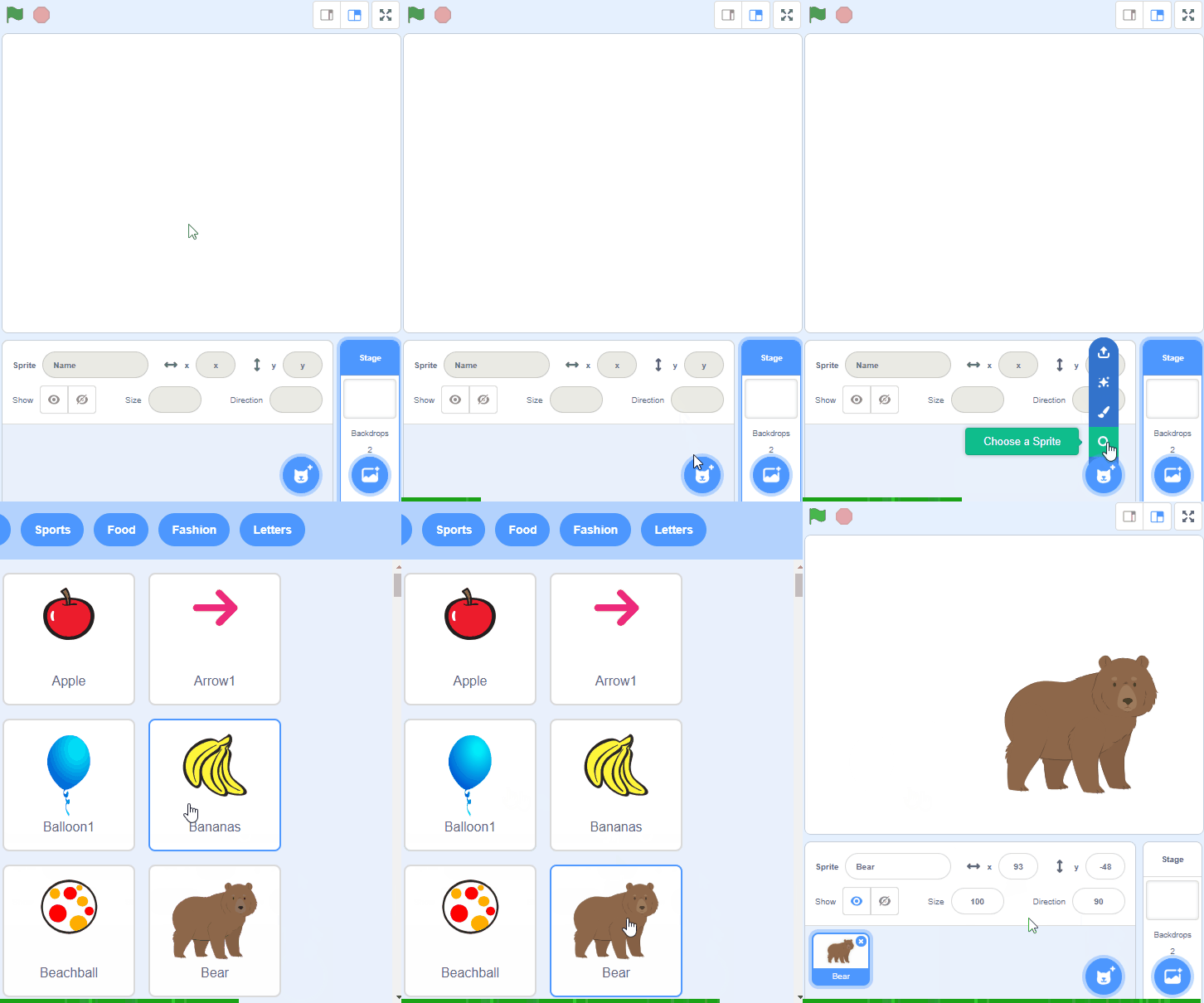
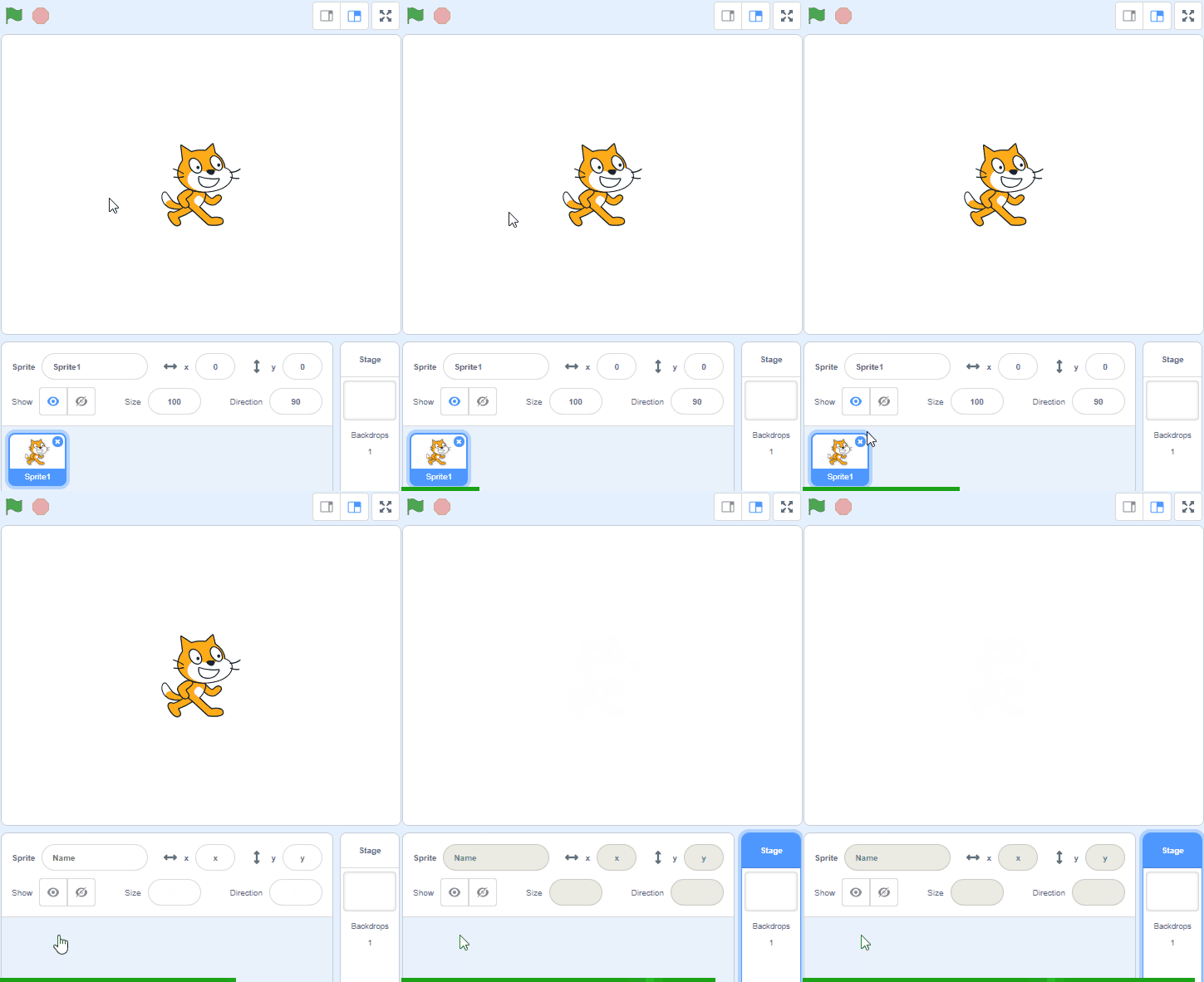
    Go to the Scratch website and create a new project, you can delete the cat sprite.

    https://scratch.mit.edu/projects/

    2 - Add the Translate extension

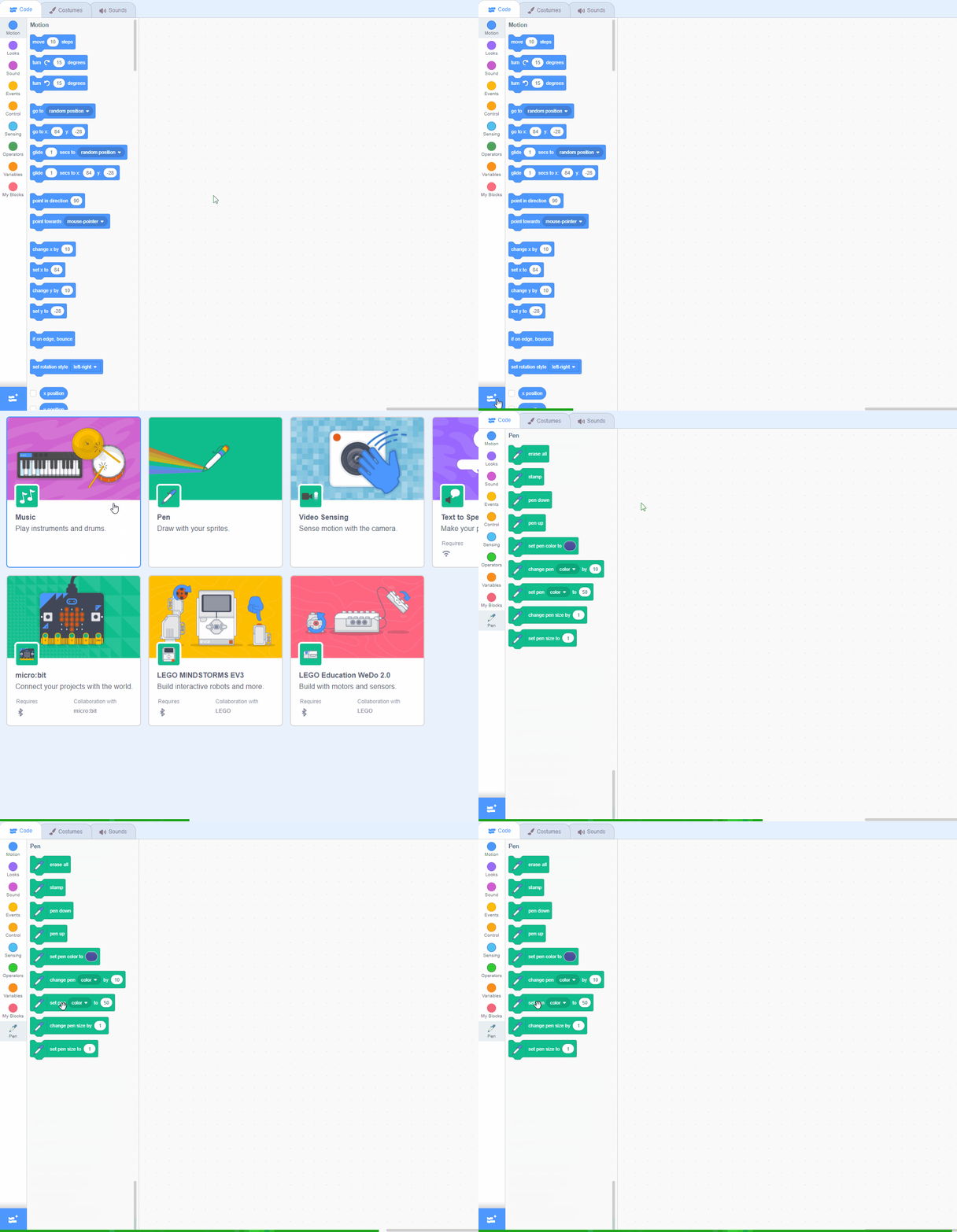
    Add the Translate extension to your project.


    3 - Add the Text to Speech extension

    Add the Text to Speech extension to your project.


    4 - Add the Kai sprite

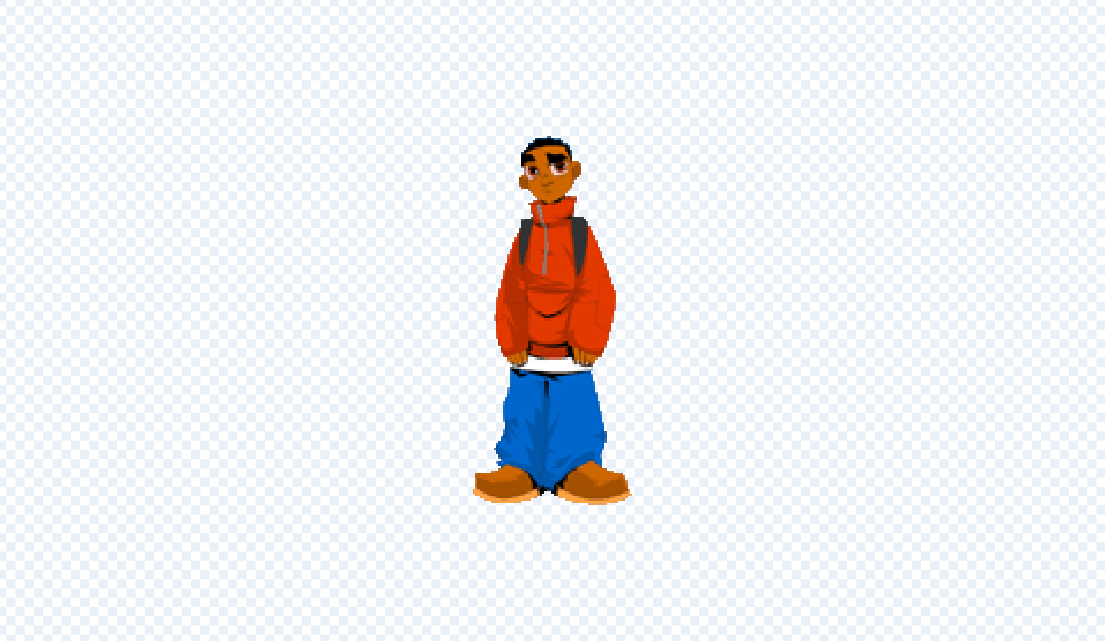
    Add the Kai sprite from the library. We will use this sprite to ask what you want to translate and to say the answer.

    Add the following code to the Kai sprite to position him in the centre.

    when green flag clicked go to x: (0) y: (0)


    123learn · Online learning platform

    Unlock the full learning experience

    You're previewing this lesson. Get full access to this lesson and hundreds more — each one ready to teach, with interactive activities, printable resources and pupil progress tracking built in.

    Hundreds of curriculum-aligned lessons
    Interactive activities in every lesson
    Printable resources & progress tracking
    Copyright Notice
    This lesson is copyright of Coding Ireland 2017 - 2026. Unauthorised use, copying or distribution is not allowed.

    Scratch is developed by the Lifelong Kindergarten Group at the MIT Media Lab. It is available for free at https://scratch.mit.edu
    🍪 Our website uses cookies to make your browsing experience better. By using our website you agree to our use of cookies. Learn more