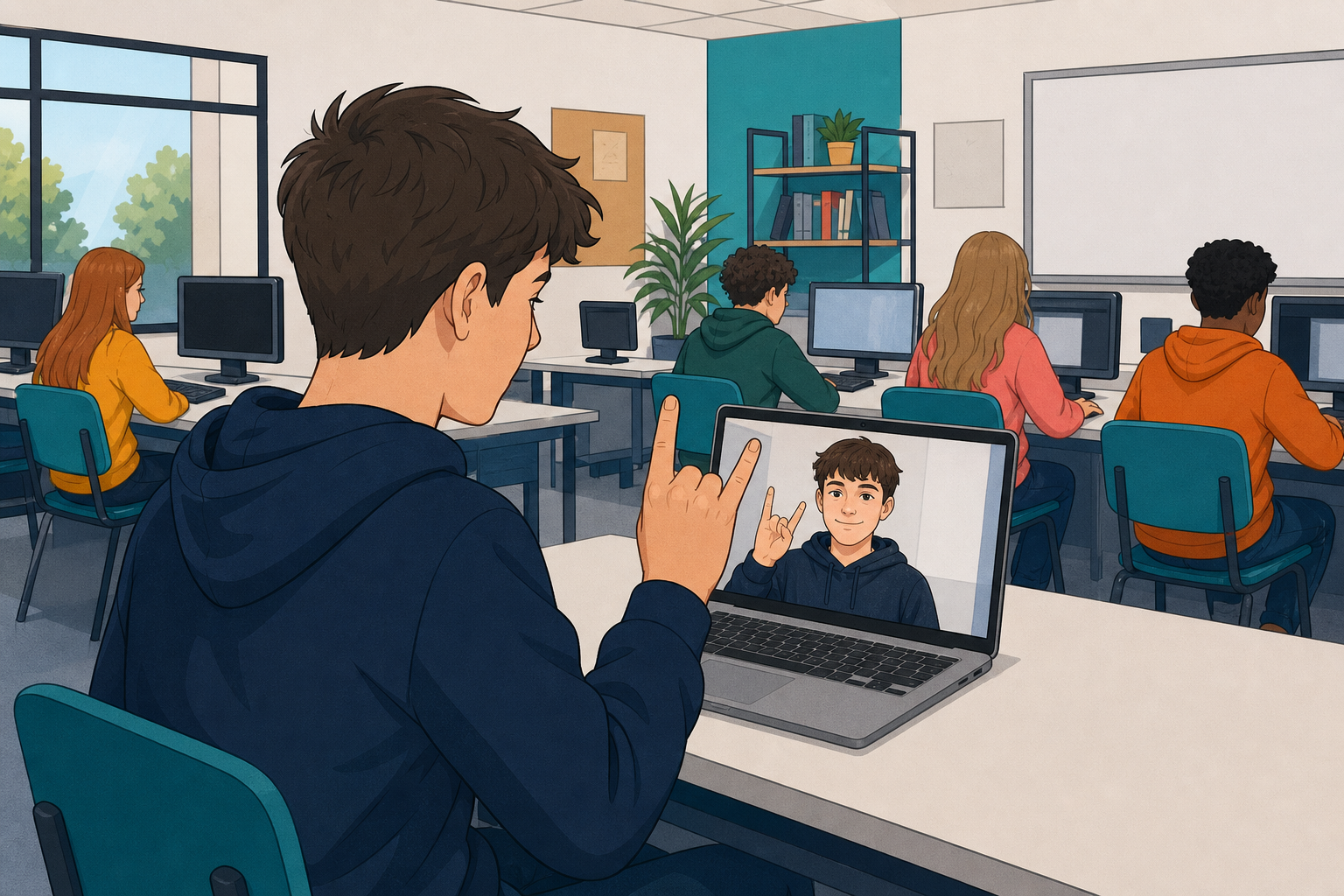
 Today you will build an image model in Teachable Machine that can recognise rock, paper and scissors hand gestures from your webcam.
You will create three classes, add your own example images, train the model, test it live, improve it when it gets something wrong, and export a link to use later.
Before you start: what do you think the computer needs to see in order to tell rock, paper and scissors apart?
You are not going to write rules for what rock looks like. There is no code here that says 'a fist is rock'.
Instead you give the model examples of each one, and it finds the pattern itself. That is what training means, and it is why the examples matter more than anything else you do today: vary the angle, the distance and the background, or the model learns your bedroom wall instead of your hand.


First we need to open the Google's Teachable Machine website to create our model.
Click on the Get Started button.

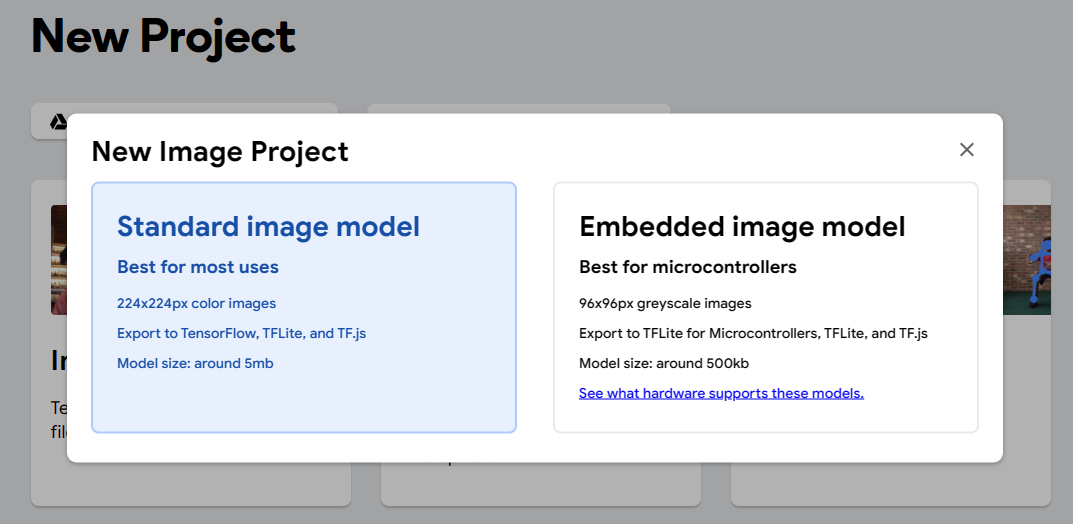
Click on the Image Project button to create a new image model project, and then click on the Standard image model option.
This will bring you to the screen where we can create our classes for our image model.
In an AI image model, a class is a category that the model can recognize. For example, in our rock, paper, scissors game, we will have three classes: rock, paper, and scissors. The AI will learn to recognize images of each class and be able to tell them apart.

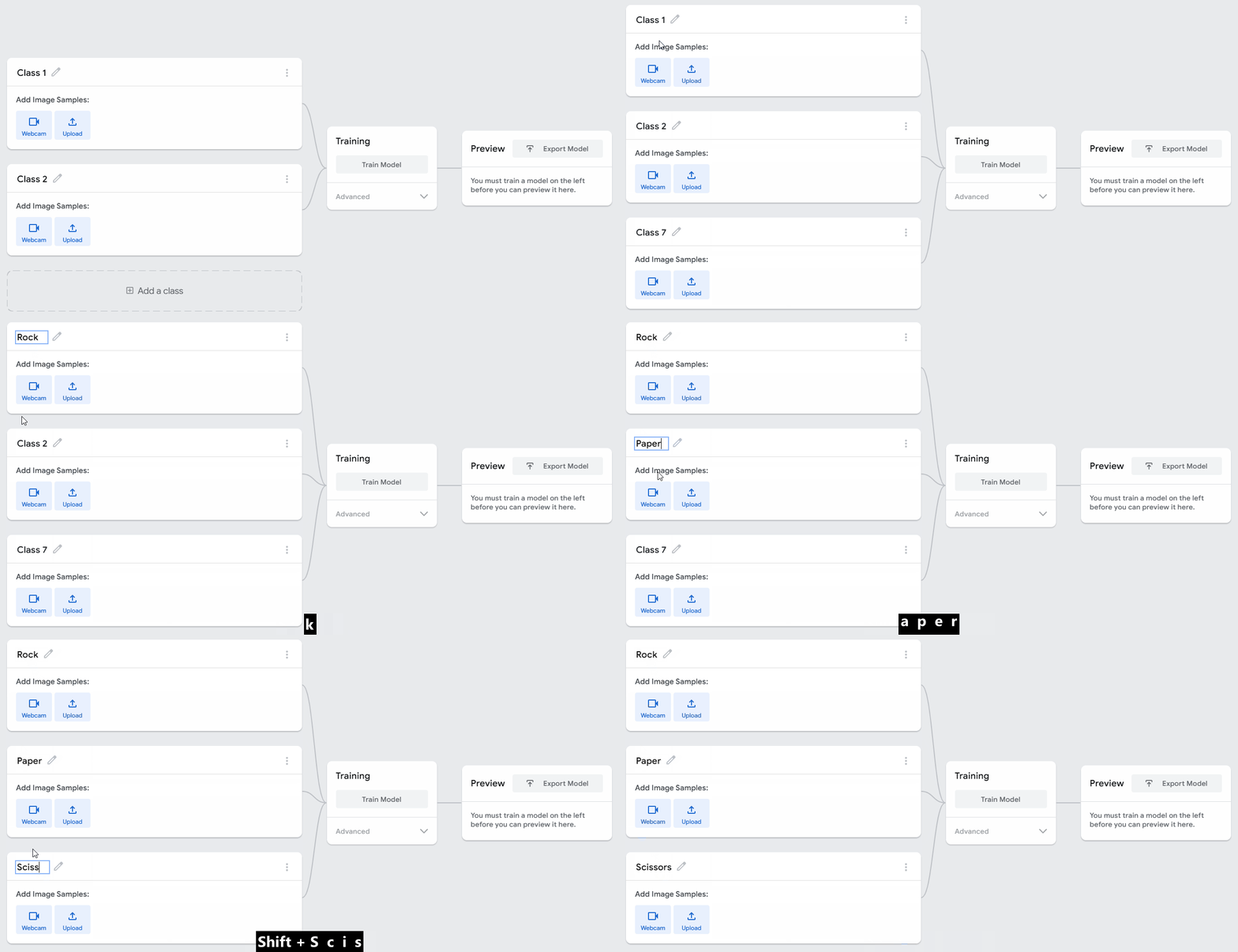
There will be two classes already added to your model called 'Class 1' and 'Class 2'.
Add a third class by clicking on the 'Add a class' button and then rename your classes to:
- Rock
- Paper
- Scissors
Unlock the full learning experience
You're previewing this lesson. Get full access to this lesson and hundreds more — each one ready to teach, with interactive activities, printable resources and pupil progress tracking built in.
This lesson is copyright of Coding Ireland 2017 - 2025. Unauthorised use, copying or distribution is not allowed.