Intermediate
60 mins
Teacher/Student led
+65 XP

Track Changes and Comments

Learn how to use Track Changes and comments in word processors to review documents professionally. Activate the review tools, record edits clearly, and add suggestions on a newsletter draft. This skill supports feedback in work experience and collaborative projects.

Teacher Class Feed

Load previous activity

    1 - Introduction ~5 mins

    Welcome

    No newsletter? Hand up now. Your teacher will give you the class copy. Save it into {{code:09_specialism/sm1}} first, then follow along and make your reviewed copy from that file.

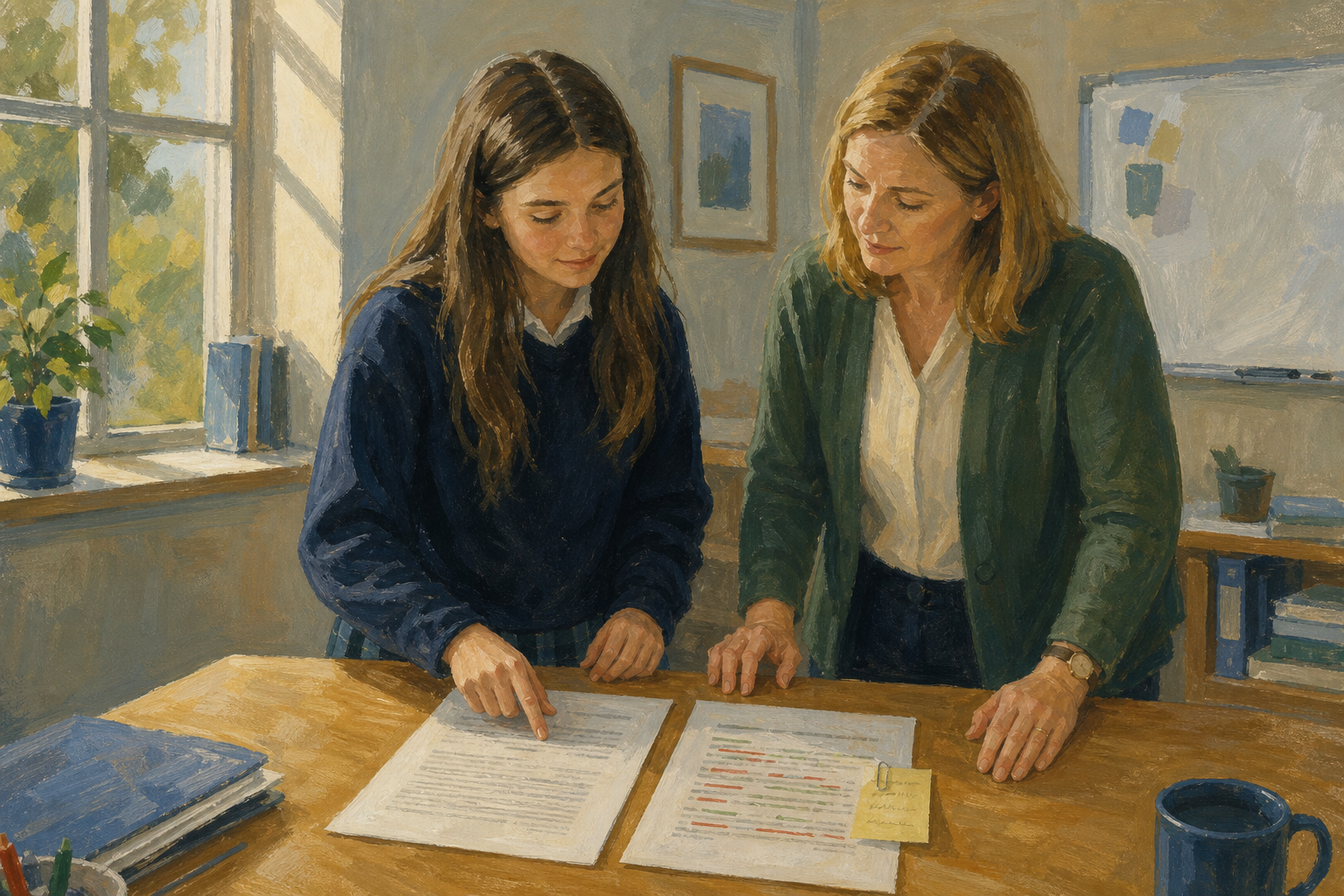
    Illustration for IntroductionWhen someone else reviews your work, you need a clean way to see what they changed and what they only suggested. Track Changes records every edit. Comments leave feedback without touching the text. Today you will put both on a reviewed copy of your Something Real newsletter, the same way a Work Experience supervisor or club secretary would mark up a draft.

    By the end of this lesson, you will be able to:

    • Turn on Track Changes and find the author label on a change
    • Add and reply to comments as suggestions rather than edits
    • Produce a reviewed copy of the project newsletter

    You will need your project newsletter {{code:sm1_doc2_newsletter.docx}} in {{code:Project_Portfolio/09_specialism/sm1}}. Your reviewed file will be saved as {{code:sm1_doc2_newsletter_reviewed.docx}} in the same folder.

    Warm-up

    Think of the last time someone corrected your writing. Did they rewrite over your words, or leave notes beside them? Which felt clearer, and why?

    2 - Key Concepts ~6 mins

    Review tools keep the original draft visible while feedback is added. Your teacher will point to each idea on the live demo; use the table as a quick reference.

    ConceptWhy it mattersExample
    Track Changes / SuggestingRecords every insert and delete in colour so the owner can accept or reject later, and you keep a full history instead of guessing who rewrote a paragraphA Work Experience supervisor rewrites one line of your placement summary; their name and a different colour sit beside the markup
    CommentsSticky notes on selected text that suggest or question without rewriting the wording, so feedback stays separate and the writer chooses what to act onA club secretary highlights your GAA fundraiser date and comments to confirm it with the committee before print
    Reply to a commentA threaded response under someone else's note keeps the conversation in the document instead of a long email chainYou reply that the date is confirmed with the chair, under the comment above
    Reviewed copyA separate file saved for review, leaving the clean working draft untouched so you can always go back. In OneDrive use {{btn:Copy to}}; in Google Drive use {{btn:Make a copy}}; then rename the copy before any markupYour clean newsletter stays as {{code:sm1_doc2_newsletter.docx}}; the marked-up version is {{code:sm1_doc2_newsletter_reviewed.docx}}

    Worked example: what a reviewed newsletter looks like

    Worked example

    On a one-page catering newsletter, review mode might show:

    • Edit 1: "€8 per tray" changed to "€9 per tray" (price update)
    • Edit 2: "next Friday" changed to "Friday 14 March" (clearer date)
    • Comment: on the contact line, asking to add the school email as well as the mobile number

    Your teacher will show a live sample with a second name on the markup, then you practise the same pattern on a short practice file before reviewing your own newsletter.

    3 - Step-by-step Task ~15 mins

    Create a new short practice file in your {{code:sm1}} folder, paste or type the sample paragraph from the steps, turn on review tools, make two tracked edits, leave one comment with a reply, and check the author label on the markup. Your teacher will demo the first pass on the classroom screen (including a second reviewer name on the board sample), then you complete the same sequence on your device.

    4 - Common Issues ~4 mins

    Common Issues

    Tip

    Almost everyone forgets to switch review on the first time. Check the table before you panic.

    IssueSolution
    My edits do not show as markup; the text just changesTrack Changes is off (Word) or you are still in Editing mode (Google Docs). Turn Track Changes on, or switch the pencil menu to Suggesting, then make a fresh edit to test.
    I cannot find the Review tab or New CommentIn Word Online, widen the browser window so the ribbon does not collapse. In Google Docs, use the comment icon in the toolbar (or the optional shortcut your teacher showed for your suite).
    My comment sits on the wrong sentenceSelect the exact words first, then add the comment. Delete the misplaced comment and re-pin it to the right phrase.
    I overwrote my clean newsletter by mistakeUse version history (OneDrive or Drive) to restore the earlier clean copy, then make a separate reviewed file with {{btn:Copy to}} or {{btn:Make a copy}} and a new name before you turn review tools on again.

    5 - Independent Practice ~20 mins

    Independent Practice

    Your goal: Produce a reviewed copy of your Something Real newsletter so a supervisor, teacher, or club contact could see exactly what needs fixing without losing your clean draft. Leave the markup visible; a marked-up draft is what a real supervisor expects.
    Time: ~20 minutes
    Task:

    Do not edit your clean newsletter. Work only on a separate reviewed copy. This file is Specialism portfolio evidence for your Student Task document strand (professional review with Track Changes or Suggesting plus comments).

    1. Copy and rename first

    Open {{code:Project_Portfolio}}, then open {{code:09_specialism}} and {{code:sm1}}. Make a separate copy of {{code:sm1_doc2_newsletter.docx}} and name that copy {{code:sm1_doc2_newsletter_reviewed.docx}}. Keep both files in {{code:sm1}}.

    • OneDrive: Right-click {{code:sm1_doc2_newsletter.docx}}, choose {{btn:Copy to}}, and pick the same {{code:sm1}} folder. Rename the copy to {{code:sm1_doc2_newsletter_reviewed.docx}}.
    • Google Drive: Right-click {{code:sm1_doc2_newsletter.docx}}, choose {{btn:Make a copy}}, rename it to {{code:sm1_doc2_newsletter_reviewed.docx}}, and keep it in {{code:sm1}}.

    If you do not have {{code:sm1_doc2_newsletter.docx}}, tell your teacher. Use the class copy, save it into {{code:09_specialism/sm1}} first, then make your reviewed copy from that. Wait until your teacher has checked the new filename before you edit anything.

    2. Turn review tools on

    • Word Online: Open the {{btn:Review}} tab and switch {{btn:Track Changes}} on.
    • Google Docs: Open the pencil menu and choose {{btn:Suggesting}}.

    3. Make three real edits and one comment

    On the reviewed copy only, make at least three edits that improve clarity for your project audience. Add at least one comment that asks a useful question or flags a decision still to confirm. Hover over or open one change and check the author label. Leave review tools on when you finish so the markup stays visible.

    Ideas if you are stuck: change a vague date to an exact date; add a school email where a contact is missing; split a long sentence into two shorter ones; fix a price or time the audience might misread. Do not invent random typos just to hit three.

    Success criteria:
    • {{code:sm1_doc2_newsletter_reviewed.docx}} sits in {{code:09_specialism/sm1}} as a separate file from your clean newsletter
    • At least three edits are visible as tracked changes or suggestions (not silent rewrites)
    • At least one comment is pinned to a specific phrase and asks a clear question or flags a decision
    • You can point to the author label on at least one edit or comment
    • A reader can tell what changed and why without comparing two documents side by side
    123learn · Online learning platform

    Unlock the full learning experience

    You're previewing this lesson. Get full access to this lesson and hundreds more — each one ready to teach, with interactive activities, printable resources and pupil progress tracking built in.

    Hundreds of curriculum-aligned lessons
    Interactive activities in every lesson
    Printable resources & progress tracking
    Copyright Notice
    This lesson is copyright of Coding Ireland 2017 - 2025. Unauthorised use, copying or distribution is not allowed.
    🍪 Our website uses cookies to make your browsing experience better. By using our website you agree to our use of cookies. Learn more