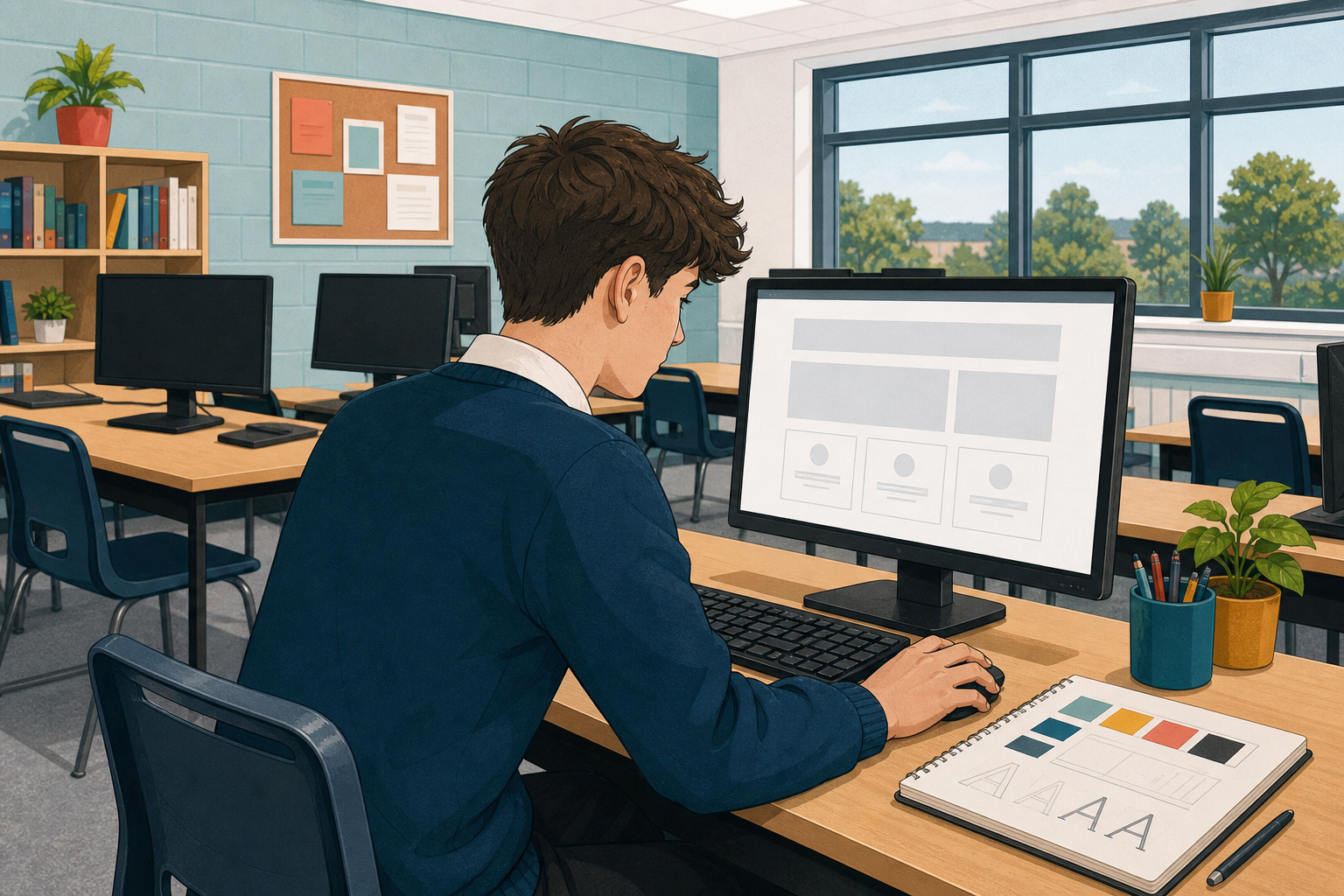
 Your site says the right things. Today you decide how it looks: its colours, its font, the size of its text.
And today is the day you stop only reading the code and start writing it.
Getting started: open the builder below and carry on with your site.
Everything you have written so far says what things are: a heading, a paragraph, a picture. None of it says what they should look like. That is a separate job, and it has its own language: CSS.
A CSS rule has three parts worth naming, because you will use these words all lesson:
- the selector, which says what the rule is about. Below, that is body, which means the whole page.
- a property, the thing being changed, like background or color.
- a value, what it is being changed to, like lightblue. Every line ends in a semicolon.
So this rule says: for the whole page, make the background pale blue.
body {
  background: lightblue;
  color: navy;
  font-family: sans-serif;
}Before you change anything, find your page in the CSS.
- In the builder below, click the CSS tab.
- The very first rule, at the top, is your page. Everything below it styles buttons, pictures and lists; you did not write those and you can ignore them today.
Right now that top rule looks exactly like this, because nobody has changed anything yet:
body {
  background: white;
  color: black;
  font-family: sans-serif;
  margin: 16px;
}
Interactive activity
Now change it, keeping one eye on that top rule.
- Click the Blocks tab. On the blue page block, find the dropdown labelled background and pick a different colour.
- Click back to the CSS tab. In that same top rule, the background line now holds the colour you picked.
- Do the same with the text dropdown, then font. Each one changes its own line in that one rule.
Before you go on: point at the top rule and say which property you changed: background, color, or font-family.
This is the block those three dropdowns live on:
{"blocks": {"languageVersion": 0, "blocks": [{"type": "web_page", "fields": {"NAME": "Home", "BG": "white", "FG": "black", "FONT": "sans-serif"}, "inputs": {"CONTENT": {"block": {"type": "wp_heading", "fields": {"TEXT": "My page", "ALIGN": "left"}}}}, "x": 10, "y": 10}]}}
Interactive activity
Now a style that belongs to one kind of thing rather than the whole page.
- On the Blocks tab, find one of your text blocks and set its size dropdown to big.
- Open the CSS tab. A second rule has appeared under your page rule, and it was not there a moment ago.
- Now set your other text block to big as well and look again. No third rule appears, because both paragraphs share the one rule.
Here is the block you changed, and the rule it wrote. The dot at the front means “anything labelled big”:
{"blocks": {"languageVersion": 0, "blocks": [{"type": "wp_text", "fields": {"TEXT": "This is the first thing I want people to read.", "SIZE": "big", "ALIGN": "left"}, "x": 10, "y": 10}]}}
.big {
  font-size: 1.5rem;
}
Interactive activity
Unlock the full learning experience
You're previewing this lesson. Get full access to this lesson and hundreds more — each one ready to teach, with interactive activities, printable resources and pupil progress tracking built in.
This lesson is copyright of Coding Ireland 2017 - 2025. Unauthorised use, copying or distribution is not allowed.