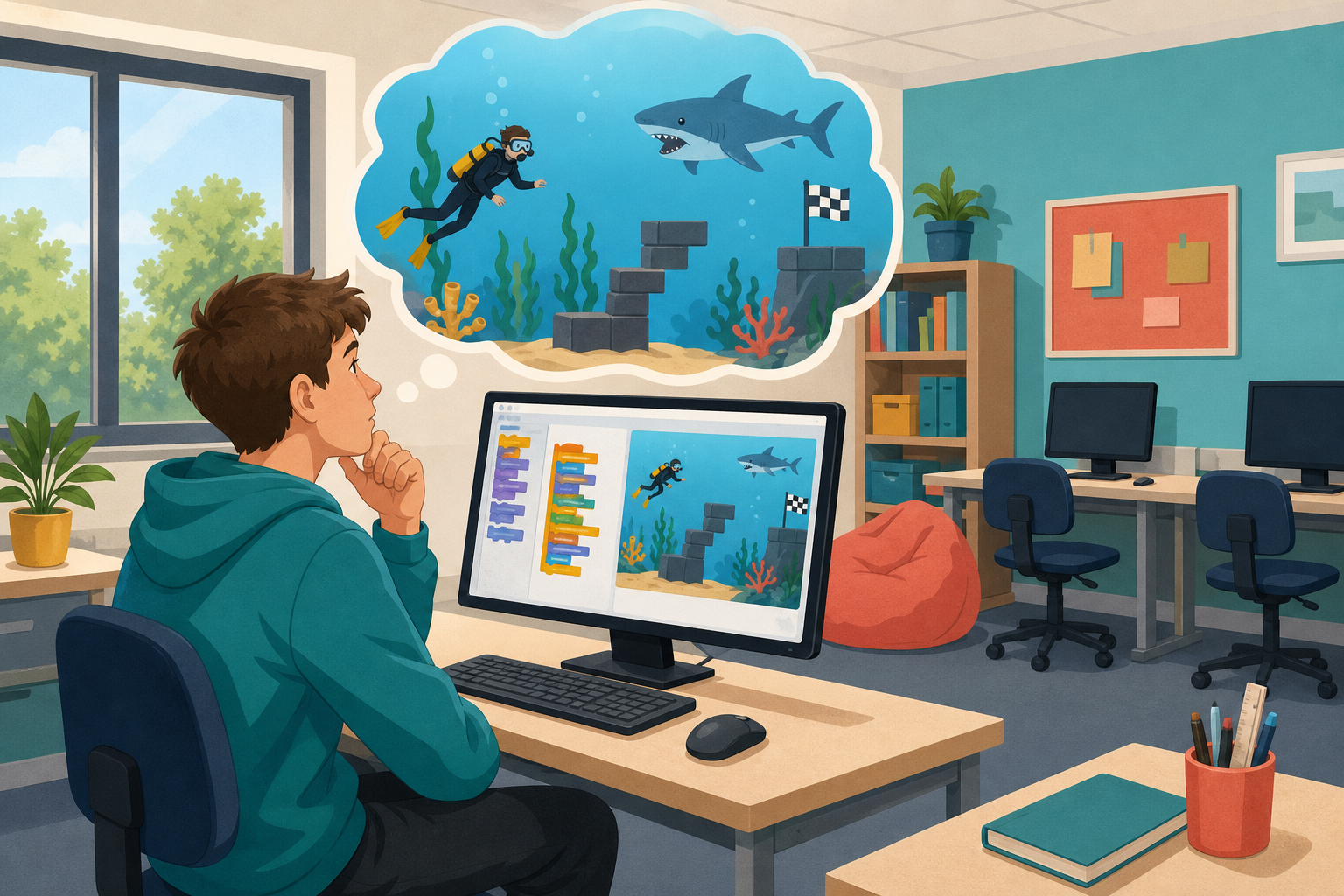
 Today you are coding in Scratch. You will build Shark Swim step by step at your device: a diver who swims a course, dodges a shark, and tries to reach the finish.
You can already move sprites and run a project. Today you will put movement, sensing and a win condition together into one chase game, and you will practise debugging when something does not behave as you expect.
Before you run anything, think: what do you expect to happen if the diver touches a wall or the shark?
Shark Swim has four parts:
- A diver you swim along a course.
- A shark that appears and moves.
- A crash that is detected when the two meet.
- A finish line that ends the game.
Test each part on its own before adding the next.
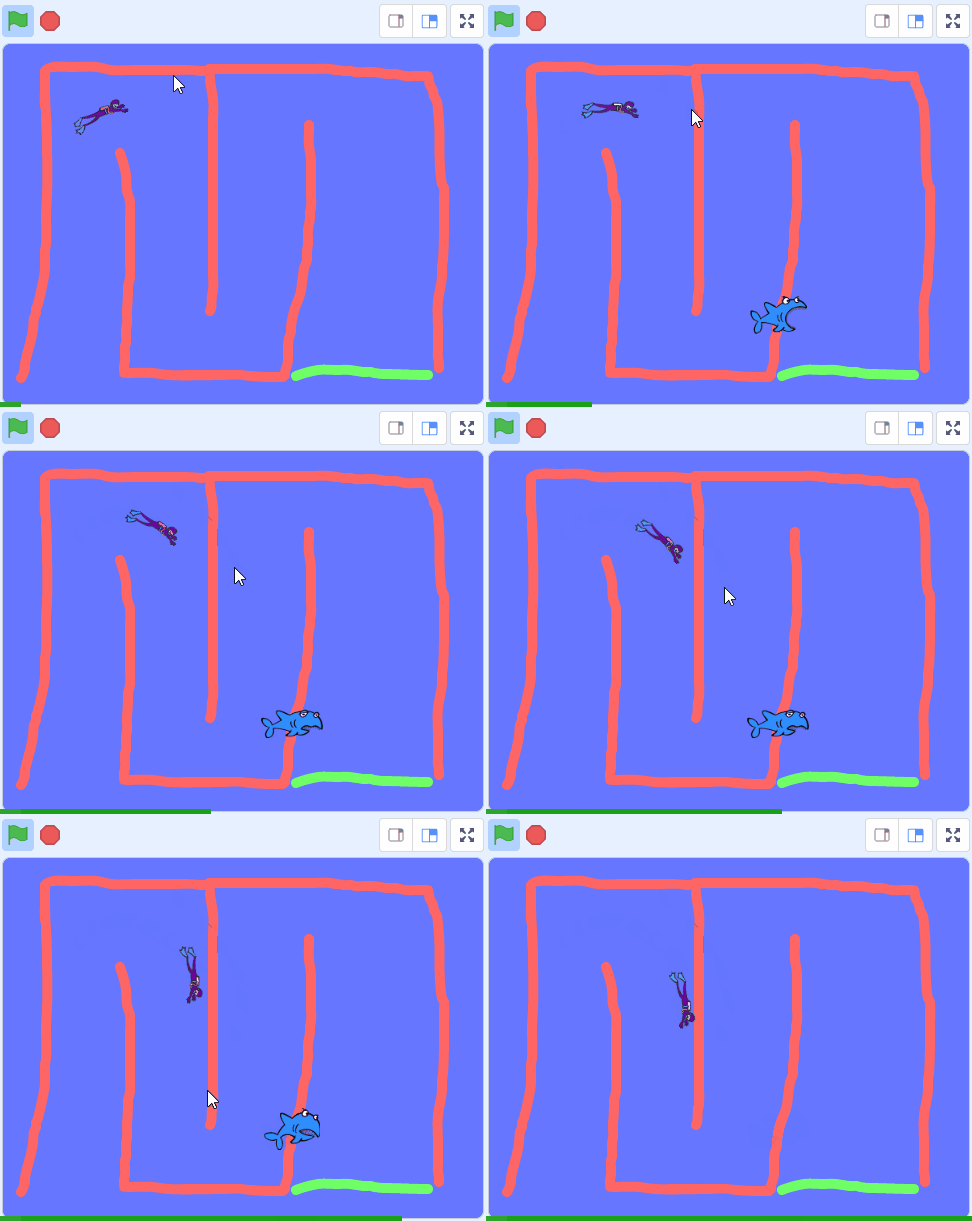
Create a new Scratch project and delete the cat sprite.
Go to the Scratch website using the link below and click on the 'Create' link in the blue bar at the top.
By default, each new project starts with the cat sprite already added. To delete the cat click on the x in the blue circle beside the cat in the sprite list.
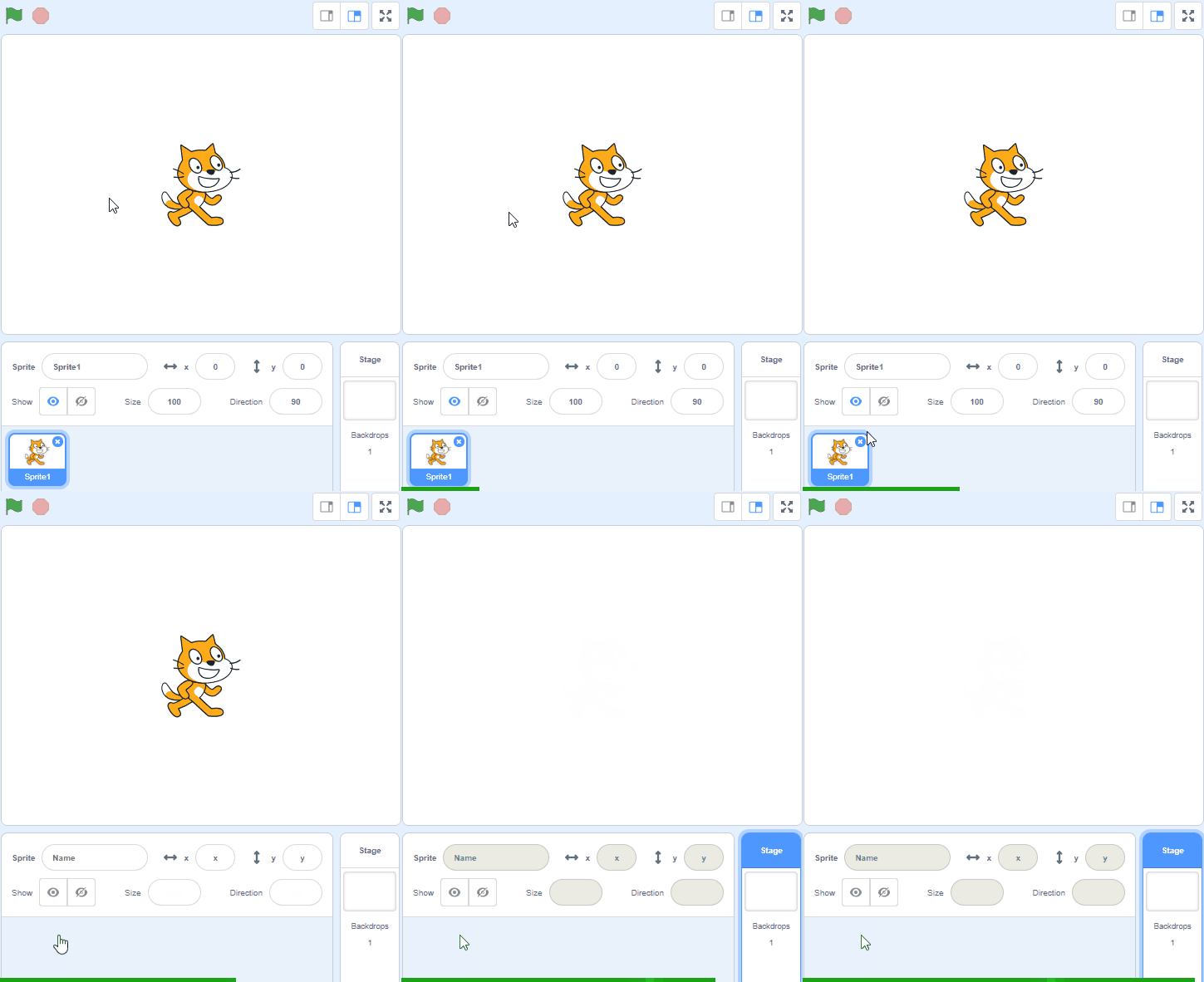
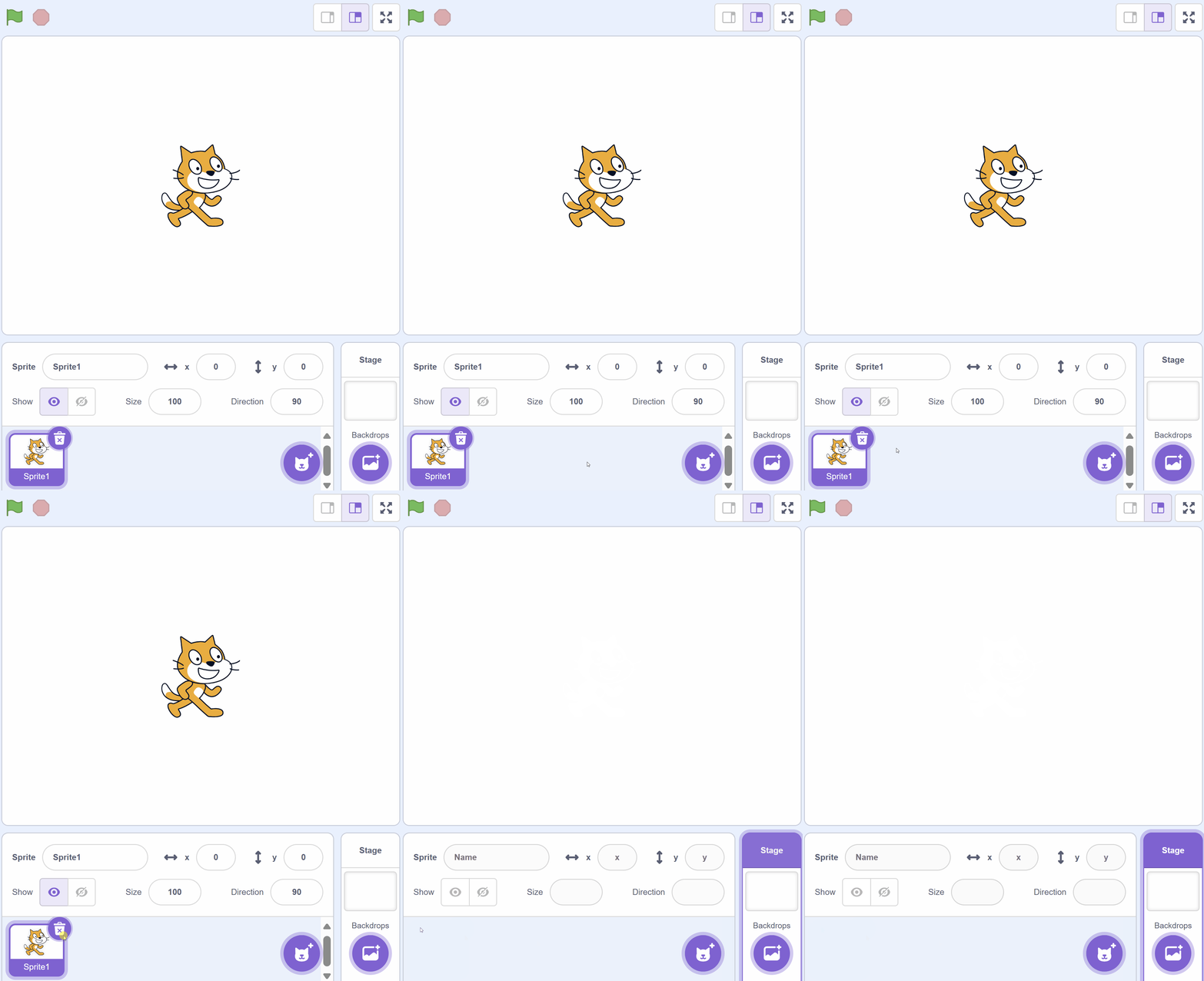
In the game a diver will swim through a course to try and reach the end without touching the edges or getting caught by the shark.
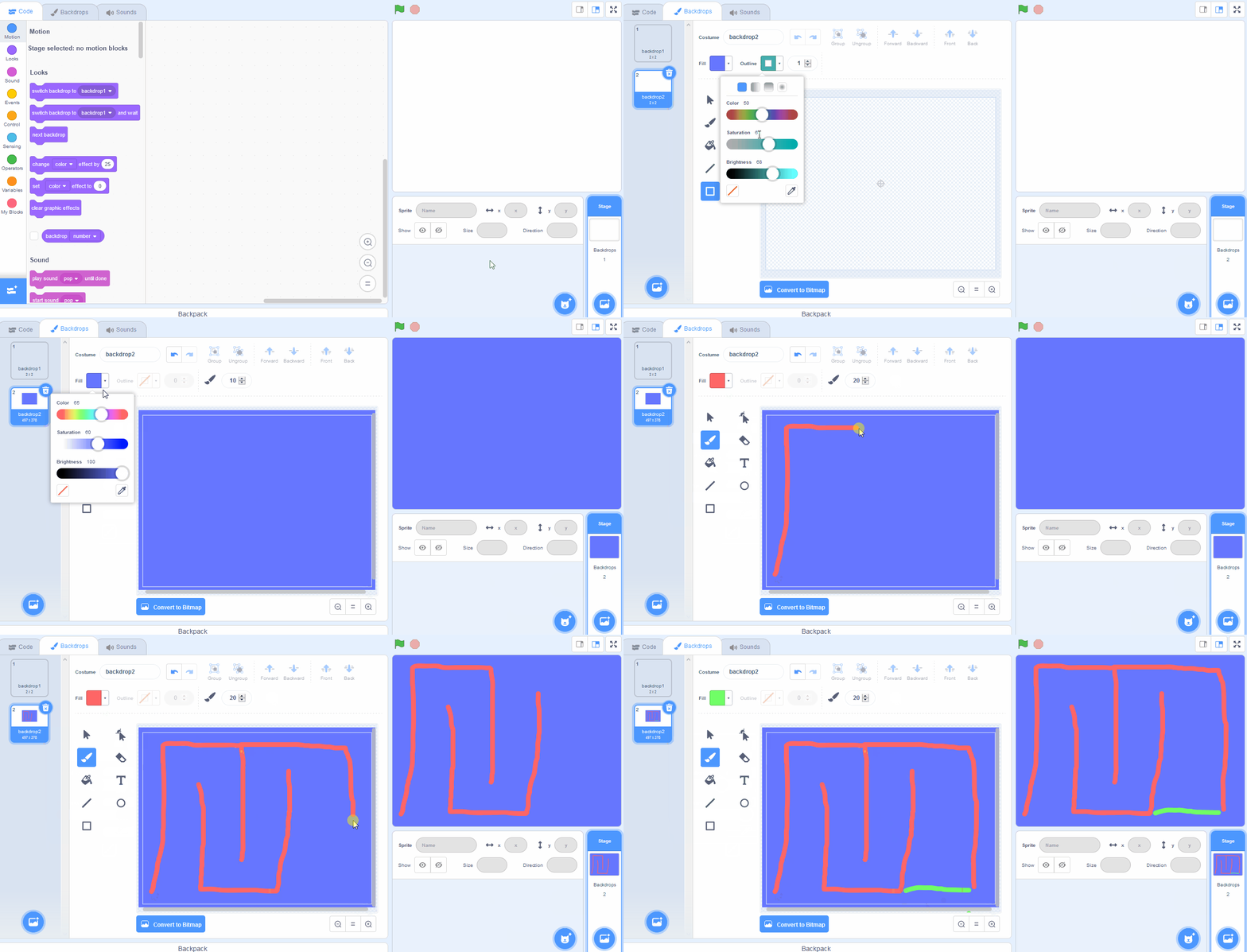
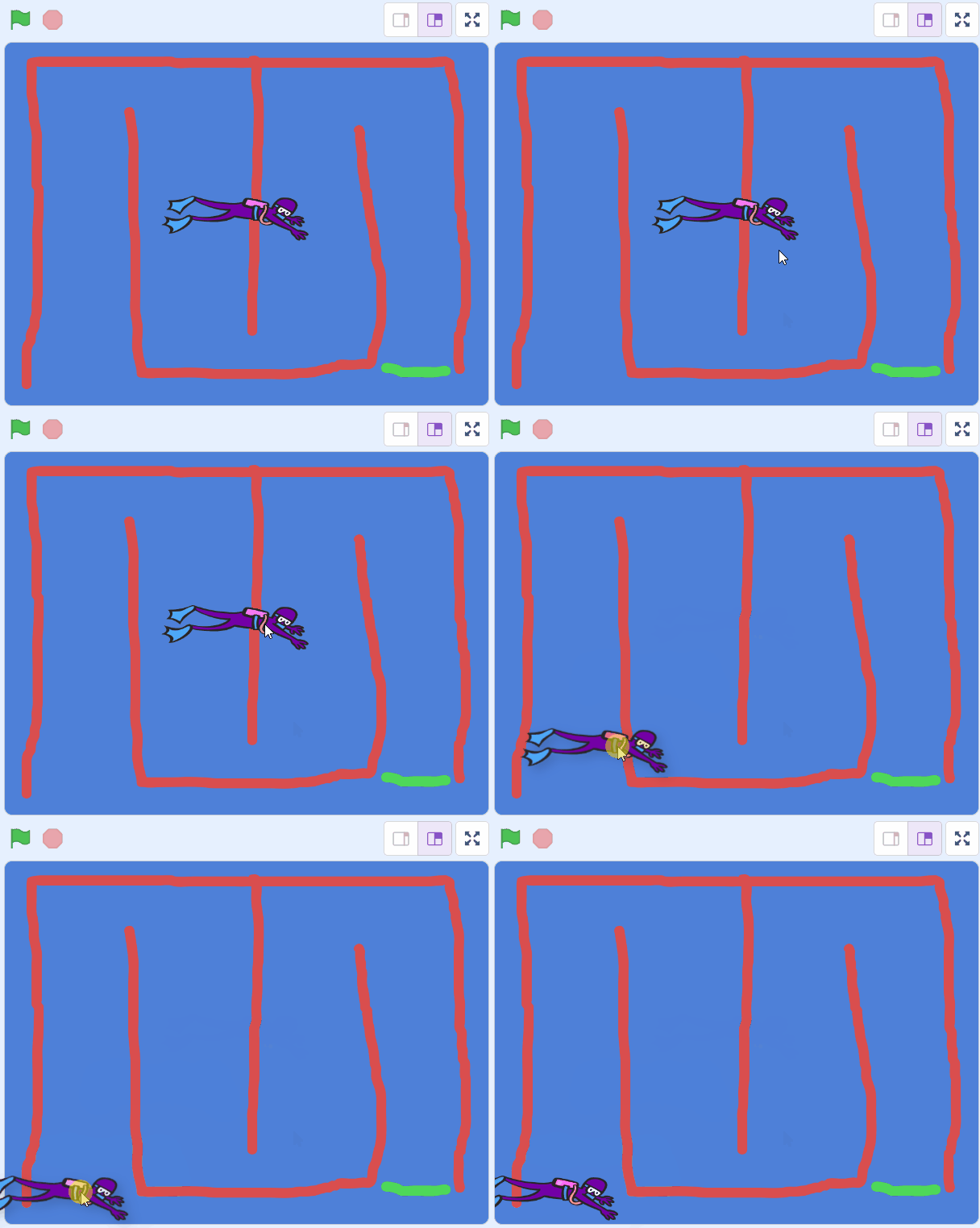
Paint a new backdrop with the following:
- A blue background (use the square tool ).
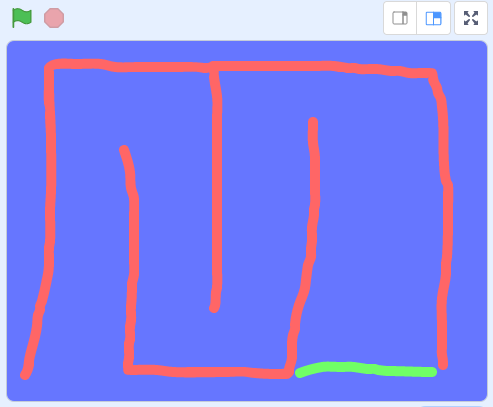
- A course with lanes for the diver to swim (use the paint brush tool thickness 20). In our example we use red lines.
- A finish line (use the paint brush tool thickness 20). In our example we use a green line.
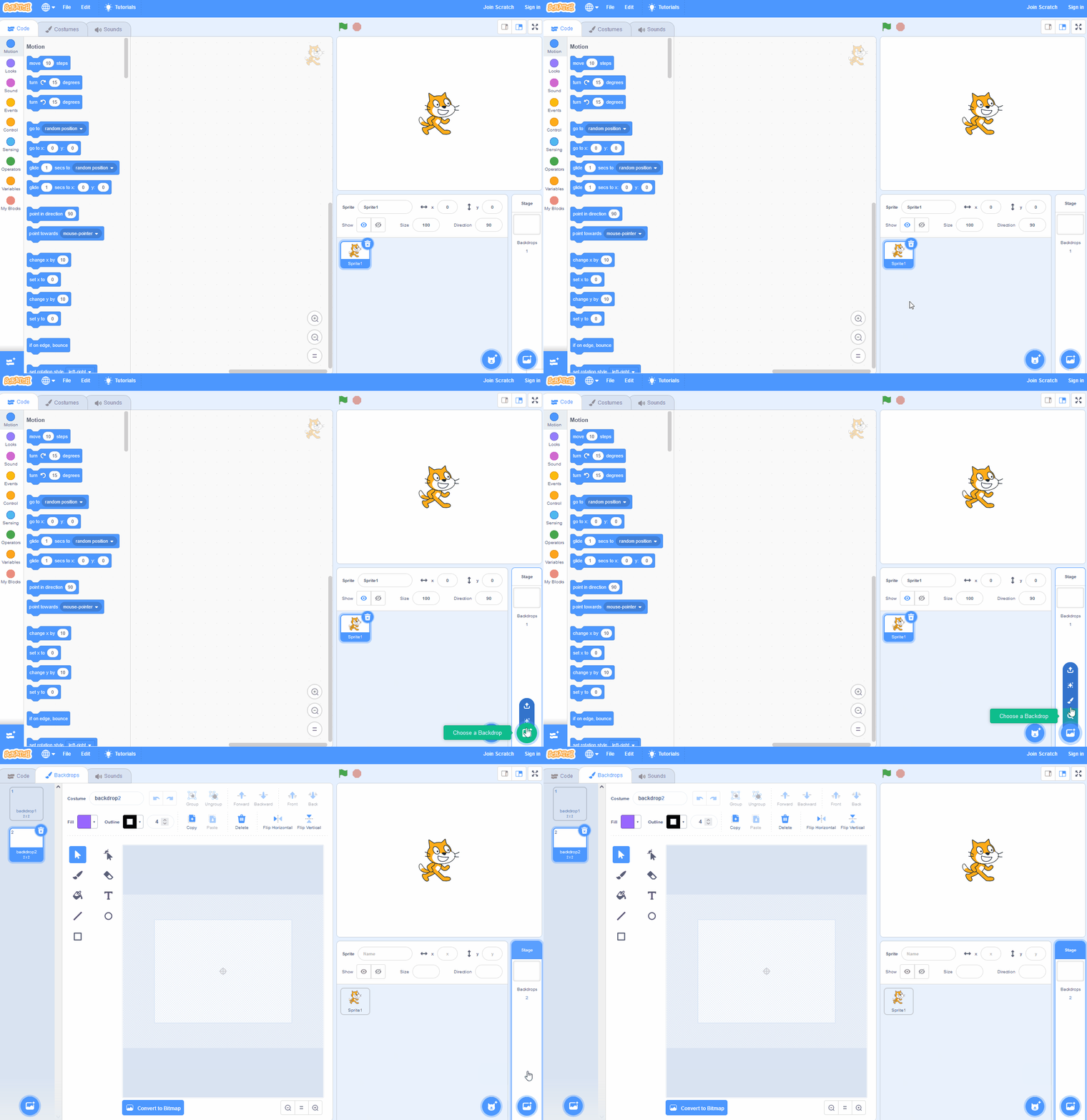
You can create your own backdrops using the backdrop editor. To create a new backdrop put your mouse over the Choose a Backdrop button and then click on the paintbrush.
This create a blank backdrop and will open the backdrop editor where you can use the tools to create your backdrop.
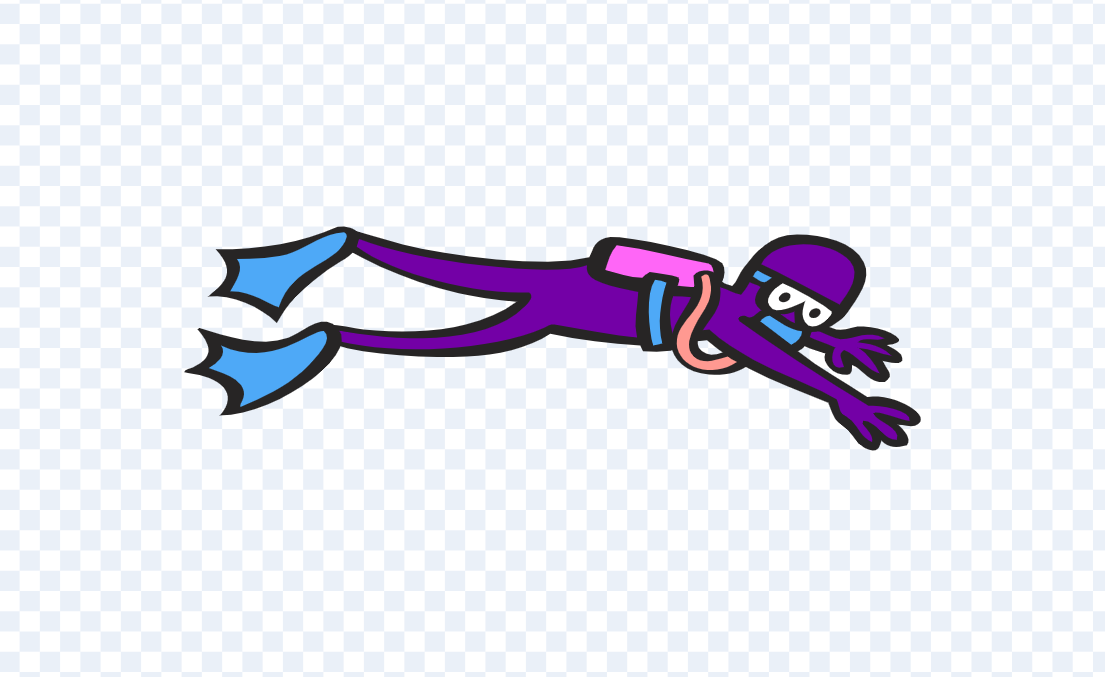
Add the Diver1 sprite from the sprite library and then drag it to the start of your swim course.
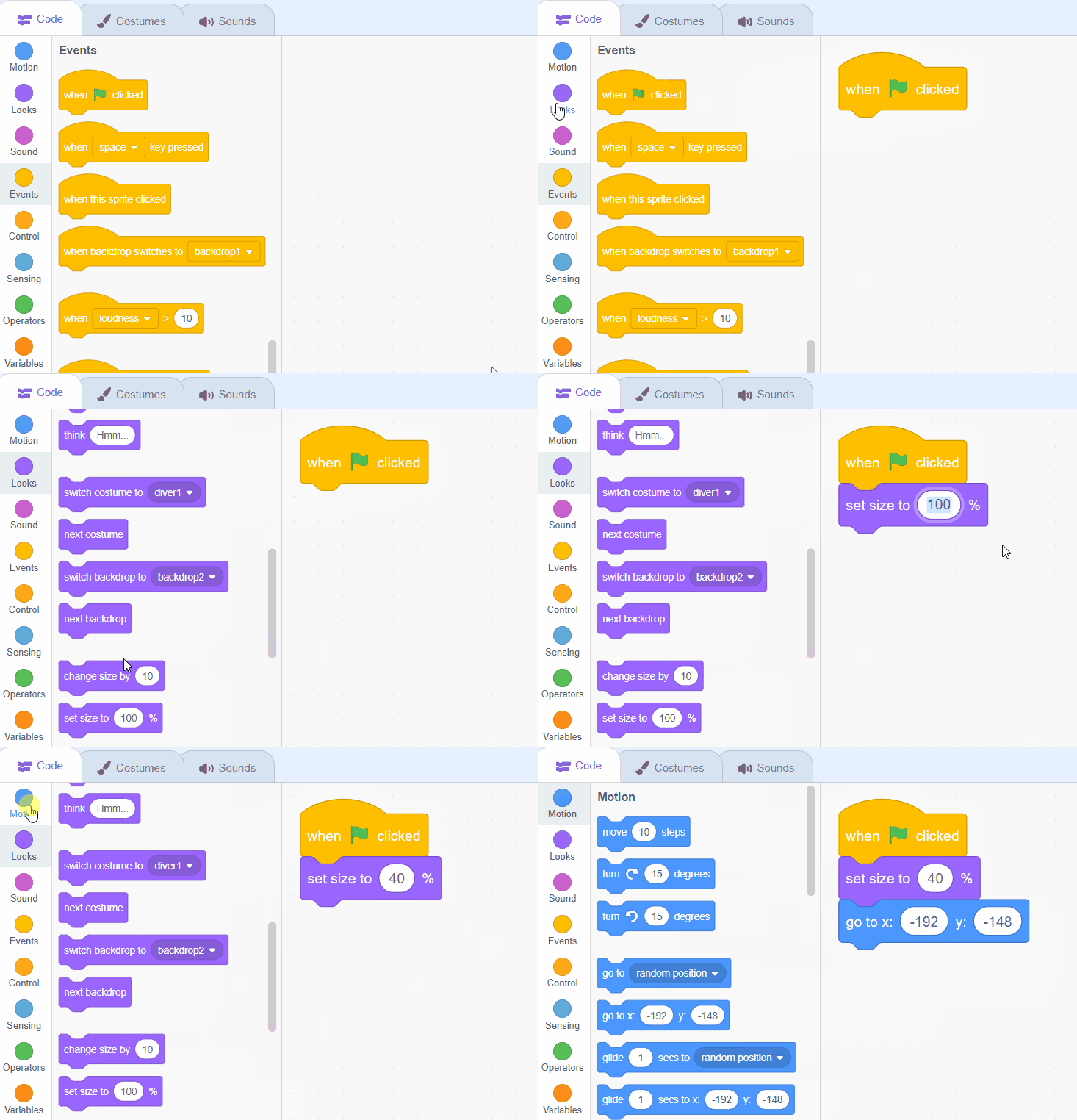
Once you've positioned it at the start, add the following code to set it up for the start of the game.
when green flag clicked
set size to (40) %
go to x (-173) y (-138) // x and y of the start of your course
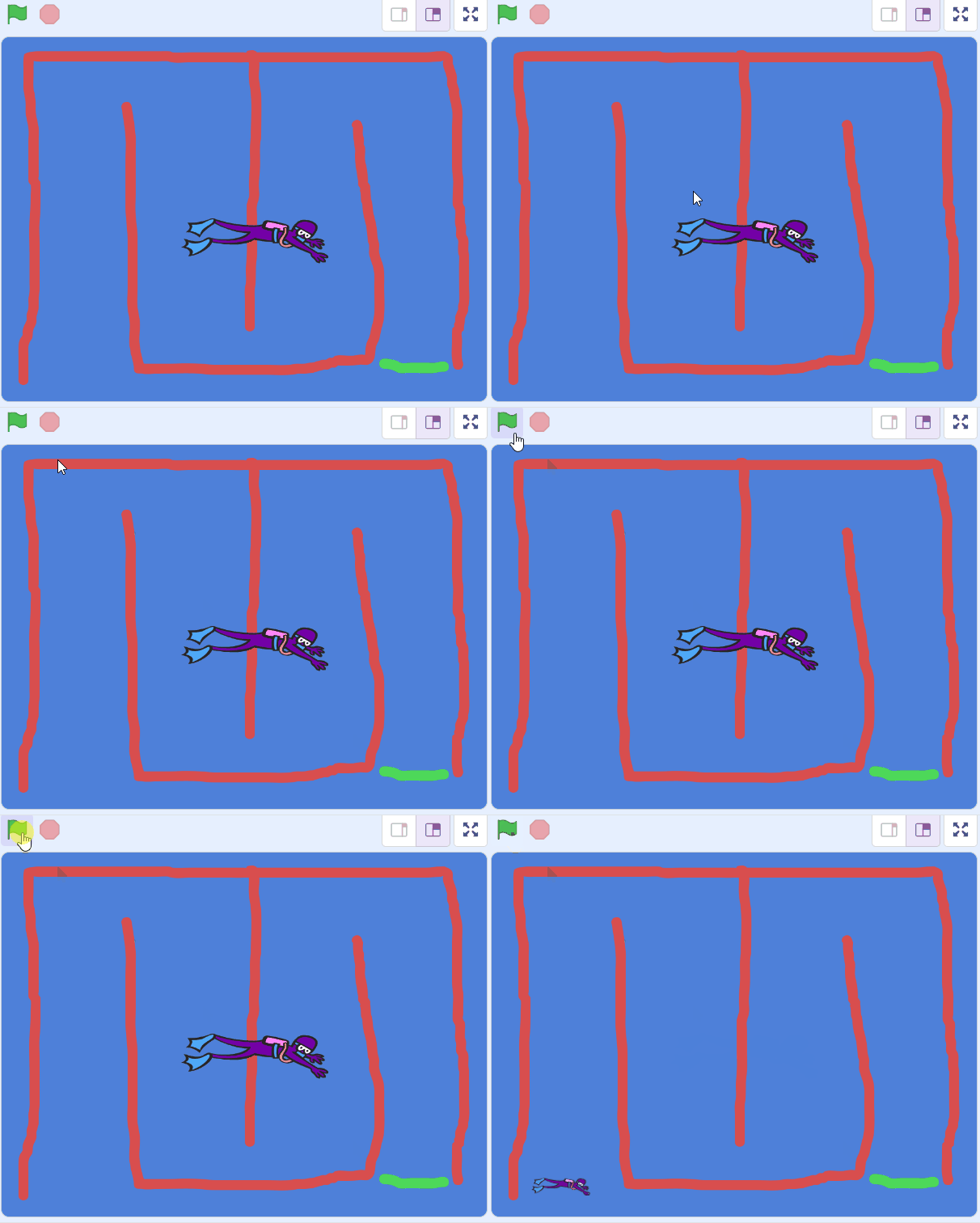
If you drag your diver away and click the green flag again she will go back to start (this is what the
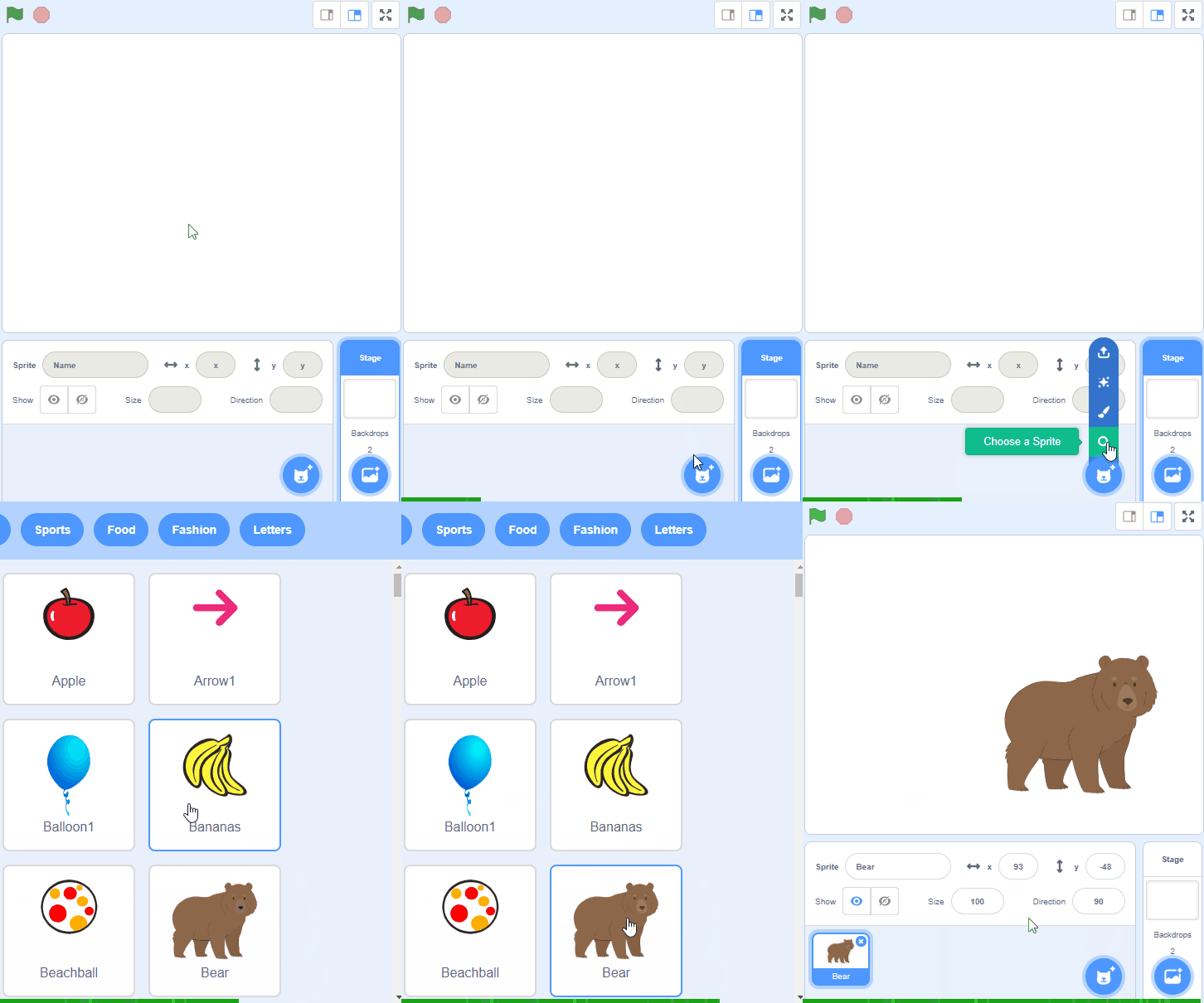
go to x y block does, it makes the sprite go to the coordinates.To add a sprite from the sprite library follow these steps:
- Put your mouse over the Choose a Sprite button
- Click on the magnifying glass
- Find the sprite you want in the library
- Click on your chosen sprite
You can use search box or the filter links (Animals, People, Fantasy etc) to locate your sprite.
Unlock the full learning experience
You're previewing this lesson. Get full access to this lesson and hundreds more — each one ready to teach, with interactive activities, printable resources and pupil progress tracking built in.
This lesson is copyright of Coding Ireland 2017 - 2025. Unauthorised use, copying or distribution is not allowed.
Scratch is developed by the Lifelong Kindergarten Group at the MIT Media Lab. It is available for free at https://scratch.mit.edu