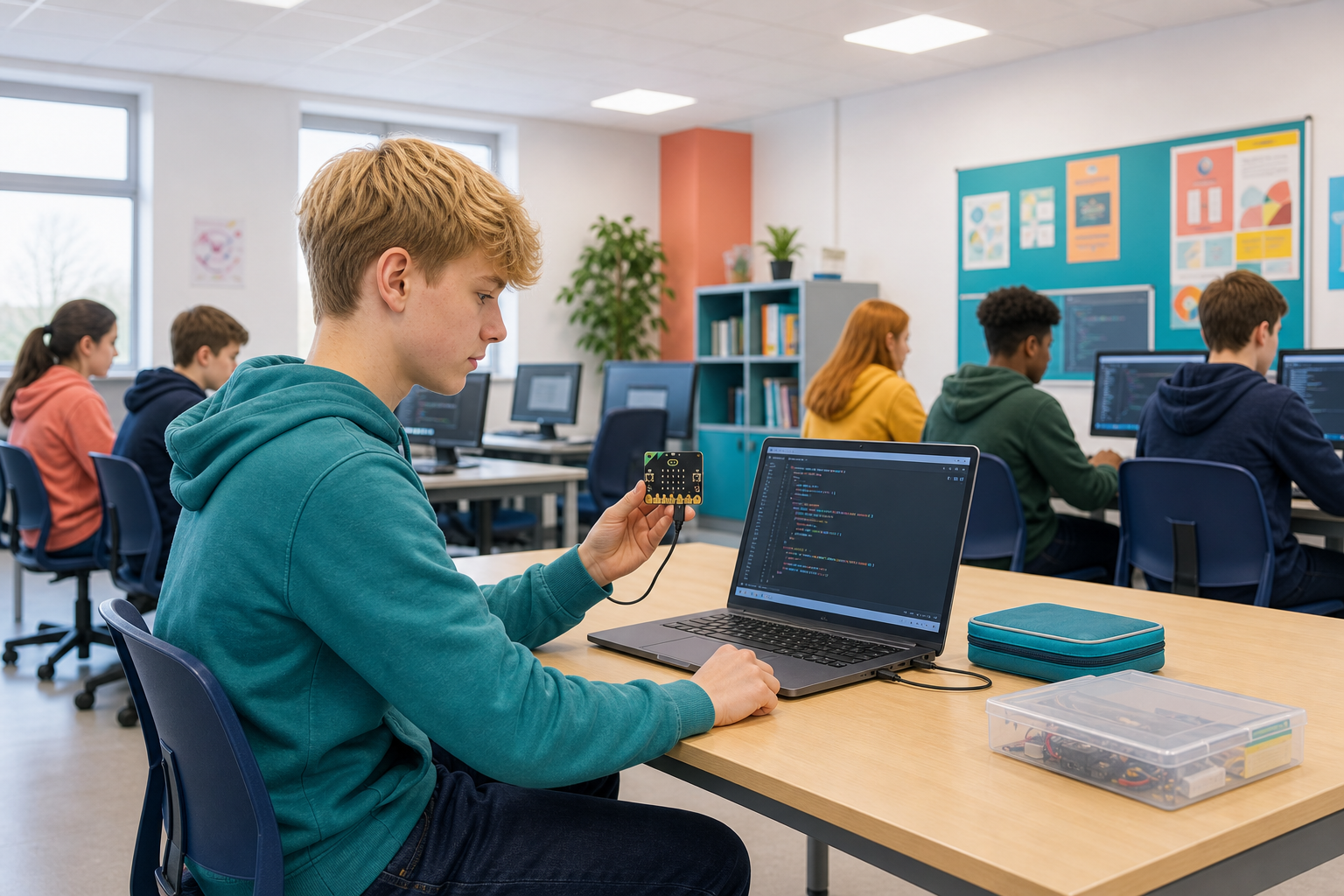
 Today you are coding in Python on the micro:bit editor. You will build a Rock-Paper-Scissors game step by step: predict what a round should do, then build, run and fix.
You can already use simple Python and make the micro:bit respond. By the end you will have a full game where you press buttons for rock, paper or scissors, the micro:bit picks at random, and the display shows who won.
Before you run anything, think: if you choose rock and the micro:bit chooses scissors, who should win, and what should appear on the screen?
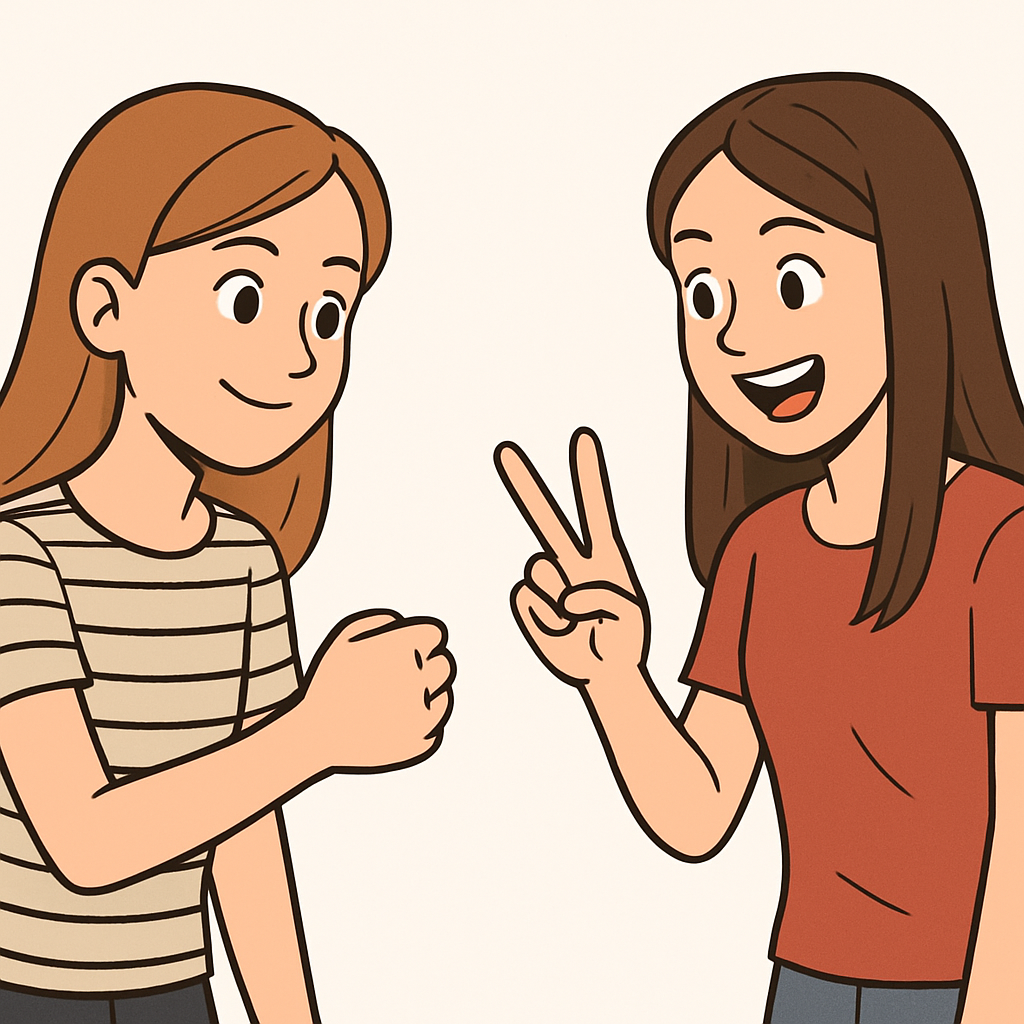
Rock, Paper, Scissors in Python has five parts:
- Import the modules you need.
- A list of the three choices.
- The player's choice, taken as input.
- The computer's choice, picked at random from the list.
- The rules that decide who won.
The rules are the part to think about before you type: there are only nine possible rounds, and three of them are draws.
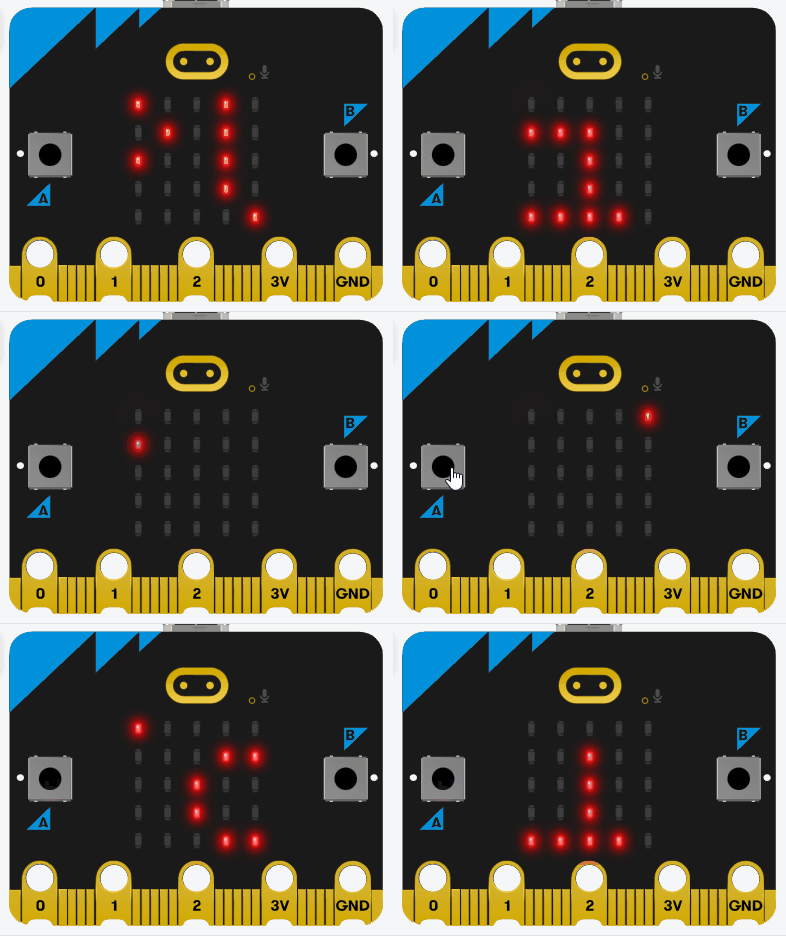
In this step, we'll import the necessary modules. We need the microbit module for hardware access and the random module to generate the computer's choice.
Start by adding the following complete code to your editor:
from microbit import *
import randomNext, we'll create a list to store the possible choices: rock, paper, and scissors. Lists are great for holding multiple related items, and we'll use this to select the computer's choice randomly.
Update your code to the following complete version:
from microbit import *
import random

choices = ["rock", "paper", "scissors"]
display.scroll("Ready")Now, let's handle user input using the buttons. We'll decide: press button A for rock, button B for paper, and both buttons for scissors. We'll use a loop to wait for a button press.
The while True: creates an infinite loop that keeps checking for button presses until one is detected. Inside the loop, we use if-elif statements to check which button(s) are pressed. When a condition is true, we assign the user's choice to a variable and use the break statement. The break statement exits the loop immediately, stopping the continuous checking and allowing the program to continue with the next lines of code. The sleep(100) adds a short delay to prevent the loop from running too quickly and using too much processing power.
Update your code to this complete version:
from microbit import *
import random

choices = ["rock", "paper", "scissors"]

while True:
    if button_a.is_pressed() and button_b.is_pressed():
        user_choice = "scissors"
        break
    elif button_a.is_pressed():
        user_choice = "rock"
        break
    elif button_b.is_pressed():
        user_choice = "paper"
        break
    sleep(100)

display.scroll(user_choice)if-else for control.Unlock the full learning experience
You're previewing this lesson. Get full access to this lesson and hundreds more — each one ready to teach, with interactive activities, printable resources and pupil progress tracking built in.
This lesson is copyright of Coding Ireland 2017 - 2025. Unauthorised use, copying or distribution is not allowed.