Today you are coding in MakeCode Arcade. You will build Bat Battle at your device: a spaceship you steer, bats that fall, shots that score, and a game over when a bat hits you.
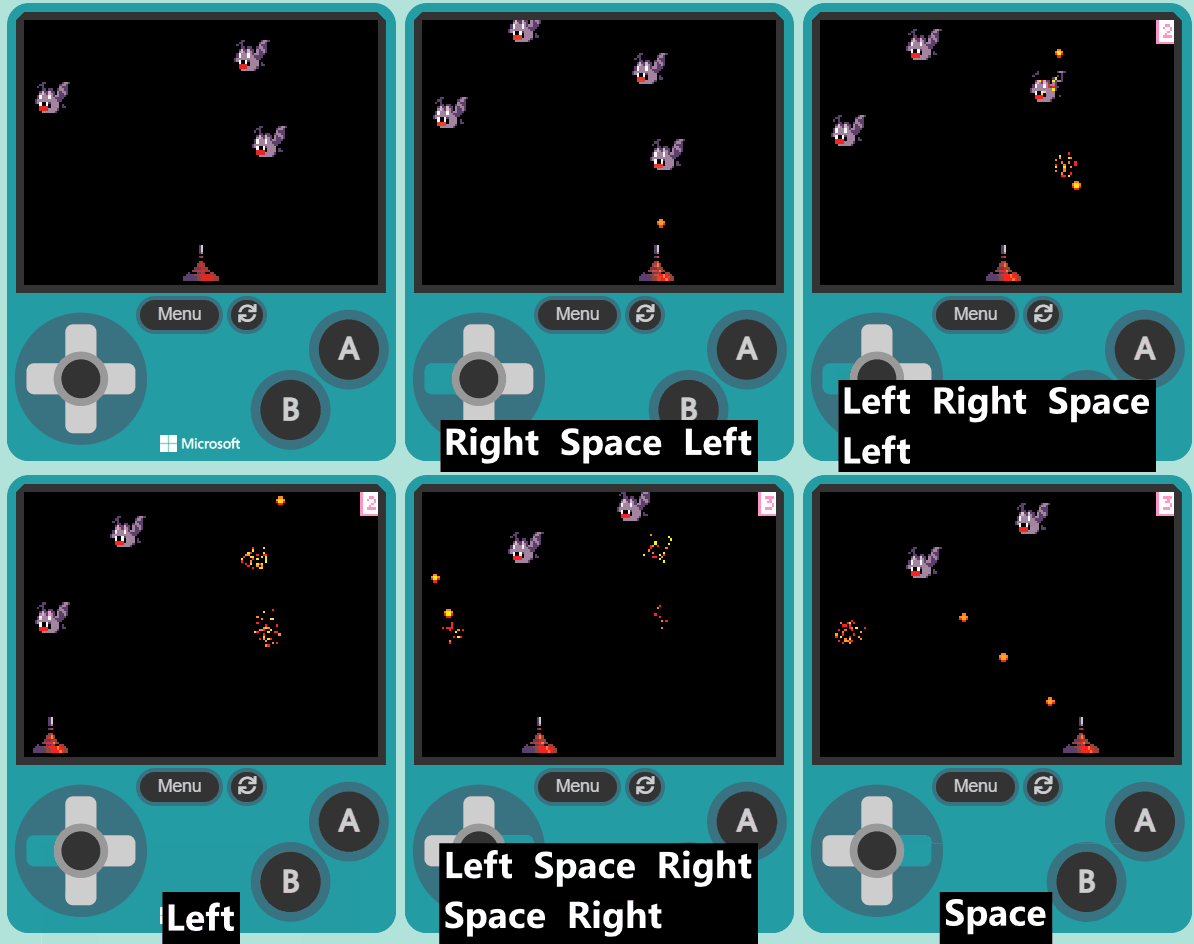
Before you run anything, think: what do you expect will happen when a bat reaches the bottom of the screen?
You will predict, build step by step, run the game, and fix bugs as you go.
Keep this short. Devices on MakeCode Arcade, students logged in. Optional predict: before anyone runs code, ask what they think will happen when a bat reaches the player. Do not take long answers; park one or two ideas to revisit in Make sense. Then move straight into the build.
Welcome to the 'Bat Battle' lesson! In this lesson, you will learn how to create a fun and interactive game using MakeCode Arcade. You will be creating a spaceship that can move left and right, shoot projectiles, and earn points by hitting targets. But be careful! If a target hits your spaceship, it's game over. Let's start coding!
Read the welcome line aloud so the class knows the goal: a moving ship, falling targets, shots, score and game over. No coding yet. Check everyone is on the Arcade home screen ready for a new project.
Open the MakeCode Arcade website using the link below and create a new project. You can call the project whatever you want.
Model opening arcade.makecode.com and starting a new project. Students name the project in the class style. Watch for anyone still on an old project or not signed in, so saves will stick.
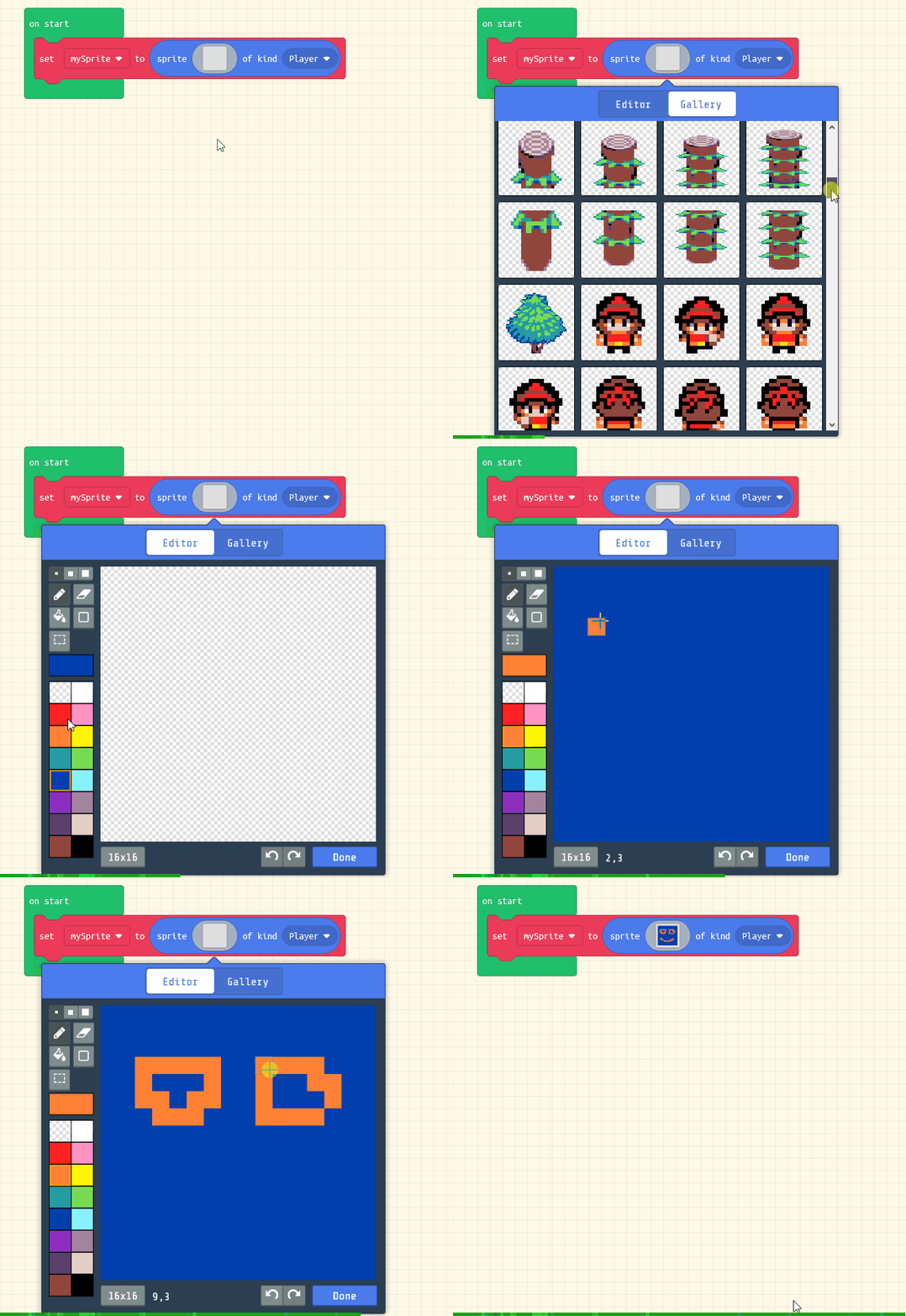
First let's create our player sprite.
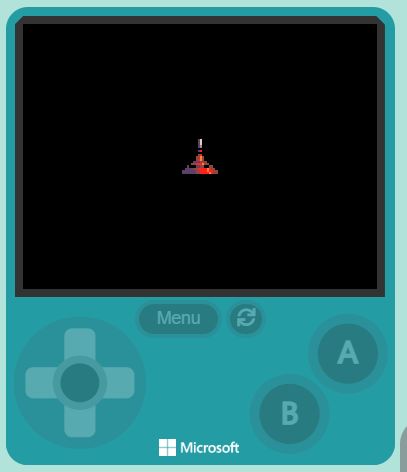
Add the following code and choose the red space ship sprite:
let mySprite: Sprite = null
mySprite = sprites.create(img`
. . . . . . . c d . . . . . . .
. . . . . . . c b . . . . . . .
. . . . . . . f f . . . . . . .
. . . . . . . c 2 . . . . . . .
. . . . . . . f f . . . . . . .
. . . . . . . e 2 . . . . . . .
. . . . . . e e 4 e . . . . . .
. . . . . . e 2 4 e . . . . . .
. . . . . c c c e e e . . . . .
. . . . e e 2 2 2 4 e e . . . .
. . c f f f c c e e f f e e . .
. c c c c e e 2 2 2 2 4 2 e e .
c c c c c c e e 2 2 2 4 2 2 e e
c c c c c c e e 2 2 2 2 4 2 e e
`, SpriteKind.Player)
Model creating the player sprite and picking the red ship image on the board. Key question: where should the ship start so the player can see it? Common bug: sprite created but not visible because position is off later; for now confirm the image appears in the simulator. Support: pair stronger readers with anyone still finding the sprites drawer.
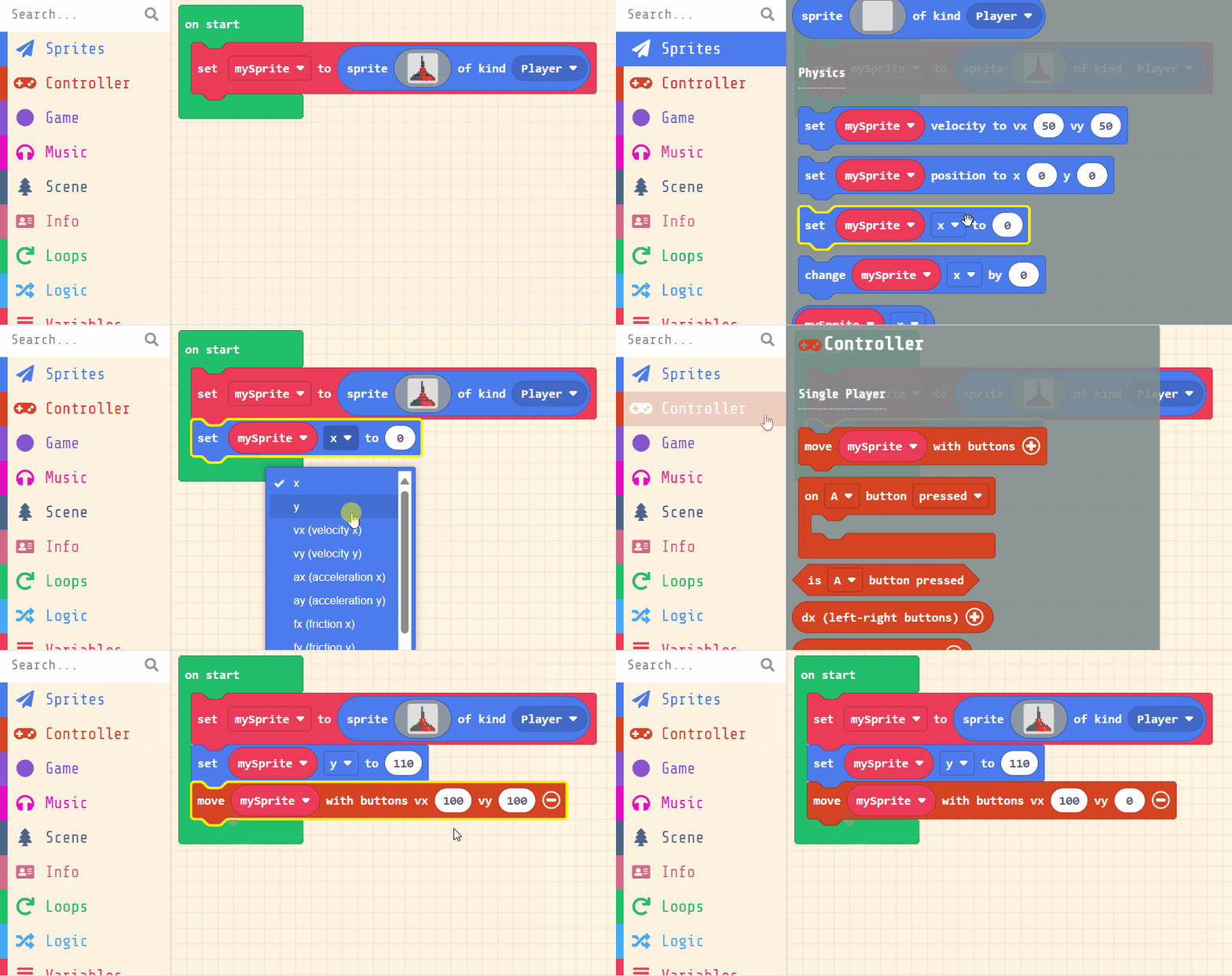
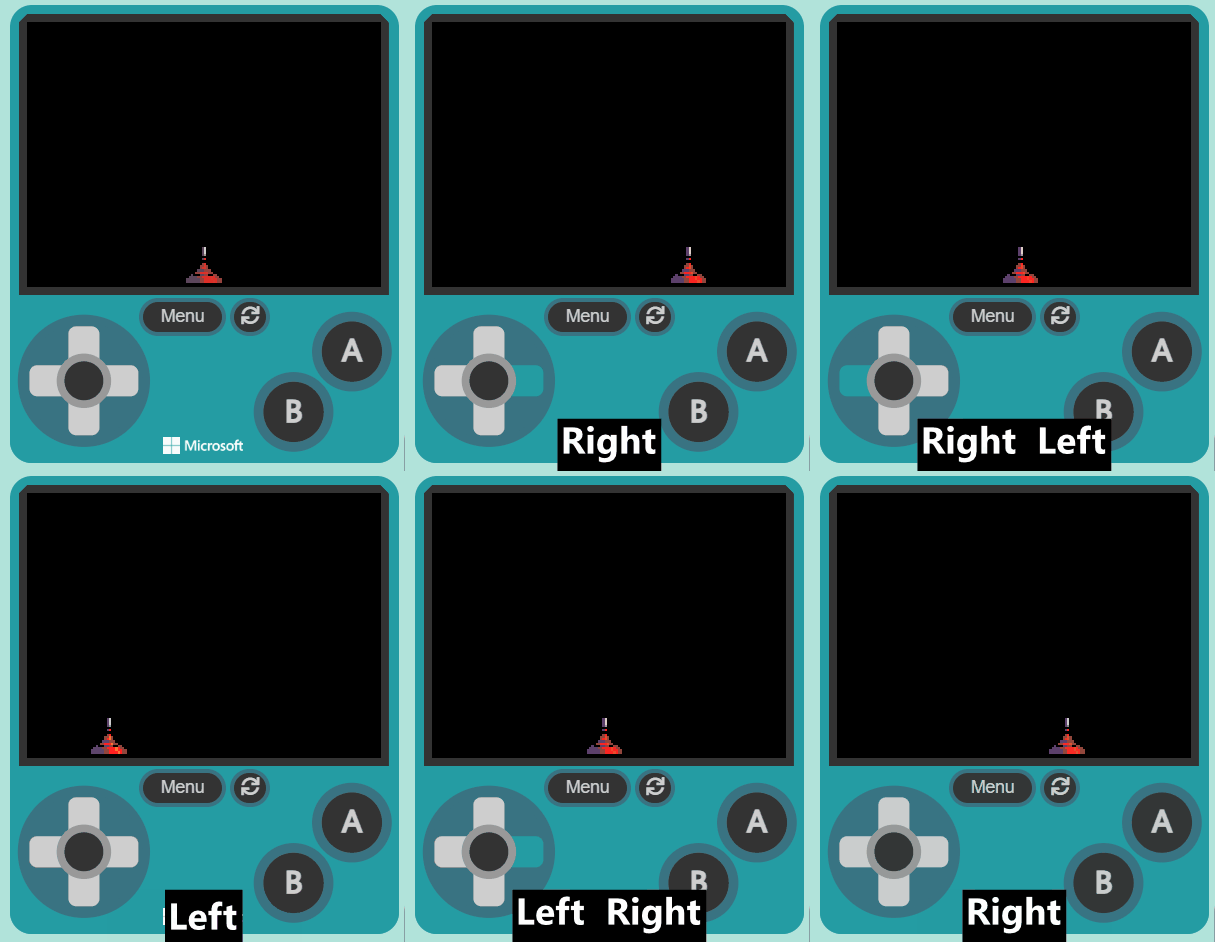
We want to position the player sprite at the bottom of the screen and use the joystick (or arrow keys on your keyboard) to move it left and right.
Add the following new code:
let mySprite: Sprite = null
mySprite = sprites.create(img`
. . . . . . . c d . . . . . . .
. . . . . . . c b . . . . . . .
. . . . . . . f f . . . . . . .
. . . . . . . c 2 . . . . . . .
. . . . . . . f f . . . . . . .
. . . . . . . e 2 . . . . . . .
. . . . . . e e 4 e . . . . . .
. . . . . . e 2 4 e . . . . . .
. . . . . c c c e e e . . . . .
. . . . e e 2 2 2 4 e e . . . .
. . c f f f c c e e f f e e . .
. c c c c e e 2 2 2 2 4 2 e e .
c c c c c c e e 2 2 2 4 2 2 e e
c c c c c c e e 2 2 2 2 4 2 e e
`, SpriteKind.Player)
mySprite.y = 110
controller.moveSprite(mySprite, 100, 0)
position block and put in a value of 110. This will make the sprite go to the bottom.move block and have values of vx 100 and vy 0. This means we can move the sprite left and right (vx) but not up and down (vy).Model setting the ship at the bottom and controller left/right move. Ask: why bottom of the screen, not the middle? Watch for move blocks attached to the wrong sprite or missing stay-in-screen. Differentiation: if a pair finishes early, let them try a slightly slower move speed.
You're previewing this lesson. Get full access to this lesson and hundreds more — each one ready to teach, with interactive activities, printable resources and pupil progress tracking built in.