Today you will
- learn to spot scam and phishing messages
- pick one habit to keep your accounts safe
- make a Scam Spotter page with two or three examples
Warm-up
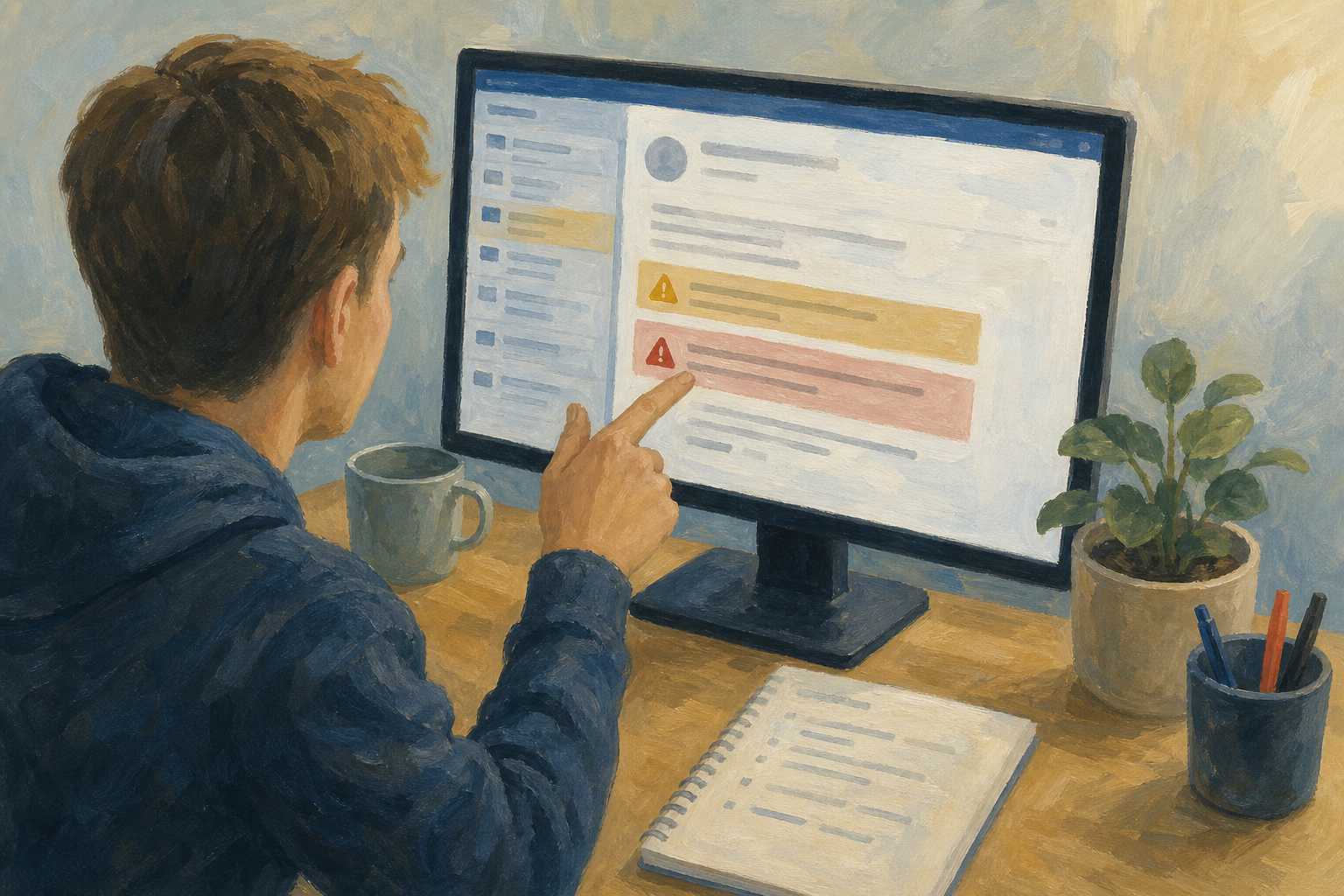 Think of the last message that felt a bit off, like a delivery text or prize claim. What made you stop?
If something has already gone wrong, stop clicking, keep a screenshot and tell a trusted adult.
A phishing message pretends to come from someone you trust, to get your password or money.
Malware is bad software that steals or locks your files. It hides in odd attachments.
Two-factor authentication (2FA) asks for a code on your phone as well as your password.
In Ireland, the digital age of consent is 16. Under 16, a parent or guardian should help with many app sign-ups.
Example: a text says "An Post: pay €1.99" with a link. Don't tap it. Open the An Post app yourself.
Your teacher will read out each story. Say what you would really do, and which red flag you spotted. There is no single right answer.
Do these first: The delivery text and The too-easy placement offer.
If there is time: Confirm your school login and The free invoice tool.
Interactive activity
Not sure if it's a scam?
Don't use the link in the message. Open the real app or website yourself, or ask a teacher before you reply.
Already clicked or shared something?
Stop clicking and keep a screenshot. Change that password on a page you trust, turn on 2FA, and tell a trusted adult. You can also talk to your guidance counsellor.
You will make a file called {{code:02_scam_spotter}} in your {{code:02_research}} folder. Watch your teacher first, then follow the steps in the box below.
This is the example you will type into your file:
Scam Spotter
- A courier fee text asks for a small payment and has a short link.
What gives it away: an unexpected fee, pressure to pay fast, and a link instead of the official app.
Unlock the full learning experience
You're previewing this lesson. Get full access to this lesson and hundreds more — each one ready to teach, with interactive activities, printable resources and pupil progress tracking built in.
This lesson is copyright of Coding Ireland 2017 - 2025. Unauthorised use, copying or distribution is not allowed.