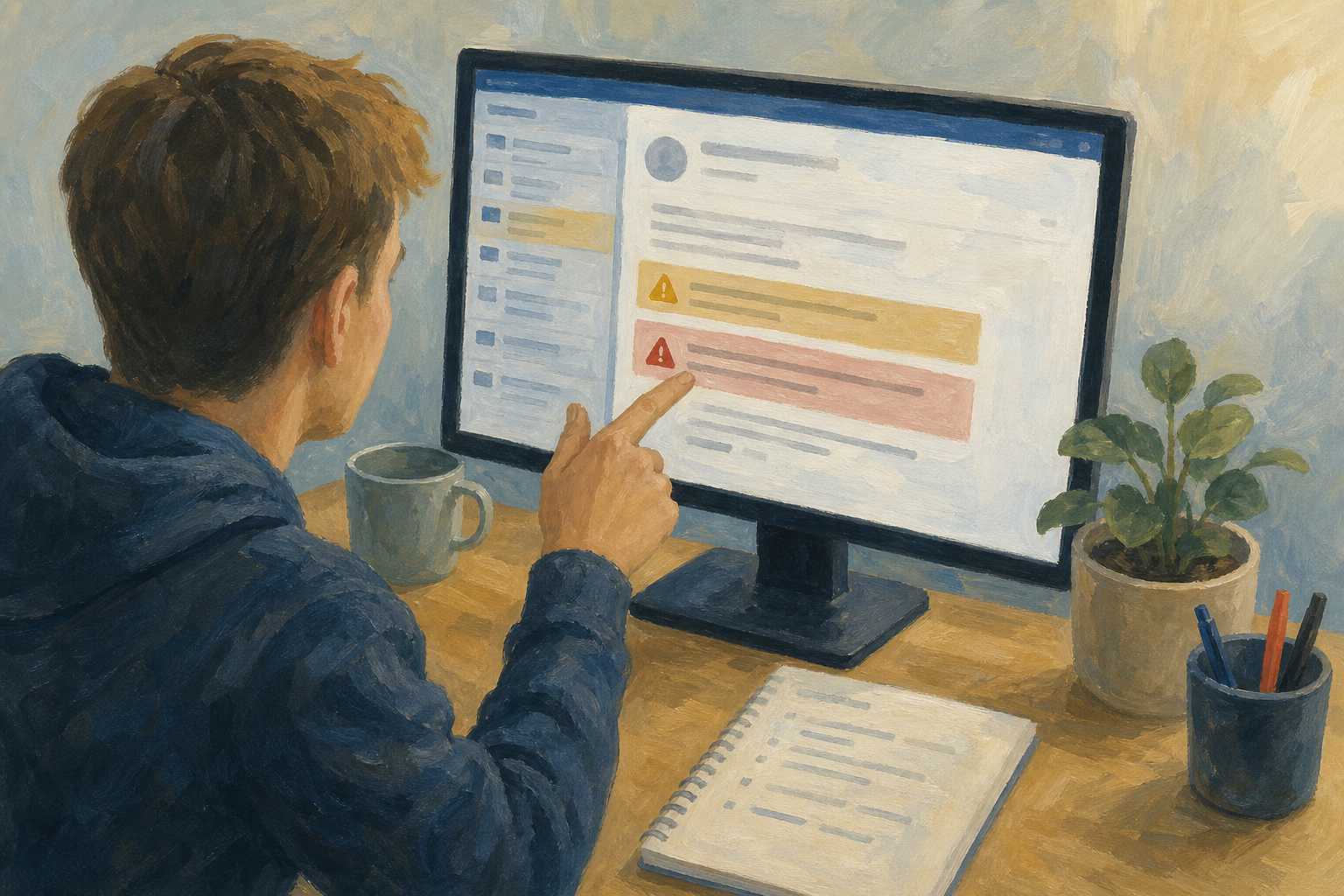
You already sort real messages from junk every day on WhatsApp, Snapchat, Instagram, school email, and banking apps. Today you turn that gut feeling into a clear checklist: spot phishing and scams, understand malware and stronger login habits, know Ireland's digital age of consent, and practise writing down exactly what gives a scam away. Those habits protect your school account, your Something Real project files, and anything you send a real employer or placement supervisor.
Think of the last message that felt slightly off: a delivery text, a "your account will lock" email, a prize claim, or a friend asking for money from a new number. What was the one detail that made you pause?
Teacher will talk through this table row by row. Use it as your spotting kit for the class scenarios, then for your portfolio page.
| Concept | Why it matters | Example |
|---|---|---|
| Phishing and scam patterns — a message that pretends to be someone you trust so you click, open a file, or hand over a password, code, or payment | One rushed click can lock school email, cloud files, banking, or a Work Experience contact | Fake An Post fee text, "confirm school login" email, prize DM, or too-easy placement ask |
| Stop, check, report — do not use the link in the message; open the official app or site yourself; tell a trusted adult early and keep a screenshot | Checking the real channel beats arguing with a fake message; early reporting protects you and the class | Show a teacher the full sender address on a fake school email, not only the display name |
| Malware — unwanted software that steals data, locks files, or spies on a device; often hides in fake attachments, cracked apps, or odd downloads | It can wipe or ransom the Project Portfolio you have been building | A "free invoice pack" or file that looks like a PDF but is really an installer |
| Lock the account — use a unique password (or password manager) and turn on two-factor authentication (2FA) on school and important accounts | One reused password can open several accounts after a single scare | After a fake login email, change the school password on a page you trust and switch on a second factor |
| Digital age of consent — in Ireland the digital age of consent is 16. Under-16s generally need a parent or guardian involved before many apps or sites rely on the young person's own consent for their personal data (Data Protection Act 2018). If a sign-up feels off, pause and tell a trusted adult. | Knowing 16 helps you judge sign-ups and when an adult should help | A new app asks a 15-year-old for full name, phone, and location on by default — pause and check with a parent or guardian |
Teacher will highlight a few of these aloud. Keep the full list on your handout for the scenarios and portfolio.
Work through each situation as a class. There is no single score. The point is to say what you would actually do and why, using the red flags from the key concepts.
Core cards (do these first): The delivery text · The too-easy placement offer.
If time allows: Confirm your school login · The free invoice tool.
| Issue | Solution |
|---|---|
| I am not sure if a message is a scam or genuine | Do not use the link in the message. Open the official app or website yourself, or contact the person or organisation on a number or address you already trust. When still unsure, ask a teacher or trusted adult before you reply. |
| I already clicked or shared something | Stop further clicks. Change the password on that account from a device and page you trust. Turn on two-factor authentication if it is available. Tell a teacher, parent or guardian, or another trusted adult. Keep screenshots of the message as evidence. |
Support routes (also on the welcome slide): school guidance counsellor, a trusted adult at home, Hotline.ie for illegal online content, An Garda Síochána for crime.
Before the portfolio write-up, the class opens the school word processor together and builds the file. You will use Word Online (Microsoft 365) or Google Docs, depending on what your school uses.
Hand up if you cannot see a folder called {{code:02_research}} — teacher will help you create it first.
What you will have at the end of this step:
Follow the teacher live model on the board, then match the steps for your platform. Rename so the title shows {{code:02_scam_spotter}} only — ignore any extra ending the system adds. Use a numbered list for your examples. Do not start the full portfolio checklist until this file exists.
You're previewing this lesson. Get full access to this lesson and hundreds more — each one ready to teach, with interactive activities, printable resources and pupil progress tracking built in.