Advanced
60 mins
Teacher/Student led
+65 XP

Sound and Audio Integration

In this session students explore the effective use of sound in presentations for VET contexts. They learn when narration benefits the format, how to record and integrate voiceovers, manage levels with royalty-free music, and apply copyright practices.

Teacher Class Feed

Load previous activity

    1 - Introduction ~5 mins

    Welcome

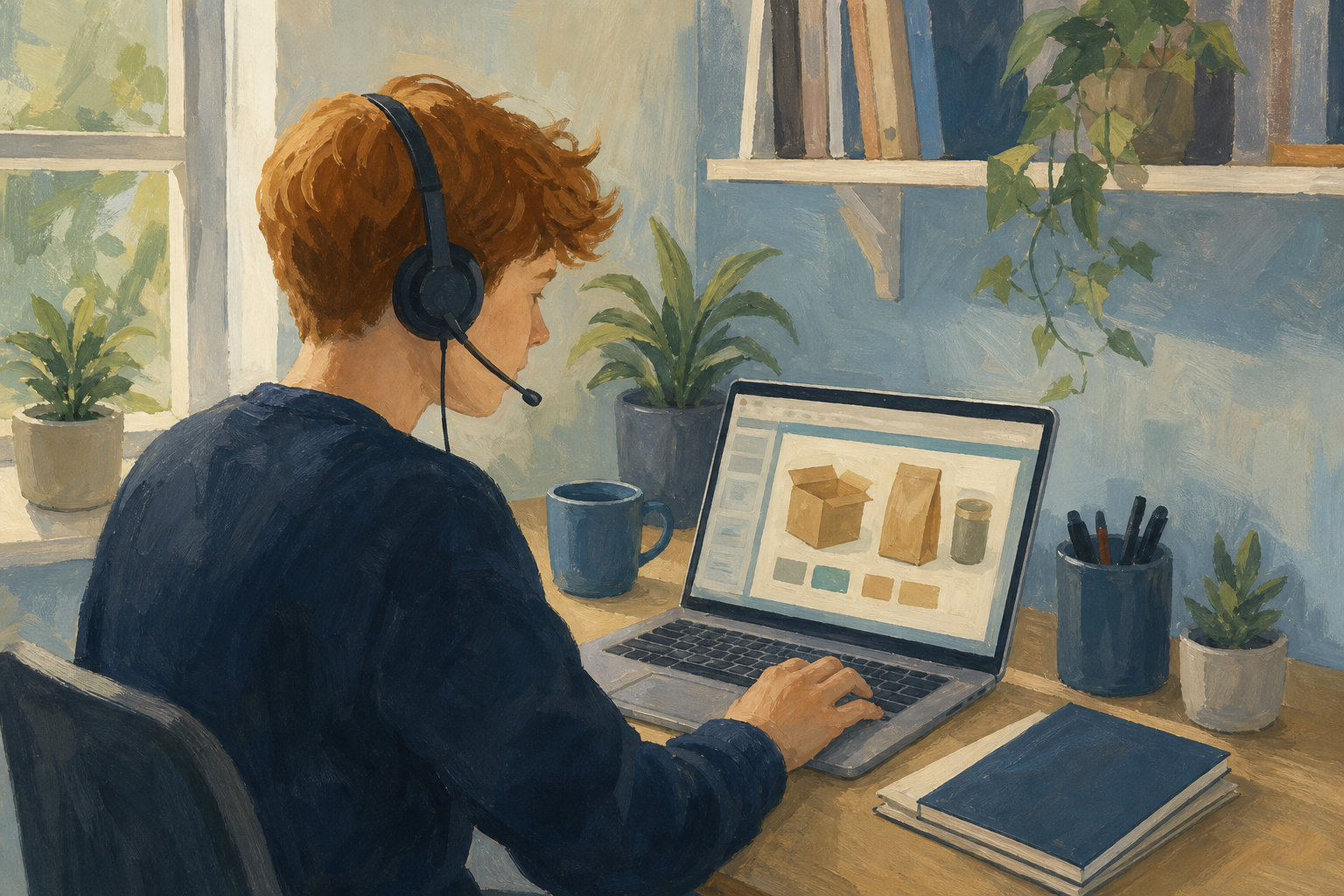
    Illustration for IntroductionIn a VET interview, examiners need to hear you, not a loud track. A short, clear voiceover can support a chart or opening slide when live words alone are not enough. Today you will write one short script, record it, insert it into your presentation, and keep any music legal and quiet under your voice.

    By the end of this lesson, you will be able to:

    • Add narration or voiceover where the format benefits
    • Manage audio levels and, where useful, quiet royalty-free music under voice
    • Apply copyright-aware music practice

    Warm-up

    Your teacher will ask the class: think of one video or pitch where sound helped, and one where it got in the way. What was the difference?

    2 - Key Concepts ~5 mins

    Key point

    Listen first. Your teacher will read this model script aloud at a natural pace. Notice: one idea, one number, then stop.

    Worked example

    Worked sample script (about 20 seconds): "I'm building a phone-based graduation photo service for local secondary schools. This slide shows three packages. The mid package at €45 covers a 30-minute outdoor shoot and ten edited shots — that is the one most families book."

    Keep these four ideas beside you while you work:

    ConceptWhy it mattersExample
    Narration / voiceover — short spoken audio attached to a slide or clip Carries a chart or hook when the examiner is looking at the screen A calm 20-second line on your break-even slide, then live voice for the rest
    Audio levels — how loud voice sits above any music bed If music and voice fight, the audience hears neither Music slider low until you understand every word with eyes closed
    Royalty-free music — tracks you are licensed to use (often with credit rules) Spotify or TikTok chart hits are almost never free for school or VET work Teacher class-drive sample or built-in stock audio only
    Copyright-aware practice — treat other people's audio as owned unless a licence says otherwise Portfolio and VET work can be shared beyond the classroom If you cannot name the licence in one sentence, use silence or your own voice

    When audio helps: explains something hard to read fast, supports accessibility, or sets a short professional tone.

    When it hurts: repeats the bullet list word for word, plays a loud commercial track, or runs longer than the point it serves.

    3 - Step-by-step Task ~18 mins

    Open format 1 in {{code:sm2/}} or {{code:sm2_audio_practice}} — both are valid today. Your teacher will demonstrate a short narration on a sample slide (including one take that is too quiet or noisy, then a clean take). Copy the insert path written on the board before you start.

    Work in two chunks. Part A: write a 15–30 second script, record it, get the file onto the school device, and upload it into {{code:sm2/}}. Stop when the file is visible in the folder. Part B (only after your teacher releases the room): insert the audio, set on-click playback, and check that the voice is clear. Optional background music is stretch only in independent practice, and only with a teacher-approved royalty-free track.

    If format 1 is video or podcast (CapCut or school audio editor), use these steps instead of the slides insert path:
    1. Write and record the same 15–30 second script, then transfer and upload {{code:sm2_narration_practice}} into {{code:sm2/}} (Part A above).
    2. Open your format 1 project in CapCut (or your school audio editor).
    3. Import {{code:sm2_narration_practice}} and place it on the timeline under that section.
    4. Keep any music bed quieter than the voice (about one-quarter on the slider; every word clear with eyes closed).
    5. Export the updated file back into {{code:sm2/}} with a clear name and play the section once to check levels.

    4 - Common Issues ~4 mins

    Common Issues

    IssueSolution
    Insert Audio is greyed out or missing Use the single path your teacher locked for this room. In Google Slides, upload the file to Drive first. In PowerPoint, use desktop Insert → Audio if the browser build is limited, or insert from OneDrive after upload.
    I recorded on my phone and cannot find the file on the school PC Email the memo to your school account, open it on the school device, save to Downloads, then upload into sm2/. Or use the cable / Nearby Share / AirDrop route your teacher allows. If phones are banned, re-record with the school mic app.
    The recording is too quiet or full of room noise Re-record closer to the mic (about 15 cm) in a quieter corner. Do not fix a bad take only by maxing volume. Shorten the script so you can speak steadily in one breath group.
    Audio will not play in Slide Show / Present mode Check the file still sits in the same cloud folder, playback is set to on click, and the icon is still on the slide. On shared machines, allow the browser media permission if prompted.
    I wanted a popular song as background Do not use it. Pick a teacher-provided royalty-free track or use no music. Write a one-line licence note beside any track you do use.

    5 - Independent Practice ~18 mins

    Independent Practice

    Your goal: Make one clear audio choice on your VET format 1 so an examiner hears either a short, clear narration or a deliberate silence you can explain.
    Time: ~20 minutes
    Task:
    1. Open your format 1 presentation in {{code:Project_Portfolio/09_specialism/sm2/}}, or open {{code:sm2_audio_practice}} in {{code:sm2/}} — both are valid today. Tell your teacher if you are on the practice file.
    2. Decide whether audio genuinely helps this format, or whether silence is smarter.
    3. If audio helps on slides, write a short script for one real section or for the Package choice practice slide. Record it, transfer it if needed, upload it to {{code:sm2/}}, insert it using only the board path, set On Click, and check that the voice is clear at normal volume.
    4. If format 1 is video or podcast, open the project in CapCut or your school audio editor, import your narration, place it under that section, keep any bed track quieter than the voice, and export the update back into {{code:sm2/}}.
    5. If silence is better (for example a silent infographic), complete this stem in speaker notes or a small text box: "Silence is better here because… / What the slide already shows… / What live voice will cover in the interview…" Then tighten one existing section instead of adding sound.
    6. Stretch only if you have time and a teacher-approved royalty-free track: add a quiet music bed under the voice. Look-fors: music slider near 25%; voice still clear with eyes closed; if not, lower music before touching voice volume. No commercial songs.
    7. Save in {{code:sm2/}} and play the section once for your teacher.
    Success criteria:
    • Your format 1 file (or {{code:sm2_audio_practice}} fallback) in {{code:sm2/}} is updated and opens with the new audio decision visible (clip present, or a clear written rationale for silence in that same file)
    • Any narration is short, understandable at normal volume, and tied to one real section of your Something Real project or the Package choice practice slide
    • If music is used, it is royalty-free, quieter than the voice, and you can name the licence source in one sentence
    • Playback is under your control for interview use (on click or an equivalent deliberate start), not a surprise auto-blast
    123learn · Online learning platform

    Unlock the full learning experience

    You're previewing this lesson. Get full access to this lesson and hundreds more — each one ready to teach, with interactive activities, printable resources and pupil progress tracking built in.

    Hundreds of curriculum-aligned lessons
    Interactive activities in every lesson
    Printable resources & progress tracking
    Copyright Notice
    This lesson is copyright of Coding Ireland 2017 - 2025. Unauthorised use, copying or distribution is not allowed.
    🍪 Our website uses cookies to make your browsing experience better. By using our website you agree to our use of cookies. Learn more