Robotics & Engineering Python
Advanced
30 mins
Teacher/Student led
+70 XP
What you need:
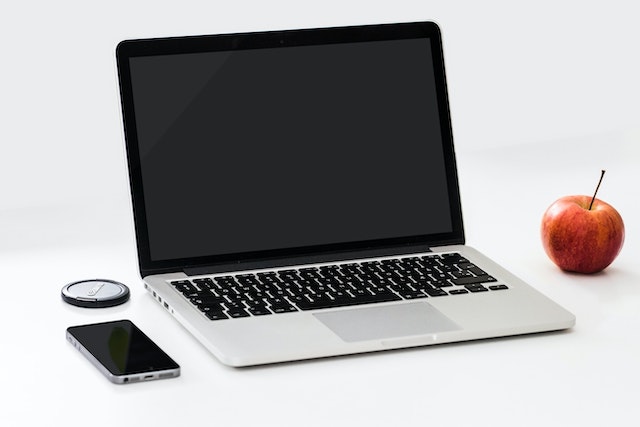
Chromebook/Laptop/PC
USB Cable
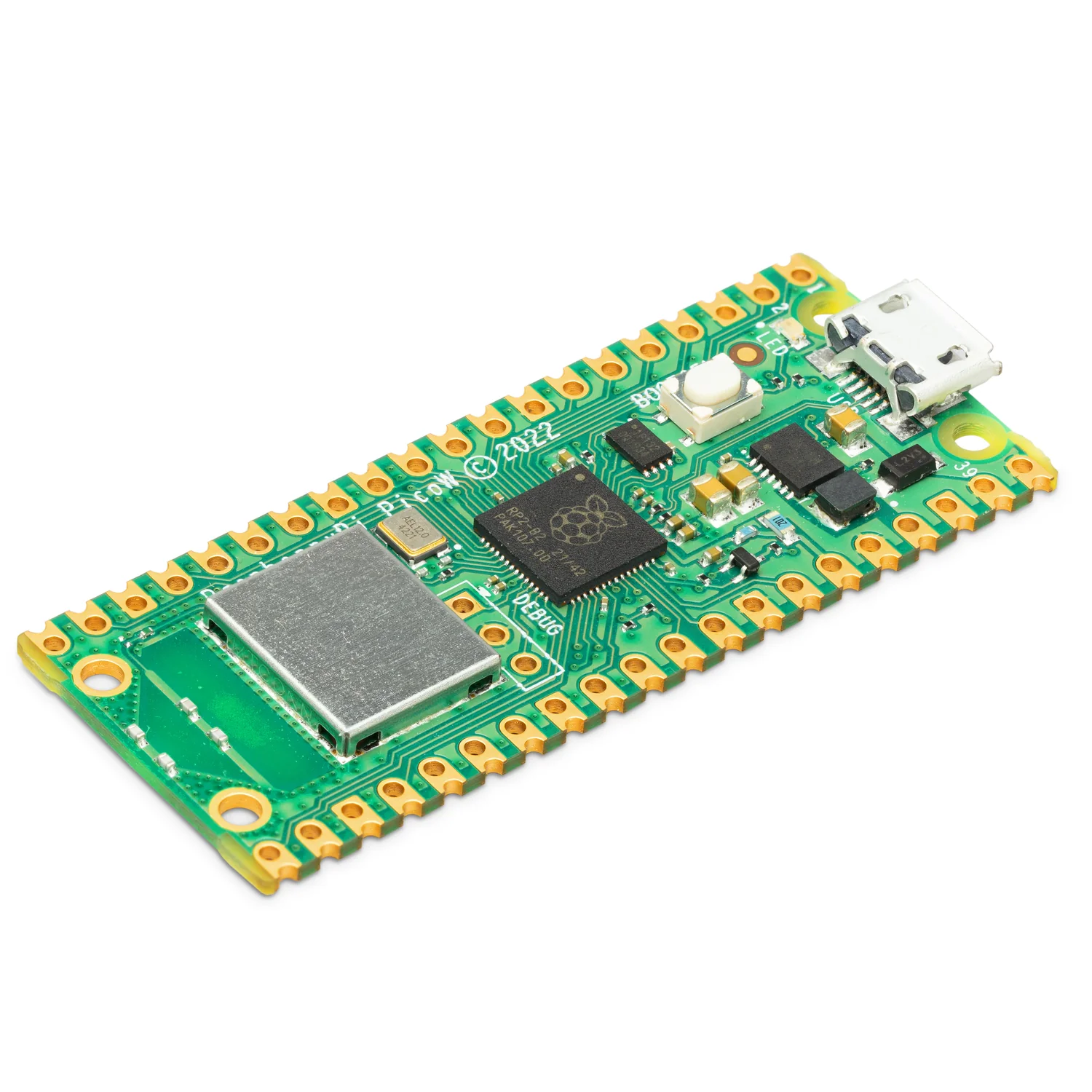
Raspberry Pi PICO W

Setting Up Your Pico

In this lesson, you will learn how to set up your Raspberry Pi Pico W, connect it to a computer, and install the necessary software.
Teacher Class Feed

Load previous activity

    1 - Introduction

    In this lesson, you will learn how to set up your Raspberry Pi Pico W, connect it to a computer, and install the necessary software. By the end of this lesson, you will have your Pico up and running, ready for you to start creating exciting projects. Let's get started!


    2 - Download Firmware

    Firmware is a type of software that provides low-level control for a device's specific hardware. It acts as a bridge between the hardware and the software running on the device.

    Download the latest version of Raspberry Pi Pico W firmware at https://rpf.io/pico-w-firmware onto your computer. In a later step we will be transferring this downloaded file, onto your Pico.

    3 - Connecting Pico

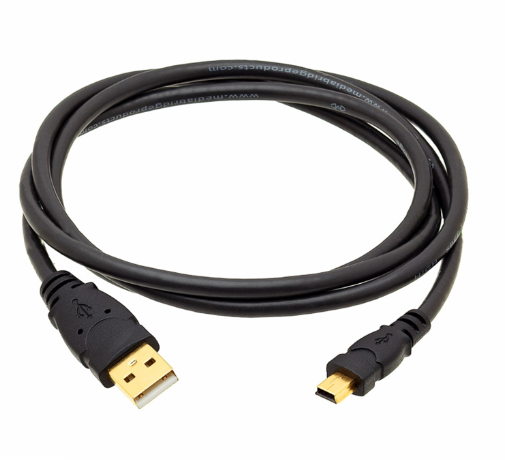
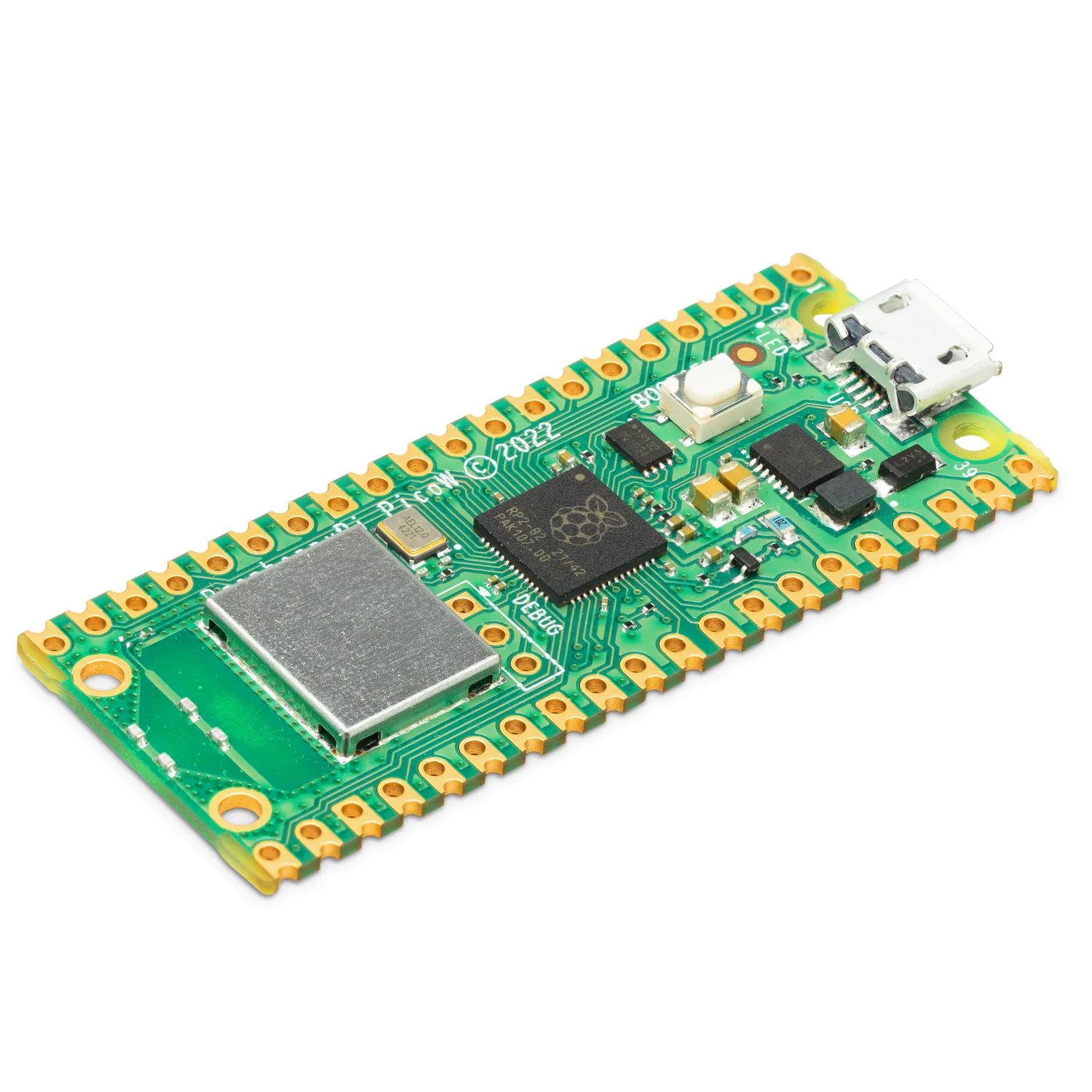
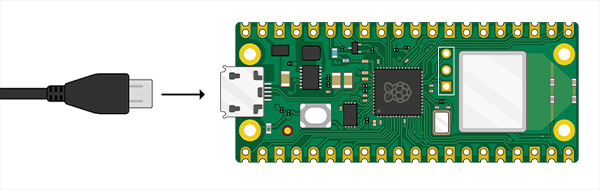
    Connect the small end of the micro USB cable to the Raspberry Pi Pico W, as shown in the image.


    4 - Press BOOTSEL

    Hold down the BOOTSEL button on your Raspberry Pi Pico W.


    5 - Connect to Computer

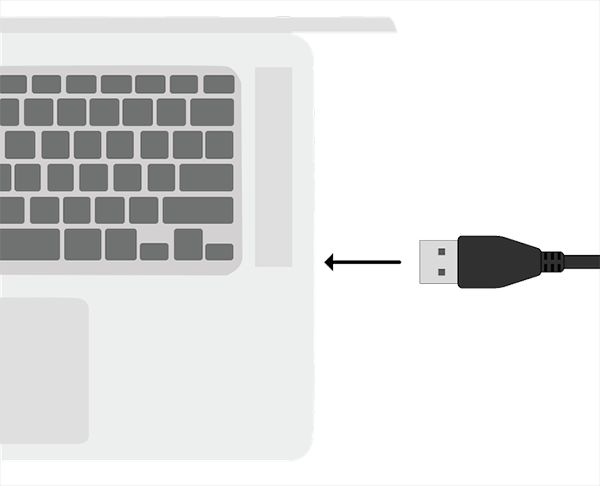
    Whilst still holding down the BOOTSEL button on your Pico, connect the other end of the micro USB cable to your desktop computer or laptop.


    123learn · Online learning platform

    Unlock the full learning experience

    You're previewing this lesson. Get full access to this lesson and hundreds more — each one ready to teach, with interactive activities, printable resources and pupil progress tracking built in.

    Hundreds of curriculum-aligned lessons
    Interactive activities in every lesson
    Printable resources & progress tracking
    Copyright Notice
    This lesson is copyright of Coding Ireland 2017 - 2025. Unauthorised use, copying or distribution is not allowed.
    🍪 Our website uses cookies to make your browsing experience better. By using our website you agree to our use of cookies. Learn more