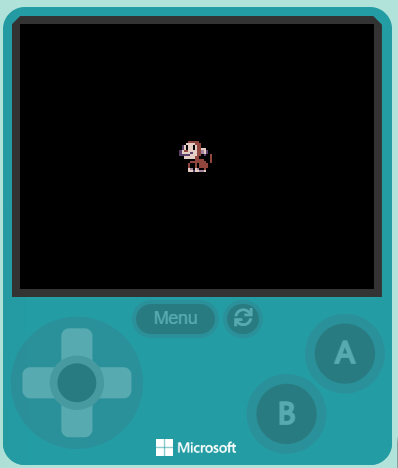
You can already move a sprite and build simple game behaviour in MakeCode Arcade.
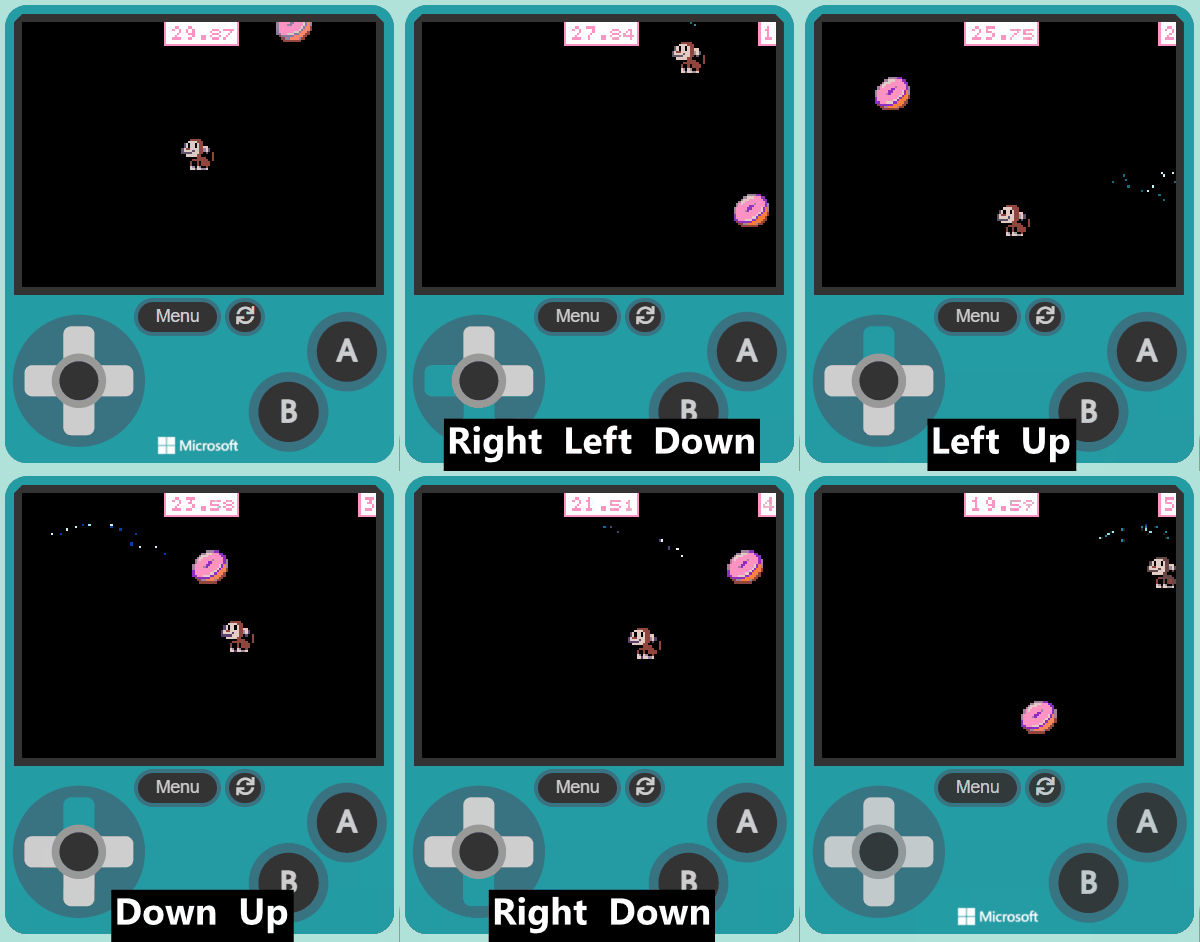
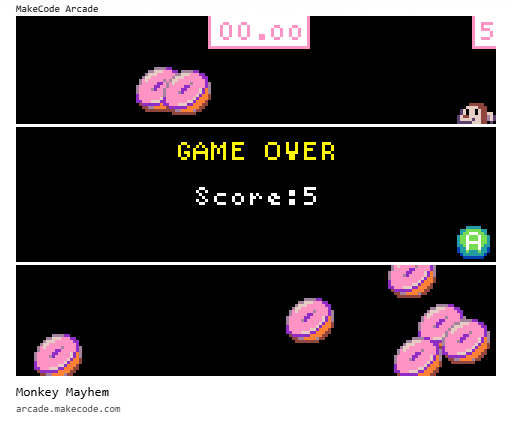
Today you will finish Monkey Mayhem: a monkey collecting donuts for points against a 30-second countdown. You will run the game, fix problems as they show up, test it against the plan you wrote, and get ready to share it with classmates.
Open MakeCode Arcade and the project you saved earlier (or start a fresh Arcade project if you need to). We will build step by step: predict, run, investigate, modify, then make it your own.
Keep this opening tight. Devices on, MakeCode Arcade ready, earlier project open where students have one. Recap that they can already move a sprite and build simple behaviour. State today's goal: finish Monkey Mayhem with collecting, scoring and a 30-second win condition, then test against the plan and share. Optional predict: before anyone runs new blocks, ask what should happen when the monkey touches a donut, and park two ideas on the board to return to in make sense. Pair students for the build and circulate.
Welcome to our exciting coding adventure, Monkey Mayhem! In this lesson, you will create a fun game using MakeCode Arcade. You will control a monkey character who loves to eat donuts. Your task is to help the monkey collect as many donuts as possible within 30 seconds. Are you ready to start coding? Let's go!
Read the welcome aloud only. Do not add extra instruction. Link it to finishing a full collecting game they can test against their plan. If energy is high, move straight on so build time is protected.
Open the MakeCode Arcade website using the link below and create a new project. You can call the project whatever you want.
Ensure every student reaches the Arcade editor with a named project. If they already have a saved project from earlier work, they may open that instead of starting blank. Watch for lost logins or unnamed projects. Differentiation: support anyone still loading the editor before the class moves on.
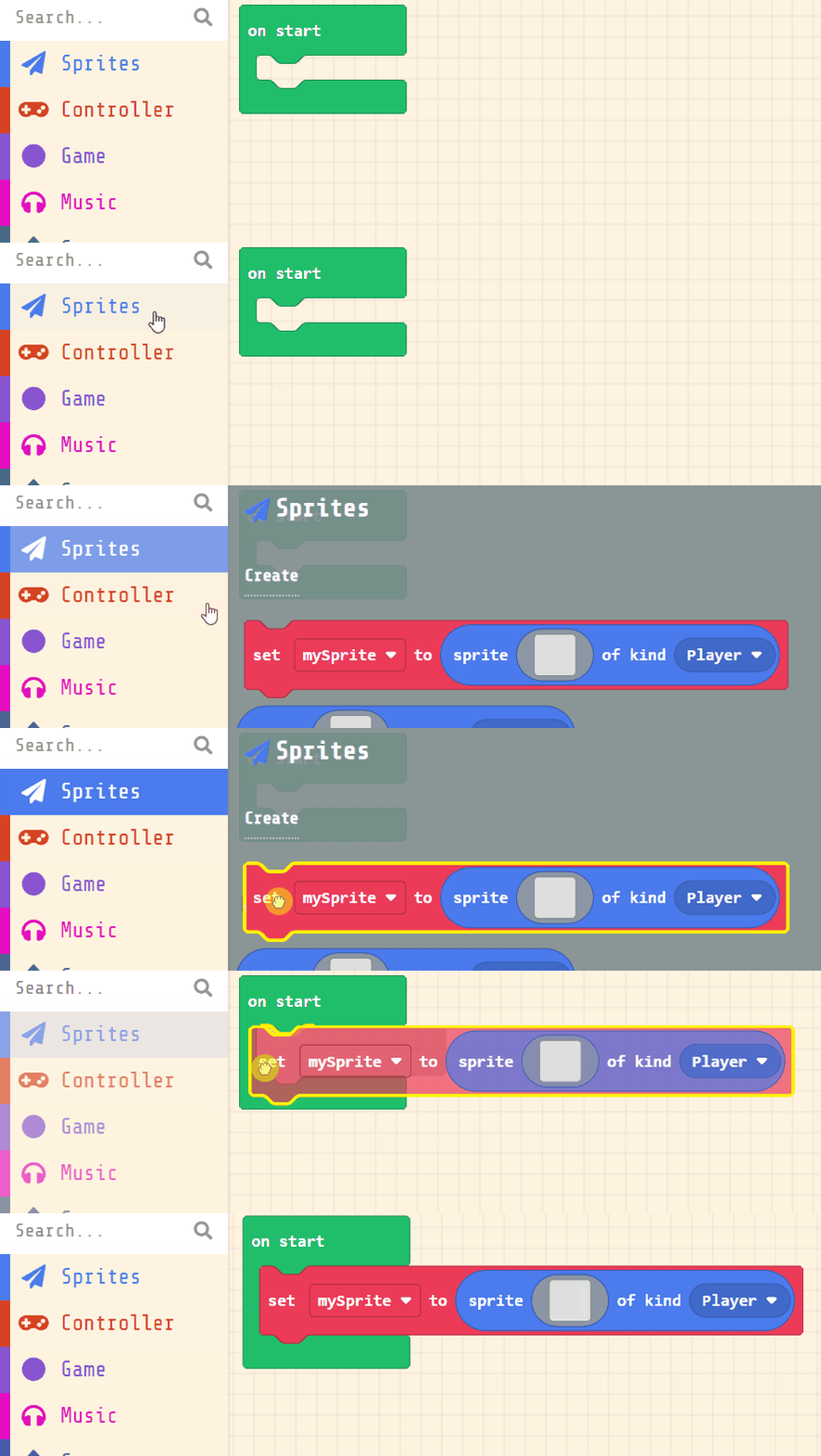
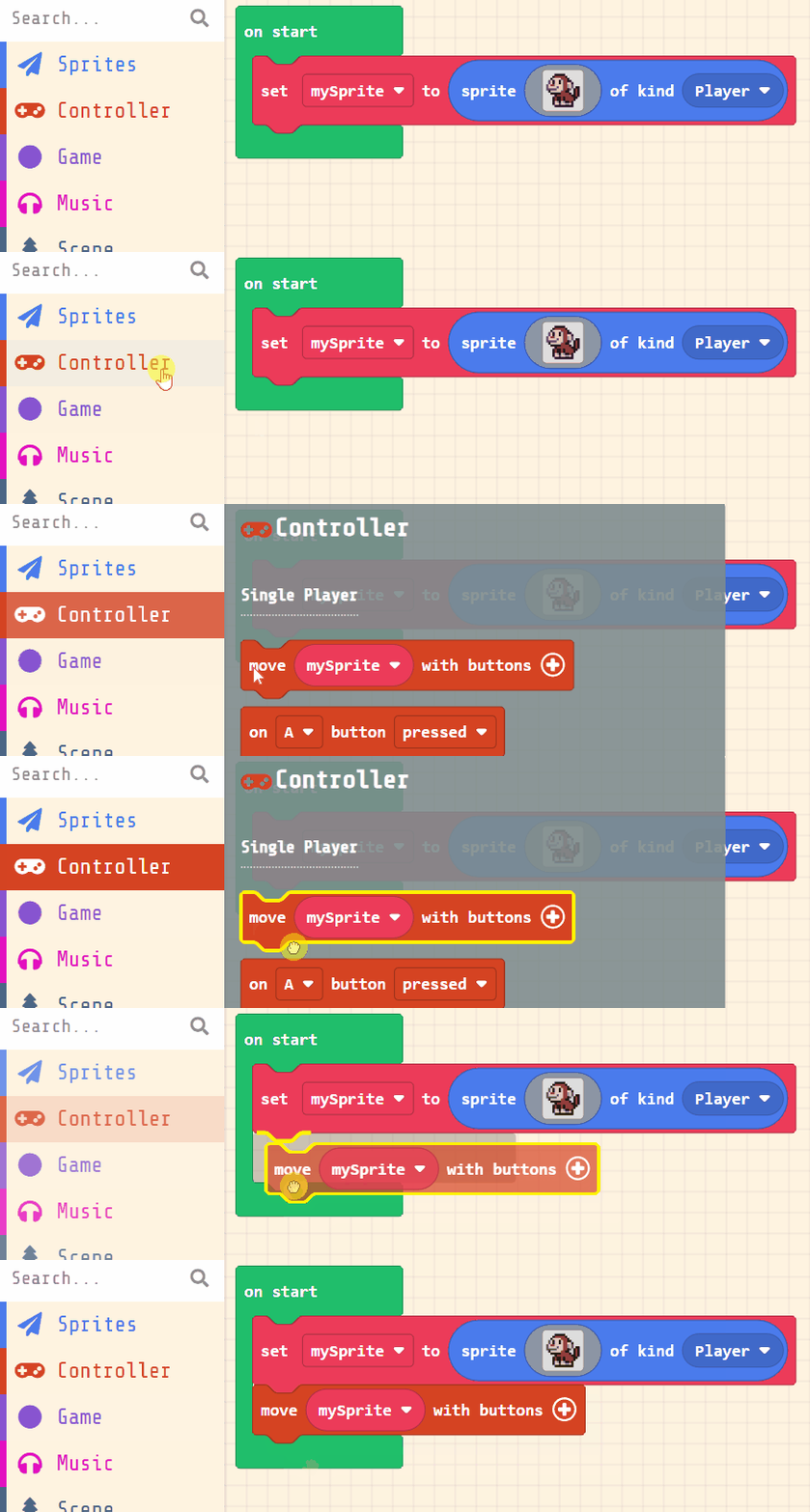
Next, you will create your player sprite. This is the character that you will control in the game. Add the following code:
let mySprite = sprites.create(img`...`, SpriteKind.Player)
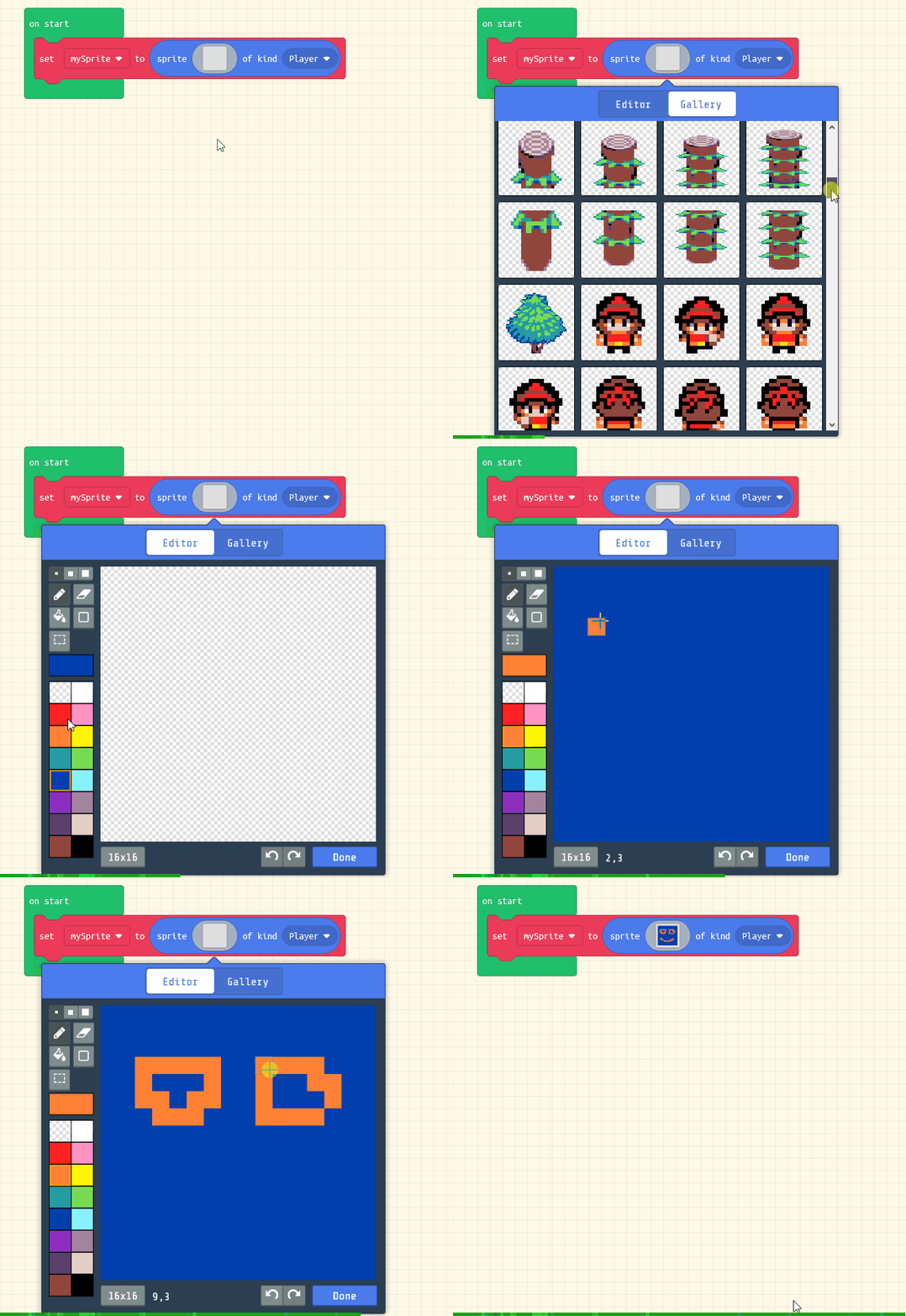
Then click on the grey box and choose a sprite character from the gallery. In our example we will choose the monkey character.
let mySprite = sprites.create(img`
. . . . f f f f f . . . . . . .
. . . f e e e e e f . . . . . .
. . f d d d d e e e f . . . . .
. c d f d d f d e e f f . . . .
. c d f d d f d e e d d f . . .
c d e e d d d d e e b d c . . .
c d d d d c d d e e b d c . f f
c c c c c d d d e e f c . f e f
. f d d d d d e e f f . . f e f
. . f f f f f e e e e f . f e f
. . . . f e e e e e e e f f e f
. . . f e f f e f e e e e f f .
. . . f e f f e f e e e e f . .
. . . f d b f d b f f e f . . .
. . . f d d c d d b b d f . . .
. . . . f f f f f f f f f . . .
`, SpriteKind.Player)
Model creating the player sprite and picking the monkey from the gallery on the board. Key question: which sprite is the one the player will control? Common bug: forgetting to set SpriteKind.Player. Cue pairs to run once the sprite appears so they see it on screen before movement.
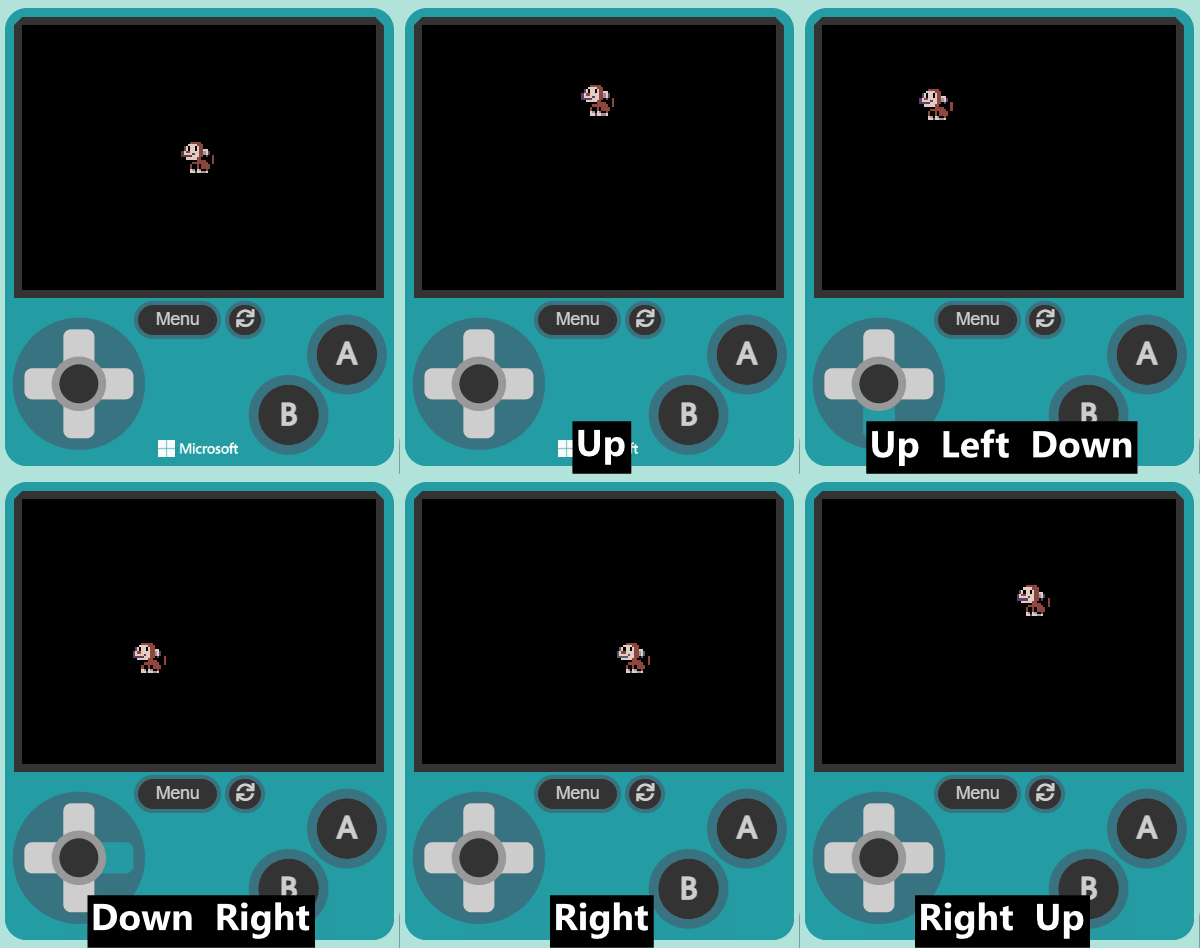
Now, let's make your sprite move using the joystick (or the arrow keys on your keyboard).
Add the following new code:
let mySprite = sprites.create(img`
. . . . f f f f f . . . . . . .
. . . f e e e e e f . . . . . .
. . f d d d d e e e f . . . . .
. c d f d d f d e e f f . . . .
. c d f d d f d e e d d f . . .
c d e e d d d d e e b d c . . .
c d d d d c d d e e b d c . f f
c c c c c d d d e e f c . f e f
. f d d d d d e e f f . . f e f
. . f f f f f e e e e f . f e f
. . . . f e e e e e e e f f e f
. . . f e f f e f e e e e f f .
. . . f e f f e f e e e e f . .
. . . f d b f d b f f e f . . .
. . . f d d c d d b b d f . . .
. . . . f f f f f f f f f . . .
`, SpriteKind.Player)
controller.moveSprite(mySprite)
Model the movement blocks briefly. Key question: which keys or joystick directions should move the monkey? Common bug: movement blocks attached to the wrong sprite, or not run after adding. Watch for students who skip a quick test here; a stuck monkey is harder to spot later. Support: confirm movement works before donuts are added.
You're previewing this lesson. Get full access to this lesson and hundreds more — each one ready to teach, with interactive activities, printable resources and pupil progress tracking built in.