In this lesson we will program the arrow keys on your keyboard to control a car to drive it around racing tracks that we create using the backdrop editor.
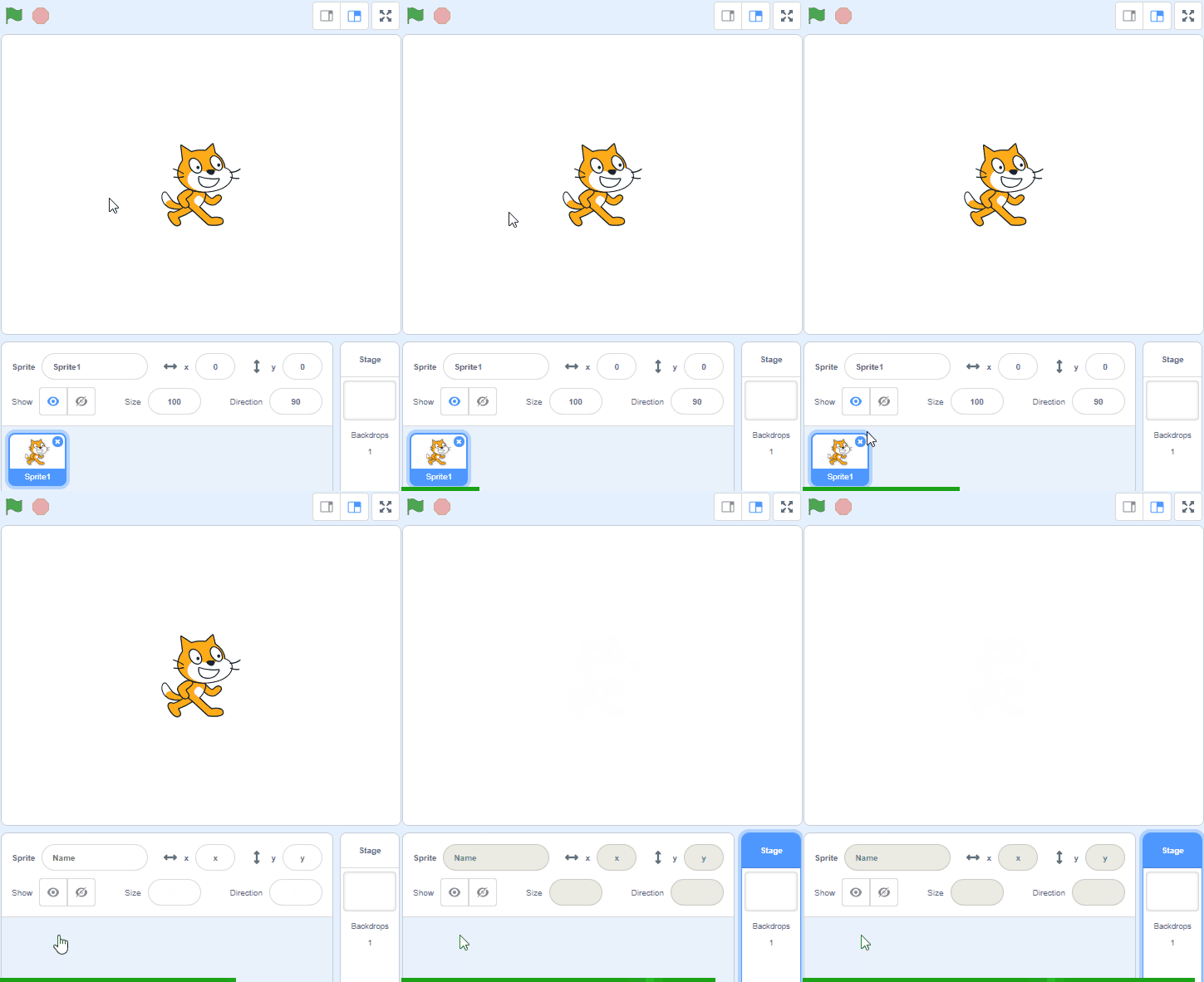
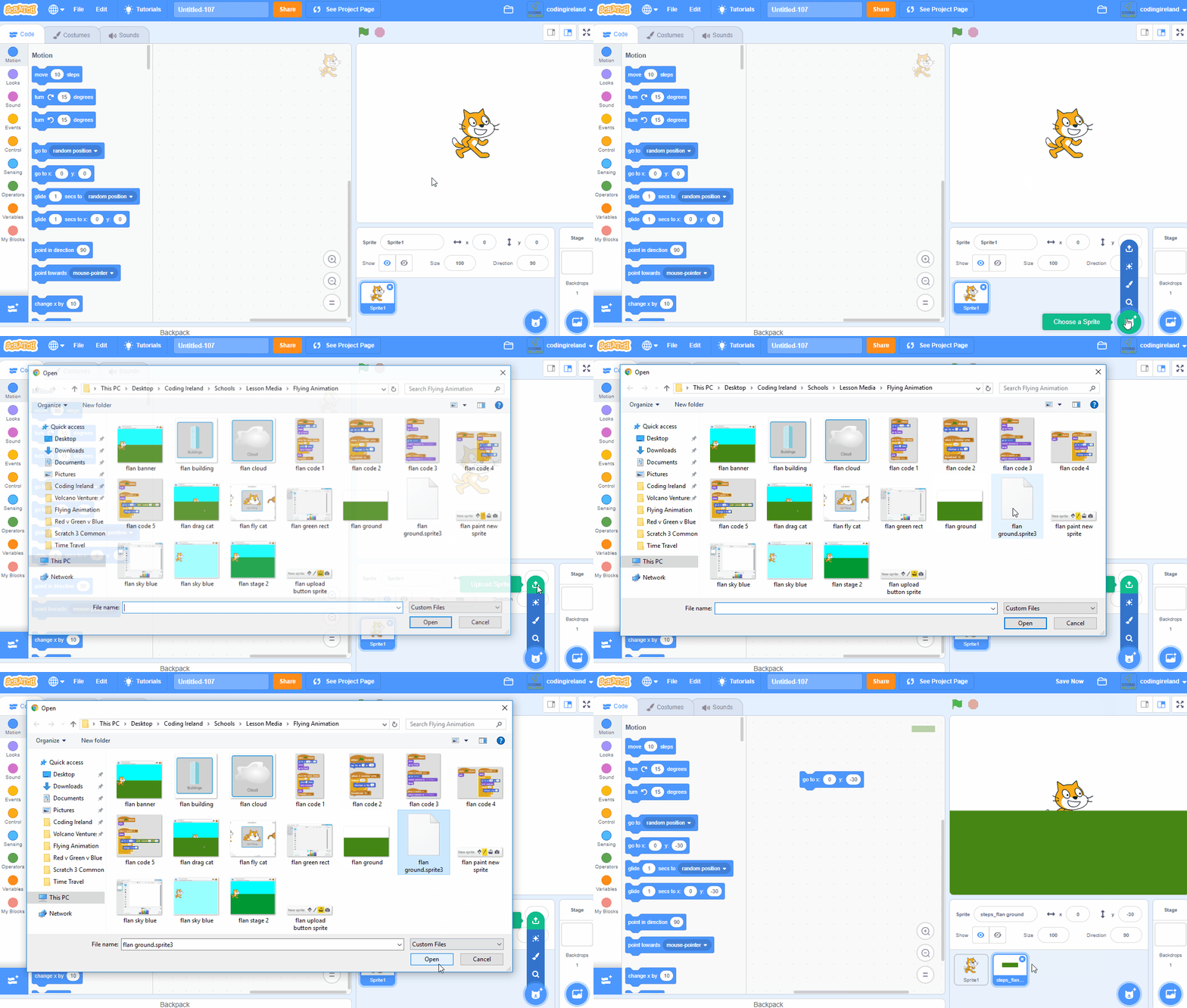
Create a new Scratch project and delete the cat sprite.
Go to the Scratch website using the link below and click on the 'Create' link in the blue bar at the top.
By default, each new project starts with the cat sprite already added. To delete the cat click on the x in the blue circle beside the cat in the sprite list.
Included with this step is a red car picture that we're going to upload into our Scratch project. First download the picture file onto your computer and then upload it into your project.
To download a picture to your computer, right click on the picture and then click on 'Save image as...'
You can upload images and sprite files into your project. To upload a sprite follow these steps:
The new sprite will upload into your project and appear in the stage area.
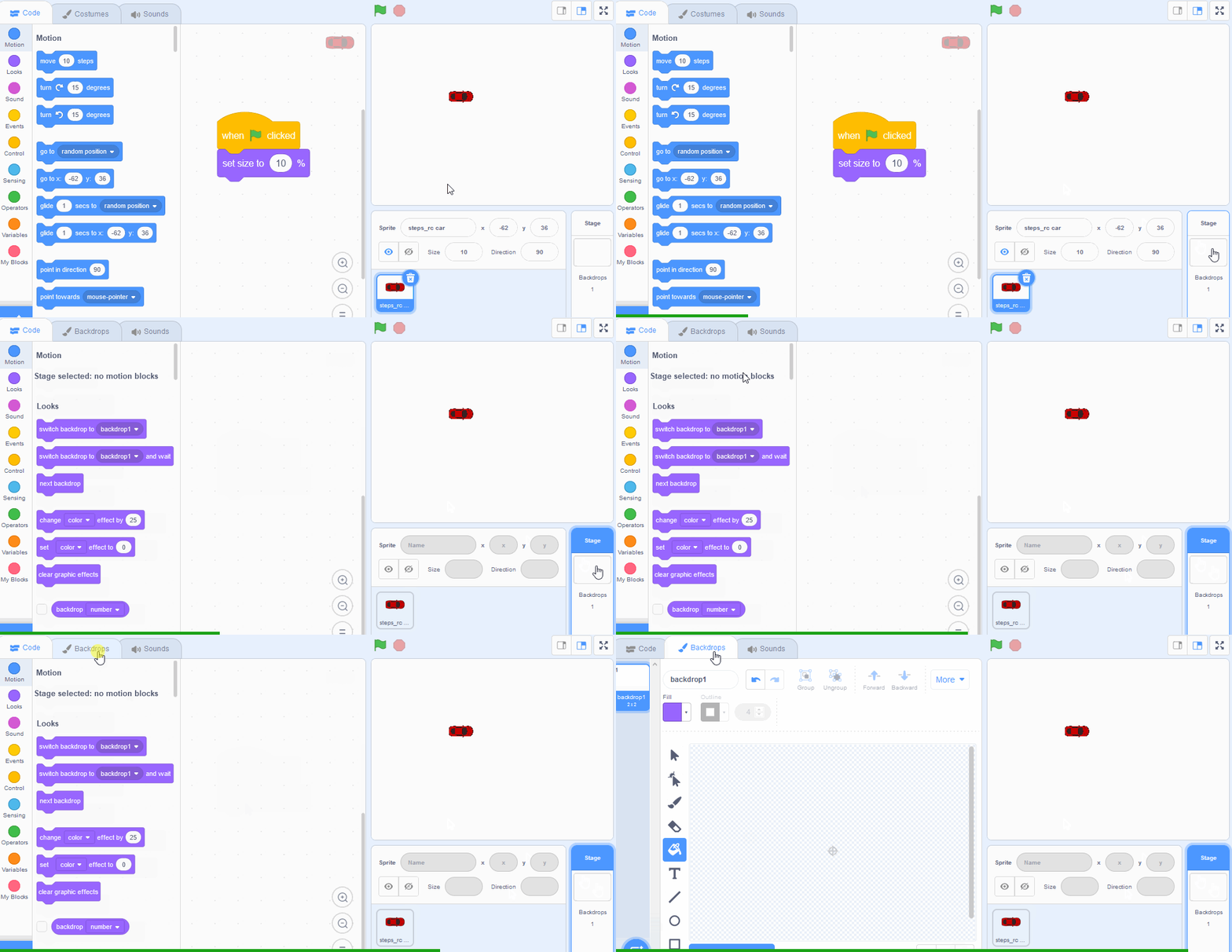
As the car sprite is very large, we'll need to shrink it so that it has room to move around. We're going to shrink it to 10% of it's original size. Add the following code to the car sprite.
when green flag clicked
set size to (10) %
Click on the green flag and the car will shrink to a smaller size.
We're going to use the backdrop editor to draw a racing track. To open the backdrop editor do the following:
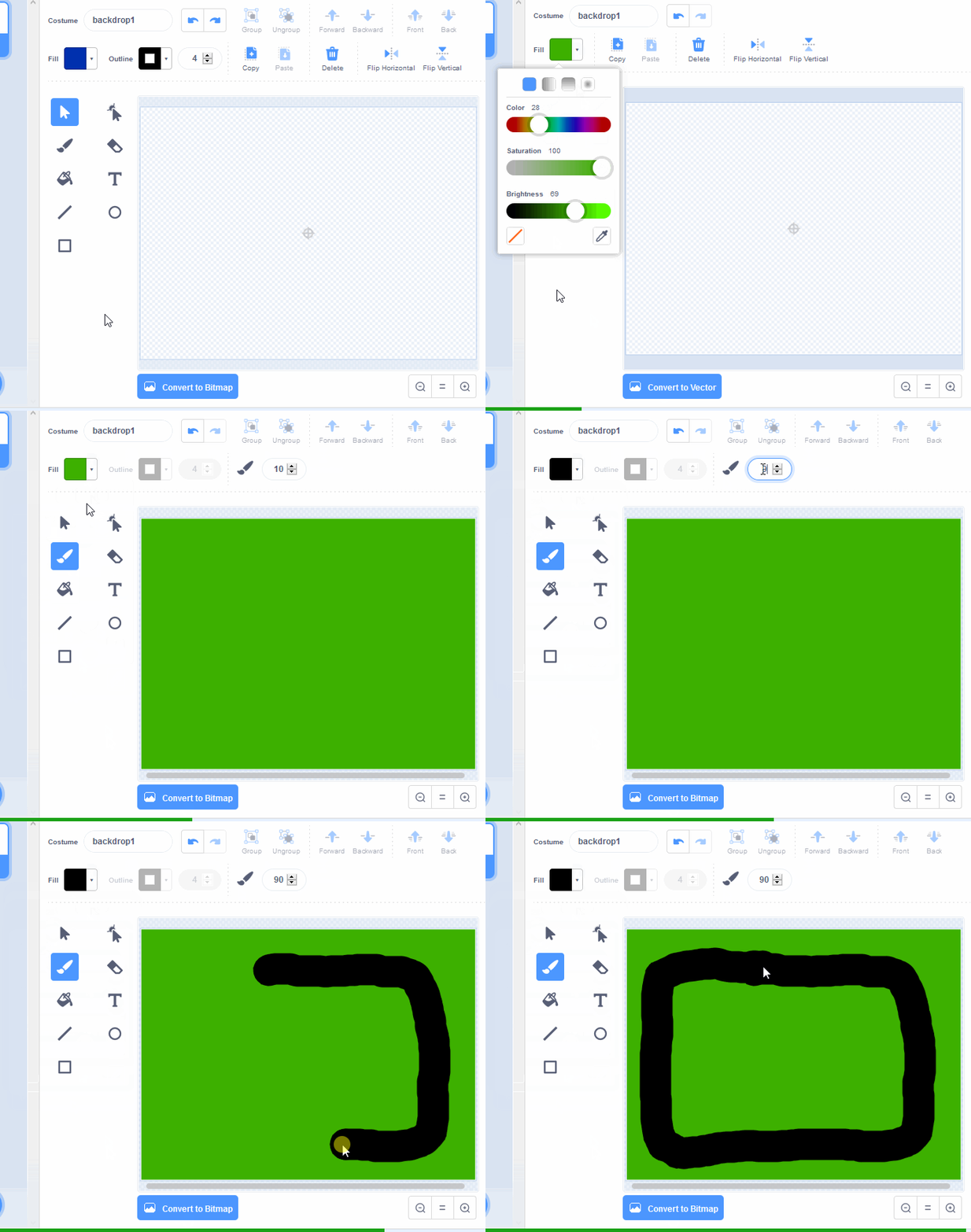
Next we're going to draw a race track. First we will colour the background green and then we will draw a black track. Follow these steps:
You're previewing this lesson. Get full access to this lesson and hundreds more — each one ready to teach, with interactive activities, printable resources and pupil progress tracking built in.