Beginner
60 mins
Teacher/Student led
+65 XP

Project Folders That Stay Findable: Drafts, Finished, Evidence

Set up a nested folder structure inside your specialism module to organise project files effectively. Create separate folders for drafts, templates, finished work, evidence and archives. Compare organised and disorganised examples then fix any misplaced files.

Teacher Class Feed

Load previous activity

    1 - Introduction ~5 mins

    Welcome

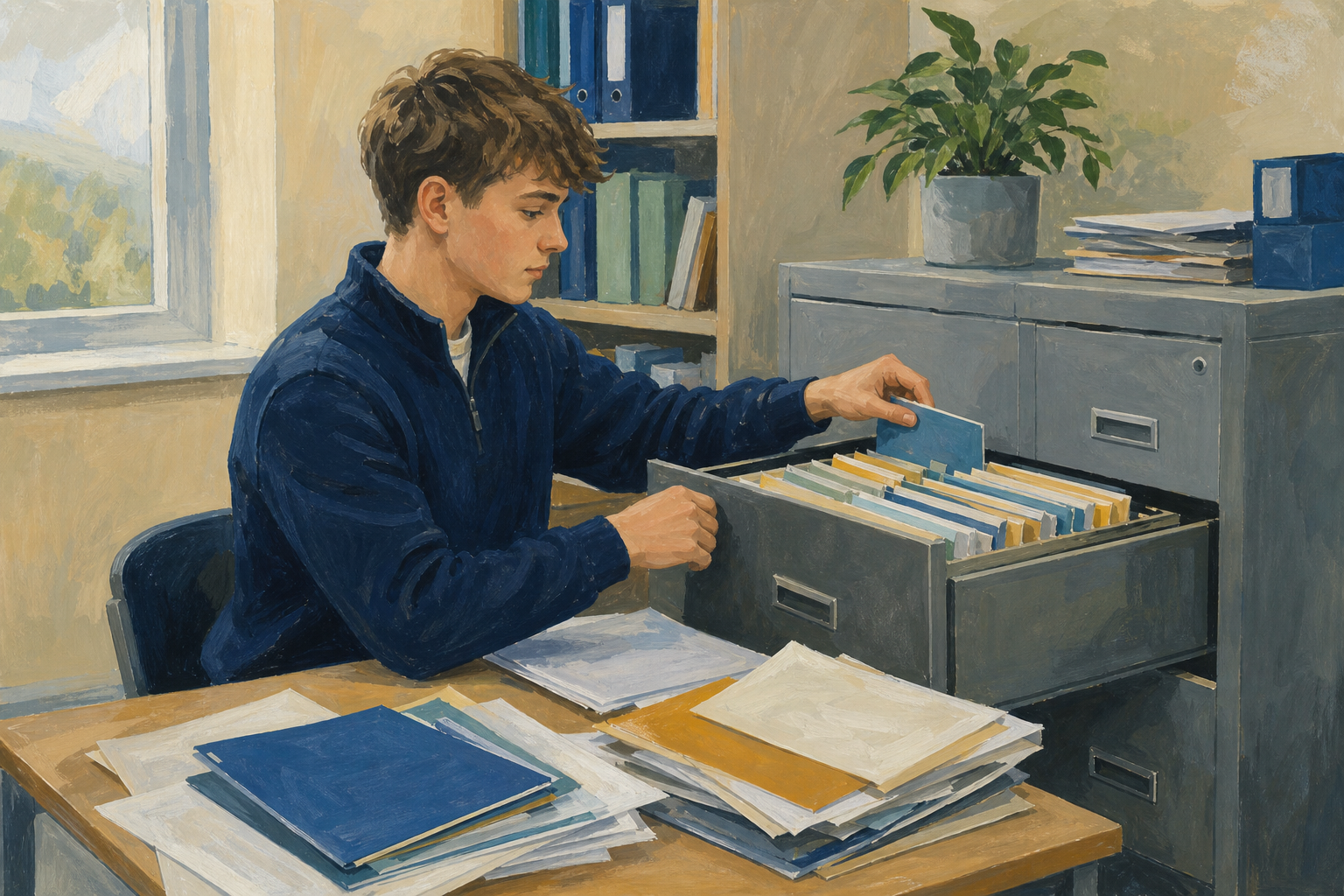
    Illustration for IntroductionLast time you set up {{code:Project_Portfolio}} with {{code:09_specialism}} and the four module folders. Today you go one level deeper: five working folders inside {{code:sm1/}} so drafts, templates, finished work, evidence, and archive stay apart for the full Specialism.

    Comparison of a well-organised project folder and a messy unfiled dump

    Look at the two sides. On the left, every file has a clear home. On the right, names like {{code:final2}} and {{code:doc(1)}} sit loose. Which side would you trust six months from now?

    Before we start: can you open {{code:sm1}}?

    Follow this path in your cloud storage:

    1. {{code:Project_Portfolio}}
    2. {{code:09_specialism}}
    3. {{code:sm1}}

    If that path is already there, stay put and wait for the short demo. If any folder is missing, use the catch-up steps below (about one minute), then rejoin.

    Catch-up only if needed: Create {{code:Project_Portfolio}}. Inside it, create {{code:09_specialism}}. Inside that, create {{code:sm1}}. Do not build the five working folders yet. We do those together next.

    By the end of this lesson, you will be able to:

    • Build a clear folder system inside {{code:sm1}}
    • Use numbered names for drafts, templates, finished, evidence, and archive
    • Spot orphan files and put them in the right folder

    Warm-up

    Think about the last time you could not find a file when you needed it (a CV draft, a photo, a form for Work Experience). Where did it end up, and what would have made it easier to find in ten seconds?

    2 - Key Concepts ~6 mins

    A year-long project creates dozens of files. Flat folders fill up fast. Today you build five working folders you can reuse inside every Specialism module folder.

    Note

    Something Real is the big vocational project you will build across the year. If you have not picked one yet, use Work Experience, a CV, a club, or a part-time job as your examples.

    Five folders, five jobs

    Your teacher will name each folder aloud with one vocational example. Track the list as they speak.

    • {{code:01_drafts}} — work in progress (e.g. a half-written Work Experience log)
    • {{code:02_templates}} — reusable blanks (e.g. a CV layout you copy each time)
    • {{code:03_finished}} — versions ready to hand over (e.g. a finished flyer for a club event)
    • {{code:04_evidence}} — proof of work for Key Assignments (e.g. a screenshot of your folder setup)
    • {{code:05_archive}} — old versions you should not delete yet (e.g. last month’s CV draft)
    ConceptExample
    Nested folders — folders inside folders so related work sits togetherInside {{code:sm1/}} you keep five working folders, e.g. {{code:Project_Portfolio/09_specialism/sm1/03_finished/}}
    Working vs finished — drafts kept apart from hand-over versionsWork Experience report draft in {{code:01_drafts}}; print-ready copy in {{code:03_finished}}
    Numbered names — {{code:01_}} to {{code:05_}} so folders sort in a sensible order{{code:01_drafts}}, {{code:02_templates}}, {{code:03_finished}}, {{code:04_evidence}}, {{code:05_archive}}

    Tidy versus messy

    Comparison of a well-organised project folder and a messy unfiled dump

    Key point

    Well organised: five numbered folders; every file inside one of them. Poorly organised: loose orphans such as {{code:final2}} or {{code:stuff}} in the root of {{code:sm1/}}. An orphan file is any file left outside a sensible folder, or named so vaguely nobody knows what it is.

    Banking evidence (you will do this in Portfolio Build)

    Your teacher will show this live once. To prove your folders exist you will:

    1. Screenshot the {{code:sm1}} window. Windows: {{kbd:Windows+Shift+S}} (image goes to the clipboard or a notification; paste into Paint and save if needed). Mac: {{kbd:Cmd+Shift+4}} (image lands on the desktop). Chromebook: {{kbd:Ctrl+Show windows}} or the screenshot key (check the notification and Downloads).
    2. Upload that image into {{code:04_evidence}} (OneDrive: {{btn:Upload}}; Google Drive: {{btn:New}} then {{btn:File upload}}, or drag the file in).
    3. Rename it to the exact evidence name your teacher gives you.

    Target structure for today

    Project_Portfolio/
      09_specialism/
        sm1/
          01_drafts/
          02_templates/
          03_finished/
          04_evidence/
          05_archive/
        sm2/
        sm3/
        sm4/

    The same five working folders can be added later inside {{code:sm2/}}, {{code:sm3/}}, and {{code:sm4/}}. You build the habit once here.

    3 - Step-by-step Task ~15 mins

    With your teacher’s short demo first, create the five working folders inside {{code:sm1/}}: {{code:01_drafts}}, {{code:02_templates}}, {{code:03_finished}}, {{code:04_evidence}}, and {{code:05_archive}}. Then open the shared {{code:Messy_Samples}} folder, copy the four sample files into your {{code:sm1}} root, and sort each one into the right home. Follow the tab that matches your cloud storage.

    Suggested homes

    Suggested homes (use these unless your teacher says otherwise): {{code:CV_old}} goes in {{code:05_archive}}; {{code:final2}} goes in {{code:03_finished}}; {{code:doc(1)}} goes in {{code:01_drafts}}; {{code:stuff}} goes in {{code:05_archive}} (or {{code:01_drafts}} if your teacher treats it as still in progress).

    4 - Common Issues ~4 mins

    Common Issues

    These four snags catch almost everyone the first time. None of them mean you broke anything. Match your screen to the row and fix it, then carry on.

    IssueSolution
    I cannot find {{code:sm1}} or {{code:09_specialism}}Start at {{code:Project_Portfolio}} in your cloud storage. Open {{code:09_specialism}} first, then {{code:sm1}}. Use the search box at the top and type {{code:sm1}} if the folder is still hard to spot.
    My new folders appeared in the wrong placeYou were probably viewing My files / My Drive instead of {{code:sm1}}. Open the correct folder, create the five folders again there, then delete the copies that landed in the wrong place.
    The folder name looks slightly different (spaces or capitals)Rename it. Right-click the folder, choose rename, and type the exact name (for example {{code:01_drafts}} with an underscore and lowercase letters). Matching names keep the class structure consistent.
    I still have loose files sitting in {{code:sm1}}Those are orphan files. Drag each one into {{code:01_drafts}}, {{code:02_templates}}, {{code:03_finished}}, {{code:04_evidence}}, or {{code:05_archive}}. Use archive for old versions you no longer need day to day but should not delete yet.

    5 - Portfolio Build ~20 mins

    Portfolio Build

    Your goal: Lock in a clean working framework for Module 1 so every draft, template, finished piece, and piece of evidence has a clear home for the rest of the Specialism, and bank screenshot plus plan evidence your teacher can check.
    Time: ~20 minutes
    Task: Your teacher will demo the full evidence chain once first: screenshot, land the image in {{code:04_evidence}}, rename it, then create the short plan file. Leave those clicks on the board. Then you repeat the four blocks below.

    1) Check folders
    Open {{code:Project_Portfolio/09_specialism/sm1/}} and confirm all five working folders are present with the exact names from the worked example. The {{code:sm1}} root should have no loose orphans left.

    2) Screenshot
    Capture a screenshot that shows {{code:sm1}} with {{code:01_drafts}}, {{code:02_templates}}, {{code:03_finished}}, {{code:04_evidence}}, and {{code:05_archive}} all visible.
    • Windows: press {{kbd:Windows+Shift+S}} and select the {{code:sm1}} window. The image usually sits on the clipboard or appears as a notification. Open Paint (or the notification), paste if needed with {{kbd:Ctrl+V}}, and save the image somewhere easy to find such as Downloads or Desktop.
    • Mac: press {{kbd:Cmd+Shift+4}} and drag across the {{code:sm1}} window. The image file lands on your desktop by default. Note that desktop file so you can upload it next.
    • Chromebook: press {{kbd:Ctrl+Show windows}} (or the screenshot key) and choose a window or partial shot of {{code:sm1}}. Use the notification to find the file; it usually lands in Downloads.

    3) Upload and rename
    Get the image into {{code:04_evidence}} and rename it exactly to {{code:sm1_filing_framework.png}}.
    • OneDrive: open {{code:04_evidence}}. Click {{btn:Upload}} or drag the image in from Downloads or Desktop. Right-click the uploaded file, choose rename, and type {{code:sm1_filing_framework.png}}.
    • Google Drive: open {{code:04_evidence}}. Click {{btn:New}} then {{btn:File upload}}, or drag the image in. Right-click the uploaded file, choose rename, and type {{code:sm1_filing_framework.png}}.

    4) Write {{code:sm1_folder_plan}}
    Still inside {{code:04_evidence}}, create a short document and name it {{code:sm1_folder_plan}}. A Word Online document, a plain text file, or a Google Doc are all fine.
    • OneDrive: inside {{code:04_evidence}}, click {{btn:+ New}} (or {{btn:+ Add new}}), choose {{btn:Word document}} or {{btn:Text document}}, then rename the file to {{code:sm1_folder_plan}}.
    • Google Drive: inside {{code:04_evidence}}, click {{btn:+ New}} then {{btn:Google Docs}}. Rename the file to {{code:sm1_folder_plan}}.
    Type five lines, one real or planned vocational item per folder. You do not need a finished Something Real project yet. Use Work Experience, a CV, a club, a part-time job, or your Something Real idea if you have one. You may copy and adapt this template on screen:
    • Drafts: Work Experience week-1 log draft
    • Templates: blank CV layout
    • Finished: club fundraiser flyer ready to print
    • Evidence: this folder screenshot
    • Archive: old CV version from last term
    Confirm both {{code:sm1_filing_framework.png}} and {{code:sm1_folder_plan}} sit inside {{code:04_evidence}} before you stop.
    Success criteria:
    • {{code:sm1}} contains exactly the five named working folders, spelled and numbered correctly
    • {{code:sm1_filing_framework.png}} is saved inside {{code:04_evidence}} and clearly shows all five folders
    • {{code:sm1_folder_plan}} is saved inside {{code:04_evidence}} with five lines naming one real or planned item for each folder (a file named {{code:sm1_folder_plan}}, {{code:sm1_folder_plan.docx}}, or {{code:sm1_folder_plan.txt}}, or a Google Doc named {{code:sm1_folder_plan}}, is fine)
    • No important orphan files are left loose in the {{code:sm1}} root (sample orphans sorted into the five folders)
    123learn · Online learning platform

    Unlock the full learning experience

    You're previewing this lesson. Get full access to this lesson and hundreds more — each one ready to teach, with interactive activities, printable resources and pupil progress tracking built in.

    Hundreds of curriculum-aligned lessons
    Interactive activities in every lesson
    Printable resources & progress tracking
    Copyright Notice
    This lesson is copyright of Coding Ireland 2017 - 2025. Unauthorised use, copying or distribution is not allowed.
    🍪 Our website uses cookies to make your browsing experience better. By using our website you agree to our use of cookies. Learn more