Robotics & Engineering Python
Advanced
60 mins
Teacher/Student led
+115 XP

What you need:
Chromebook/Laptop/PC
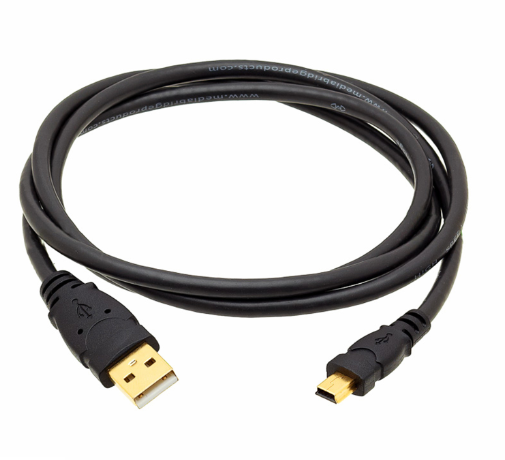
USB Cable
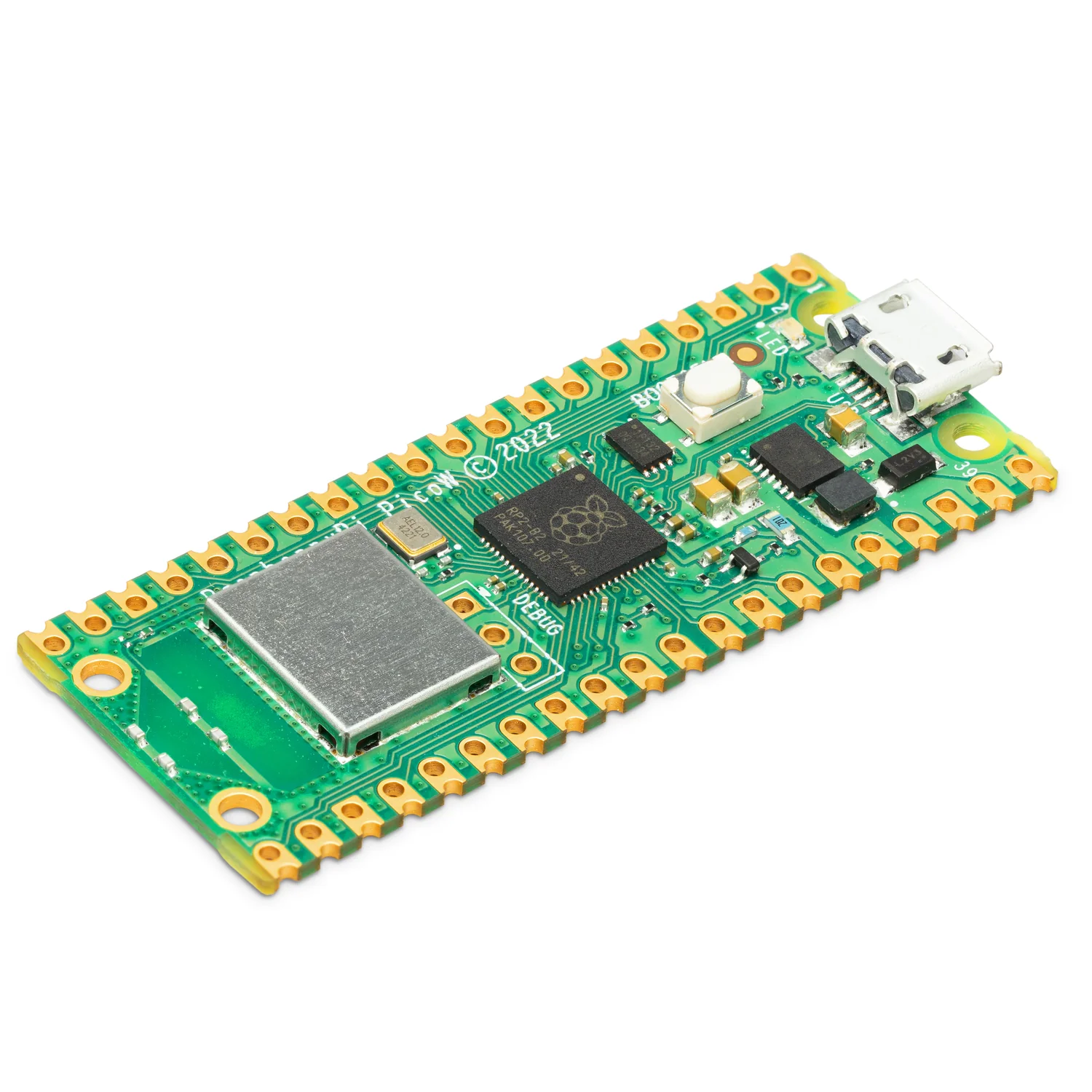
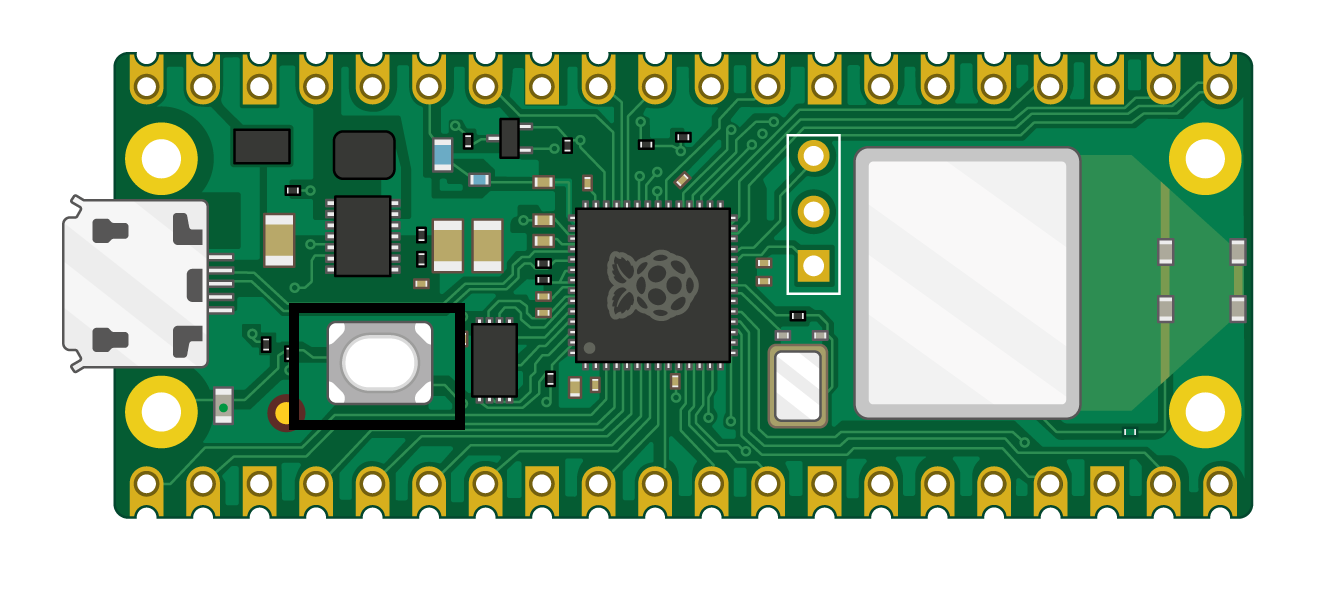
Raspberry Pi PICO W

Pico's First Blink

In this lesson, you'll create a simple program to make the onboard LED on your Raspberry Pi Pico blink using the Thonny editor and MicroPython language.

Teacher Class Feed

Load previous activity

    1 - Introduction

    In this lesson, we will create a simple project to make the onboard LED on your Raspberry Pi Pico blink. To begin, connect your Raspberry Pi Pico W to your computer using a micro USB cable.

    2 - Open Thonny

    Open the Thonny editor on your computer.


    3 - Select Interpreter

    An interpreter is a program that reads and executes code written in a programming language. We need to select the interpreter to ensure that Thonny understands and runs the code correctly for our specific hardware.

    In this case, we need to select 'MicroPython (Raspberry Pi Pico)' as the interpreter for the Raspberry Pi Pico W.

    4 - Create a New File

    Create a new file in Thonny and save it with the name 'blink.py'.

    123learn · Online learning platform

    Unlock the full learning experience

    You're previewing this lesson. Get full access to this lesson and hundreds more — each one ready to teach, with interactive activities, printable resources and pupil progress tracking built in.

    Hundreds of curriculum-aligned lessons
    Interactive activities in every lesson
    Printable resources & progress tracking
    Copyright Notice
    This lesson is copyright of Coding Ireland 2017 - 2026. Unauthorised use, copying or distribution is not allowed.
    🍪 Our website uses cookies to make your browsing experience better. By using our website you agree to our use of cookies. Learn more