Intermediate
60 mins
Teacher/Student led
+65 XP

Paragraph and Line Spacing: Best Practice

Adjust line and paragraph spacing in your word processor to improve document readability. Learn to choose between left and justified alignment while avoiding issues like rivers of white space. Apply these techniques to enhance your project document without changing any text.

Teacher Class Feed

Load previous activity

    1 - Introduction ~5 mins

    Welcome

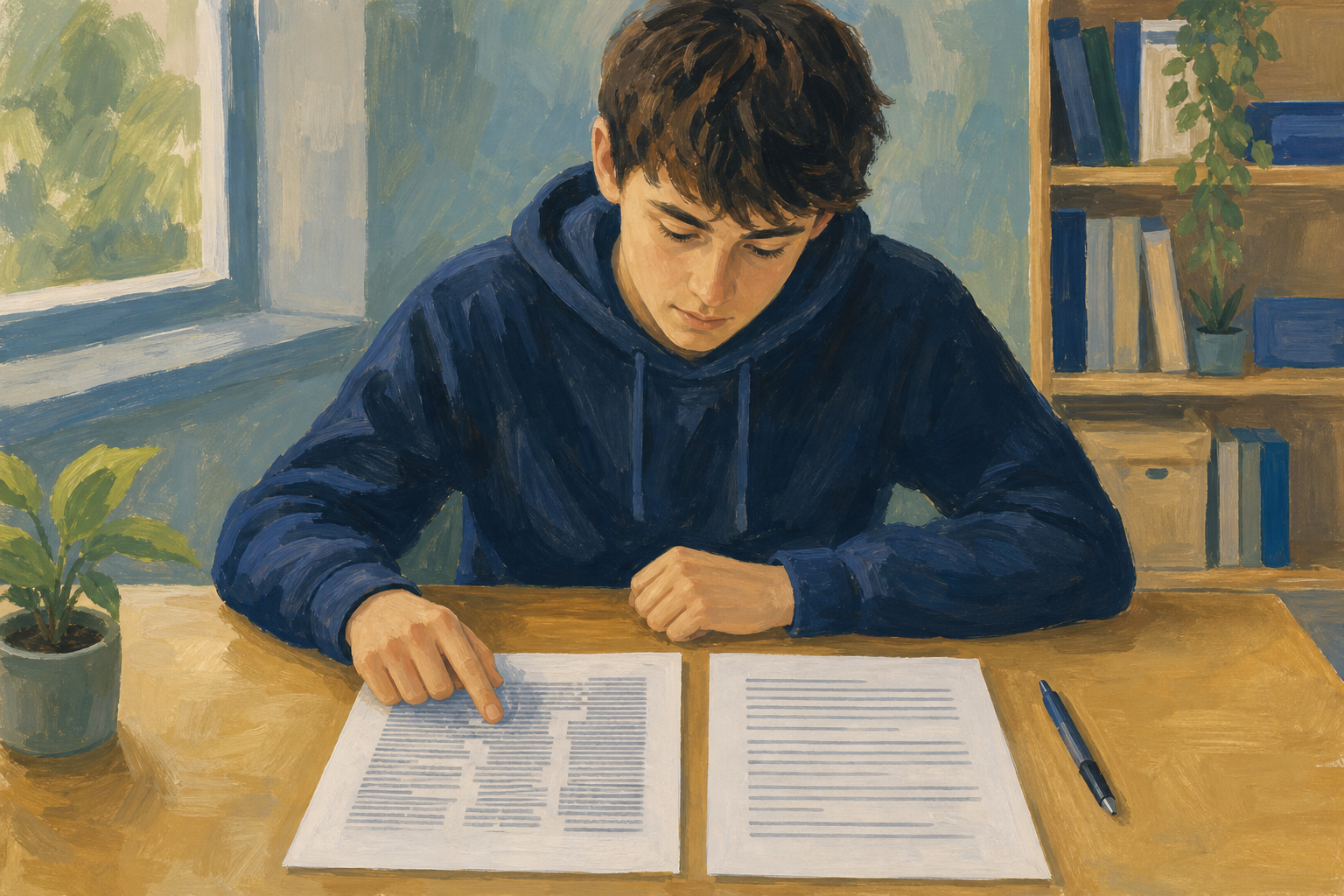
    Illustration for IntroductionYou already locked in a clean font pairing on your Something Real project document (the template-based file you have been formatting). Today you improve the same document without changing a single word: only spacing. Line spacing, space before and after paragraphs, and a careful choice about justified alignment can make a Work Experience report, enterprise pitch, or community proposal feel finished before anyone reads the content.

    Before we start: check with your teacher that your project file is in {{code:09_specialism/sm1/}} (usually {{code:sm1_doc1_from_template_v2}}, or your latest sm1 project file). We will not edit that file until later this class. If nothing is there yet, tell your teacher; you will still do the practice file first.

    By the end of this lesson, you will be able to:

    • Set line spacing and paragraph spacing (before/after) for readability
    • Judge when justified alignment helps and when it creates rivers
    • Improve a project document through spacing alone

    Warm-up

    Think of a document you have read that felt cramped or strangely empty. Was it the words, or was it the gaps between lines and paragraphs that made it hard work?

    2 - Key Concepts ~6 mins

    Spacing is layout, not decoration. It controls how easy your Something Real project document (the template-based file you have been formatting) is to read on screen and on paper.

    Before and after (same words)

    • Before: single line spacing, blank lines made with Enter, fully justified. Short lines often show pale vertical gaps between words (rivers).
    • After: line spacing 1.15, about 8 pt space after each paragraph, left-aligned, no manual blank lines. Each point is easy to hit and still fits one side of A4.

    Your teacher will zoom the before version so you can see rivers live. You will apply the after pattern to a sample block first, then to your own project document.

    Four terms (plain English)

    • Line spacing — gap between lines inside a paragraph (aim for 1.15 on body text).
    • Space after — even gap under a whole paragraph, set in paragraph options (not a second Enter).
    • Left align — straight left edge, natural ragged right; the safe default for CVs and short pitches.
    • Rivers — pale white streams between words in justified text that pull the eye off the sentence.

    Best-practice defaults (checklist)

    • Body line spacing: 1.15 (or 1.5 if asked)
    • Prefer space after paragraphs, not blank Enter lines
    • Default alignment: left-aligned
    • Use justified only after you have checked for rivers on long enough lines

    3 - Step-by-step Task ~16 mins

    Follow the steps for your word processor to open a short practice file, paste three ready-made paragraphs, set line spacing and paragraph spacing, compare left versus justified alignment, and remove rivers. Your teacher will demo the first settings on the classroom screen, then you match them on your machine.

    Tip

    Spacing is a small skill with a big payoff. If your first justify pass looks odd, that is the point of the practice file.

    Paste-ready text (copy from the board, chat, or teacher handout; do not retype from memory):

    I offer same-week screen and battery repairs for common phone models from a small bench at home in Galway.

    My starter kit already covers tools, a parts float, and basic insurance, so the next step is a clear price list customers can trust.

    This one-page pitch is for a local repair-cafe stall and for my Work Experience supervisor who asked how the side hustle is organised.

    4 - Common Issues ~2 mins

    Tip

    Keep this table open as a side reference while you work. Your teacher will not reteach it as a separate lesson — glance here only if you get stuck.

    Common Issues

    IssueSolution
    I pressed Enter twice between paragraphs and now spacing looks unevenDelete the extra blank lines. Select the real paragraphs and set Space after (about 8 pt) instead. One Enter between paragraphs is enough.
    Line spacing seems stuck on Double or SingleSelect the whole body block first, then set 1.15 again. If only the cursor sits in one line, the change may apply to a single paragraph.
    Justified text looks full of holes between wordsThose gaps are rivers. Switch the block to left align, or widen the text area / shorten the lines less aggressively before retrying justify.
    Space before and space after both add a huge gap under headingsUse space after on body paragraphs and keep space before small (often 0–6 pt) unless a heading style already supplies the gap.
    My screen labels do not match the steps exactlyLook for Line and paragraph spacing (Word) or Line & paragraph spacing (Docs). The icons show stacked lines; the names are close even when the ribbon layout differs slightly.

    5 - Independent Practice ~21 mins

    Independent Practice

    Your goal: Improve the readability of your Something Real project document (the template-based file you have been formatting) using spacing alone, so a supervisor, teacher, or community contact can scan it without fighting the layout. You are not rewriting content today; trust the spacing work to do the heavy lifting.
    Time: ~25 minutes
    Task:
    If you do not have v2: raise your hand. Use {{code:sm1_spacing_practice}} for the skills, then apply the same settings to whatever sm1 project file you have. Save a copy as {{code:sm1_doc1_from_template_v3}} only when your teacher gives the OK.

    1. Open this file
    Open your {{code:Project_Portfolio}} folder and open {{code:sm1_doc1_from_template_v2}} (or your latest sm1 project document in {{code:09_specialism/sm1/}}). This is the digital file you already built in earlier lessons — not a printed handout.

    2. How to work
    Zoom to about 120%. Headings stay as they are — select only the paragraph under each heading, apply the spacing settings, then move to the next body block. Scan for uneven word gaps before you lock alignment. If you forget a menu path, follow the short transfer steps for your app below.

    3. Checklist

    1. Select body only (not headings)
    2. Set line spacing to 1.15 (or 1.5 if required)
    3. Set Before 0 pt and After about 8 pt
    4. Delete double-Enter blank lines
    5. Left align unless you have checked there are no rivers
    6. Save as {{code:sm1_doc1_from_template_v3}} in {{code:09_specialism/sm1/03_finished}}

    Done looks like: headings keep their own styles; only body paragraphs get 1.15 and about 8 pt after; a short CV-style block stays left-aligned even if a long report section is justified.

    4. Save here
    When finished, save as {{code:sm1_doc1_from_template_v3}} in {{code:09_specialism/sm1/03_finished}} (create {{code:03_finished}} if needed).

    Success criteria:
    • Body text uses clear, even line spacing (typically 1.15 or 1.5) across the main sections
    • Paragraph gaps come from paragraph spacing, not random empty lines
    • Alignment is intentional: left-aligned, or justified only where you have checked there are no obvious rivers
    • The improved document is saved as {{code:sm1_doc1_from_template_v3}} in {{code:09_specialism/sm1/03_finished}}
    • If you had no project file yet, your teacher has given the OK on the file you saved as v3
    • This v3 file is portfolio evidence for your Vocational Education Task — your teacher will check it today
    123learn · Online learning platform

    Unlock the full learning experience

    You're previewing this lesson. Get full access to this lesson and hundreds more — each one ready to teach, with interactive activities, printable resources and pupil progress tracking built in.

    Hundreds of curriculum-aligned lessons
    Interactive activities in every lesson
    Printable resources & progress tracking
    Copyright Notice
    This lesson is copyright of Coding Ireland 2017 - 2025. Unauthorised use, copying or distribution is not allowed.
    🍪 Our website uses cookies to make your browsing experience better. By using our website you agree to our use of cookies. Learn more