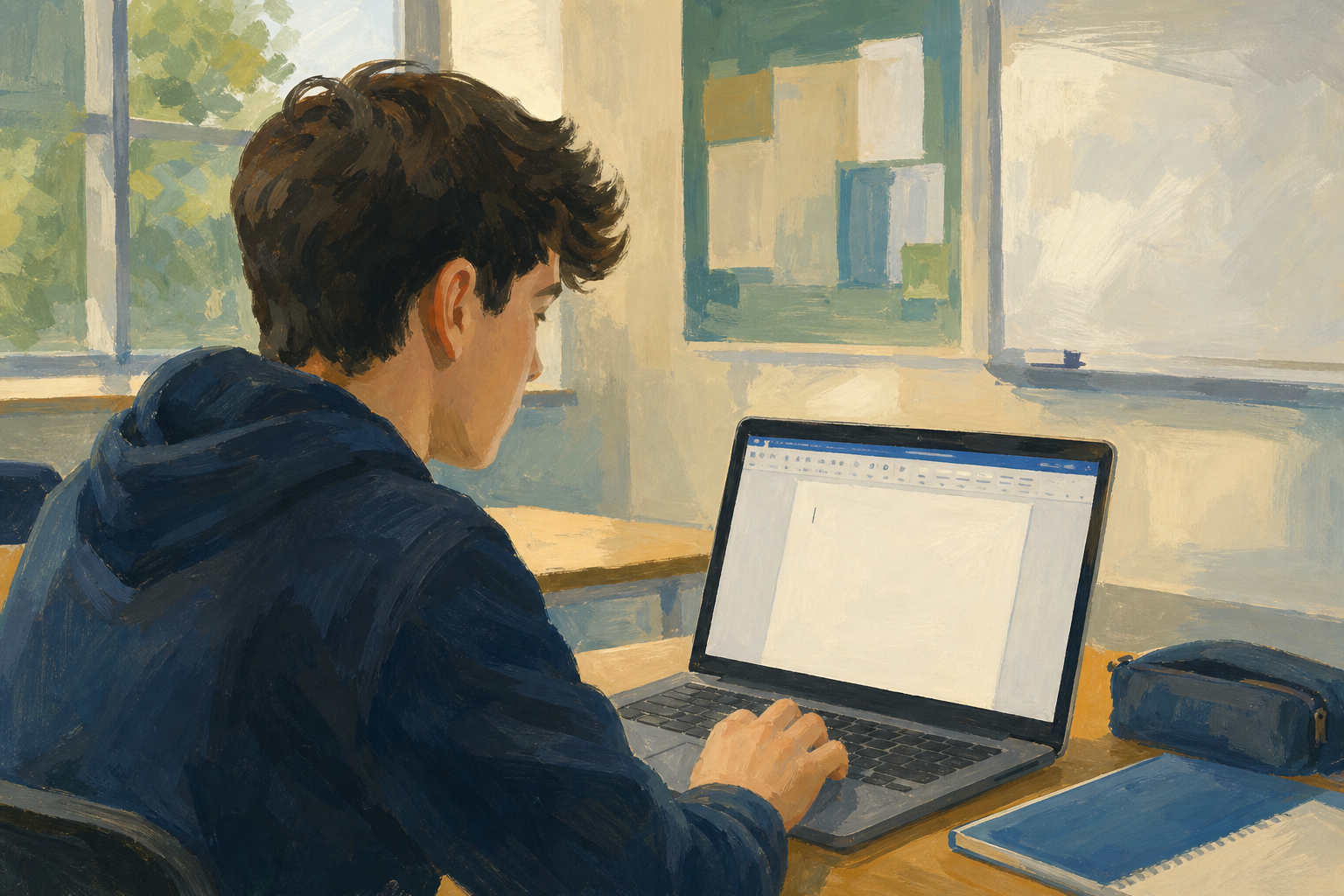
With your teacher, open your word processor now (Word Online or Google Docs). Glance at the top strip, the page area (your draft or a blank page) and the bottom of the window. Today's job is to name six regions of that screen so those tools stop feeling random.
If you already have {{code:03_proposal_draft}} in your Project Portfolio, open it from {{code:03_documents}}. If you do not, a blank document in {{code:03_documents}} is fine for the whole tour.
Learning this map once means that next time you format a Work Experience reflection or a Key Assignment report, you already know where bold, Insert and word count live.
Your goal artifact is a short labelled map of the screen. Study this finished {{code:03_ribbon_tour}} example first. Your labels should be this clear and this short.
| Region | One-line description |
|---|---|
| 1. Title / document name | Shows the file name so I know I am in {{code:03_proposal_draft}}, not a blank untitled file |
| 2. Ribbon tabs or menu bar | Switches between sets of tools (Home/Insert or File/Edit/Insert) |
| 3. Formatting toolbar or Home group | Quick buttons for bold, italic, font and alignment |
| 4. Document canvas (page area) | The white page area where my proposal text lives |
| 5. Insertion point | The blinking line that marks where my next typed word will go |
| 6. Status bar or word count | Shows page position and length (bottom bar in Word Online, or {{menu:Tools -> Word count}} in Google Docs) |
These six names work in both Word Online and Google Docs. Learn them once and every later formatting lesson gets easier.
Follow the guided tour for your word processor. First you will open {{code:03_proposal_draft}} (or a blank practice page) and point out each main region, then practise selecting text. After that your teacher shows one screenshot-and-paste. You mirror once into a new {{code:03_ribbon_tour}} file so you are ready to label in Independent Practice.
Screenshot tip: capture is a teacher-modelled skill today. Watch one full example on the projector, then copy what you saw. Shortcuts are listed if you need them. If capture is blocked, a six-row table counts as full success in Independent Practice.
| Issue | Solution |
|---|---|
| I cannot find the ribbon or the toolbar looks empty | In Word Online, click the tab name (for example {{btn:Home}}) or look for a small arrow that expands the ribbon. In Google Docs, make sure you are not in a full-screen or pageless view that hides controls: open {{menu:View}} and turn on Print layout if the page looks odd or controls seem missing. |
| Bold or another button does nothing | Select the text first (double-click a word or drag across a phrase), then click the button or use {{kbd:Ctrl+B}} / {{kbd:Cmd+B}}. If still nothing changes, click once inside the document so the window has focus, then try again. |
| I scrolled and now I am typing in the wrong place | Scrolling only changes your view. Click where you want the insertion point, check the blinking cursor is there, then type. |
| My screen does not match the screenshots exactly | School accounts and browser widths differ. Match the names of tabs, menus and buttons rather than pixel-perfect layout. If a tab is missing, widen the browser window. |
| Screenshot paste went into the wrong file or nothing pasted | Click the {{code:03_ribbon_tour}} tab first so that document has focus, click on the page, then paste again with {{kbd:Ctrl+V}} or {{kbd:Cmd+V}}. On Mac use {{kbd:Cmd+Ctrl+Shift+4}} so the snip copies to the clipboard. On Chromebook choose Copy on the capture preview before you paste. Keep {{code:03_proposal_draft}} open in another tab for reference only. |
If the tour already left you with {{code:03_ribbon_tour}} open and an image or table ready, jump straight to writing the six one-line labels. Complete these steps in order:
Screenshot shortcuts (same idea as the guided tour). Use them only if you need a reminder after your teacher's model.
You're previewing this lesson. Get full access to this lesson and hundreds more — each one ready to teach, with interactive activities, printable resources and pupil progress tracking built in.