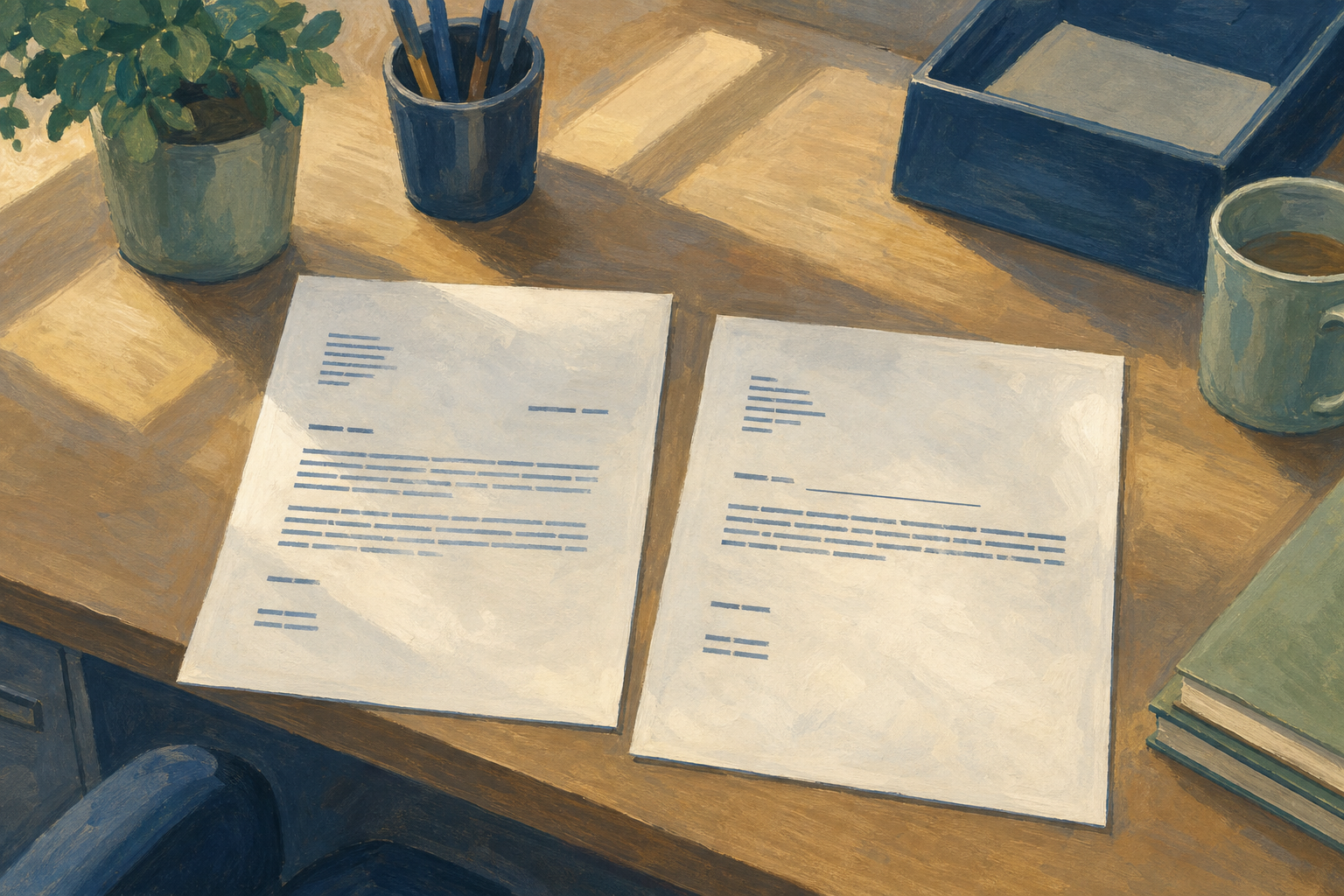
Today you will
- merge your letters, or fill them in by hand
- put all the letters in one new document
- save the letters as a PDF and check every page
Imagine a letter arrives that says "Dear ," with no name after it. What would that tell the person about you and your project?
In Word, Preview results shows each letter with the real names filled in.
Finish to a new document puts all the letters into one new file that you can check and save as a PDF.
Spot-check means reading every page for blank names or messy lines.
Fix the source means you fix mistakes in the spreadsheet first, so every letter matches it.
Example
Aoife's second letter says "Dear ,". She adds Sean to her spreadsheet and previews again, and now it says "Dear Sean,".
You will make letters from your Part 1 practice files and save a practice PDF. Follow the steps in the box below.
If you don't have the practice files, make them first in {{code:sm1/}}.
1. Make a spreadsheet called {{code:sm1_doc4_mailmerge_source_EXAMPLE}} and paste this table into cell {{cell:A1}}.
| FirstName | LastName | Organisation | Offer |
|---|---|---|---|
| Ciara | Byrne | Gallery Lane | laptop stickers |
| Sean | Murphy | The Craft Corner | water-bottle stickers |
| Niamh | O'Neill | Campus Hub Shop | phone stickers |
| Tom | Walsh | Indie Market Stall 12 | sticker packs |
| Aisling | Kelly | Online (Instagram lead) | custom name stickers |
2. Make a document called {{code:sm1_doc4_mailmerge_letter_EXAMPLE}}, paste in this letter, and add your name and the date.
[Your name]
[Today's date]
Dear «FirstName»,
I am writing to «Organisation» because I would like to offer a sample of our «Offer» for your customers. I run a small custom-sticker project and I am looking for local partners for a short trial.
If this is of interest, I would be glad to drop in a sample pack this month.
Kind regards,
[Your name]
Quick fixes
- If there is no Mailings tab, click {{btn:Open in Desktop App}} or use the Google steps.
- If a letter shows «FirstName» instead of a name, click {{btn:Preview Results}} again or swap the marker for a real merge field.
- If a greeting is blank, fill the empty cell in the spreadsheet, save it and preview again.
- If your PDF is called document.pdf, rename it and move it into {{code:sm1/03_finished/}}.
Independent Practice
- Open your own {{code:sm1_doc4_mailmerge_source}} and {{code:sm1_doc4_mailmerge_letter}}.
- Make sure you have at least three contacts. If a row is just for practice, type Practice in your detail column.
- Make your letters the same way as before, in Word or Google Docs.
- Check every page, and fix any mistakes in the spreadsheet first.
- Save the PDF as {{code:sm1_doc4_mailmerge_output.pdf}} in {{code:sm1/03_finished/}}.
- My PDF is saved in {{code:sm1/03_finished/}}.
- It has at least three letters.
- Every letter has the right name and details.
- I fixed every mistake I found.
Unlock the full learning experience
You're previewing this lesson. Get full access to this lesson and hundreds more — each one ready to teach, with interactive activities, printable resources and pupil progress tracking built in.
This lesson is copyright of Coding Ireland 2017 - 2026. Unauthorised use, copying or distribution is not allowed.