Today you will
- polish Format 1 for your VET interview
- save an editable copy and a finished copy in your portfolio folder
Someone opens your Format 1 before you speak. What is the first thing you hope they notice?
In {{code:Project_Portfolio/09_specialism/sm2/}}, copy your latest draft and open the copy. If you have no draft, start a new slide file with five slides: the problem, your offer, the costs, your proof and your ask.
Key words
Format 1 is the presentation you will show at your VET interview.
The source copy is the file you can still edit, like {{code:sm2_ka1_format1.pptx}}.
The publication copy is the finished file that opens the same way on any computer. It is usually {{code:sm2_ka1_format1.pdf}}.
Polish means cutting and clearing things up so a viewer can follow your idea quickly.
A five-slide pitch for a phone-repair side hustle has one idea per slide, text you can read easily and no leftover template text.
Polish your draft
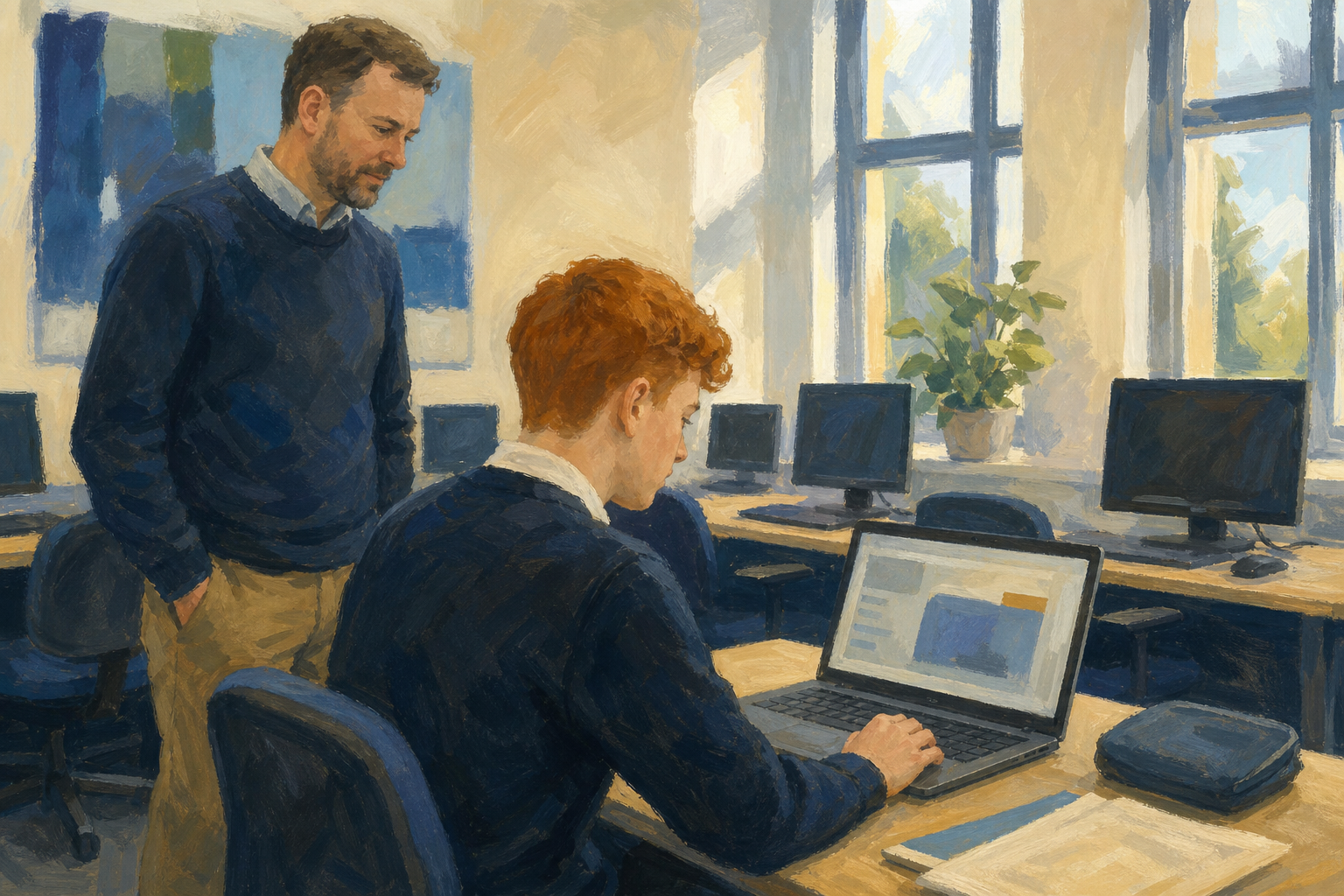
Your goal is to fix three things in your copy: your purpose, your structure and your spelling. Your teacher will come round and check them.
- Purpose: In your slide 1 notes, write one sentence saying what the viewer should walk away knowing. Cut anything that does not help that sentence.
- Structure: Keep one idea per slide, and delete any leftover template text.
- Spelling: Run spell-check, then read your slides aloud once. Check names and euro amounts.
- If you finish early, add alt text to your pictures. Right-click the image and choose {{btn:Alt text}}.
Don't export yet. Wait for your teacher to check your work first.
Success criteria
- My purpose sentence is written.
- Each slide has one idea and no leftover template text.
- I have checked the spelling and read it aloud.
Watch your teacher export a PDF and move it into {{code:sm2/}}.
Common issues
- If you can't find your draft, open {{code:sm2}} and sort by date modified.
- If the PDF cuts off the edges, use the app's own download option, not a screenshot.
- If your video or audio won't open, export it as an .mp4 or .mp3 file.
- If you're short on time, fix your purpose and structure first.
Portfolio Build
- Rename your copy {{code:sm2_ka1_format1}}.
- Download a PDF, name it {{code:sm2_ka1_format1.pdf}} and move it into {{code:sm2/}}.
- Open the PDF once and check every page.
- Call your teacher over for review.
If you use Canva, CapCut or an audio tool, download a PDF, MP4 or MP3 instead. Then make a text file called {{code:sm2_ka1_format1_source.txt}} with your edit link in it.
- Both files are in {{code:sm2/}}.
- Both use the name {{code:sm2_ka1_format1}}.
- The finished copy opens with nothing cut off.
- My teacher has reviewed it.
sm2_ka1_format1.pptx
sm2_ka1_format1.pdf
sm2_ka1_format1.mp4
sm2_ka1_format1.mp3
sm2_ka1_format1_source.txt
Unlock the full learning experience
You're previewing this lesson. Get full access to this lesson and hundreds more — each one ready to teach, with interactive activities, printable resources and pupil progress tracking built in.
This lesson is copyright of Coding Ireland 2017 - 2026. Unauthorised use, copying or distribution is not allowed.