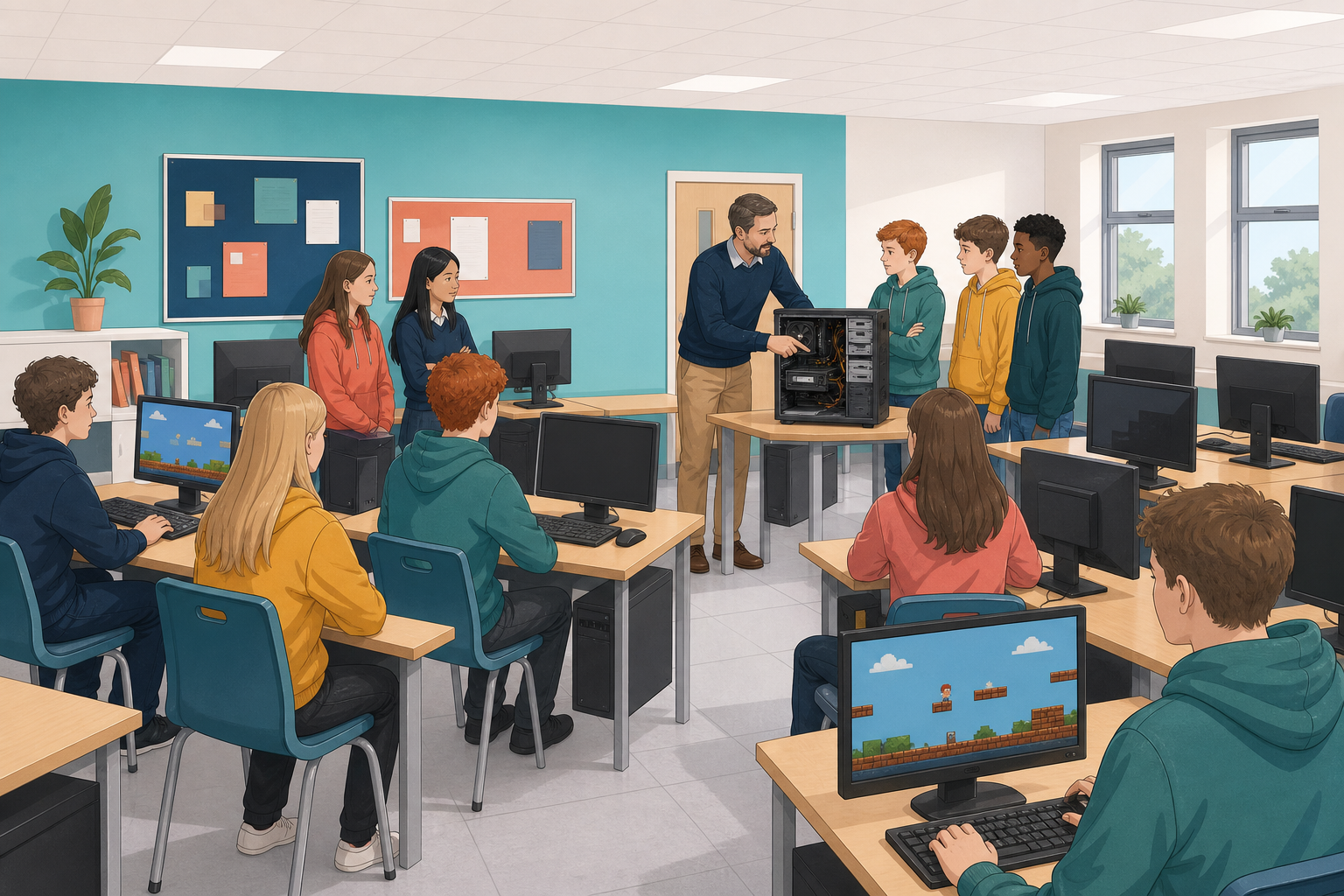
 You have built games in Scratch and MakeCode Arcade. Today you look inside the machine that actually runs them. By the end of the lesson you will be able to name the main parts of a computer, say what each one does for your game, and sort what is hardware from what is software.

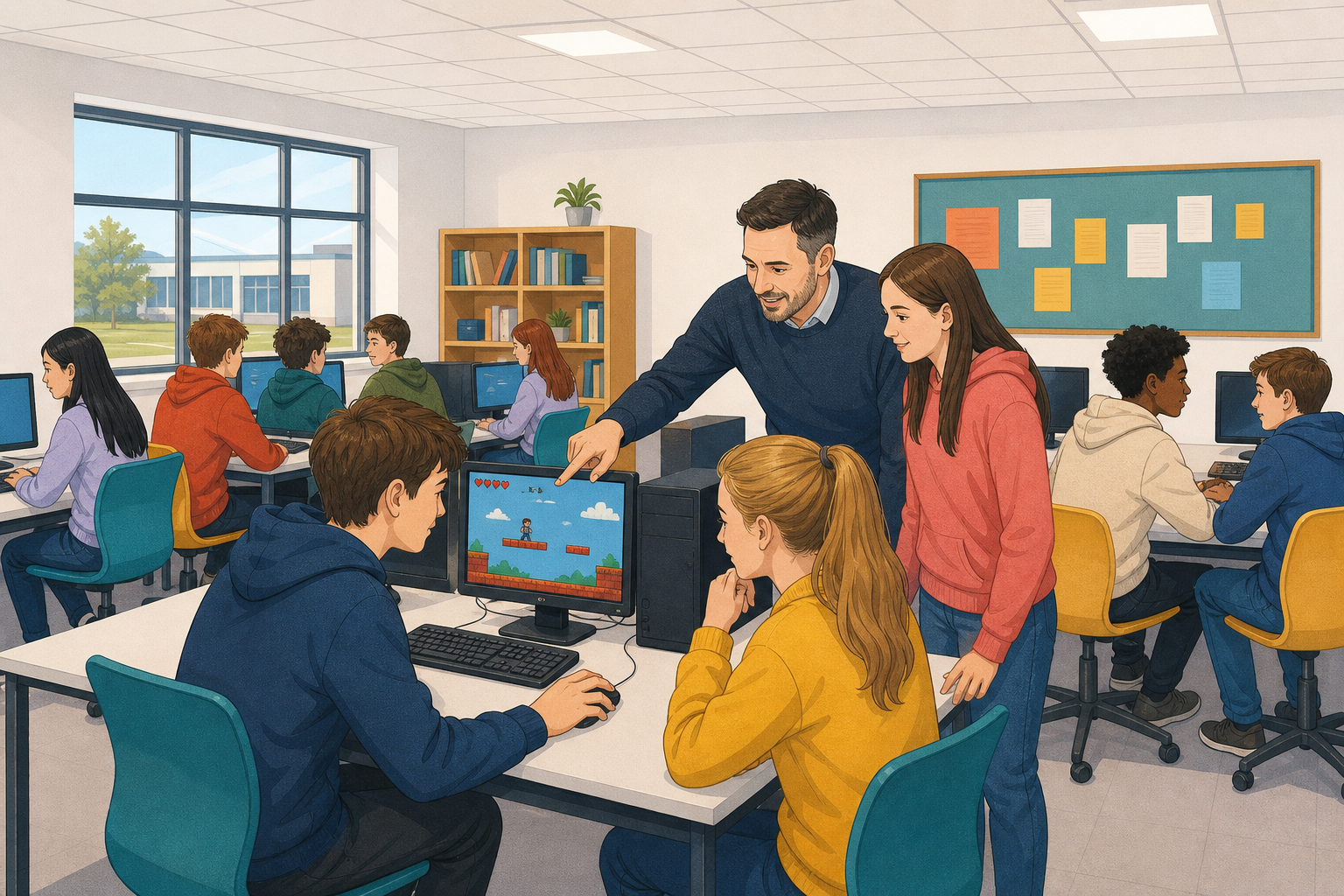 A computer is a machine that follows instructions. Hold these four ideas in mind. Later you will walk around your own machine looking for each one, and then sort cards into the right groups on screen, so every idea below comes back.
- Hardware and software. Hardware is the physical parts of the machine: the bits made of metal, plastic and silicon, whether you can see them or not. Software is the instructions and data. Your game is software.
- Storage and memory. When you open a saved game, it is copied from storage (where it sits when the power is off) into memory (where it sits while it is running).
- CPU. The CPU then carries out the instructions one after another.
- Input and output. Input devices such as the keyboard and mouse send signals in; output devices such as the screen and speakers send results out.
Use the computer in front of you and one game you have already built as the running example. Work through the five stops below. Write in your copybook only where a stop asks for an answer.
- Outside the box. Name two input devices and two output devices you can see or touch on your machine. Which ones does your game use?
- Storage. Find your saved game file (class folder, signed-in account, or wherever your teacher has you save). That file is kept in storage when the power is off. On a PC that storage is often the hard drive; in an online account it sits on storage in a data centre.
- Open and run. Open your saved Scratch or Arcade game so it is ready to run. A copy is now in memory. Run the game for about thirty seconds. Every move and every score change is the CPU carrying out instructions from your game, in order.
These are the last two stops on the tour of your machine.
- Storage and memory. Finish these two lines in your own words in your copybook (use the stems if they help):
- Storage is the part that keeps… when power is off
- Memory is the part that holds… while the game is running
- Make one change. Pick one tiny change, run the game once to check, then write what you changed and which hardware (input or output device) that change uses. Choose from:
- which key moves a sprite, or
- whether a sound plays
Unlock the full learning experience
You're previewing this lesson. Get full access to this lesson and hundreds more — each one ready to teach, with interactive activities, printable resources and pupil progress tracking built in.
This lesson is copyright of Coding Ireland 2017 - 2025. Unauthorised use, copying or distribution is not allowed.