Today you will
- sort devices into input and output
- do a quick check of how you sit at your computer
- make a list of the devices you can use for your Something Real project
Warm-up
Look at the computer in front of you. Name one part that sends information in and one part that sends information out.
Ask yourself one question about each device. Does it send information into the computer, or send results out?
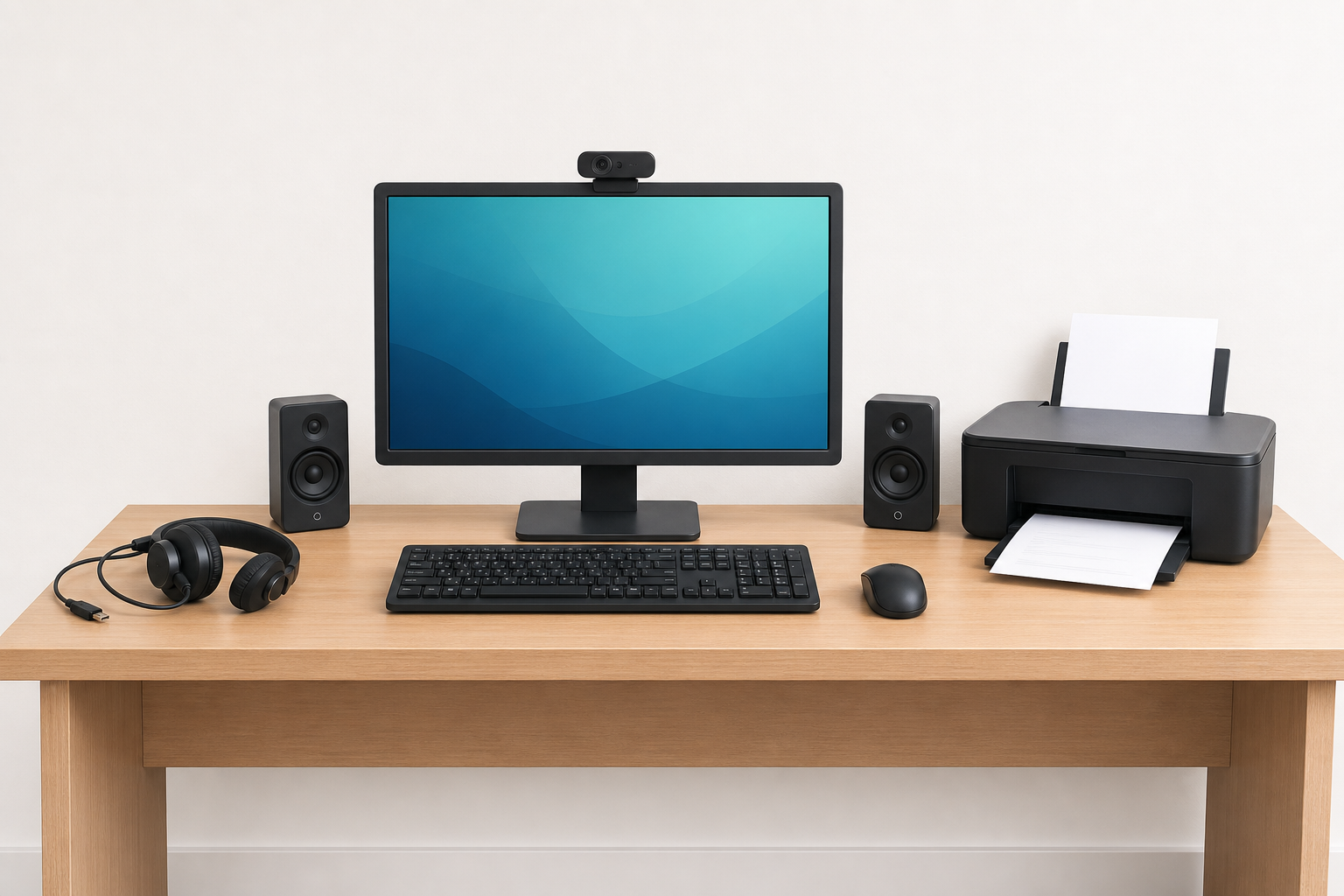 Look at the desk in the picture. Which devices send information in, and which send results out?
- An input device sends information into the computer, like a keyboard or a webcam.
- An output device shows or plays the results for you, like a screen or a printer.
- A peripheral is an extra device you plug in, like a USB headset.
Example
You type your Work Experience log on a keyboard. That is input. Then you print your CV. That is output.
Check how you are sitting
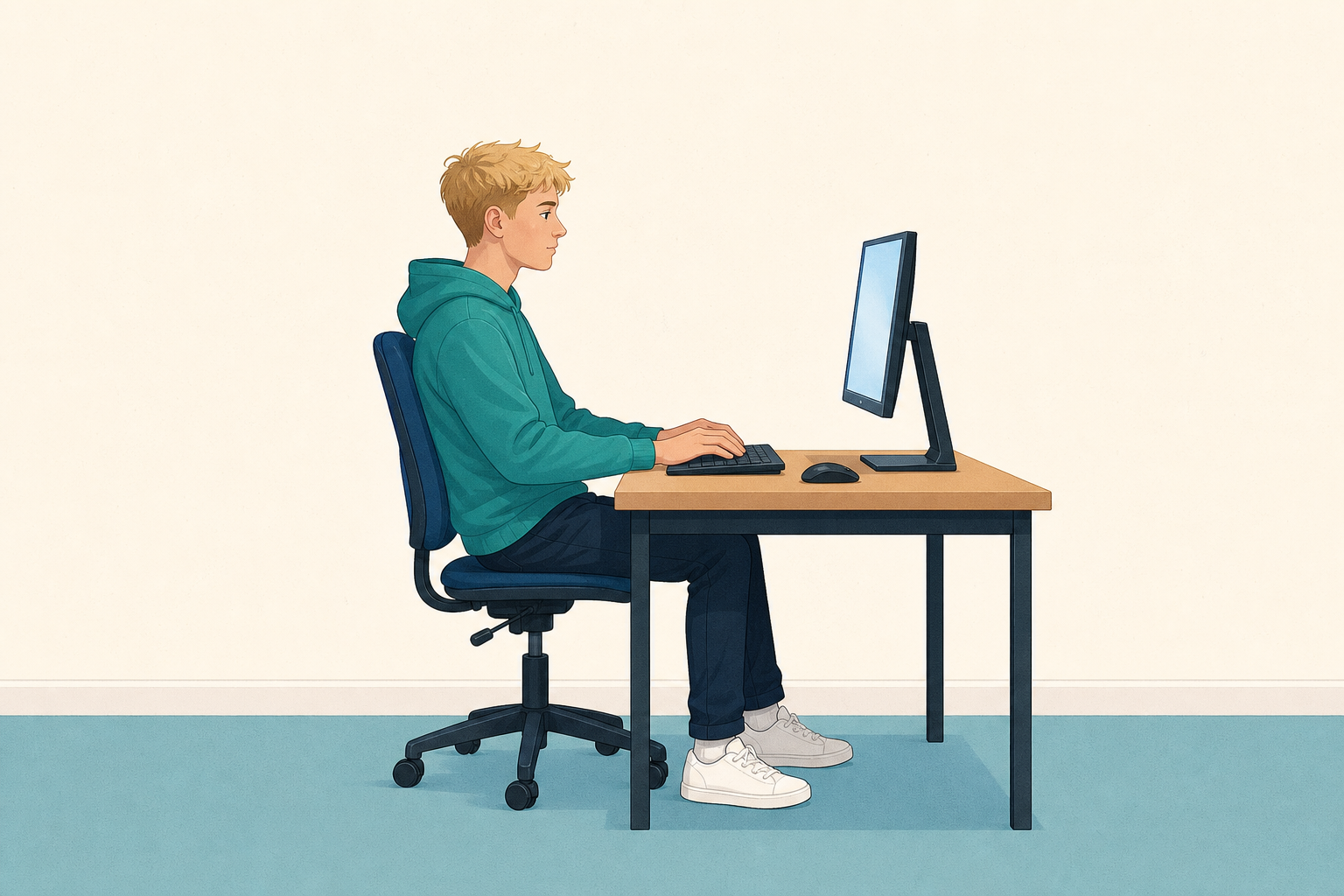 Ergonomics means setting up your seat and screen so your body doesn't get sore.
- Put your feet flat on the floor and sit back so your back is supported.
- Have the screen near eye level, about an arm's length away.
- Keep your wrists straight and your shoulders relaxed when you type.
- Stand up and stretch every 20 to 30 minutes.
You will write about your seat and screen later.
Your teacher will go through the cards with the whole class first.
Input or output?
Common snags
- Is a screen input? A plain screen is output. Only a touchscreen also takes input, so today treat a screen as output.
- Webcam or projector? A webcam sends video in. A projector sends a picture out onto the wall.
- Are your neck or wrists sore? Do the posture check again and fix one thing.
Unlock the full learning experience
You're previewing this lesson. Get full access to this lesson and hundreds more — each one ready to teach, with interactive activities, printable resources and pupil progress tracking built in.
This lesson is copyright of Coding Ireland 2017 - 2025. Unauthorised use, copying or distribution is not allowed.