Today you will
- crop and brighten a project photo in Canva
- add a few words on top of it
- choose JPG or PNG
- save it as {{code:08_edited_image.jpg}} in {{code:08_promo}}, beside the original
Warm-up
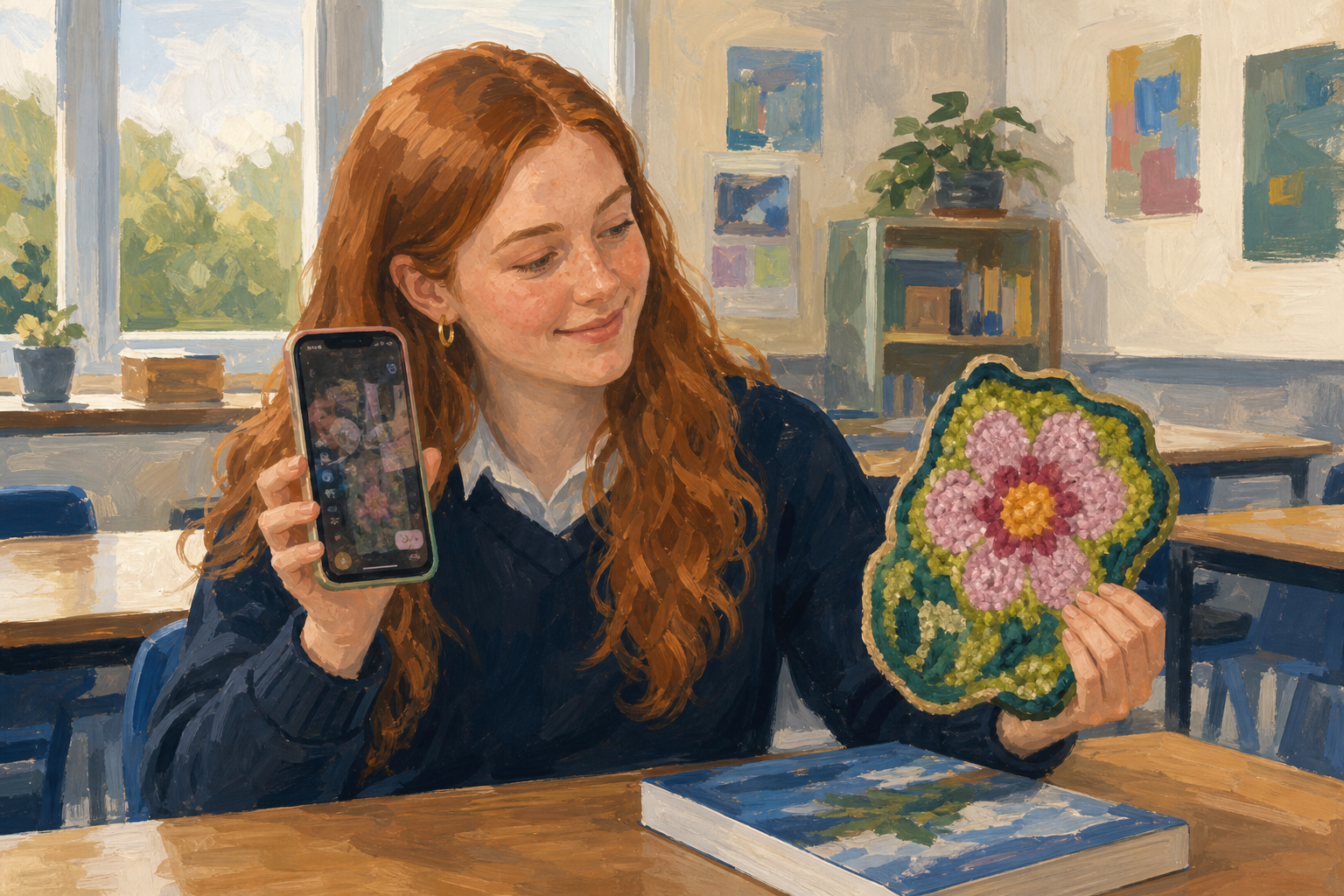 Think of one photo you might use in a promo. What is the most distracting thing in it? Is it a messy background, dark lighting, or too much empty space?
Crop means cutting away the edges so the main thing stands out.
Brightness makes a dark photo lighter. A small lift is enough.
A text overlay is a few words on top of the photo.
JPG or PNG? Save ordinary photos as JPG. Use PNG only for a logo or a see-through background.
Example
Aoife's photo shows her phone case on a messy desk. She crops in on the case, brightens it a little and adds Hand-printed in Galway. She saves it as a JPG.
You will make a practice picture in Canva from a quick photo of something on your desk. This one is only practice. Follow the steps for your device in the box below.
Common issues
- The download button is grey. Wait for the design to save, then try {{btn:Share}} and {{btn:Download}} again. If it still won't work, tell your teacher.
- My picture is blurry. Start again from the original photo, not the edited one.
- My text is hard to read. Make it bigger, change the colour, or move it to a plain part of the photo.
Portfolio Build
- Put one real project photo in {{code:08_promo}}, not the practice file.
- In Canva, crop it, and brighten it if it's dark.
- If you want to, add three to six words on top.
- Download it as a JPG and save it as {{code:08_edited_image.jpg}} in {{code:08_promo}}.
If it goes wrong, close the design and start again from the original. Use PNG only if you need a see-through background.
- {{code:08_edited_image.jpg}} is in {{code:08_promo}}, beside the original.
- I can point to one clear change.
- It's ready to go on a flyer or pitch slide.
Unlock the full learning experience
You're previewing this lesson. Get full access to this lesson and hundreds more — each one ready to teach, with interactive activities, printable resources and pupil progress tracking built in.
This lesson is copyright of Coding Ireland 2017 - 2025. Unauthorised use, copying or distribution is not allowed.