Game Makecode Arcade
Advanced
60 mins
Teacher/Student led
+255 XP

What you need:
Chromebook/Laptop/PC or iPad/Tablet

First Arcade Project

Let's create a simple game in Arcade so we can learn about the code editor and what sorts of things we can do.

Teacher Class Feed

Load previous activity

    1 - Create a new Arcade project

    Go to the Arcade MakeCode website and create a new project.

    arcade.makecode.com

    2 - Add a sprite

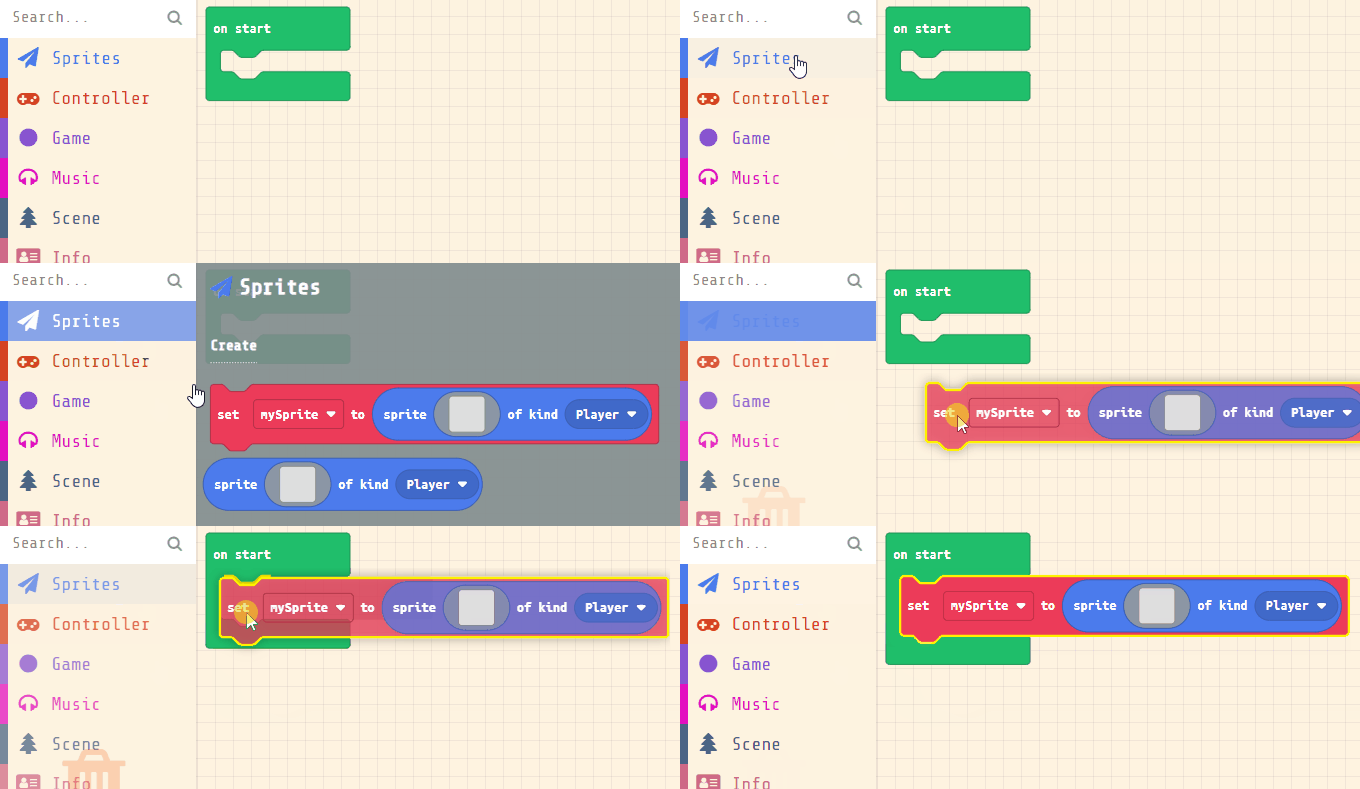
    When we add a sprite to an Arcade project, we add it by putting it into a variable. We normally use variables to store numbers and text but we can also put more complicated things in them like sprites!

    Add the following code to your project.

    let mySprite = sprites.create(img`
        . . . . . . . . . . . . . . . . 
        . . . . . . . . . . . . . . . . 
        . . . . . . . . . . . . . . . . 
        . . . . . . . . . . . . . . . . 
        . . . . . . . . . . . . . . . . 
        . . . . . . . . . . . . . . . . 
        . . . . . . . . . . . . . . . . 
        . . . . . . . . . . . . . . . . 
        . . . . . . . . . . . . . . . . 
        . . . . . . . . . . . . . . . . 
        . . . . . . . . . . . . . . . . 
        . . . . . . . . . . . . . . . . 
        . . . . . . . . . . . . . . . . 
        . . . . . . . . . . . . . . . . 
        . . . . . . . . . . . . . . . . 
        . . . . . . . . . . . . . . . . 
        `, SpriteKind.Player)


    This creates a variable called 'mySprite' and stores a sprite of kind Player in the variable. There are different types of sprites such as:

    • Player - for sprites that are your character in the game.
    • Projectile - for bullets, rockets or anything you want to fire!
    • Food - for health packs, potions etc.
    • Enemy - for enemy sprites that you play against or attack you.
    • or you can even create your own kind of sprite!

    3 - Choose a sprite from the gallery

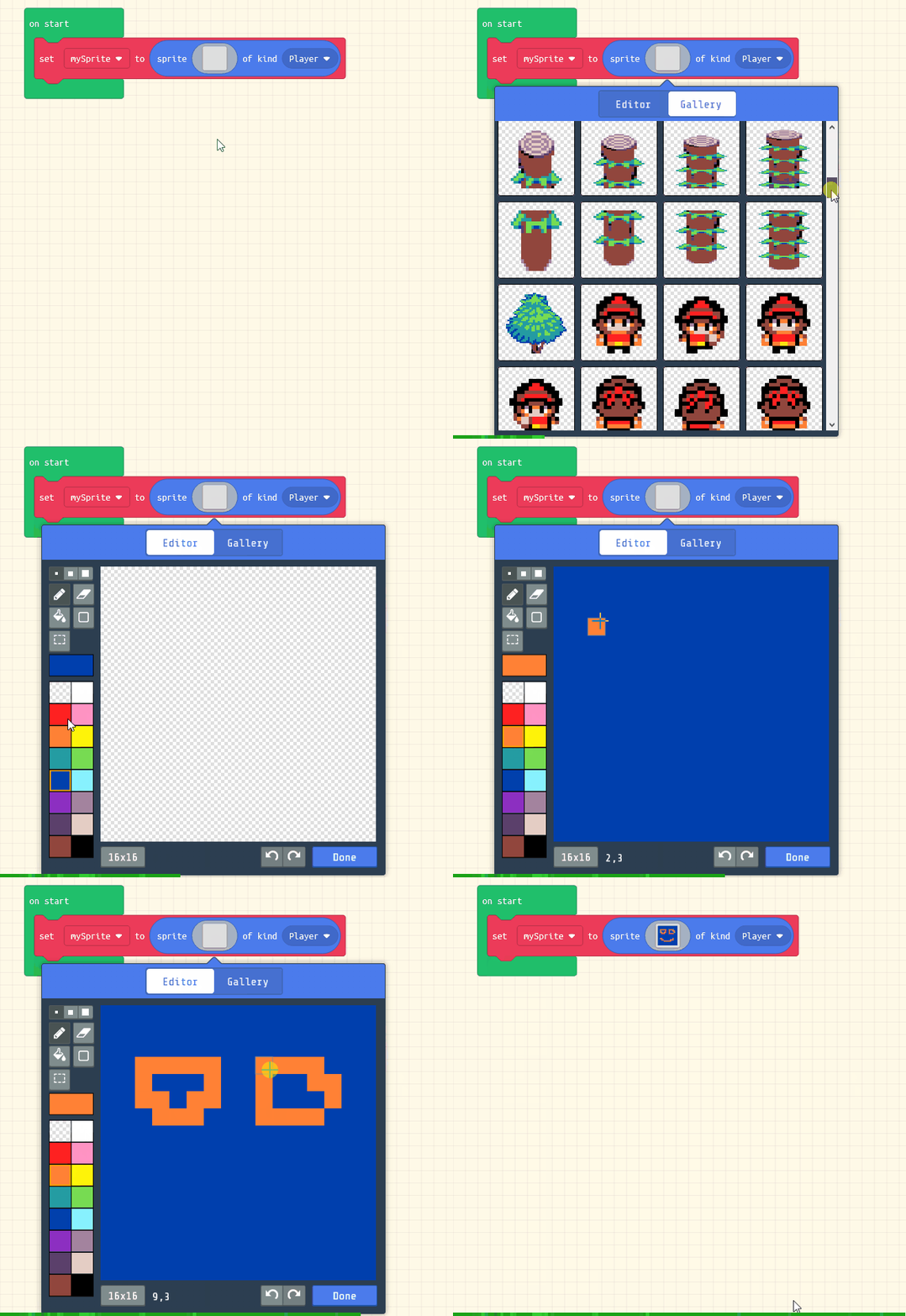
    You can paint and design your own sprite or you can choose one from the gallery. For now choose a sprite from the gallery.

    let mySprite = sprites.create(img`
        . . . . . . f f f f . . . . . . 
        . . . . f f f 2 2 f f f . . . . 
        . . . f f f 2 2 2 2 f f f . . . 
        . . f f f e e e e e e f f f . . 
        . . f f e 2 2 2 2 2 2 e e f . . 
        . . f e 2 f f f f f f 2 e f . . 
        . . f f f f e e e e f f f f . . 
        . f f e f b f 4 4 f b f e f f . 
        . f e e 4 1 f d d f 1 4 e e f . 
        . . f e e d d d d d d e e f . . 
        . . . f e e 4 4 4 4 e e f . . . 
        . . e 4 f 2 2 2 2 2 2 f 4 e . . 
        . . 4 d f 2 2 2 2 2 2 f d 4 . . 
        . . 4 4 f 4 4 5 5 4 4 f 4 4 . . 
        . . . . . f f f f f f . . . . . 
        . . . . . f f . . f f . . . . . 
        `, SpriteKind.Player)


    4 - Move your sprite

    In Arcade we have a total of eight buttons (4 directions, A, B, MENU and RESET) and we can program each of these.

    Arcade also comes with useful blocks that let's us program somethings quickly. Add the following new code block to your project to program your sprite to move with the up, down, left and right buttons.

    let mySprite = sprites.create(img`
        . . . . . . f f f f . . . . . . 
        . . . . f f f 2 2 f f f . . . . 
        . . . f f f 2 2 2 2 f f f . . . 
        . . f f f e e e e e e f f f . . 
        . . f f e 2 2 2 2 2 2 e e f . . 
        . . f e 2 f f f f f f 2 e f . . 
        . . f f f f e e e e f f f f . . 
        . f f e f b f 4 4 f b f e f f . 
        . f e e 4 1 f d d f 1 4 e e f . 
        . . f e e d d d d d d e e f . . 
        . . . f e e 4 4 4 4 e e f . . . 
        . . e 4 f 2 2 2 2 2 2 f 4 e . . 
        . . 4 d f 2 2 2 2 2 2 f d 4 . . 
        . . 4 4 f 4 4 5 5 4 4 f 4 4 . . 
        . . . . . f f f f f f . . . . . 
        . . . . . f f . . f f . . . . . 
        `, SpriteKind.Player)
    controller.moveSprite(mySprite)


    After you add the block try moving the sprite using the direction buttons in the simulator.


    123learn · Online learning platform

    Unlock the full learning experience

    You're previewing this lesson. Get full access to this lesson and hundreds more — each one ready to teach, with interactive activities, printable resources and pupil progress tracking built in.

    Hundreds of curriculum-aligned lessons
    Interactive activities in every lesson
    Printable resources & progress tracking
    Copyright Notice
    This lesson is copyright of Coding Ireland 2017 - 2026. Unauthorised use, copying or distribution is not allowed.
    🍪 Our website uses cookies to make your browsing experience better. By using our website you agree to our use of cookies. Learn more