You can already open a MakeCode Arcade project and move a sprite. Today you will keep building Space Shooter at your device: lives, spawning asteroids, rockets, score and a lose condition.
Before you run anything new, think: what should happen when an asteroid hits the spaceship? What should happen when a rocket hits an asteroid?
Open the project you saved earlier. You will predict, build, run and fix as you go.
Keep this opening short. Devices on, MakeCode Arcade ready, project from the earlier part open. Optional predict: before anyone runs new code, ask what should happen on asteroid-hits-ship and rocket-hits-asteroid. Do not list blocks. Move quickly into the build so most of the lesson is hands-on. Pair students if that is your usual setup.
Welcome to the Space Shooter game creation lesson! In this exciting course, you will learn how to create your very own space-themed game using MakeCode Arcade. You will control a spaceship that needs to dodge and shoot asteroids. Ready to start your space adventure? Let's dive in!
Treat this as the welcome screen only. Do not spend time reading it aloud in full. Confirm everyone is in the right project and ready to add the next blocks.
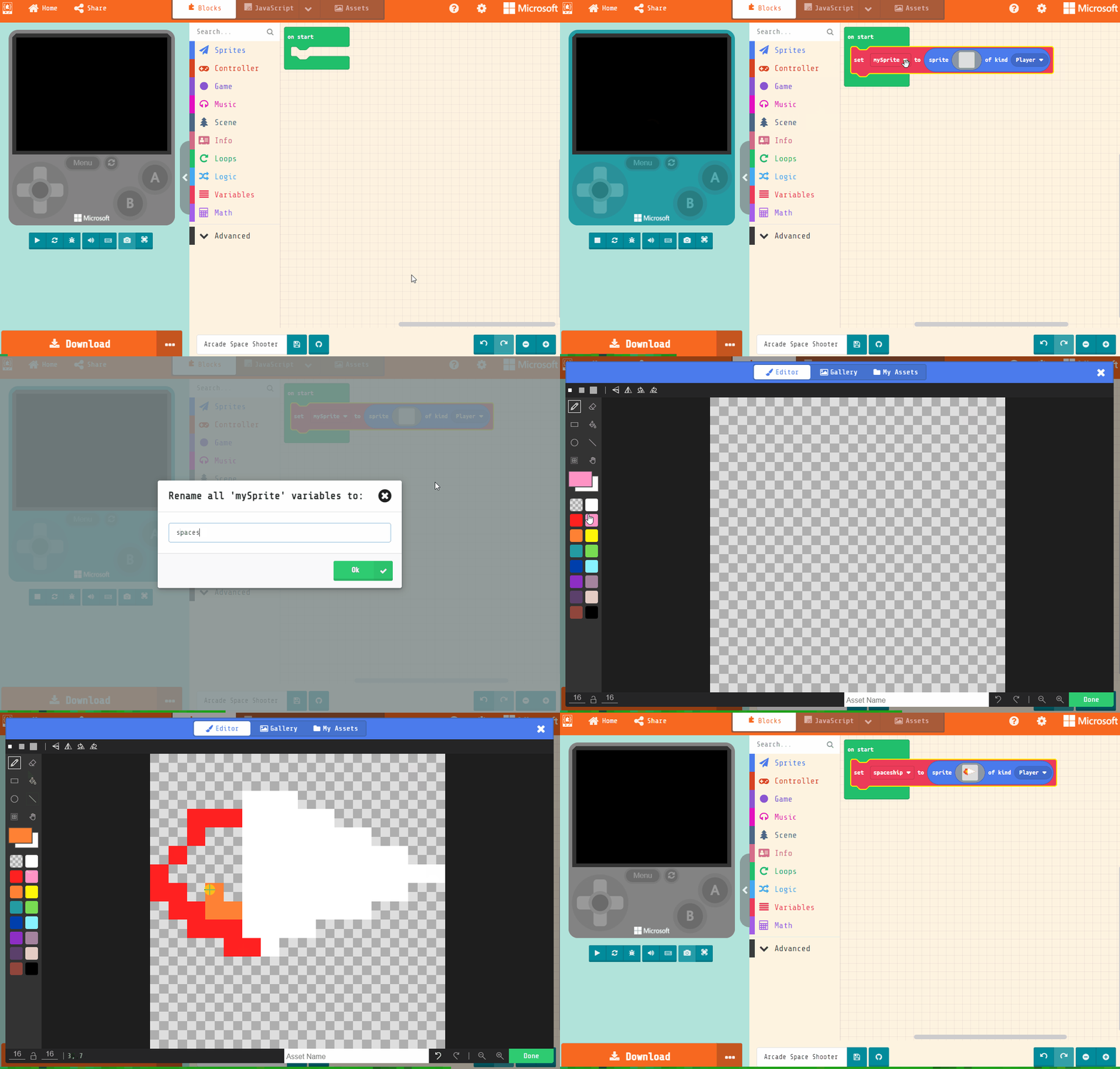
Go to the arcade.makecode.com website and create a new project.
If students already have the saved project from the earlier part, they should open that rather than create a blank project. Only use a new project if someone has lost their work. Watch for login or browser issues before the code-along starts.
In this game you will control a spaceship that has to dodge and shoot asteroids that come flying at it.
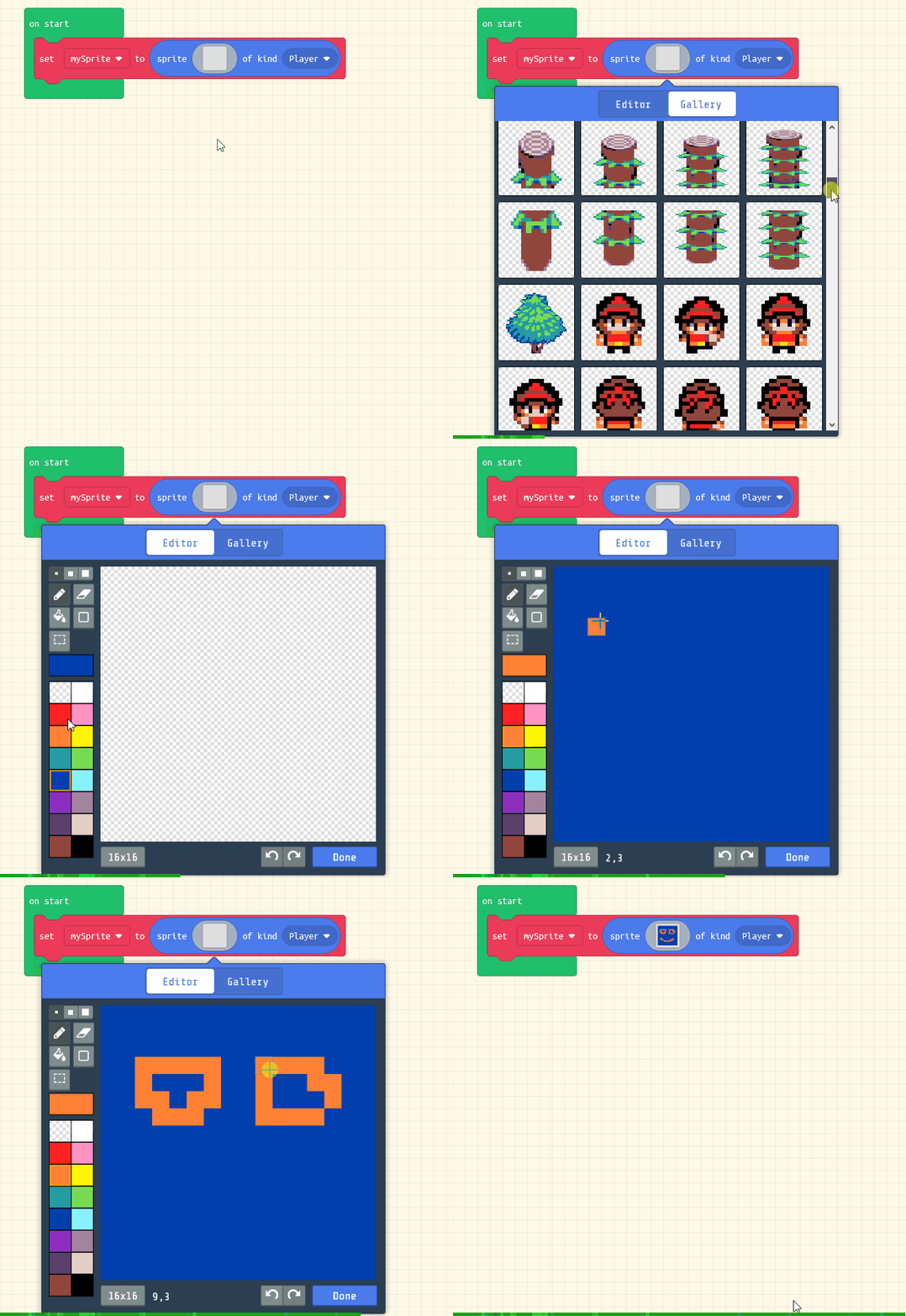
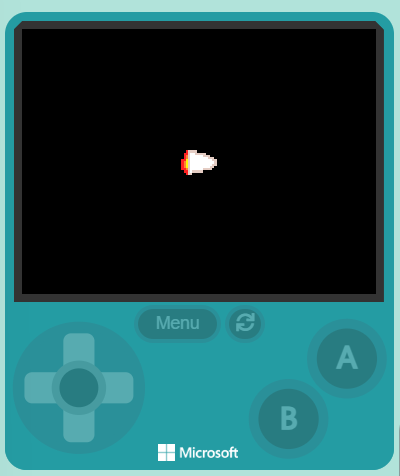
Add the following code to create the spaceship sprite and use the sprite editor to design your spaceship. It should point towards the right as that's where the asteroids will be coming from.
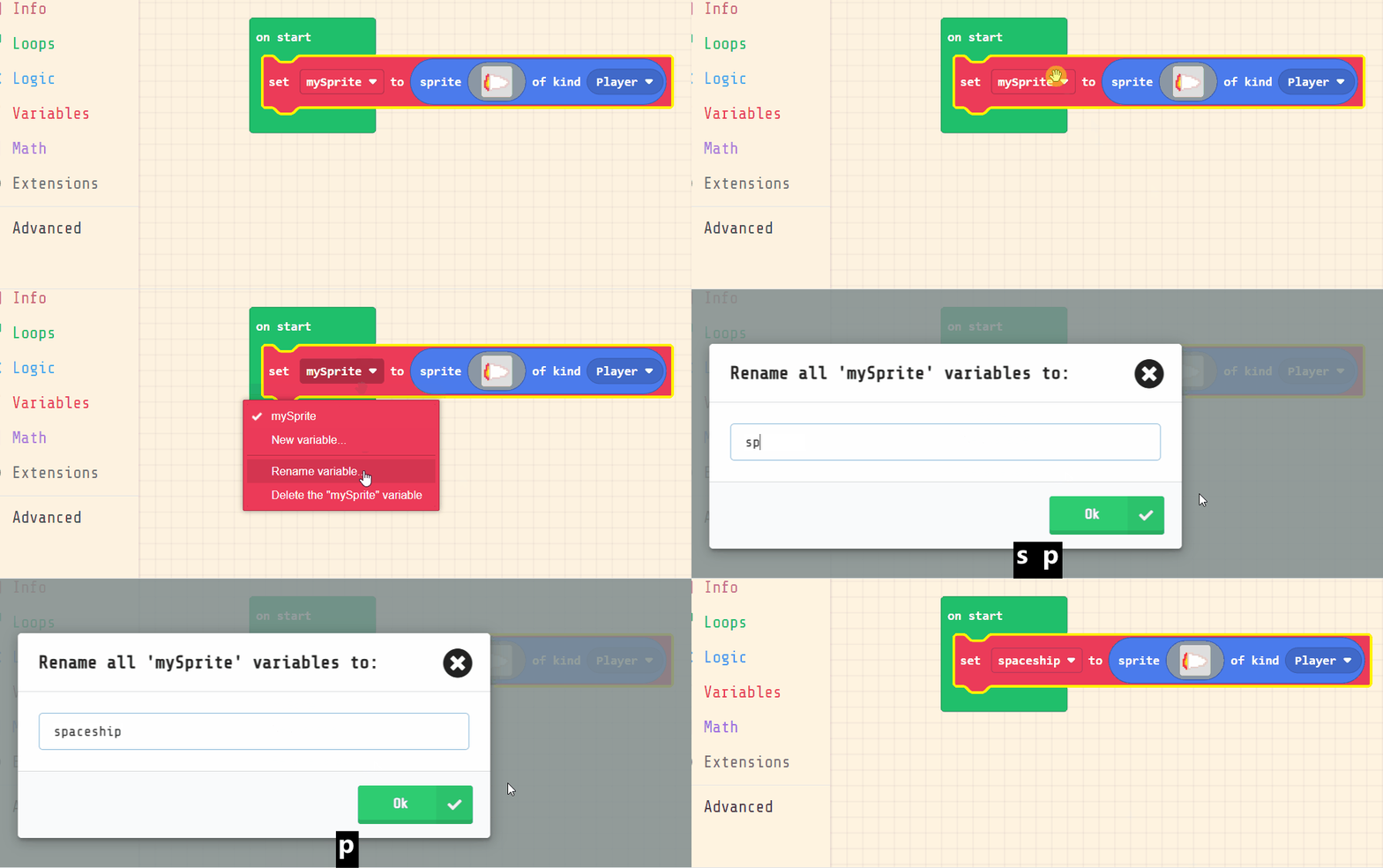
Rename your sprite to spaceship.
let spaceship = sprites.create(img`
. . . . . . . . . . . . . . . .
. . . . . . . . . . . . . . . .
. . . . . d d d . . . . . . . .
. . 2 2 2 1 1 1 d d . . . . . .
. . 2 4 4 1 1 1 1 1 d d . . . .
. 2 4 4 5 1 1 1 1 1 1 1 d d . .
2 4 4 5 5 1 1 1 1 1 1 1 1 1 d d
2 2 4 4 5 1 1 1 1 1 1 1 d d . .
. 2 2 4 4 1 1 1 1 d d d . . . .
. . 2 2 2 d d d d . . . . . . .
. . . . 2 d d . . . . . . . . .
. . . . . . . . . . . . . . . .
. . . . . . . . . . . . . . . .
. . . . . . . . . . . . . . . .
. . . . . . . . . . . . . . . .
. . . . . . . . . . . . . . . .
`, SpriteKind.Player)
Model creating or checking the spaceship sprite on the board. Key check: sprite renamed to spaceship and facing right. Differentiation: students who already have a solid ship design can keep it and move on.
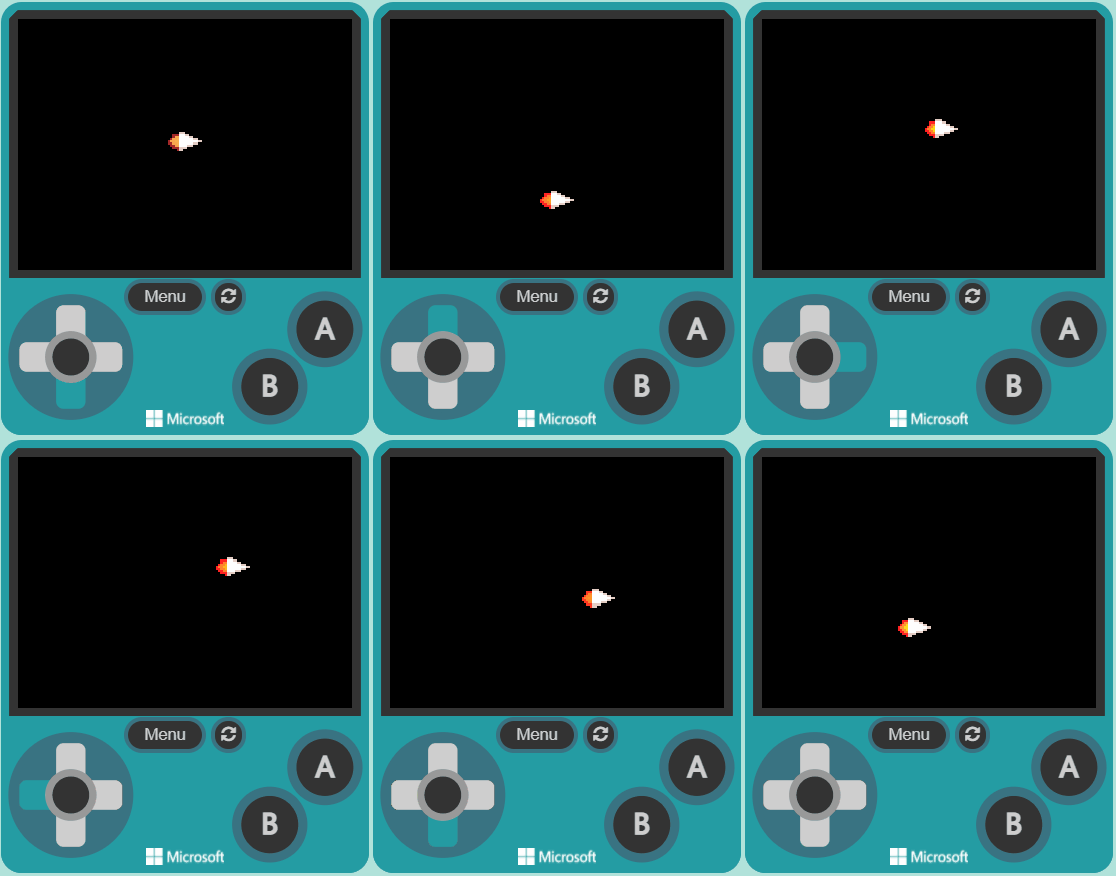
Now add the following new code to control the spaceship with the arrow keys and set it so that it cannot go off the screen.
let spaceship = sprites.create(img`
. . . . . . . . . . . . . . . .
. . . . . . . . . . . . . . . .
. . . . . d d d . . . . . . . .
. . 2 2 2 1 1 1 d d . . . . . .
. . 2 4 4 1 1 1 1 1 d d . . . .
. 2 4 4 5 1 1 1 1 1 1 1 d d . .
2 4 4 5 5 1 1 1 1 1 1 1 1 1 d d
2 2 4 4 5 1 1 1 1 1 1 1 d d . .
. 2 2 4 4 1 1 1 1 d d d . . . .
. . 2 2 2 d d d d . . . . . . .
. . . . 2 d d . . . . . . . . .
. . . . . . . . . . . . . . . .
. . . . . . . . . . . . . . . .
. . . . . . . . . . . . . . . .
. . . . . . . . . . . . . . . .
. . . . . . . . . . . . . . . .
`, SpriteKind.Player)
controller.moveSprite(spaceship, 150, 150)
spaceship.setStayInScreen(true)
move with buttons block and put in vx 150 and vy 150 to set the velocities for the x axis and y axis.Model arrow-key control and stay-on-screen. Common bug: movement blocks attached to the wrong sprite. Ask: which sprite should the controller move? Have pairs run once before adding lives.
You're previewing this lesson. Get full access to this lesson and hundreds more — each one ready to teach, with interactive activities, printable resources and pupil progress tracking built in.