Today you will
- learn when to send an email and when a chat message is fine
- write an email with a subject, a greeting and a sign-off
- attach a file and send a real practice email
Warm-up
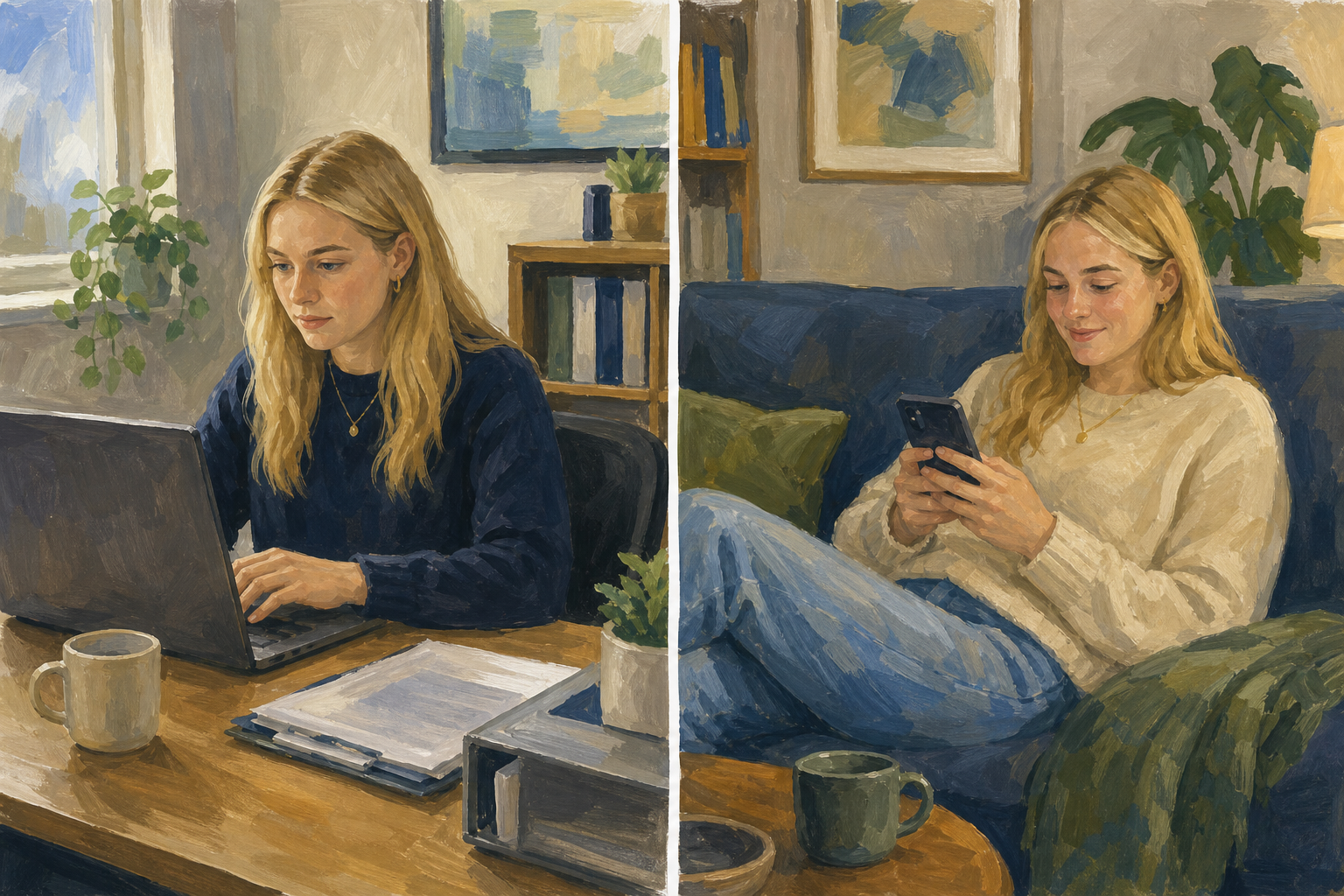 When did you last send a real email, not a chat message? Who was it to? Would a WhatsApp have felt wrong?
Use email when something real is at stake. A DM or chat is fine for everyday things.
To is the person who must act. Cc is a copy that everyone can see. Bcc hides addresses, which is safer for big groups.
The subject line is a short label that says what the email is about.
A zip file packs several big files into one, so they fit in one email.
Example
Aoife emails a café manager about her baking project, with her teacher in Cc.
You will sort eight real situations, like a Work Experience enquiry or a quick message to a friend. Use the cards in the box below, then talk about your choices with a partner.
Email or DM?
Common issues
- If you can't find the attach button, look for the paperclip icon near the message.
- If the file is too big to send, attach one small file from {{code:03_documents}} instead.
- If an address is in the wrong field, move it before you press Send.
- If your screenshot is unclear, open the email in Sent, not Drafts, and take it again.
Independent Practice
- Open your school email and click {{btn:New mail}} in Outlook or {{btn:Compose}} in Gmail.
- Put your teacher or a project contact in To. If it's a contact, Cc your LCA teacher.
- Type the subject {{code:ICT1 Practice Email}} and a short body like the one below. Attach one small file from {{code:03_documents}} with the paperclip, then send.
- Open the email in Sent and screenshot it with {{kbd:Win+Shift+S}} or {{kbd:Cmd+Shift+4}}. Save it in {{code:03_documents}} as {{code:03_practice_email.png}}.
- In the same folder, make a note called {{code:03_register_note}} and answer the two lines below.
Dear [name],
My name is [your full name] and I am in LCA Year 1. This is my ICT1 practice email for the Email Essentials lesson.
Kind regards,
[Your full name]
LCA Year 1
[your school email]
How this email would read as a WhatsApp:
Next time I would use Cc or Bcc when:
- My email has the right subject, greeting, sign-off and signature.
- A small file is attached.
- My screenshot shows the sent email.
- My note has both lines.
Unlock the full learning experience
You're previewing this lesson. Get full access to this lesson and hundreds more — each one ready to teach, with interactive activities, printable resources and pupil progress tracking built in.
This lesson is copyright of Coding Ireland 2017 - 2025. Unauthorised use, copying or distribution is not allowed.