Intermediate
60 mins
Teacher/Student led
+65 XP

Email Essentials: Formal Email Style in a World of Dms

Discover the differences between casual messaging and professional email communication. Explore the key parts of an email and learn how to attach files correctly. Practise sending a formal email for your projects.

Teacher Class Feed

Load previous activity

    1 - Introduction ~5 mins

    Welcome

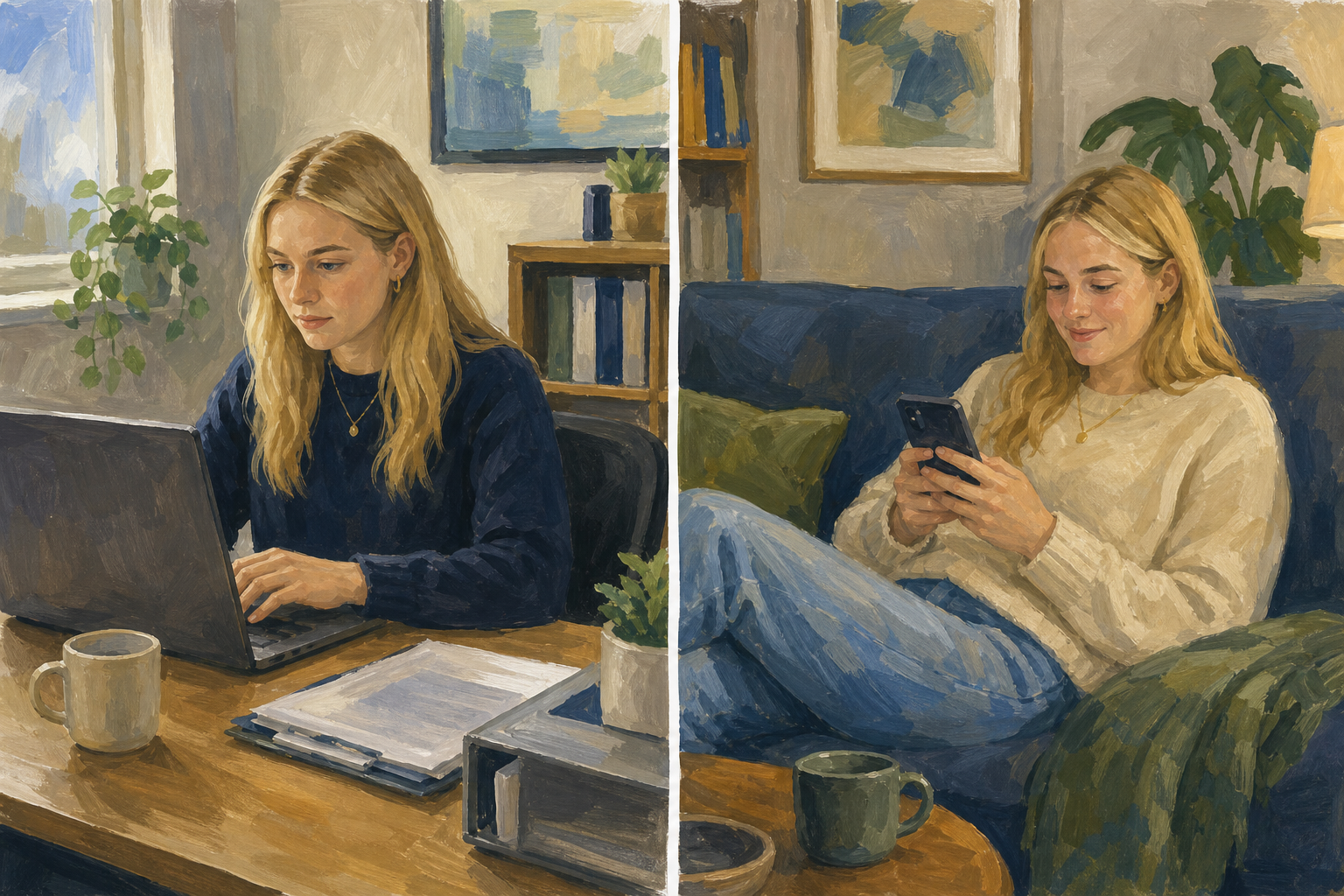
    Illustration for IntroductionYou already message people all day: WhatsApp, Snapchat, Discord, Teams, group chats. Email is not "how you talk to people". It is the formal style (sometimes called the formal register) you use when the conversation has real stakes: a job or Work Experience enquiry, a message to a stakeholder, a complaint, or a thank-you that needs to look professional. Today you learn the anatomy of an email, when to choose it over a DM, how to attach a file (and when a zip helps), and you send one real practice email that lands in your Project Portfolio.

    By the end of this lesson, you will be able to:

    • Explain when email is the right formal (work-style) choice versus DM or chat tools
    • Use To and Cc with subject, body and signature appropriately, and explain when Bcc is safer
    • Attach a file to an email and explain when to compress several files into a zip
    • Send a practice email to a named recipient and save {{code:03_practice_email.png}} plus {{code:03_register_note}}

    Warm-up

    Think quietly (no writing needed): when did you last send a real email, not a chat message? Who was it to, and would a WhatsApp have felt wrong for that moment? Keep that answer in mind as we sort formal stakes from everyday chat.

    2 - Key Concepts ~6 mins

    Key point

    Email is the professional, work-style way to write when something real is on the line for your Something Real project or Work Experience. (That work-style tone is what people mean by the formal register.)

    Use the anatomy diagram while you talk through the parts below.

    ConceptWhy it mattersExample
    Work-style email vs DM — email for high-stakes or official messages; chat for quick everyday talk Wrong channel can make a strong idea look careless, or make a simple "I'm late" look stiff Email a local GAA club treasurer about a sponsorship pitch; WhatsApp your teammate "match is at 7"
    To, Cc, Bcc — To acts; Cc is a visible copy; Bcc hides addresses from others Wrong fields leak private addresses or trigger Reply All noise To: Work Experience supervisor; Cc: your LCA teacher; Bcc: many parents on a club notice so addresses stay private
    Subject line — short, specific label before the email is opened Vague subjects get ignored or look like phishing "ICT1 Practice Email" or "Work Experience enquiry: week of 12 May" beats "Hi"
    Body, salutation, sign-off, signature — greeting, clear paragraphs, polite ending, then name and contact line Readers judge tone in seconds; a clean body and signature show you mean it "Dear Ms Byrne," … "Kind regards," then full name, class, and school email
    Attachments and zip files — attach what the reader needs; zip several large files into one {{code:.zip}} if size limits block the send Most email systems cap total attachment size (often around 20–25 MB) One small PDF from {{code:03_documents}} attaches as-is; two big screenshots plus a flyer become {{code:pitch_pack.zip}}

    Worked example: a practice email that would pass

    Imagine Aoife is building a small baking side hustle for her Something Real project. She sends this to a local café manager and copies her LCA teacher:

    • To: the café manager's address
    • Cc: her LCA teacher's school address (visible copy so the teacher can see the contact)
    • Bcc: left empty here — use Bcc when you mail many external people and must not share their addresses with each other
    • Subject: ICT1 Practice Email
    • Body: "Dear Ms Kelly, My name is Aoife Byrne in LCA Year 1. This is my ICT1 practice email for the Email Essentials lesson. I am drafting a small baking project for Something Real and wanted to practise contacting you in a clear, professional style. Kind regards, Aoife Byrne, LCA Year 1, aoife.byrne@school.ie"
    • Attachment: one small PDF already in {{code:03_documents}} (for example a one-page project outline)

    If the same message went as a WhatsApp, it would drop the salutation, subject, Cc, attachment, and formal sign-off and read more like "hey this is my ict practice email aoife" — fine for a friend, wrong for a named school or workplace recipient.

    When a zip helps (before you attach several large files)

    Suppose Aoife wants to send two proposal screenshots and a PDF flyer together. Three separate files can trip the size warning. She selects all three on her device, compresses them into one {{code:pitch_pack.zip}}, then clicks the paperclip once and attaches that single zip. One small PDF alone does not need a zip.

    • Windows: select the files, right-click, choose {{btn:Compress to ZIP file}} (or on older menus {{menu:Send to -> Compressed (zipped) folder}}), then attach the new {{code:.zip}}
    • Mac: select the files, right-click, choose {{btn:Compress}}, then attach the {{code:.zip}} that appears
    • Chromebook: select the files in Files, right-click, choose {{btn:Zip selection}}, then attach the {{code:.zip}}
    Tip

    Today's main practice email only needs one small existing file attached. Multi-file zip is the extension if you finish early.

    3 - Email or DM? ~15 mins

    Sort each situation into the channel that fits. First, talk the class through a few cards out loud and argue the "why". Then place every card and use Check to confirm.

    Email or DM?

    4 - Common Issues ~4 mins

    Common Issues

    IssueSolution
    I cannot find the Attach button In Outlook on the web and in Gmail, look for a paperclip icon above or below the message body. Click it, then choose one small file from your cloud drive or device. Check the file name appears under the message before you hit Send. If you are on a phone, use the same paperclip and allow file access if asked.
    The email will not send because the attachment is too large For today's main task, attach only one small file from {{code:03_documents}}. If you are on the extension with several large files, select them on your device, compress to a single {{code:.zip}} (Windows: Compress to ZIP file or Send to Compressed (zipped) folder; Mac: Compress; Chromebook: Zip selection), then attach the zip. If it is still too large, share a cloud link only if your teacher allows it for this task.
    I put addresses in the wrong field (To / Cc / Bcc) To = who must act. Cc = people who should see it openly (today: your LCA teacher). Bcc = hidden copies (use for many external addresses so you do not share everyone's email). Move addresses before you hit Send; double-check the fields one more time.
    My screenshot does not show the Sent email clearly Open Sent (not Drafts). Open the message so the subject, To, Cc, attachment, and your name in the body are visible. Then capture: Windows {{kbd:Win+Shift+S}}; Mac {{kbd:Cmd+Shift+4}}; Chromebook screenshot key or toolbar capture (often Ctrl + Show windows). Save the image as {{code:03_practice_email.png}} inside {{code:Project_Portfolio}} in the {{code:03_documents}} folder.

    5 - Independent Practice ~20 mins

    Independent Practice

    Your goal: Send one real practice email in a clear professional style so your Project Portfolio proves you can contact a named person for your Something Real project or school work.
    Time: ~20 minutes
    Task: Open your school email (Outlook on the web or Gmail) and compose a new message to a real named recipient such as your LCA teacher, another teacher, or a realistic stakeholder for your Something Real project. Put that person in To, and put your LCA teacher in Cc when the teacher is not already the main recipient (if the teacher is your only recipient, To is enough). Use the exact subject {{code:ICT1 Practice Email}}. Write a short formal body with a proper salutation, who you are, that this is your ICT1 practice email, a polite sign-off, and a signature line with your full name plus class or school email. Click the paperclip and attach one small existing file from {{code:03_documents}} (a short PDF or screenshot is fine; you do not need a zip for this main send). Send the email, open it in Sent items, take a screenshot, and save the image as {{code:03_practice_email.png}} inside the {{code:03_documents}} folder in {{code:Project_Portfolio}}. In the same folder, create a short note called {{code:03_register_note}} with one line on how this message would read as a WhatsApp, and one line on when you would use Cc or Bcc next time.
    Success criteria:
    • A real email was sent to a named recipient with the subject {{code:ICT1 Practice Email}}, using To correctly and Cc where the teacher is not already To
    • The body includes a clear salutation, sign-off, and signature with your name plus class or school email
    • One small file from {{code:03_documents}} is attached and visible on the sent message (zip is only for the extension if you finish early)
    • {{code:03_practice_email.png}} is saved in {{code:Project_Portfolio}} / {{code:03_documents}} and clearly shows the sent message
    • {{code:03_register_note}} in the same folder has one WhatsApp comparison line and one Cc/Bcc line

    If a full formal email feels stiff the first time, that is normal. Short, clear, and polite beats long and chatty. Your teacher can be the recipient if you do not have an external contact yet.

    Quick send checklist

    Outlook on the web

    1. Sign in to school email in the browser and click {{btn:New mail}}.
    2. Fill To (and Cc your LCA teacher if they are not already To). Ask your teacher for the address if you are unsure.
    3. Type the subject exactly: {{code:ICT1 Practice Email}}.
    4. Write the short formal body (greeting, who you are, ICT1 practice email, sign-off, full name plus class or school email).
    5. Click the paperclip, choose one small file from {{code:03_documents}}, and check it appears under the message before Send.
    6. Send, open Sent items, open the message, then screenshot (Windows {{kbd:Win+Shift+S}}; Mac {{kbd:Cmd+Shift+4}}; Chromebook screenshot key or toolbar capture).
    7. In cloud storage, open {{code:Project_Portfolio}}, open {{code:03_documents}}, save {{code:03_practice_email.png}}, and create {{code:03_register_note}} with your two short lines.

    Gmail

    1. Sign in to school Gmail in the browser and click {{btn:Compose}}.
    2. Fill To (and Cc your LCA teacher if they are not already To). Ask your teacher for the address if you are unsure.
    3. Type the subject exactly: {{code:ICT1 Practice Email}}.
    4. Write the short formal body (greeting, who you are, ICT1 practice email, sign-off, full name plus class or school email).
    5. Click the paperclip, choose one small file from {{code:03_documents}}, and check it appears under the message before Send.
    6. Send, open Sent, open the message, then screenshot (Windows {{kbd:Win+Shift+S}}; Mac {{kbd:Cmd+Shift+4}}; Chromebook screenshot key or toolbar capture).
    7. In cloud storage, open {{code:Project_Portfolio}}, open {{code:03_documents}}, save {{code:03_practice_email.png}}, and create {{code:03_register_note}} with your two short lines.
    123learn · Online learning platform

    Unlock the full learning experience

    You're previewing this lesson. Get full access to this lesson and hundreds more — each one ready to teach, with interactive activities, printable resources and pupil progress tracking built in.

    Hundreds of curriculum-aligned lessons
    Interactive activities in every lesson
    Printable resources & progress tracking
    Copyright Notice
    This lesson is copyright of Coding Ireland 2017 - 2025. Unauthorised use, copying or distribution is not allowed.
    🍪 Our website uses cookies to make your browsing experience better. By using our website you agree to our use of cookies. Learn more