1 - Introduction ~5 mins
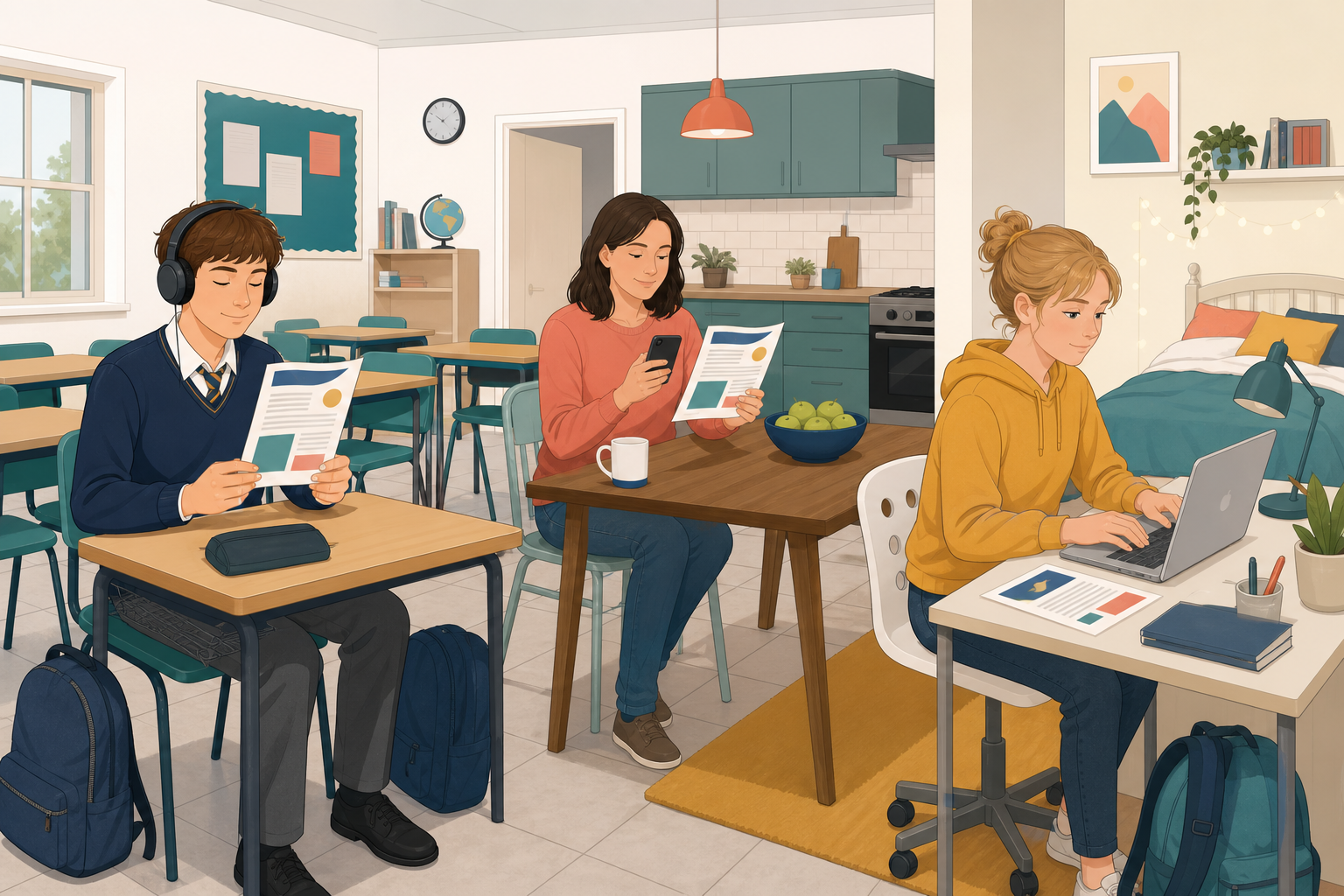 The same sheet can serve a screen-reader user, someone with low vision, and someone on a phone. Today you'll learn alt text, real headings, descriptive link text, strong contrast and readable size, then build a one-page placement sheet.
By the end of this lesson, you will be able to:
- Write alt text that says what a picture shows and why it is there
- Use real headings, descriptive links, strong contrast and readable size
- Clear the Word for the web checker or the five-point Docs checklist
Warm-up
Note one sentence: what made a document hard to use on your phone? Then move on.
2 - Key Concepts ~5 mins
| Concept | Why it matters | Example |
|---|---|---|
| Alt text: short text a screen reader reads for a picture | Without it a map is only announced as "image" | "Map of Killarney Main Street with the clinic opposite the library" |
| Real heading styles: Title and Heading 1 from Styles, not bold alone | Screen readers jump by headings; bold never appears in that list | Heading 1 on "Travel plan" so a parent can skip to it |
| Descriptive link text: clickable words name the destination | "Click here" tells nobody where the link goes | "Met Éireann forecast" instead of "click here" |
| Contrast and size: dark text on light; body at least 11 pt | Light grey on white fails in daylight on a phone | Near-black body on white (12 pt is easier on phones) |
Quick fix check: Bad link: "click here". Good: "Met Éireann forecast". Bad alt: "map". Good: full sentence of what it shows and why it is there.
3 - Step-by-step Task: Accessible Placement Practice ~18 mins
Build a short practice sheet (Title plus two Heading 1 sections): a stand-in map with alt text you write yourself, one descriptive link, then an accessibility check. Save it as {{code:06_placement_practice}}.
Title: Placement Information Sheet
Where I will be: Greenfield Veterinary Clinic, Main Street, Killarney, a short walk from the town bus stop.
Travel plan: Bus from school to Killarney town centre (about 25 minutes), then a five-minute walk along Main Street. Check local weather before you leave: Met Éireann forecast.
Map alt text (guide only, rewrite in your own words): Map of Killarney Main Street with Greenfield Veterinary Clinic marked opposite the library, two minutes from the bus stop.
Link text: Met Éireann forecast (point the link at {{code:www.met.ie}}).
Five-point checklist (Google Docs): (1) every picture has alt text, (2) section titles use real heading styles, (3) every link names its destination, (4) dark text on a light background, (5) body text at least 11 pt (12 pt is easier on phones).
If the checker or outline looks wrong after this task, use the Common Issues table next.
4 - Common Issues ~3 mins
Common Issues
| Issue | Solution |
|---|---|
| A section heading is missing from the headings / outline panel | Apply Heading 1 from Styles. Bold alone will not appear. |
| The checker still flags the picture | Rewrite alt text: what the map shows and why it is here. |
| My link still shows a long web address | Select plain words first, then insert the link on those words. |
5 - Portfolio Build: 06_placement_info_sheet ~20 mins
Independent Practice
- In {{code:Digital_Documents}}, create {{code:06_placement_info_sheet}} for your placement (or Greenfield).
- Mirror {{code:06_placement_practice}} for styles, link and checker; add three new Heading 1 sections.
- Required Heading 1 titles: Where I will be (map + your alt text); Hours; Travel plan; What to bring; Contact.
- Contact line = role only (e.g. Work experience coordinator, school office), never a personal mobile.
- At least one descriptive link (clinic site, timetable, or Met Éireann forecast), words that name the destination, not a raw URL.
- Dark text on light, body at least 11 pt; clear Word for the web checker or all five Docs checklist points.
- Stand-in shape or photo is fine for the map. Greenfield samples if needed: Hours Mon–Fri 9–5; bring notebook and closed shoes; Contact clinic reception (front desk).
- If under 10 minutes left: finish Where I will be, Travel plan and Contact first; finish Hours and What to bring next session or as homework.
- {{code:06_placement_info_sheet}} uses the five Heading 1 sections (or the three minimum if finishing later)
- The map has alt text that states what it shows and why it is there
- Every link names its destination; contact is a role title only, never a personal mobile
- The Word for the web checker is clear, or every point on the five-point checklist passes
Unlock the full learning experience
You're previewing this lesson. Get full access to this lesson and hundreds more — each one ready to teach, with interactive activities, printable resources and pupil progress tracking built in.
This lesson is copyright of Coding Ireland 2017 - 2025. Unauthorised use, copying or distribution is not allowed.