You're previewing the student experience. You don't need to complete this lesson — your progress and XP aren't saved.
Scratch Game
Beginner
60 mins
Teacher/Student led
+170 XP

What you need:
Chromebook/Laptop/PC or iPad/Tablet

Diver Game

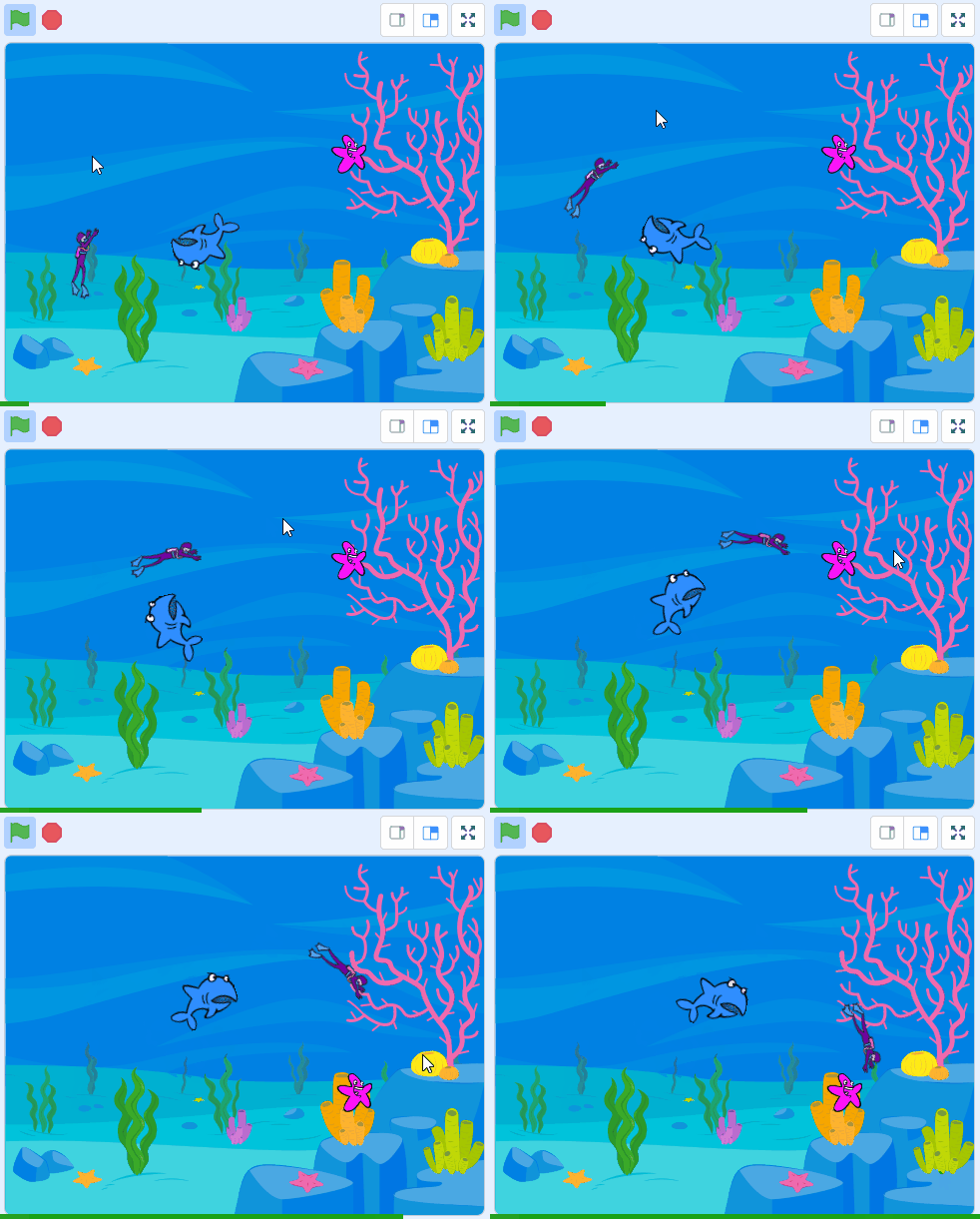
In this lesson, students will create an interactive game using Scratch. They will learn to control a diver sprite with their mouse, collect starfish appearing at random positions, and evade a shark that follows them. The lesson covers creating and programming sprites, implementing game logic, and using conditionals to trigger game events.
Teacher Class Feed

Load previous activity

    1 - Welcome to the Diver Game

    Welcome to our exciting coding adventure! Today, we are going to create a fun and interactive game called the 'Diver Game'. In this game, you will control a diver who is swimming in the ocean. Your mission is to collect as many starfish as you can while avoiding a shark that's trying to catch you! Sounds thrilling, right? Let's dive in!

    In this game, we will have 3 characters, also known as sprites:

    1. A diver that you will control with your mouse.
    2. Starfish that will appear in random places for the diver to collect.
    3. A shark that will slowly follow the diver and try to catch him.

    Are you ready to start coding your very own Diver Game? Let's go!


    2 - Create a new Scratch project

    Create a new Scratch project and delete the cat sprite.


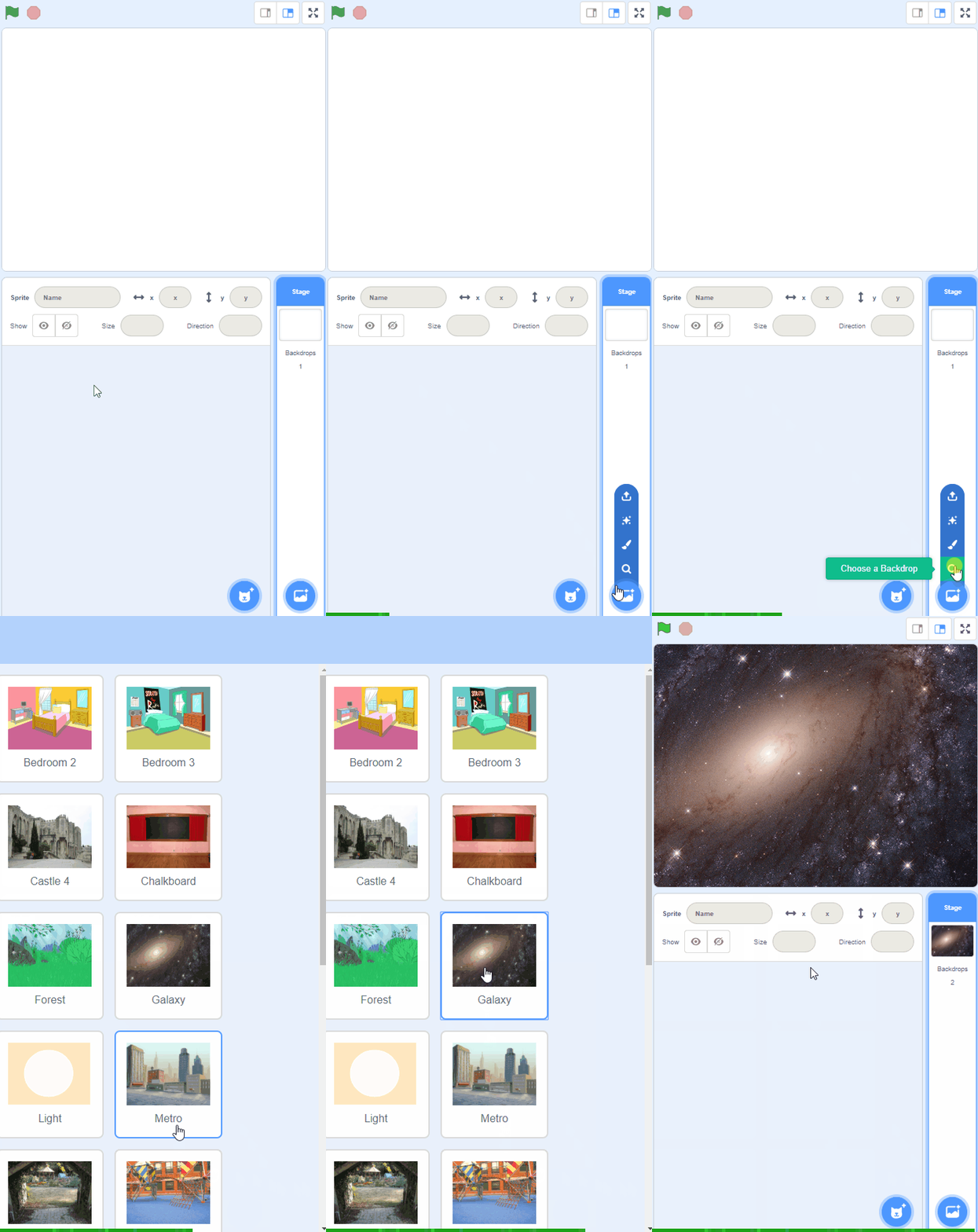
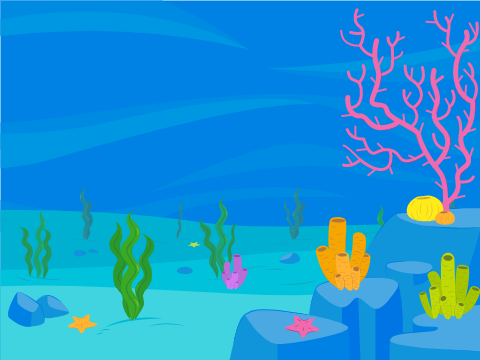
    3 - Add the Underwater 1 backdrop

    Add the Underwater 1 backdrop to the project.


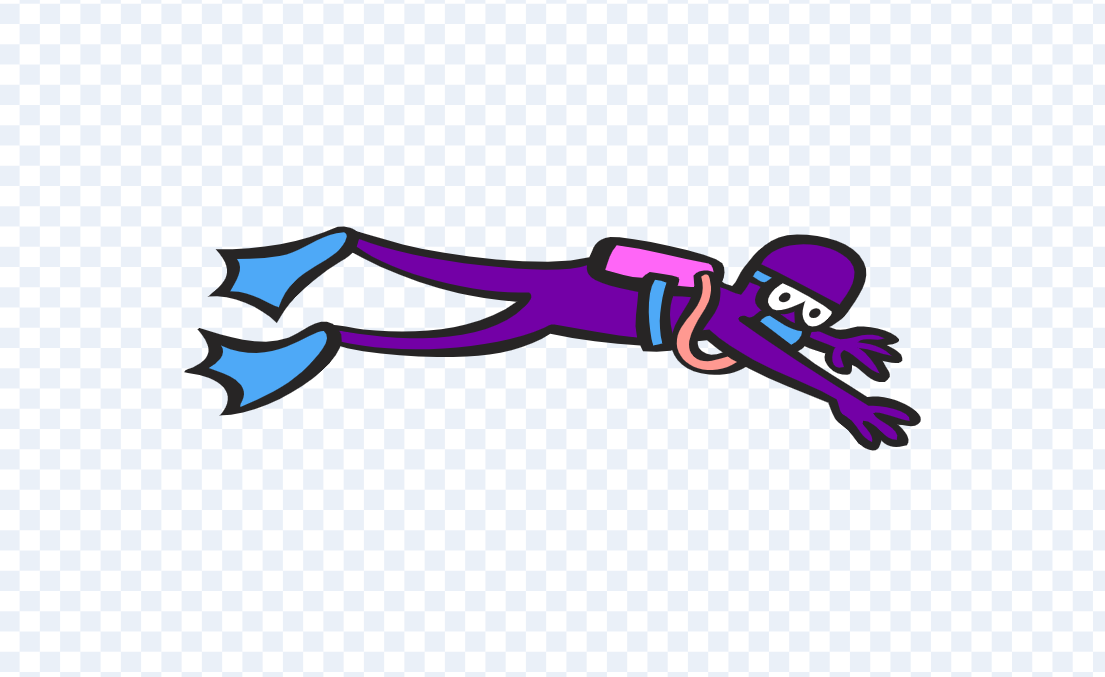
    4 - Add and program the Diver1 sprite

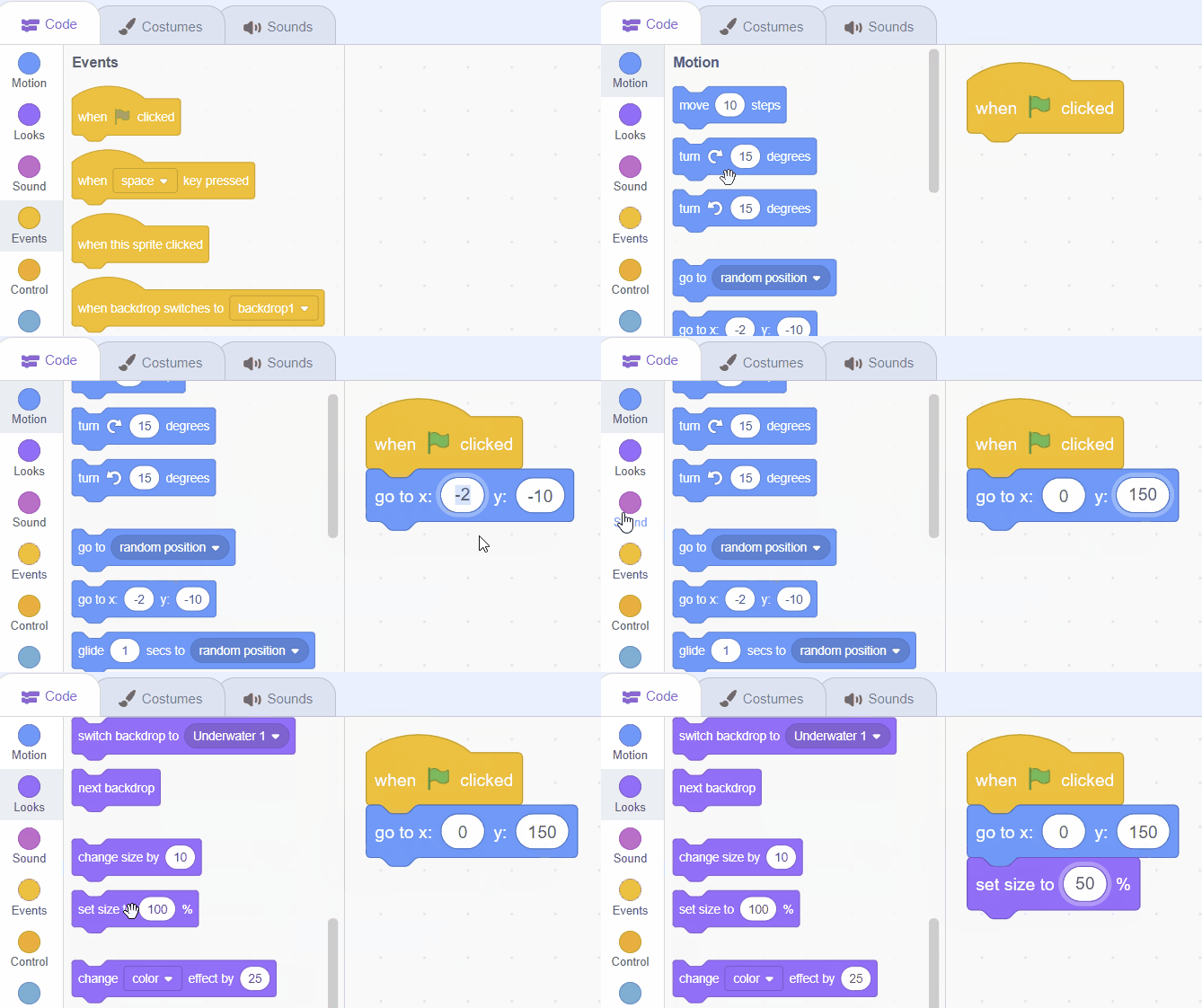
    Add the Diver1 sprite from the sprite library. We are going to position the diver at the top middle of the stage area and shrink him to half his size.

    Add the following code to the Diver1 sprite.

    when green flag clicked go to x (0) y (150) set size to (50) %
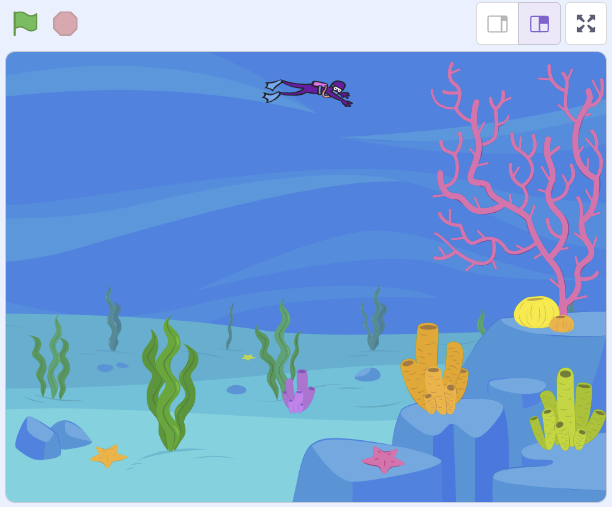
    Once you've added this new code, click on the green flag and check that it works. The diver should go to the top middle of the stage area (x = 0, y = 150) and shrink to 50% of his original size.


    5 - Make the diver swim

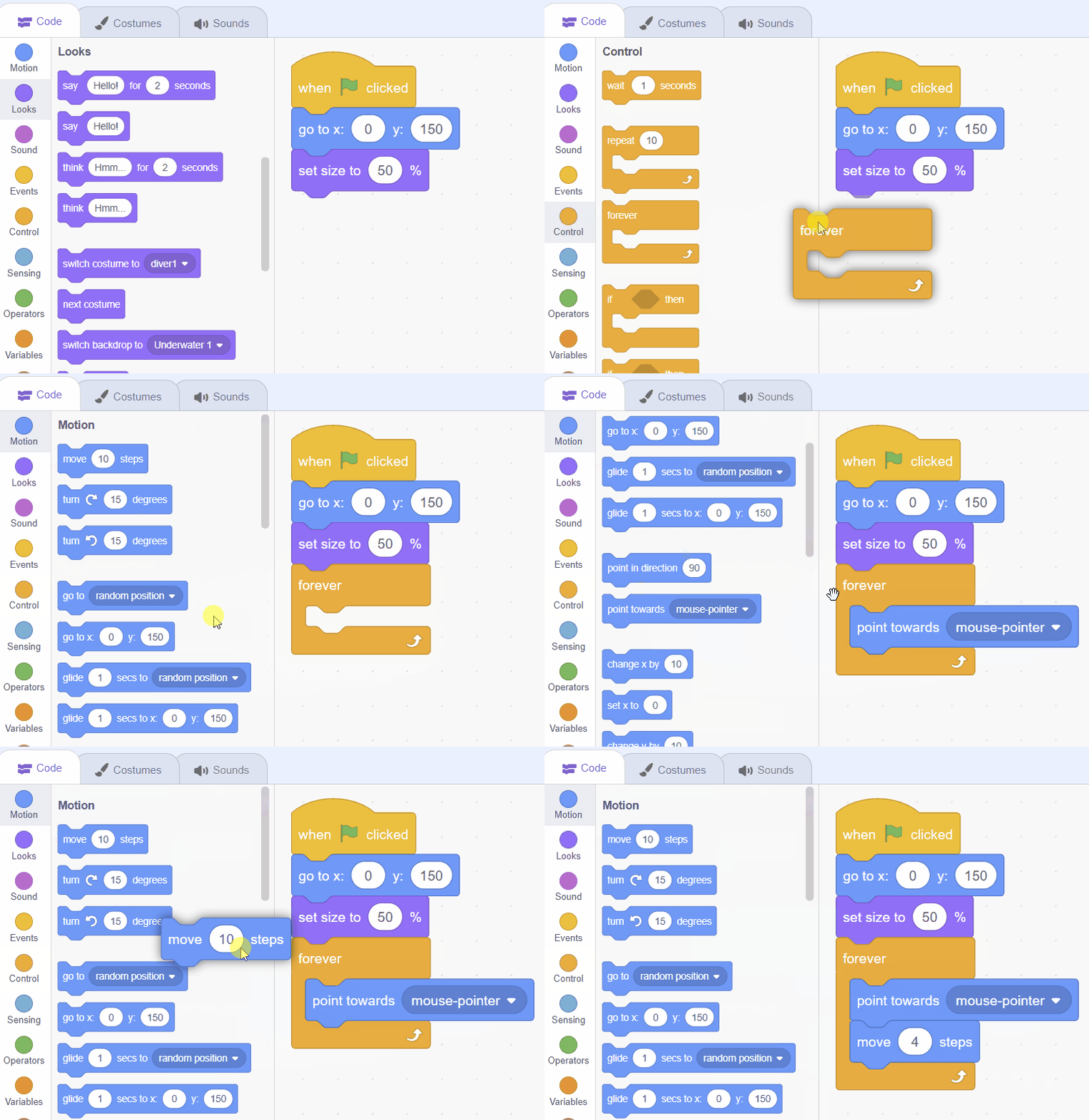
    Next we are going to program the diver to always point towards your mouse pointer and move towards it. This is how you will control where the diver swims to.

    Add the following new code to the Diver1 sprite.

    when green flag clicked go to x (0) y (150) set size to (50) % // add new code under here forever point towards (mouse-pointer v) move (4) steps end
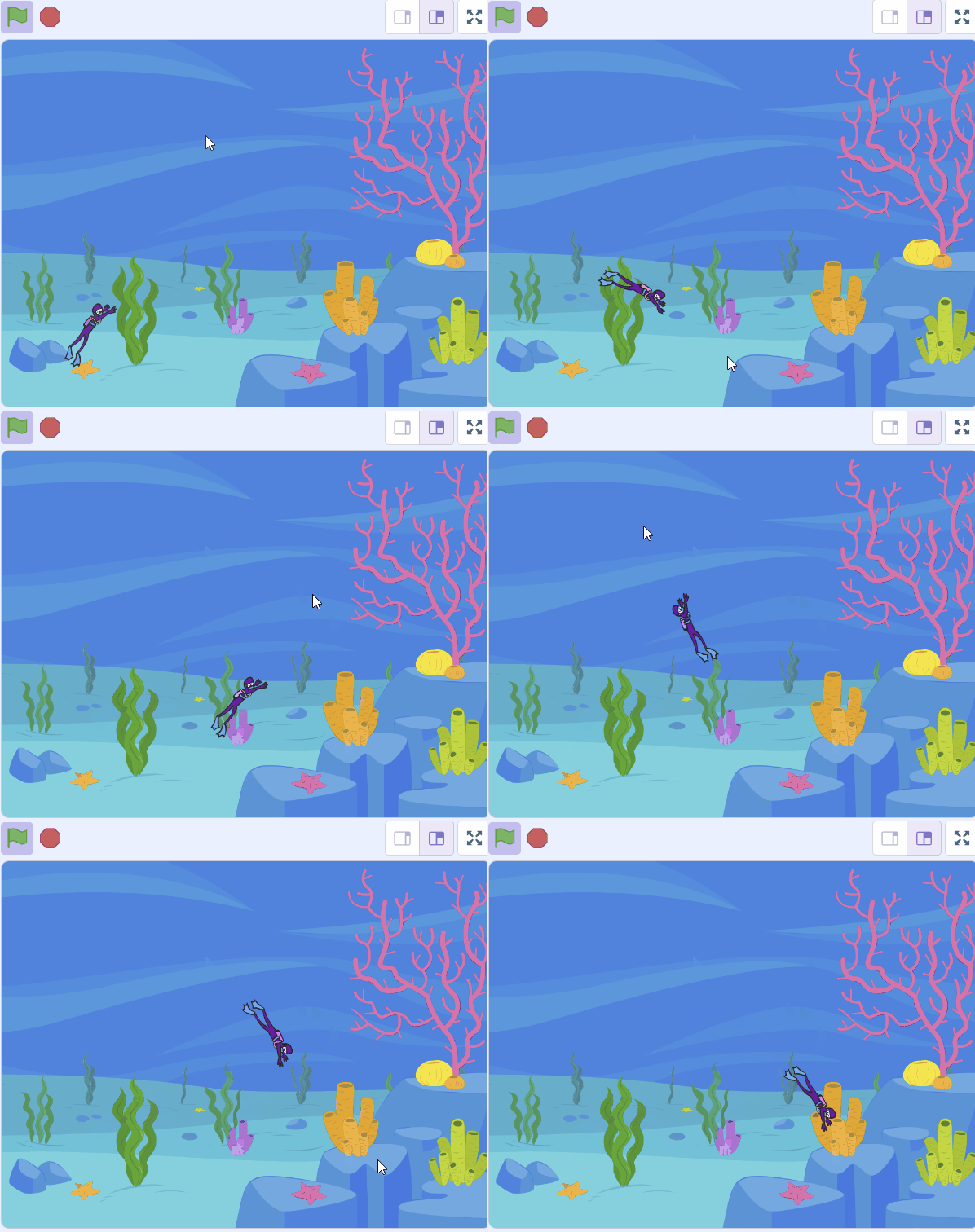
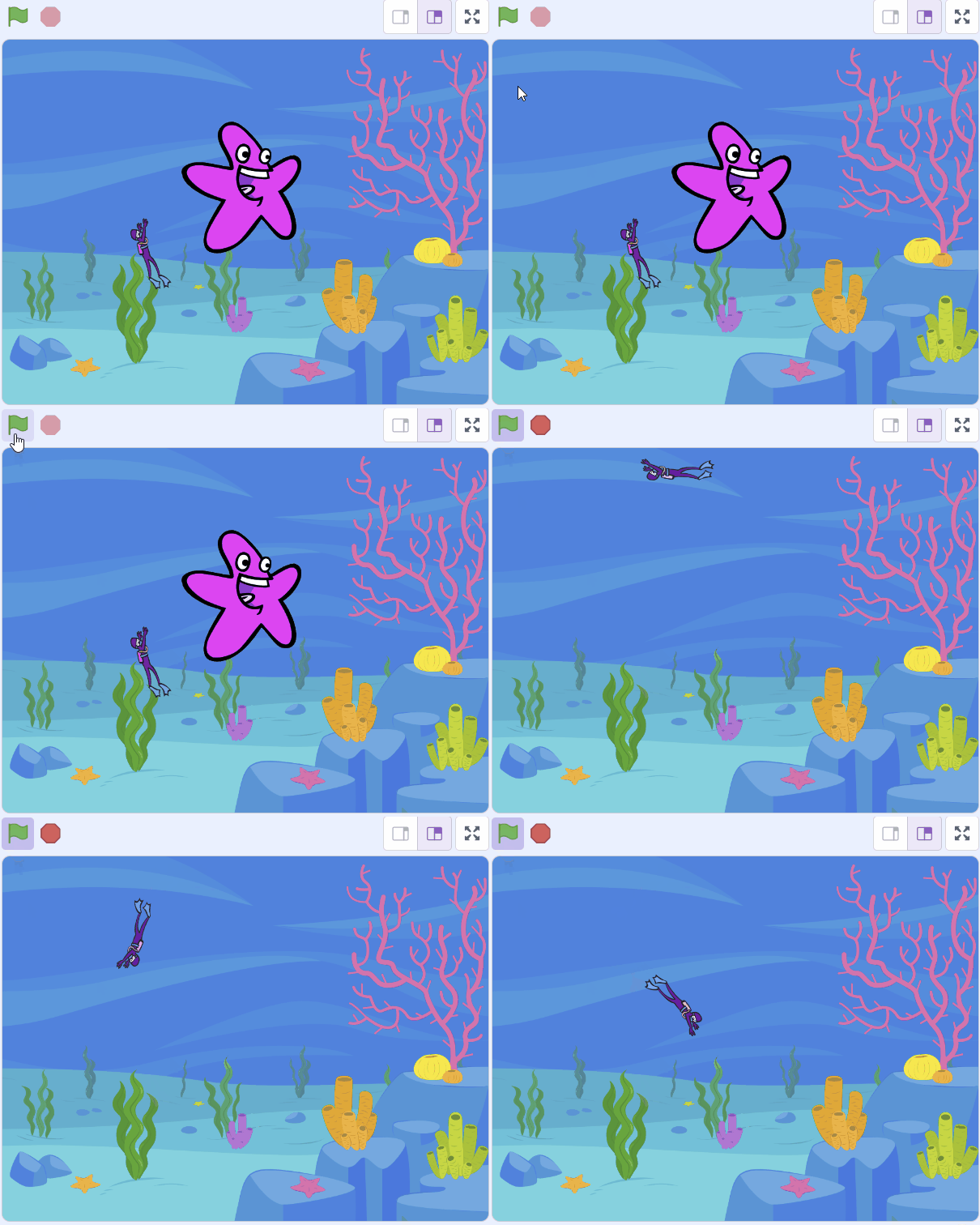
    Once you've added this new code, click on the green flag and check that it works. The diver should point towards and move towards wherever your mouse pointer is.


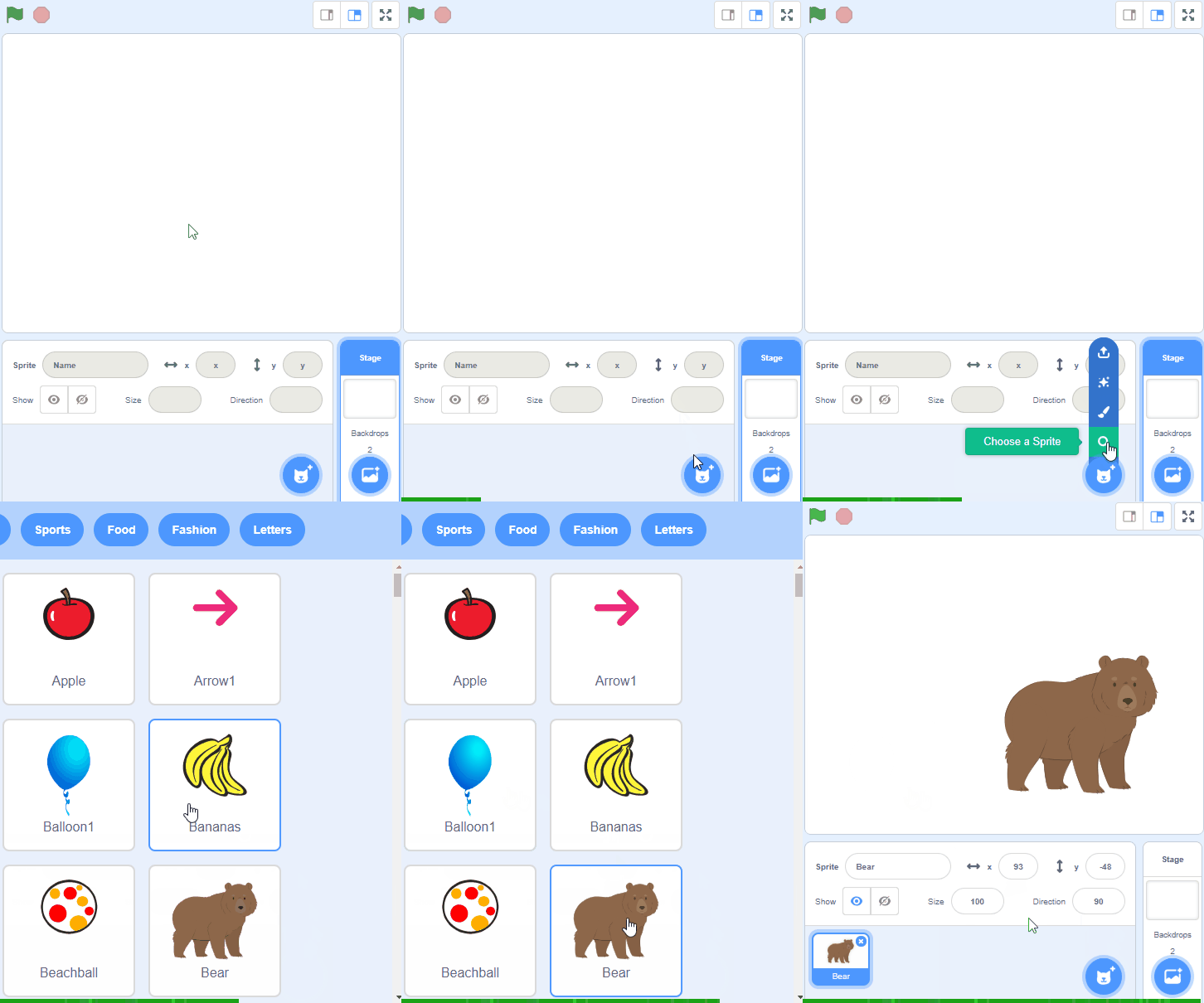
    6 - Add the Starfish sprite

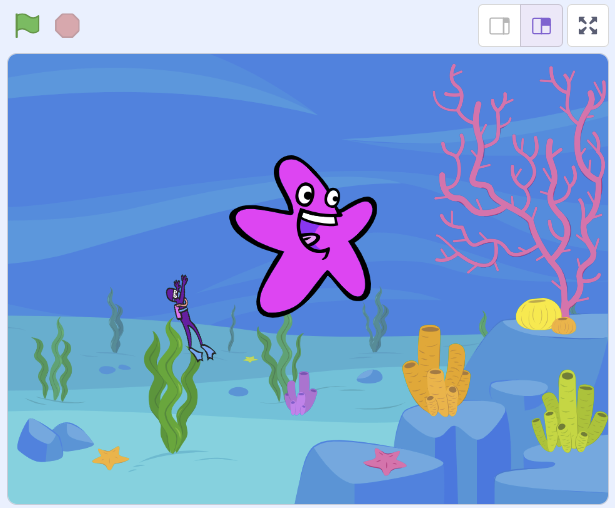
    Now add the Starfish sprite to your project.


    7 - Hide the Starfish and create a clone

    At the start of the game the starfish will appear in a random position and each time you catch a starfish a new one will appear somewhere else.

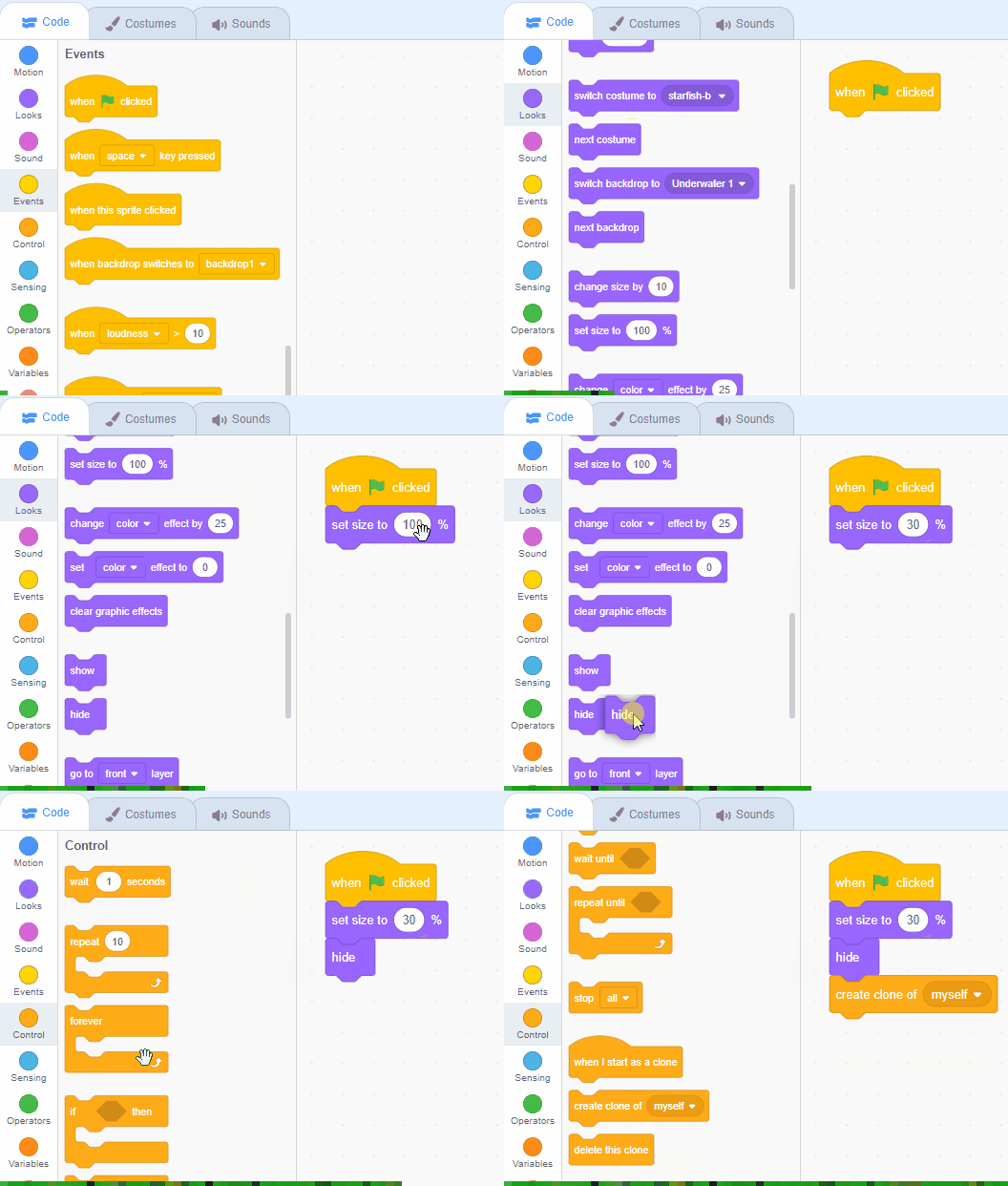
    Add the following code to the Starfish sprite to change it's size, hide it and create a copy of it.

    when green flag clicked set size to (30) % hide create clone of (myself v)

    Click on the green flag and the Starfish should disappear (for now). We will program it to re-appear in different places in the next step.


    8 - Program the Starfish

    Now let's program what the starfish should do when a copy (or a clone) of it is created.

    When the copy is created we will program it to:

    1. go to a random position
    2. make it appear
    3. using the sense block touching [Diver1] ? keep checking if it is touching the Diver1 sprite and if it is create a new copy of it and delete this one

    Add the following code to the Starfish sprite.

    when I start as a clone go to (random position v) show forever if < touching [Diver1 v] ? > then create clone of (myself v)// create a new copy delete this clone // delete this one end end

    Click on the green flag and now when the diver touches the starfish, the starfish will disappear and then re-appear in a new random place.


    9 - Introducing the Shark

    Time to add some thrill to our game! Let's introduce a shark. First, add the Shark 2 sprite from the library. Next, we will program the shark to appear at a random position and then start chasing the diver.

    Add the following code to the Shark 2 sprite.

    when green flag clicked set size to (50) % go to (random position v) forever point towards (Diver1 v) move (2) steps // slower than the diver end
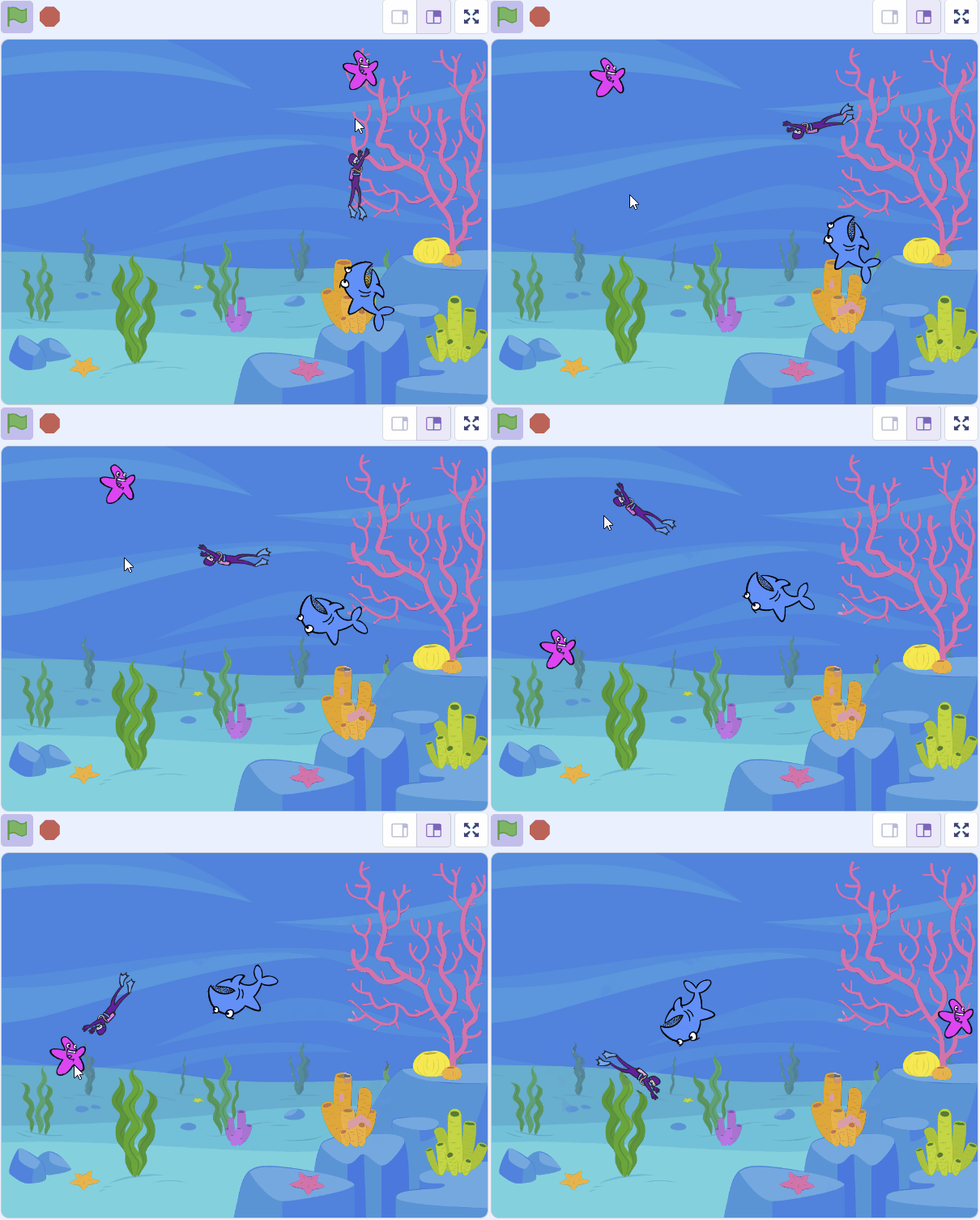
    Once you've added this new code, click on the green flag and check that it works. The shark should appear at a random position and start chasing the diver.


    10 - Game Over

    Now, let's add some code to stop the game if the shark catches the diver. We will use the block touching [Diver1] ? to sense if the shark sprite is touching the diver sprite. If it is, we will stop all the code so that the game is over.

    Add the following new code to the Shark 2 sprite underneath the move 2 steps block.

    when green flag clicked set size to (50) % go to (random position v) forever point towards (Diver1 v) move (2) steps if < touching [Diver1 v] ? > then stop [all v] end end

    Once you've added this new code, click on the green flag and check that it works. If the shark catches the diver, the game will stop.


    11 - Wrap up

    Congratulations! You have successfully created your Diver Game. You've learned how to control a sprite with your mouse, make a sprite appear at random positions, and create a game where a sprite follows another. You've also learned how to use conditionals to trigger game events. Keep practicing these skills and see what other games you can create. Well done!
    End of lesson
    123learn · Sample lesson

    That was a sample lesson from Dynamic Digital Projects

    Every lesson in the course is ready to teach like this one. See what else comes with it, and how to order it.

    Copyright Notice
    This lesson is copyright of Coding Ireland 2017 - 2026. Unauthorised use, copying or distribution is not allowed.

    Scratch is developed by the Lifelong Kindergarten Group at the MIT Media Lab. It is available for free at https://scratch.mit.edu
    🍪 Our website uses cookies to make your browsing experience better. By using our website you agree to our use of cookies. Learn more