Today you will
- learn where your work lives when the power goes
- save your Project Brief in three places
- make a document that proves each save
Warm-up
You have typed half a page of your Project Brief and the computer restarts. What is still there, and what is gone?
You need {{code:01_project_brief}} today. If you can't find it, tell your teacher.
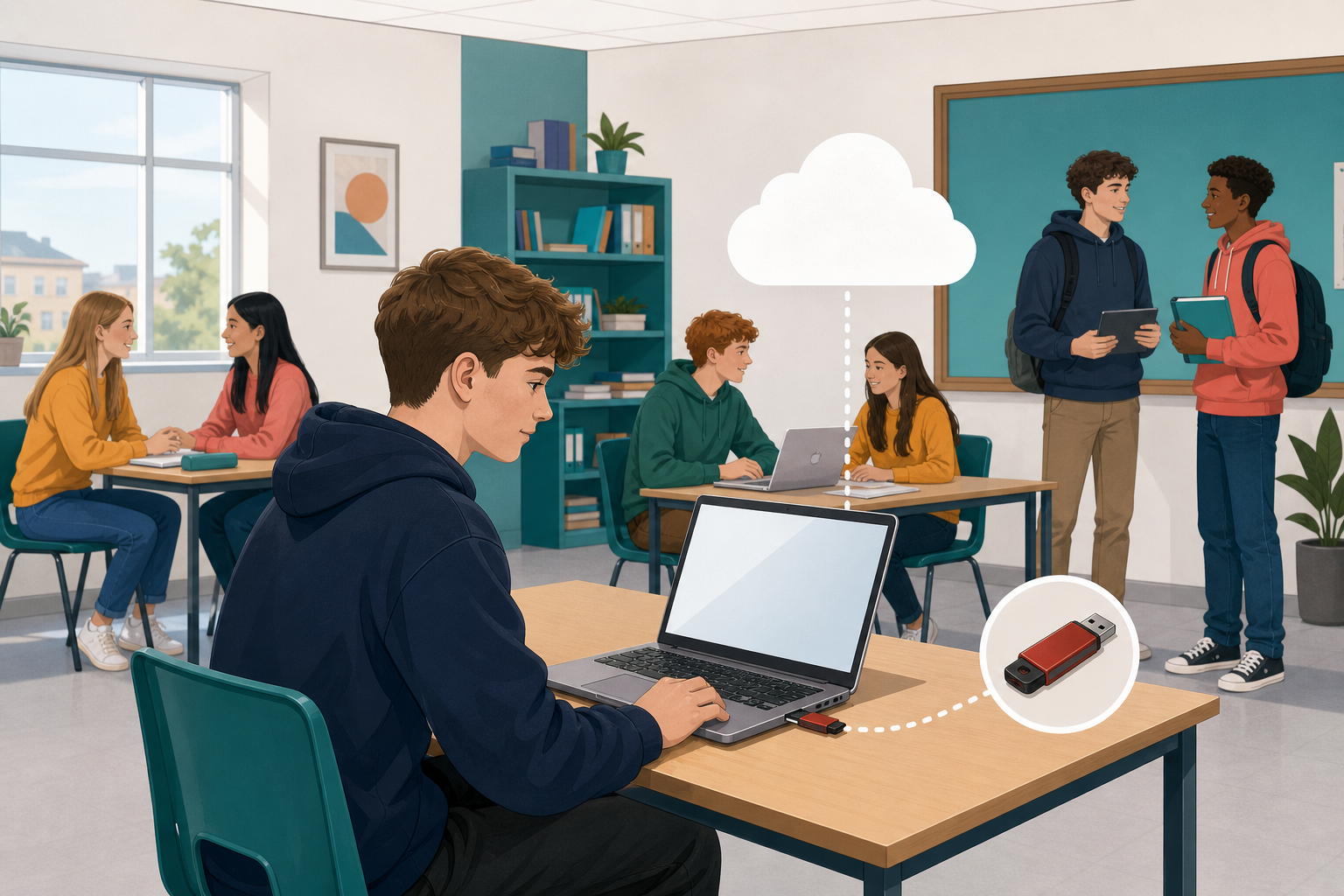 Where does your work actually live? Here are the places it can be.
- RAM is the computer's working memory. Unsaved work lives here, and a power cut wipes it. That's why you save often.
- Permanent storage is where saved files go. They are still there tomorrow.
- Local storage is on this computer only.
- Portable storage is a USB stick you carry between computers.
- Cloud storage is your school OneDrive or Google Drive. You can open it anywhere.
One file, three homes
Today your Project Brief goes in three homes: Documents, a USB stick and the cloud.
Sort each card into the place it really lives. First talk about each card as a class, without dragging. Then drag the cards into place and check your answers.
RAM, local, portable or cloud?
Common issues
- If you have no USB stick, make a folder on the Desktop called {{code:USB_Simulated}} and use that instead.
- If you can't find {{code:01_project_brief}}, look in Project Portfolio first, then in Documents and on the Desktop.
- To take a screenshot, press {{kbd:Win+Shift+S}} on Windows, {{kbd:Cmd+Control+Shift+4}} on a Mac or {{kbd:Ctrl+Overview}} on a Chromebook. Then paste it with {{kbd:Ctrl+V}} or {{kbd:Cmd+V}}.
Portfolio Build
- Put a copy of {{code:01_project_brief}} in Documents on this computer. If it only opens in the browser, click {{menu:File -> Download}} first.
- Copy the same file onto a USB stick or into {{code:USB_Simulated}}.
- Upload the same file into your Project Portfolio folder in the school cloud.
- Take a screenshot of each place, with the file name showing.
- In Project Portfolio, make a document called {{code:01_saved_in_three_places}}. Paste in your three screenshots and write a caption under each one.
Portable: USB_Simulated on the Desktop (or my USB stick)
Cloud: Project Portfolio
- My brief is in Documents, on a USB (or {{code:USB_Simulated}}) and in the cloud.
- {{code:01_saved_in_three_places}} is in Project Portfolio.
- Each screenshot shows the file name clearly.
- Each screenshot has a caption naming the storage type.
Unlock the full learning experience
You're previewing this lesson. Get full access to this lesson and hundreds more — each one ready to teach, with interactive activities, printable resources and pupil progress tracking built in.
This lesson is copyright of Coding Ireland 2017 - 2025. Unauthorised use, copying or distribution is not allowed.