Beginner
60 mins
Teacher/Student led
+65 XP

Common File Types and Formats

Recognise common file extensions including docx, pdf, jpg, png, mp3, mp4, xlsx, pptx and zip. Match each file type to its typical purpose and the application that opens it, and explain when PDF is useful for finished work.

Teacher Class Feed

Load previous activity

    1 - Introduction ~5 mins

    Welcome

    Every file on your machine ends with a short tag after the dot: {{code:.docx}}, {{code:.pdf}}, {{code:.jpg}} and so on. That tag is the file type, and it tells the computer which app should open the file. Today you will learn to read those tags at a glance so you stop guessing, stop double-clicking the wrong thing, and pick the right format when you send finished work for your Something Real project.

    By the end of this lesson, you will be able to:

    • Recognise common extensions including docx, pdf, jpg, png, mp3, mp4, xlsx, pptx and zip
    • Match each file type to its typical purpose and the application that opens it
    • Explain when PDF is useful for finished work and what goes wrong opening the wrong format
    • Identify sample filenames by type and opening application

    Warm-up

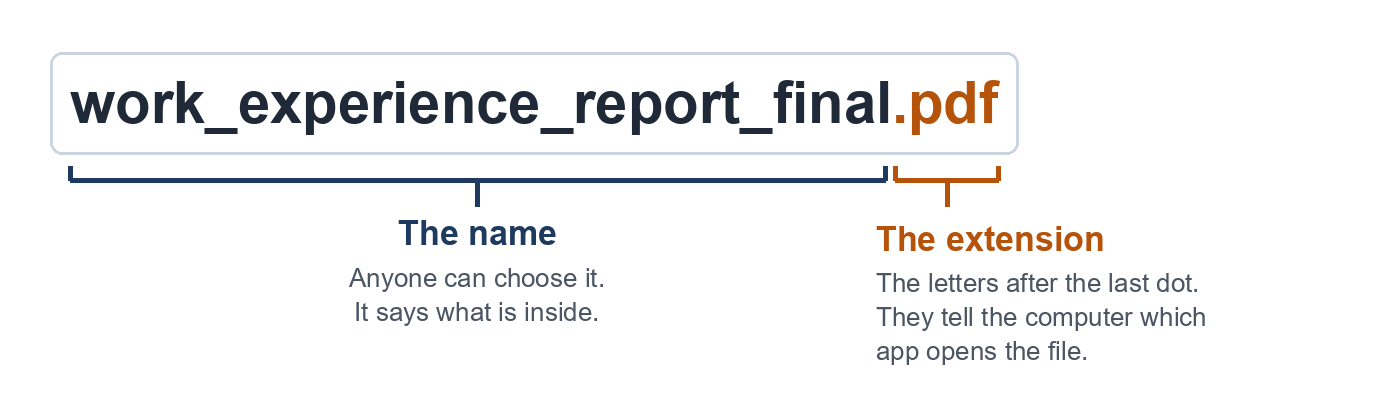
    Look at this filename. Without opening it, what kind of file is it, and would you expect to edit it easily or mainly read and send it?

    FilenameYour quick guess
    {{code:work_experience_report_final.pdf}}Type? Easy to edit, or mainly read and send?

    Keep your answer ready. We will come back to PDFs in a few minutes.

    2 - Key Concepts ~10 mins

    Key point

    A file extension is the short code after the final dot in a filename. It is not decoration. It is the label that links the file to the right application.

    Today we lock four anchors. The full set of common extensions stays on screen as a quick-reference card you can look up during the sort and Portfolio Build.

    ConceptWhy it mattersExample
    File extension — the letters after the final dot (for example {{code:.docx}})Tells the computer which app should open the file{{code:placement_hours.xlsx}} opens in Excel Online or Google Sheets, not a photo app
    docx vs pdf — {{code:.docx}} is editable; {{code:.pdf}} keeps a fixed layoutDraft in docx; send finished work as pdf so layout does not shift on someone else's machineYour Something Real proposal stays {{code:.docx}} while you edit; the version you email a supervisor is {{code:.pdf}}
    Opening the wrong format — forcing a file into an app that does not understand itYou get garbage text, a blank window, or a false "corrupt file" messageA {{code:.docx}} opened in a plain text editor looks like code mess; the file is fine, the app is wrong
    Zip archives ({{code:.zip}}) — one compressed package that can hold many filesEmail and uploads often cap size; zip several files into one attachmentThree product photos plus a price list become {{code:promo_assets.zip}}

    Pause: warm-up callback

    The PDF rule

    Back to {{code:work_experience_report_final.pdf}}. It is a finished, fixed-layout document. You mainly read and send it; full edit is not the point. That is the PDF rule in one line.

    Quick-reference card (keep visible)

    Use this card during the sort and Portfolio Build. Pair twins share a job family.

    ExtensionJobOpen with
    {{code:.docx}}Draft and edit textWord Online or Google Docs
    {{code:.pdf}}Finished work to read and sendBrowser or PDF reader
    {{code:.xlsx}}Budget, tracker, tallyExcel Online or Google Sheets
    {{code:.pptx}}Slide deck / pitchPowerPoint Online, Google Slides, or Canva
    {{code:.jpg}} / {{code:.png}}Photo (jpg) or sharp logo, often with clear background (png)Photos, Preview, browser, or image editor
    {{code:.mp3}} / {{code:.mp4}}Audio only (mp3) or video (mp4)Media player in the browser or OS
    {{code:.zip}}Compressed package of several filesExtract first, then open the files inside

    Layout model for your portfolio sheet

    Your Portfolio Build uses this three-column shape. One sample row only — you will fill ten new names yourself.

    FilenameTypeOpen with
    {{code:sample_name.docx}}Word-processed documentWord Online or Google Docs

    3 - Which App Opens This File? ~12 mins

    As a class, sort each filename into the application that should open it. First talk the placements through. Then drag the cards and use Check to confirm. Use the quick-reference card on screen if you need a nudge — read the extension, do not guess from the name alone.

    Which app opens this file?

    4 - Common Issues ~3 mins

    Common Issues

    IssueSolution
    I cannot see any extension on my filenamesYour device may be hiding extensions. On Windows, open File Explorer, go to View and tick "File name extensions". On a Mac, in Finder use {{menu:Finder -> Settings -> Advanced}} and tick "Show all filename extensions". On a Chromebook, extensions usually show in the Files app by default.
    I double-clicked a file and got nonsense text or a blank windowThe file is probably fine; the wrong app opened it. Check the extension, close the window, and open the file from inside the correct application (or right-click and choose Open with).
    I sent a {{code:.docx}} and the other person says the layout looks brokenExport or save a {{code:.pdf}} copy for finished work. PDF keeps fonts, spacing and images stable across different machines.
    I cannot open a {{code:.zip}} like a normal folder of photosExtract or decompress it first. On Windows, right-click the zip and choose Extract All. On a Mac, double-click the zip. On a Chromebook, double-click the zip in Files. Then open the files that appear.

    5 - Portfolio Build ~20 mins

    We are all building this now. On the teacher's count, open {{code:Project_Portfolio}} then {{code:01_brief}} on screen before anyone creates a document. If {{code:01_brief}} is missing, create that folder inside {{code:Project_Portfolio}} first, then continue.

    Independent Practice

    Your goal: Build a clear file-type recognition sheet in your Project Portfolio so you can name and open the right formats when you create documents, budgets, images and finished PDFs for your Something Real project.
    Time: ~20 minutes
    Task: After the folder check, go to {{code:onedrive.com}} (Word Online) or {{code:drive.google.com}} (Google Docs) and open {{code:Project_Portfolio}} then {{code:01_brief}}. Create a new blank document inside {{code:01_brief}}. Click the title at the top and rename it exactly {{code:01_file_type_recognition}} (same name on both platforms — no extra words). Insert a table with 10 rows and 3 columns. Head the columns Filename, Type, Open with. Copy the ten sample filenames below into the Filename column, then fill Type and Open with for every row using the quick-reference card (not a copied answer key). Add one sentence under the table naming which format you will use when you send finished work from your Something Real project, and why. If time is short, finish the PDF sentence even if a couple of rows are still thin — that sentence is the minimum finish line.
    Success criteria:
    • {{code:01_file_type_recognition}} sits inside {{code:Project_Portfolio}}/{{code:01_brief}} with that exact name
    • All ten supplied filenames are listed with a sensible type and opening application
    • At least one row correctly treats PDF as finished, fixed-layout work
    • A closing sentence names the format you will use for finished project work and gives a clear reason

    Ten sample filenames (use these exact names — they are new)

    1. {{code:work_exp_timesheet.xlsx}}
    2. {{code:menu_specials.png}}
    3. {{code:supervisor_letter.pdf}}
    4. {{code:team_huddle.mp4}}
    5. {{code:receipts_pack.zip}}
    6. {{code:apprenticeship_notes.docx}}
    7. {{code:first_week_costs.xlsx}}
    8. {{code:client_pitch.pptx}}
    9. {{code:counter_photo.jpg}}
    10. {{code:meeting_audio.mp3}}

    The quick-reference card from Key concepts stays on screen as a legitimate support for everyone. Use it for layout and lookup; do not copy old answer rows that are not on this list.

    123learn · Online learning platform

    Unlock the full learning experience

    You're previewing this lesson. Get full access to this lesson and hundreds more — each one ready to teach, with interactive activities, printable resources and pupil progress tracking built in.

    Hundreds of curriculum-aligned lessons
    Interactive activities in every lesson
    Printable resources & progress tracking
    Copyright Notice
    This lesson is copyright of Coding Ireland 2017 - 2025. Unauthorised use, copying or distribution is not allowed.
    🍪 Our website uses cookies to make your browsing experience better. By using our website you agree to our use of cookies. Learn more