 You can already train an image model for hand gestures. Today in Scratch you will load that model into a rock, paper, scissors game and play against the computer.
Before you build, think: what might go wrong if the model is only slightly sure about a gesture? Open the project space you saved earlier and get ready to build step by step: predict, run, investigate, modify, then make it your own.
Your rock, paper, scissors game has four parts:
- Load your model into Scratch so the project can use it.
- Read what it sees from the webcam, and only act when it is confident enough.
- Pick the computer's choice at random.
- Compare the two and decide win, lose or draw.
The confidence threshold is the interesting one: it decides how sure the model has to be before your game acts on what it thinks it sees.

Go to https://stretch3.github.io/ and start a new Scratch project and delete the Cat sprite.
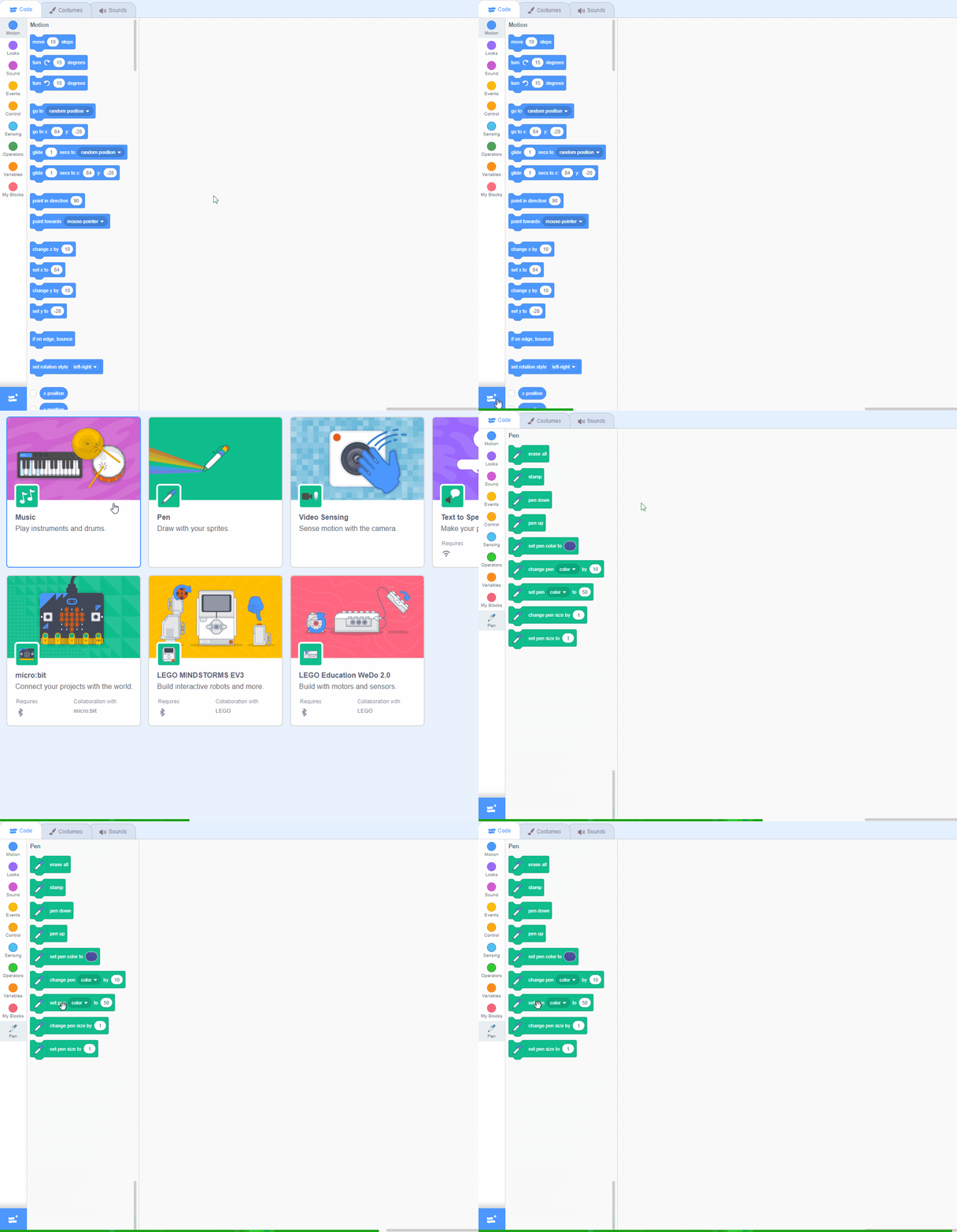
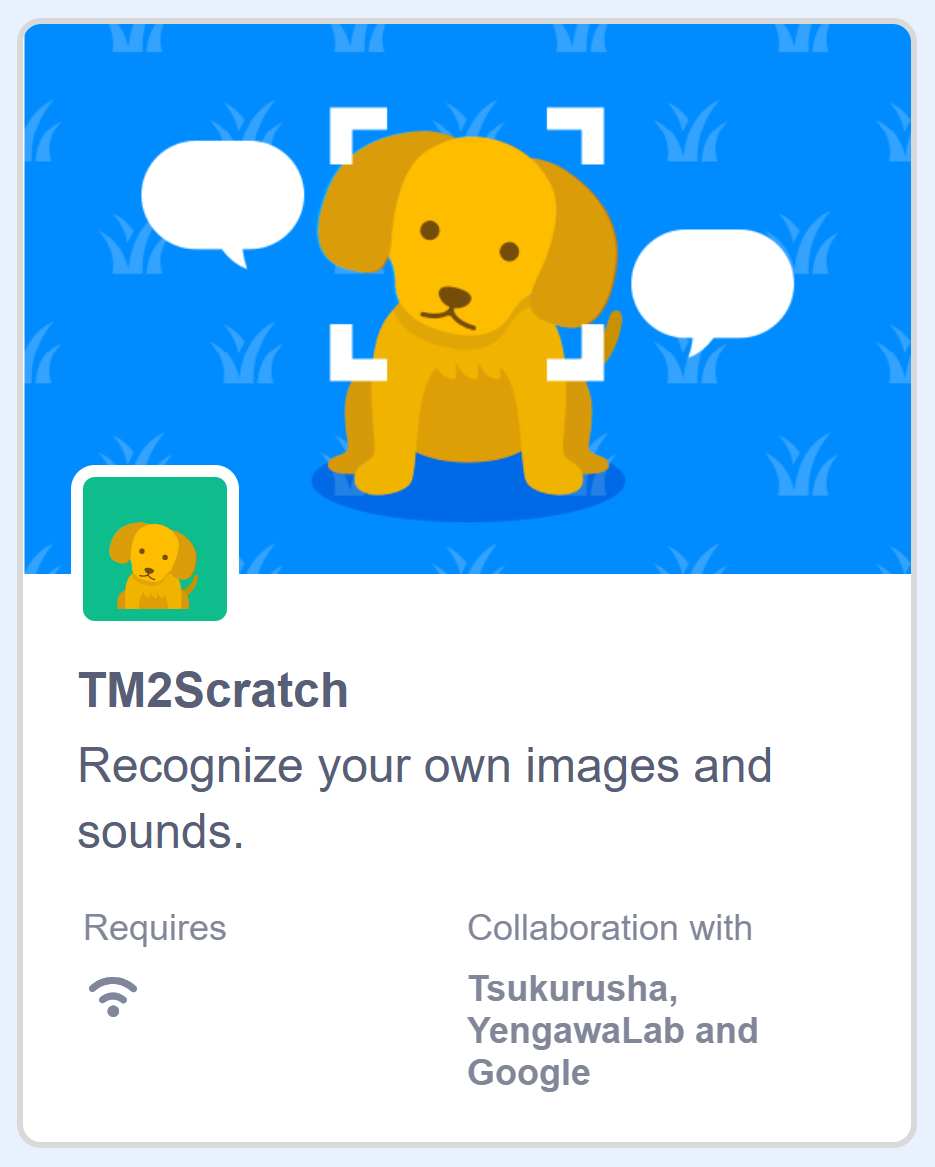
Then, add the TM2Scratch extension by clicking on the Extensions button at the bottom left corner of the screen and selecting TM2Scratch. This extension allows you to use Google Teachable Machine Image models in your Scratch projects.
When you add this extension, it will automatically try and use your computer's camera. If necessary, click on 'Allow' to give it permission to use your camera. You should see what the camera is showing in the stage area.
Understanding and Adding Extensions in Scratch
What are Scratch Extensions?
Scratch Extensions are additional sets of blocks that expand the capabilities of your Scratch projects. They allow you to:
- Mention extensions like Pen here
- Connect with external hardware (e.g., microbits)
- Access web-based services (e.g., Google Translate, Amazon Text to Speech)
- Use more advanced programming features
How Extensions Work
When you add an extension to your project:
- New blocks appear in the blocks palette
- These blocks are grouped under a category named after the extension
- You can use these blocks just like any other Scratch blocks
Adding an Extension to Your Project
- Look for the "Add Extension" button in the bottom-left corner of the Scratch editor
- Click the "Add Extension" button
- A window will open showing all available extensions
- Browse through the options or use the search bar to find a specific extension
- Click on the extension you want to add
- The extension is now added to your project, and its blocks appear in the blocks palette

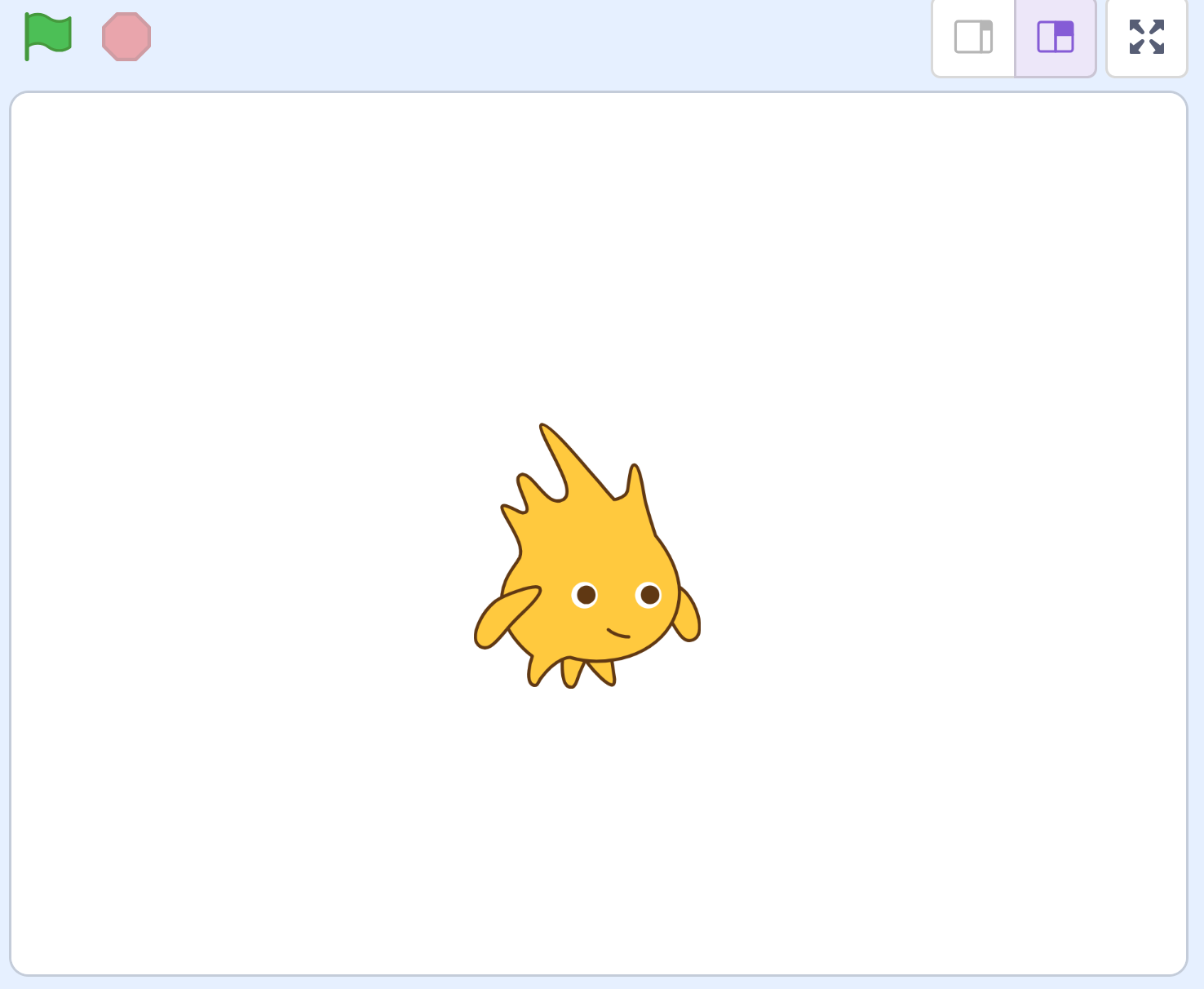
Add a new sprite to the project that will represent the computer's choice in the game. You can choose any sprite you like, but for this example, we'll use the 'Gobo' sprite.
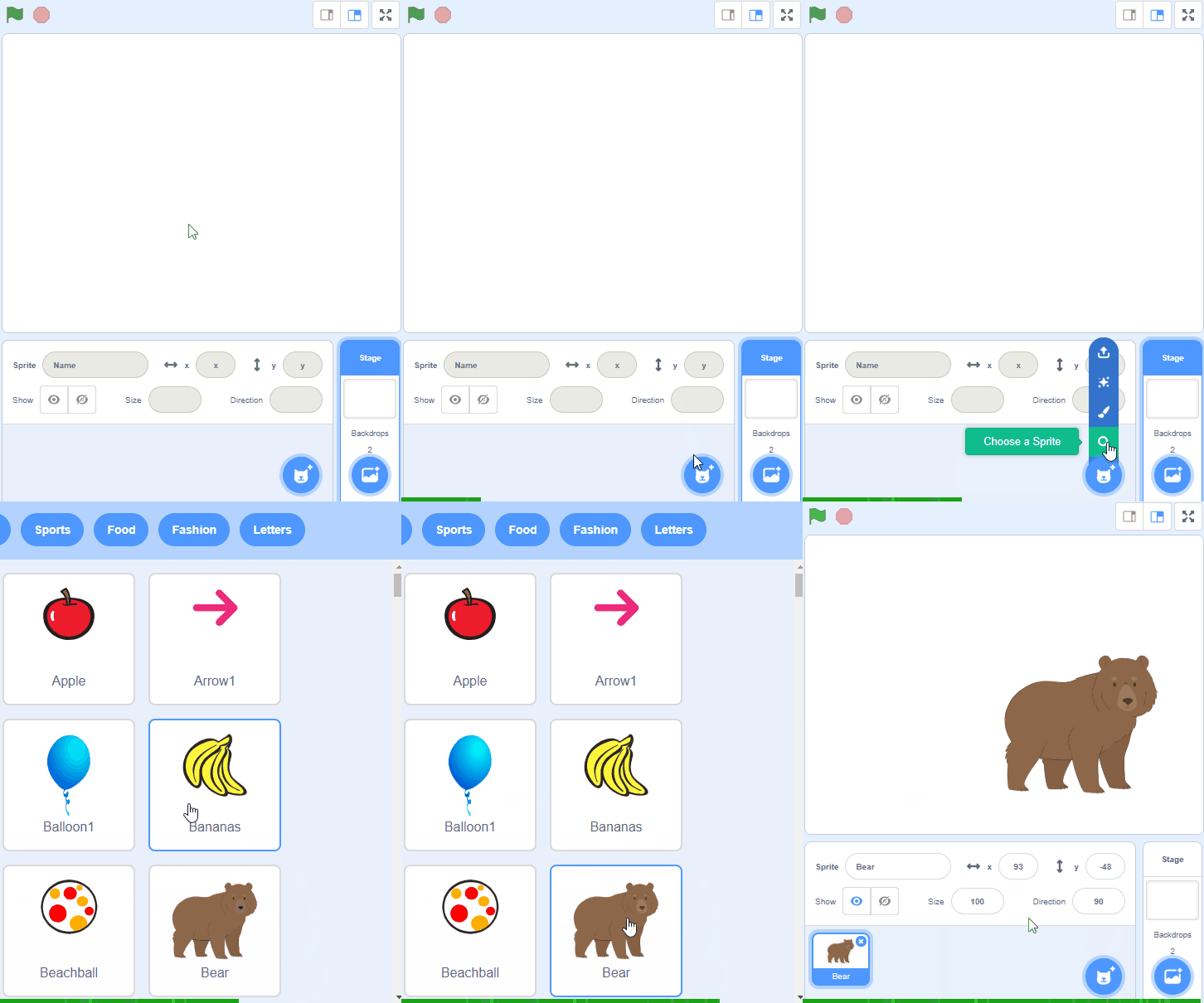
To add a sprite from the sprite library follow these steps:
- Put your mouse over the Choose a Sprite button
- Click on the magnifying glass
- Find the sprite you want in the library
- Click on your chosen sprite
You can use search box or the filter links (Animals, People, Fantasy etc) to locate your sprite.
Create three new variables:
playerChoice- to store the player's choice.computerChoice- to store the computer's choice.result- to store the result of the game.
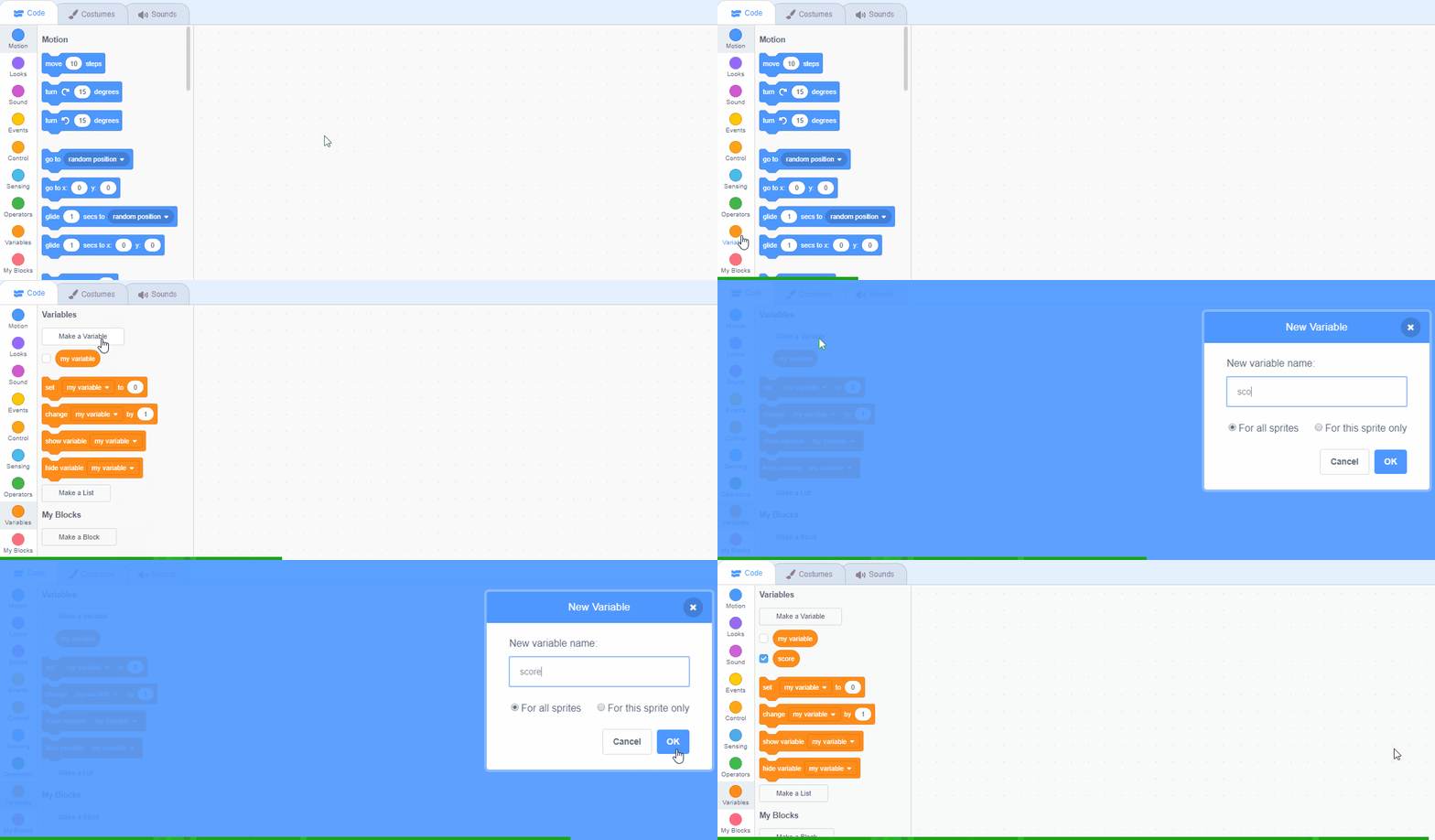
In the Variables palette, create a new variable by clicking the 'Make a Variable' button.
Once you click this button a box will appear asking what you want to call your variable. Give it a name that reminds you what you will be using it for. For example, if you wanted to keep track of your score in a game, you would create a variable called 'score'.
Unlock the full learning experience
You're previewing this lesson. Get full access to this lesson and hundreds more — each one ready to teach, with interactive activities, printable resources and pupil progress tracking built in.
This lesson is copyright of Coding Ireland 2017 - 2025. Unauthorised use, copying or distribution is not allowed.
Scratch is developed by the Lifelong Kindergarten Group at the MIT Media Lab. It is available for free at https://scratch.mit.edu