Intermediate
60 mins
Teacher/Student led
+65 XP

Cloud Storage and School Accounts

Learn the basics of cloud storage by signing into your school OneDrive or Google Drive on a classroom computer. Upload your Project Portfolio, check version history, and sign out securely to keep your work safe on shared machines.

Teacher Class Feed

Load previous activity

    1 - Introduction ~5 mins

    Welcome

    Illustration for IntroductionYour Something Real work only helps you if you can still open it next week, on another machine, without panic. Today you learn what cloud storage actually is, how to sign into your school OneDrive or Google Drive on a classroom computer, how to back up your Project Portfolio there, and how to sign out so the next person cannot open your account.

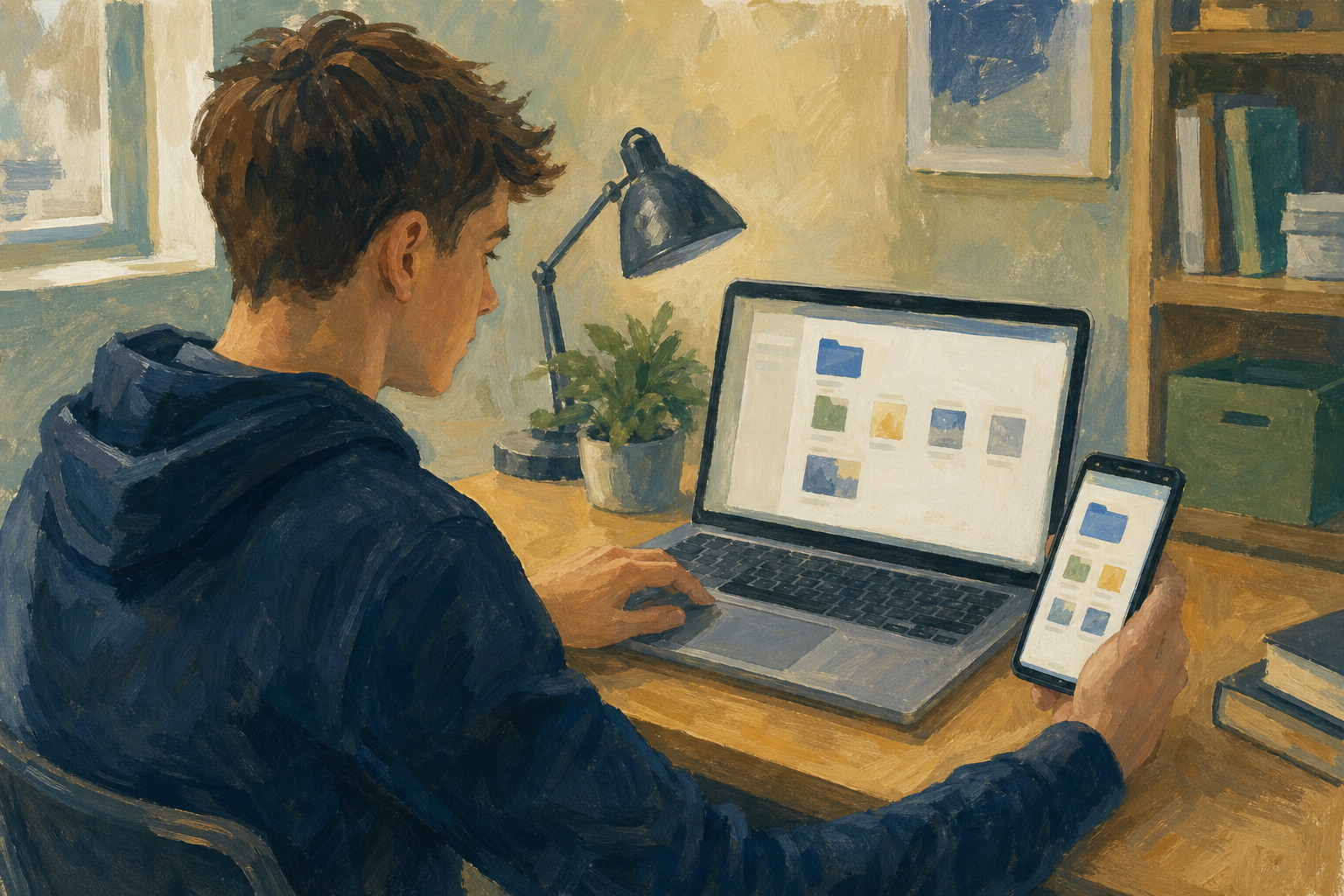
    Diagram of portfolio files available from laptop and phone via cloud storage

    Today’s skills: school cloud sign-in, upload and open, version history peek, full sign-out, and a second-machine check of your Project Portfolio.

    No Project Portfolio on this PC? Tell your teacher. Use the practice folder they give you, or quickly create a folder called Project Portfolio and put any earlier Something Real file (or a simple {{code:01_project_brief}} page) in it so you can still complete today’s cloud steps.

    Warm-up

    Think about the last time a phone, laptop, or school PC died, froze, or got wiped. Where would your Project Portfolio be right now if that happened to the machine in front of you: only on this computer, on a USB stick, or already in the cloud under your school account?

    2 - Key Concepts ~5 mins

    Three ideas sit behind every safe cloud session on a school machine. Read the table once (or follow while your teacher projects one row at a time), then you will practise the clicks.

    ConceptWhy it mattersExample
    Cloud storage — files kept on remote servers you reach through the internet, not only on the hard drive inside this PCIf this classroom machine fails or is wiped overnight, your Something Real work can still open from another deviceYour Work Experience log lives in school OneDrive or Google Drive, so you can finish a paragraph on a different lab PC tomorrow
    School account — the Microsoft or Google login your school gave you (not a personal Gmail or Xbox login)Teachers, Key Assignment evidence, and school sharing rules all expect the school account, not a private oneSigning in with your school email so {{code:01_project_brief}} sits where staff can help you recover it if needed
    Full sign-out on shared machines — leaving the account so the next user cannot open your Drive, mail, or docsThe next student at this PC must not land inside your portfolio or school emailChoosing Sign out, refusing Stay signed in, and closing the browser at the end of class
    Note

    You will also meet upload finished (wait until the cloud copy is complete) and version history (earlier saved states of a file) during the hands-on steps.

    Worked example snapshot

    Worked example

    Jordan is building a Work Experience report for a placement at a local Centra. On a shared school PC, Jordan signs into school OneDrive, uploads one small practice file, and creates {{code:01_cloud_backup_check}} (title only for now). In the main task Jordan then uploads the full Project Portfolio, opens it on the teacher laptop in the corner, and ticks the checklist — that proof stays in the cloud Project Portfolio for the teacher.

    3 - Step-by-step Task ~14 mins

    Key point

    Your teacher will tell you once whether this class uses OneDrive or Google Drive. Follow only that path below. Ignore the other platform.

    This step is practice for the clicks: sign in on this classroom machine, upload one small practice item (a single file such as {{code:01_project_brief}}, or the practice folder your teacher names), confirm the upload, open version history, create an empty checklist page named {{code:01_cloud_backup_check}}, and sign out safely.

    Watch out

    You will prove the cloud copy on a second machine in Portfolio Build — do not leave your seat for a spare device yet. Your full Project Portfolio backup and the finished checklist are the Portfolio Build next, not this practice upload.

    If sign-in fails or an upload crawls, check the Common issues table with your teacher rather than guessing passwords.

    4 - Common Issues ~3 mins

    Common Issues

    IssueSolution
    I cannot sign in, or I land in the wrong accountCheck you are using your school email, not a personal Gmail, Xbox, or home Microsoft account. Sign out of the wrong account fully, close the browser, then try again with the school address.
    I cannot find Project Portfolio or my practice file after uploadingIn OneDrive open My files; in Google Drive open My Drive. Use the search box at the top and type the folder or file name (for example Project Portfolio or {{code:01_project_brief}}). Check you are not looking inside Shared with me or a different account.
    The upload seems stuck or the folder looks emptyLeave the tab open and watch the upload status. A big folder can take several minutes on school Wi-Fi. If it fails, upload one smaller file first (for example {{code:01_project_brief}}), then the rest.
    I cannot open the portfolio on a second machineConfirm you signed into the same school account. Check the upload finished on the first machine before you left. Try a private/incognito window only if your teacher asks you to rule out a saved wrong login.
    I forgot to sign out and left Stay signed in onReturn to the machine if you still can, open the browser, go to OneDrive or Drive, open your profile menu, and choose Sign out. Tell your teacher if you cannot get back to that PC.

    5 - Portfolio Build ~25 mins

    Before you start — full folder upload (same control as practice):

    • Use {{btn:Folder upload}} (OneDrive: {{btn:+ Add new}} / {{btn:Upload}}; Google Drive: {{btn:+ New}}) and choose your whole Project Portfolio folder from this PC.
    • Leave the browser tab open until the upload status clears — a full folder can take several minutes on school Wi-Fi.
    • Confirm Project Portfolio appears under school My files (OneDrive) or My Drive (Google Drive), then open one real file inside it before you join the second-device queue.

    Portfolio Build (class task)

    Your goal: Put your real Project Portfolio into school cloud storage, prove you can open it from the second-device station, and finish {{code:01_cloud_backup_check}} so your teacher can see the backup habit is solid.
    Time: ~25 minutes
    Task:

    Full portfolio upload can look stuck on school Wi-Fi — leave the tab open, tick what you can on the checklist while you wait, and only claim done when the progress indicator has finished. If the queue for the second device is long, that wait-work still counts.

    1. Sign back into school OneDrive or Google Drive on your classroom machine (choose {{btn:No}} to Stay signed in).
    2. Upload your full Project Portfolio folder and wait until the upload is fully finished.
    3. Open one real portfolio file → open Version history / Manage versions → close the panel. Then open {{code:01_cloud_backup_check}} (create it in the cloud Project Portfolio if you do not have it yet).
    4. Type five checklist lines and tick what you can already prove: school sign-in, upload finished, second-device open, version history found, full sign-out. Add a one-line note labelled Cloud copy lives at:.
    5. When your teacher calls you to the second-device station, open the portfolio on the spare device, show them one real file with the expected content, return, and tick second-device open.
    6. Sign out fully and close the browser on every machine you used.
    7. Leave {{code:01_cloud_backup_check}} saved in your cloud Project Portfolio and show your teacher the second-device open and the saved checklist before you pack up.

    If the bell is close: a teacher demo-laptop open counts — ask rather than skip the second-device tick.

    Success criteria:
    • Your Project Portfolio is visible in school OneDrive or Google Drive under your school account
    • You opened at least one real portfolio file from the second-device station (or a teacher-witnessed open on the demo laptop if the queue was still moving at the bell) and it showed the expected content
    • {{code:01_cloud_backup_check}} is saved in your cloud Project Portfolio and records school sign-in, upload finished, second-device open, version history found, full sign-out, and a one-line note on where the cloud copy lives
    • Every classroom machine you used is signed out of your cloud account with the browser closed, and you have shown your teacher the checklist before packing up
    123learn · Online learning platform

    Unlock the full learning experience

    You're previewing this lesson. Get full access to this lesson and hundreds more — each one ready to teach, with interactive activities, printable resources and pupil progress tracking built in.

    Hundreds of curriculum-aligned lessons
    Interactive activities in every lesson
    Printable resources & progress tracking
    Copyright Notice
    This lesson is copyright of Coding Ireland 2017 - 2025. Unauthorised use, copying or distribution is not allowed.
    🍪 Our website uses cookies to make your browsing experience better. By using our website you agree to our use of cookies. Learn more