Game Makecode Arcade
Beginner
60 mins
Teacher/Student led
+115 XP

What you need:
Chromebook/Laptop/PC or iPad/Tablet
Arcade computer

Beat The Clock

In this lesson, you will develop a time-based game in MakeCode Arcade. You will learn about timers, countdowns, and scoring systems, making your game more exciting and challenging!
Teacher Class Feed

Load previous activity

    1 - Start a New Project

    Open your web browser and navigate to MakeCode Arcade. Click on 'New Project' to start a new game project. Name your project 'Beat The Clock'.

    2 - Set Up Game Elements

    Let's set up some basic game elements. We will create a player sprite and a target sprite. The player will try to reach the target within a certain time limit.

    Add the following code and design your player and target sprites:

    let player = sprites.create(img`
    . . . . .
    . # # # .
    . # # # .
    . # # # .
    . . . . .
    `, SpriteKind.Player)
    
    let target = sprites.create(img`
    . . # . .
    . # . # .
    # . . . #
    . # . # .
    . . # . .
    `, SpriteKind.Food)

    3 - Move the Target and Player

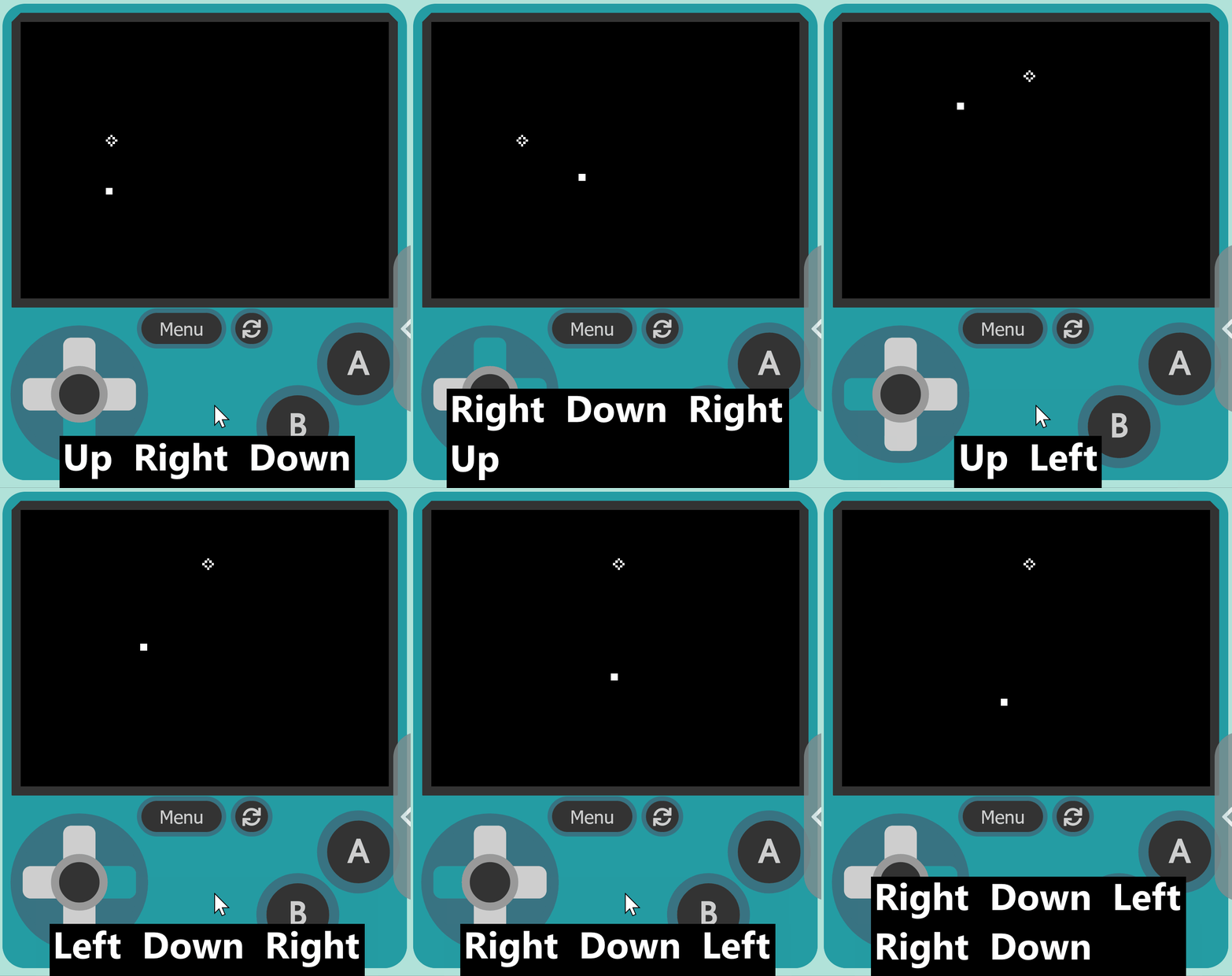
    Now let's add code to move the target and player in your game. This will make your game more interactive and challenging. You will add code to allow the player to move their sprite using the arrow keys and to move the target sprite to a random location on the screen every second.

    Add the following code:

    let player = sprites.create(img`...`, SpriteKind.Player)
    controller.moveSprite(player)
    let target = sprites.create(img`...`, SpriteKind.Food)
    

    let target: Sprite = null
    game.onUpdateInterval(5000, function() {
        target.setPosition(Math.randomRange(0, 160), Math.randomRange(0, 120))
    })

    'Math.randomRange' generates a random number between the two values provided, in this case between the dimensions of the screen (0 to 160 for x, and 0 to 120 for y).


    4 - Set Up the Timer

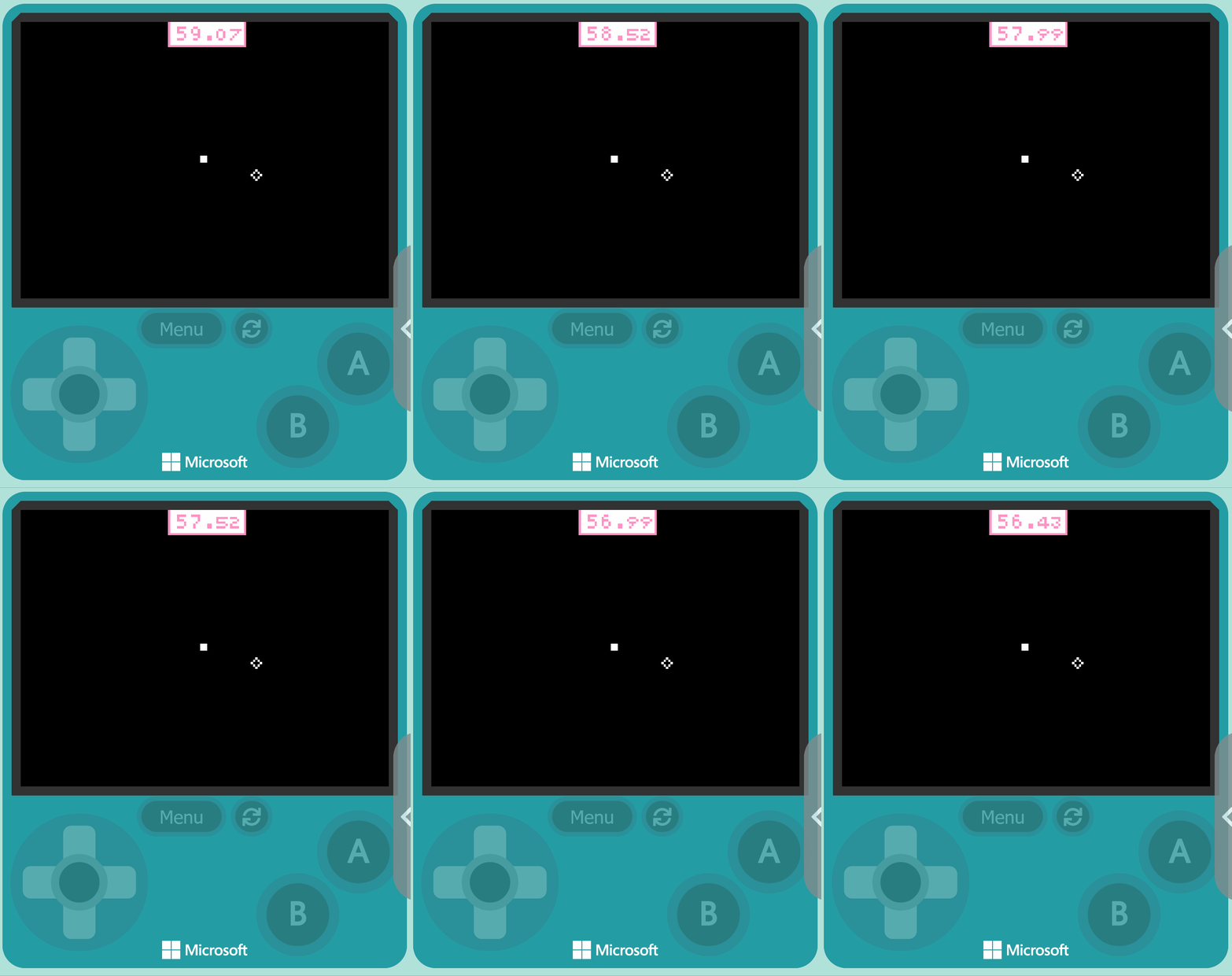
    Now, let's set up the game timer. We will use the inbuilt countdown block which will automatically start the countdown from a specified time.

    Add the start countdown block:

    let target: Sprite = null
    let player2 = sprites.create(img`
        . . . . . 
        . 1 1 1 . 
        . 1 1 1 . 
        . 1 1 1 . 
        . . . . . 
        `, SpriteKind.Player)
    controller.moveSprite(player2)
    target = sprites.create(img`
        . . 1 . . 
        . 1 . 1 . 
        1 . . . 1 
        . 1 . 1 . 
        . . 1 . . 
        `, SpriteKind.Food)
    info.startCountdown(60)
    

    This code starts the countdown timer at 60 seconds. When the countdown reaches 0, the game will automatically end.


    123learn · Online learning platform

    Unlock the full learning experience

    You're previewing this lesson. Get full access to this lesson and hundreds more — each one ready to teach, with interactive activities, printable resources and pupil progress tracking built in.

    Hundreds of curriculum-aligned lessons
    Interactive activities in every lesson
    Printable resources & progress tracking
    Copyright Notice
    This lesson is copyright of Coding Ireland 2017 - 2026. Unauthorised use, copying or distribution is not allowed.
    🍪 Our website uses cookies to make your browsing experience better. By using our website you agree to our use of cookies. Learn more