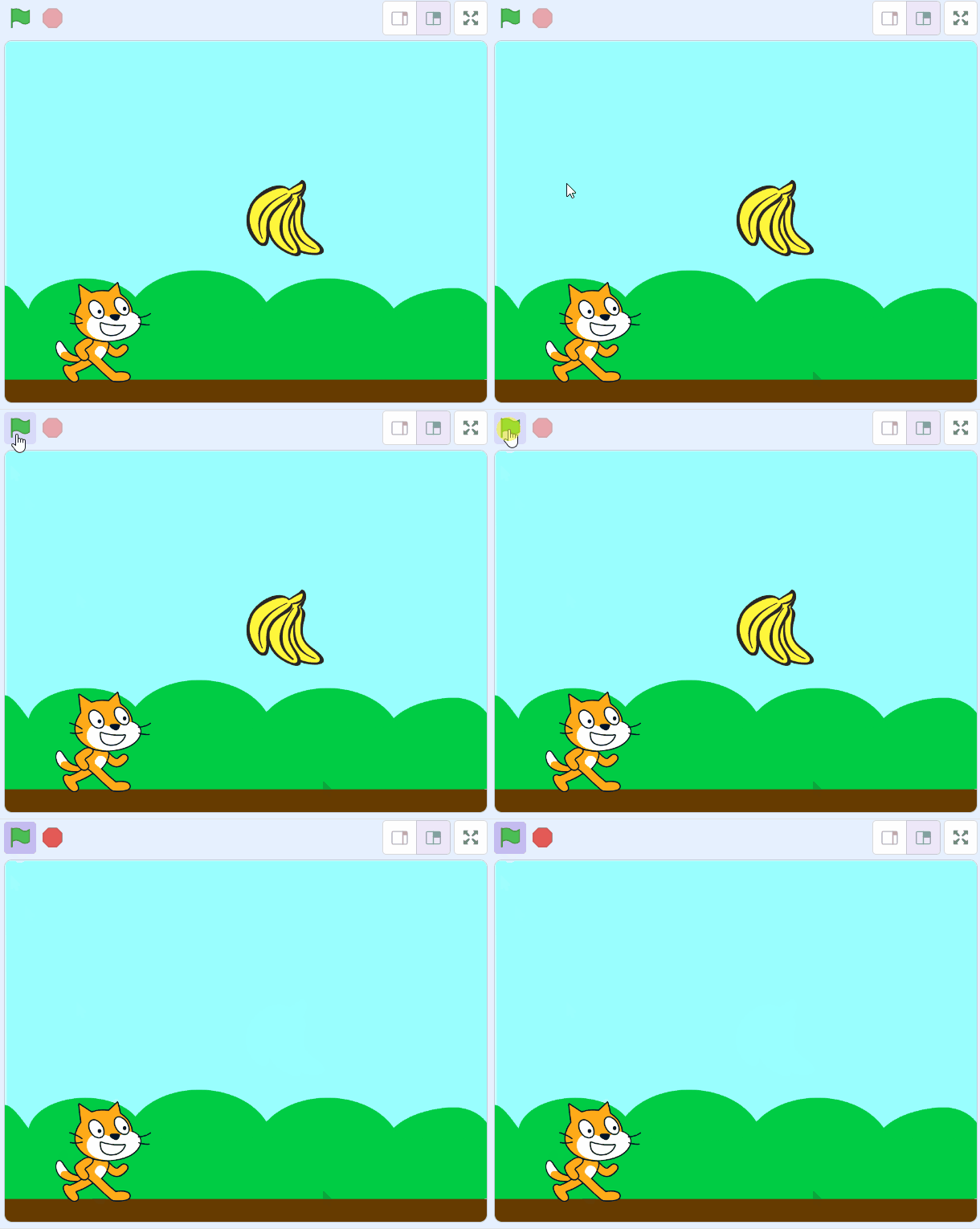
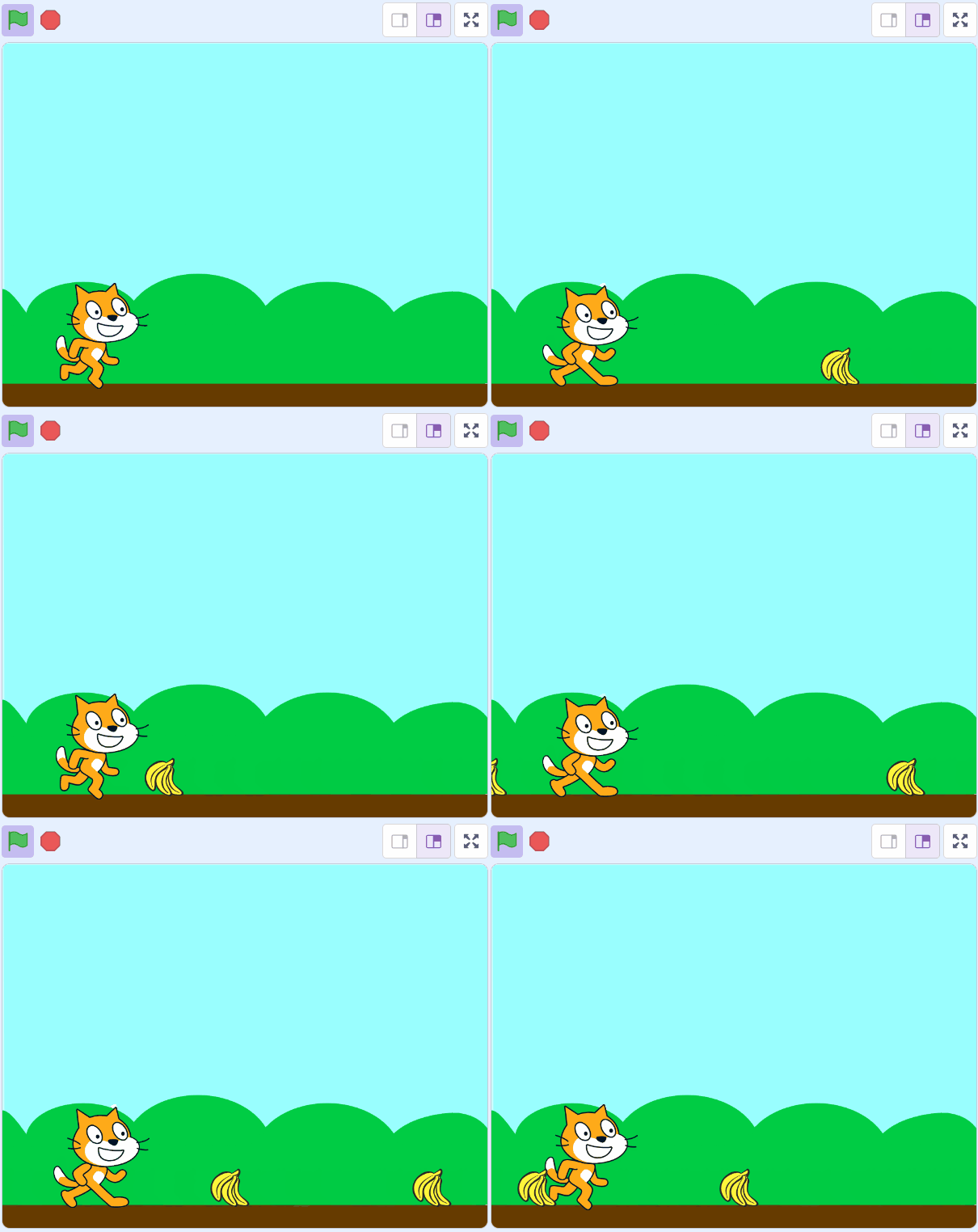
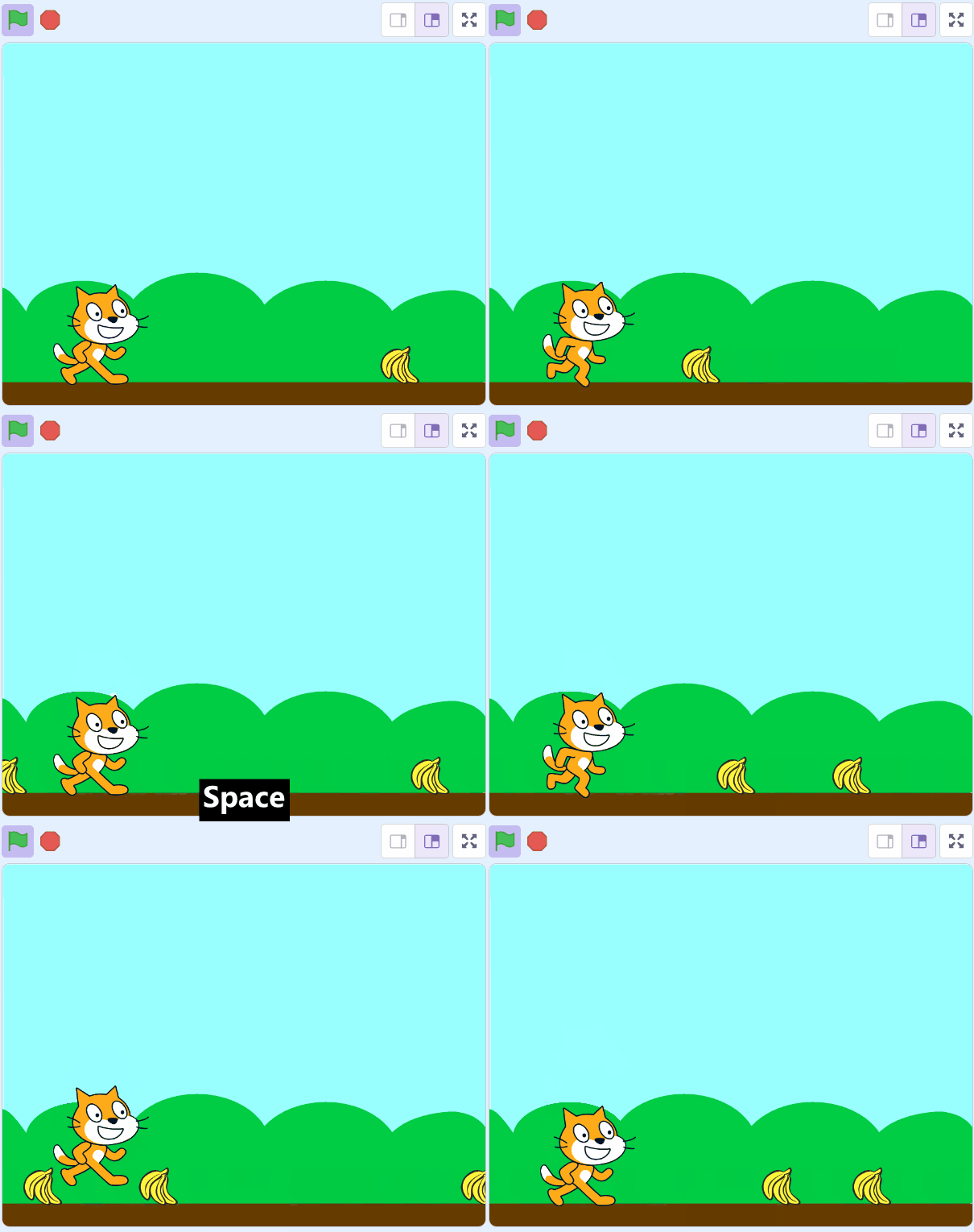
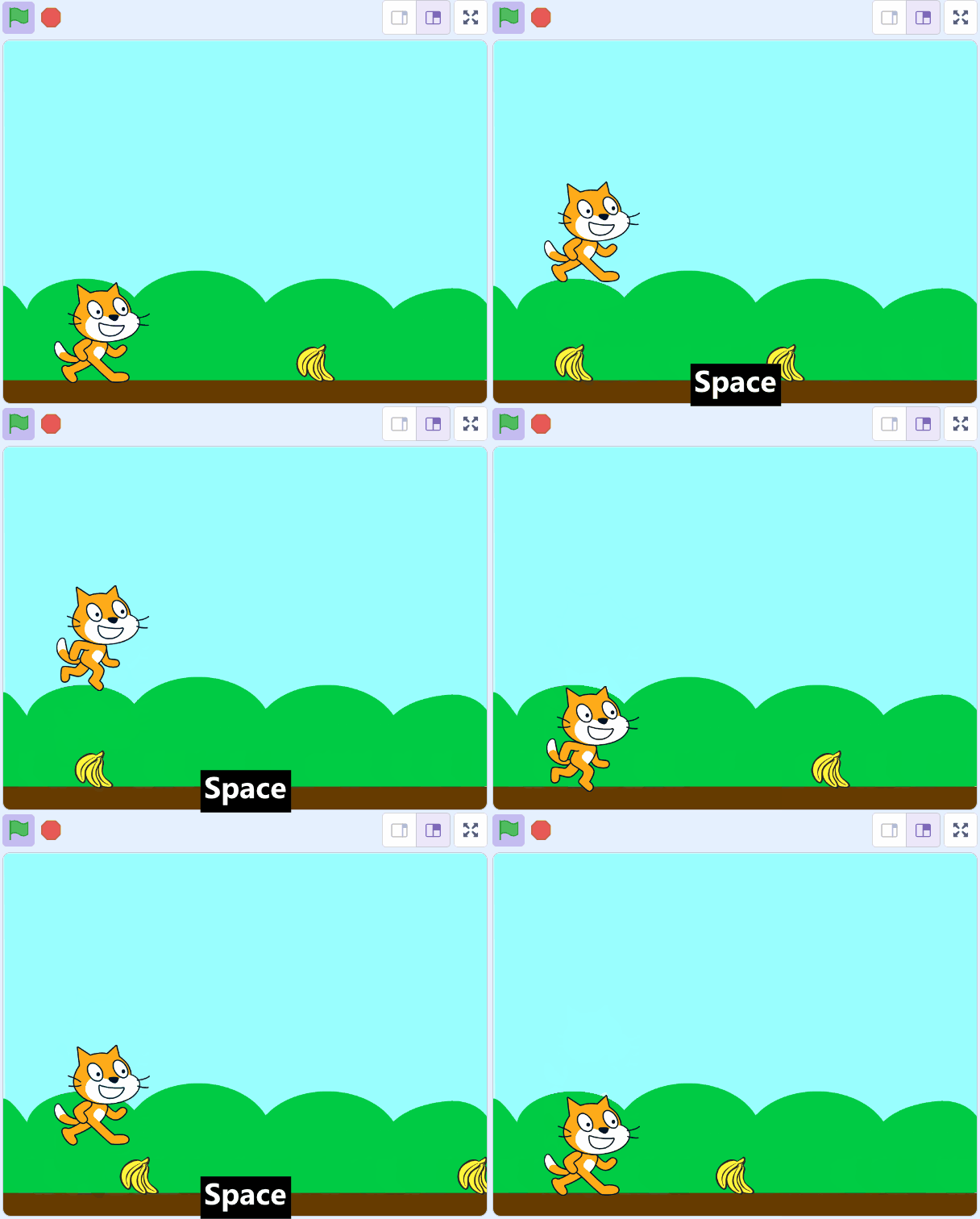
Welcome to the 'Banana Jump' lesson! In this exciting lesson, you will create a fun game where a cat must jump to avoid falling bananas. You will learn how to use Scratch, a visual programming language, to control character movements, create clones, and detect collisions. By the end of this lesson, you will have your own game that you can play and share with your friends. So, are you ready to start your coding adventure? Let's jump right in!
Start by creating a new Scratch project.
Go to the Scratch website using the link below and click on the 'Create' link in the blue bar at the top.
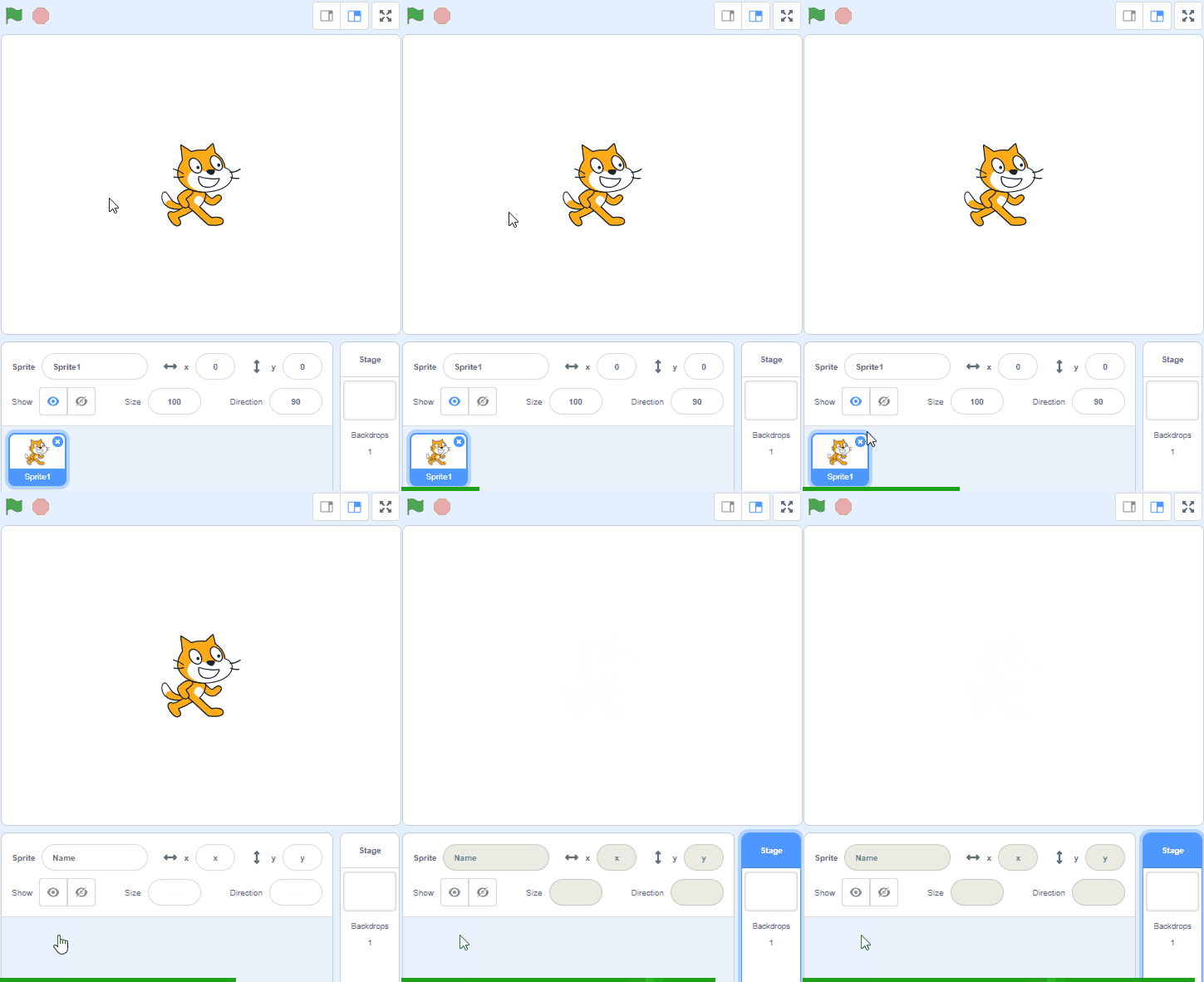
By default, each new project starts with the cat sprite already added. To delete the cat click on the x in the blue circle beside the cat in the sprite list.
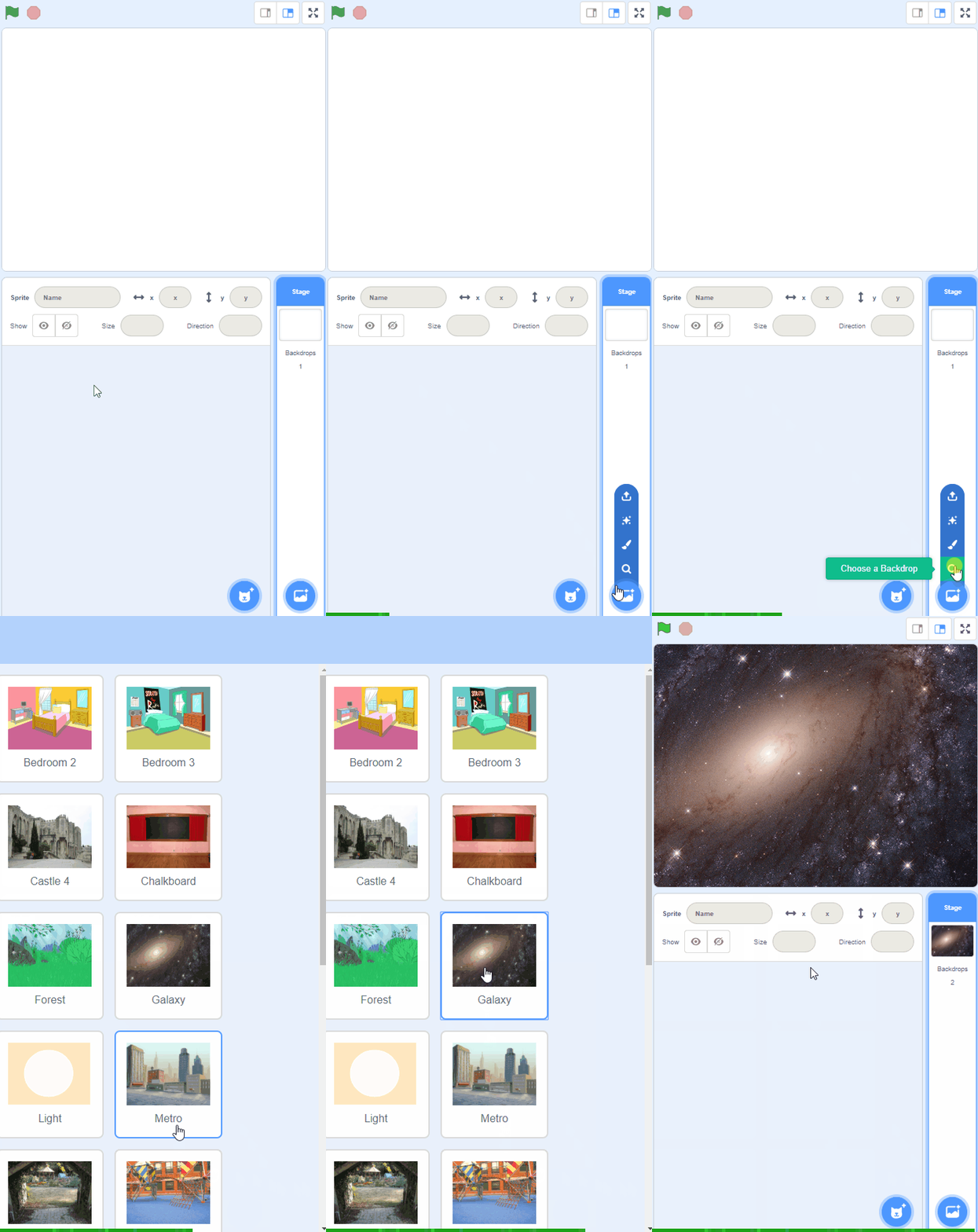
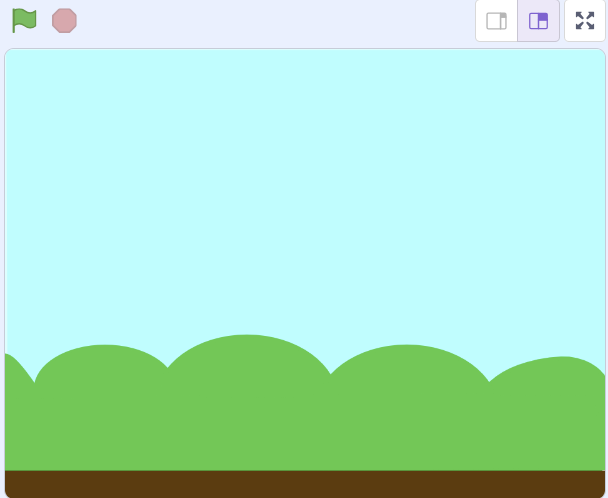
Add the Blue Sky backdrop from the backdrop library.
The brown part of this backdrop will be the ground in our game.
To add a backdrop from the backdrop library follow these steps:
You can use search box or the filter links (Fantasy, Music, Sports etc) to locate your backdrop.
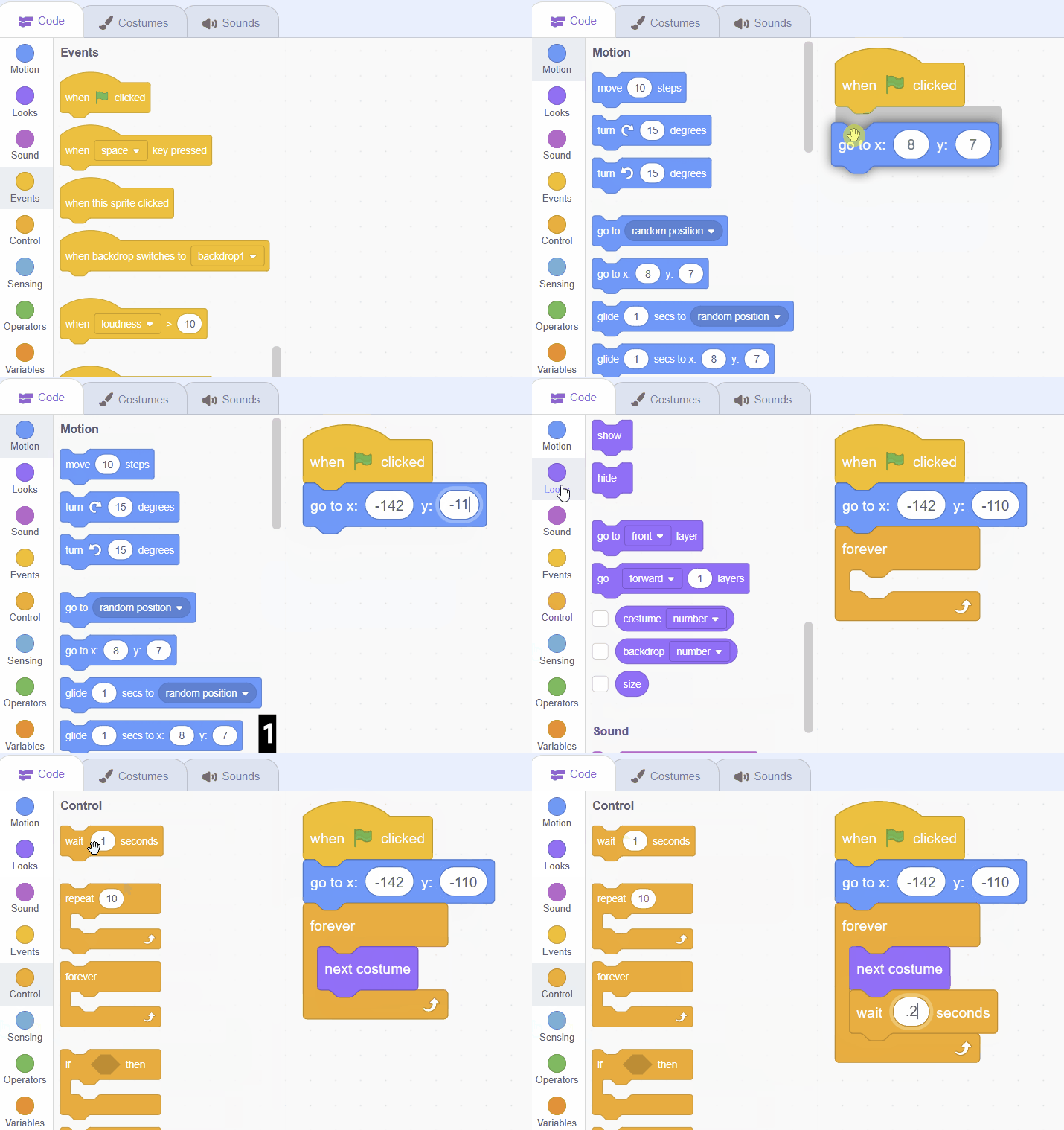
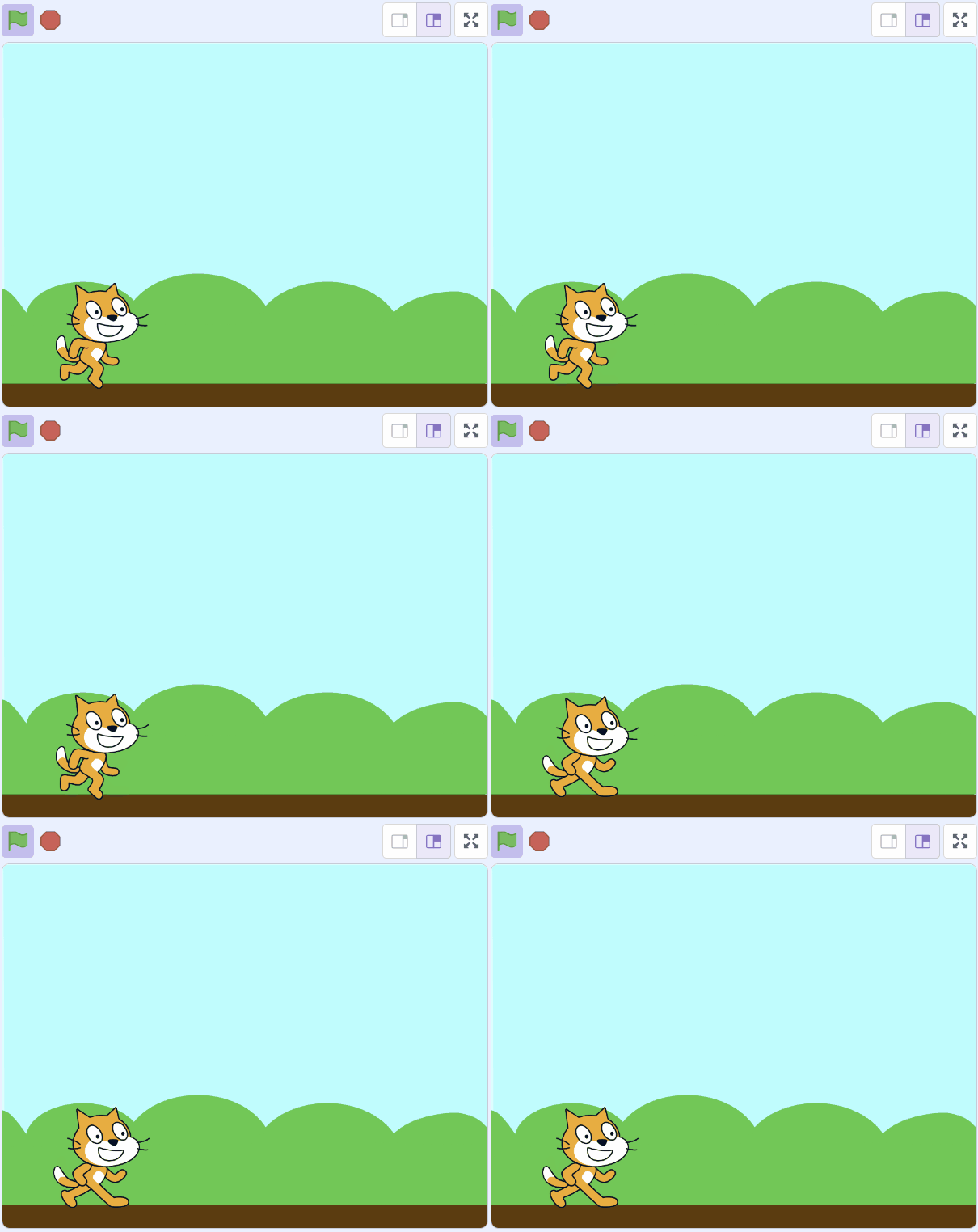
Let's start by positioning the cat down at the bottom left so it appears on the ground. Then we will also make it look like it's running by use a loop (forever block) to change it's costume.
Add the following code to the Sprite1 sprite:
when green flag clicked
go to x: (-142) y: (-110)
forever
next costume
wait (0.2) seconds
end
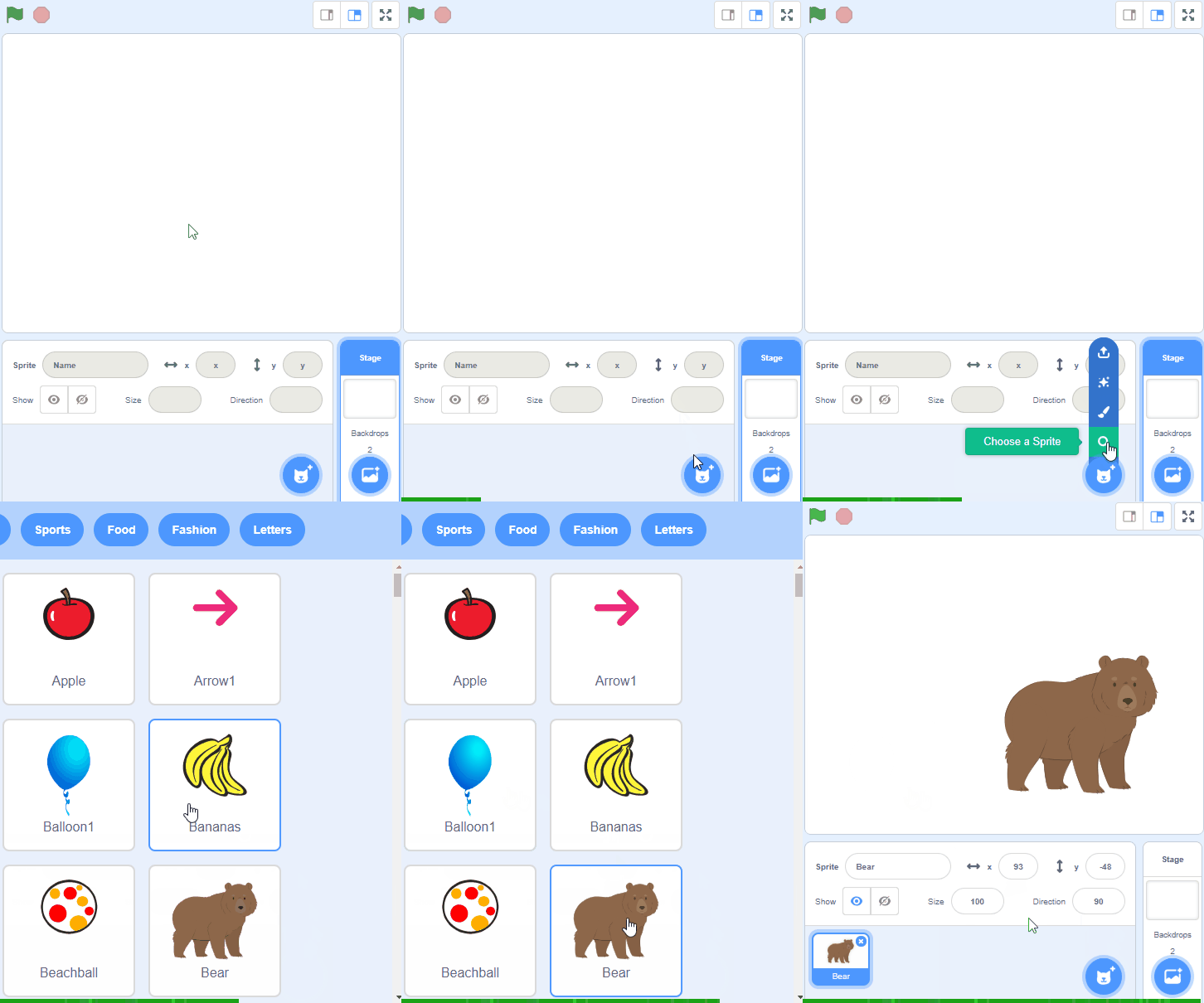
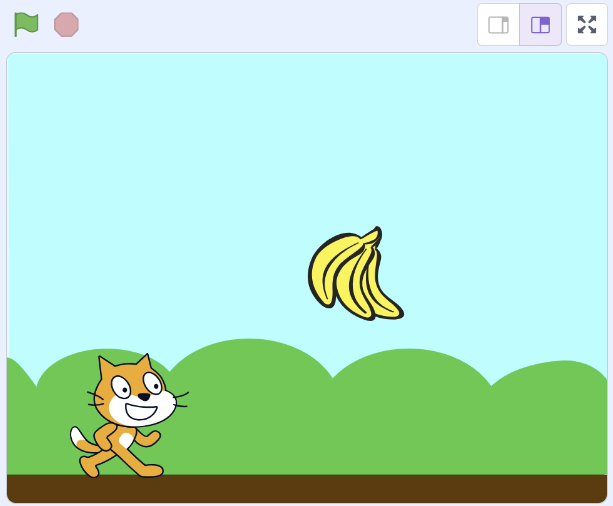
Add the Bananas sprite from the sprite library.
To add a sprite from the sprite library follow these steps:
You can use search box or the filter links (Animals, People, Fantasy etc) to locate your sprite.
Now, let's program the bananas. We will make the bananas appear on the right hand side of the stage area and move towards the cat.
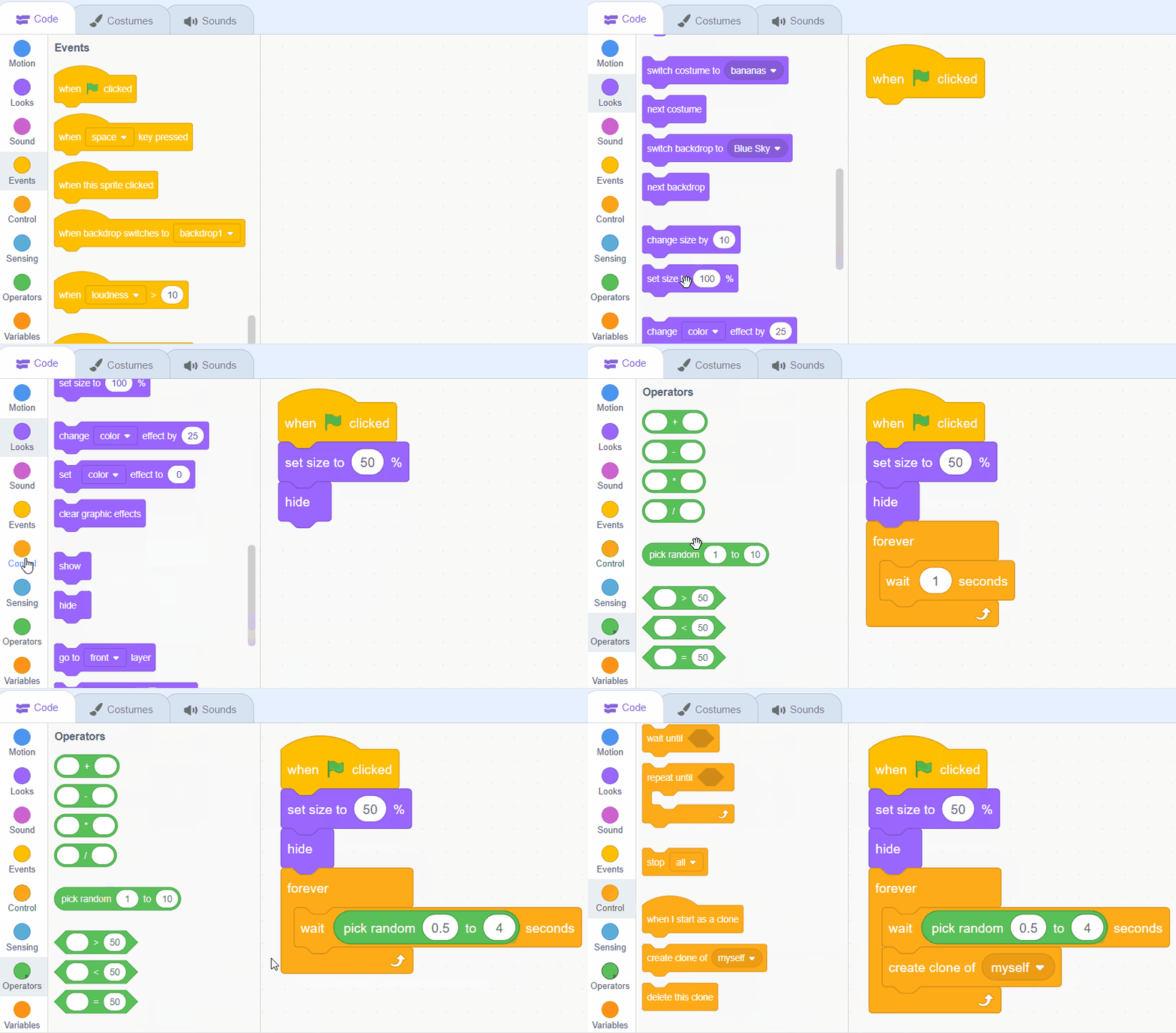
First let's shrink their size, hide it and then create a new clone of the banana in random intervals between 0.5 and 4 seconds. Then in the next step we will program what happens when a clone gets created.
Add the following code to the Bananas sprite:
when green flag clicked
set size to (50) %
hide
forever
wait (pick random (0.5) to (4)) secs
create clone of (myself v)
end
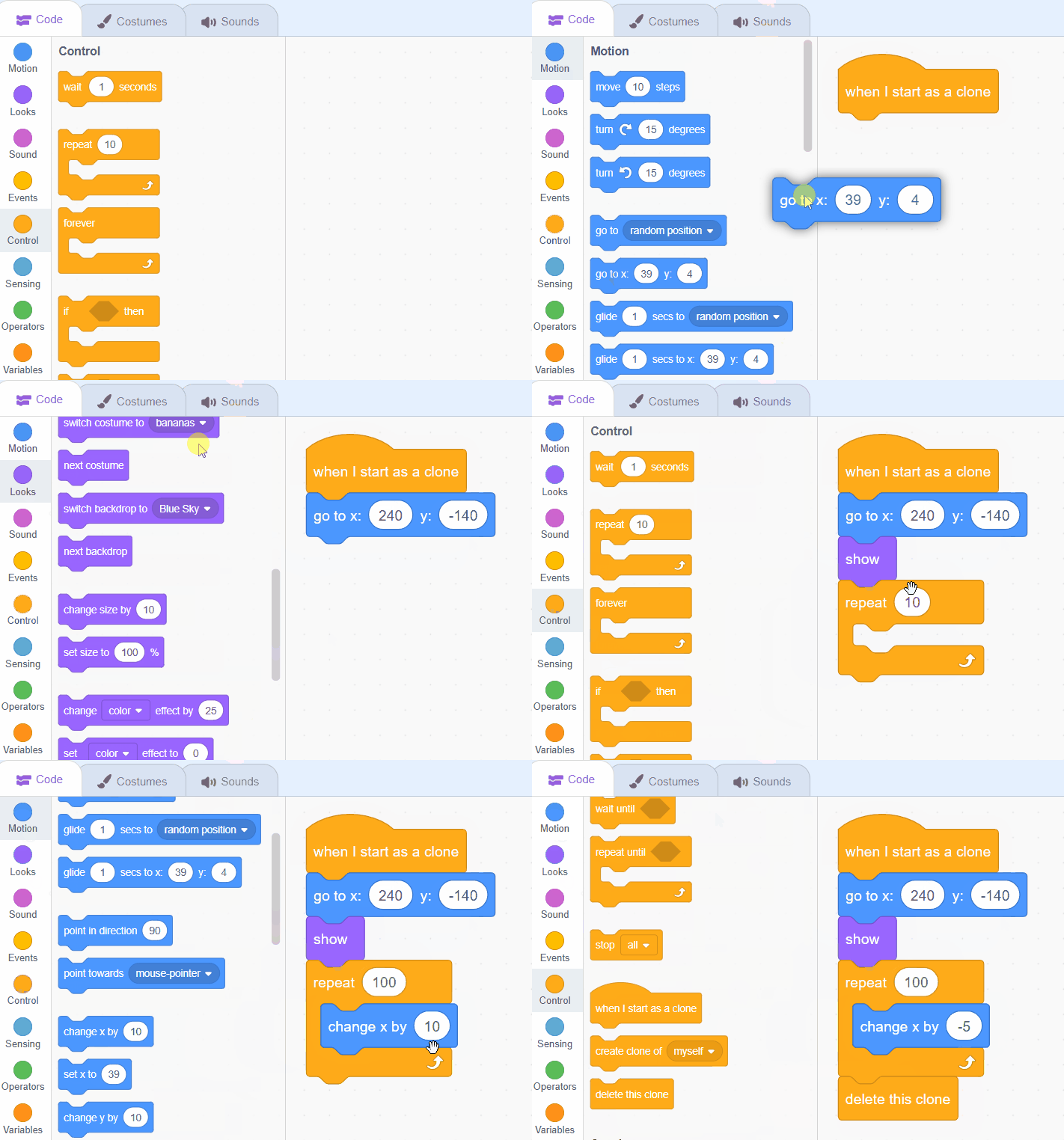
hide block, but clones are being created, we just can't see them yet.Now, let's make the bananas move across the screen. We will program the clones of the bananas to appear on the right side of the stage and move towards the left. When a clone reaches the left edge, it will be deleted.
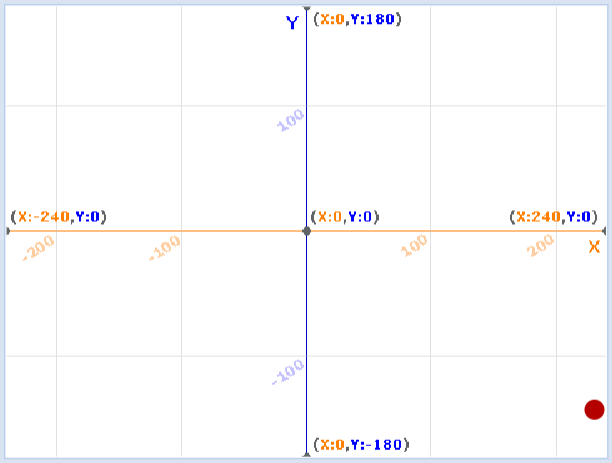
Think of a clone as a copy of the banana. We want each copy to start on the right side of the screen on the ground (that's what go to x: (240) y: (-140) does), then show itself (that's show). Next, we want the banana to move to the left a little bit at a time. We do this 100 times (that's what repeat (100) means). Each time, we change the banana's x position by -5 (that's change x by (-5)), which moves it to the left. When it's done moving, we delete the clone (that's delete this clone).
Add the following code to the Bananas sprite:
when I start as a clone
go to x: (240) y: (-140)
show
repeat (100)
change x by (-5)
end
delete this cloneNow, let's make the cat jump. We will program the cat to jump when the space key is pressed.
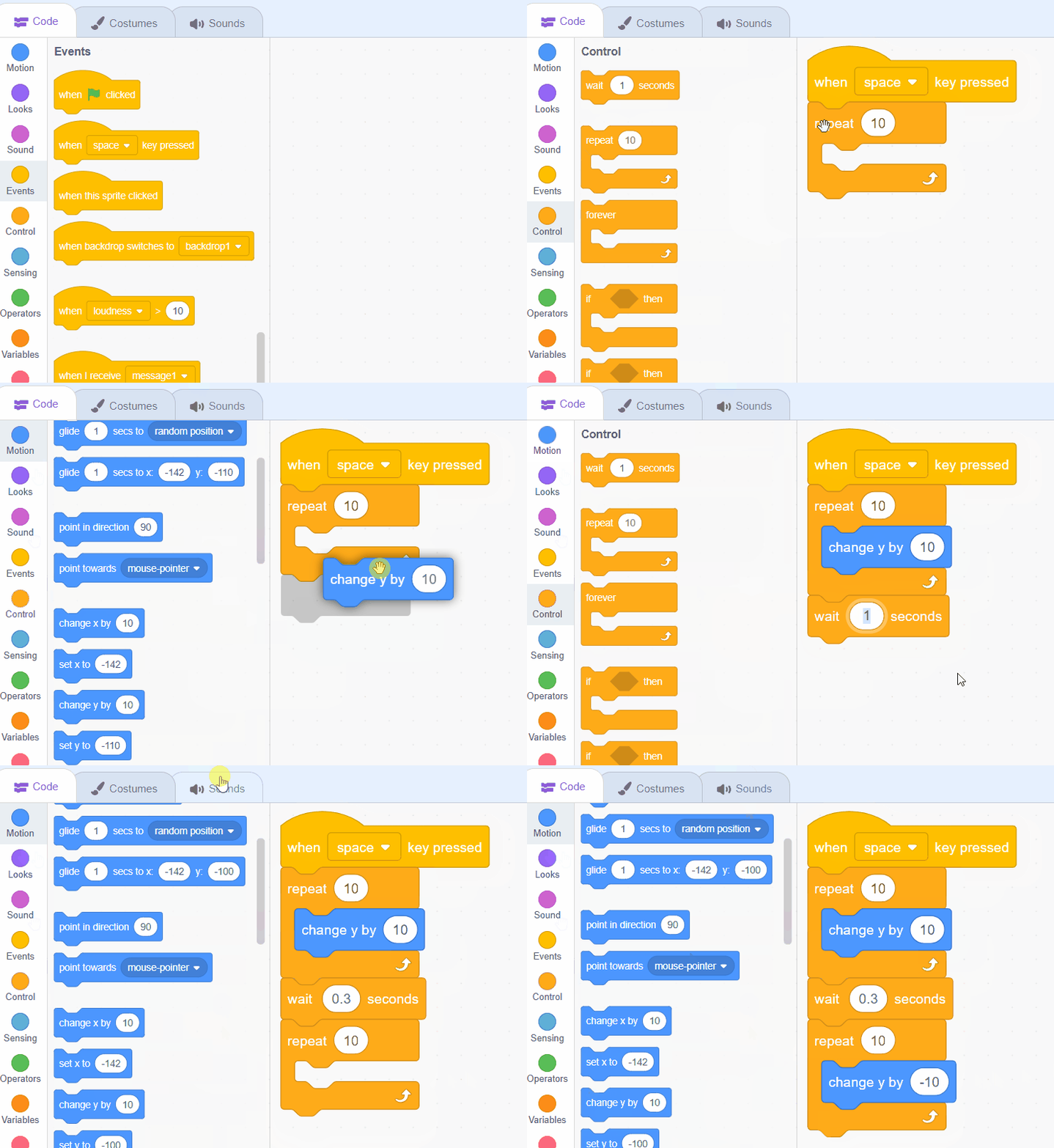
We will make the cat move up a little bit at a time. We do this 10 times (that's what repeat (10) means). Each time, we change the cat's y position by 10 (that's change y by (10)), which moves it up. After a short delay, we will make the cat move down a little bit at a time. We do this 10 times (that's what repeat (10) means). Each time, we change the cat's y position by -10 (that's change y by (-10)), which moves it down.
Add the following code to the Sprite1 sprite:
when [space v] key pressed
repeat (10)
change y by (10)
end
wait (0.3) seconds
repeat (10)
change y by (-10)
endIf you're using a tablet or iPad without a physical keyboard, you won't be able to use keyboard keys like the arrow keys in your project. Instead, we'll add simple on-screen buttons (using sprites) that you can tap to do the same things. This keeps your project working great! Just follow these steps wherever the lesson talks about pressing a key.
First, add a new sprite for your button:
Now, program your button sprite to make things happen when you tap it. Here's how it works for different situations:
Example 1: If the lesson uses a key to trigger an action on a specific sprite (like making something move, turn, or jump)
Instead of code like this on your target sprite:
when [left arrow v] key pressed
change x by (-10) // or any action
Or this:
if < key [left arrow v] pressed? > then
change x by (-10) // or any action
end
Add this code to your new button sprite:
when this sprite clicked
broadcast [do action v]
Then, on your target sprite, add this to receive the message:
when I receive [do action v]
change x by (-10) // or any action
Tap the button on the screen, and the action will happen, just like pressing the key! Use a unique broadcast name for each different action or key.
Example 2: If the lesson uses a key to change a variable (like adding to a score or setting a value)
Instead of code like this:
when [space v] key pressed
change [score v] by (1)
Or this:
if < key [space v] pressed? > then
change [score v] by (1)
end
Add a new button sprite. Then, put this code on the button sprite:
when this sprite clicked
change [score v] by (1)
(If the variable is "for this sprite only," make sure it's set to "for all sprites" so the button can change it.)
Tap the button, and the variable changes, no message needed since it's something shared!
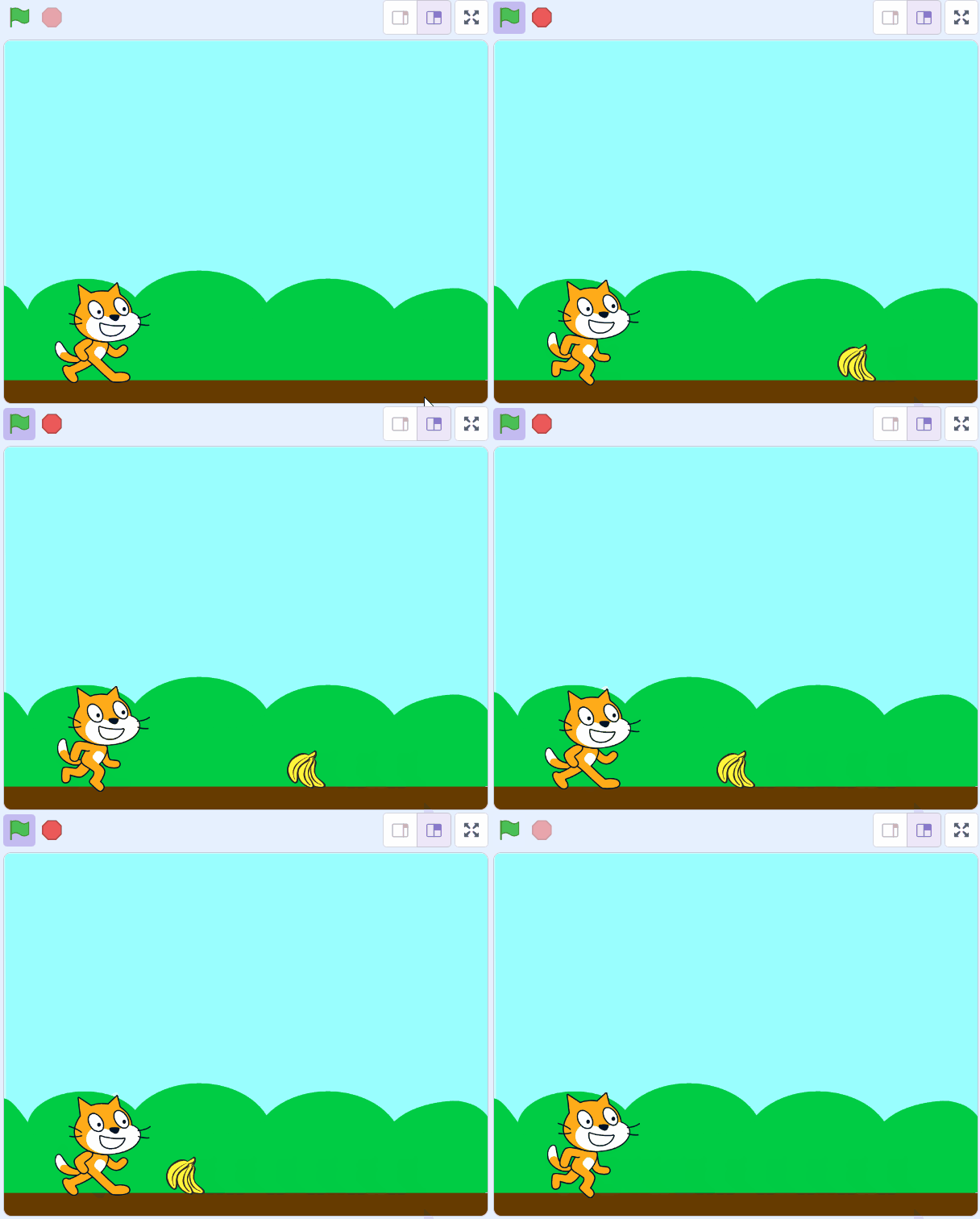
Now, let's make the game stop when the cat touches a banana.
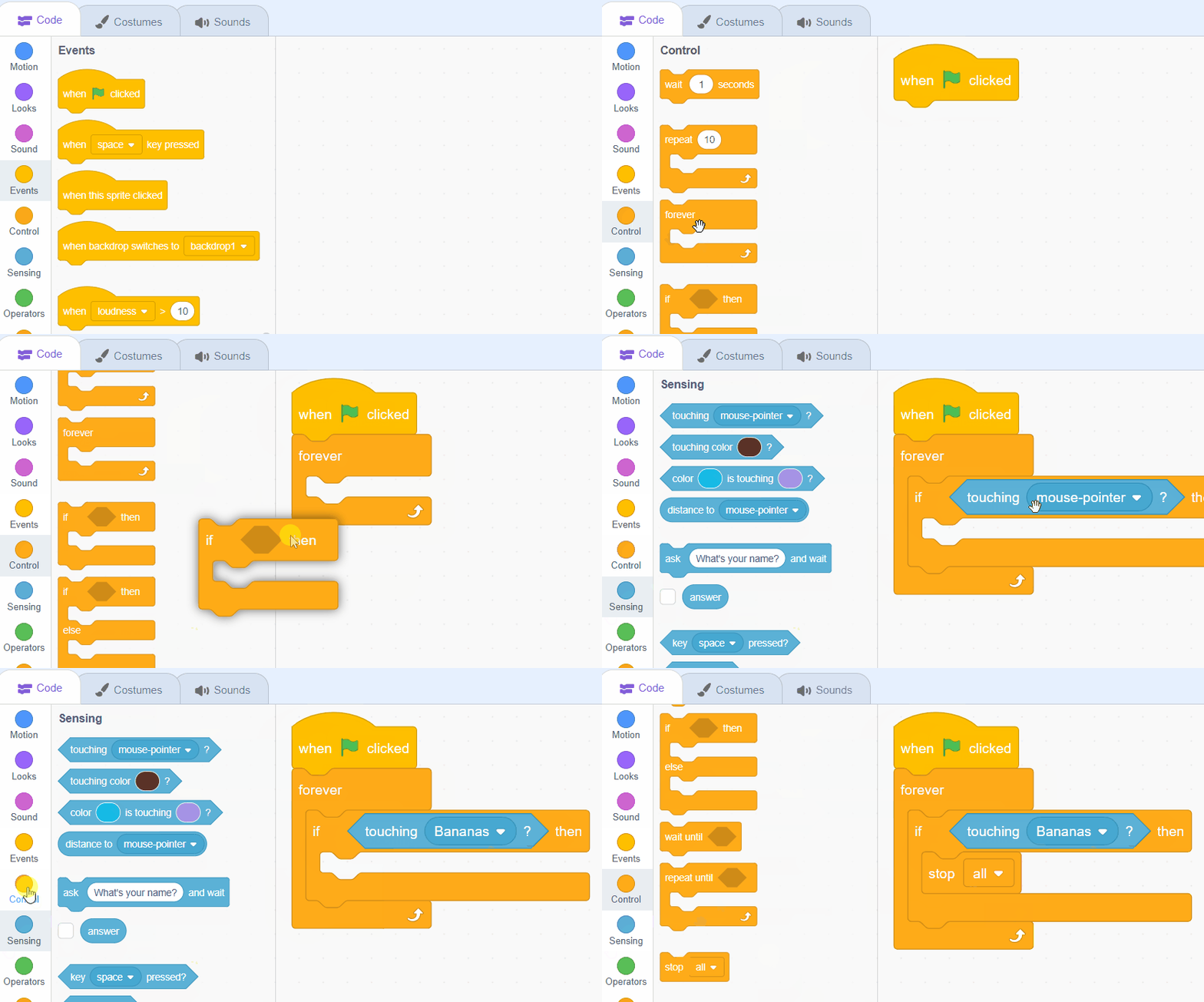
We will use a loop (forever block) to continuously check if the cat is touching a banana. This is like a watchman who keeps looking to see if the cat has bumped into a banana. The if < touching (bananas v) > then block is like a question we ask the watchman. We are asking, 'Is the cat touching a banana?' If the answer is 'Yes', then we will stop all scripts in the project, effectively ending the game. If the answer is 'No', the watchman keeps looking.
Add the following code to the Sprite1 sprite:
when green flag clicked
forever
if < touching (bananas v) > then
stop [all v]
end
end
Great job! You've successfully created your own game using Scratch. Now it's time to play! Click on the green flag and use the space key to make the cat jump and avoid the bananas. See how long you can keep the game going before the cat touches a banana.
Remember, practice makes perfect. Keep experimenting with the code and see what changes you can make. Maybe you can add more bananas, or make the cat jump higher? The possibilities are endless. Keep coding and have fun!
Every lesson in the course is ready to teach like this one. See what else comes with it, and how to order it.