You're previewing the student experience. You don't need to complete this lesson — your progress and XP aren't saved.
Scratch Animation
Beginner
40 mins
Teacher/Student led

What you need:
Chromebook/Laptop/PC or iPad/Tablet

Animating Characters: Moving and Changing Costumes

Get ready to create a lively dance animation! Follow simple steps to make a character dance on stage by changing costumes every second. By the end, you'll have your own exciting dance party animation to share!
Teacher Class Feed

Load previous activity

    1 - Introduction

    In this lesson, we’re going to create a fun dance animation! We’ll get a character to dance on a stage by changing his costume every second. By the end of the lesson, you’ll have your very own dance party animation!

    2 - Create a Scratch Project

    Let's start by creating a new Scratch project. First, go to the Scratch website by clicking here.

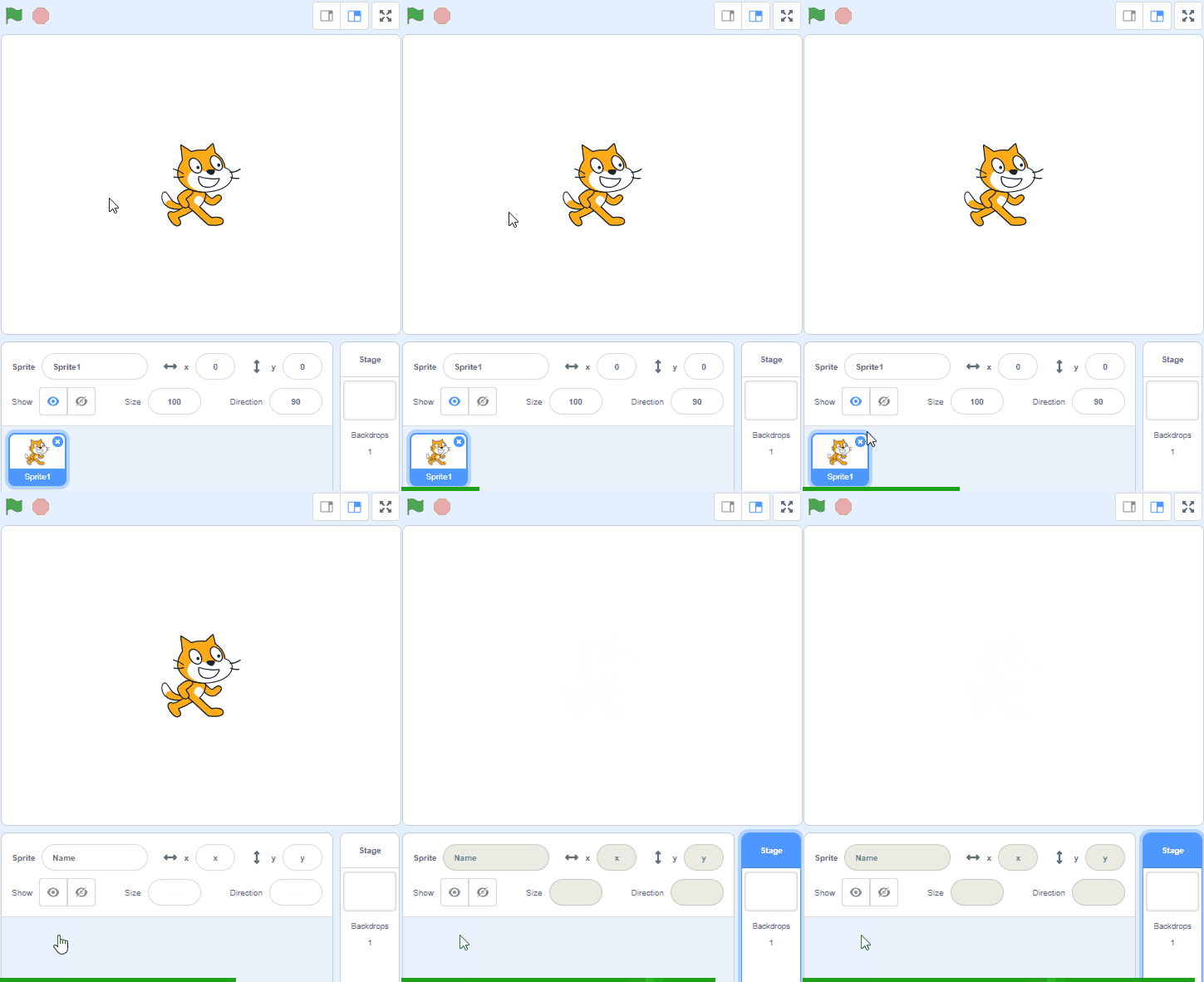
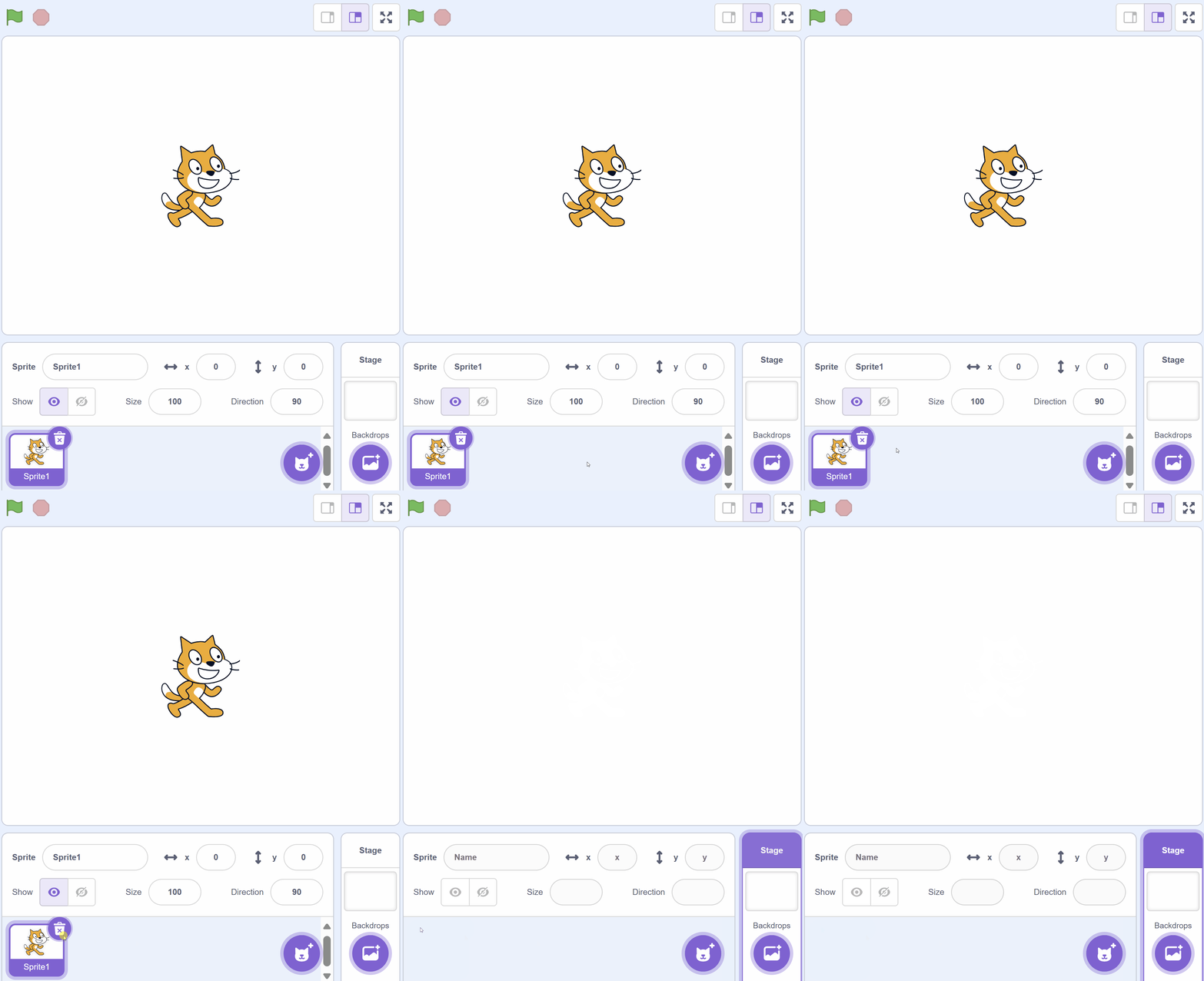
    Once you're on the Scratch website, click on 'Create' to start a new project. You will see a cat sprite on the screen. We don't need the cat for this project, so let's remove it.

    To remove the cat, look at the sprite list under the stage, where the cat has its own small picture. Click that picture, then click the small bin icon at its top-right corner.


    3 - Add your Character

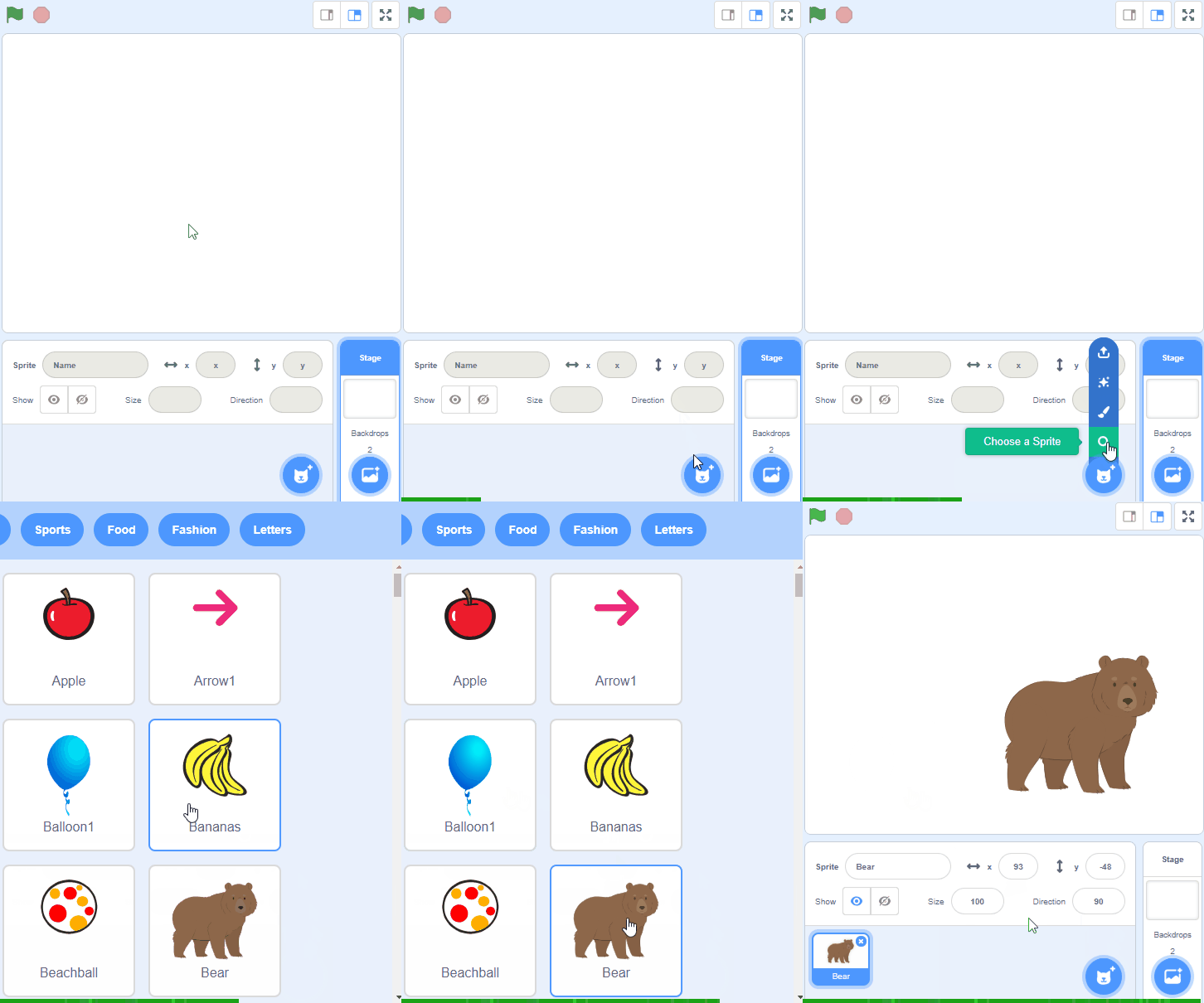
    Let’s start by adding a character to your project. Click the Choose a Sprite button (the cat face at the bottom right of the sprite list) and find a character with lots of costumes. Costumes are different pictures of the same character.

    We recommend Anina Dance, Ballerina, Cassy Dance or Champ99.

    Once you’ve selected your character, they’ll appear on your stage.

    4 - Set the Scene

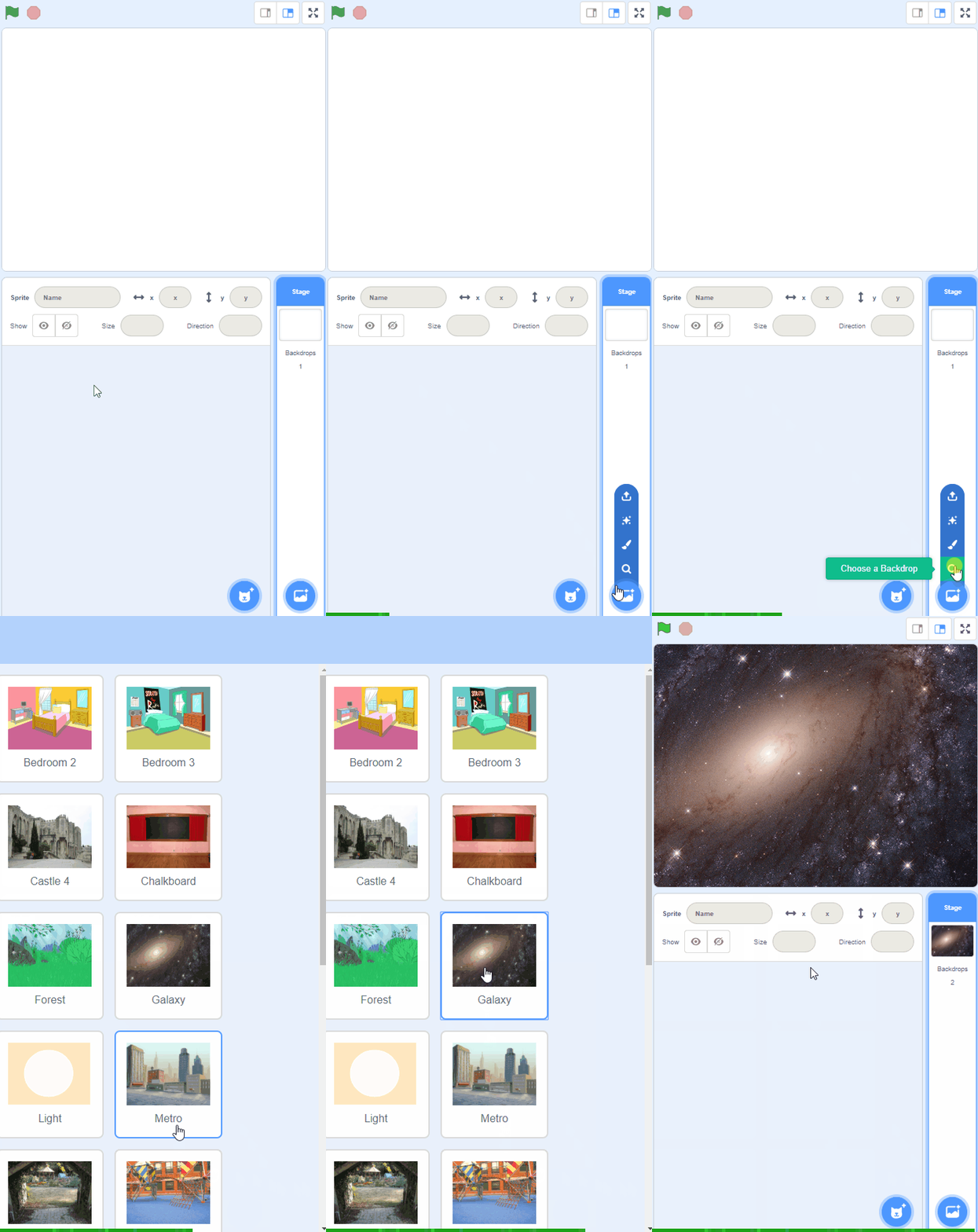
    To make the dance more exciting, we’re going to add a stage background. In Scratch this is called a backdrop.

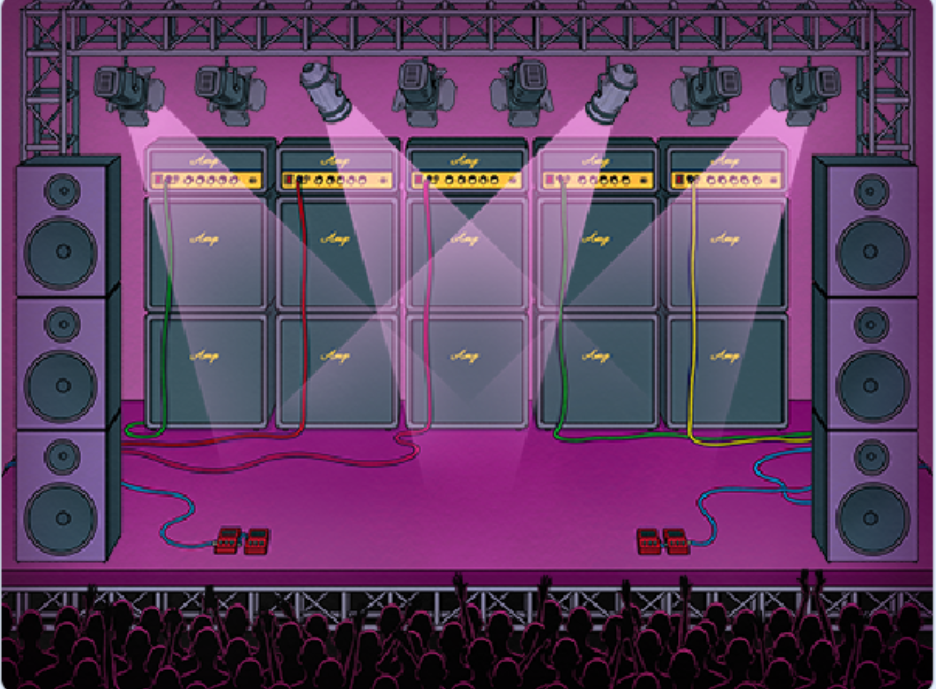
    Click the Choose a Backdrop button at the bottom right of the screen, under the stage. This opens the backdrop library. Scroll down until you find the Concert backdrop and click on it. The stage now looks like a concert stage, ready for a dance.

    This gives your character a great place to show off their moves!


    5 - Changing Costumes

    Some characters have multiple costumes. You can find these by clicking the 'Costumes' tab next to the 'Coding' tab in the top left hand of your screen.

    We’re going to use those costumes to create the animation.

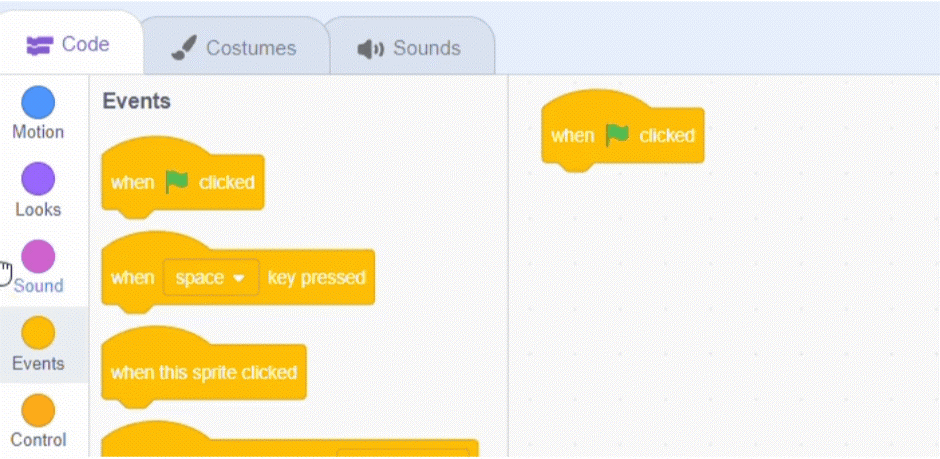
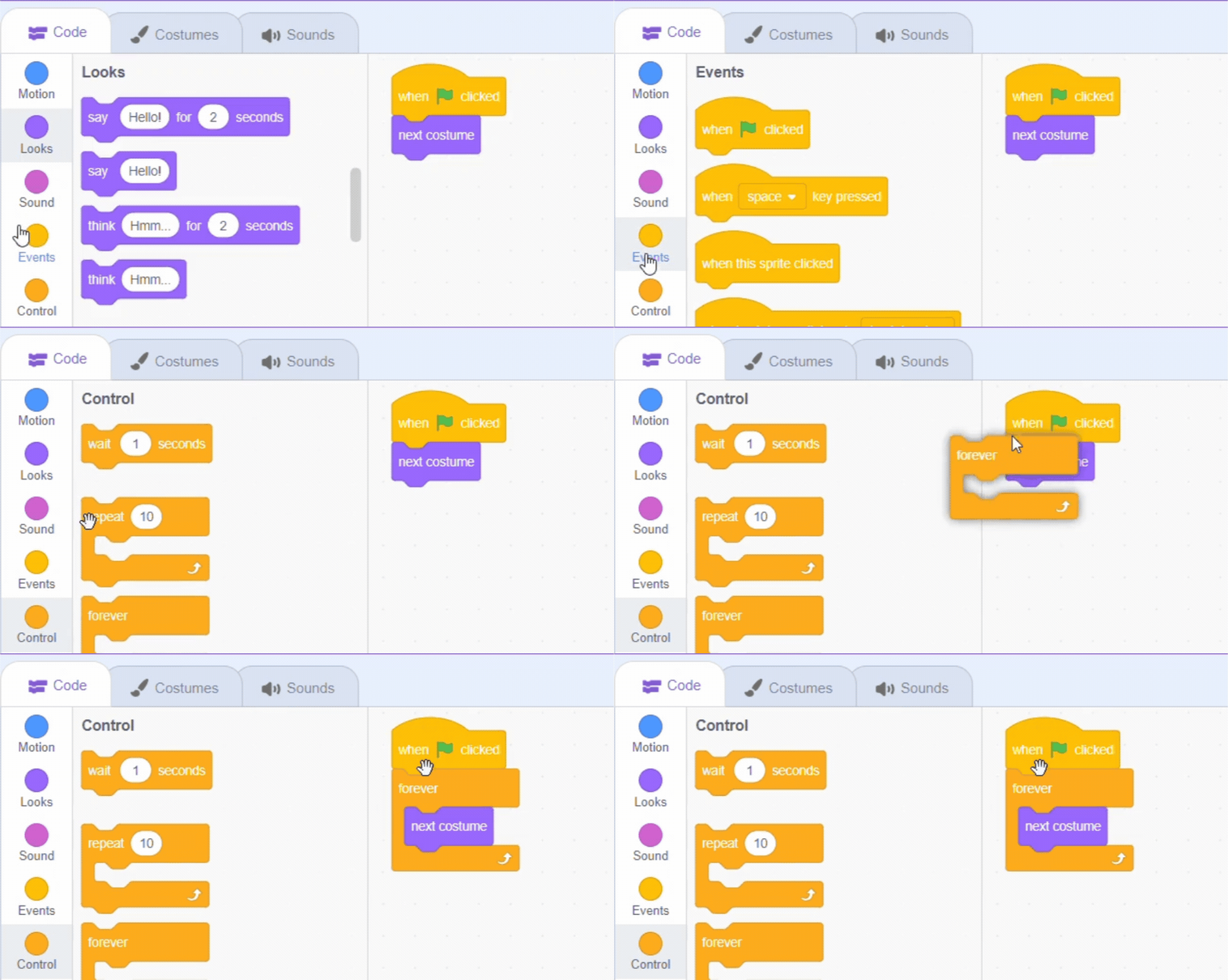
    Begin by dragging the "when green flag clicked" block from the Events section into the coding area. Drag the "next costume" block from the Looks section and place it under the green flag block. This block will tell your sprite to switch to the next costume.

    when green flag clicked next costume

    6 - Repeat the Dance

    To keep your character dancing continuously, we’ll use a loop. Drag the "forever" block from the Control section and wrap it around the "next costume" block. This will make your character keep dancing until you stop the program.

    when green flag clicked forever next costume


    7 - Control the Speed of the Dance

    To make the dance look more smooth, we need to control the speed at which you change costumes.

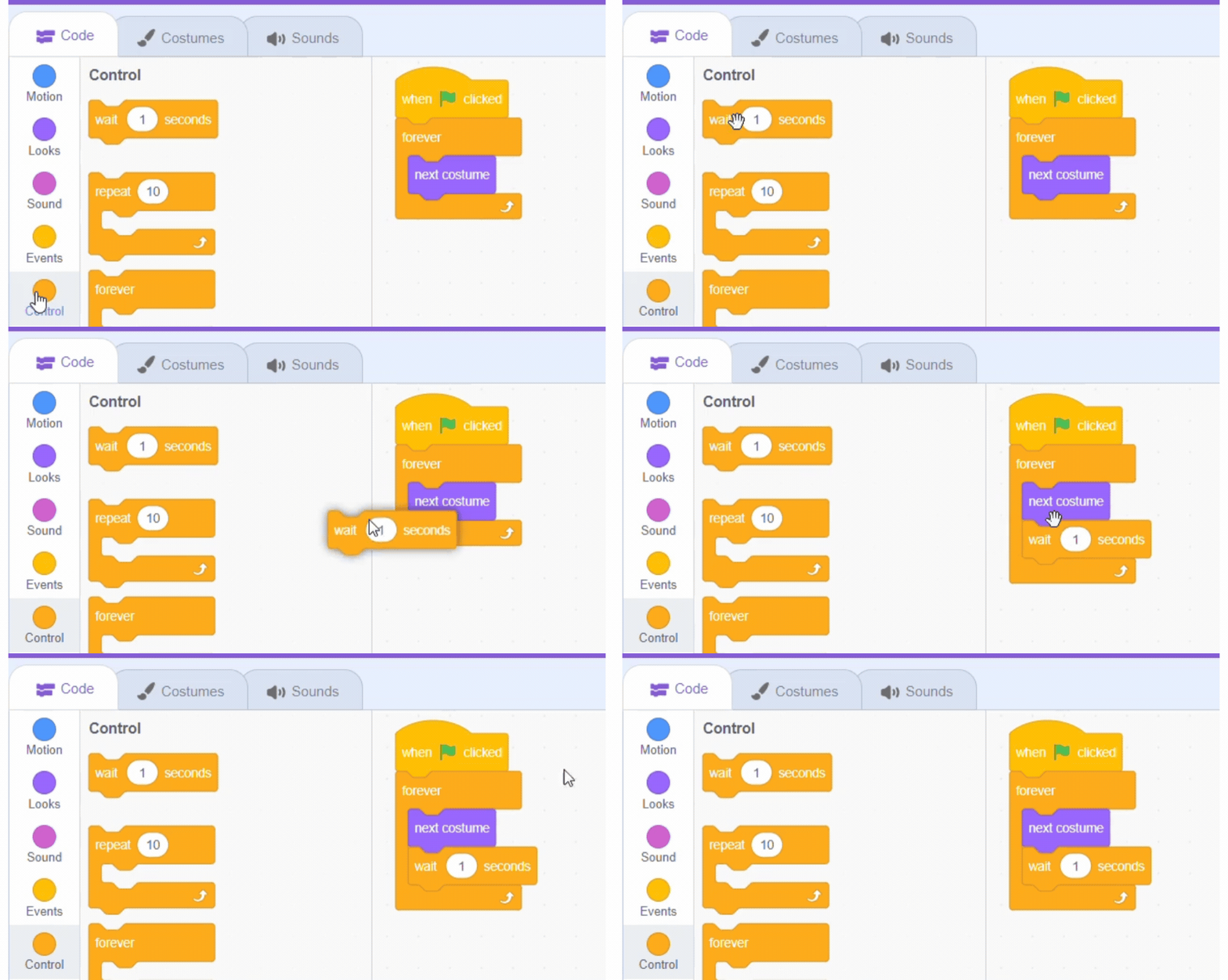
    Add the "wait 1 second" block from the Control section underneath the "next costume" block. This will make your character change costume every second, creating a rhythmic dance move.

    when green flag clicked forever next costume wait [1] seconds


    8 - Test the Animation

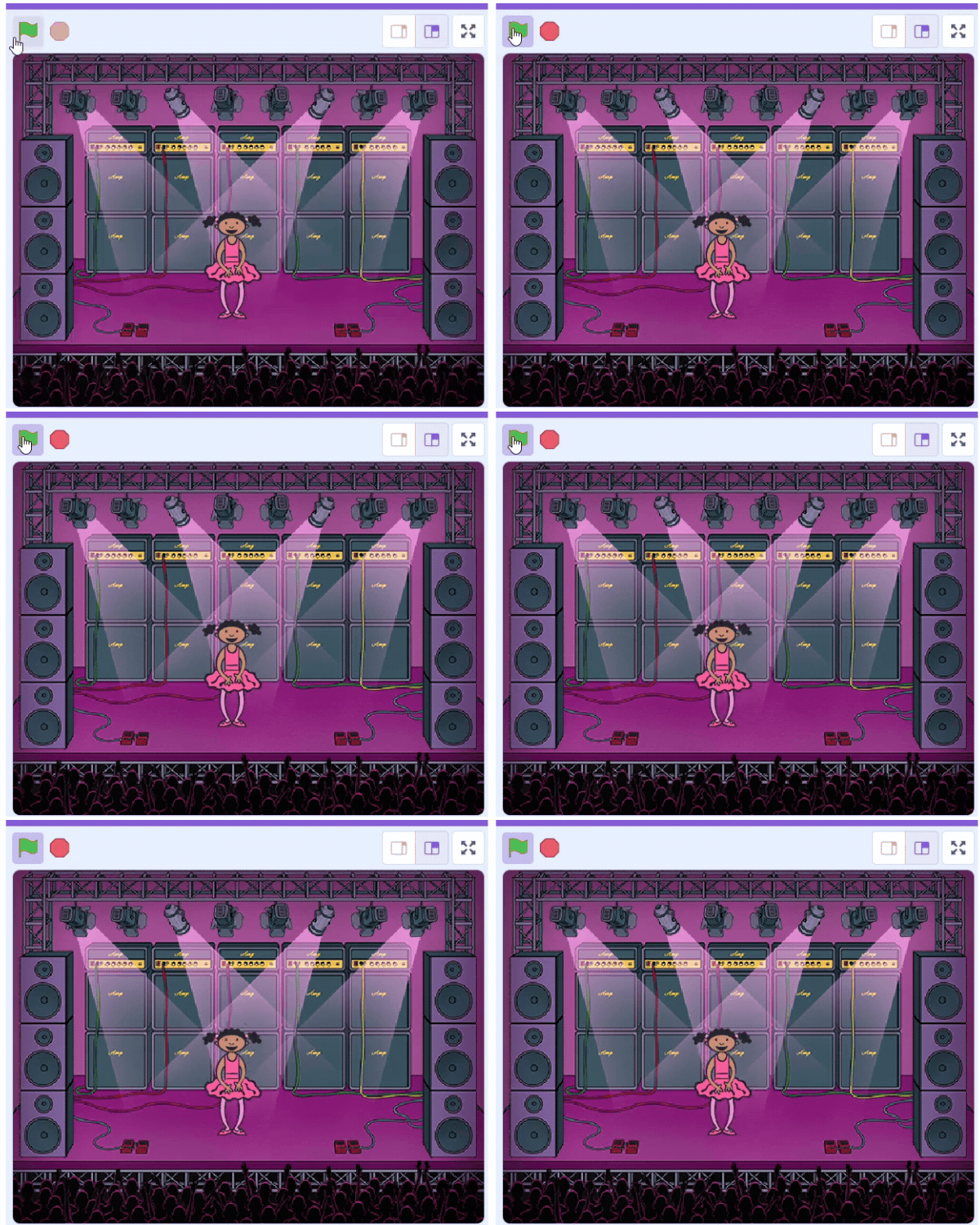
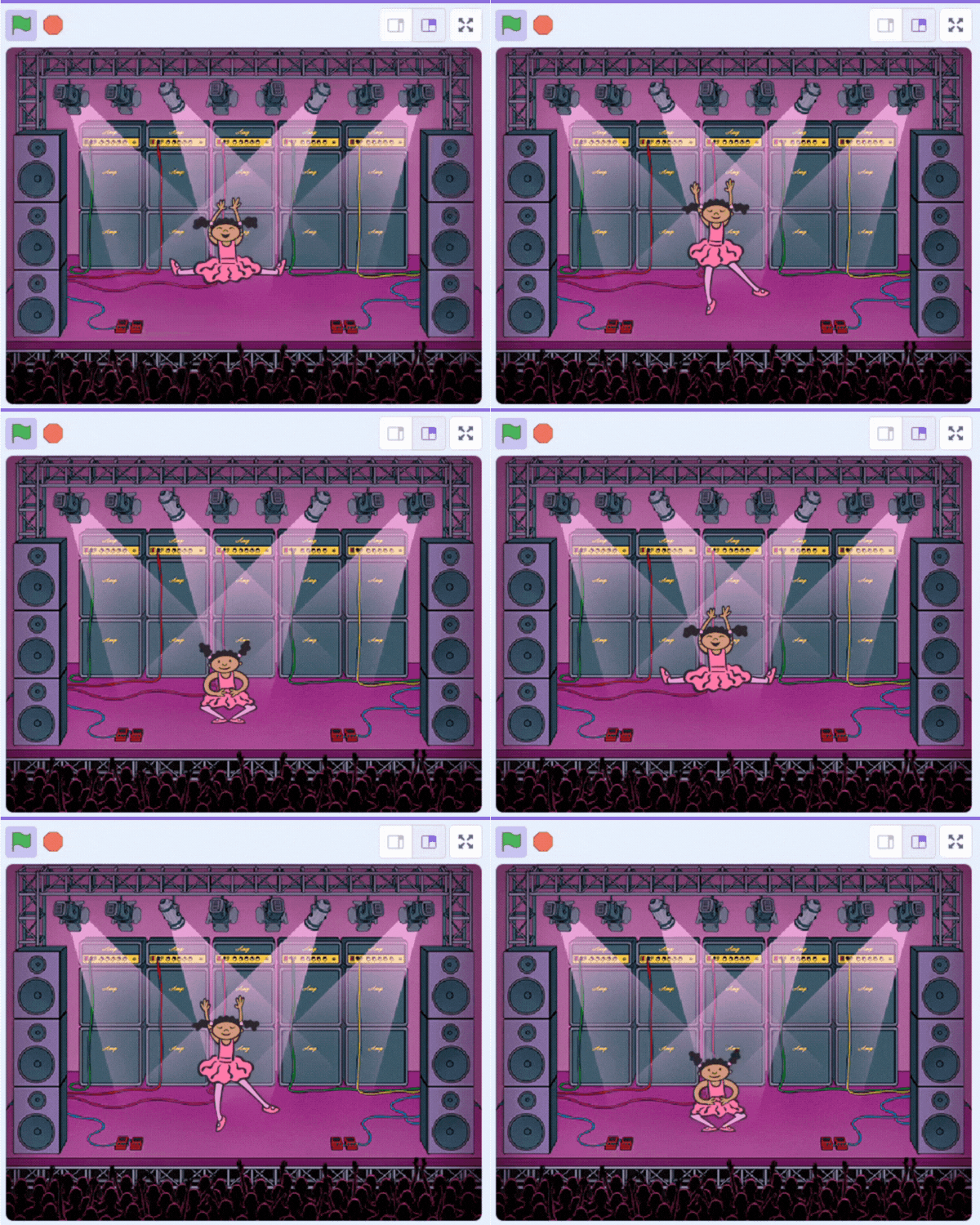
    Click the green flag at the top of your screen to test your animation. Watch your character dance on the stage, changing costumes every second!

    If you finish early, add a second dancer from the sprite library. Then drag your script from the coding area onto the new dancer's picture in the sprite list. That copies the code across, and now two characters dance together!

    9 - Wrap Up

    Great job! You’ve learned how to animate characters by making them change costumes every second, creating a fun dance routine. Now you can experiment with different characters, costumes, and backgrounds to create even more exciting animations!
    End of lesson
    123learn · Sample lesson

    That was a sample lesson from Creative Coding Challenges

    Every lesson in the course is ready to teach like this one. See what else comes with it, and how to order it.

    Copyright Notice
    This lesson is copyright of Coding Ireland 2017 - 2026. Unauthorised use, copying or distribution is not allowed.

    Scratch is developed by the Lifelong Kindergarten Group at the MIT Media Lab. It is available for free at https://scratch.mit.edu
    🍪 Our website uses cookies to make your browsing experience better. By using our website you agree to our use of cookies. Learn more