You're previewing the student experience. You don't need to complete this lesson — your progress and XP aren't saved.
Scratch
Beginner
40 mins
Teacher/Student led
+90 XP

What you need:
Chromebook/Laptop/PC or iPad/Tablet

Animal Sounds

This lesson guides students through creating a Scratch project where they add different animal sprites and program them to make unique sounds when clicked. Students will learn how to use sound blocks in Scratch and create an interactive project.

Teacher Class Feed

Load previous activity

    1 - Introduction to Animal Sounds

    Welcome to the 'Animal Sounds' lesson! In this exciting lesson, you will learn how to use the sound blocks in Scratch to make your sprites come to life with sounds. You will add different animals to your project and make them play unique sounds when clicked. Let's get started and have some fun with coding!


    2 - Create a new Scratch project

    Open the Scratch website using the link below and create a new Scratch project (do not delete the cat sprite as we'll be using it in our project).

    https://scratch.mit.edu

    3 - Add the Background

    Now, let's make our project more lively by adding a backdrop. A backdrop is like a background for our project.

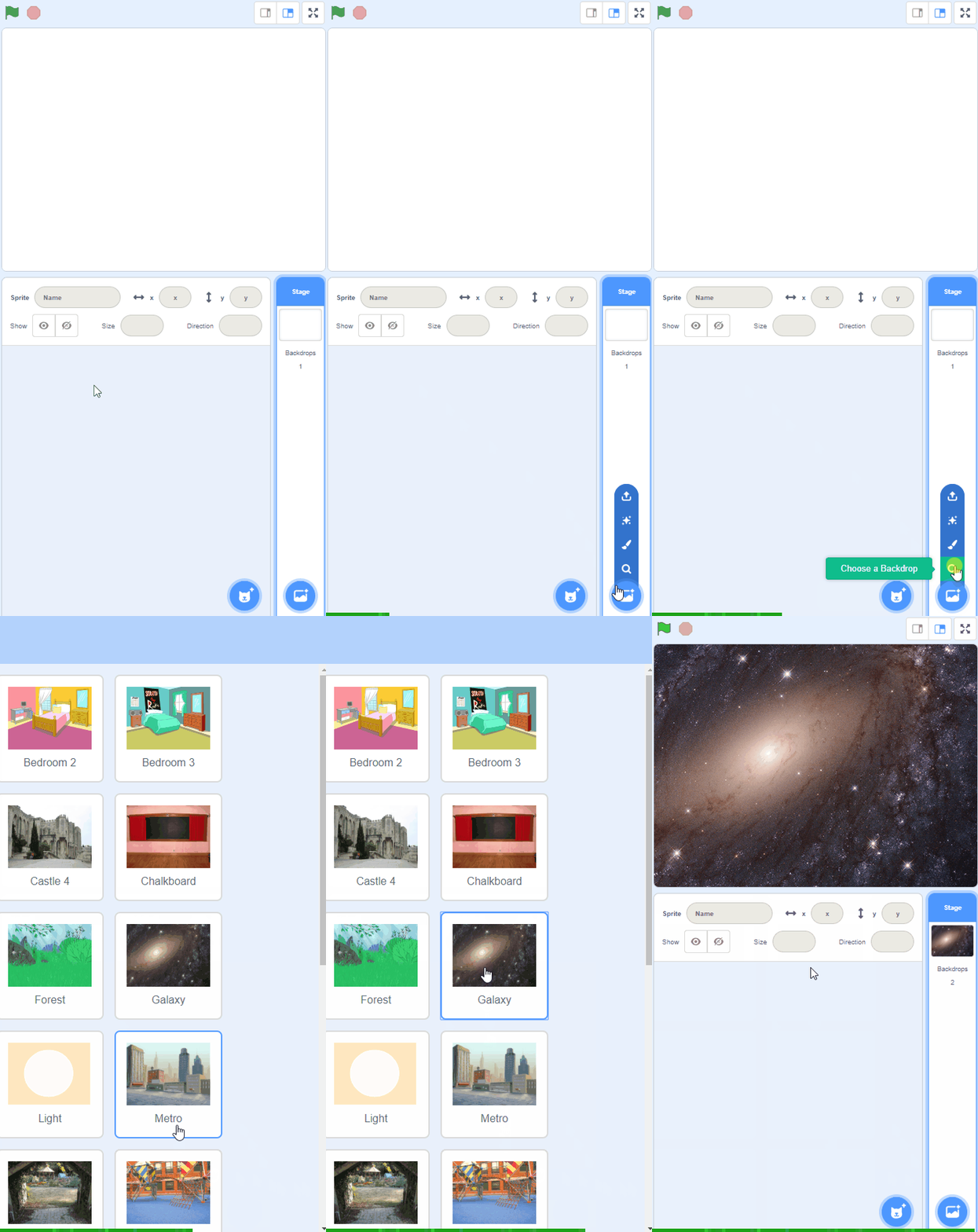
    We will add the 'Blue Sky' backdrop from the backdrop library. To do this, click on the 'Choose a Backdrop' button at the bottom right of the screen and this will open the backdrop library.

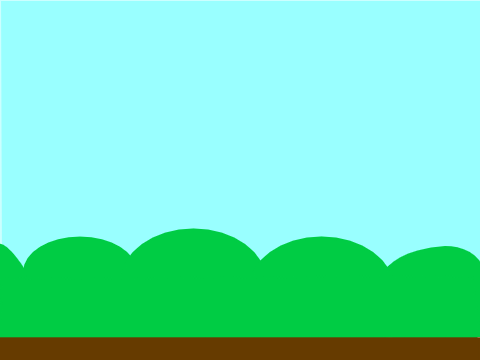
    Scroll through the options until you find the 'Blue Sky' backdrop. Click on it to add it to your project. Now, you should see a beautiful blue sky in the background of your project!


    4 - Add a Background

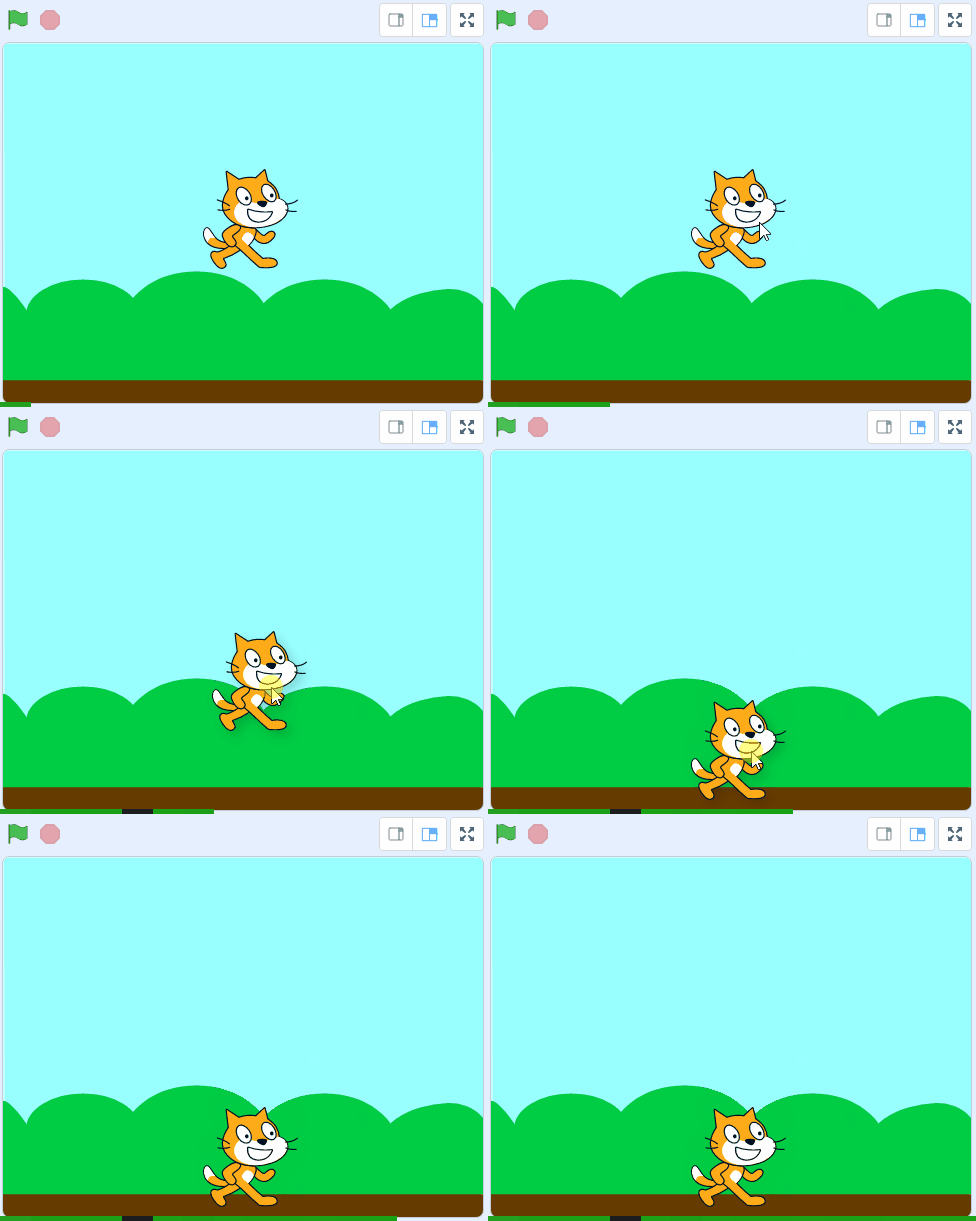
    Now that we've added a backdrop, drag the cat down onto the ground.

    Next we'll give the cat some instructions so that when you click on the cat, it will make a meow sound. Add the following code to the cat:

    when this sprite clicked start sound [meow v]

    Click on the cat and test that the sound works!


    5 - Add a dog and give it a sound

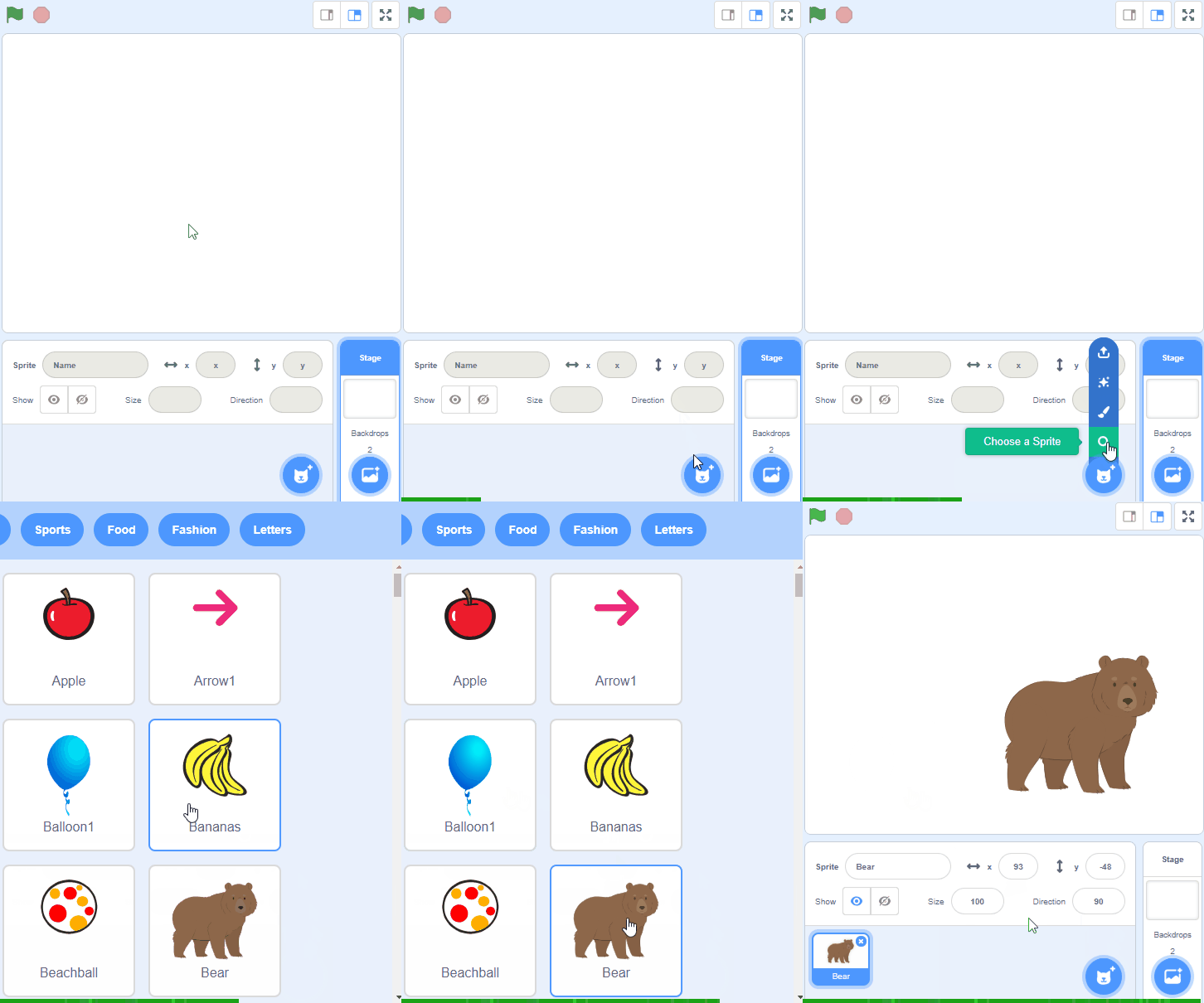
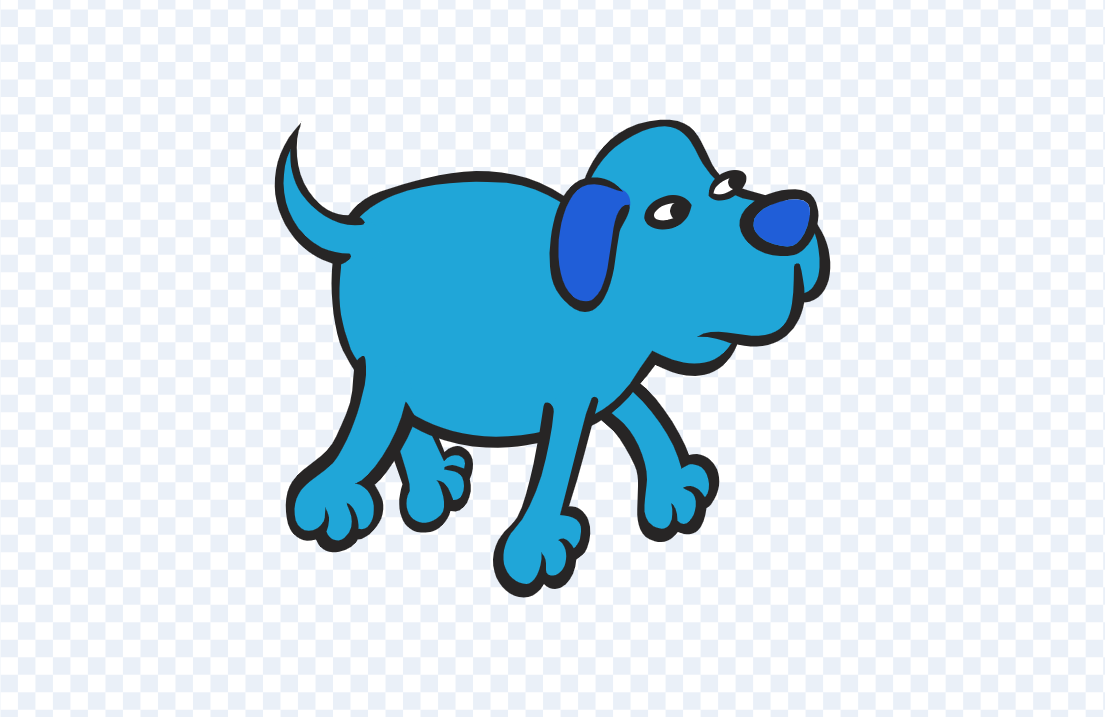
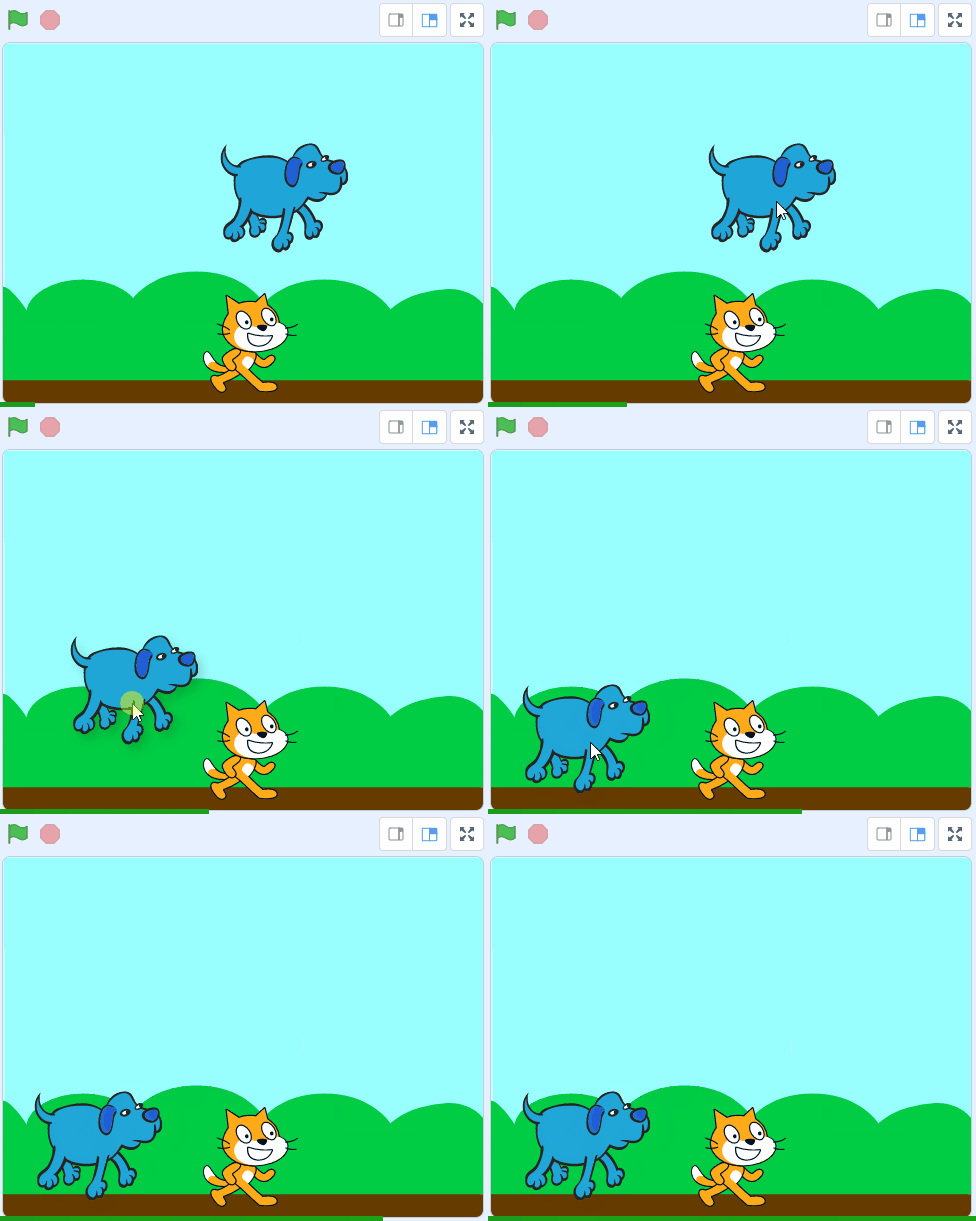
    Next we're going to add the Dog 2 sprite and then give him some code to make a sound when you click him.

    Add the Dog 2 sprite from the sprite library.

    Drag the dog to the bottom left and then give him some instructions so that when you click on the dog, it will make a woof sound. Add the following code to the dog sprite.

    when this sprite clicked start sound [dog1 v]

    Click on the dog and test that the sound works!


    6 - Add a parrot and give it a sound

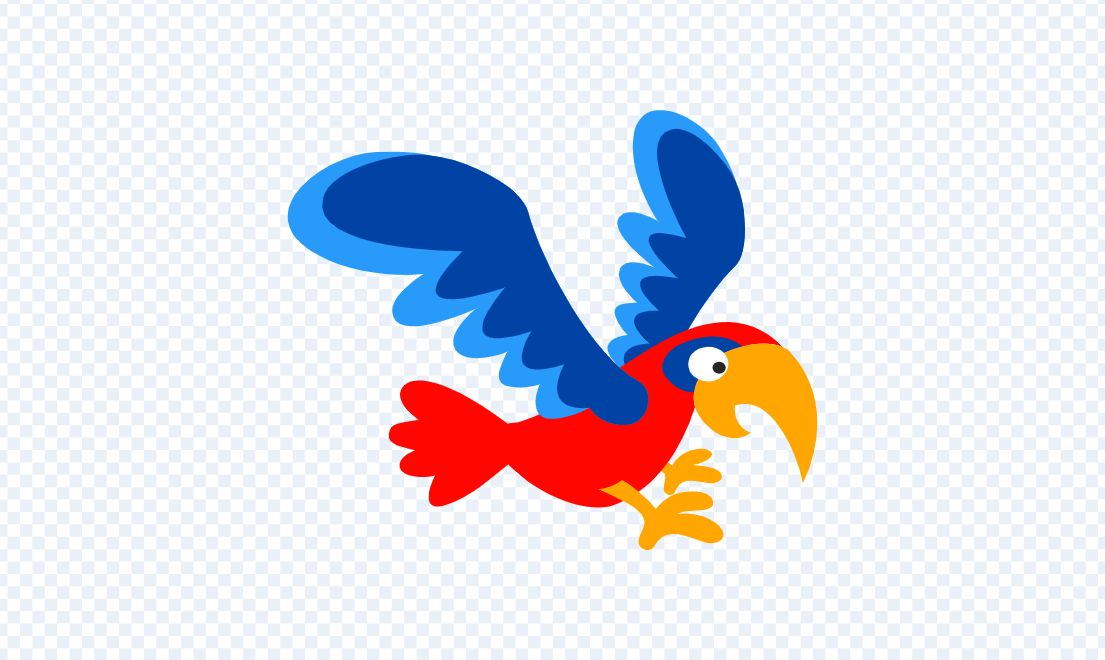
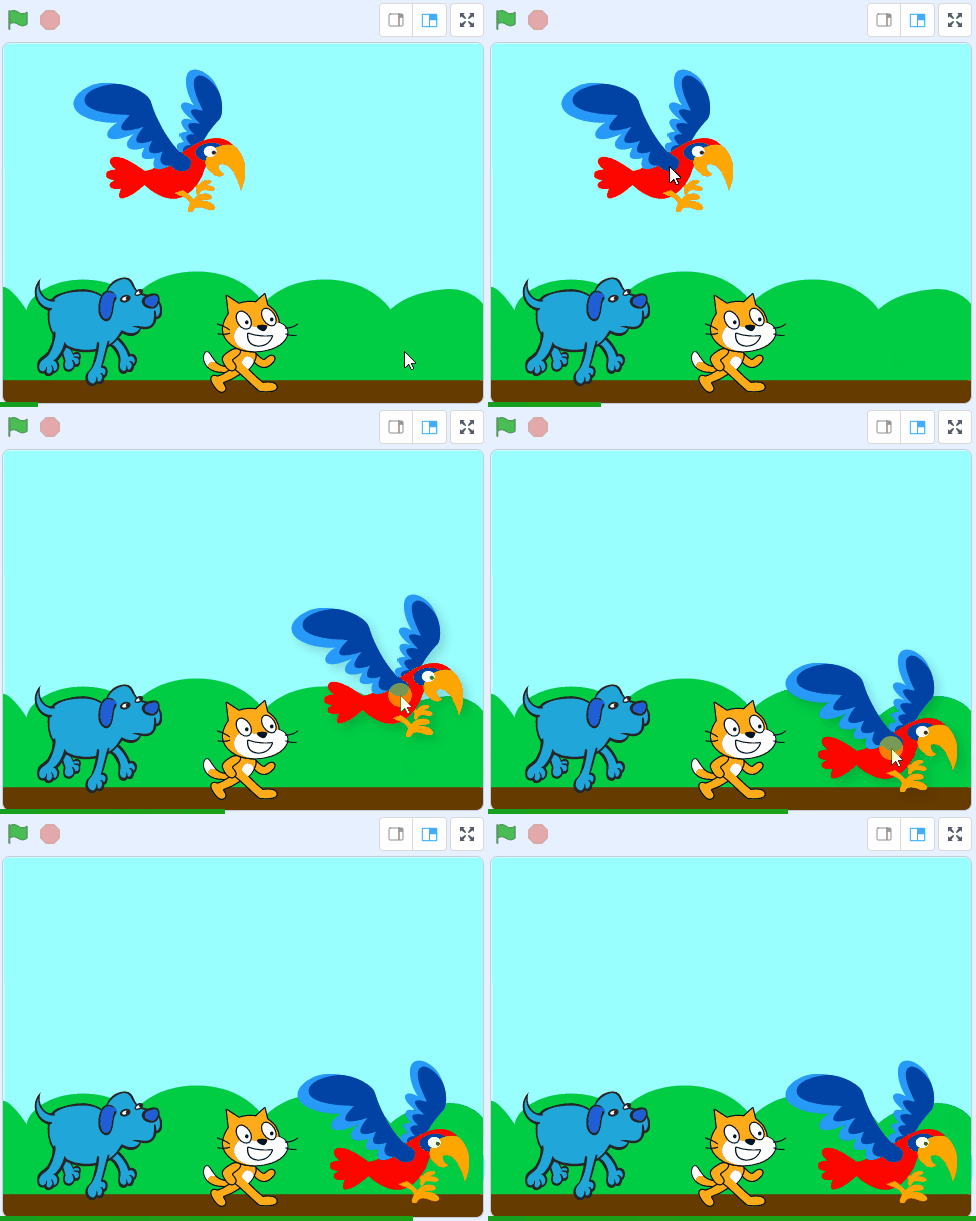
    Next we're going to add a parrot and then give her some code to make a sound when you click her.

    Add the Parrot sprite from the sprite library.

    Drag the parrot to the bottom right and then give her some instructions so that when you click on the parrot, it will make a bird chirping sound. Add the following code to the parrot:

    when this sprite clicked start sound [bird v]

    Click on the parrot and test that the sound works!


    7 - Add a horse and give it a sound

    Next we're going to add a horse and then give her some code to make a galloping sound when you click her.

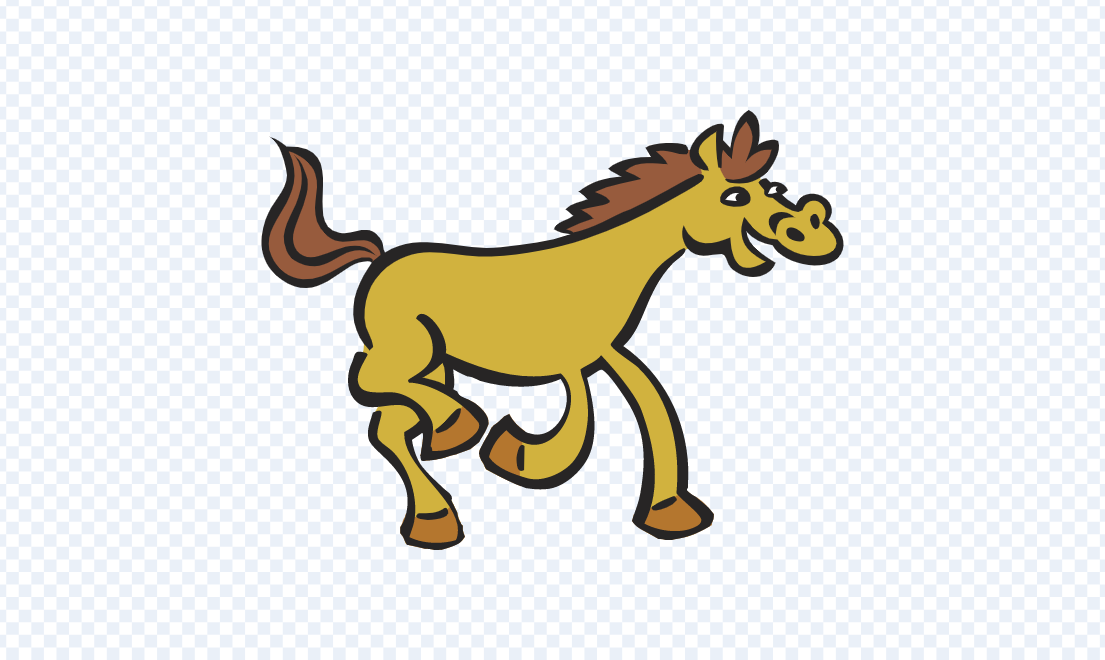
    Add the Horse sprite from the sprite library.

    Add the following code to the horse sprite.

    when this sprite clicked play sound [horse gallop v] until done

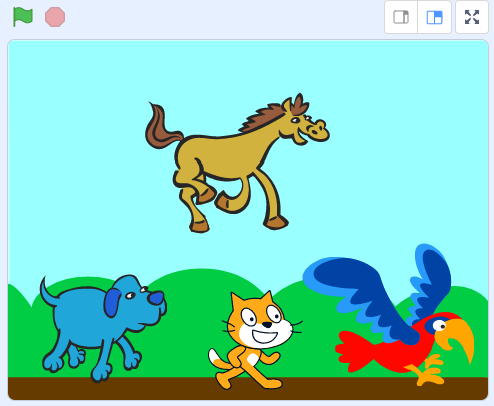
    Great job! You've added all the animals and their sounds to your project. Now, it's time to bring your project to life. Click on each animal to hear their unique sounds. Does the cat meow? Does the dog bark? What sound does the parrot make? And what about the horse? Go ahead and explore.


    8 - Wrap Up

    Well done! You've successfully completed the 'Animal Sounds' lesson. You've learned how to add different sprites to your project and how to make them play unique sounds when clicked. You've brought your project to life by adding a backdrop and making your sprites interact with sounds. Keep exploring Scratch and see what else you can create with sounds and sprites. Happy coding!

    End of lesson
    123learn · Sample lesson

    That was a sample lesson from Exploring Coding

    Every lesson in the course is ready to teach like this one. See what else comes with it, and how to order it.

    Copyright Notice
    This lesson is copyright of Coding Ireland 2017 - 2026. Unauthorised use, copying or distribution is not allowed.

    Scratch is developed by the Lifelong Kindergarten Group at the MIT Media Lab. It is available for free at https://scratch.mit.edu
    🍪 Our website uses cookies to make your browsing experience better. By using our website you agree to our use of cookies. Learn more