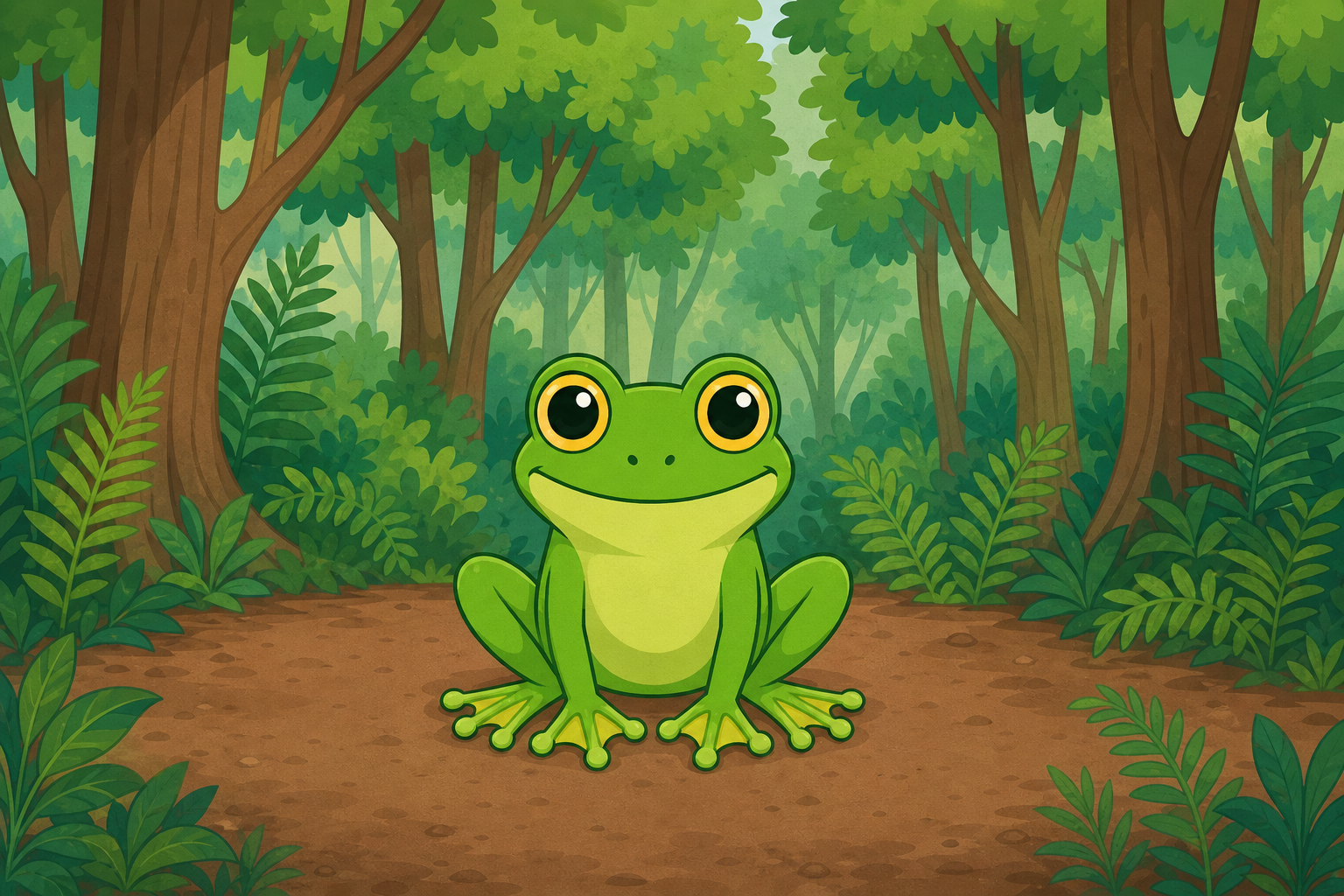
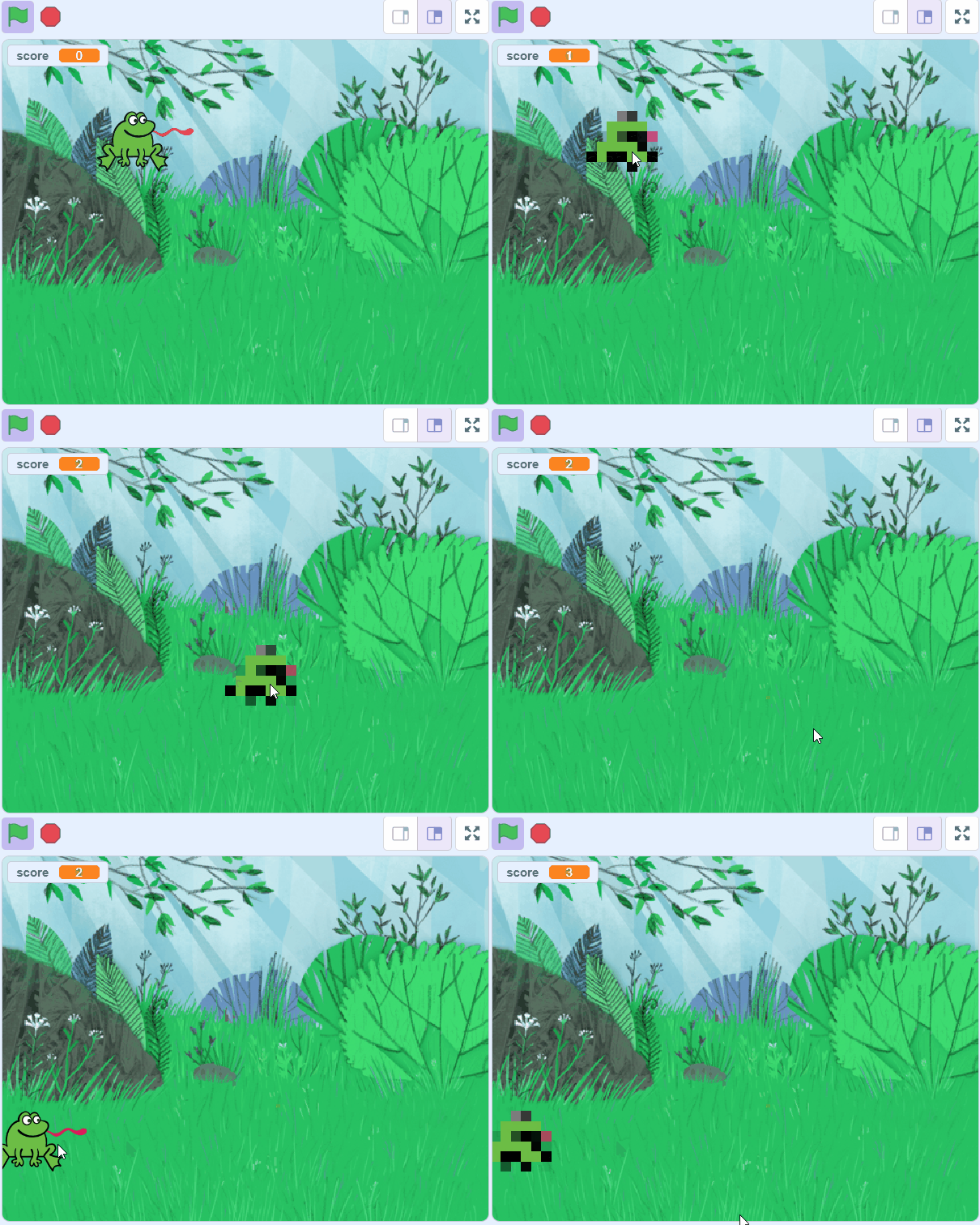
 Every game you play on a screen was built by someone writing instructions for the computer to follow. Today you become that person! We're going to build a game called Frog Frenzy, where a frog keeps popping up in random places and you have to click it fast to score points.
Just like real programmers, you'll watch it demonstrated on the board first, then build each piece yourself and run it to see what happens. When something doesn't work the way you expect, that's not a disaster — finding and fixing those problems is a huge part of what coders do every day.
Welcome to the Frog Frenzy game! In this game, a frog will appear and disappear at random positions. Your task is to click on the frog to score points. Let's start coding!
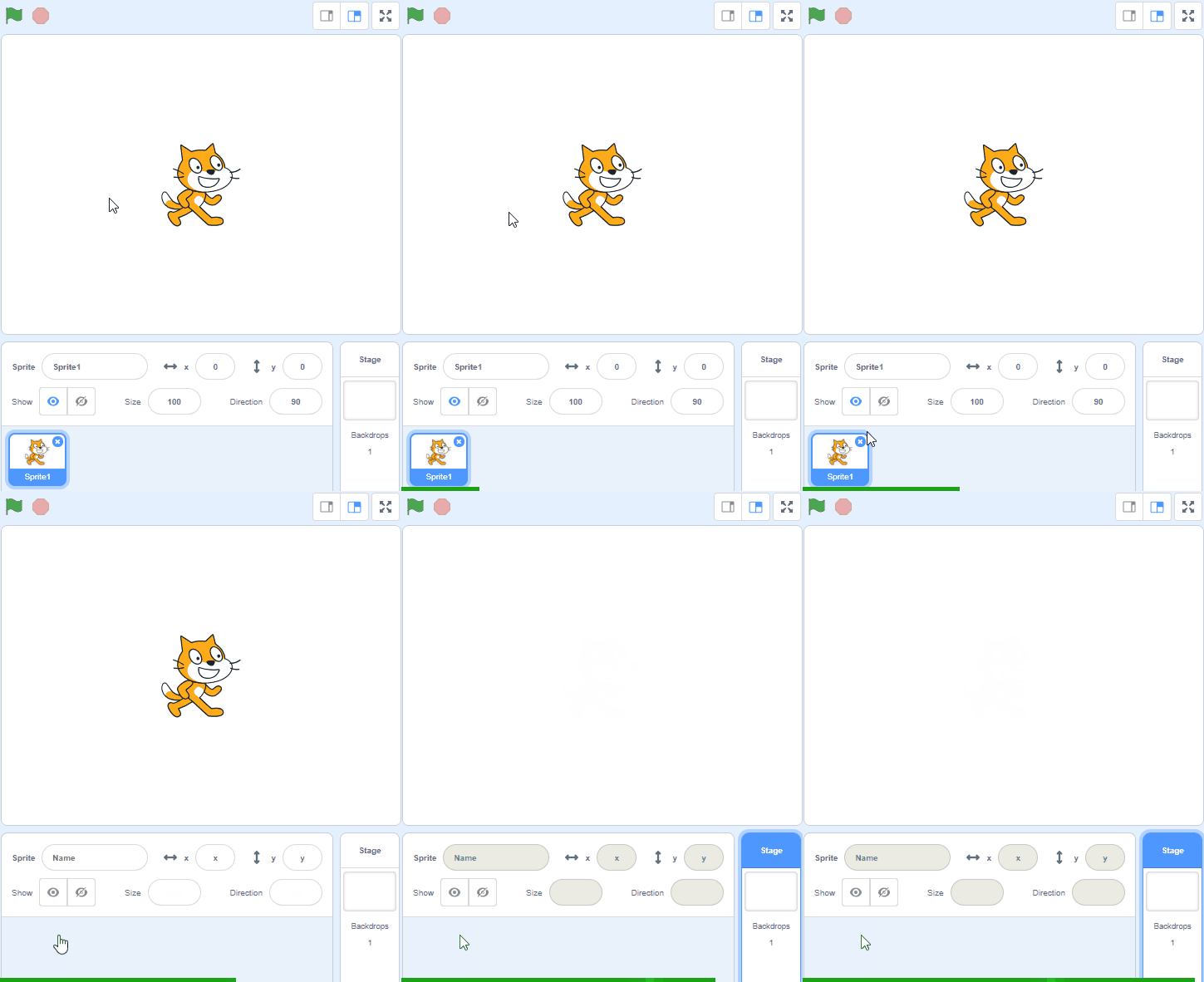
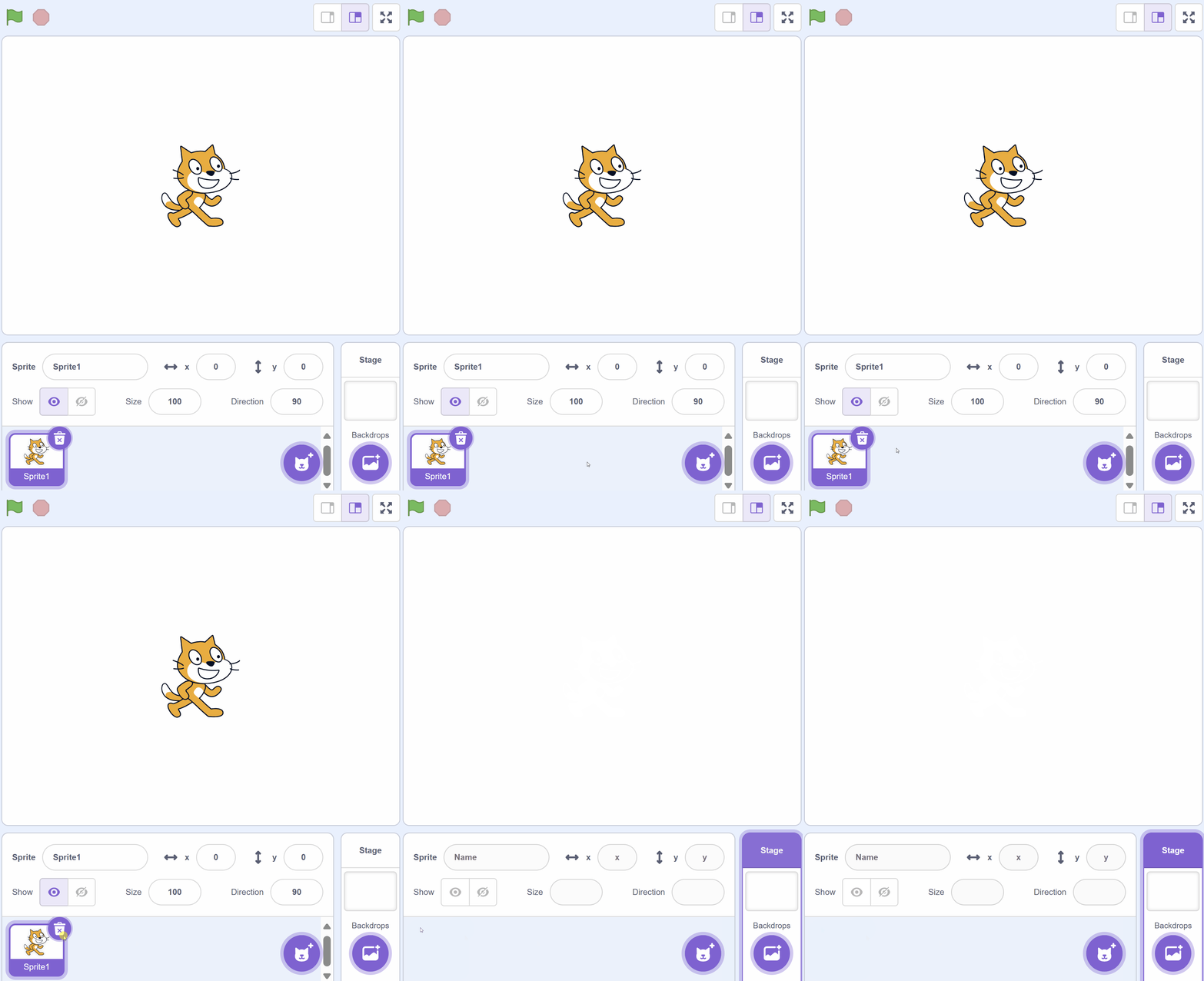
First, let's create a new Scratch project and delete the cat sprite. We'll be using a frog sprite for this game.
Go to the Scratch website using the link below and click on the 'Create' link in the blue bar at the top.
By default, each new project starts with the cat sprite already added. To delete the cat click on the x in the blue circle beside the cat in the sprite list.
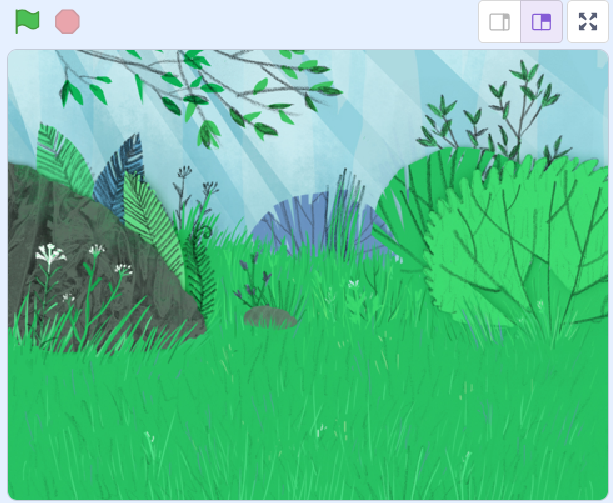
Next, add the Forest backdrop to your project. This will be the setting for our game.
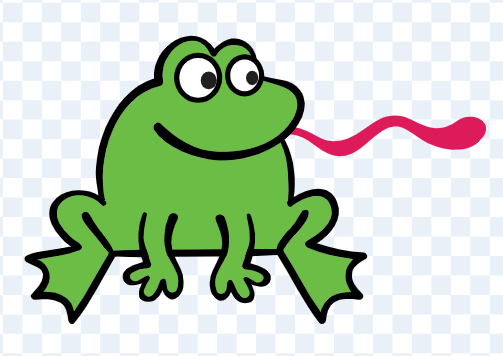
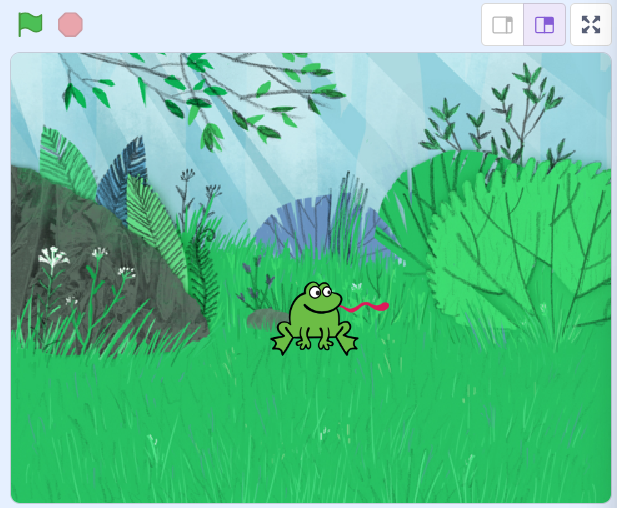
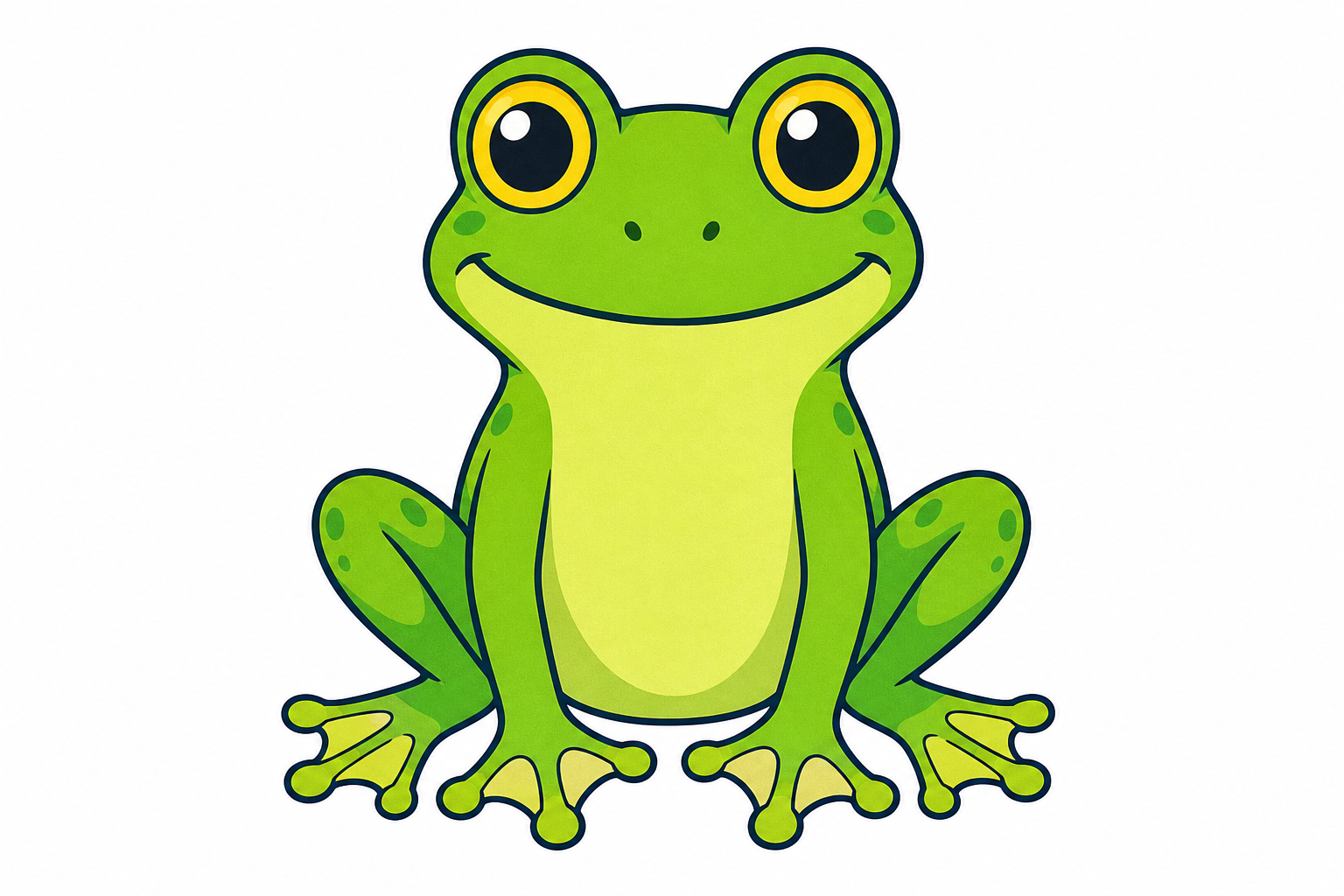 Now, add the Frog sprite to your project. This will be the character that we will be interacting with in our game.
Unlock the full learning experience
You're previewing this lesson. Get full access to this lesson and hundreds more — each one ready to teach, with interactive activities, printable resources and pupil progress tracking built in.
This lesson is copyright of Coding Ireland 2017 - 2025. Unauthorised use, copying or distribution is not allowed.
Scratch is developed by the Lifelong Kindergarten Group at the MIT Media Lab. It is available for free at https://scratch.mit.edu