1 - Introduction
Introduction to Customizing Your Device Settings
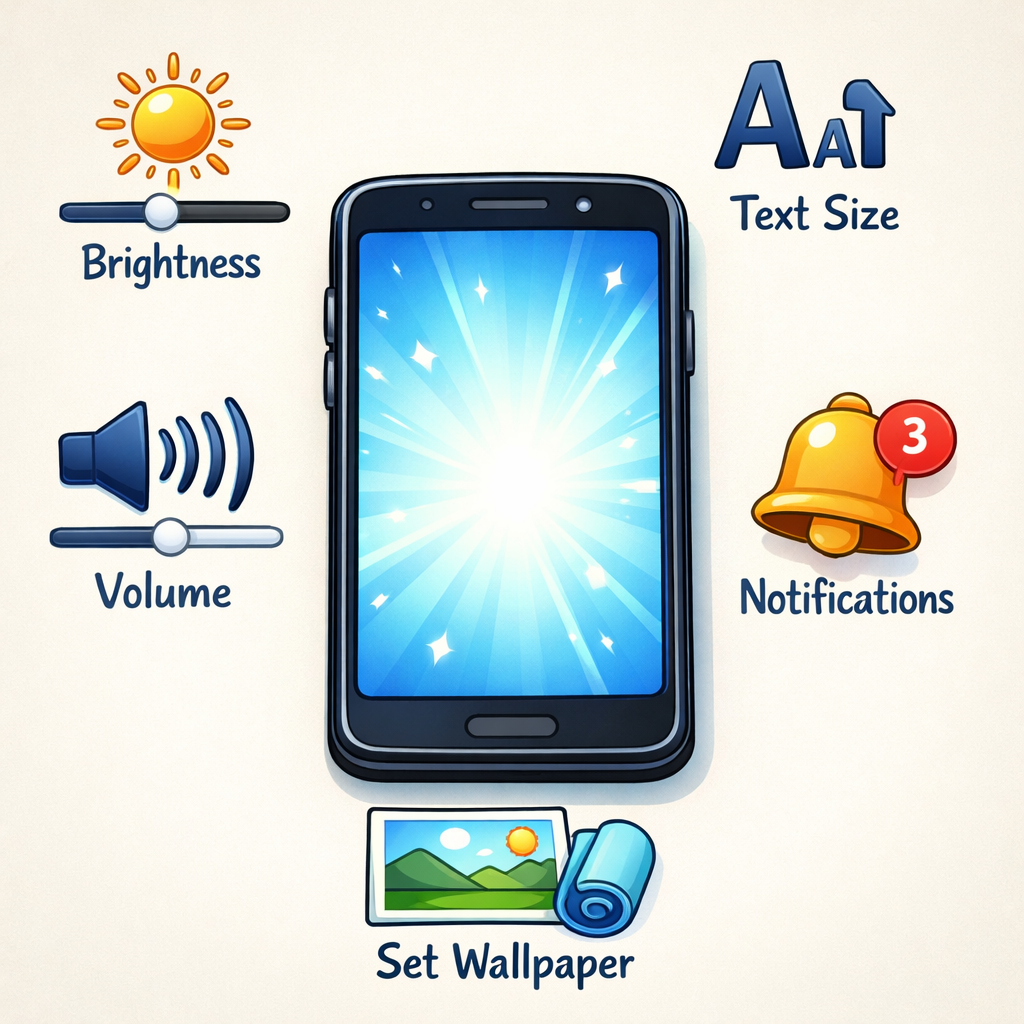 Have you ever squinted at tiny text on your screen or winced at a brightness that's too harsh for your eyes? This 30-minute lesson shows you how to tweak your device settings to make tasks like reading HSE messages, filling MyGovID or Revenue forms, online banking, or video calls with family far more comfortable.
- Adjust display brightness for library or home use
- Change text size and scaling
- Adjust system and app volume
- View keyboard shortcuts safely
- Set a wallpaper
- Manage notifications
- Explore accessibility features
- Complete activities and a challenge
2 - Adjust Display Brightness
 Step 1: Adjust Display Brightness
Brightness controls how light or dark your screen appears. Adjusting it can make your device easier to use and more comfortable on your eyes.
If the screen is too bright, it may feel harsh or tiring. If it is too dim, text and images may be harder to see.
On most devices, you can change brightness in Settings or by using quick controls. Some laptops also have brightness keys on the keyboard, often marked with a small sun symbol.
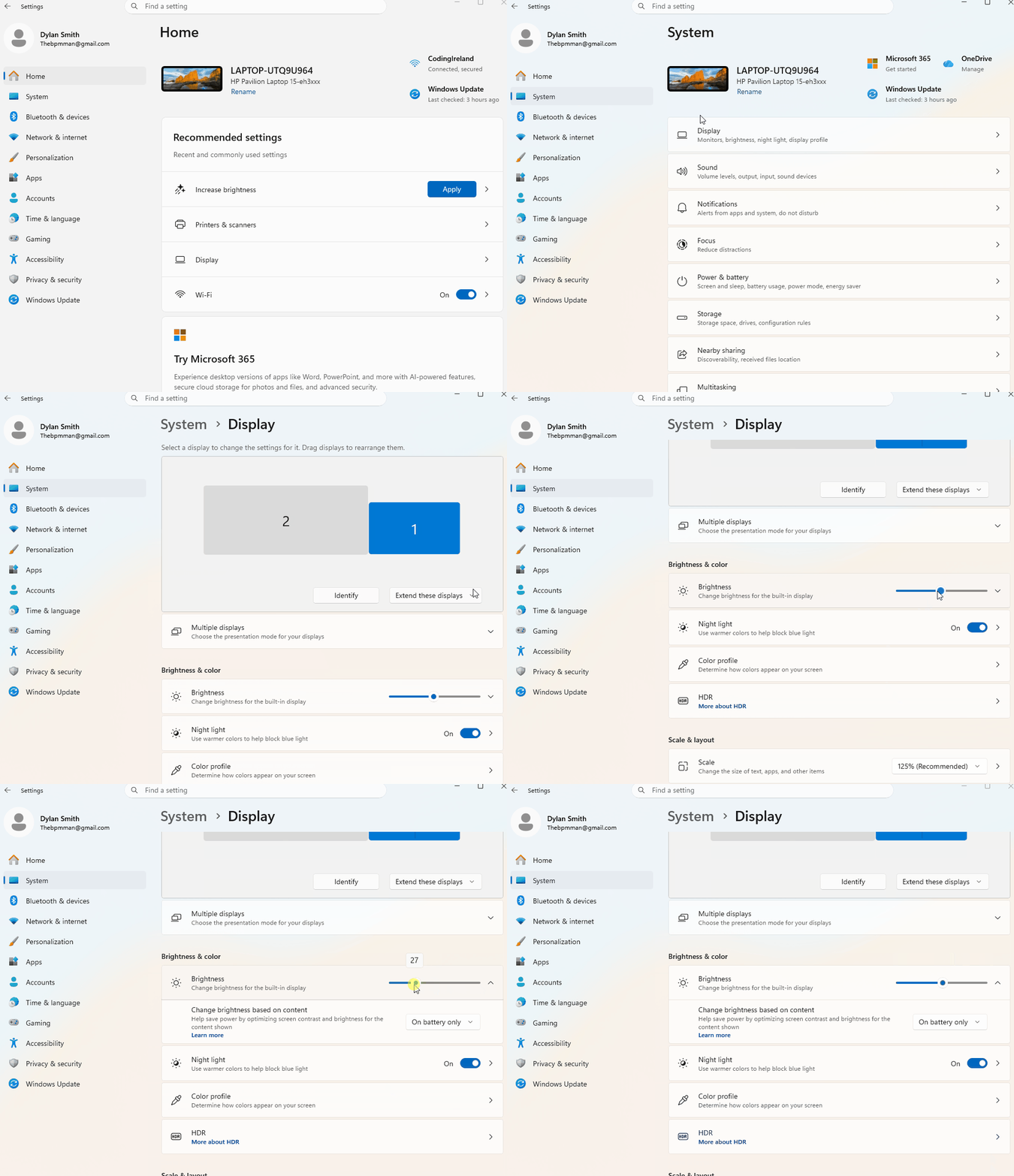
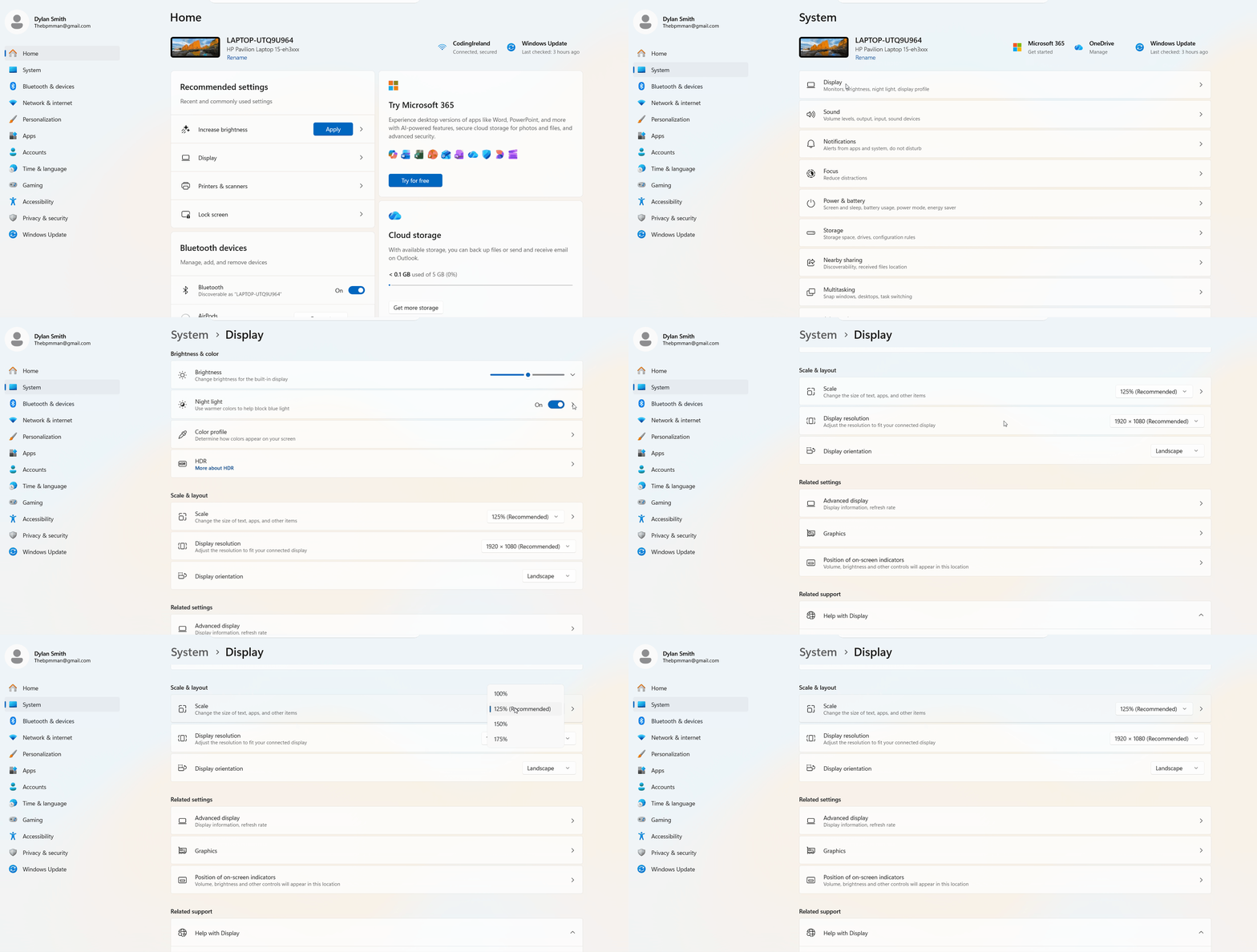
- Windows: Open Settings > System > Display and adjust the brightness slider
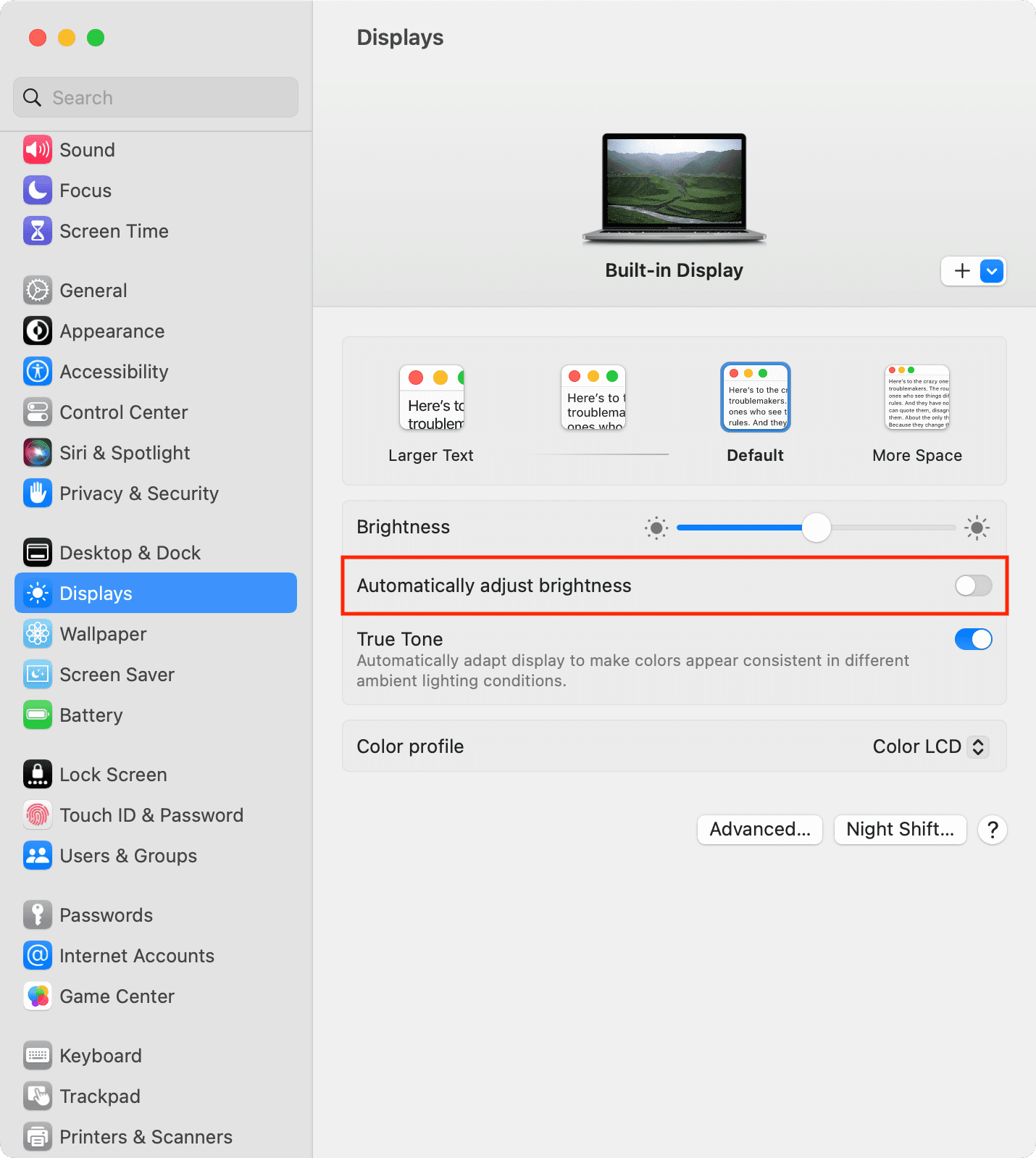
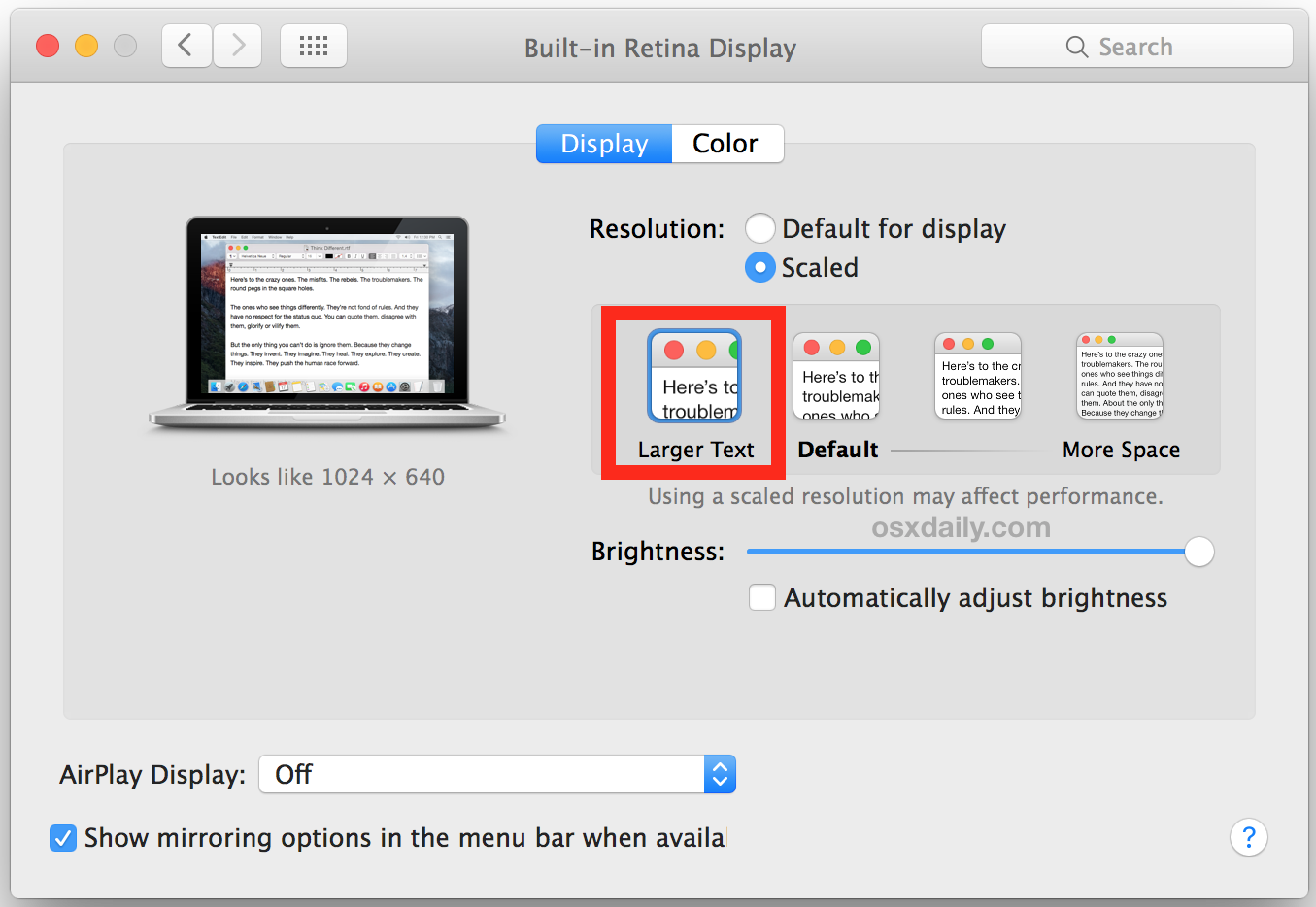
- Mac: Open System Settings > Displays and adjust the brightness control
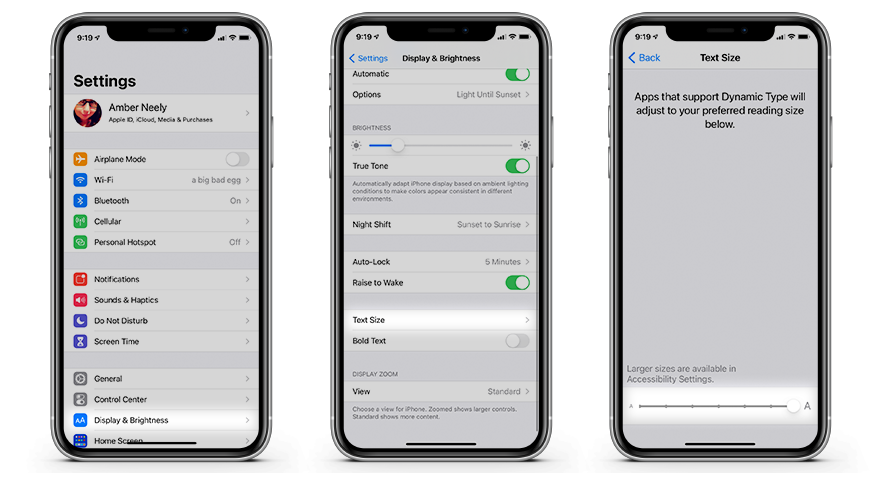
- iPhone: Open Settings > Display & Brightness, or use the brightness slider in Control Centre
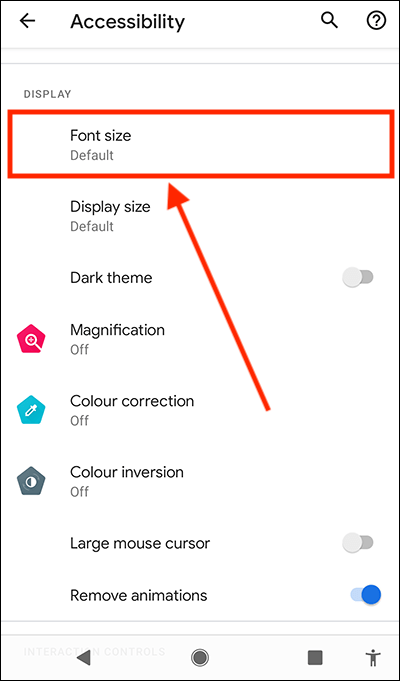
- Android: Open Settings > Display or use the brightness slider in Quick Settings
3 - Change Text Size and Scaling
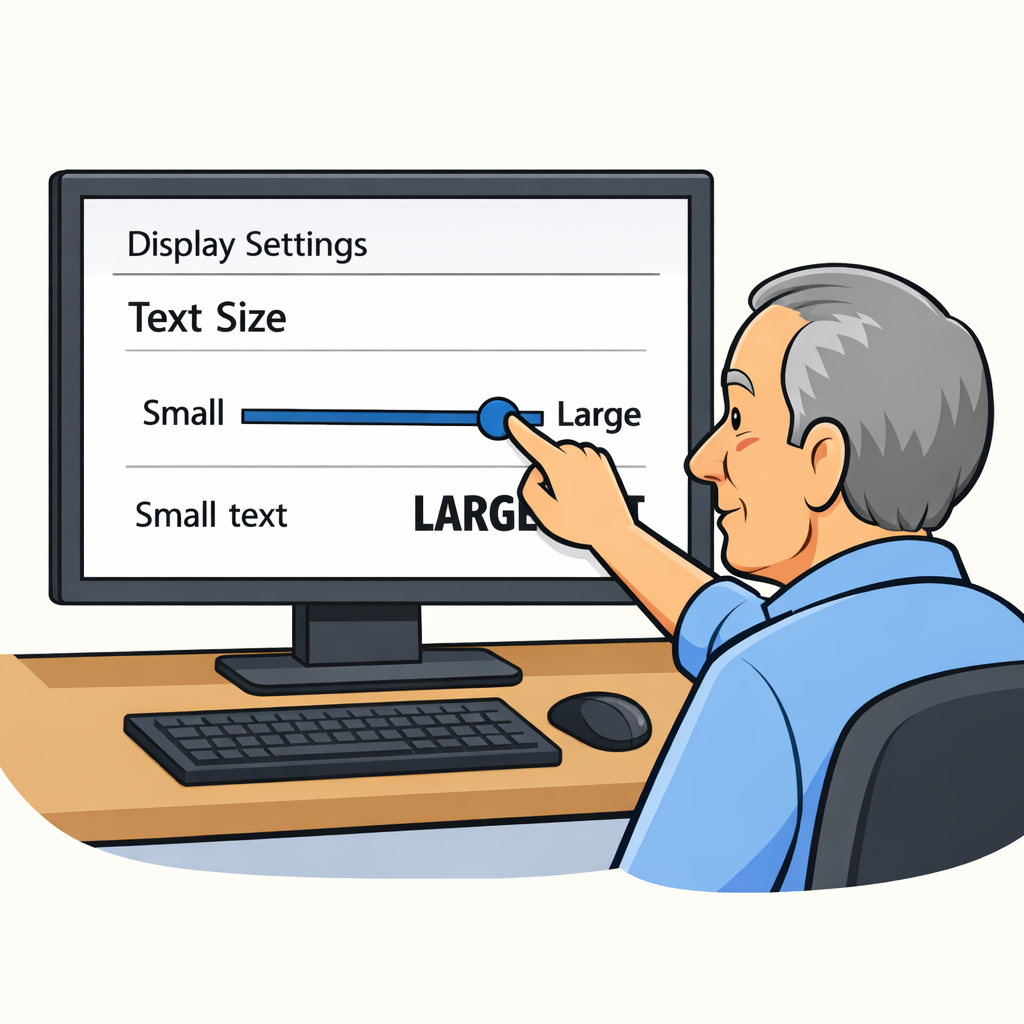 Changing text size or display scaling can make words, icons, and buttons easier to read and use.
This is helpful if text feels too small, or if you want everything on the screen to appear larger and more comfortable to view.
Text size makes words bigger or smaller.
Scaling changes the size of more items on the screen, such as apps, menus, buttons, and icons.
How to change it on your device
-
Windows:
Open Settings > System > Display to change Scale,
or go to Accessibility > Text size -
Mac:
Open System Settings > Displays to adjust how items appear on screen -
iPhone:
Open Settings > Display & Brightness > Text Size,
or go to Accessibility > Display & Text Size -
Android:
Open Settings > Display or Accessibility
to change Font Size or Display Size
4 - Adjust Volume
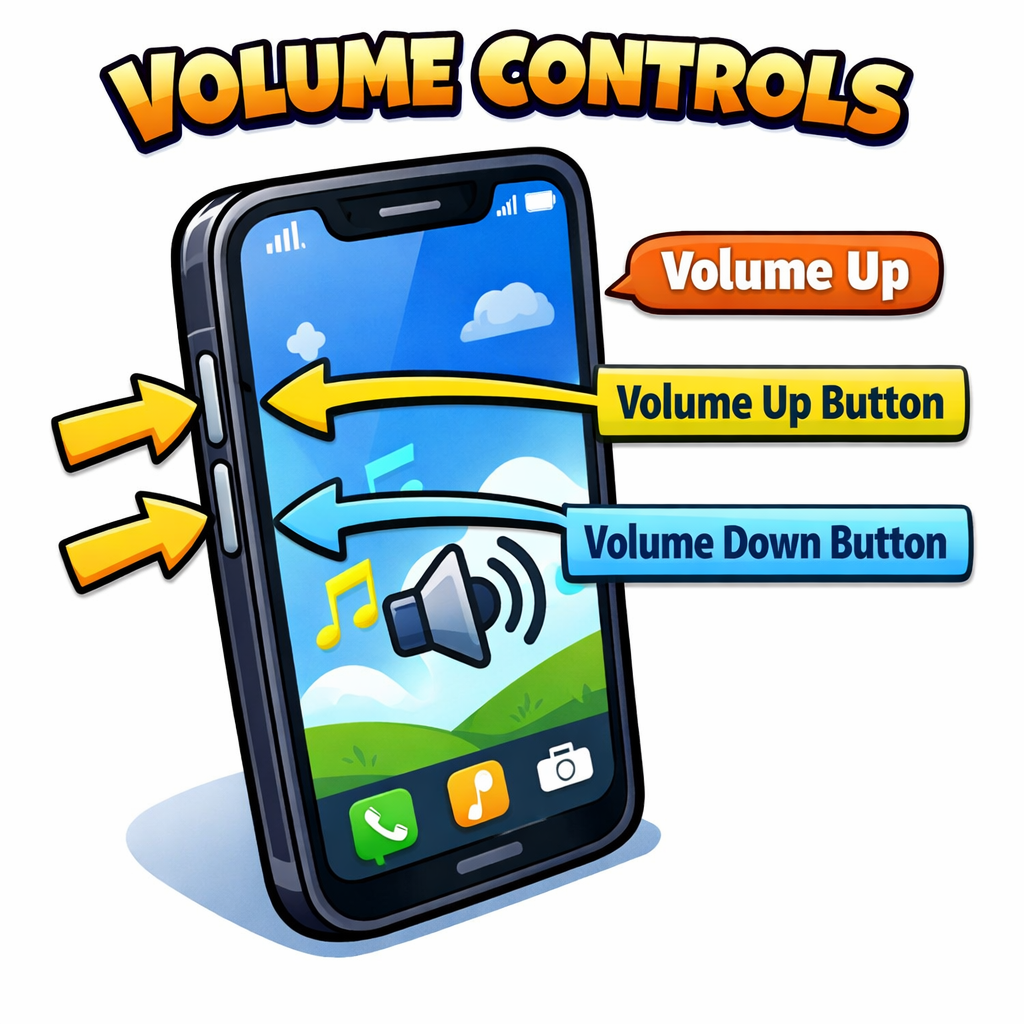 Volume
controls how loud or quiet your device sounds.
Volume
controls how loud or quiet your device sounds.Adjusting the volume can help you hear music, videos, calls, notifications, and spoken instructions more clearly.
If the volume is too high, it may feel uncomfortable. If it is too low, you might miss important sounds or find it hard to follow audio.
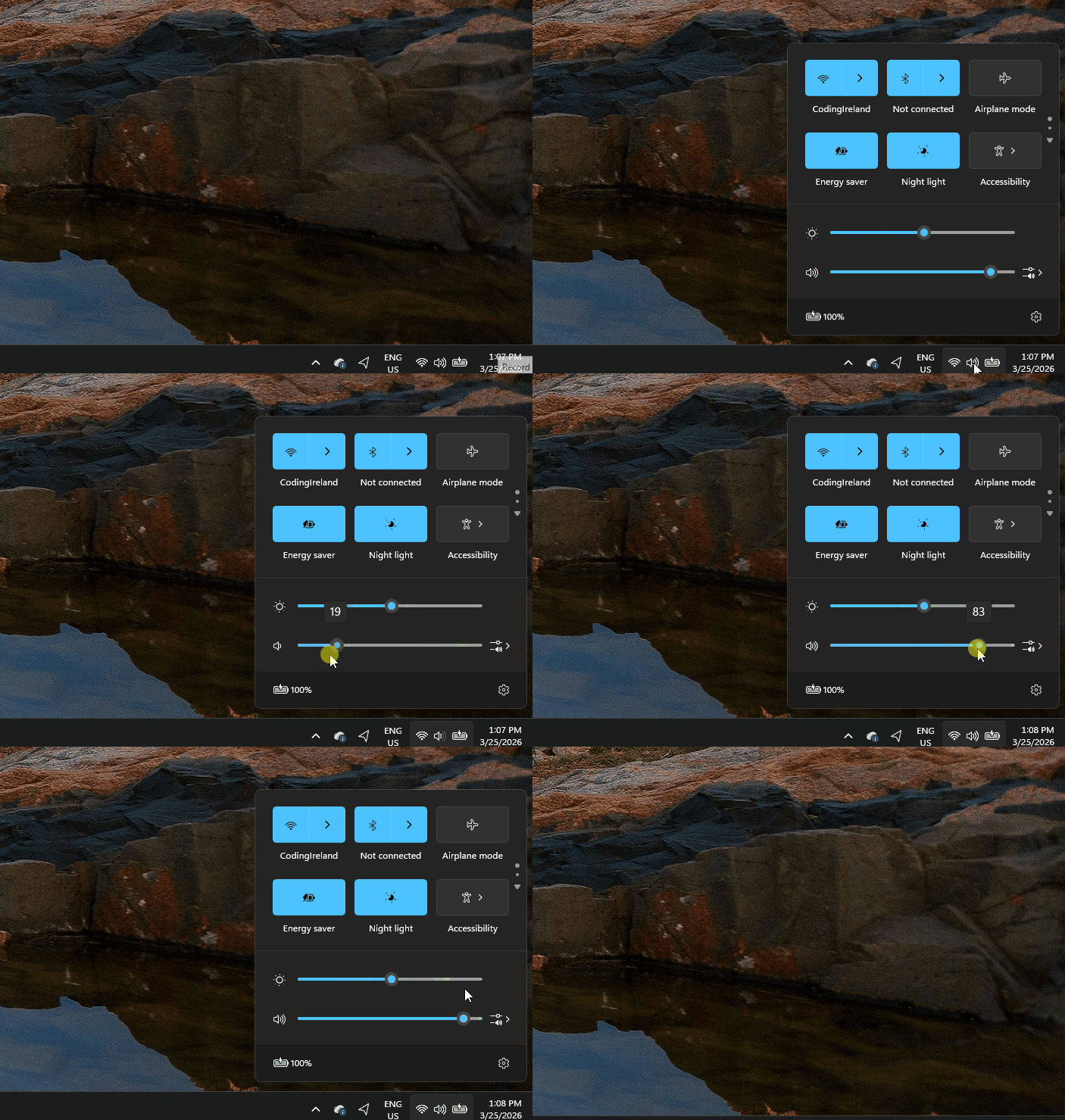
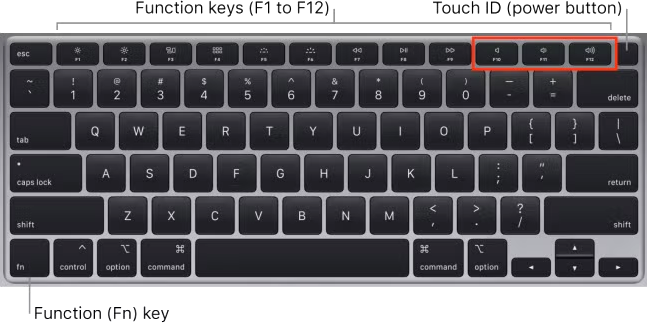
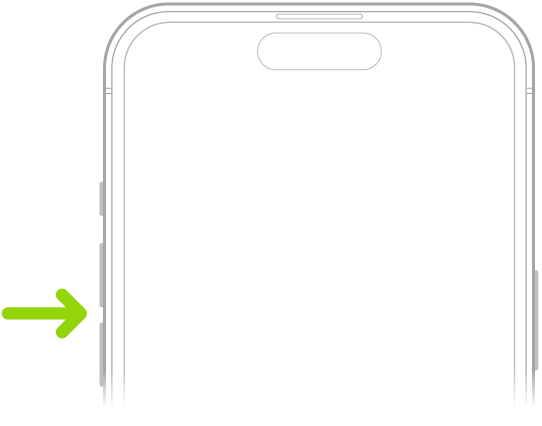
On most devices, you can change the volume using the volume buttons on the side or keyboard, or in Settings.
How to adjust volume on your device
-
Windows:
Click the sound icon on the taskbar and move the volume slider -
Mac:
Use the volume keys on the keyboard or go to System Settings > Sound -
iPhone:
Use the side volume buttons or go to Settings > Sounds & Haptics -
Android:
Use the volume buttons or go to Settings > Sound
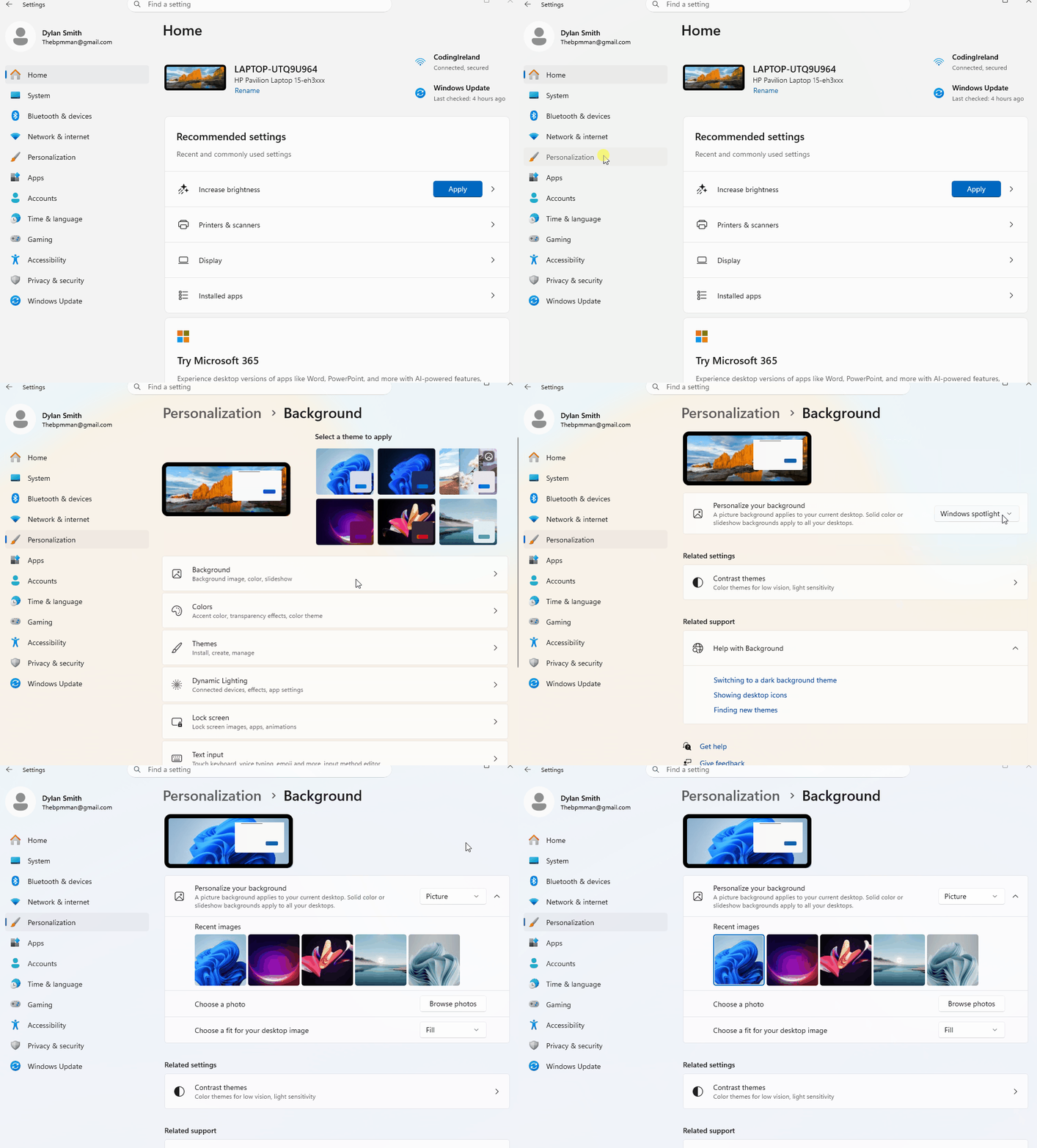
5 - Set a Wallpaper
You might choose a favourite photo, a nature image, or a simple background that makes text and icons easy to see.
- Windows: Open Settings > Personalisation > Background
- Mac: Open System Settings > Wallpaper
- iPhone: Open Settings > Wallpaper
- Android: Touch and hold the home screen, or open Settings > Wallpaper
On most devices, you can choose from built-in wallpapers or use one of your own photos.
Unlock the full learning experience
You're previewing this lesson. Get full access to this lesson and hundreds more — each one ready to teach, with interactive activities, printable resources and pupil progress tracking built in.
This lesson is copyright of Coding Ireland 2017 - 2026. Unauthorised use, copying or distribution is not allowed.