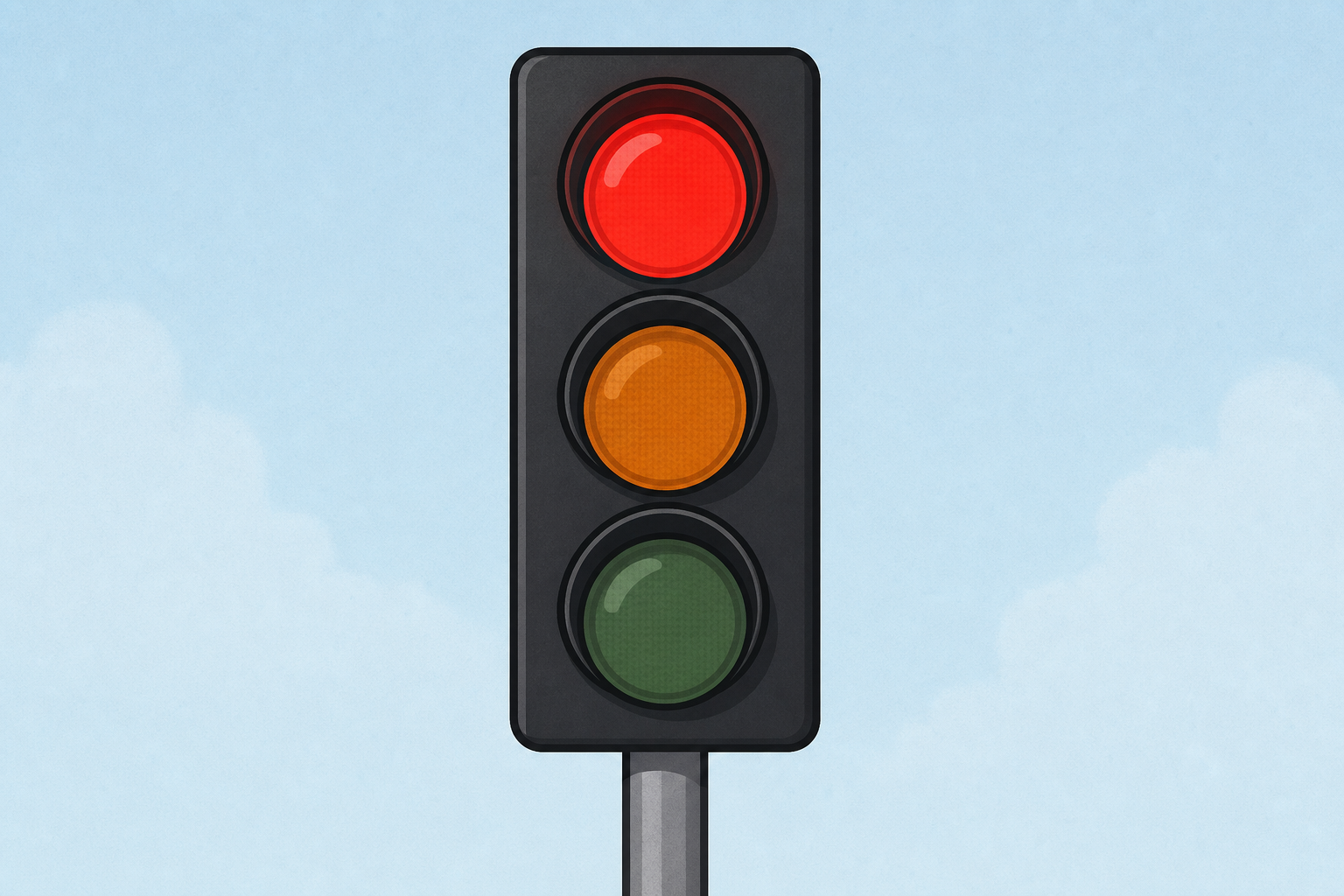
 Traffic lights all around Ireland run on code — a computer inside the box tells the lights exactly which colour to show and for how long, in the same order every time. That order is called a sequence, and getting it right keeps cars and people safe. Today you become the programmer: you'll build your own set of traffic lights in Scratch, block by block. Watch the board first as we model each piece, then build it on your device and run it to see what your code does.
Welcome to our exciting project! Today, we are going to program a set of traffic lights to display the lights in the right order. But before we start, let's talk about what a sequence is.
A sequence is like a list of instructions that we follow in a specific order. Just like when we get ready for school, we first brush our teeth, then we get dressed, and finally, we have breakfast. In coding, a sequence is a set of instructions that a computer follows one after the other.
In our project, we will create a sequence for our traffic lights to change from red, to green, and then to orange. Are you ready to start? Let's go!
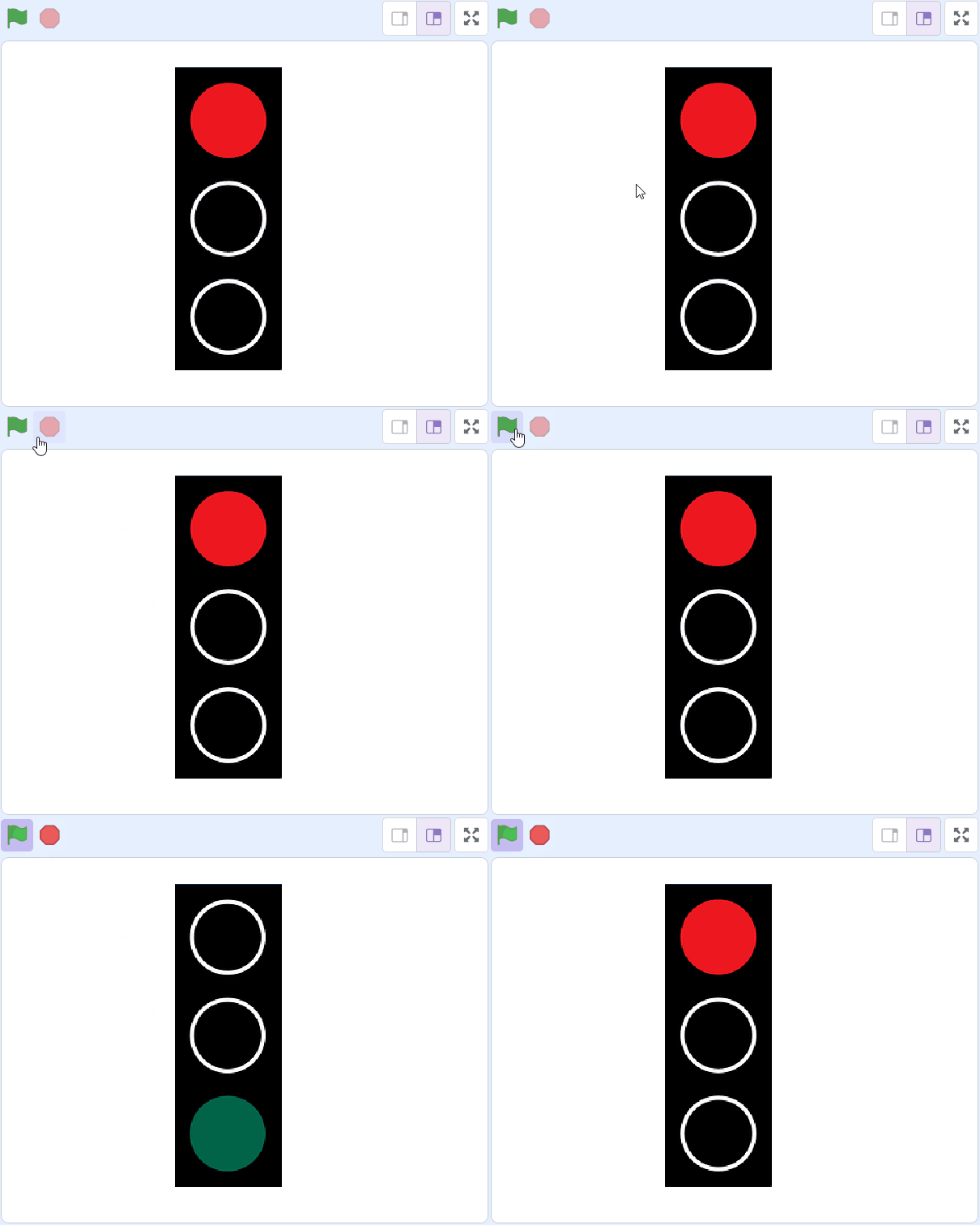
In this lesson we are going to program a set of traffic lights to display the lights in the right order.
Click on the link below to open a starter project that already has a traffic light sprite added to it.
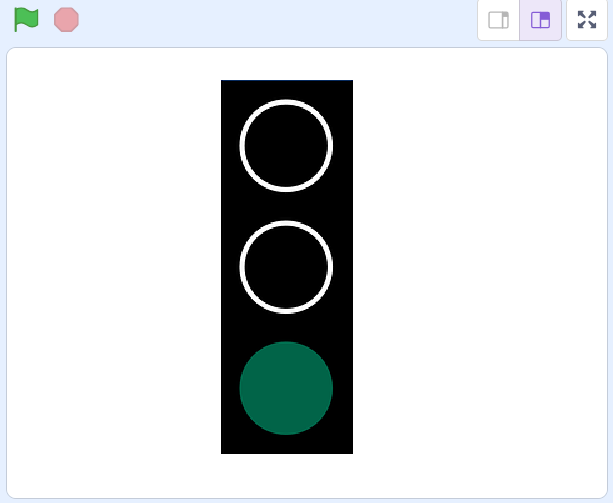
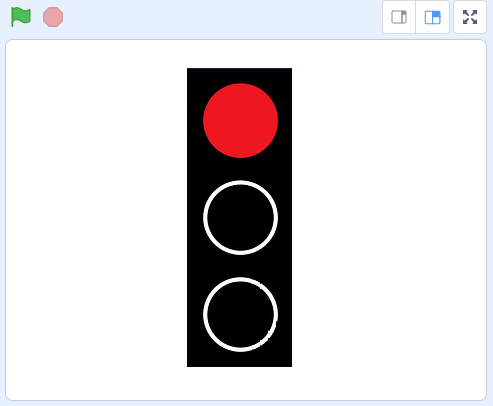
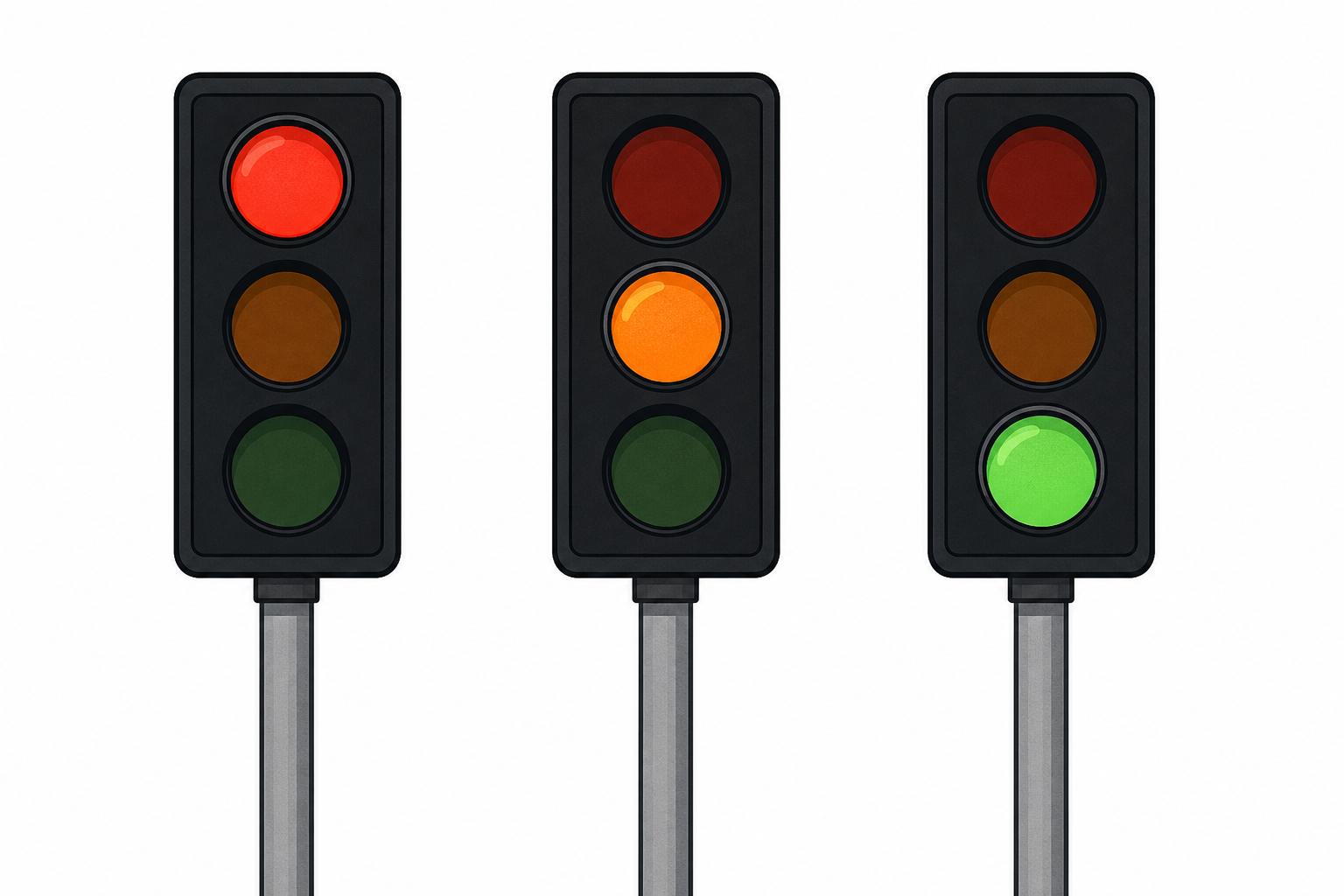 The traffic lights sprite has 3 costumes, a red costume, an orange costume and a green costume.
Let's program the traffic light to show the red light for 5 seconds. Add the following code to the traffic light sprite.
when green flag clicked
switch costume to (red v)
wait (5) seconds
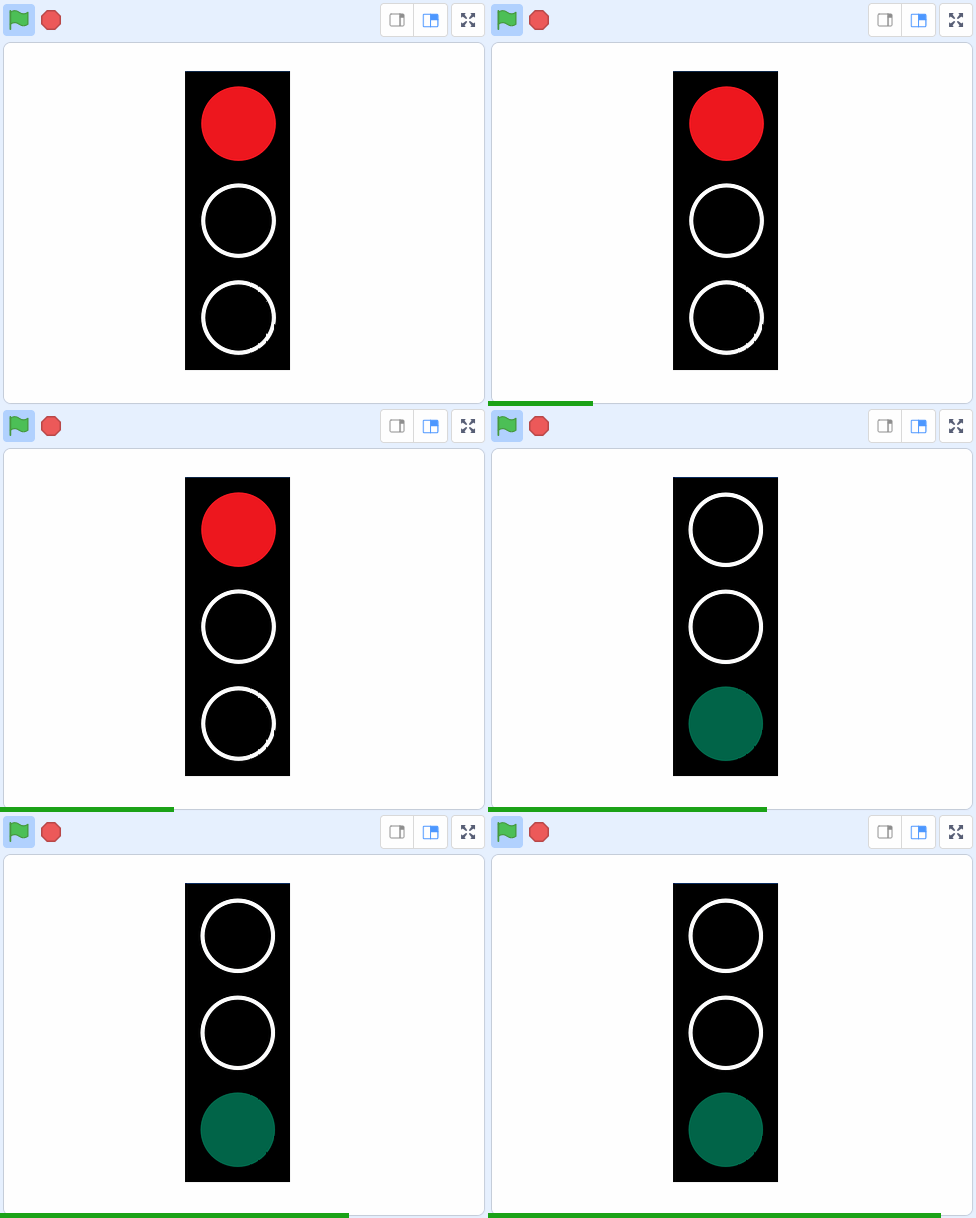
Now let's program the traffic light to show the green light for 10 seconds after the red light is finished. Add the following code blocks to the traffic light sprite.
when green flag clicked
switch costume to (red v)
wait (5) seconds // add them under here
switch costume to (green v)
wait (10) seconds
- show the red light for 5 seconds
- then show the green light for 10 seconds
Unlock the full learning experience
You're previewing this lesson. Get full access to this lesson and hundreds more — each one ready to teach, with interactive activities, printable resources and pupil progress tracking built in.
This lesson is copyright of Coding Ireland 2017 - 2025. Unauthorised use, copying or distribution is not allowed.
Scratch is developed by the Lifelong Kindergarten Group at the MIT Media Lab. It is available for free at https://scratch.mit.edu