Computer Skills
Beginner
60 mins
Teacher/Student led
+105 XP

What you need:
Chromebook/Laptop/PC or iPad/Tablet

Working with Others — Collaboration, Feedback & Email

Swap your pitch deck with a peer, exchange constructive feedback using comments, and practise composing a professional email with an attachment. Learn to accept, decline, and act on feedback before your live pitch.


Teacher Class Feed

Load previous activity

    1 - Introduction

    Illustration for Introduction

    Welcome

    Last lesson you built a 5-slide pitch deck for your Something Real. Today you'll swap decks with a classmate, comment on their work, hear what they thought of yours, and make at least one change before the live pitch next week. You'll also learn how to write the kind of email a teacher or a parent will actually read, with a subject line that doesn't get ignored and an attachment that actually arrives.

    By the end of this lesson, you will be able to:

    • Share a document with a peer and add comments and suggestions to their work
    • Give feedback that includes a concrete suggestion, not just praise
    • Act on feedback you receive, deciding what to accept, what to decline, and recording why
    • Compose a clear email with a subject line, appropriate attachment, and a proper sign-off

    Warm-up

    Think about a time someone gave you feedback on something you made: a school project, a photo, a draft of a message. What made the feedback useful to hear? And what made some feedback less useful, even when the person meant well? You don't need to write anything down, just hold it in your head for the next ten minutes.

    2 - Key Concepts — Collaboration

    Three ideas that separate useful peer feedback from feedback that just takes up space in the margin.

    ConceptWhy it mattersExample
    Comment — a note attached to a specific part of a document or slide, used to ask a question or point something out without editing the contentLets a reviewer flag something without rewriting the owner's work, and keeps the conversation next to the thing it's aboutA classmate adds a comment on your "The Ask" slide: "This line is vague — can you name the actual euro amount?"
    Suggestion mode / Track changes — proposed edits shown as coloured markup the owner can accept or reject one by one. Available in Google Docs (Suggesting) and Word (Track Changes). Slides apps (Google Slides, PowerPoint) don't have this; reviewers use comments insteadThe owner stays in control. No unwanted rewrites land in the file, and there's a record of what was proposedOn a Google Docs project brief, your partner turns on Suggesting and proposes changing "Our fundraiser will be great" to "15 students signed up in one day"; you accept it with one click
    Constructive feedback — feedback that names a specific thing AND suggests what to do about it, instead of just "good job" or "this is bad""Good job" teaches nothing and "this is bad" hurts without helping; a concrete suggestion gives the maker something to actually act onInstead of "your chart is confusing", write "the y-axis has no label — could you add € so readers see these are euro amounts?"

    3 - Step-by-step — Share a Deck and Add a Comment

    Open your own pitch deck and practise the full commenting workflow: set up sharing with the right permission level, then add one constructive comment as a worked example. The accept/decline decisions happen later in Independent Practice, where real feedback from your partner lands.

    4 - Common Issues

    Common Issues

    IssueSolution
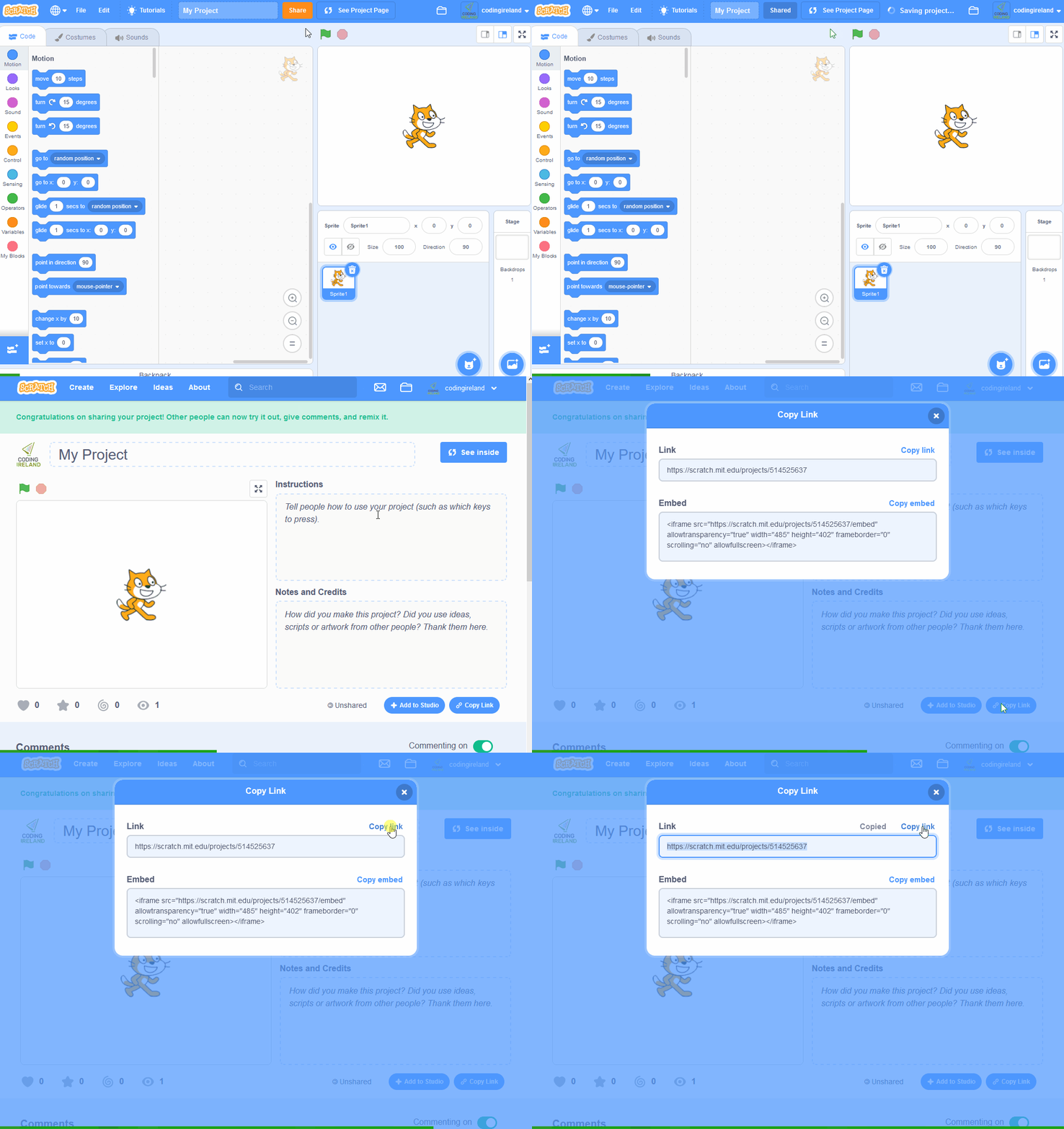
    My share link doesn't work for my partner. They see "request access"Open Share again, check the permission is {{btn:Can review}} or {{btn:Can comment}} (PowerPoint for the web) or {{btn:Commenter}} (Google Slides), and make sure the access scope is set correctly. If you added them by email, confirm you typed the exact school-account address. As a fallback, use {{btn:Copy link}} with "Anyone with the link can comment".
    My attachment is too big to send by emailExport the deck as a PDF first: {{menu:File -> Download -> PDF Document}} (Google Slides) or {{menu:File -> Export -> PDF}} (PowerPoint for the web). PDFs are usually 5–10× smaller than the original deck. If the PDF is still too big, send a share link to the live file instead of an attachment.
    I can't find where my comments wentBoth apps keep a comments pane. In PowerPoint for the web, open {{menu:Review -> Show Comments}}. In Google Slides, click the speech-bubble icon near the Share button in the top-right to open comment history.

    5 - Key Concepts — Email

    Two ideas that separate an email that gets opened first from one that gets buried.

    ConceptWhy it mattersExample
    Subject line — the one-line summary that tells the reader what the email is about before they open itTeachers and adults get dozens of emails a day; "hi" or "quick question" gets buried, a clear subject gets opened first"TY ICT — feedback from Aoife on my pitch deck" instead of "hi"
    CC vs BCC — CC (carbon copy) sends a visible copy to someone; BCC (blind carbon copy) sends a hidden copy that other recipients can't seeCC loops someone in openly (e.g. your partner when you email your teacher about shared work); BCC protects privacy when you don't want recipients to see each other's addressesEmailing the teacher with your partner CC'd means the teacher knows you both worked on it; BCC'ing a whole class means no one sees each other's email addresses

    Unlock the Full Learning Experience

    Get ready to embark on an incredible learning journey! Get access to this lesson and hundreds more on our learning platform.

    Copyright Notice
    This lesson is copyright of Coding Ireland 2017 - 2025. Unauthorised use, copying or distribution is not allowed.
    🍪 Our website uses cookies to make your browsing experience better. By using our website you agree to our use of cookies. Learn more