Opening question: what do you think it means for a computer to follow instructions, exactly and in order?
Today we're coding in Scratch. First we'll spend five minutes seeing where this course goes — games, a website, micro:bit, Python, and the single classroom-based assessment at the end. Then you'll build your first Scratch program at your device: a sprite that moves and loops, with a backdrop behind it. We predict first, then build, run and fix.
Frame the lesson briefly: spend five minutes mapping the course — games, a website, micro:bit, Python, and the single CBA — so students see where this is going. Then explain the rhythm: predict, build, run, fix. Ask: 'What do we mean when we say a computer follows our instructions in order?' Keep this tight so most time goes to the build.
Before anyone clicks the green flag, look at what we're about to build and commit to a prediction.
When the program runs, what will the sprite do? What will you see happen first? Say it out loud to your partner before you build it — we'll come back to your predictions later.
This is the predict beat — don't skip it. Ask 'What will the sprite do? What will you see first?' and collect two or three predictions on the board. Park them visibly; you'll return to them at make-sense. Reassure students that a wrong prediction is fine and useful.
Scratch is a coding website that we can use to create our own games, animations and projects.
Watch this short minute video to get a quick introduction to it.
Play the short intro video together. Keep it brief — it sets context only. Ask afterwards what kinds of things students think they could make in Scratch, linking to the course map.
Now let's take a look at the Scratch website!
Open the Scratch website by clicking on the link below. Once it opens up click on the Create link at the top of the page. This will open up the project editor. Once you've done that come back to this tab and move onto the next step.
Go to the Scratch website using the link below and click on the 'Create' link in the blue bar at the top.
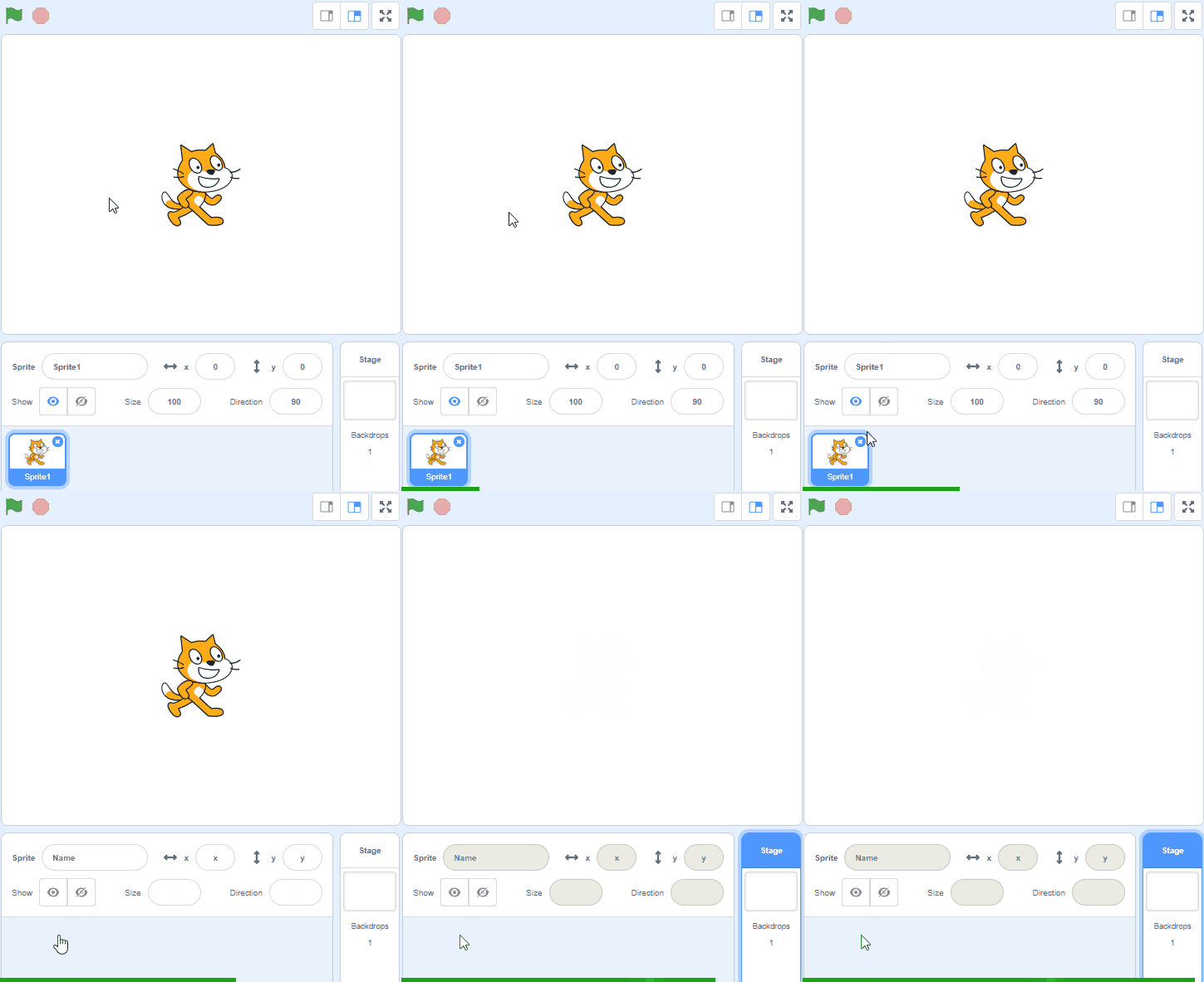
By default, each new project starts with the cat sprite already added. To delete the cat click on the x in the blue circle beside the cat in the sprite list.
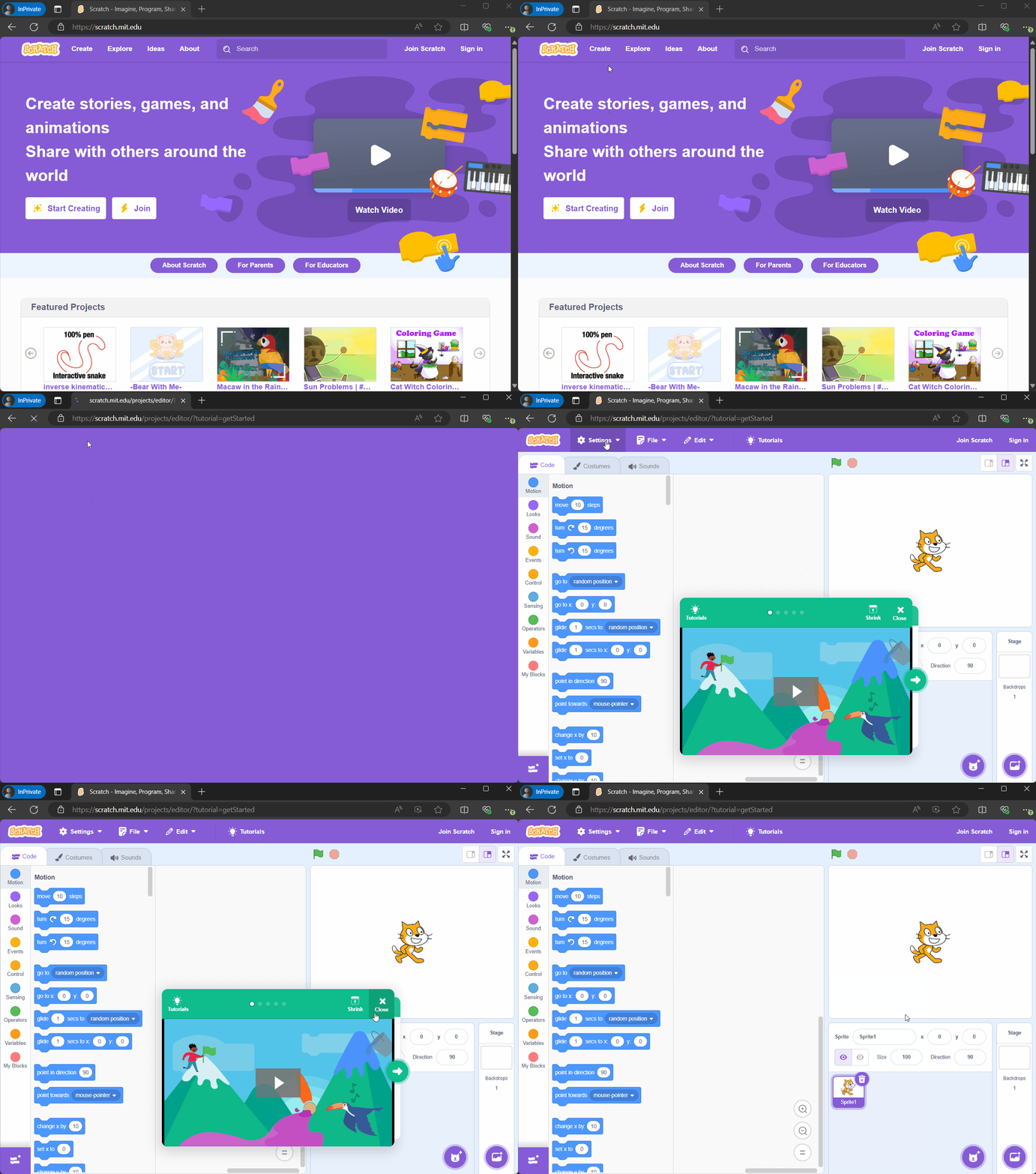
Model on the board: open the site and click Create to reach the project editor. Watch for students who stay on the homepage or lose the tab — have them check they're in the editor before moving on. Support cue: pair anyone unsure of navigating tabs.
Every new Scratch project starts with a default sprite, which is a cat. For our project, we want to start with a blank slate, so we will remove this cat sprite.
To do this, look below the stage area where you see a small thumbnail of the cat sprite. In the corner of this thumbnail, there's a small 'x'. Click on this 'x' to remove the cat sprite from your project.
Don't worry about losing the cat sprite. If you ever want it back, you can always find it in the sprite library!
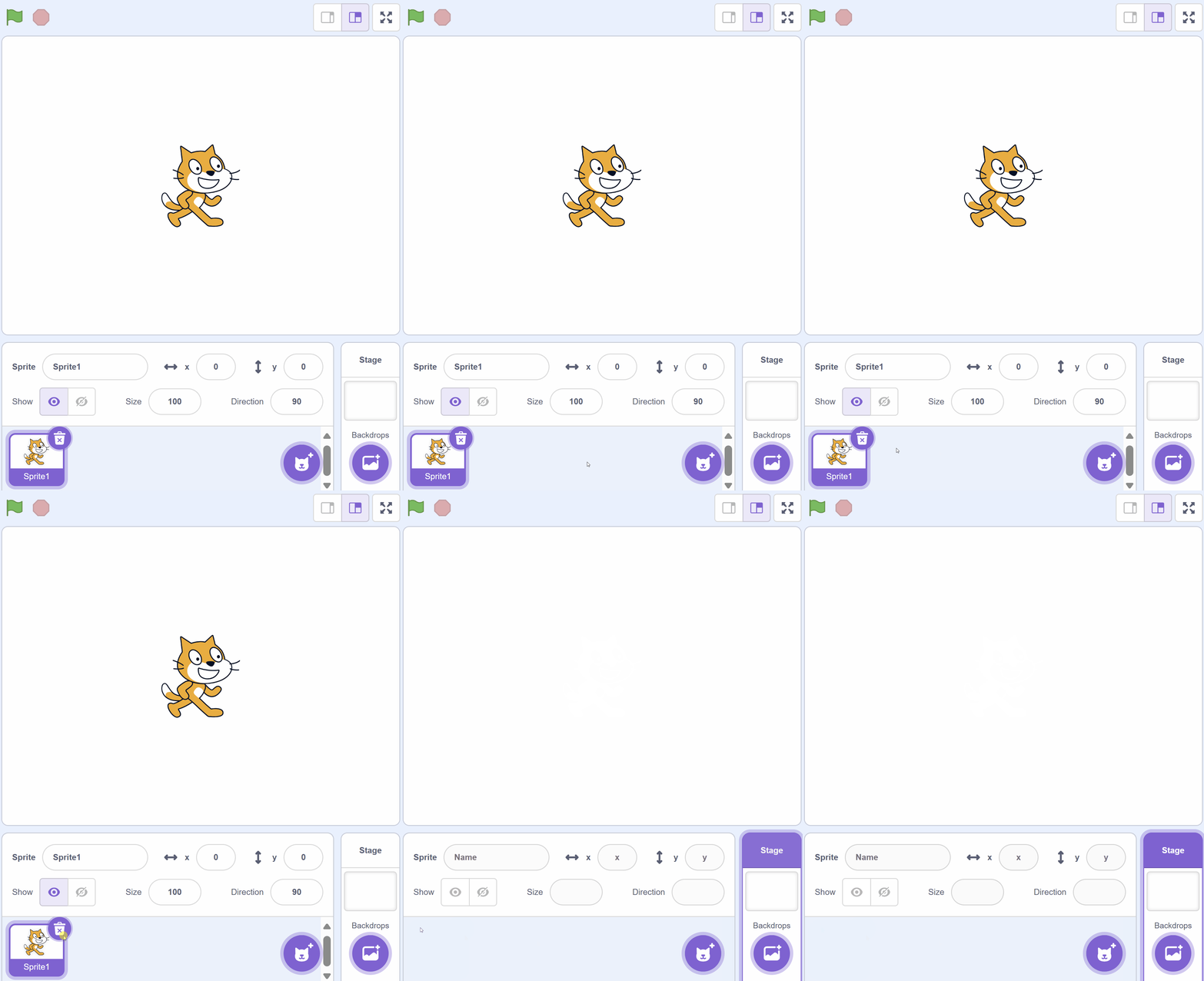
Show the cat thumbnail below the stage and the small 'x' on the board. Common slip: students click the cat itself rather than the 'x', or worry they've lost it — reassure that it's still in the library. Check everyone has a blank stage before adding the bat.
Unlock the full learning experience
You're previewing this lesson. Get full access to this lesson and hundreds more — each one ready to teach, with interactive activities, printable resources and pupil progress tracking built in.
This lesson is copyright of Coding Ireland 2017 - 2025. Unauthorised use, copying or distribution is not allowed.
Scratch is developed by the Lifelong Kindergarten Group at the MIT Media Lab. It is available for free at https://scratch.mit.edu