1 - Start: What We're Building ~5 mins
Quick recap: you can already give a computer step-by-step instructions to follow. But what if you wanted it to recognise something instead — like telling rock from paper from scissors?
Today you will train your own image-recognition model in Teachable Machine. You will create classes, show it examples from your webcam, train it, then test whether it gets your gestures right. Work in pairs at your devices — predict first, then build, run and fix.
Open with the recap question — students can already give a computer instructions to follow; today it learns to recognise instead. Set the scene that they are training their own AI to tell rock, paper and scissors apart. Don't list the steps; just frame the predict-build-run-fix cycle and put students into pairs.
2 - Predict Before You Run ~10 mins
Before anyone runs anything, look at what we are about to build and commit to a prediction.
When you train a model on photos of your own hand and then show it a new gesture, what do you think will happen? Will it always be right? What will you see on screen first when you test it? Tell your partner your prediction so we can check it later.
This is the PRIMM predict beat. Ask: will the model always be right, and what will appear on screen first when tested? Collect two or three predictions and write them on the board to revisit at the make-sense step. Accept all answers — the point is committing before running.
3 - Introduction ~3 mins
In this lesson, you will create an image model using Google's Teachable Machine to recognise rock, paper and scissors hand gestures.
Google's Teachable Machine is a tool that allows you to create machine learning models. You'll train the model to recognize different hand gestures for rock, paper, and scissors.
In another lesson in this course we will use the model to build an AI Rock, Paper, Scissors game.


Introduce the idea of a machine learning model in plain terms and flag that the model built today will be reused in a later part of the course. Key question: what is the difference between coding rules ourselves and showing the computer examples? Misconception to head off: the model is not pre-programmed with gestures — it learns only from what students give it.
4 - Open Teachable Machine ~3 mins
First we need to open the Google's Teachable Machine website to create our model.
Click on the Get Started button.

Model opening Teachable Machine on the board so students see exactly where to click. Watch for students landing on the wrong project type. Differentiation cue: pair a confident navigator with a student less sure of browsers.
5 - Create an Image Project ~3 mins
Click on the Image Project button to create a new image model project, and then click on the Standard image model option.
This will bring you to the screen where we can create our classes for our image model.
In an AI image model, a class is a category that the model can recognize. For example, in our rock, paper, scissors game, we will have three classes: rock, paper, and scissors. The AI will learn to recognize images of each class and be able to tell them apart.

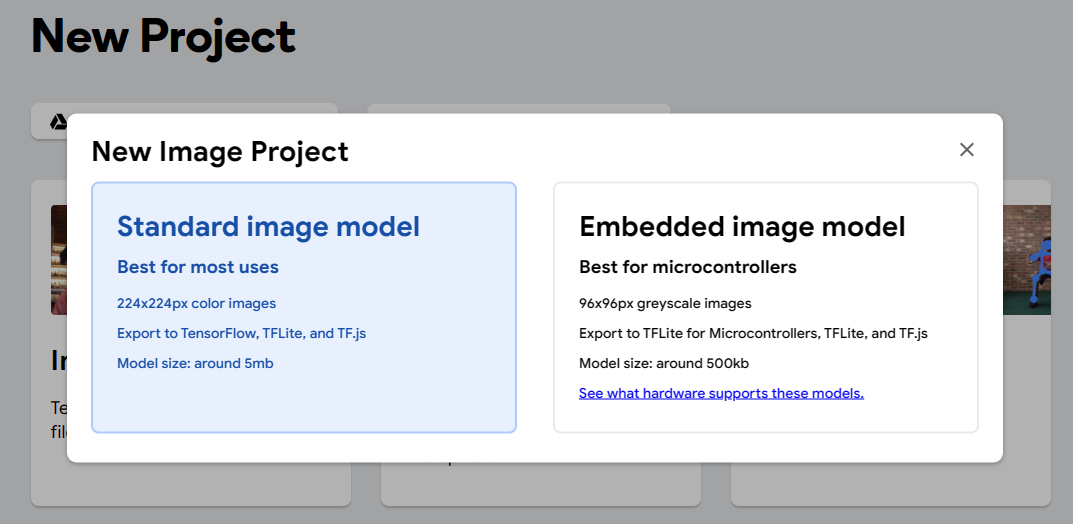
Demonstrate choosing the image project and the standard option. Key question: what is a 'class' and why do we need three? Reinforce that a class is a category the model learns to recognise. Watch for students who skip past the standard option.
Unlock the full learning experience
You're previewing this lesson. Get full access to this lesson and hundreds more — each one ready to teach, with interactive activities, printable resources and pupil progress tracking built in.
This lesson is copyright of Coding Ireland 2017 - 2025. Unauthorised use, copying or distribution is not allowed.