Today you will
- open Settings on your own device.
- change the brightness and volume.
- turn on one accessibility feature and try it for five minutes.
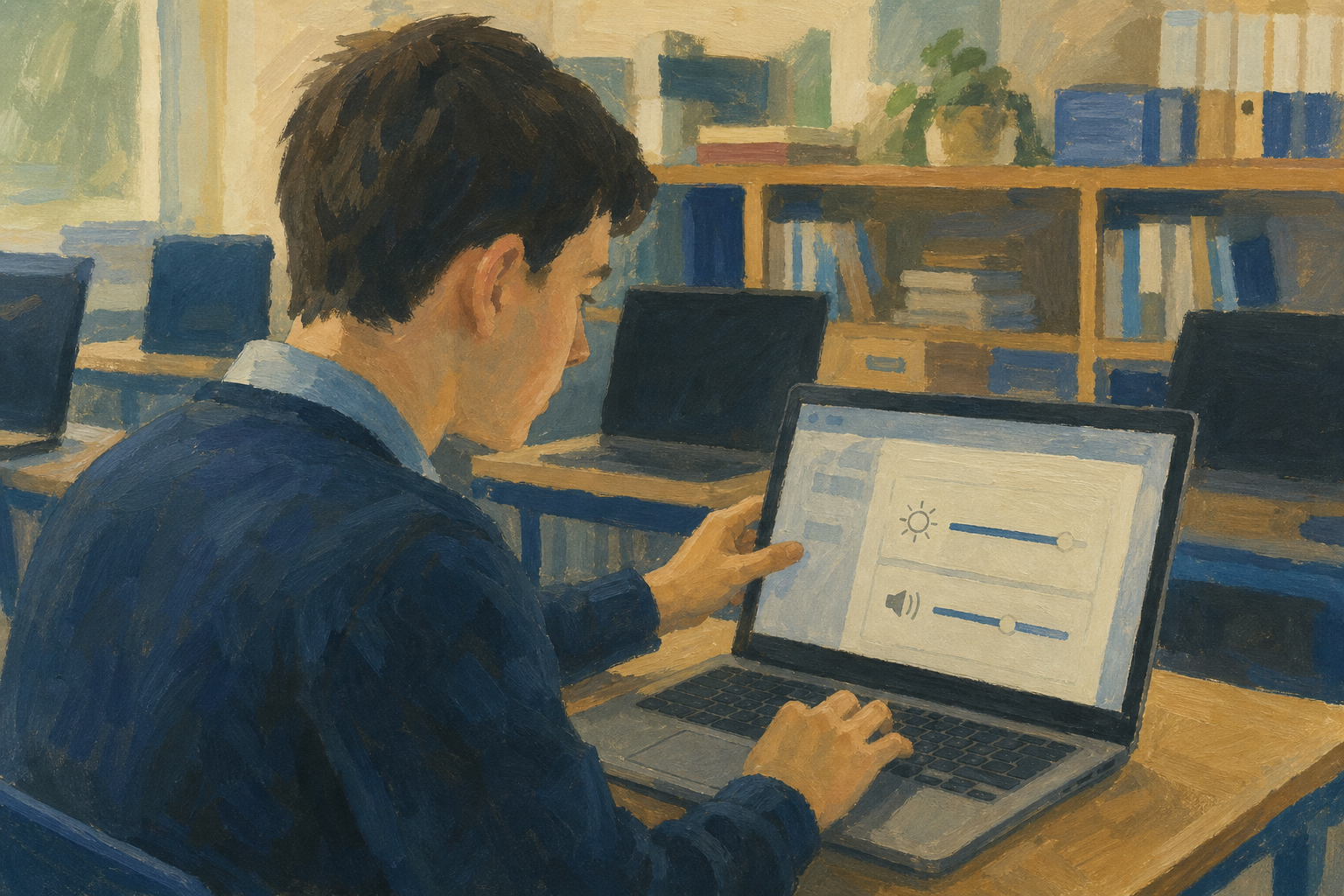 To warm up, think about the last time you worked on a screen for a long time. Was the screen too dim, the sound too loud, or the text too small?
The operating system (OS) is the software that runs your computer. It might be Windows, macOS or ChromeOS.
Settings is the control centre where you change the screen, the sound and more. On a Mac it is called System Settings.
Accessibility features are built-in tools that help you see, hear or use the computer more easily. Zoom, larger text, high contrast, dictation and read-aloud are all examples.
On Work Experience, you could use Magnifier on a small laptop to read tiny product codes.
Open the tab for your own computer: Windows, Mac or Chromebook. Follow the steps in the box below and tick each one. You will change the brightness and volume, then turn on one accessibility feature. Leave that feature on for the next task.
If you get stuck
- If there is no brightness slider, skip it and move on to the sound.
- If everything is huge, turn the feature off in Accessibility, or press {{kbd:Win+Esc}} on Windows.
- If you can't find a feature, type its name, like Magnifier or Zoom, into the Settings search box.
- If dictation won't start, pick zoom or larger text instead.
Independent Practice
- Keep your feature on and use the computer normally for five minutes.
- Go to {{code:onedrive.com}} or {{code:drive.google.com}} and open {{code:Project_Portfolio}}, then {{code:01_brief}}.
- Watch your teacher's demo, then make a new blank document there.
- Click the title and rename it {{code:01_accessibility_note}}.
- Copy the four headings below and write one line after each one in your own words.
Feature tried:
What it does:
Who it helps:
My five-minute try:
If you can't find the {{code:01_brief}} folder, ask your teacher for help.
When your note is written, you can turn the feature off.
- {{code:01_accessibility_note}} is saved in {{code:01_brief}}.
- It names the feature I turned on.
- It says what the feature does and who it helps.
- It says how my five-minute try went.
Unlock the full learning experience
You're previewing this lesson. Get full access to this lesson and hundreds more — each one ready to teach, with interactive activities, printable resources and pupil progress tracking built in.
This lesson is copyright of Coding Ireland 2017 - 2025. Unauthorised use, copying or distribution is not allowed.